
Pixel phones are still often thought of as being “stock Android”—devices that are free from bloat and offer Android in its purest form. But they aren’t. Pixel phones are Google phones, and they come packed with apps and features that could technically be called bloatware.
The myth of pure Android
Pixel phones are less bloated than devices from other Android manufacturers. Fewer features than Samsung phones, and none of the outright junk that’s installed on some of the Chinese-made handsets, some of which even serve you ads. But they can’t be described as running stock Android.
In fact, stock Android no longer exists—on mainstream consumer phones, at least—and its ultra-stripped back design would likely come as a shock if you did encounter it. In this respect, it’s actually a good thing that Pixels are so heavily customized.
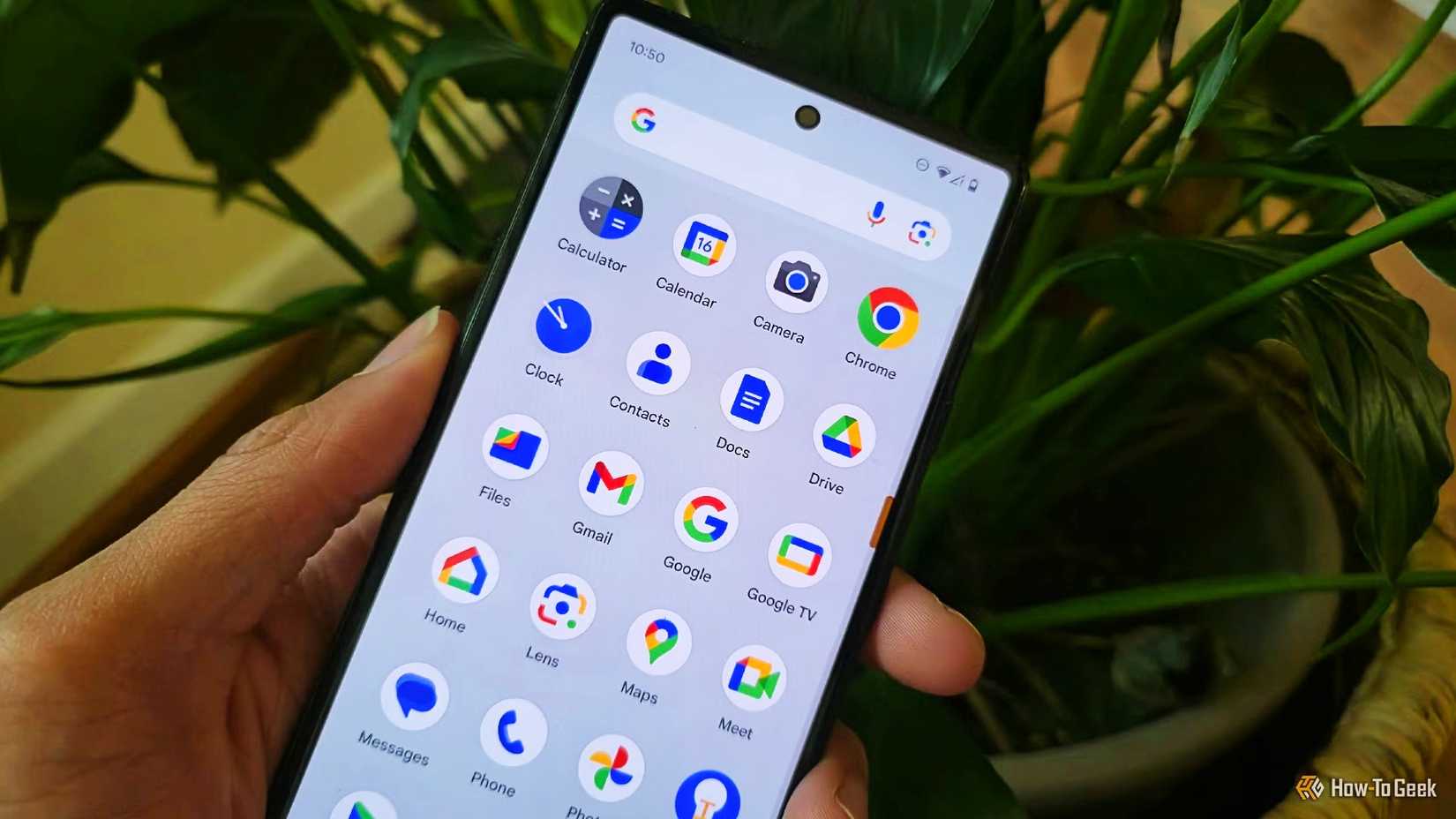
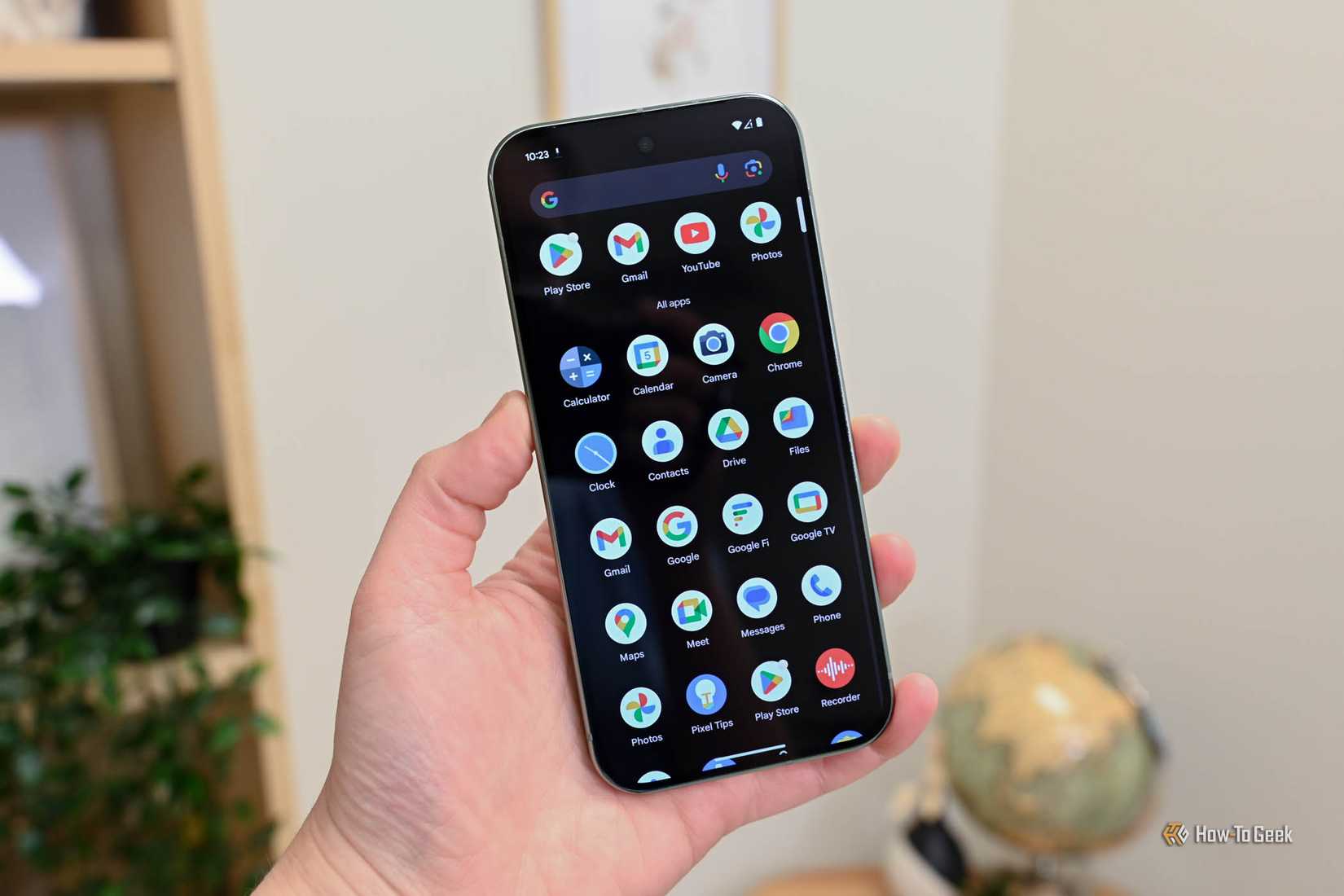
They don’t contain third-party apps unless they’re installed by a carrier, so you don’t have to deal with Facebook and LinkedIn and the selection of random games that you might find on other phones. But they do come with several preinstalled apps, and if you don’t want or use them and could install them freely anyway, then they fit the broad definition of bloatware.
Credit: Bertel King / How-To Geek
Many of the preinstalled apps are useful. It’s unlikely that most people would want to uninstall Gmail or YouTube, for example. Some may be less useful. I don’t use Chrome, so that’s the first to go when I’m setting up a new device. And some fall into a gray area, like Google Photos. That’s the default gallery app for the Pixel camera, and there’s no easy way to change it if you want to use an alternative.
And then there are all the things that make up what a Pixel is, from the ever-expanding array of AI tools, of which many don’t always live up to expectations, to the annoying At A Glance and Google Search widgets that are permanently fixed to your home screen whether you use them or not.
Which apps you can uninstall
In most cases, you can’t remove the apps that are preinstalled as part of the full Pixel software. You can nix Google Play Games and Books if you aren’t a gamer or reader, but for the other built-in apps, like Chrome, Drive, Maps, and even Calculator, you have to resort to other means to get rid of them.
Credit: Hannah Stryker / How-To Geek
You might have other Google apps you don’t need as well, though. Depending on your phone and region, the initial setup process invites you to install more apps, and they tend to be pre-selected, so it’s easy to simply click through and install them.
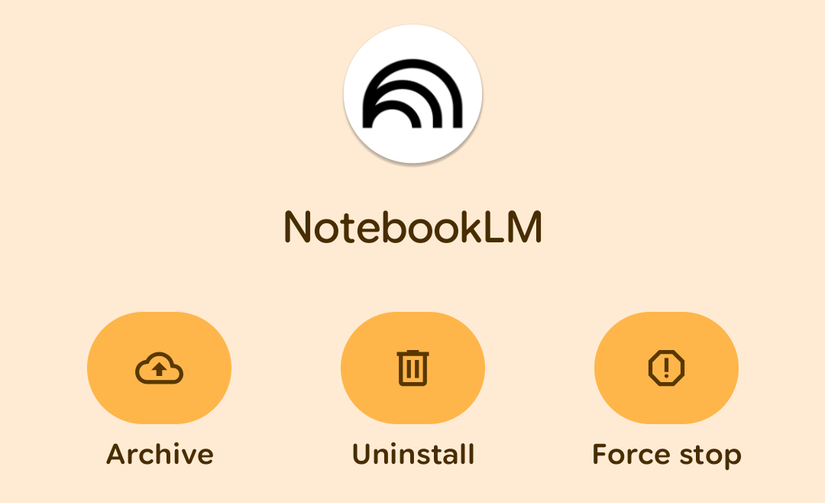
You can easily end up with another dozen apps that you didn’t explicitly choose. Some, like Keep and Wallet, have broad appeal and will often be worth keeping. But many people won’t have much use for NotebookLM and Journal, and apps like Fitbit and the Pixel Watch companion app require you to own those devices. If you installed those by mistake, you can uninstall them straight away.
The advanced way to uninstall unwanted apps
If you’re keen to remove some of the built-in apps, there is a more advanced method you can try. It involves using the ADB tool, which is incredibly powerful and lets you perform certain system tasks that aren’t accessible through the normal Android UI.
It’s not for everyone, though. For a safer way to remove these apps, you can disable them instead.
You can disable the apps you don’t need
The disable feature is designed for apps that are integrated into the Pixel software and which cannot be easily uninstalled. Disabling an app shuts it down, deletes any updates you’ve installed, and hides the app from your app drawer. From the user’s point of view, the effect is the same as uninstalling. But because it doesn’t get deleted, you don’t recover the space it takes up.
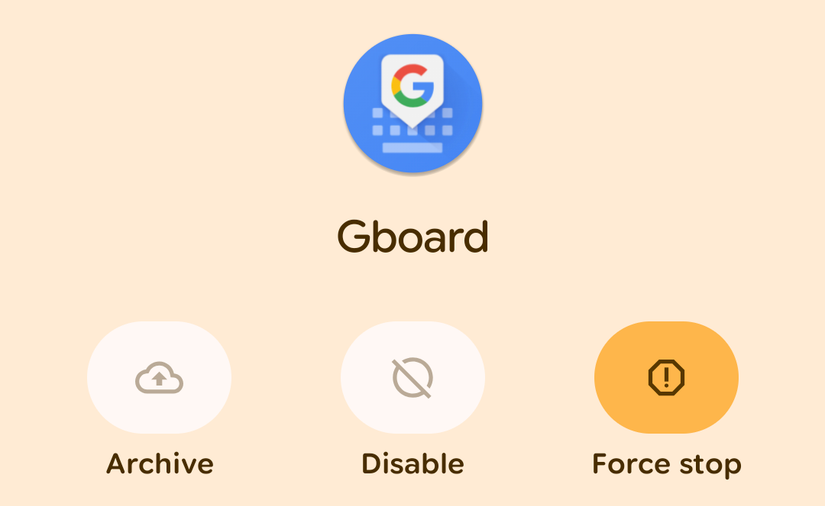
Apps can’t be used at all while they’re disabled. If any other app or part of your phone needs to use it, they might also not work properly. You don’t need to worry about this too much, though, as the Disable option is not available for critical system elements.
So what can you disable? Essentially, any of the preinstalled apps that you don’t need, either because you don’t use them or because you’d rather use an alternative. For me, that includes Chrome, Android TV, Meet, My Pixel, and Recorder. For you, it might also include Gboard, if you use a different keyboard, and things like Gemini and YouTube Music.
To do it, go to Settings > Apps > See all apps, and tap through the Google apps you don’t want. If there’s an Uninstall button, you can remove it. Otherwise, disable it.
Tap the three-dot menu button and select “Show system” to see all the Android system apps as well. You can disable some of these, too, but don’t go crazy. There’s little value in disabling things that are hidden anyway unless they’re using a lot of battery power.
To re-enable apps, go to Settings > Apps > See all apps > All apps > Disabled apps, then select an app and tap Enable.
Pixel phones have a lot less bloatware than most other Android brands. But they still come packed with a whole raft of Google apps and features that you might not want to use. By uninstalling or disabling them, you can take more control over your phone and reduce the clutter in your home screen and app drawer.