
You unbox a gleaming new Samsung Galaxy, powered by the latest Snapdragon processor and enough RAM to launch a rocket. You set it up, admire the screen, and then open the app drawer — only to be greeted by a cacophony of apps you never asked for. Bixby. Samsung Health. Samsung Pay. Game Launcher.
Why do I need two calendar apps? Why is there a separate app store just for Samsung? And what exactly is an “AR Zone”? These pre-installed Samsung apps occupy precious storage space, consume system resources, and stubbornly resist deletion via conventional means.
But what if you could make them vanish? Not just disable them, but actually remove them from your device without unlocking the bootloader or voiding your warranty? That’s exactly what Universal Android Debloater Next Generation (UAD-NG) enables you to do. It turns the complex world of Android Debug Bridge (ADB) commands into a simple, visual menu you can use easily.

OS
Windows, Linux, macOS
Price model
Free (open-source)
Remove unwanted apps easily with Universal Android Debloater Next Generation. It helps you safely debloat Android devices for better performance and longer battery life.
Universal Android Debloater Next Generation exorcises the “system” apps Samsung insists you keep
It safely does that without needing root
The conventional wisdom has always been that to eliminate system apps on Android, you need root access. Rooting grants you superuser permissions, allowing you to mount the system partition as read-write and delete whatever you please. But rooting also triggers SafetyNet failures, breaks banking apps, voids warranties, and requires technical sophistication that many users don’t possess. It then begs the question: Do you still need to root your Android phone?
UAD-NG circumvents this entire ordeal by exploiting a loophole in Android’s architecture. While system apps reside in the protected /system partition that only manufacturers can modify, Android also stores user data and cache in the /data partition. The tool doesn’t really delete system packages — instead, it uninstalls them for all user profiles, effectively freezing them and preventing them from loading into memory.
The apps disappear from your app drawer, stop consuming RAM, stop running background processes, and stop siphoning battery life. Even after rebooting, these processes remain dormant. The only caveat is that a factory reset will restore everything, since the original packages still technically exist in that read-only system partition. However, this trade-off is more than acceptable for me.
UAD-NG uses ADB to remove system apps from your Samsung phone
It’s not as complicated as you might think
Now it’s time to really get into using UAD-NG. The process involves three straightforward steps: enable USB debugging on your Android device, install Android Debug Bridge on your computer, and launch the Universal Android Debloater application.
USB debugging is Android’s built-in developer feature that allows external devices to communicate with your phone through ADB. You’ll find it buried in Developer Options, which itself is hidden by default. To unlock it, navigate to Settings, find your phone’s build number (usually under About Phone), and tap it seven times. Developer Options will materialize in your settings menu, where you can toggle USB debugging.
Installing ADB is equally painless. On Linux, you can install it through your package manager. On Windows, you can use Chocolatey or download platform tools directly from Android’s developer site. On macOS, Homebrew handles it cleanly. Once ADB is installed, connect your phone to your computer with a USB cable. Open PowerShell on Windows or Terminal on macOS and Linux, navigate to the folder containing ADB, then run the following command and press Enter or Return:
adb devices
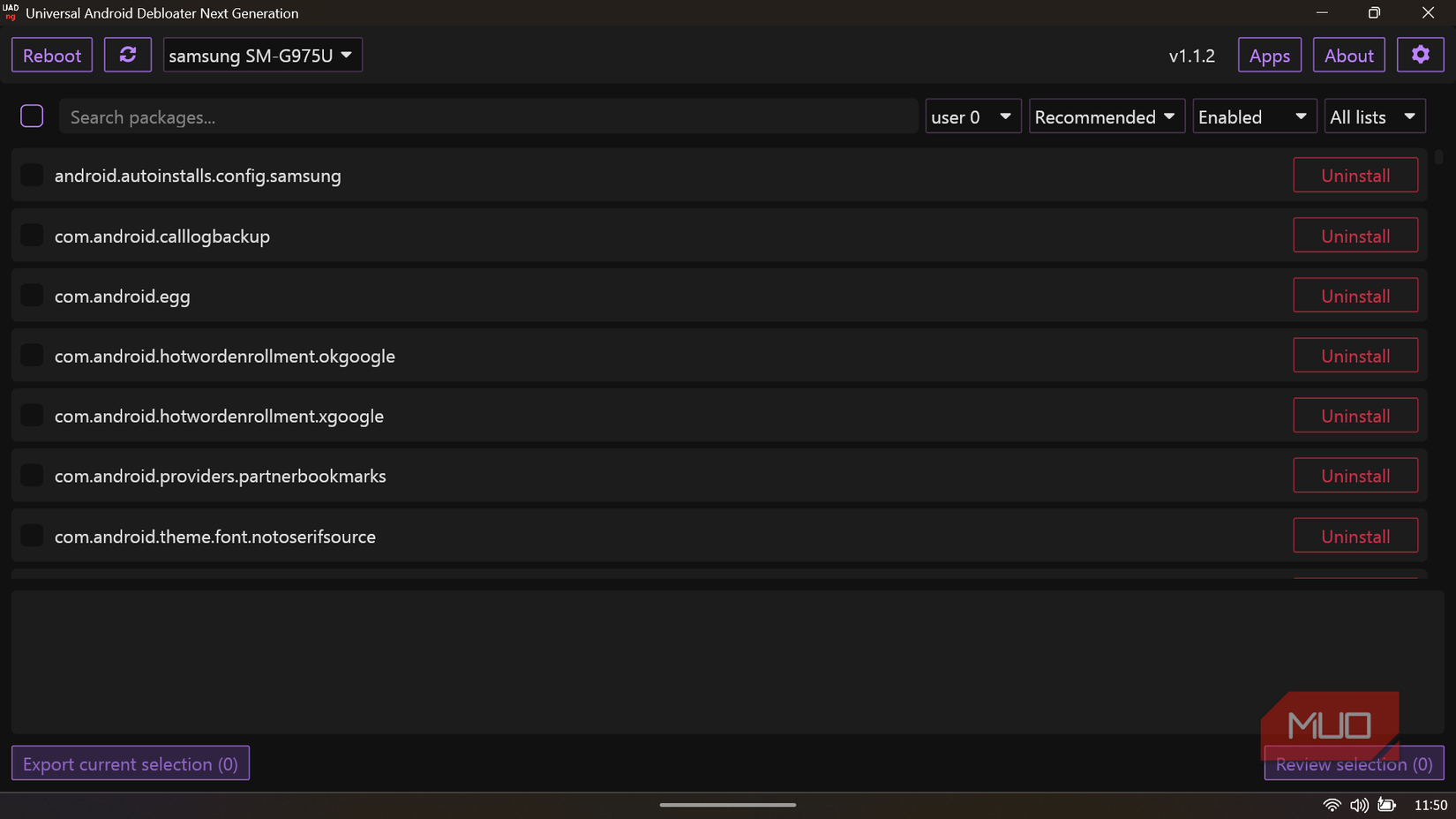
If the command returns a device name or serial number, the connection is working, and you are ready to proceed with UAD-NG. Written in Rust with a clean graphical interface, it automatically identifies your smartphone’s brand and displays relevant bloatware accordingly.
Related
How to Uninstall Any Android App With ADB (Including System Apps and Bloatware)
Android phones often come with lots of extra apps installed. If you can’t uninstall them normally, you can remove them using the ADB tool. Here’s how.
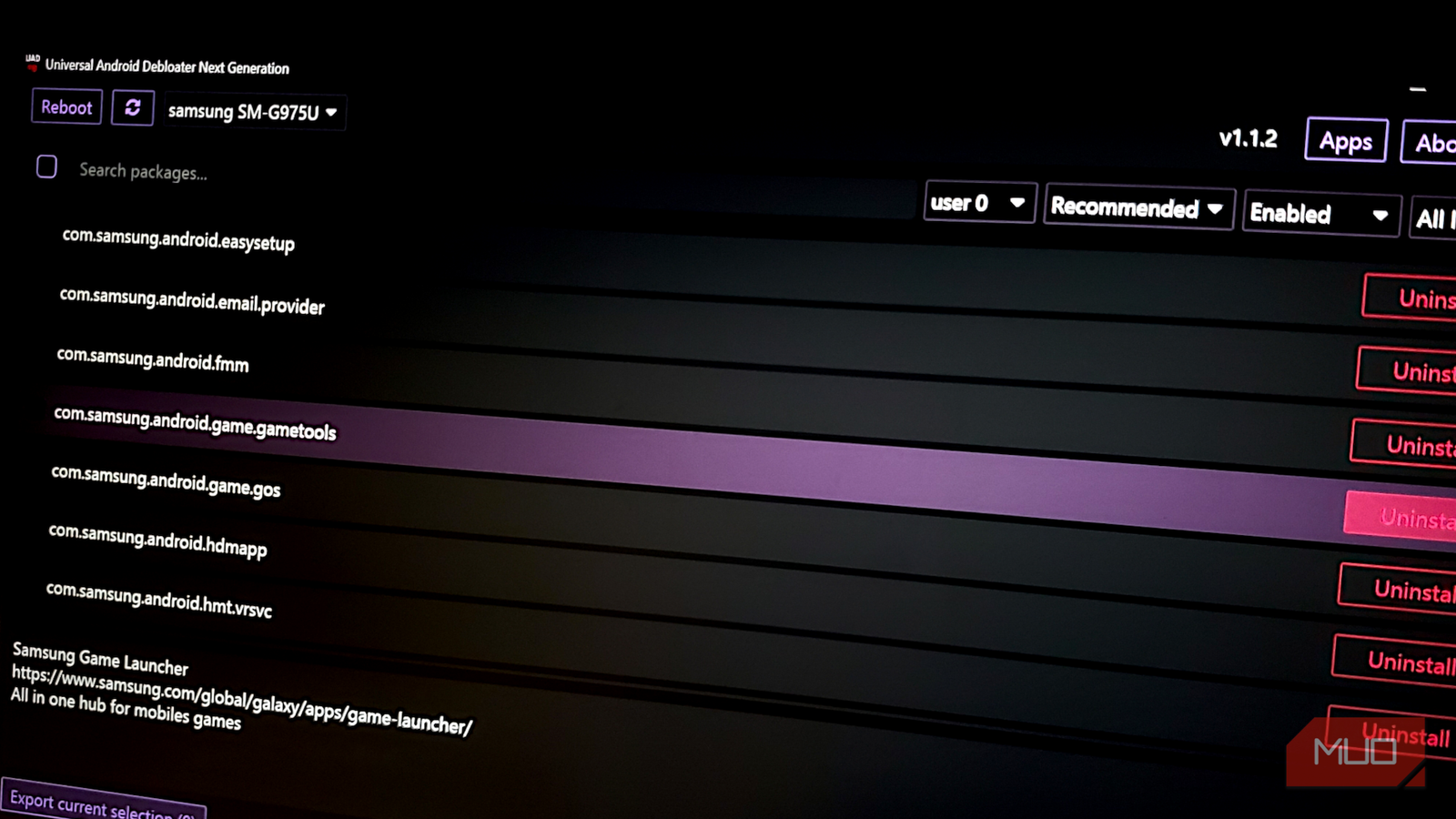
Each selected app in the database includes a detailed description of its purpose at the bottom of the interface. For instance, selecting “com.samsung.android.game.gametools” reveals it’s “Samsung Game Launcher” with a link to Samsung’s official page and the description “All in one hub for mobile games.” Now you can make an informed decision — if you’re not a mobile gamer, that Uninstall button would look very appealing.
The packages are categorized by safety level: Recommended packages are completely safe to remove; Advanced packages might affect some functionality; Expert packages could break significant features; and Unsafe packages risk causing boot loops. This taxonomic approach gives you informed agency over what stays and what goes. On the right side of the search bar, a dropdown menu lets you filter apps by origin, including aosp, carrier, google, oem, and pending or unlisted apps. This means if you specifically want to target the junk pre-installed by your mobile network provider, you can select “carrier” and see apps like com. Android.providers.partnerbookmarks isolated for removal.
Welcome to the device you actually paid for
It turns out, the best version of One UI is the one where you strip it down to the studs. If you are tired of your Samsung phone stuttering because of an app you never asked for, Universal Android Debloater Next Generation is a necessity.
One feature I found particularly thoughtful for beginners is the option in the settings panel (accessible via the gear icon) to “Clear and disable packages instead of uninstalling them.”
If you check this box, UAD-NG doesn’t fully wipe the code from your phone; it just resets the app and puts it into a deep sleep. This is effectively the same as uninstalling it regarding performance (the app can’t run or update), but if you realize later that you actually needed that specific Samsung sticker pack, you can re-enable it without redownloading anything. Under “General” settings, there’s also a checkbox to “Allow to uninstall packages marked as ‘unsafe’ (I KNOW WHAT I AM DOING)” which is disabled by default to prevent accidental disasters.