
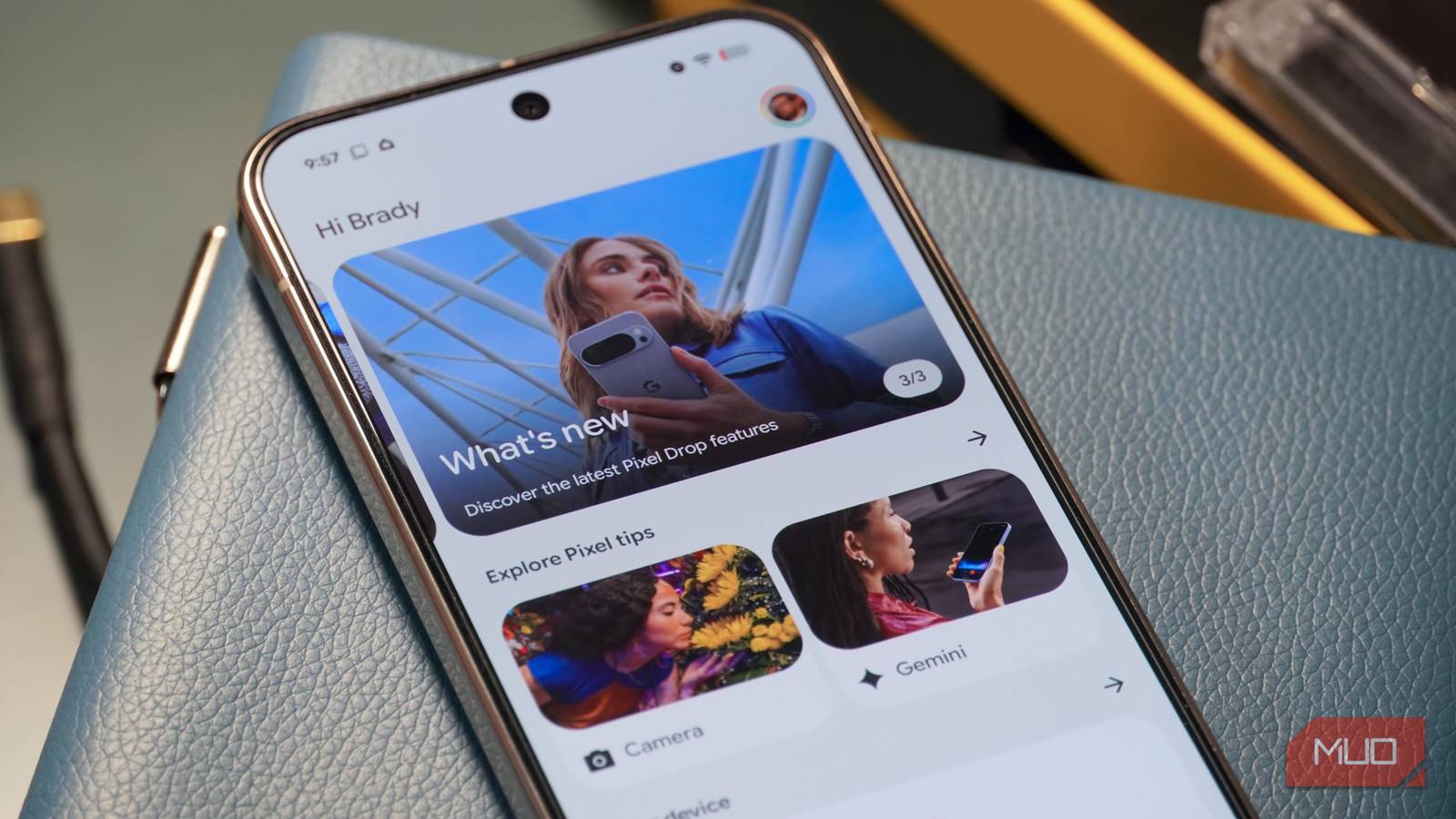
Google does a fantastic job of bringing new features to most Android phones at large, and even makes useful tricks available on iPhones. However, the brand also reserves exclusive features for its own Google Pixel line of smartphones. These handy features are released alongside new models, like the latest Google Pixel 10 series, as well as on a recurring basis as part of Pixel Drops.
While some Pixel exclusives are well known, including the Pixel Recorder app and the Now Playing feature, other impressive tricks need to be sought out. These are some of my favorite Pixel-exclusive features that you won’t find on other Android phones.
Use Best Take and Add Me for group shots
Make sure everyone looks good and gets in the photo
Credit: Brady Snyder / MakeUseOf
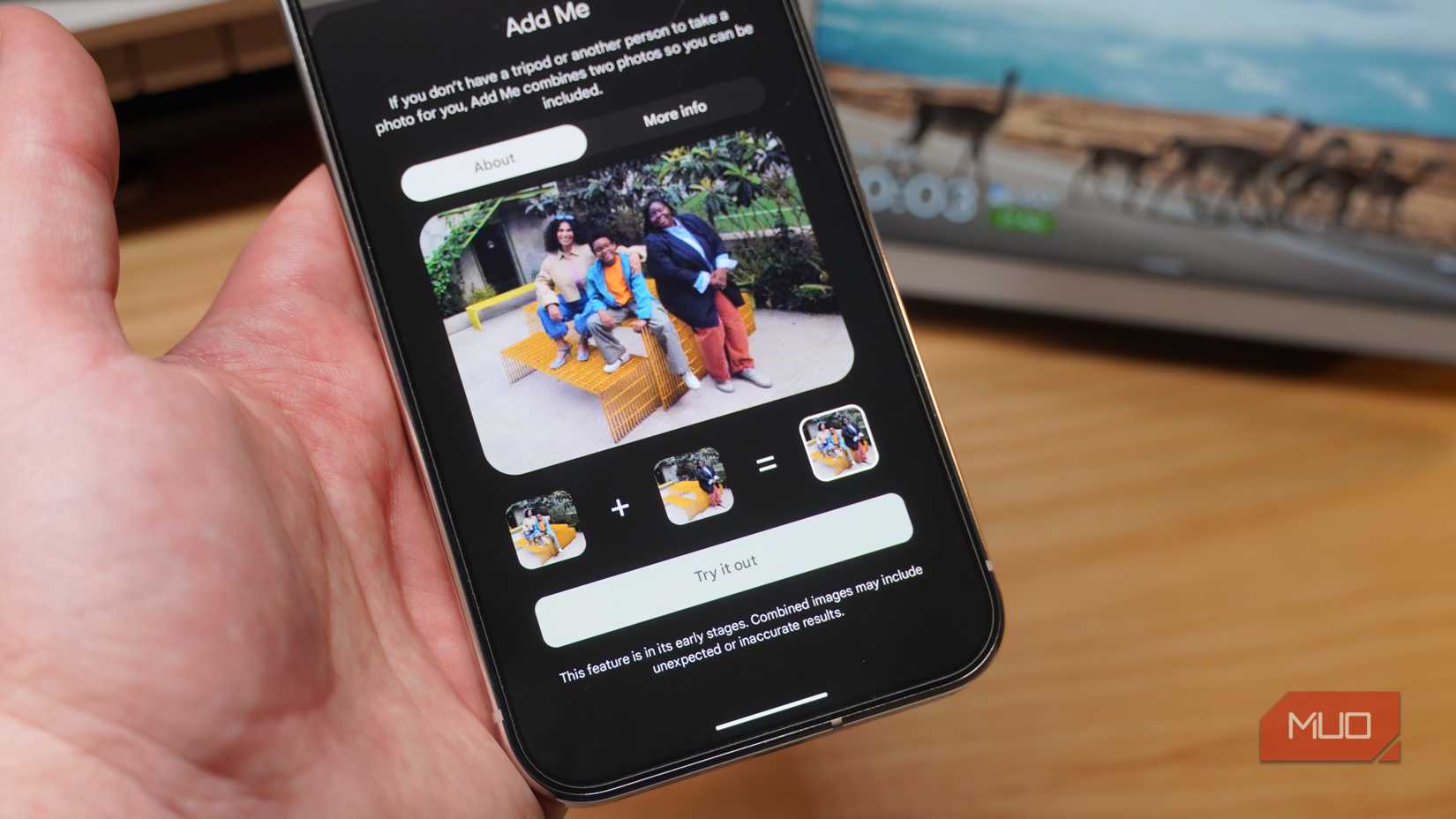
Google Pixel phones are renowned for their advanced camera processing tools and features, but they are particularly great at maximizing group photos. There are two features that I think go hand in hand when taking group shots: Best Take and Add Me. Best Take captures multiple images of the same group, later using software to combine the best parts of each photo. It’s hard to get everyone to keep their eyes open and look at the camera for the same photo, but with Best Take, that’s not necessary. After taking a set of photos, open the Google Photos app, select an image, and navigate through the carousel to Actions -> Best Take.
On the Google Pixel 10, there’s an Auto Best Take mode that uses AI to automatically detect group shots, eliminating the need to manually edit the photos.
Separately, the Add Me feature is available when you want to be in the shot and take the shot. Google Pixel users can select the Add Me shooting mode in the Pixel Camera app, take a photo of a person (leaving room for the photographer), and switch places for the next shot. Then, Add Me stitches the two photos together to simulate a single group shot.
Get multiple angles with Connected Cameras
Credit: Brady Snyder / MakeUseOf
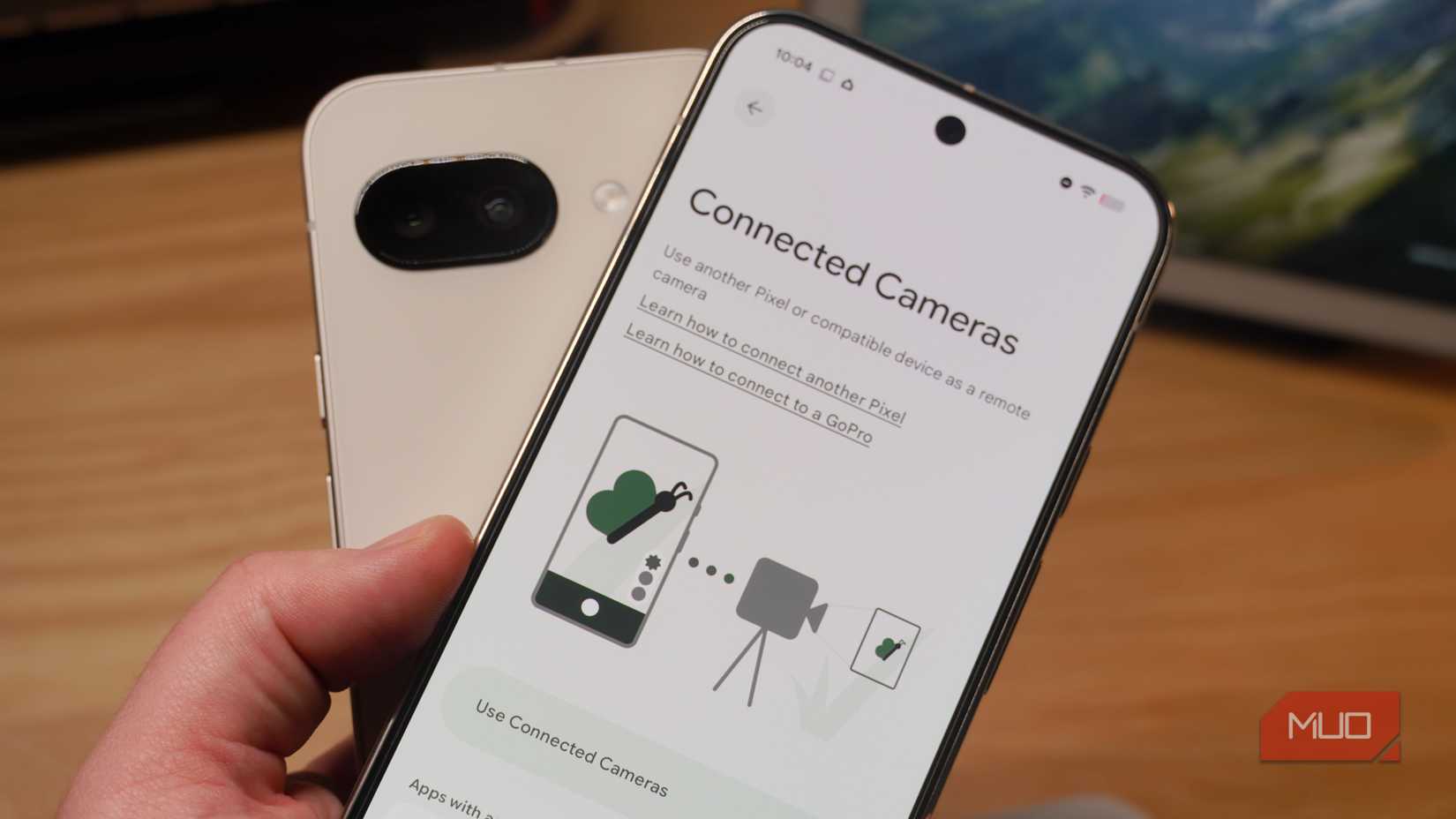
A feature exclusive to Pixels you may not have heard of is Connected Cameras. It allows users to record or stream live camera feeds from their Pixel using multiple cameras. You could use your primary Pixel and a second Pixel to get a multi-angle stream, for example. Or, you can use a GoPro 10 or later in addition to your Pixel phone. The feature works with Facebook, YouTube, Instagram, Snapchat, and TikTok, and it’s a serious content creation hack you can only use on Google Pixel phones.
Connected Cameras works with the Pixel 6 and later, excluding A-series phones and the Pixel Tablet.
Organize screenshots with a dedicated app
I wish every Android phone managed screenshots this well
Google Pixel phones have a dedicated screenshot management app called Pixel Screenshots, and it blends organization and note-taking tools with a splash of AI. For starters, the AI features are optional, and the Pixel Screenshots app will simply work as a screenshot manager until they are manually enabled. Even with the AI features activated, they’ll run entirely on-device using Gemini Nano models for speed and privacy. These tools make it possible to search through your screenshots with natural language prompts, filter screenshots based on category, set reminders to return to screen captures, and more.
You can find Pixel Screenshots pre-installed on the mainline Google Pixel 9 and Pixel 10 models. The Google Pixel 9a doesn’t support the feature due to RAM limitations.
Use Quick Share with AirDrop for file sharing
Break into Apple’s walled garden with this clever tool
Credit: Brady Snyder / MakeUseOf
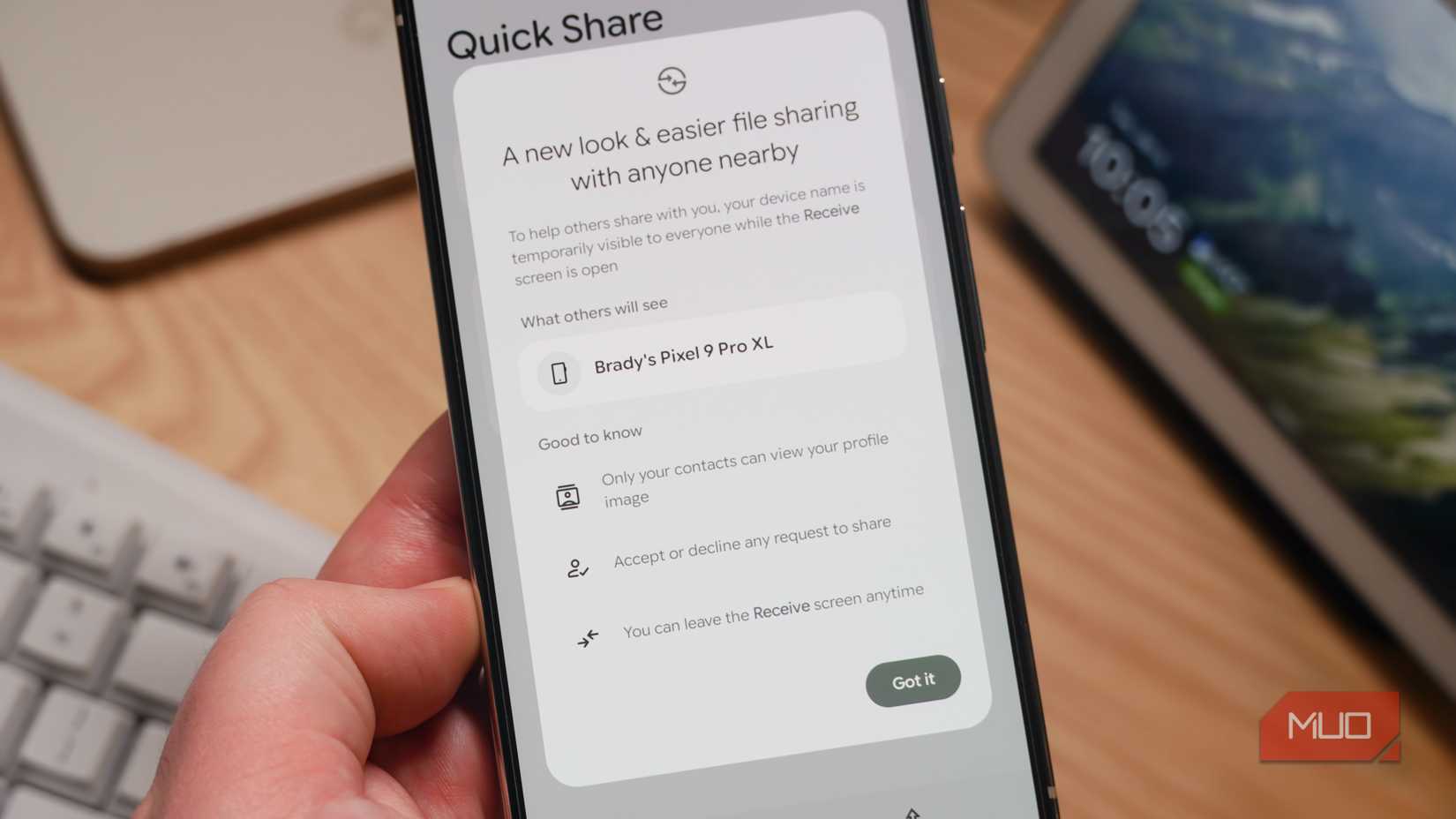
For now, Google Pixel 10 series phones are the only Android devices to support wireless file sharing between Quick Share and AirDrop. With the visibility setting for AirDrop and Quick Share set to Everyone for 10 minutes, Pixel users can wirelessly share files to iPhones, iPads, and Macs. The functionality works both ways, so Pixel 10 owners can receive files from Apple devices using the standard AirDrop and Quick Share services — no need to download clunky third-party apps. While Google aims to bring this feature to more models and Android phone brands in the future, only Google Pixel 10 users have it today.
Play favorites with Pixel VIPs
Give important people an express lane to your Pixel
Credit: Brady Snyder / MakeUseOf
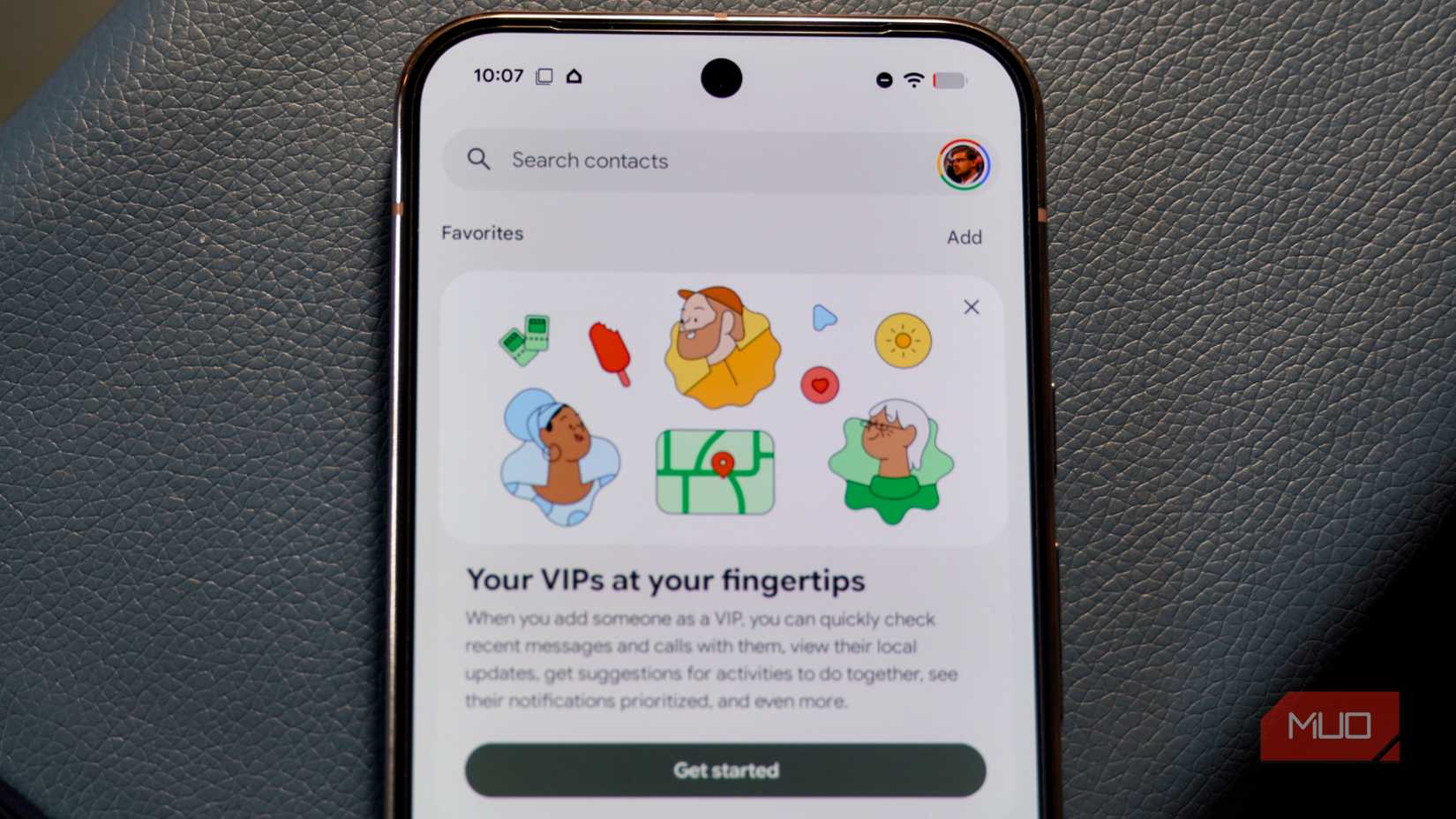
It’s easy to become overwhelmed by the noise your smartphone creates and want to turn it off with Do Not Disturb mode. However, some notifications are crucial, even when you’re in a digital detox. Pixel VIPs on the Google Pixel 6 and newer solve this problem by letting users give special treatment to up to eight people in their Contacts app. There’s a Pixel VIPs widget that shows key information about your preferred contact, like their birthday, their location (if shared), when you last interacted with them, or notes you’ve saved about them — such as their favorite dinner spot or a gift idea.
Most importantly, Pixel VIPs can bypass a system-wide Do Not Disturb mode, so you’ll still get important notifications while taking a break.
Sift through notifications with AI summaries
Getting caught up on a long list of pings is easier on Pixel
Credit: Brady Snyder / MakeUseOf
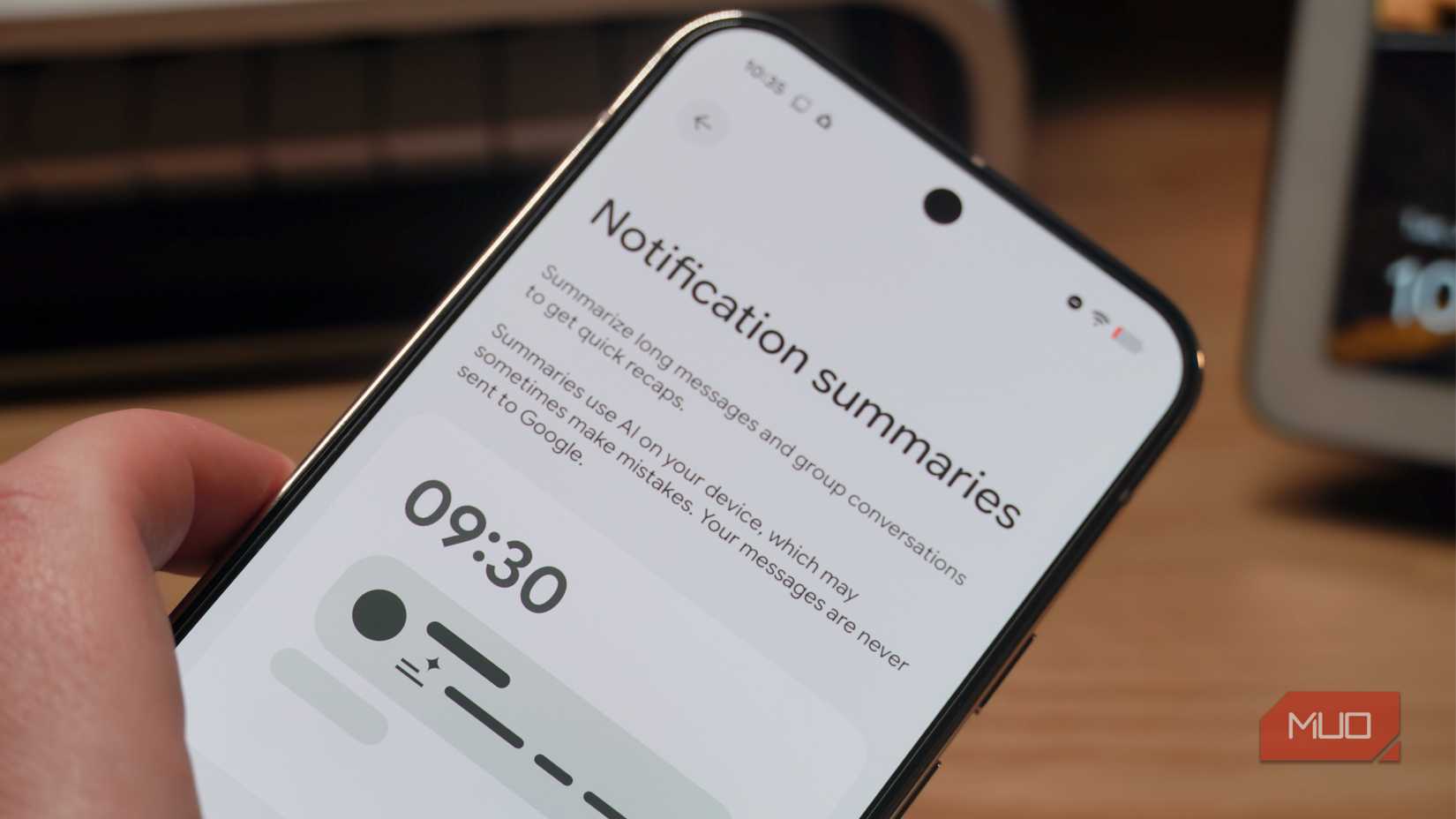
By opening the Settings app on your Google Pixel phone and navigating to Notifications -> Notification Summaries, you can have AI clean up your phone’s notification bubbles. The feature works on the Pixel 9 and Pixel 10, excluding the Pixel 9a. After turning it on, you’ll see a summary of your unread notifications in the notification shade. You can tap or expand the notification to view the full message. This tool works in tandem with Notification Organizer, which is enabled by default, unlike the AI Summaries.
What else can you do with a Google Pixel phone?
Even though flagship Google features like Gemini Live and Circle to Search are widely available across smartphones running both Android and iOS, there are also seemingly too many Pixel exclusives to count. If you want to explore them all, check out the My Pixel app — it’s pre-installed on your Google Pixel phone. You can learn about new features and tricks in the Tips tab, get help using the Support tab, or browse in the Home tab. Once you’ve tried out the cool Pixel tricks on this list, head to My Pixel for the latest Pixel-exclusive feature additions.