
VSCO, the mobile photo editing app perhaps best known for its film-inspired presets, can now edit photos using text rather than filters and sliders. This week, VSCO added prompt-based editing to AI Labs inside the mobile photo editing app.
Prompt tool is the third tool that VSCO has added to its young AI Lab, following the addition of the Remove and Upscale tools. Prompt enables users to upload a photo, ask for edits in plain language and get AI-generated results.
The AI Lab is part of a VSCO subscription but, with each new launch, VSCO has a trial period to try the new feature without a subscription – though in this case, it only let me try one and wouldn’t let me download without committing to the seven-day trial.
You may like
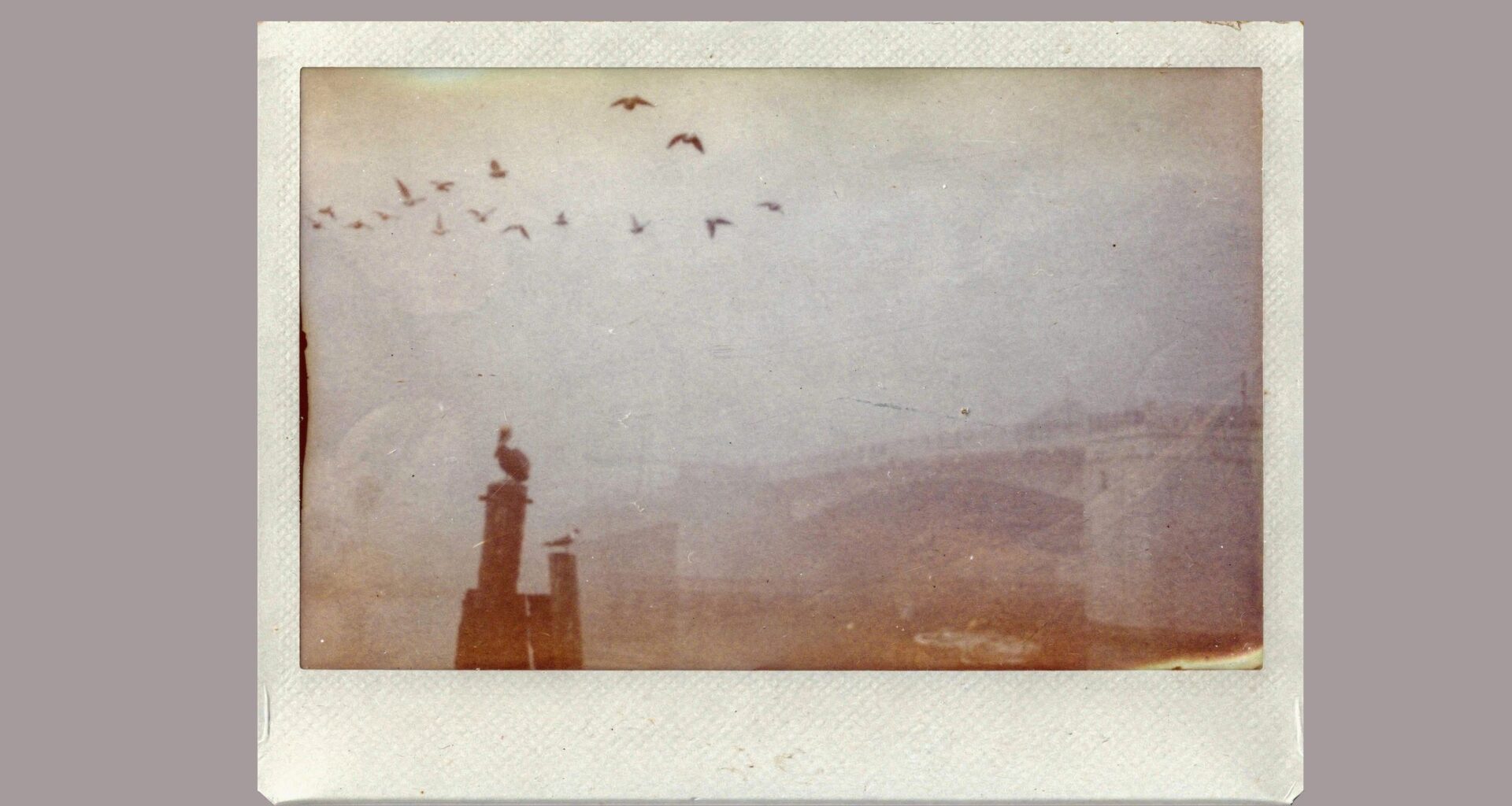
I tried out the new Prompt tool inside the AI Lab and naturally, since it’s VSCO, I wanted to see if the AI would try to replicate film-like effects. I wasn’t disappointed, as when asked the AI edited my photos to add a light leak, film-like colors and even film frames.
Image 1 of 2
 (Image credit: Future)
 (Image credit: Future)
Some results were better than others – my first try, I didn’t specify anything other than “film,” and the result was too washed out for my tastes. I got better results when I was more specific, like asking for film from the 1970s or a type, like 35mm or instant film.
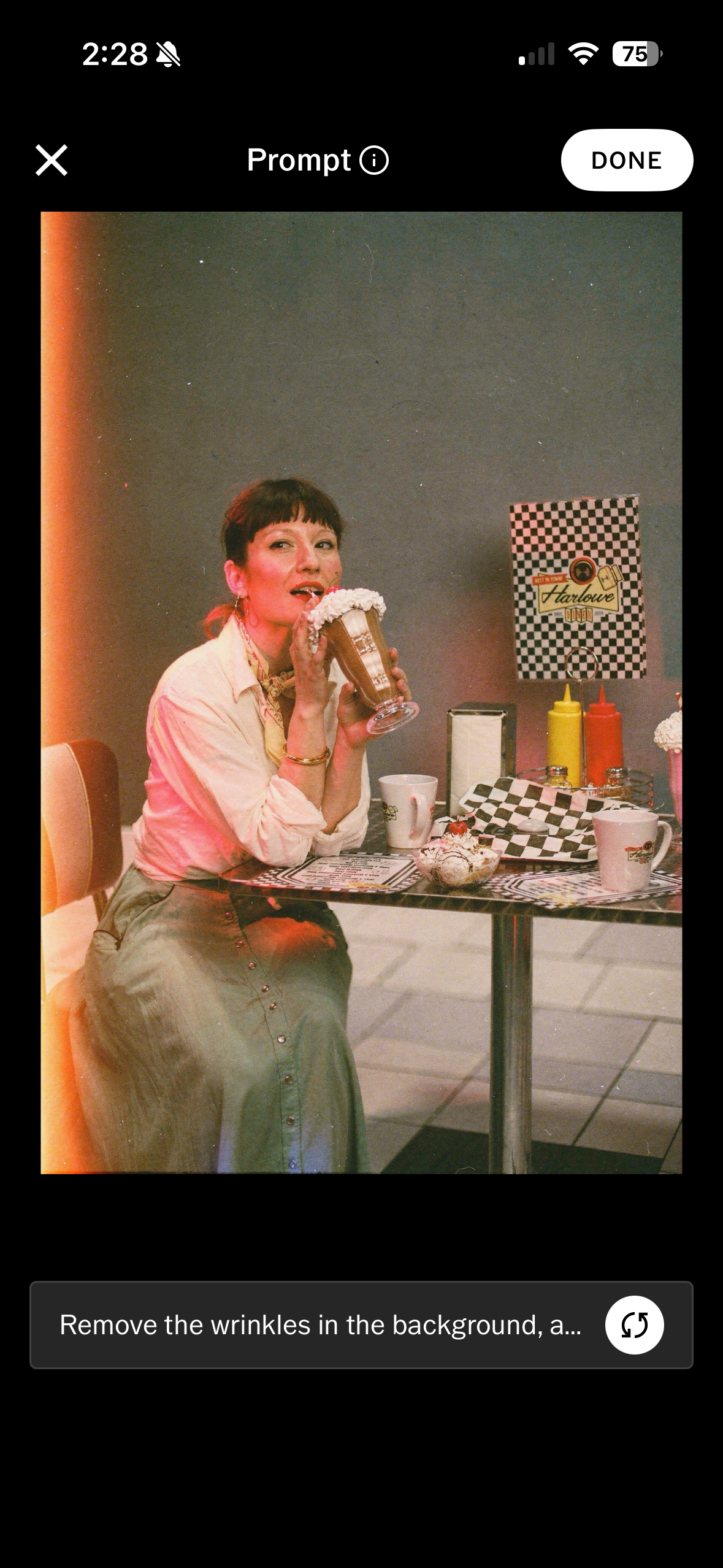
The AI can also remove things, though sometimes it is left up to interpretation. I asked it to remove wrinkles in a backdrop, and it did, but it replaced the backdrop that was underneath the table with a floor.
Image 1 of 2
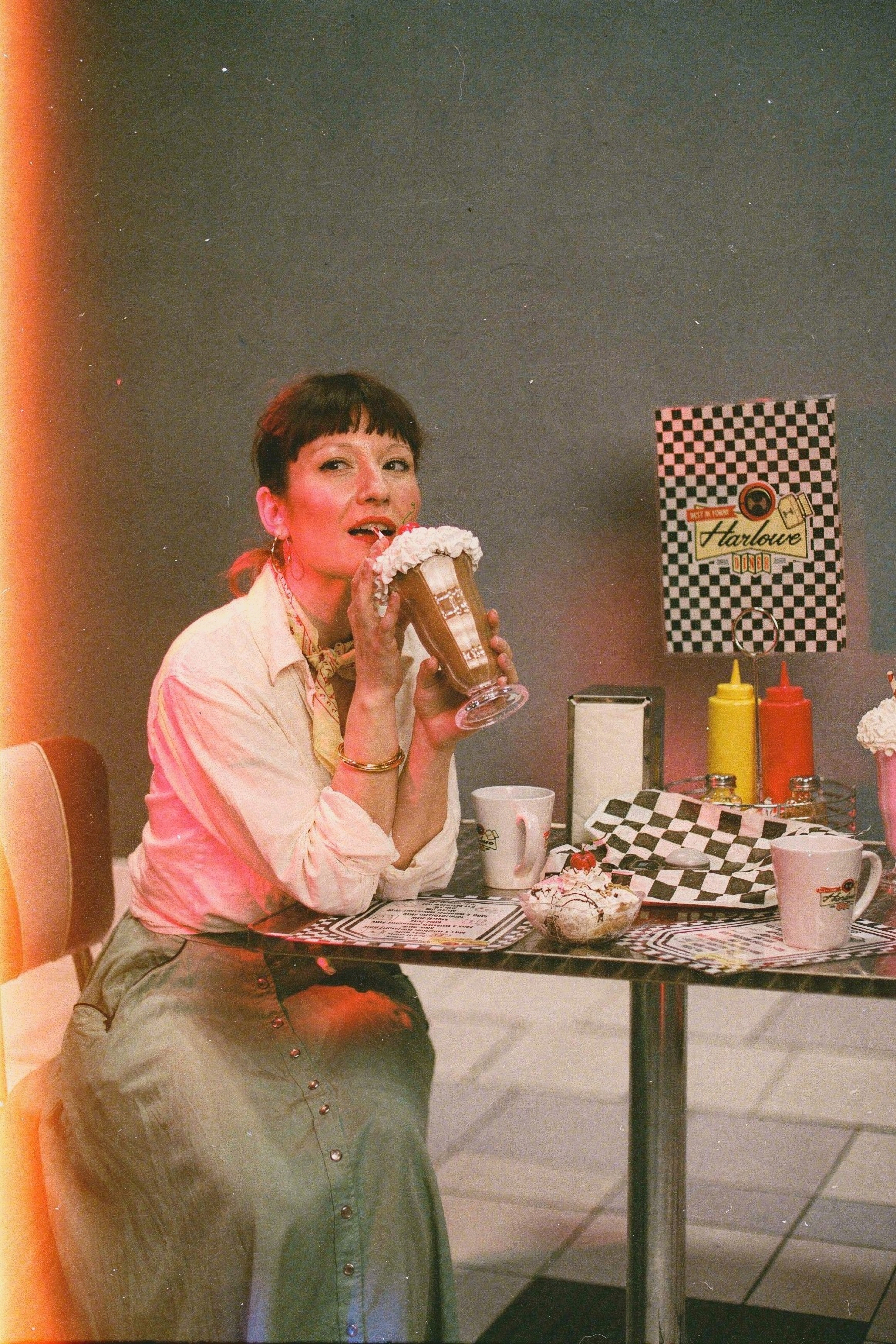 Edited with generative AI inside VSCO AI Labs(Image credit: Future)
 Edited with generative AI inside VSCO AI Labs(Image credit: Future)
Of course, as AI, there’s a lot of potential for mistakes. I asked it to alter a smile, and instead it closed the eyes.
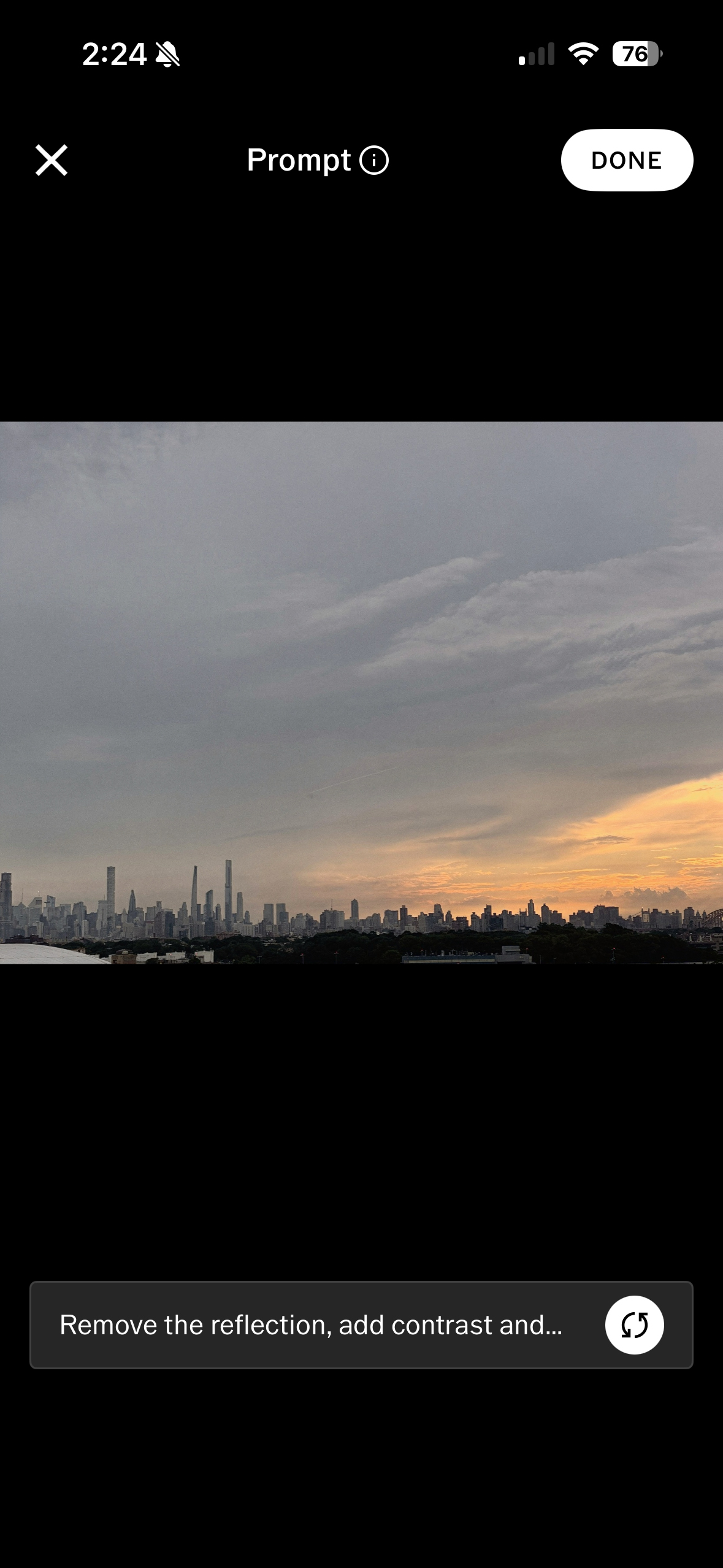
The AI even took a few creative liberties, adding birds in flight that I didn’t mention in my prompt and that didn’t exist in the original photo. That’s a clue as to what the AI is doing – I suspect it’s not applying VSCO filters for you but regenerating at least part of the image.
Image 1 of 2
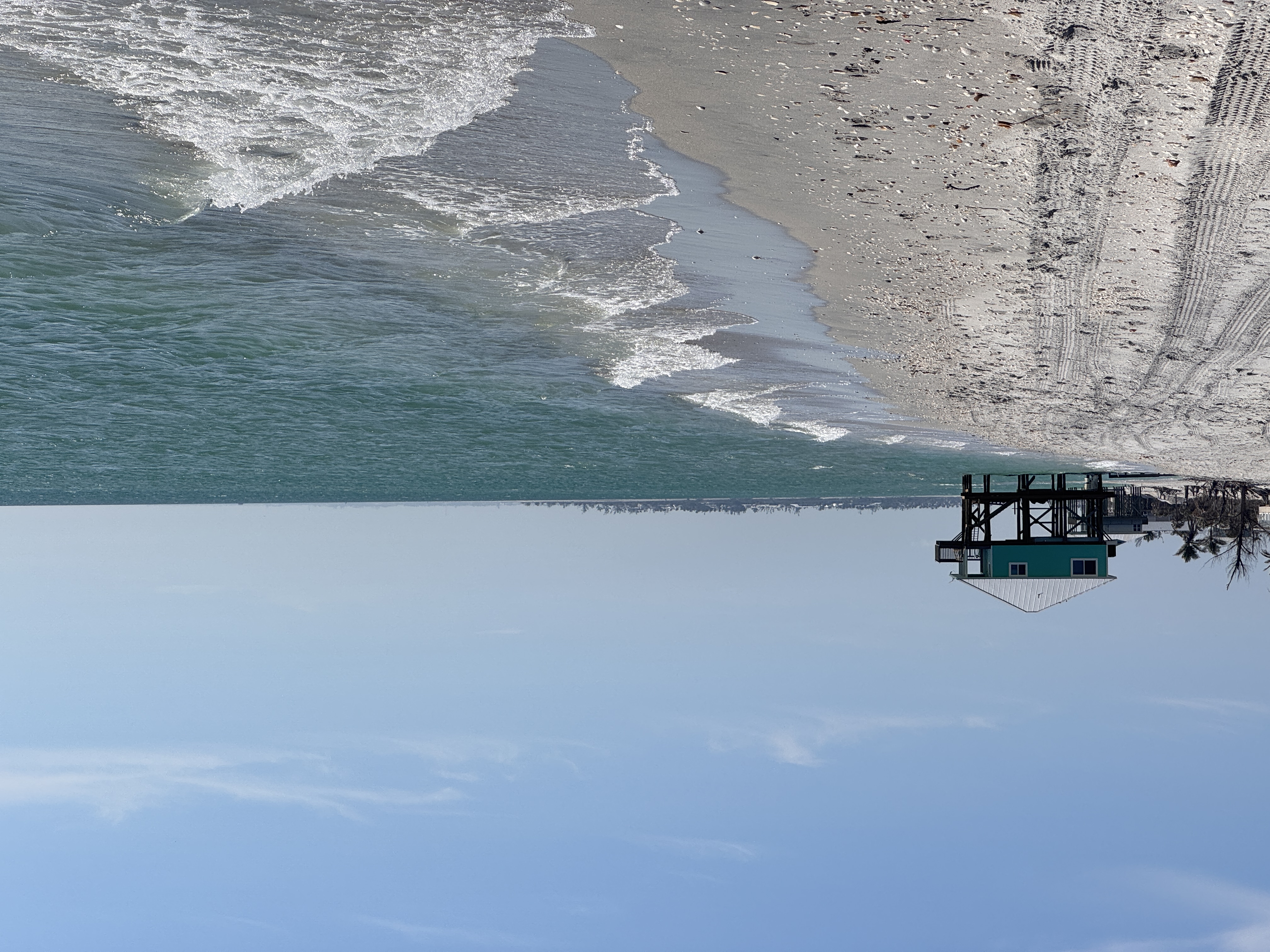 Original(Image credit: Future)
 AI Modified using VSCO AI Labs(Image credit: Future)
I was impressed with some of the images that it managed to churn out, which felt more true to the retro look that I asked for compared to other AIs that I’ve tested.
But, as with any AI, there are some ethical considerations. VSCO’s AI Lab is built from a mix of Black Forest Lab’s Flux.1 and a mix of “proprietary technology.”
You may like
Image 1 of 2
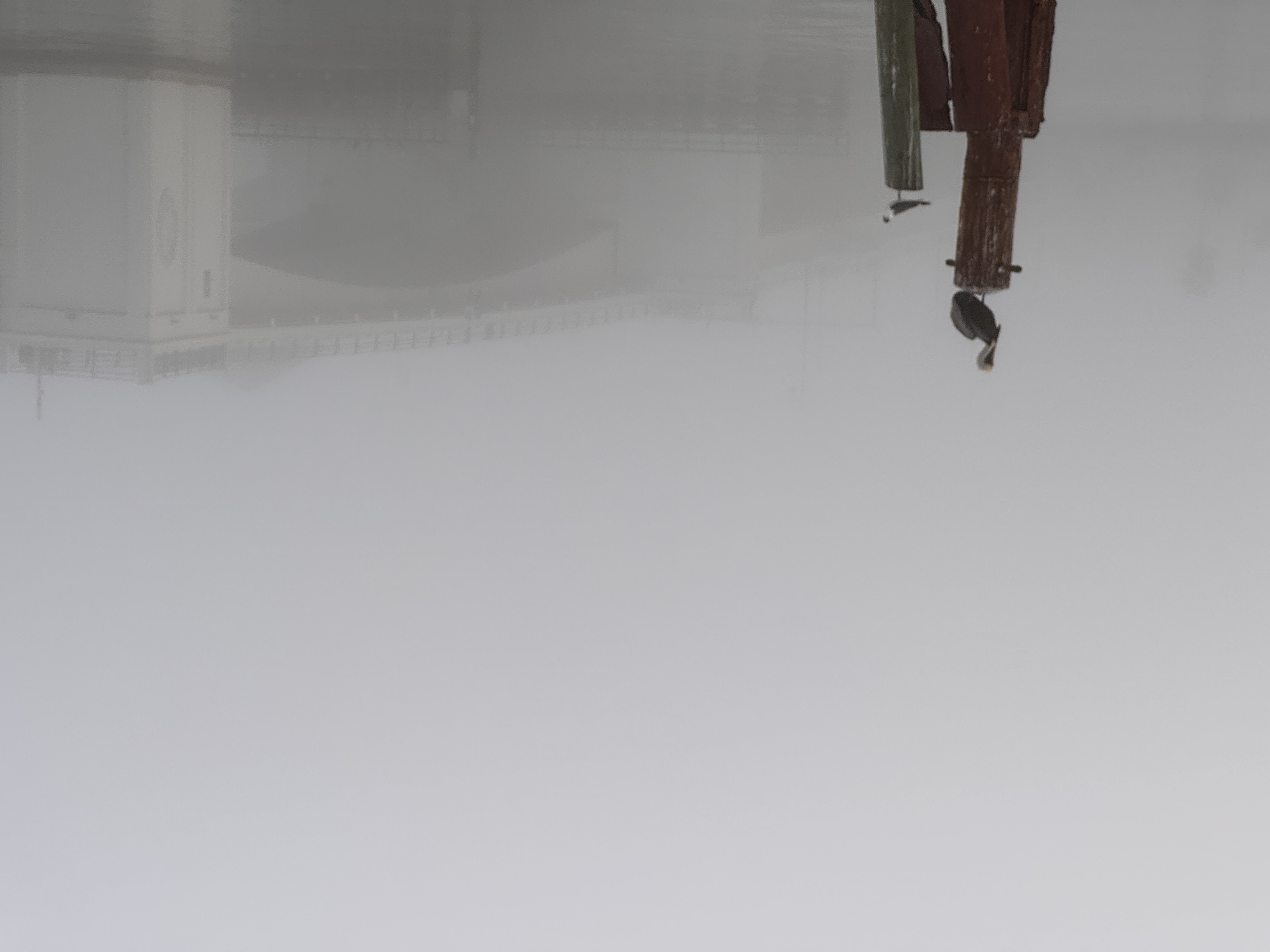 Original(Image credit: Future)
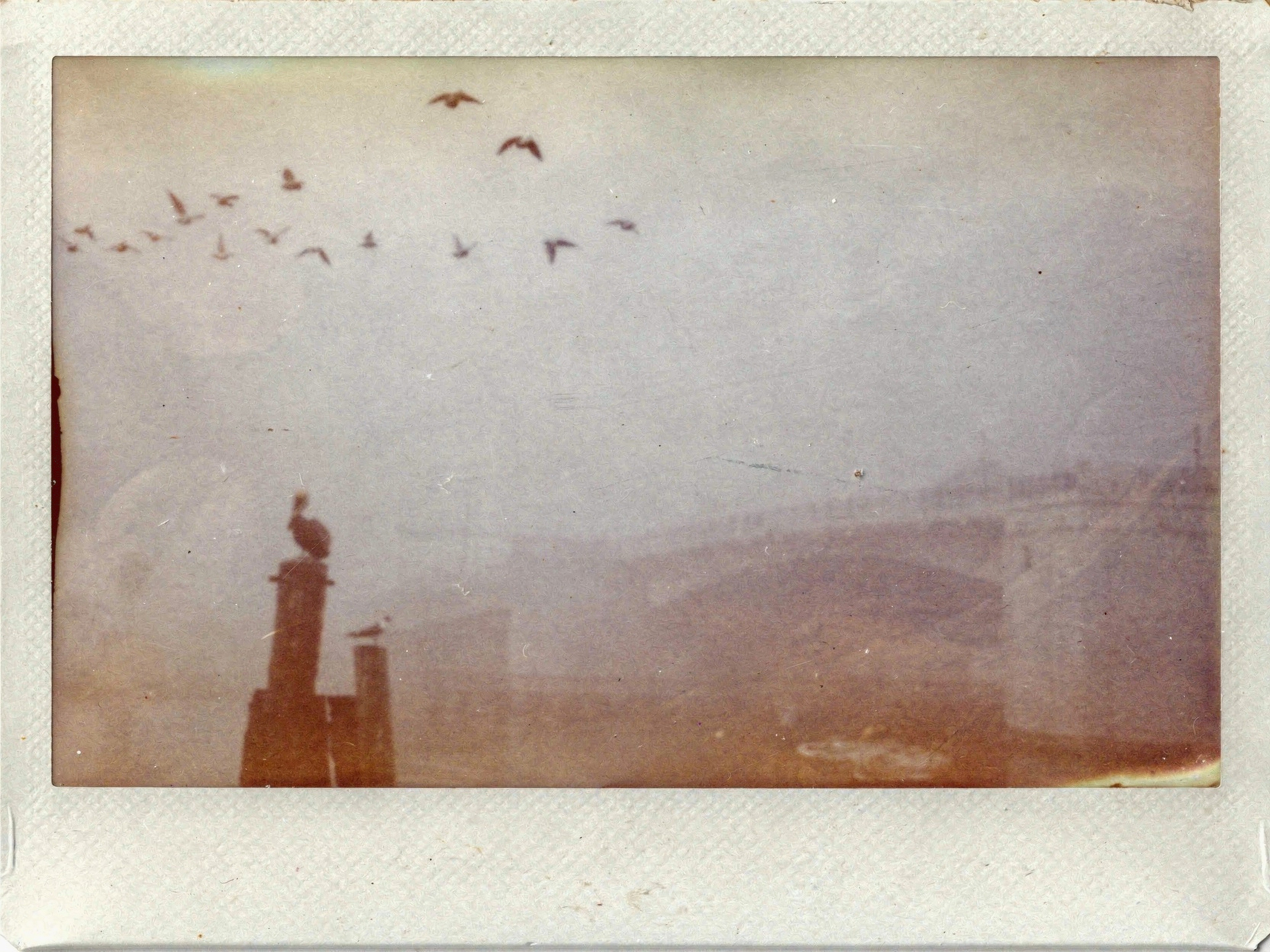 AI modified using VSCO AI Labs(Image credit: Future)
Black Forest Labs doesn’t indicate where its training data comes from. Like with any AI company that doesn’t disclose where its data comes from, that can lead to copyright concerns.
The tech that VSCO adds is meant to help preserve the original image. “AI Lab is built with a layer of our own proprietary computer vision technology on top of the Flux.1 Kontext model to ensure as much of the original image is preserved,” Chris Haire, CTO of VSCO had said when the company launched the AI-powered Remove tool.
“VSCO’s tech combines intelligent area detection and seamless blending to produce natural, resolution-safe edits that respect the integrity of the image.”
The Prompt tool is available in the updated VSCO app (iOS and Android) by selecting an image and tapping the AI Lab icon at the bottom, then selecting Prompt. A subscription is required to save images from the AI Lab.
Read more with the best photo editing apps.