
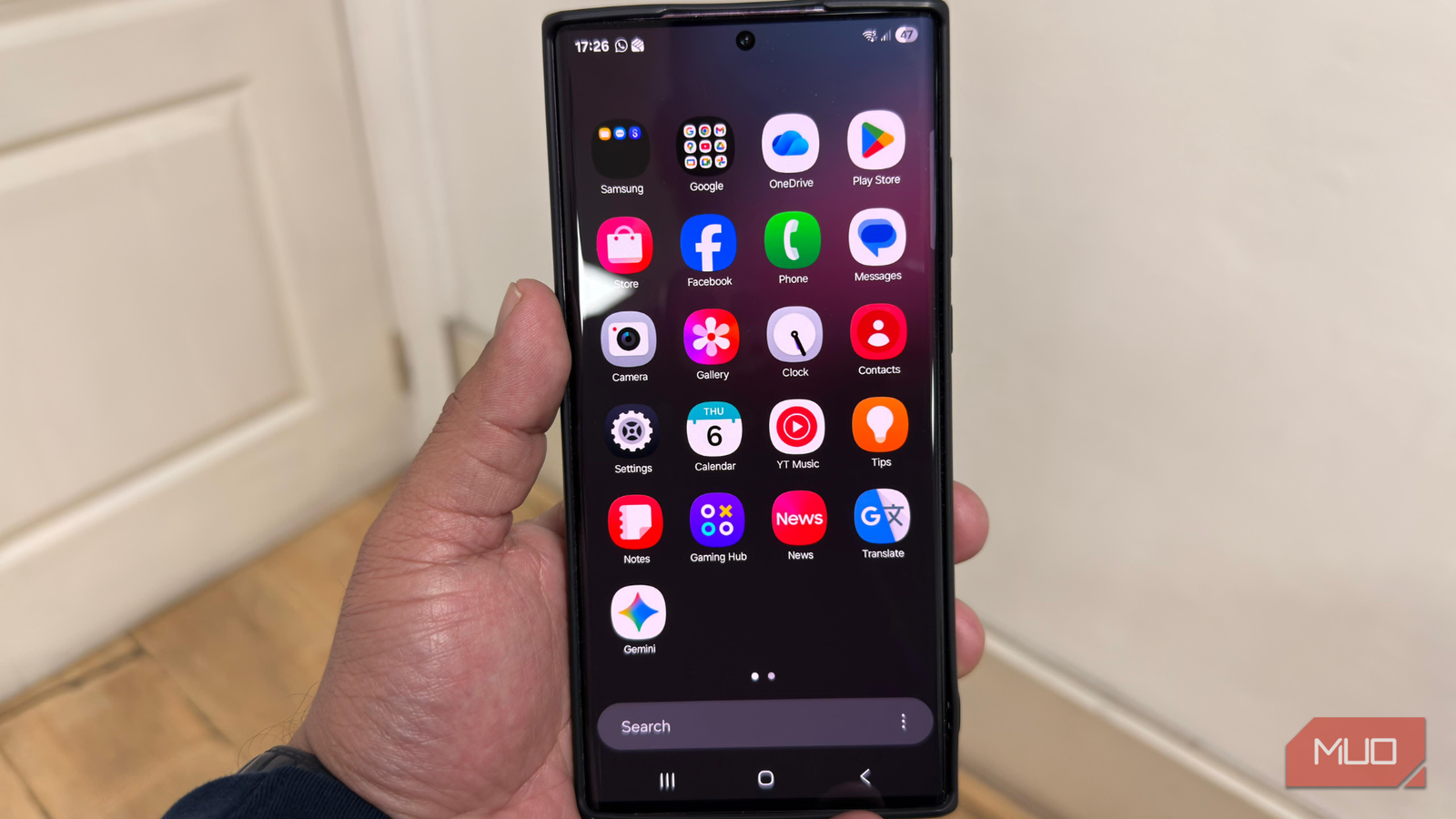
There’s no doubt that Samsung makes one of the best Android phones you can find in the market. Even its mid-range options ship with fast processors, enough RAM, and 120Hz smooth displays. And yet, these phones aren’t perfect. If you’ve ever owned a Samsung smartphone, after using it for a few months, you might have probably felt those slight stutters and delayed app launches. It’s even more frustrating when you face this slowdown on a phone that’s only a few months old.
What if I tell you that these issues are because of some default settings on your Samsung phone that quietly affect the performance. Samsung introduced these settings to make your phone look more polished, smart, or save battery, but the real-life impact feels like a slowdown. I’ve spotted the biggest culprits and turned them off. And I’m amazed how they have instantly made my smartphone faster.
Excessive animations
Smooth doesn’t always mean fast
 Screenshot by author.
 Screenshot by Ayush Jalan
 Screenshot by Ayush Jalan
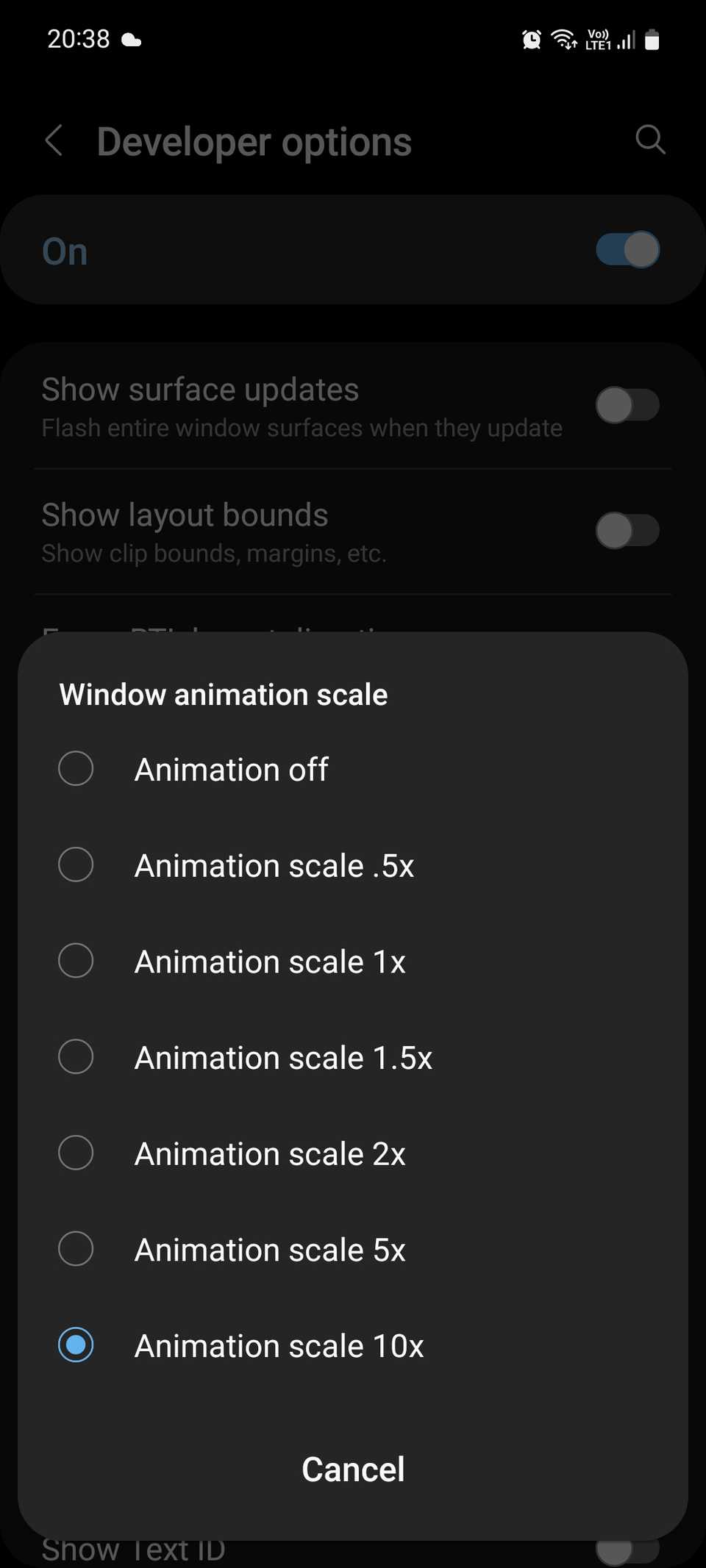
Samsung loves animations, and so do the users. Those smooth screen transitions, menu fade-ins, and app openings come with slight visual effects. Of course, they look cool on a brand-new flagship. On mid-range and other options, it might lack that fluidity. See, animations aren’t a problem, but they’re long, layered, and kind of too much. Over time, excessive animations give an illusion of lag, even if the hardware is working just fine.
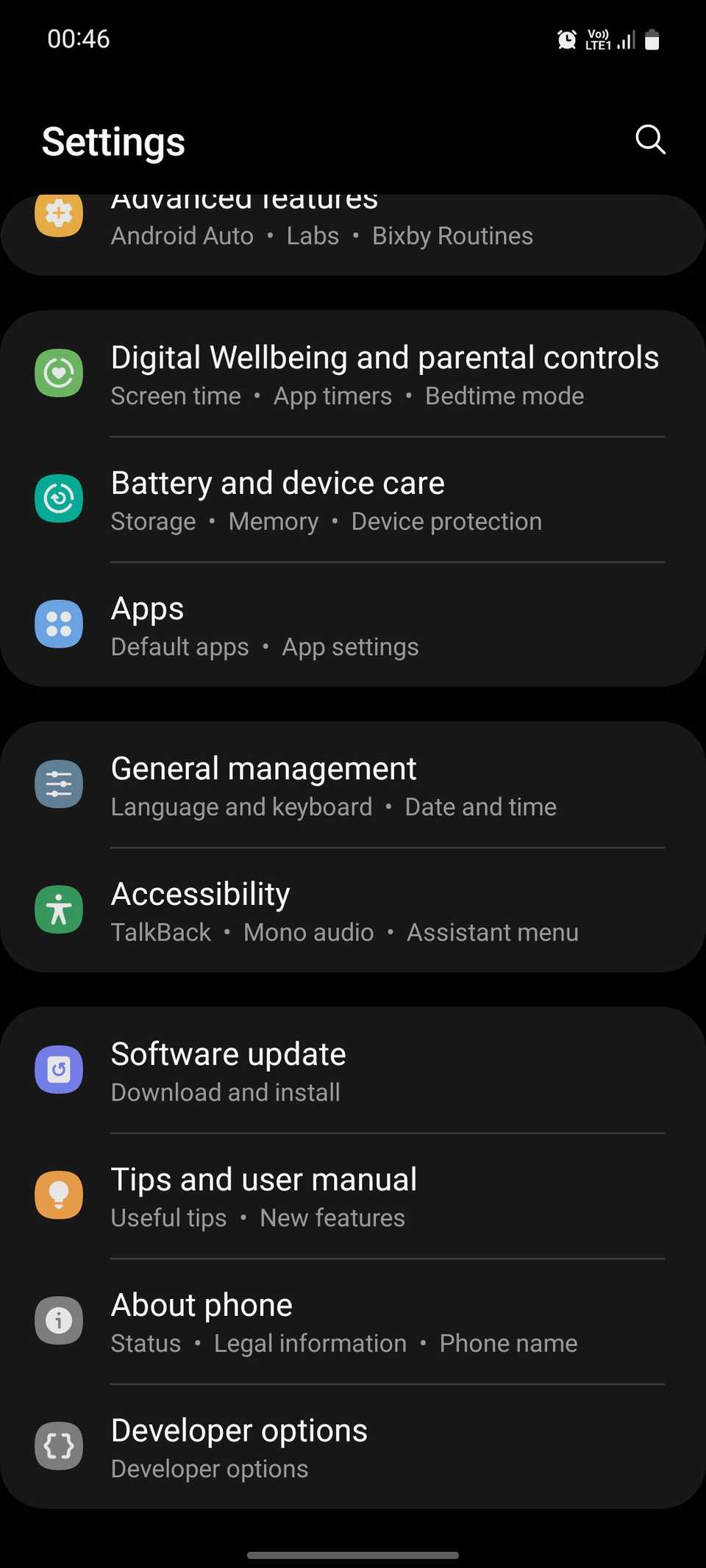
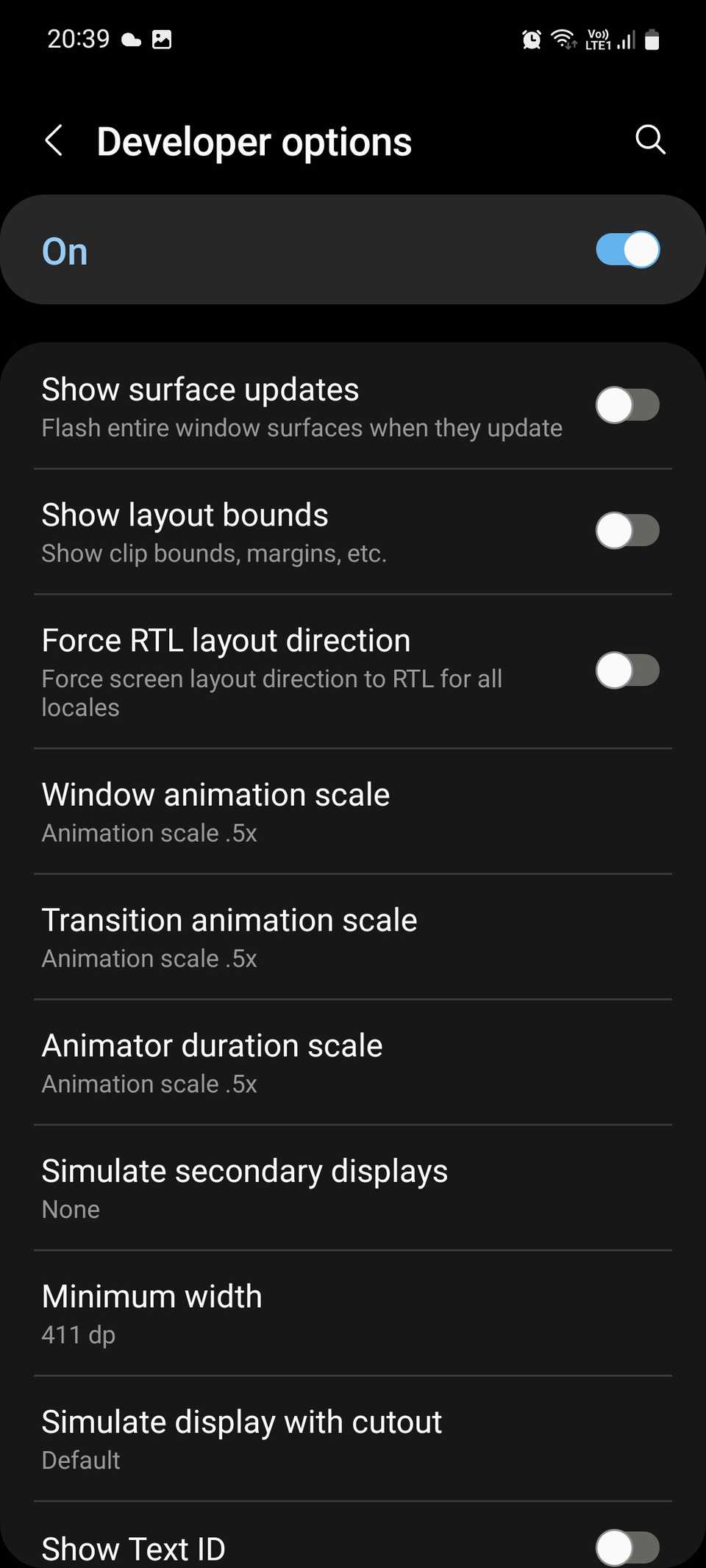
Thankfully, Samsung lets you reduce or disable these animations. You can go to Accessibility -> Visual Enhancements to remove the animations completely or head to Developer Options to tone them down. It’s worth knowing that when you remove or disable animations, it won’t make your processor instantly faster or improve system loading. That said, it will remove that extra layer between your tap and the next interaction. This will make you feel that your phone responds faster because you don’t have those visual effects to finish before you can move on.
The only trade-off is that you’ll lose Samsung’s polished visual flair, which makes transitions smoother and more aesthetically pleasing, especially for new users.
Aggressive background activity
Your phone is busy doing things you didn’t even ask for
 Screenshot by Pankil Shah — No attribution required
 Screenshot by Pankil Shah — No attribution required
 Screenshot by Pankil Shah — No attribution required
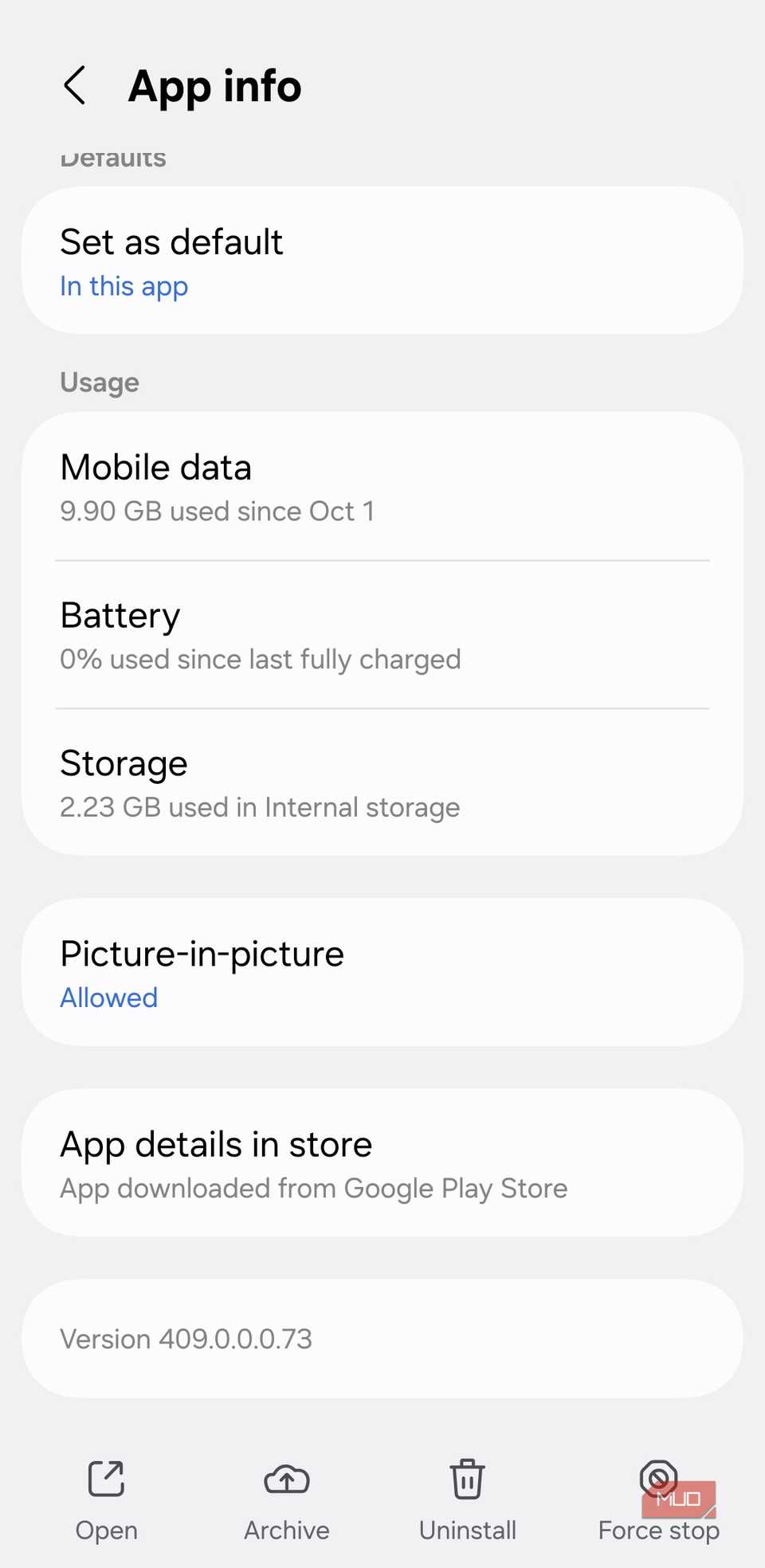
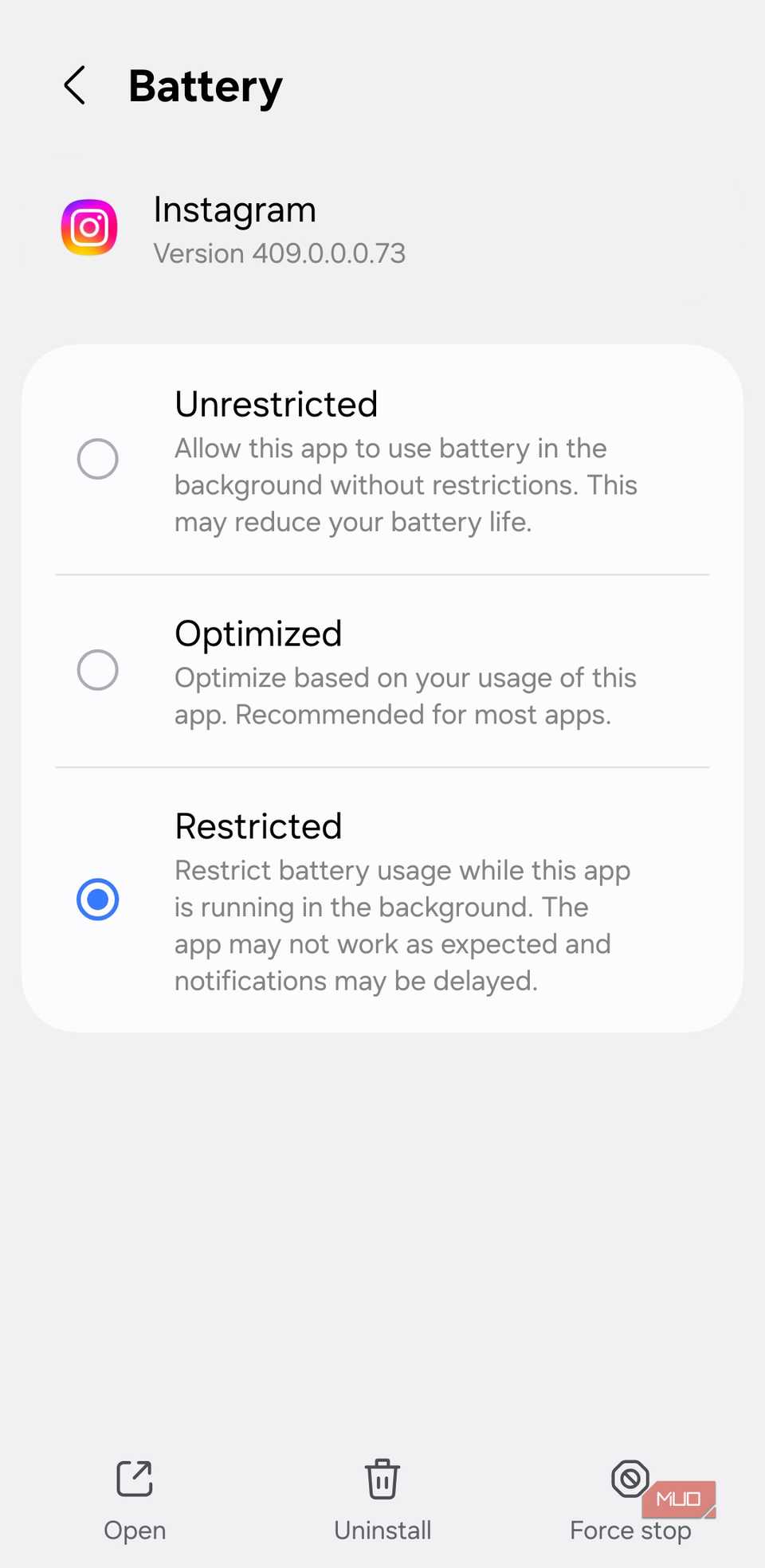
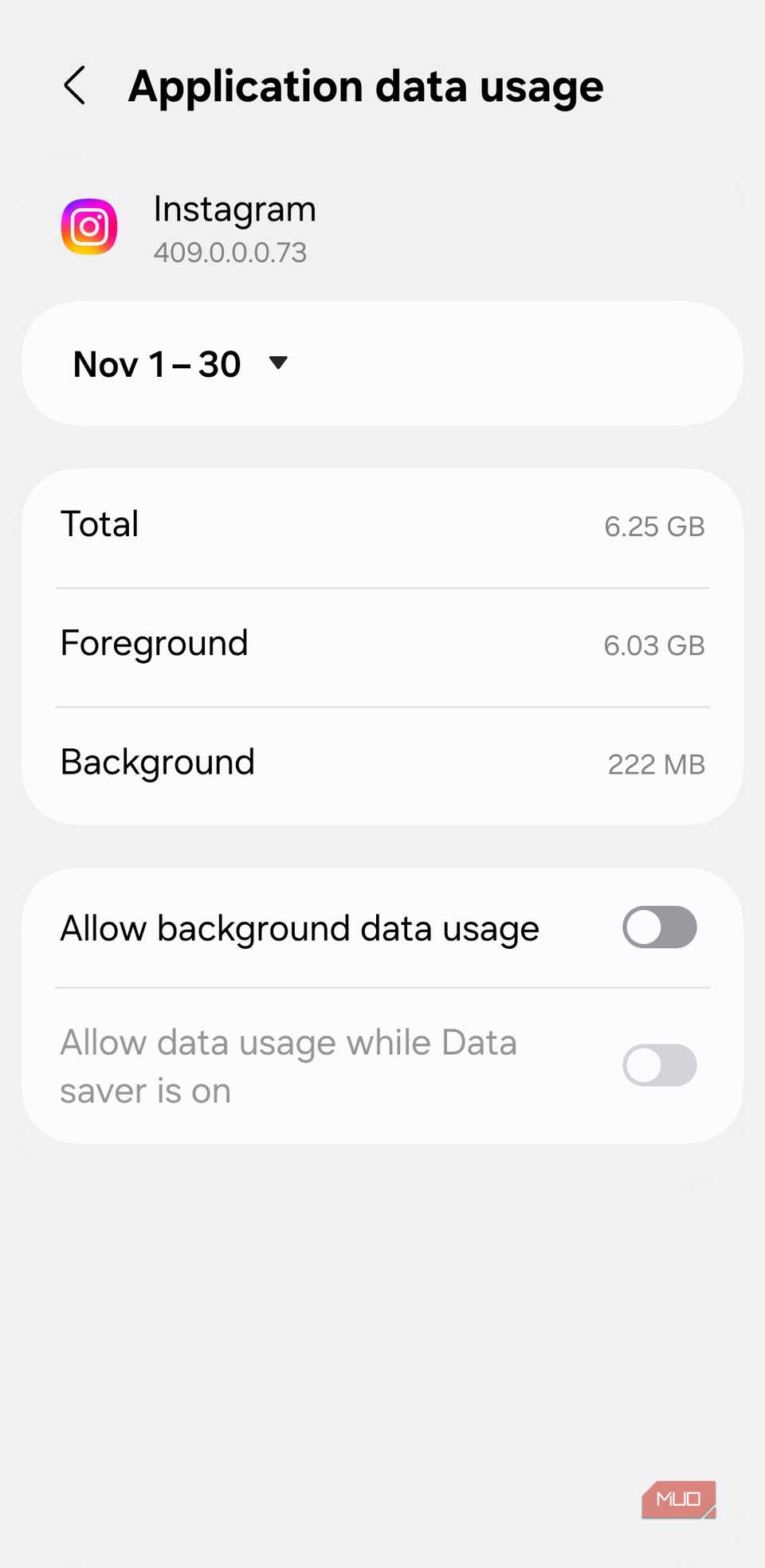
Your phone runs a lot in the background, even when you aren’t using it actively. Samsung’s own apps, weather updates, news feed, device care, and syncing services constantly refresh data. Of course, background refresh allows apps to fetch up-to-date content for you. So, the app feels faster because it instantly gives you the new content as you open it. But this aggressive background activity also has a negative impact on the battery life and performance.
Sometimes, it competes with the foreground tasks and eats up unnecessary system resources, making your phone feel sluggish. Also, you don’t even need up-to-date content for every app, especially the ones you rarely open. You can go to Settings -> Battery -> Restricted and at least turn off background activity for unnecessary apps.
It’s worth knowing that when you limit background activity, your apps might take longer to update content. So, you might see those loading spinners when you open your apps.
RAM Plus
A feature that sounds smarter than it is
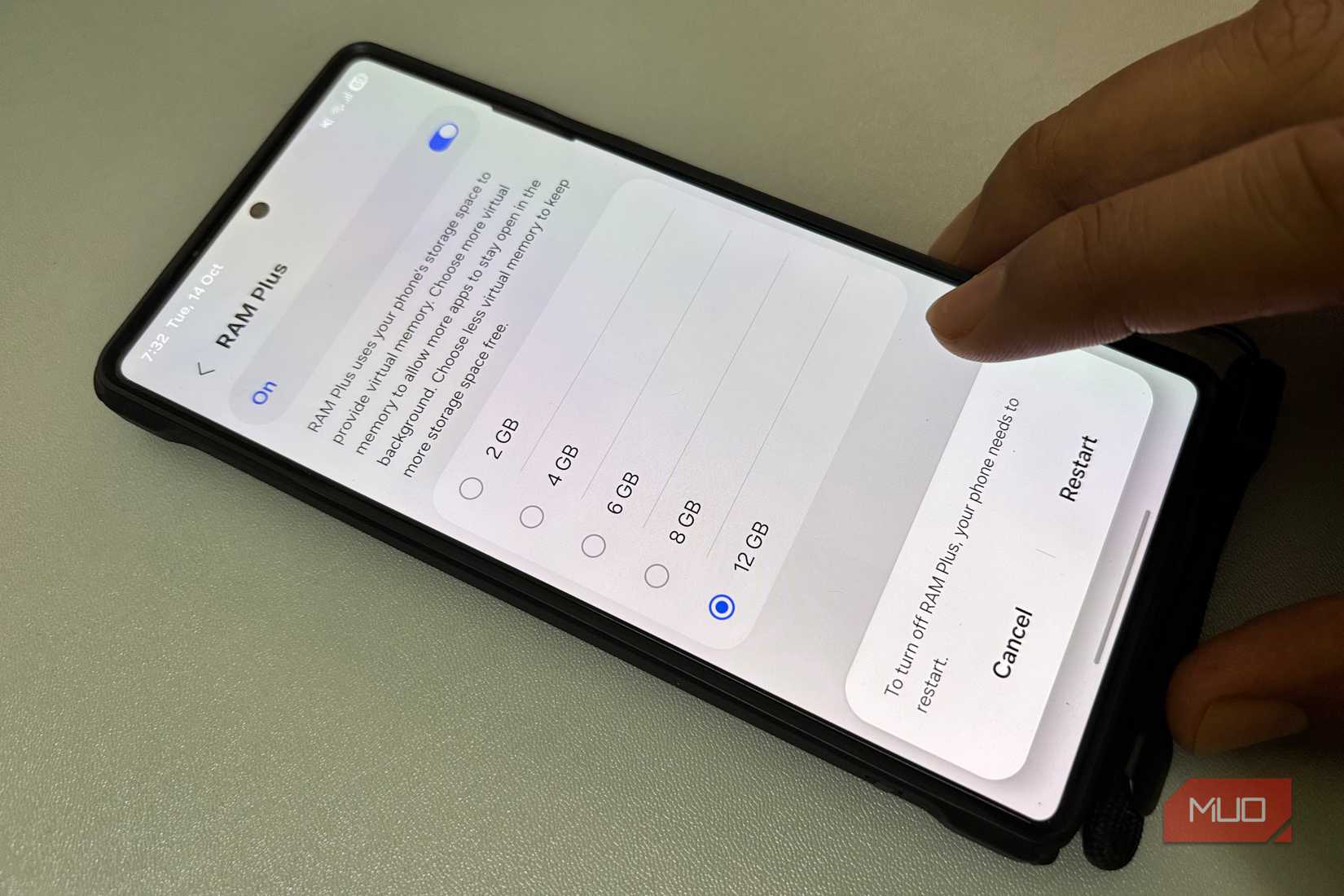
Samsung smartphones have a RAM Plus feature that uses a portion of your phone’s internal storage as virtual RAM to improve app launches and multitasking. It’s a useful feature that avoids crashes on Galaxy phones with limited internal memory. However, it feels unnecessary and triggers issues like slow performance and battery drain on phones with 8GB or more RAM. That’s because this dedicated virtual space is slower than the real RAM.
When apps are moved to RAM Plus, they take longer to switch back, and it also creates extra work for the CPU. When you disable RAM Plus, it reduces this memory swapping, giving you fewer app reloads and smoother multitasking.
If you own a high-end Galaxy smartphone with at least 8 GB of RAM, it’s safe to turn off RAM Plus. However, on budget and mid-range phones with 4 to 6GB of RAM, disabling this feature might cause apps to close more frequently in the background because your phone won’t have that extra breathing space.
“Hey Google” listening
Great if you use it, wasteful if you don’t
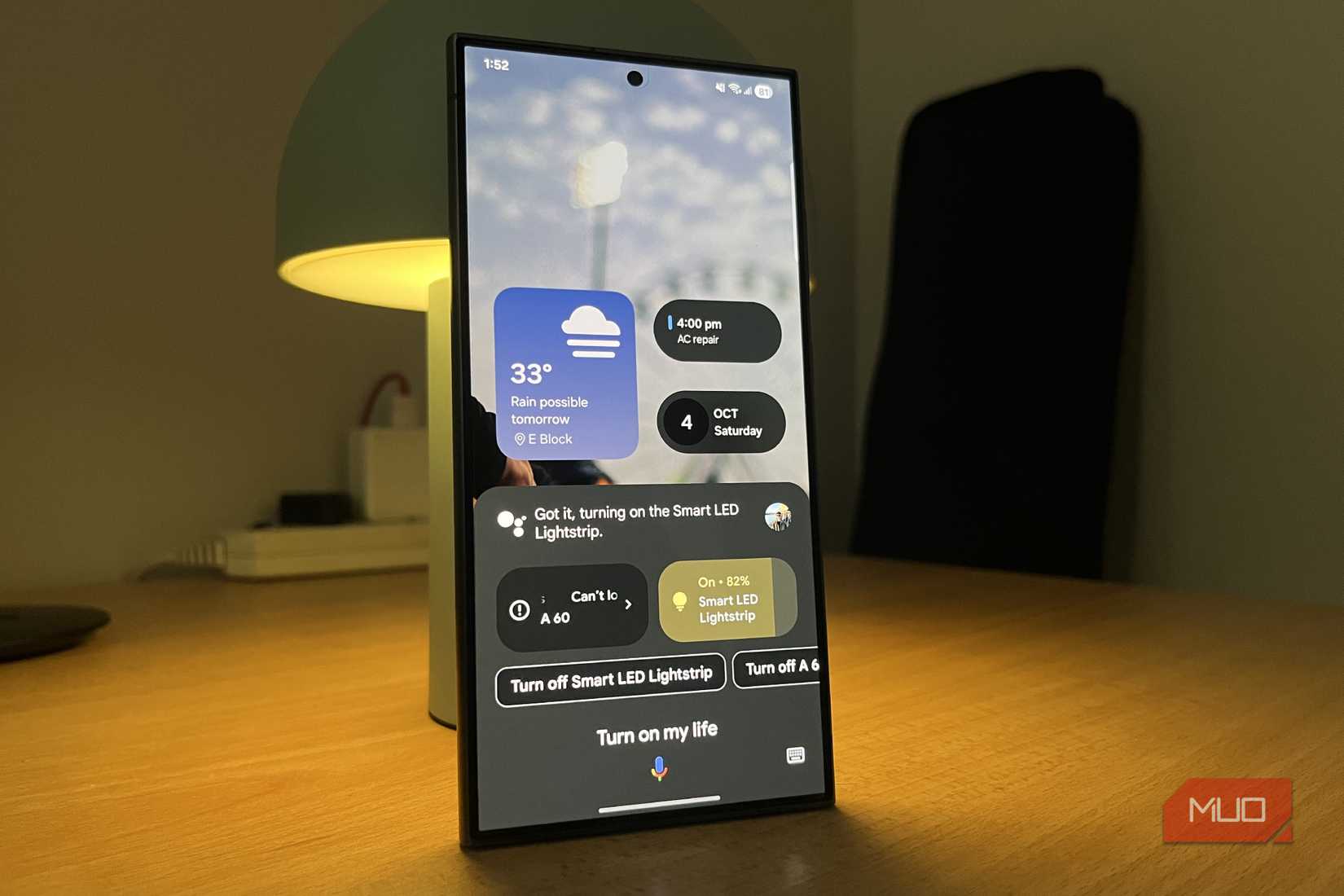
Image by Raghav – NARCredit: Raghav Sethi/MakeUseOf
When you enable “Hey Google” always-on listening, it allows Google Assistant to respond instantly to the wake word. Of course, it gives you the convenience of hands-free activation, so you can invoke the voice assistant if your phone is across the room. However, it comes at a cost. Your phone’s microphone stays in a low-power listening state, which runs background processes. This might not directly slow down your phone, but it adds up to the already heavy background activity.
Disabling “Hey Google” listening reduces background listening and processing. This will eventually lighten system load and improve responsiveness, so your phone runs faster than before. You can still use Google Assistant manually, but you have to give up on that hands-free convenience.
Adaptive battery
The price of letting your phone decide
 Screenshot by kanika Gogia
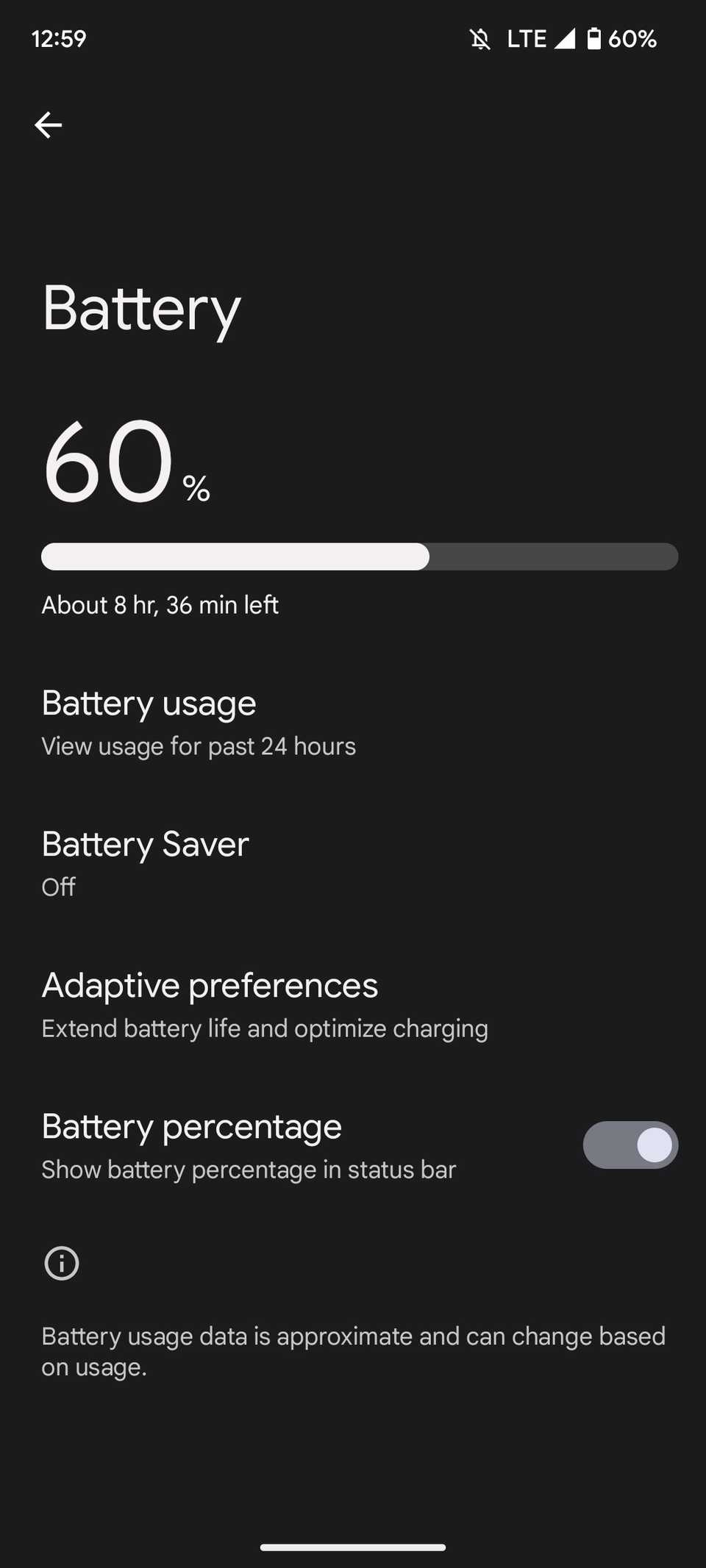 Image Credit: Screenshot by Ashutosh Srivastava
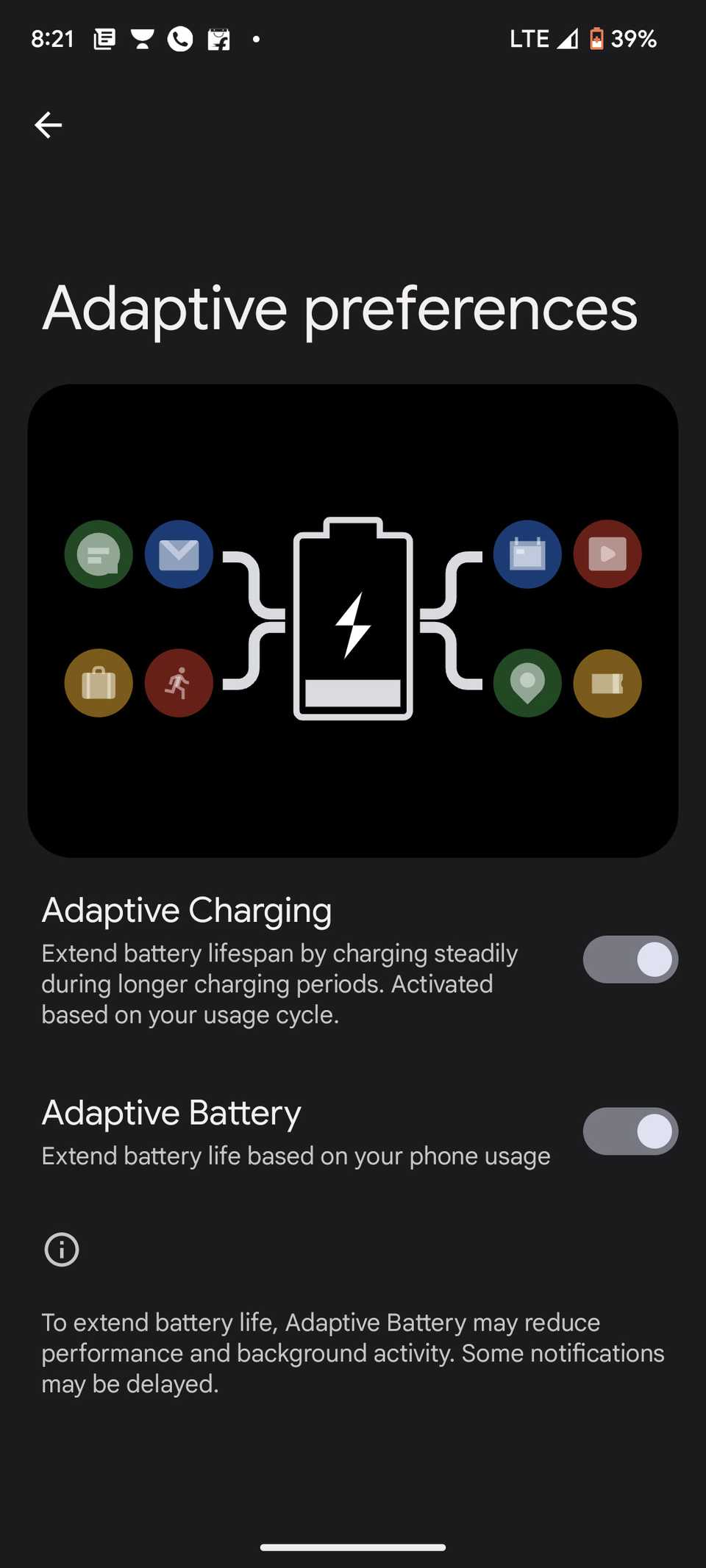 Image Credit: Screenshot by Ashutosh Srivastava
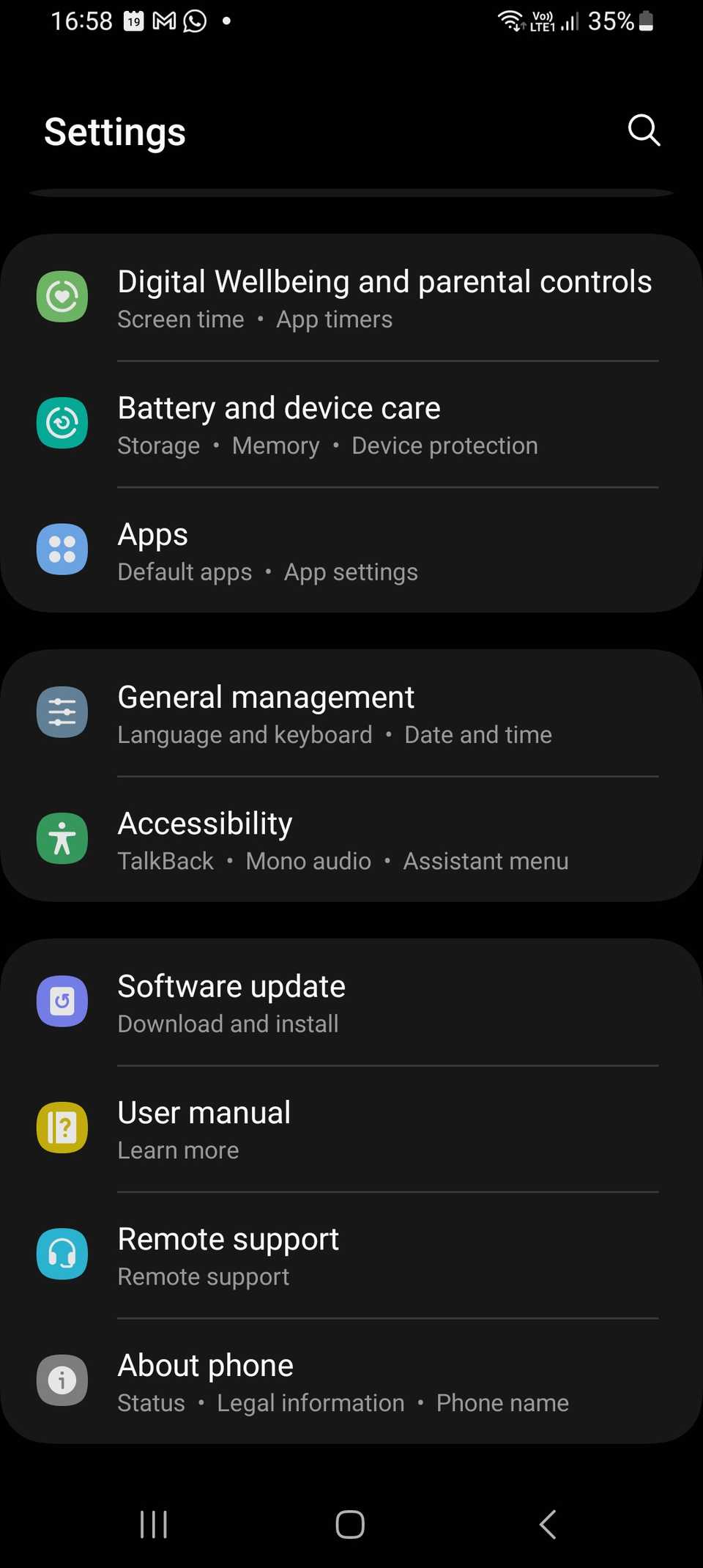
Samsung offers an AI-powered Adaptive Battery feature that learns which apps you don’t use very frequently and limits their background activity. The main goal of this feature is to extend your phone’s battery life. However, it also comes with a slight but real performance trade-off. When an infrequently used app is placed in the standby state, it takes longer to open, reloads more often, and might delay some notifications too. This can make your phone sluggish, especially when you’re multitasking.
When you disable Adaptive Battery, it won’t make your phone faster in a real sense, but your apps will stay active and behave more as you expect. That said, it also comes at a cost. Adaptive Battery protects your phone’s battery health in the long run. When you turn it off, you might experience higher battery drain and faster battery degradation.
Small costs that add up
Digvijay Kumar / MakeUseOfCredit: Digvijay Kumar / MakeUseOf
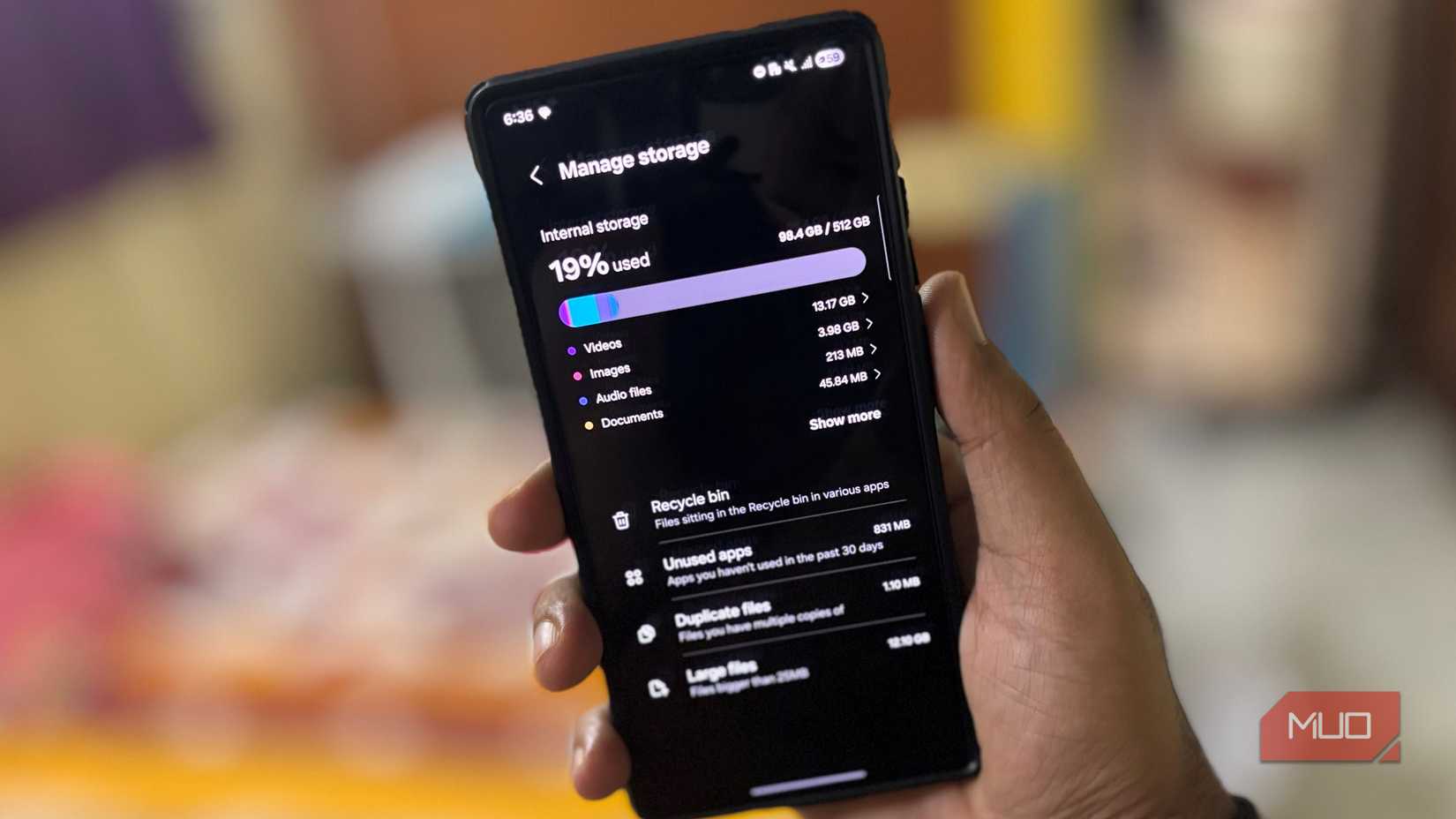
Samsung also includes a long list of additional services, such as Samsung Free, personalization services, analytics, Galaxy Store background updates, cloud syncing, and more. Each service uses minimal resources individually. But when everything adds up, it becomes a problem. These dozens of small background processes create system noise and affect smoothness.
You must disable features that you don’t need or use. This will reduce background clutter and make sure that you always have ample resources for important tasks. That said, you might miss out on some essential recommendations and ecosystem integrations. Therefore, you must pay close attention to what features you’re turning off, and any associated risks.
Related
12 Samsung Galaxy Phone Settings You Should Always Change
Setting up your new Samsung Galaxy device? Here are the settings you should change to get your phone working better.
Your phone isn’t slow, its defaults are
So you see, your Samsung phone doesn’t feel slow because its hardware isn’t capable enough. They feel slow because of some default settings that prioritize visuals, features, and battery optimization over responsiveness. If you fancy a phone that looks more polished and manages itself, Samsung’s default settings would make sense to you. But if you’re someone like me who craves a phone that’s faster and more predictable, you need to turn off these defaults and take things into your hands.