
Google introduces new features across Android and its most popular apps on a weekly basis, but only a select few of them have the potential to change your workflow. Google Pixel exclusives are an excellent reason to buy a Pixel phone over the competition — if you actually make use of those one-of-a-kind tools.
I’ve tested them all, and there are a few that keep me coming back. From shortcut gestures and helpful reminders to clever calling tools and recording summaries, these are the Google Pixel tricks that truly changed how I use my smartphone.
Flip to Shhh
Available on most Pixel phones, this trick helps limit distractions
Credit: Brady Snyder / MakeUseOf
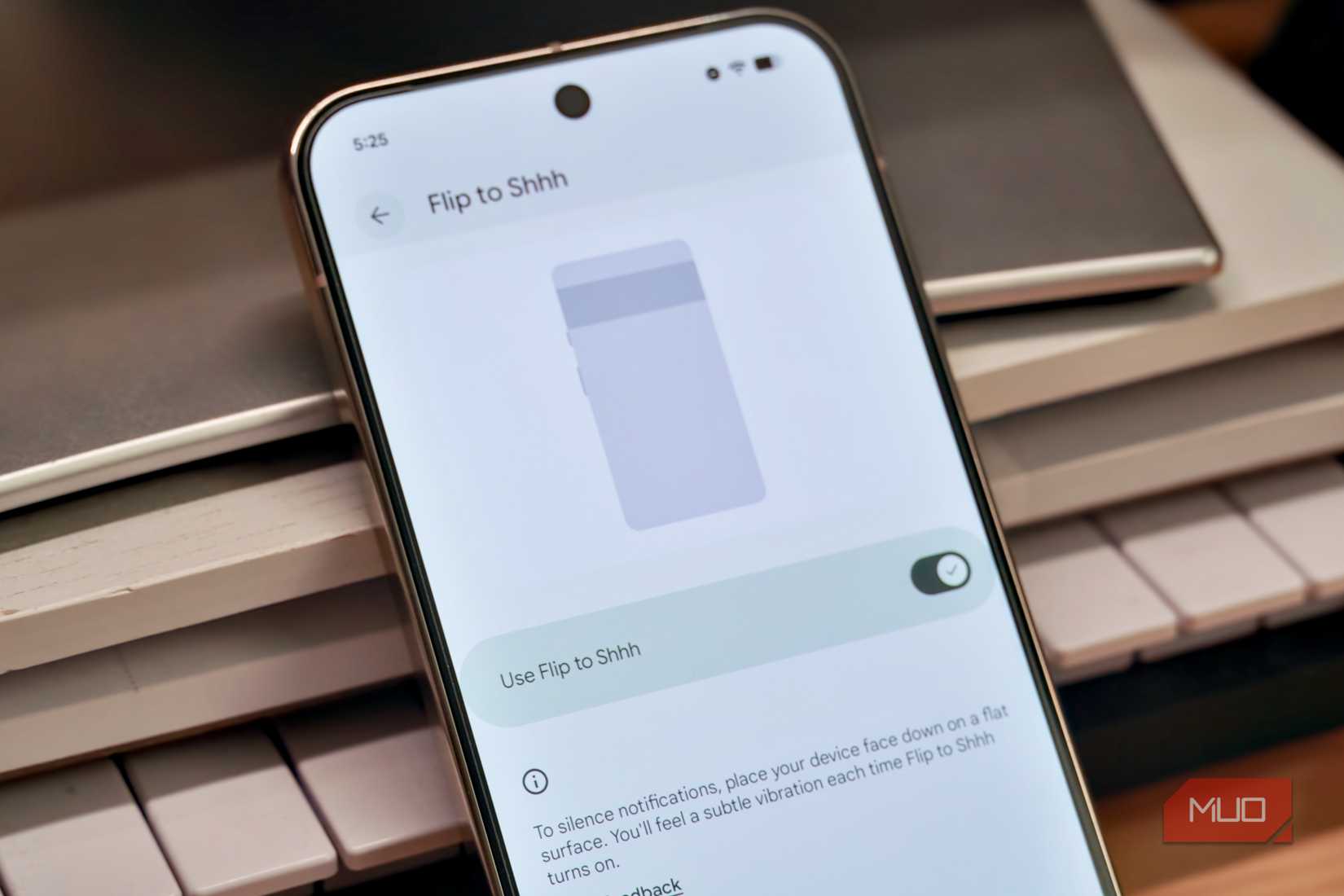
Google Pixel phones are rich with gestures, so much so that there’s an entire Settings page dedicated to them. On the Pixel 4a and later, you can use the Quick Tap feature to start a shortcut when you tap the back of your phone twice. However, my favorite Pixel is much simpler — it’s called Flip to Shhh. When you flip your phone face-down, it immediately enables the Do Not Disturb mode.
I love using Flip to Shhh at my desk to keep myself on track and minimize distractions. When I need to focus, simply placing a Pixel face-down will briefly shut off notifications that could pull me away from work. If I need to check on something or want a break, picking the Pixel up reveals all the notifications delivered quietly during that span. It’s a much quicker and simpler workflow that saves me from manually enabling and disabling Do Not Disturb throughout the day.
Related
5 of my favorite Pixel exclusives you can use on older and budget phones
Many of Google’s best Pixel exclusives are only available on newer models, but these work on older devices too.
Screenshot reminders
The Pixel Screenshots app can remind you to revisit a capture later
I like to pick and choose when taking a screenshot of something on my phone. The more you take, the more is left to be cleaned up later. All too often I take unnecessary screenshots, forgetting to go back to them later. Pixel Screenshots — an exclusive app available on the Pixel 9 and Pixel 10 series (excluding the Pixel 9a) — is built to solve this problem once and for all. After you take a screenshot, you can go into the Pixel Screenshot app and set a reminder to revisit it.
It works just like your typical reminder, arriving as a push notification at a date and time you choose. The app suggests reminder intervals for Later today, Tomorrow, and Next week, plus a custom Pick date & time option. The best part is using the Pixel Screenshot app’s notes feature to describe exactly why you wanted to come back to a saved screenshot.
This tool totally cured my forgetfulness when it comes to screenshots. Whether I’m screenshotting a gift idea for my partner or my flight information for next week, I can get a reminder that ensures the capture will never get lost in the void.
Call Screen
Vet calls from unknown numbers before you pick up
Credit: Brady Snyder / MakeUseOf
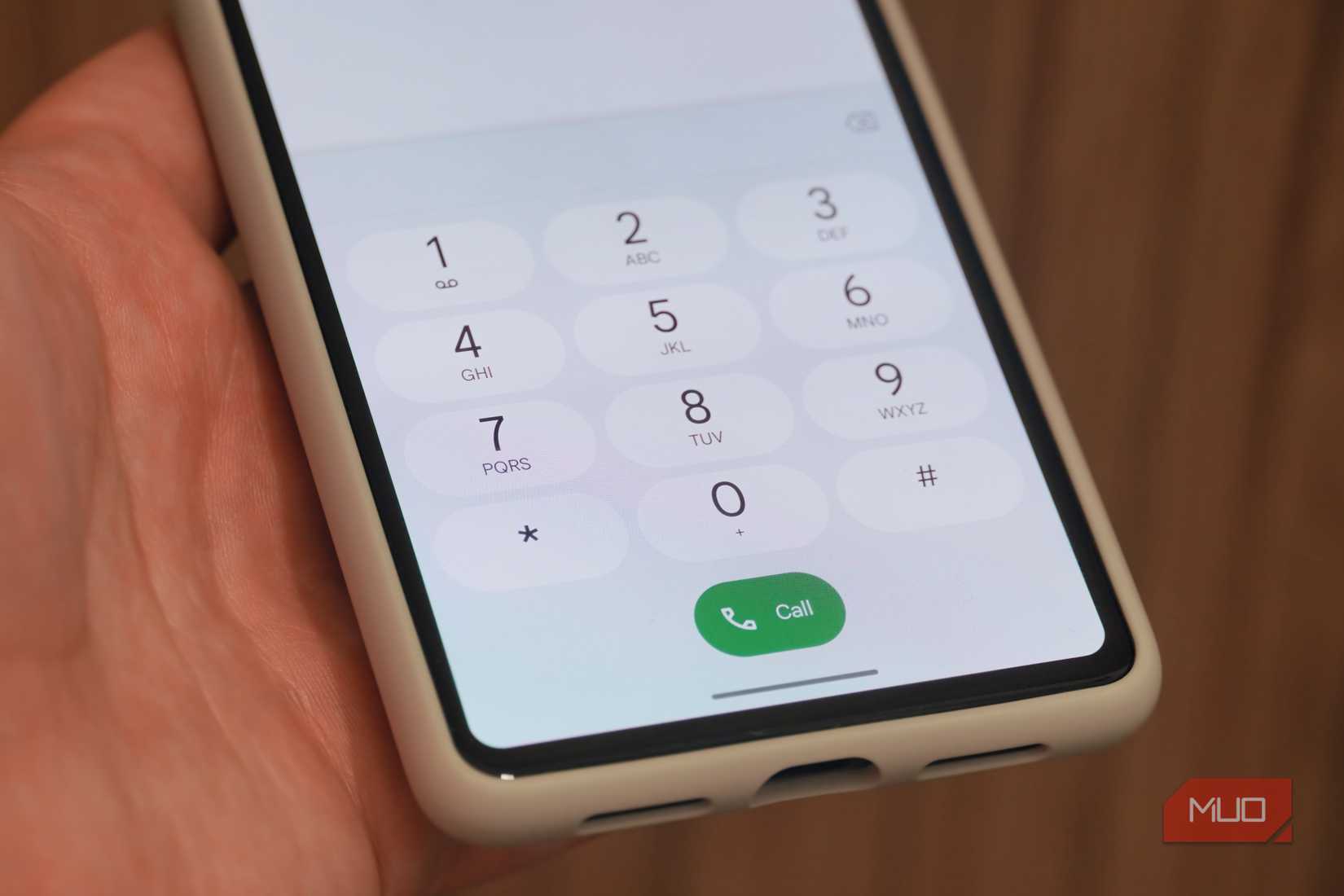
I never pick up a phone call from an unknown caller without knowing exactly what to expect. It’s not just about avoiding scam calls and reducing time wasted on spam. It’s also about being prepared for a call you’re about to take, and this is helpful for business calls or working with customer service representatives. I can thank Pixel phones in part for that — it’s not the only brand offering call screening these days, but it kicked things off with Google’s exclusive Call Screen feature on Pixels.
Call Screen includes both a manual and automatic version. The automatic screening answers suspicious calls, and those from unknown numbers, as they arrive. Google’s AI agent will answer the call and ask for more information, like who the caller is and why. Spam calls will automatically be ended, while other calls will ring again for the Pixel user. Before answering, you can see the transcript of what the caller said.
All of this information provides more context as to whether you should pick up or decline the call. For manual call screening, you can tap Screen call when the incoming call dialog appears. Then, you have custom reply options with Call Assist available to select (via Google):
Is it urgent?: “Do you need to get a hold of them urgently?”
Report as spam: “Please remove this number from your mailing and contact list. Thanks, and goodbye.”
I’ll call you back: “They can’t talk right now, but they’ll give you a call later. Thanks, and goodbye.”
I can’t understand: “It’s difficult to understand you at the moment. Could you repeat what you just said?”
Call Assist can relay these messages to the unknown caller virtually, without you ever having to answer the call and speak. Tired of picking up and asking to be removed from mailing lists? With Call Screen and the companion Call Assist feature, you don’t have to.
Another Google Pixel calling feature worth mentioning is Clear Calling. It uses AI to enhance your voice quality and limits background noise. Turn it on by navigating to Settings → Sound & Vibration → Clear Calling → Use Clear Calling.
Google Recorder
Get transcriptions and export them to Google apps with ease
Yadullah Abidi / MakeUseOfCredit: Yadullah Abidi / MakeUseOf
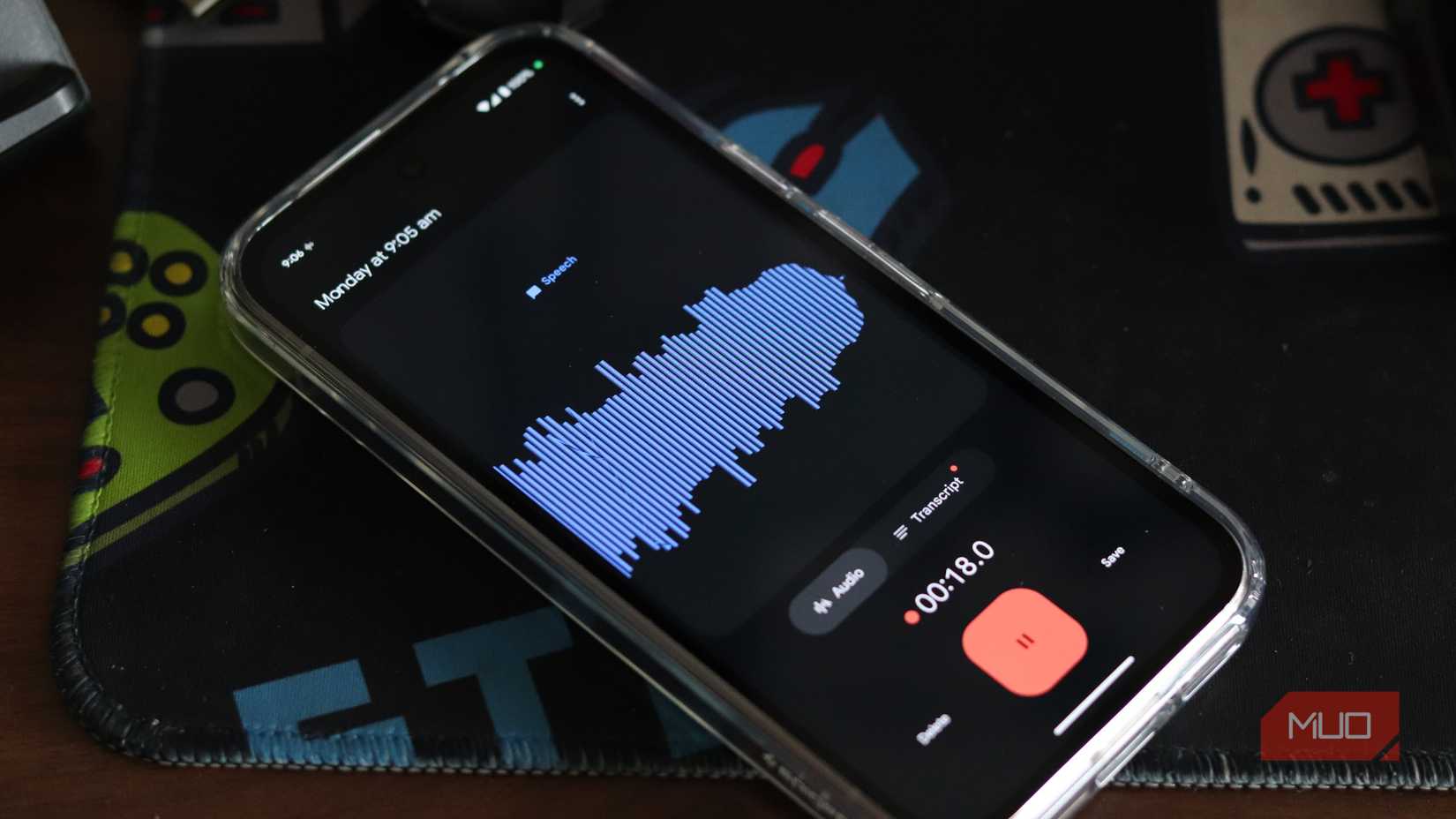
Google’s Recorder app is the best Pixel exclusive to date. It’s an old one, but the utility is unmatched, making it an instant classic. The app can record voice memos and transcribe them in real time, something that happens entirely on-device. The processing identifies individual speakers, which are included in the transcript. Text summaries are then created, and they’re searchable. You can even better organize recordings with keywords.
Recorder has since added some truly wild features, like the ability to generate a video version of the recording and transcript. Additionally, you can export recordings to Google Docs — which can then be shared throughout the Google ecosystem, including platforms like Gemini and NotebookLM. Even when my primary SIM isn’t in a Pixel, I keep one around for the sole purpose of managing recordings and summaries.
Pixel offers the best exclusives of any phone brand
Apple and Samsung make outstanding features that work within their respective ecosystems, but I love how Google’s Pixel exclusives stand on their own. With only a Google Pixel phone, you can use clever tricks and tools that instantly upgrade your daily workflows.
If you’re deep into the Google Pixel and Nest ecosystems, the experience is even better, though it’s thankfully not a requirement. Google releases new Pixel features in quarterly Pixel Drops, so it won’t be long before even more exclusive features hit your device.