
Pixels come packed with so many features that keeping track of everything they can do can honestly feel overwhelming. You might use the phone every day and still discover something new, months later. That happened to me when I realized a particular sensor had been there on my Pixel 10 Pro the whole time. I hadn’t paid it any attention before, but once I tried it out, its usefulness immediately stood out.
And it’s not just hardware surprises. Google also has hidden tools within the software that most people never stumble upon. One example is a hidden diagnostic menu designed to help troubleshoot issues and check different components of your device. It’s not something you’ll find in the Settings app, yet it can be incredibly handy when you want to understand what’s going on under the hood.
Chances are you’ve been using your Pixel without ever tapping into this side of it. It can really change how you maintain and get the most out of your phone.

Related
How to unlock every AI feature on your new Pixel
Circle to search, AI image tools and more
One code away from peeking under the hood
Accessing the diagnostic menu on your Pixel is fairly simple once you know where to look. Follow these steps:
Open the Phone app on your Pixel.
Tap the keypad icon to open the dialer.
Enter the code: *#*#7287#*#*
You don’t need to press the call button; the menu will open automatically once the code is typed.
Before you continue, double-check that your Pixel is connected to a reliable Wi-Fi network. This menu depends on a steady connection to function properly, and you may run into issues if the signal is unstable. Once you’re online, tap Confirm to move forward and explore the available tools.
What’s behind the curtain
A hidden toolkit for your phone’s wellbeing

Credit: Shimul Sood / MakeUseOf
The diagnostic menu on your Pixel is a built-in system utility that stays hidden from everyday use, but serves a very practical purpose. It allows the phone to run detailed checks on its internal hardware, including the battery, sensors, cameras and other core components. Instead of guessing why something is not working properly, this tool gives you structured tests to evaluate each part directly.
This feature is often relied upon during servicing, but it can also help users investigate problems on their own. You can examine individual components separately or run broader scans that review multiple areas of the device. That level of access makes it easier to narrow down the source of an issue rather than troubleshooting blindly.
In simple terms, it acts as a health check for your phone. By helping you understand what might be wrong beforehand, it prepares you for repairs with clearer insight and may even save you from unnecessary service visits.
A quick usage guide
Your step-by-step health check ritual
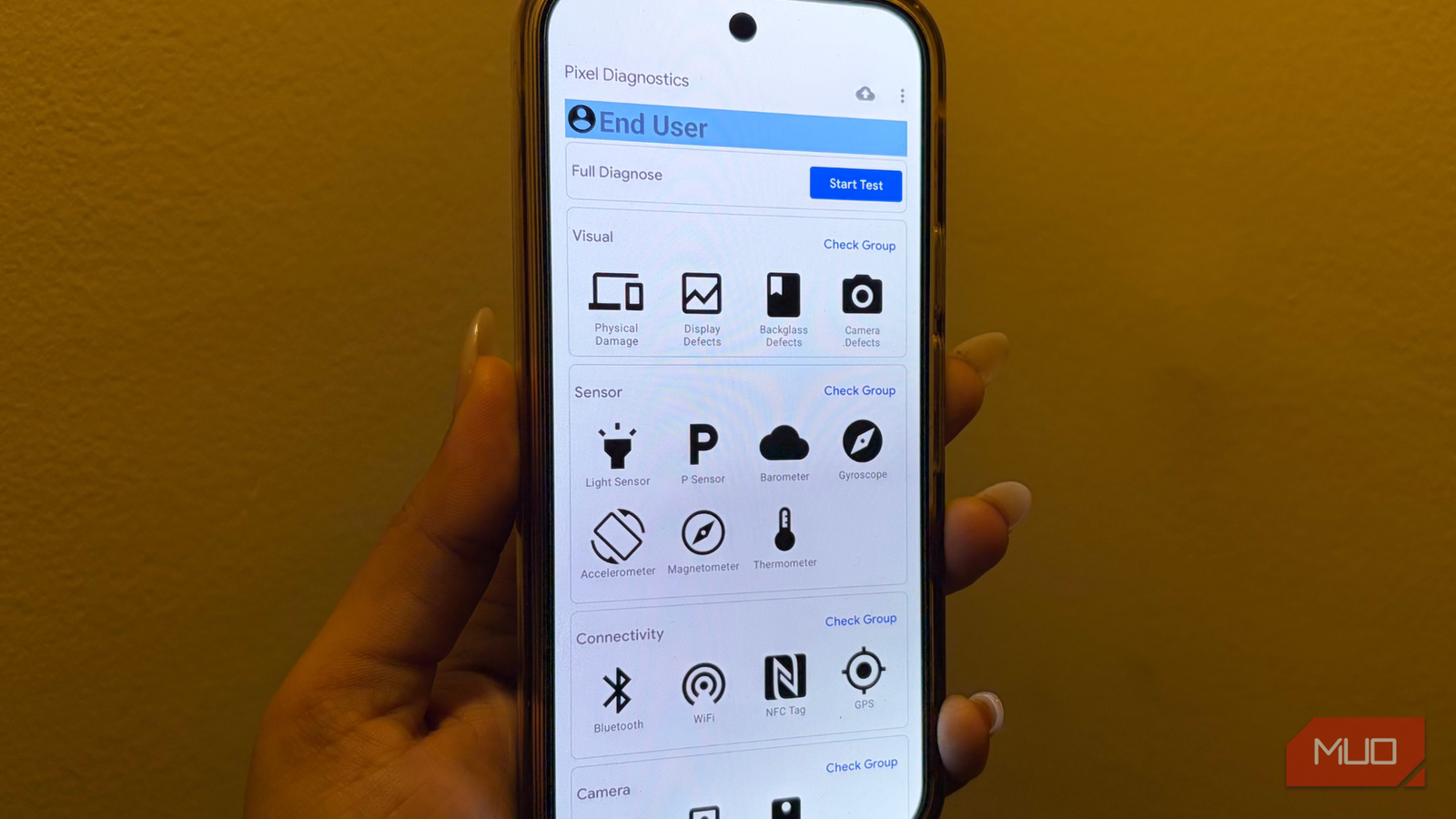
The Pixel’s diagnostic menu is neatly structured, even if it looks overwhelming at first glance. Right at the top, you’ll find the option to run a full diagnostic scan. This is the quickest way to check everything in one go. Simply tap Start test, and the phone begins evaluating its core components.
If you’d rather inspect things step by step, the menu breaks testing into categories such as Visual, Sensors, Connectivity, Camera, Audio, Screen, Others, and Defects. Each category has a Check group option beside it. Tapping that lets you explore individual checks within that section instead of committing to a blanket scan.
To give you an idea, starting with the Visual section walks you through a set of straightforward prompts, including whether the device shows physical damage, display irregularities, background inconsistencies, and camera flaws. You just respond with Yes or No. The rest of the section follows the same guided format, helping you systematically identify potential issues across hardware and software. The key here is honesty. Accurate responses ensure the final report reflects the device’s real condition rather than wishful thinking.
After you’ve completed your checks, the system compiles the findings and sends the report to Google’s services. Any detected issues are highlighted, while a clean report means you’re in the clear. If you suspect something serious, running the full diagnostic is worthwhile, but don’t treat it like casual entertainment. Save the comprehensive scan for when there’s an actual concern, not idle curiosity.

Related
Android phones would be better if they copied these Pixel features
Some of Pixel’s smallest features leave the biggest impression.
A safety net you’ll hopefully never need but will be glad exists
Pixel phones are packed with clever tools that sit in the background, often unnoticed. You’ve probably seen how a handful of features can reshape your everyday routine, or how tweaking just a few overlooked settings makes the device feel sharper and more intuitive. In the same spirit, there’s this tucked-away diagnostic menu that hardly gets talked about.
It’s not the sort of thing you’ll open daily, and frankly, you shouldn’t have to. But knowing it exists is reassuring. Think of it as a built-in safety net: a place you can turn to when something feels off, letting you run checks and troubleshoot without immediately restoring to drastic measures. Ideally, it remains unused while your phone behaves perfectly, but having it within reach adds a layer of quiet confidence to the experience.