
Does the thought of your parents facing an emergency when you’re not around keep you up at night? Are you worried they won’t be able to use their smartphone when they actually need it? These simple Android tweaks transformed how I care for my aging parents from afar.
Enable location sharing so I know where they are
The first thing I set up is location sharing through Google Maps. This solves multiple practical problems I face when caring for my parents.
The biggest benefit is ending the “did you reach yet?” anxiety. Instead of calling them repeatedly to confirm they arrived safely at a doctor’s appointment or family gathering, I can simply open Google Maps and check their location. It also lets me book an Uber for them without forcing them to navigate the app themselves.
It’s especially useful in emergencies. If I try calling my parents, and they don’t answer, I can check their live location on Google Maps. That immediately tells me whether they’re fine and just have their phone on silent, or if something may be wrong—at which point I can contact friends or EMTs and share their location.
Be transparent with your parents about this setup. Explain that you’ll be able to see their location at all times and make sure they’re comfortable with it. If you’re their primary caregiver, most parents will understand and appreciate the added safety.
How to set up location sharing
To enable this, open Google Maps on their phone, tap their profile picture, select Location sharing, tap Share location, choose Until you turn this off for permanent sharing, and select your Gmail account—the same one you use on your phone to access Google Maps.
Keep in mind that location sharing requires an active internet connection (mobile data or Wi-Fi). It won’t work if they turn off their data or are in an area without coverage.
Related
How to use Google Maps without an internet connection
You won’t get lost even without a data connection.
How to get their complete location history
Google Maps location sharing only shows the live location. You can see where your parents are at the moment you check the app, but not where they were 10 minutes ago. There’s no supported way for one Google account to automatically view another person’s full Location History.
That said, if you want full location history, you can create a new Gmail account—something like momdadandme@gmail.com—and sign in to that account on both your phone and your parents’ phones. This gives you a shared account that you can switch to in Google Maps to view their location history.
Third-party family tracking apps can offer location history, but they come with privacy trade-offs, battery drain, and subscription costs. For most families, Google Maps live sharing strikes the right balance between usefulness and simplicity.
Add emergency medical info to help first responders
This is one of the most important—and most misunderstood—Android safety features. When properly configured, it allows emergency responders (or anyone assisting them) to view your parents’ medical conditions, allergies, blood type, medications, and emergency contacts without unlocking the phone, using the built-in emergency interface. It’s a core operating system feature, not dependent on having an app installed. The exact location of this setting may vary by manufacturer. On Google Pixel phones, you can find it under Settings > Safety & emergency > Medical info.
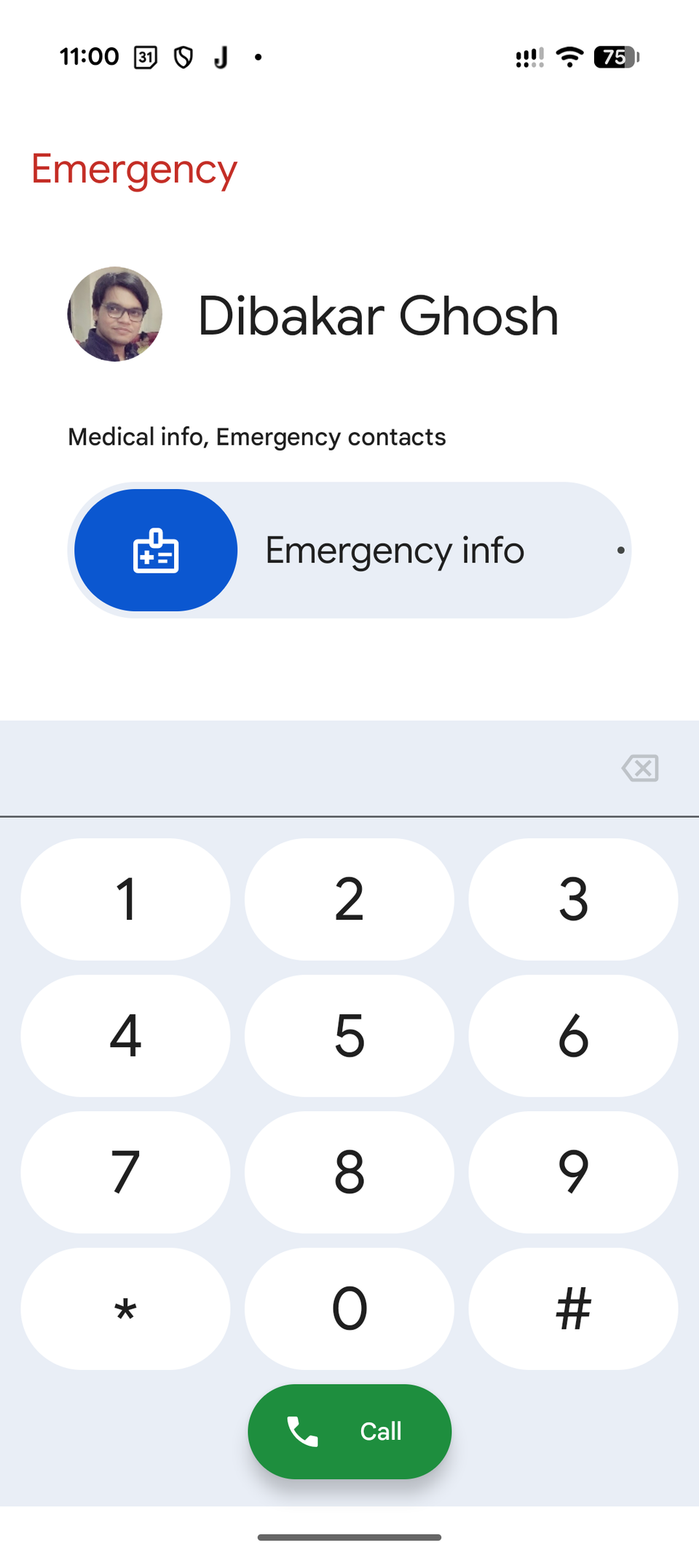
Once set up, the information is accessible directly from the lock screen. Open the phone to the PIN or password screen and tap Emergency—no need to unlock it. This opens the Emergency Dialer, where you’ll see an option to view Emergency info. The data appears immediately in a read-only screen.
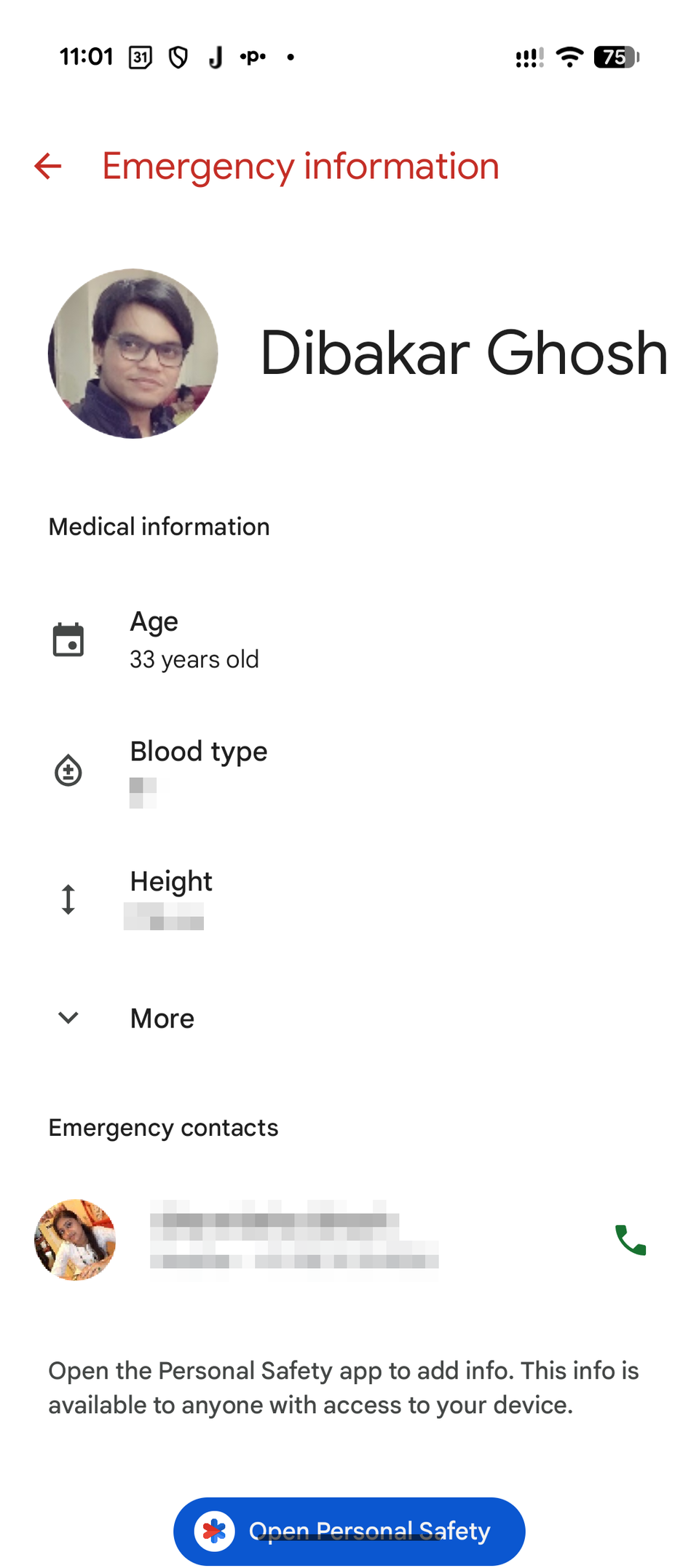
This information is synced across all devices signed in with the same Google account and is end-to-end encrypted, meaning Google cannot access the contents.
Related
I Set Up These 5 Emergency Features on Every Android Smartphone
Enable these Android features to stay safe, even in rough terrain and remote areas.
Turn on Find My Device in case they lose their phone
Phones don’t get lost because people are careless—they get lost when someone is tired or distracted in an unfamiliar environment. My parents have lost six phones over the last decade. It’s honestly impressive in the worst way possible, and that’s why I now make sure to enable Find My Device and all anti-theft protections on every phone I set up for them.
Now, the exact steps for enabling the Find My Device option can vary by device. On most modern devices running Android 16 or above, it’s currently available as Find Hub. You can access it by going into Settings > Security & Privacy > Device Finder > Find Hub and then enabling “Allow device to be located.” Also, ensure that location services are always enabled—the feature needs it to work properly.
In case you’re curious, no, they haven’t lost their phones since 2022, when I started setting up this feature—thankfully.
Install the Senior Home launcher to remove unwanted clutter
Senior Home is a relatively new Android launcher released in October 2025. It streamlines the home screen by emphasizing the time, date, battery percentage, flashlight, and large icons for a few essential apps and favorite (or emergency) contacts.
The design is minimal and intentional. It’s ideal for parents and older users who aren’t very tech-savvy and feel overwhelmed by small icons and flashy animations found on most modern smartphones. I’d even recommend it to younger, tech-savvy users who want to optimize their phones for digital detoxing.
This isn’t the only option, of course. Almost any minimal launcher can work. Some good alternatives include Simple Launcher, Minimalist Launcher, and Niagara Launcher. Anything that improves readability, reduces distraction, and brings essential apps and information to the forefront is a solid choice.
Related
I Love This Minimalist Phone Launcher, and It Just Got Even Better
My foldable may not be a minimalist phone, but it sure looks like one.
Setting up these features took me about 30 minutes in total, but the peace of mind has been invaluable. My parents maintain their independence; I worry less, and we both know help is just a tap away if needed.