
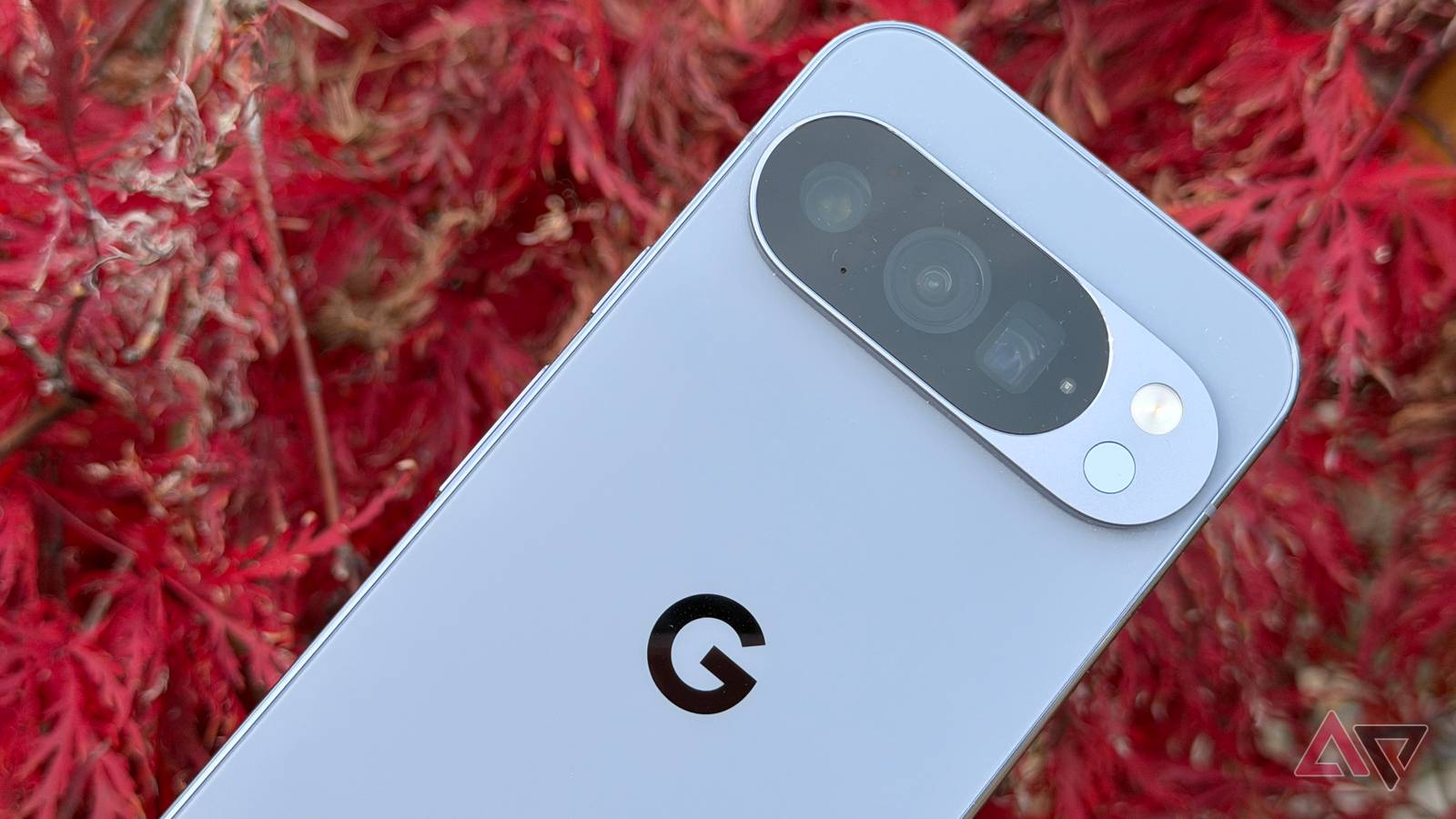
When your ‘honeymoon phase’ with your Google Pixel starts to fade, those buttery-smooth transitions feel more like a stuttering slideshow.
After a year or two, you may start eyeing the newest model and wonder if your hardware is already showing its age.
But before you drop $800 on an upgrade, I have some news: Your phone isn’t dying. It’s just bogged down by a few out-of-the-box settings that focus on style over speed.
After digging through some overlooked system toggles, I found a handful of tweaks that instantly brought my Pixel back to life.
Related
I have used dozens of Android phones, but these Pixel features still absolutely amaze me
These add-ons make Pixel special
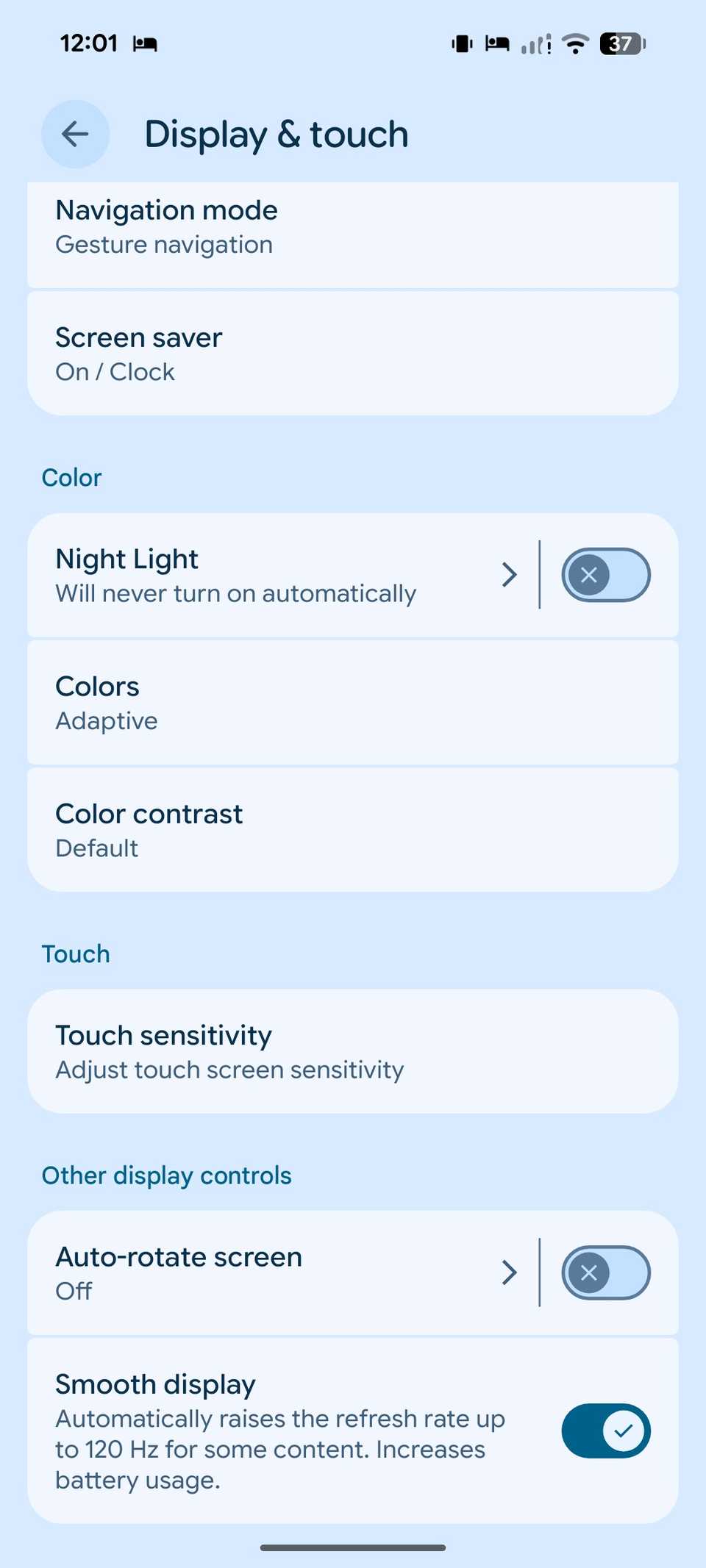
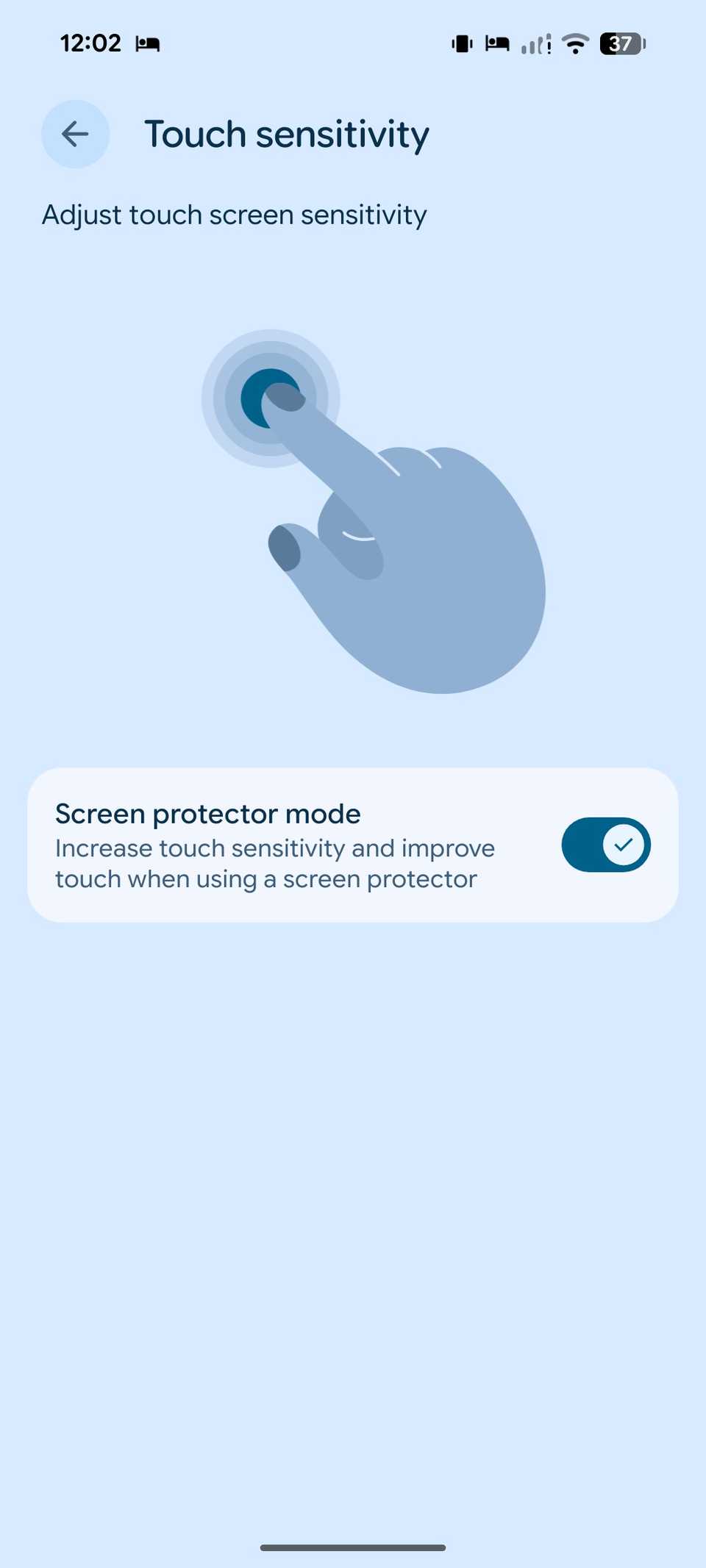
Enable Screen Protector mode
Whether it’s Pixel 6, Pixel 8, or Pixel 10, applying the screen protector is the first thing I do to protect my investment of hundreds of dollars.
However, whenever I apply a screen protector, I always notice a hesitation between touch input and response from the screen.
It wasn’t a slow processor; it was a communication breakdown between my finger and the glass.
After I flipped the screen protector mode, the difference was night and day. Every tap felt intentional and immediate.
Even if you are not using a screen protector, turning this on makes the entire UI feel more alive and responsive to the lightest touch. You can enable the option from the Settings > Display menu.
Enable swipe up to start search
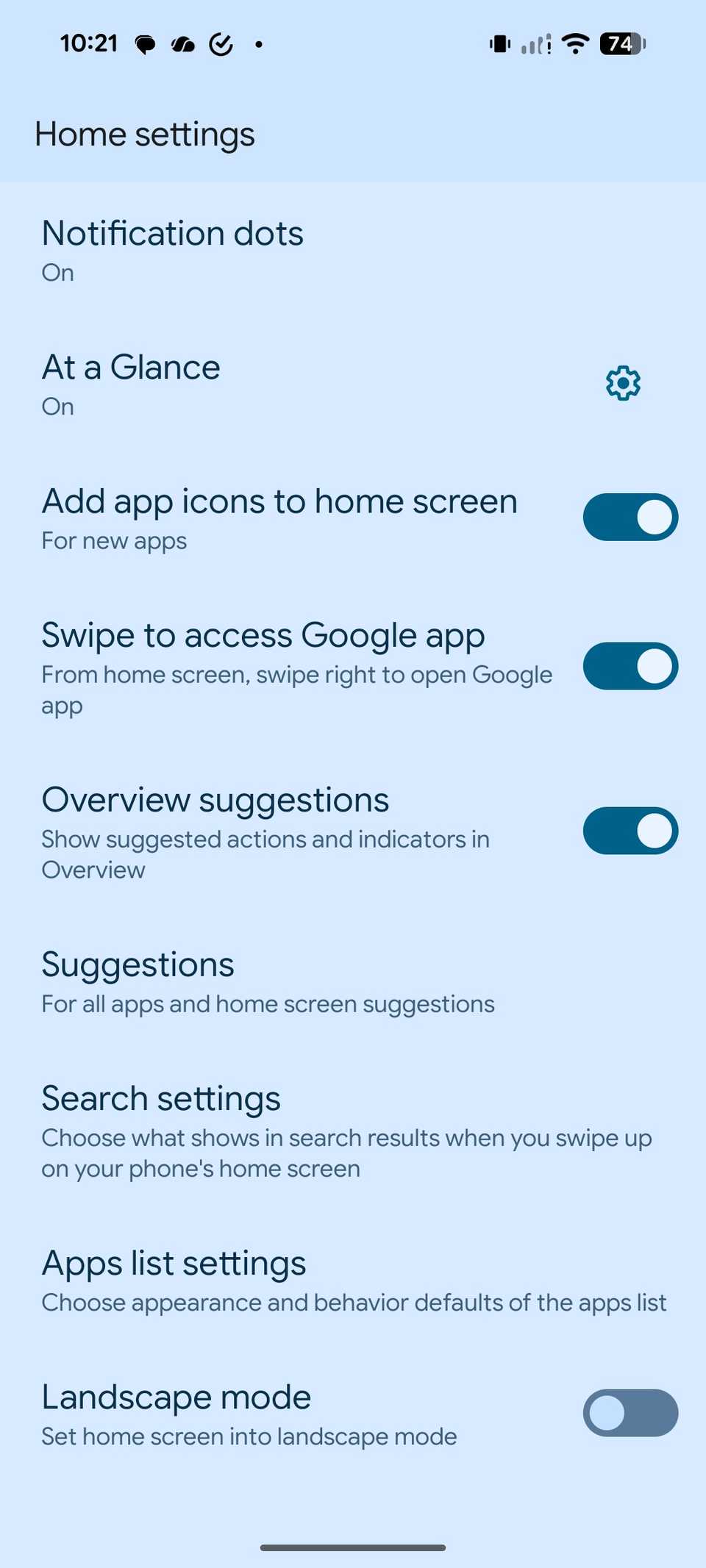
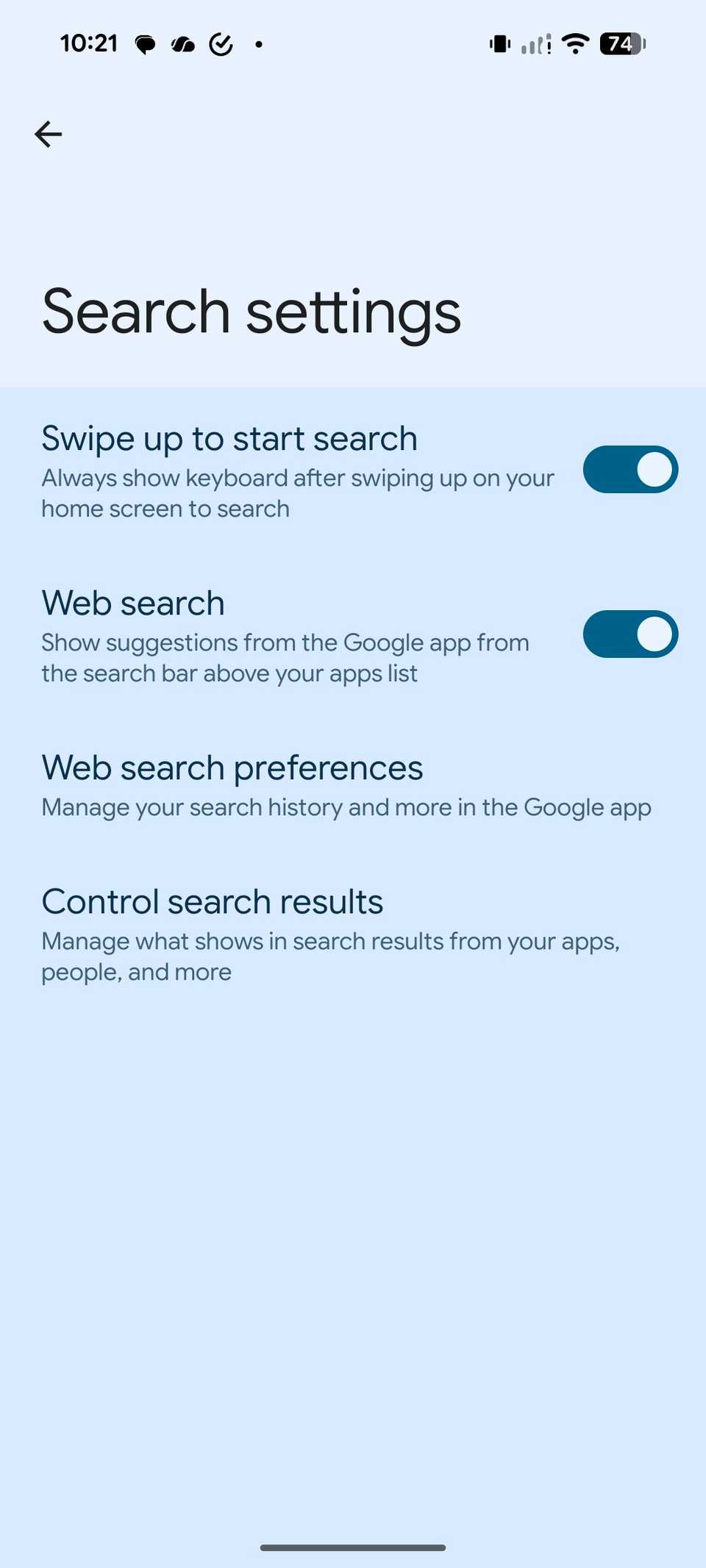
This is the single most underrated productivity hack on the Pixel. For the longest time, my routine was a two-step chore: swipe up to open the app drawer, then tap the search bar at the top to actually start typing.
It sounds small, but when you do that a dozen times a day, those extra taps add up to a lot of wasted moments.
I finally realized that I rarely open my app drawer just to scroll through a giant list of icons. I open it because I want to find a specific app right now.
By enabling Always show keyboard, the second my thumb leaves the screen after a swipe up, the keyboard is already there waiting for me. It turns my app drawer from a cluttered storage bin into a lightning-fast command center.
You can head to Home Settings > Search settings and enable the Swipe to start search toggle from the following menu.
Disable Top Shot
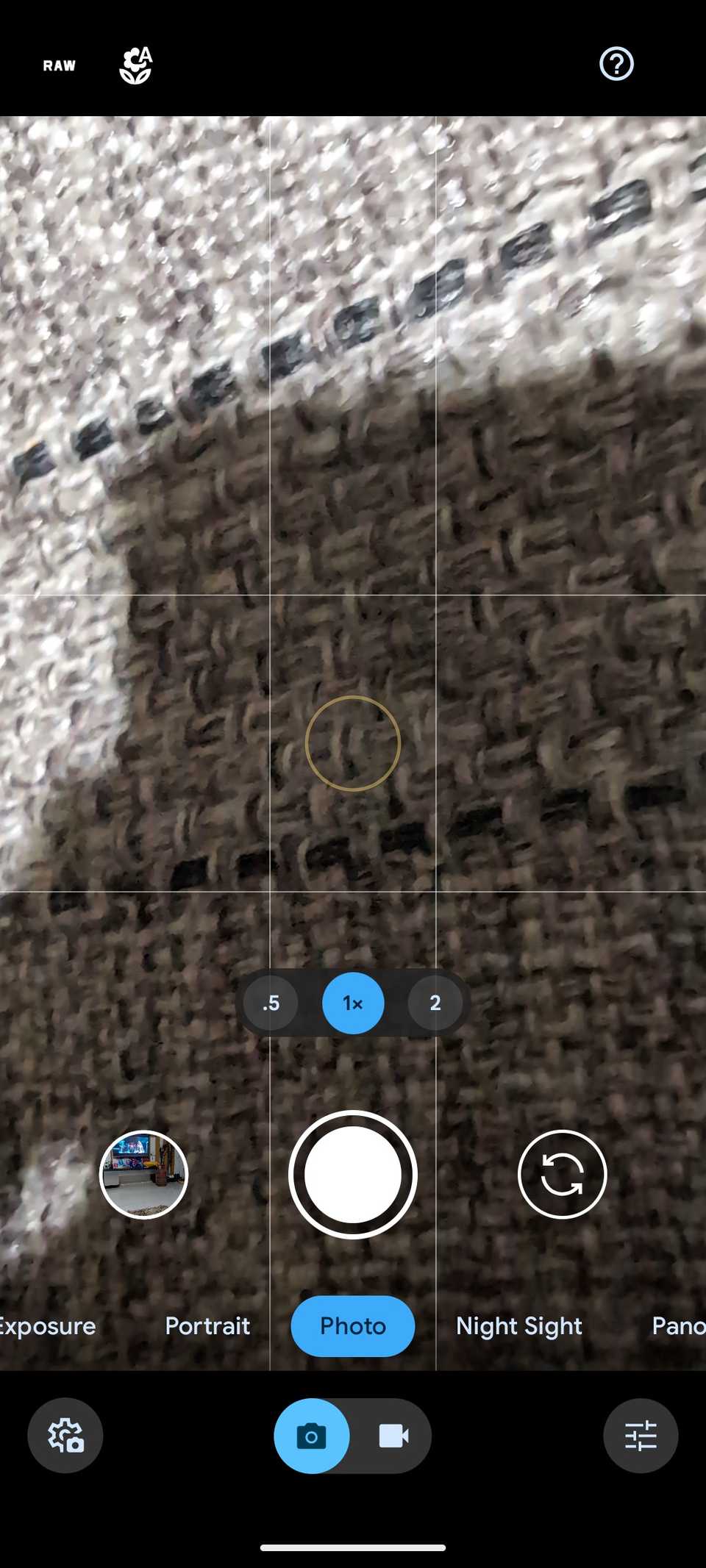
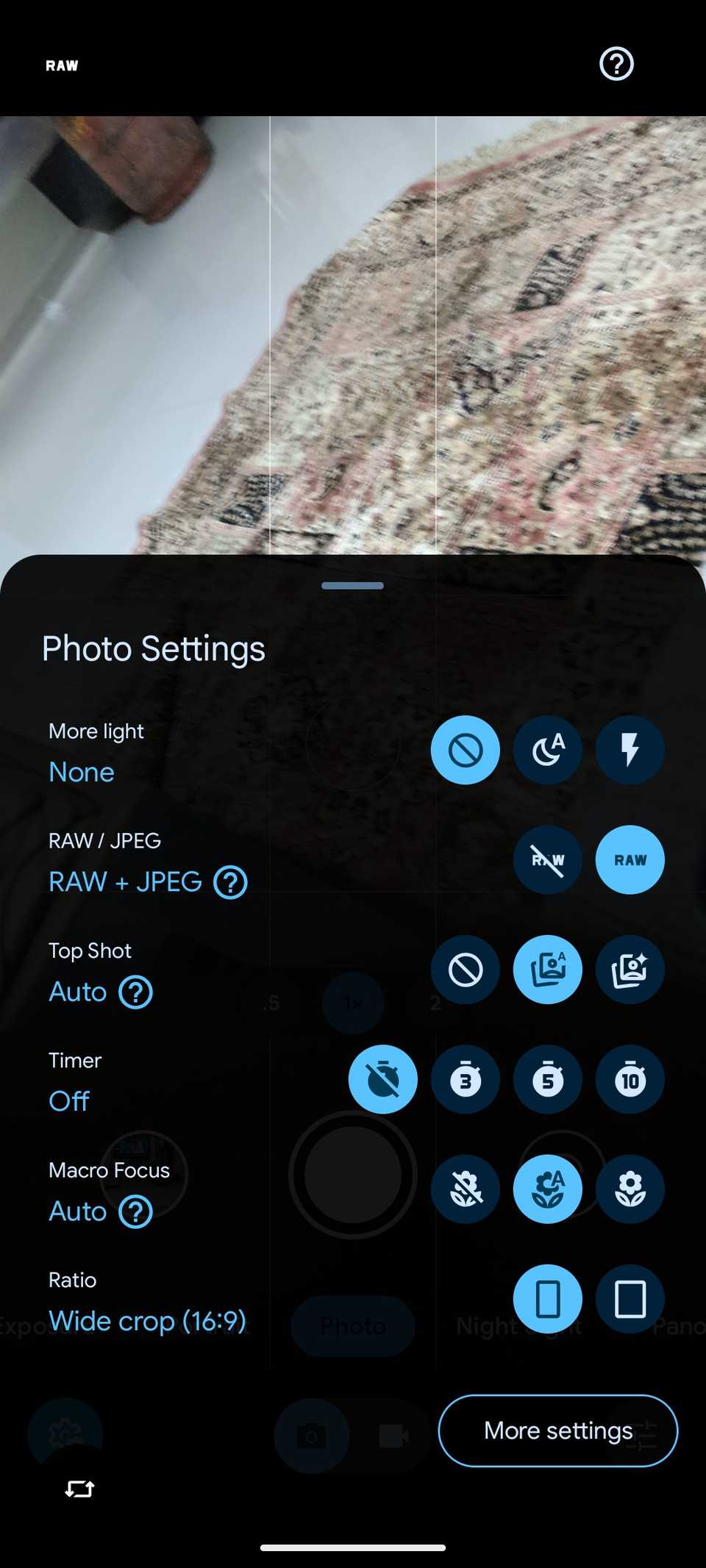
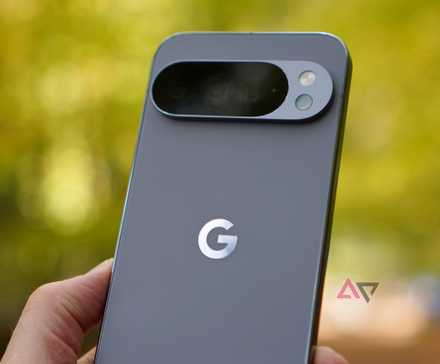
Top Shot sounds like a dream on paper. The idea that your Pixel records a tiny snippet of video for every single photo so you can pick the perfect frame later sounds genius.
But it was the silent killer for my Pixel’s snappiness. I started noticing that every time I would jump into my Google Photos to check out a shot I had just taken, there was this annoying processing lag.
The app felt heavy, and my storage was disappearing faster than I could track.
Then it dawned on me: I was essentially forcing my phone to record a low-res video for every single shutter press.
After I disabled Top Shot, my Camera app finally started feeling snappy. I was flying through my gallery app now.
If you just want a fast, high-quality still photo without the digital bloat, this is the first thing you should turn off.
Related
My Google Pixel is infinitely better since I tweaked these settings
Pixel settings you are probably ignoring
Free up space
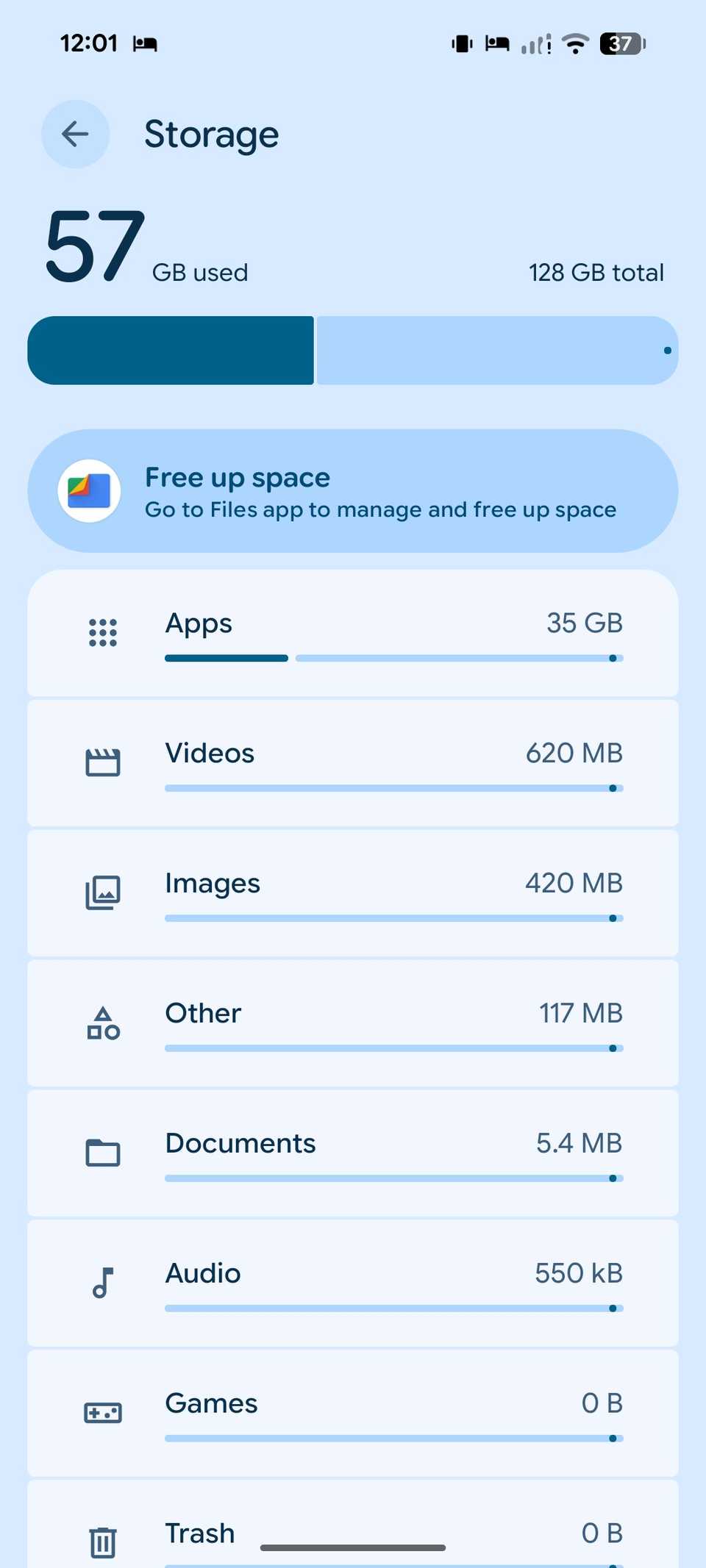
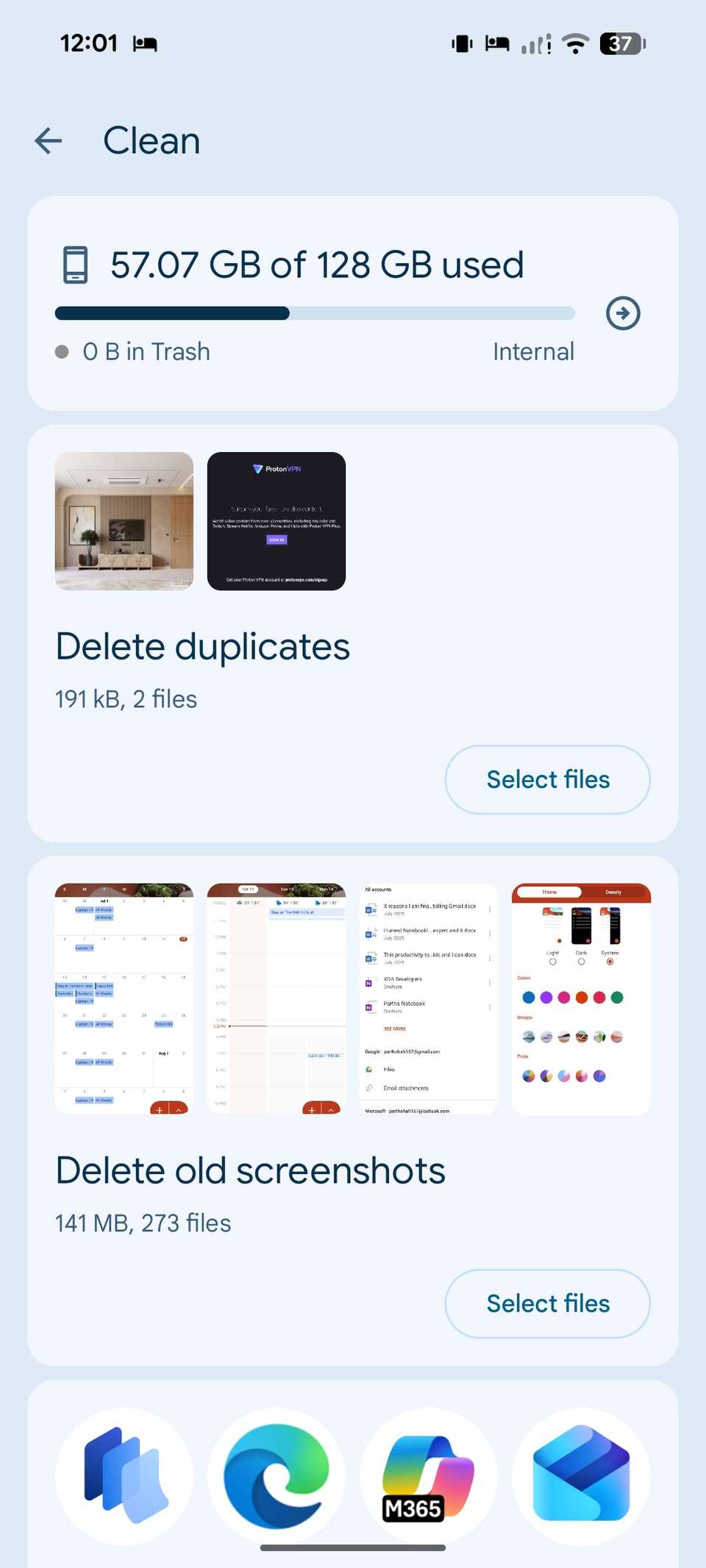
For months, I just ignored the ‘Storage almost full’ notifications, thinking my Pixel’s processor was powerful enough to handle a cluttered drive.
When your storage crosses that 80% or 90% mark, the whole system starts to lag.
I finally started using the ‘Free up space’ option in the Storage menu. The option takes me directly to the Files app. I can glance over all the suggestions from the app and take the necessary steps to free up space in no time.
Clearing out that digital junk didn’t just give me more room for photos; it noticeably snapped my phone back to life. Apps launched faster, the camera felt more responsive, and that heavy feeling the OS had was gone.
Enable adaptive connectivity
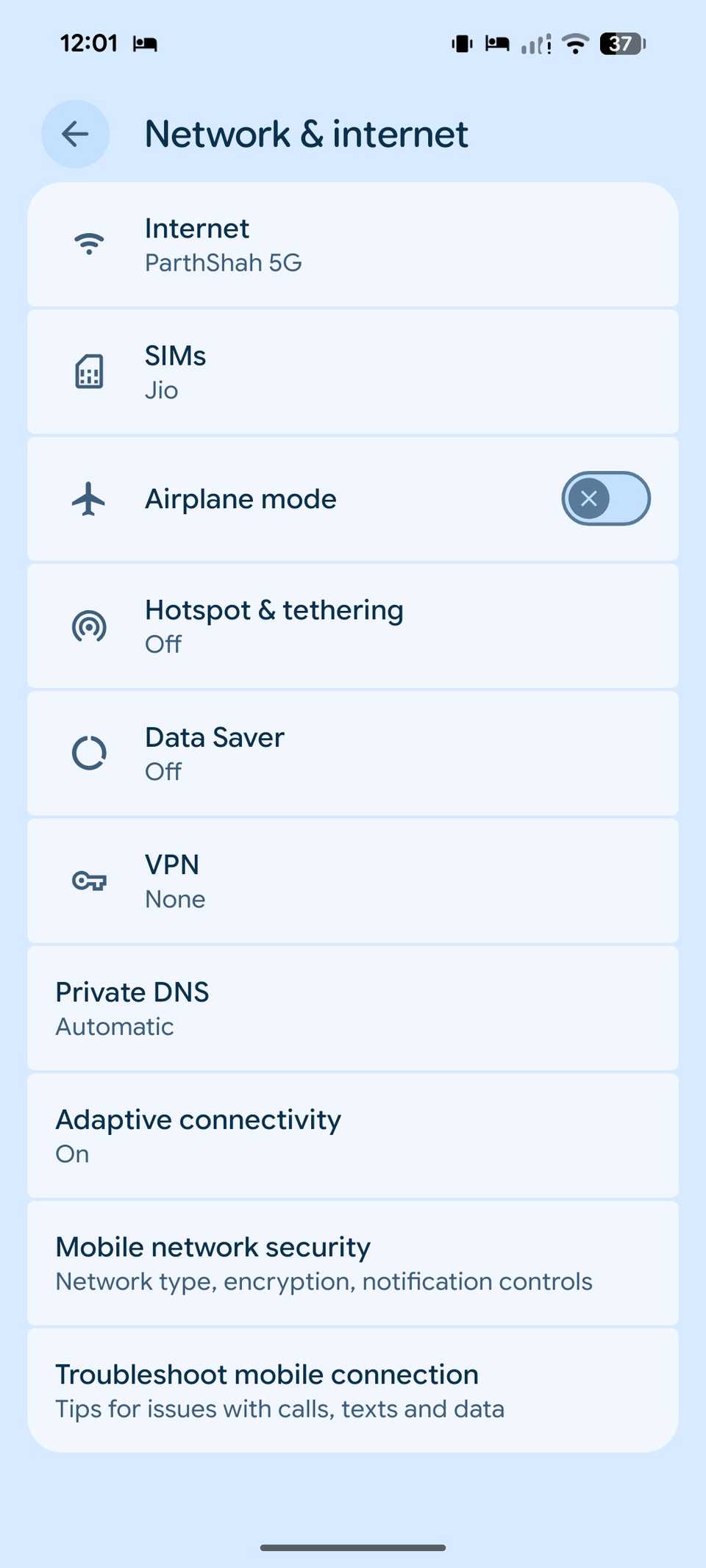
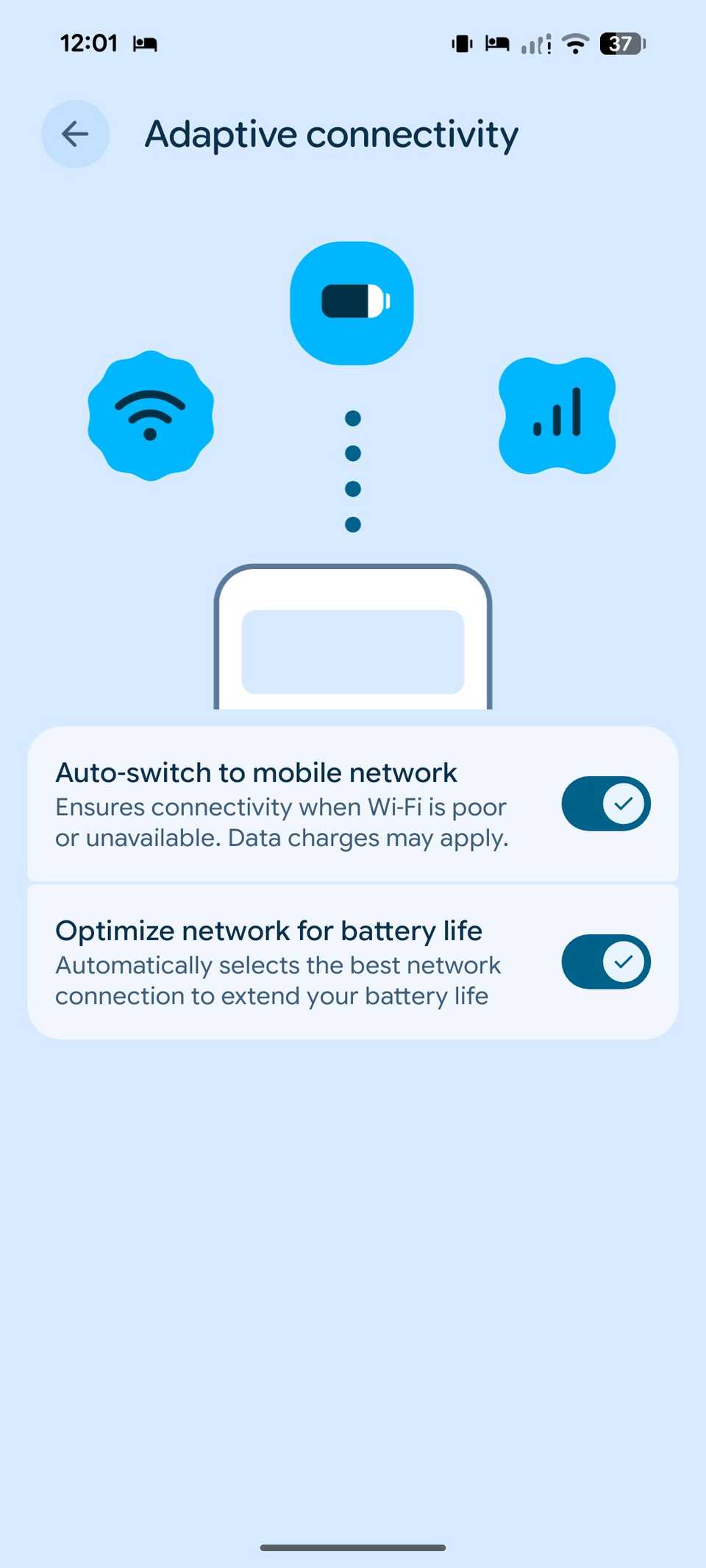
I used to toggle my Wi-Fi and cellular data on and off to try and squeeze out a bit more performance. I thought I was being smart, but in reality, I was just making my Pixel work harder than it needed to.
That’s when I finally stopped overthinking it and leaned into Adaptive Connectivity.
You can think of it as a smart transmission for your phone’s radio. It bounces between the mobile data and Wi-Fi connections as per the situation.
From sluggish to snappy
You don’t need the latest $1,000 upgrade to get a fluid experience; sometimes, you need to know which factory settings are holding you back.
So, what are you waiting for? Reclaim control over background tasks and animations, and give your Pixel a second life. It’s the closest thing to ‘new phone’ energy without the new phone price tag.
After you go through these tweaks, make sure to change these Camera settings to get the best out of it.