
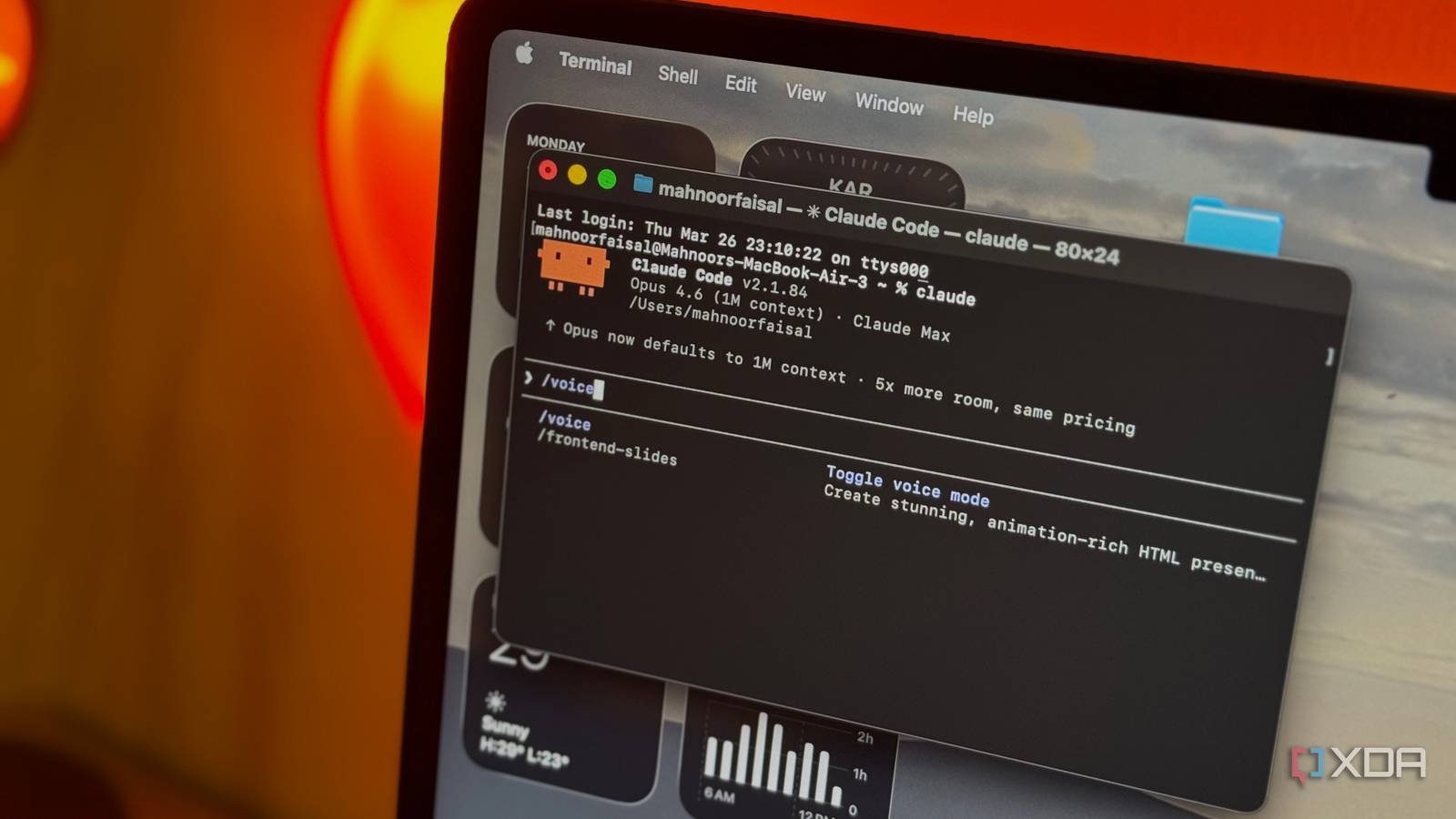
Without fail, Claude is undoubtedly the most hyped AI tool right now. The company had already been releasing banger after banger, and then the entire Anthropic x OpenAI x Department of War fiasco happened. Now, most people have only been using Claude the way they use ChatGPT and all other chatbots: typing a question, getting an answer and moving on. I’m not saying there’s anything wrong with that, but also, you’re missing out on more than you’d think.
Anthropic has quietly built out an entire ecosystem behind the chat window, and one of the most slept-on pieces is Claude Code. While developers and people with technical know-how have been relying on it for months, non-developers have been completely ignoring it. And this isn’t surprising. You hear “code” in the name, find out it’s a terminal-based tool, and that’s about it. Window closed, interest gone, back to the chat window. I get it, because I was the same way. Fast-forward to today, my terminal is something I willingly open every single morning.
Want to stay in the loop with the latest in AI? The XDA AI Insider newsletter drops weekly with deep dives, tool recommendations, and hands-on coverage you won’t find anywhere else on the site. Subscribe by modifying your newsletter preferences!
The terminal is more powerful than you think
Stop ignoring it
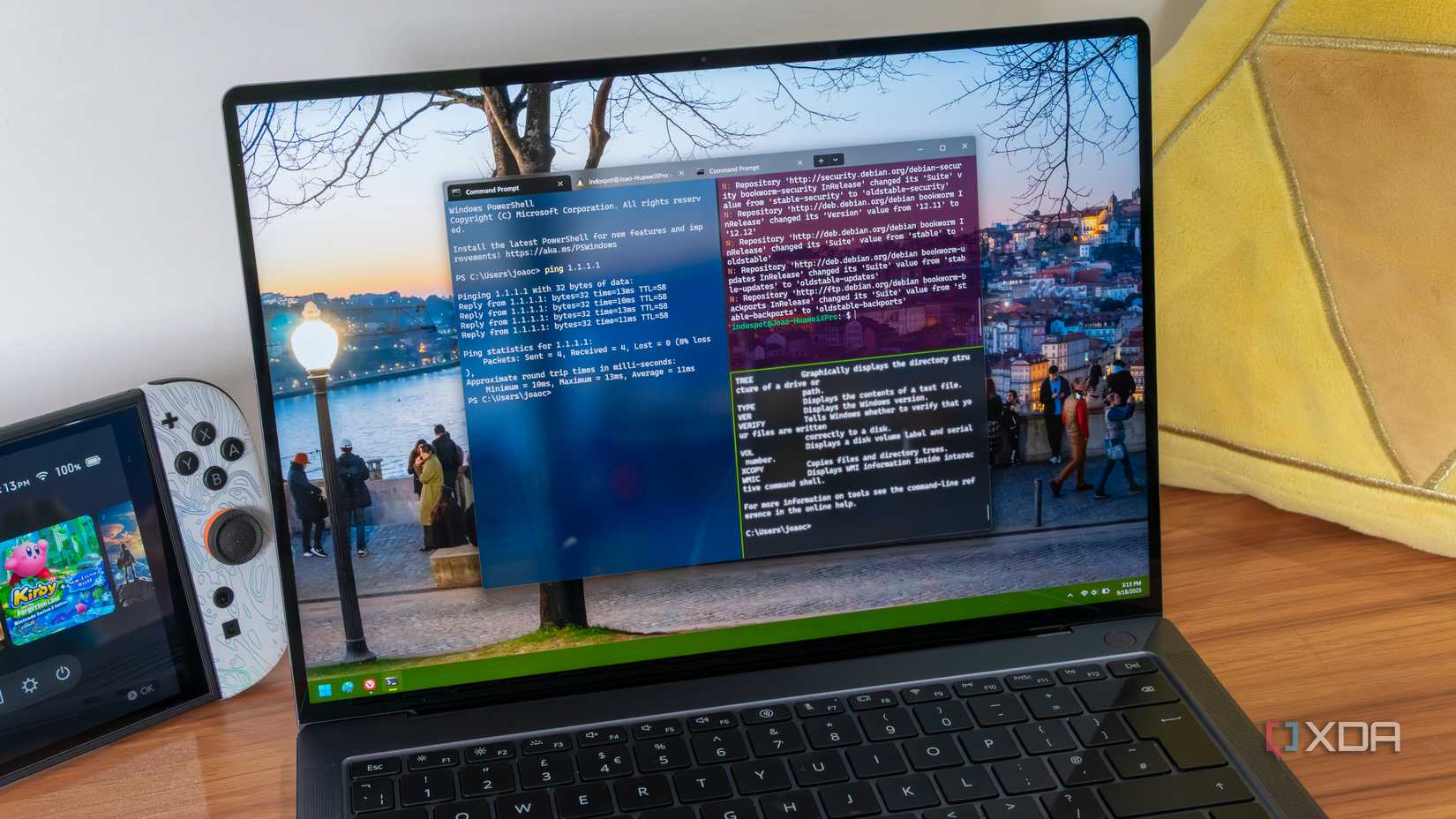
Even if you don’t work as a developer or don’t really consider yourself technical, you’ve probably opened the terminal at some point. Maybe you were following a YouTube tutorial or a troubleshooting guide that told you to paste some command and hit enter. As a non-developer, that was also my first introduction to the terminal! And chances are, you opened it the same way you’d open any other app that comes pre-installed on your device, pasted the command, and never thought about it again until you ran into another tutorial that needed it. Now, here’s the thing: the terminal is single-handedly the most powerful thing on your computer.
Your operating system is full of hidden settings and configurations that don’t exist in any menu, any settings panel, anywhere you can click. Want to increase your Dock magnification level beyond what the slider allows in System Settings? Terminal command. Want to flush your DNS cache? Terminal command. Want to check what’s secretly running in the background and eating up your battery? Terminal command. The problem, though, has always been that the terminal comes with a bit of a learning curve. Even before you get to the useful stuff, you need to learn the basics. For instance, cd to move between folders, mkdir to create a directory, ls to see what’s inside it, rm to delete files, etc. And that’s all just navigation! There’s so much more to it, and for most people, that’s enough to give up entirely.
Claude Code lets you talk to your terminal in plain English
Learning curve doesn’t exist anymore
With Claude Code, you don’t need to worry about any of this. You just open the terminal as if it’s just any other app, type “claude,” and tell it what you want to do in completely natural language. It finds the right command, tells you exactly what it’s about to do, and waits for your permission before running anything. The biggest concern you’ll likely have at this point is “what if it goes rogue and breaks something?” It won’t. Unless you enable a specific mode that’s literally called “dangerously skip permissions,” Claude Code will never run anything without telling you exactly what it’s about to do and waiting for you to approve it.
You’re in full control the entire time! And if it ever suggests a command and you’re not sure what it does, just ask it to explain before hitting yes! For example, using the same Dock magnification example from earlier — instead of Googling the right command, hoping the answer is up to date, and carefully pasting it in, you’d just type something like “increase my Dock magnification to the maximum size” and hit enter. Claude Code will find the right command, show it to you, and wait for your go-ahead. That’s it!
Terminal commands are just the starting point
You can do so much more
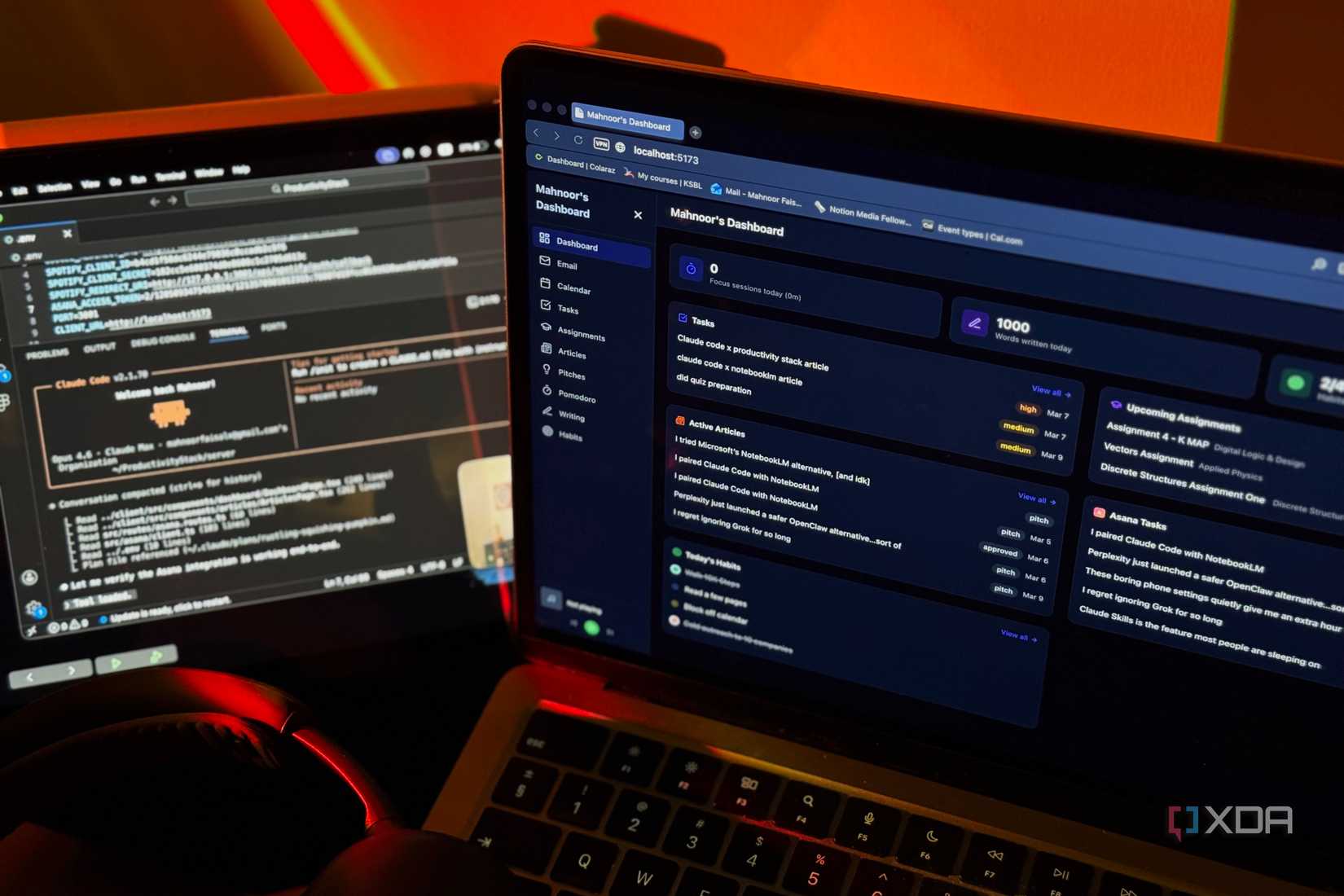
Using Claude Code to run terminal commands that would have previously required you to Google and copy-paste is one of my favorite things to do, but it’s also the most basic thing it can do. Where it starts to get genuinely wild is when you use it for things like managing your files in bulk, automating repetitive tasks, setting up servers, and of course, building things. For example, Claude Code can organize your entire desktop for you (or any directory for that matter) within literal minutes.
A while back, I used Claude Cowork to free up over 60GB of storage space, and this is something you can also do with Claude Code. MCP Servers are a huge thing in the AI world currently, and setting one up normally involves a decent amount of technical configuration. With Claude Code, you can just tell it what you want to connect to and it handles the setup for you. I asked it to set up the NotebookLM MCP server for me just a few weeks ago, and it handled everything.
I’ve also been obsessed with Claude Code’s voice mode recently, which I use to brain dump everything I have going on for the day and then Claude turns it into a perfectly organized HTML file. When it comes to using Claude Code to actually build stuff (which you absolutely don’t need to be a developer for), I recommend using it in the terminal window of an IDE. This way, you get to see what it’s doing in real time! I’ve used it to vibe-code countless tools, and it’s so far been the most impressive tool I’ve used for development.
The terminal is only as scary as you let it be
As a non-developer, the terminal was always something I avoided. That’s likely what took me a fair bit to try Claude Code in the first place. But from the day I tried it, I stopped being intimidated by the terminal entirely, and it isn’t scary anymore! If you’ve been using Claude exclusively through the chat window, I can’t say this enough: please give Claude Code a shot!