
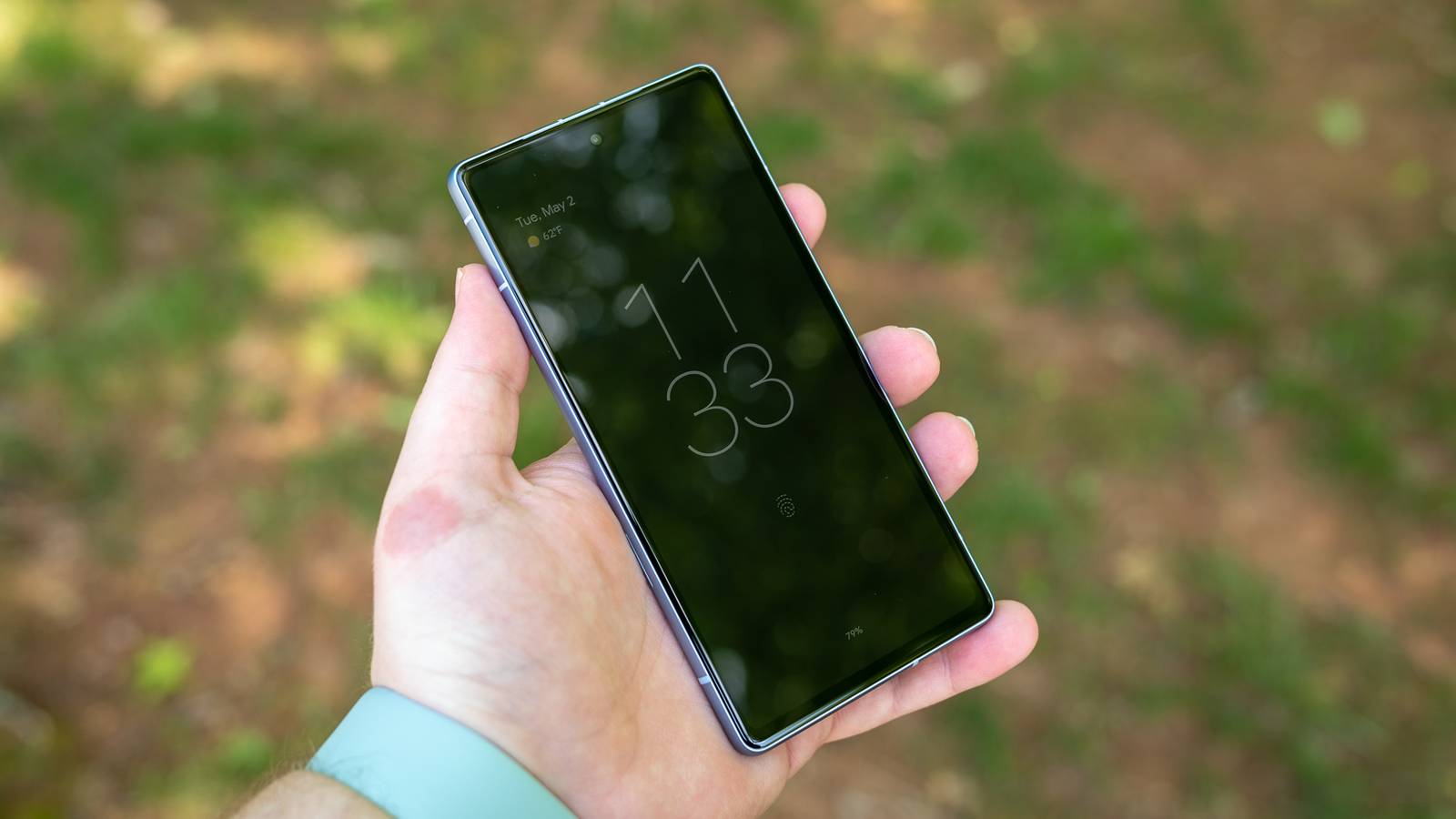
If you have a modern phone with a recent OLED screen, there’s a decent chance that it comes with an AOD or Always-On Display feature. With this active, your screen will stay on and show information even when it’s locked. Your first instinct might be to turn this off, or never turn it on because you think it’s just going to tank your phone’s battery.
The truth is that, while using AOD isn’t free, the value of this feature far outweighs the downsides if you use it the right way.
Always-on display uses far less power than you think
It’s built to be frugal
Credit: Shikhar Mehrotra / How-To Geek
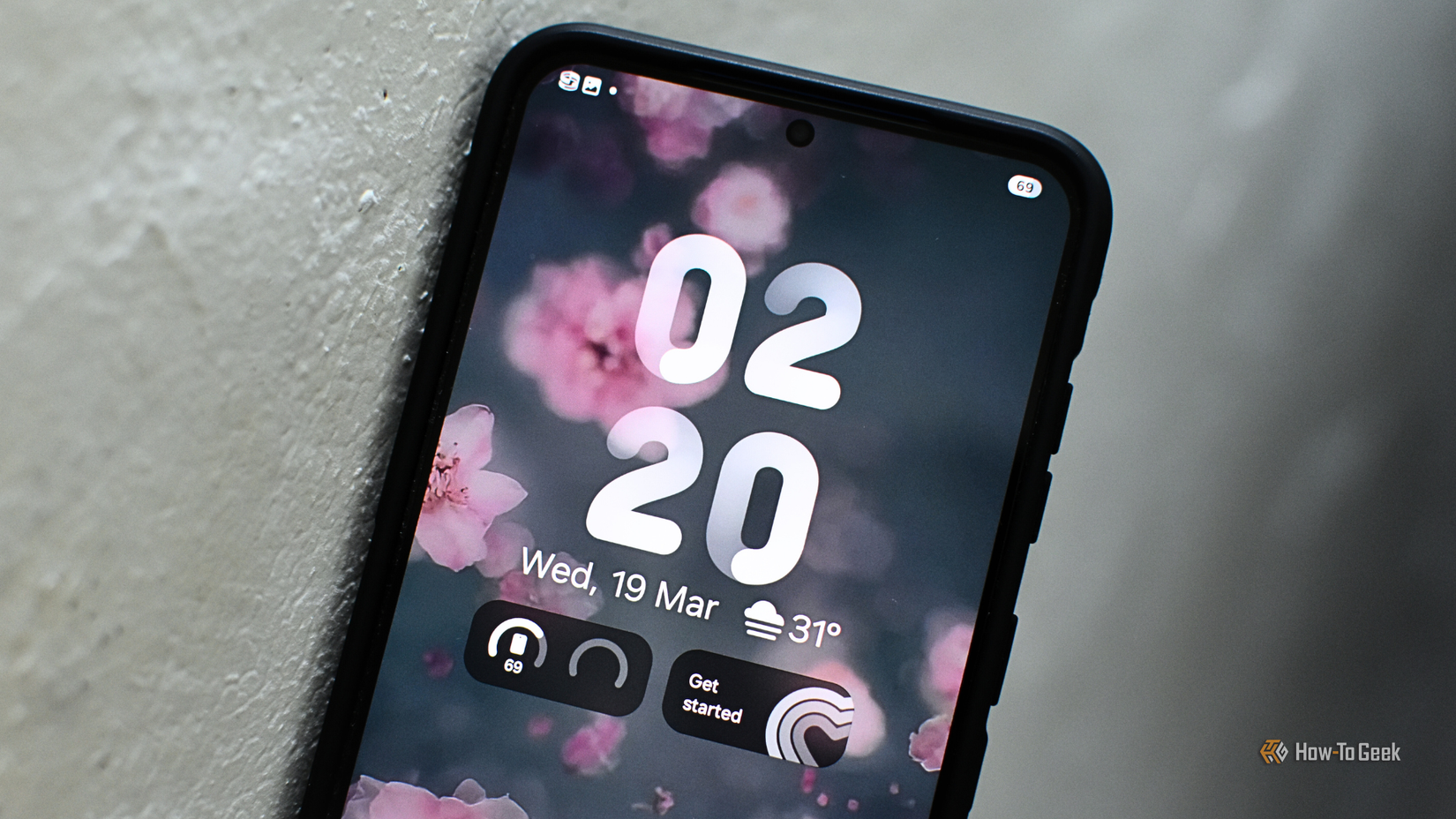
The whole reason AOD exists is that the technology makes it power-efficient enough so that you can use the display without impacting your battery life. It achieves this thanks to OLED panel technology. Since each pixel in an OLED panel generates its own light, a pixel that’s turned off uses no power. So if you have some text on a black background as an AOD, that’s not going to use much power at all.
It doesn’t stop there though; Modern OLEDs can become very dim. With my Samsung Galaxy S25 Ultra, my AOD shows the full lock screen with my wallpaper. However, it’s very dim and so it also doesn’t use much power as the pixels are in a minimal state rather than completely off. High-contrast text like the digital clock face is perfectly legible though.
The last main trick that AODs use is refresh rate. The latest OLED screens on phones can bring their refresh rates down to just 1Hz. That’s 60 to 120 times slower than a typical active smartphone screen, but more than fast enough for anything on an AOD that receives new information that takes more than a second to update anyway, like the minutes on a clock face.
Given that modern phones have big batteries and are pretty energy efficient when locked anyway, the battery impact of using your AOD feature is negligible.
Your settings are probably sabotaging your battery life
We can always go lower
If your always-on display does seem like a battery hog, there’s a good chance your settings are the real culprit. While I like having a full-screen wallpaper on my AOD, you can choose to simply have a black background and cut your OLED’s power consumption to the bare minimum.
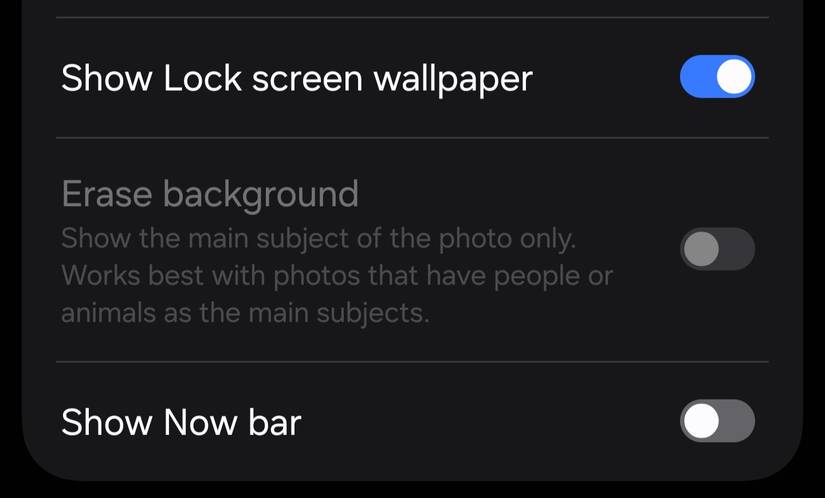
As an example, on my S25 Ultra, there’s a setting to disable the wallpaper in AOD mode under its settings page, but since I only use about 70% of my battery on a typical day, I’ve chosen to just enjoy a more attractive AOD screen instead. The choice is yours.
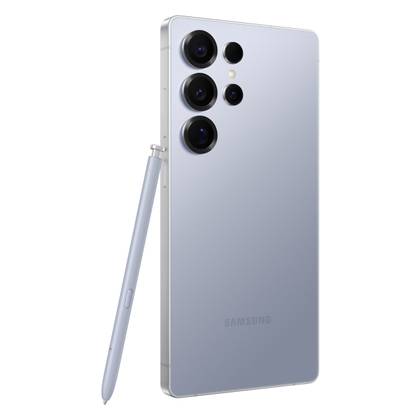
SoC
Snapdragon 8 Elite Gen 5
Display
6.9-inch Dynamic Super AMOLED 2X
RAM
12 or 16 GB
Storage
256GB, 512GB, or 1TB
Get the new Galaxy S26 Ultra with AI smarts and an all-new privacy display.
Used right, AOD replaces other devices entirely
It’s called convergence
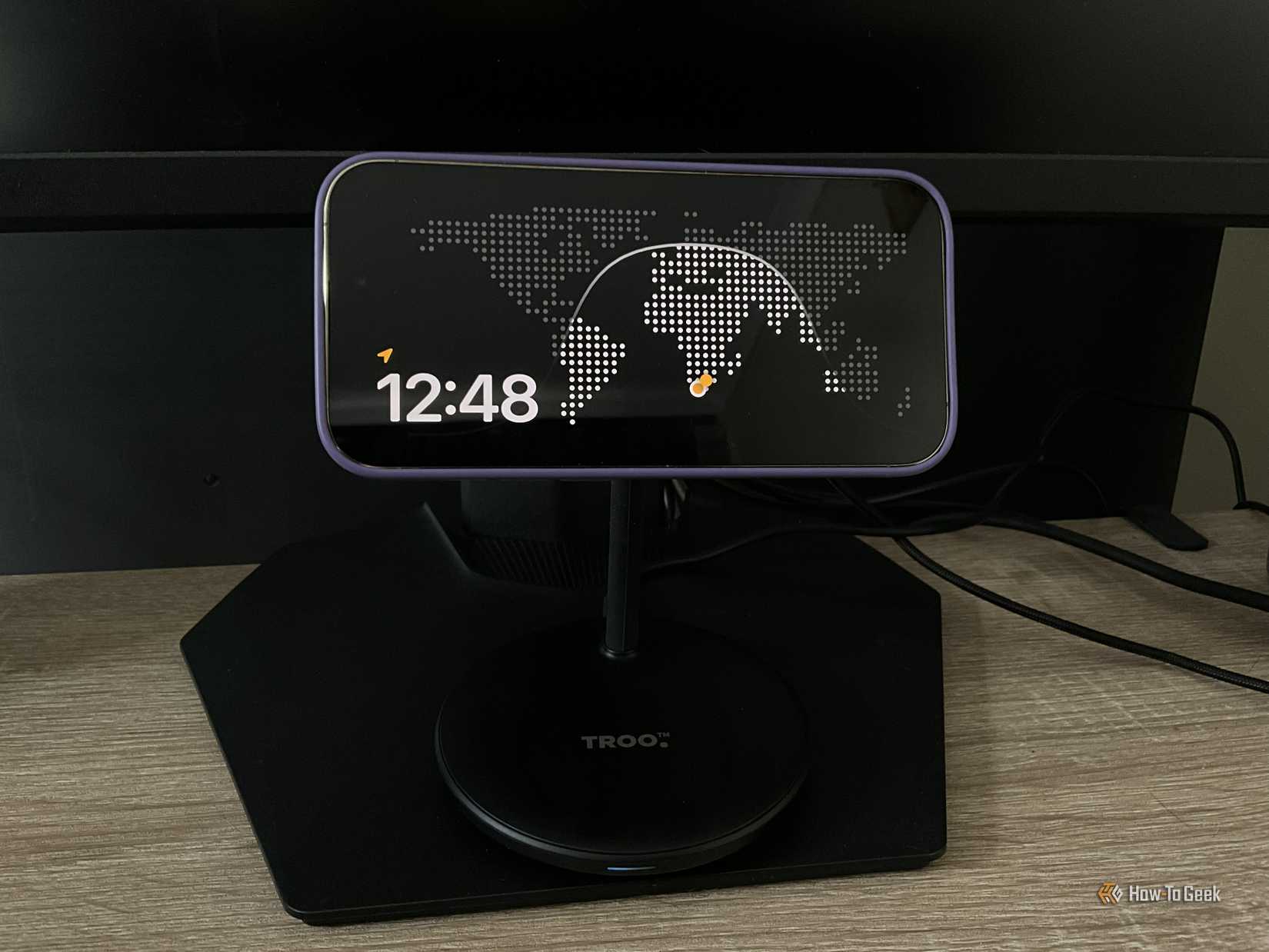
I regularly use AOD on both iOS and Android devices with a simple phone stand on my desk. So it replaces my clock, my calendar, and shows me the weather outside. These are the most important things I need to know at a glance.
Even better, since my clients span multiple time zones, I always need to see what time it is where my clients are, so having multiple international clocks on my AOD is literally something I can’t live without. When I was still an iPhone user, standby mode with its international clock was a lifesaver.
Credit: Sydney Louw Butler/How-To Geek
But, not everyone needs the same information. Which is why you should dig in to your AOD and lock screen settings. Check what first and third-party widgets are available, and on Android there may even be apps that can make your lock screen (and therefore AOD) much more capable.
How to set up AOD so it actually saves battery
Not all options are equal
First, if AOD stops you from waking up your phone every time you want to check the time, weather, or whatever else you can set up, then it’s already saving your battery without touching a thing. However, if you want AOD to use as litle power as possible, do the following:
Turn off the wallpaper in AOD mode
Limit the number of active widgets to just what you need
Enable “automatic” mode for AOD, so that it turns off when it detects you’re not looking, you’re not present, or that you’re asleep.
With these features configured, your AOD should use as little power as possible while still giving you what you need. It’s easy to hold on to old conceptions of screen power consumption and phone battery life, but I’m willing to bet if you give AOD a chance you’ll find it’s a net positive.