
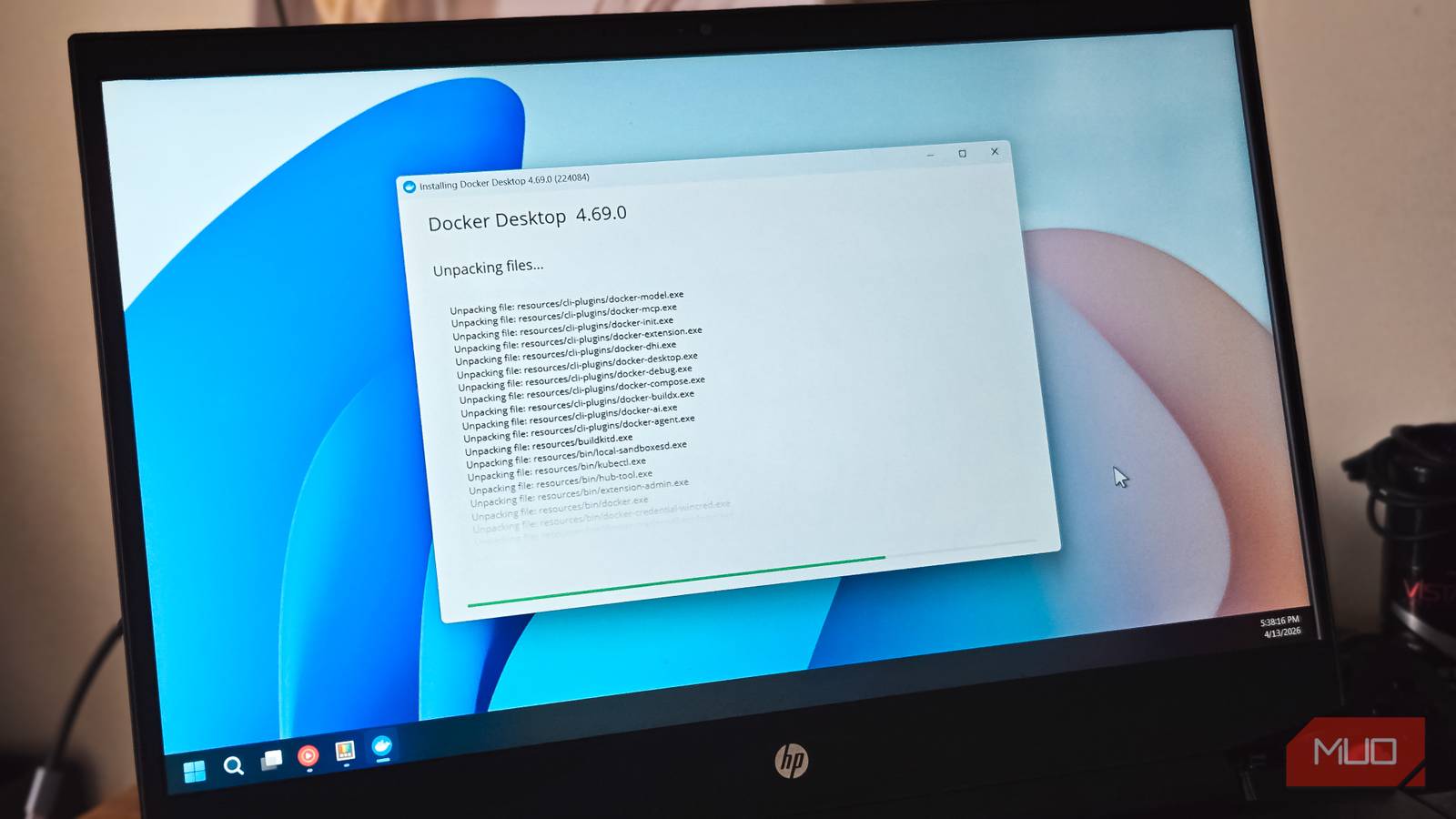
Docker containers make managing my setup simple. When containers move between machines, the process is more predictable since the applications and their environment move together. I believed my setup was complete until I realized that my automations had not made the switch. They still existed on the host machine within Task Scheduler. It would not have occurred to me if backups and other tasks that typically ran unsupervised had not started failing. Upgrading automation from Task Scheduler to containers was the one piece that made my homelab feel complete.
Related
I replaced Tailscale with a different kind of tool, and it works much better
I was running a private network to open one page.
My automation stayed behind
Containers became portable while scheduled jobs remained tied to Windows
Containerizing my homelab made the applications portable, whereas the automations I built to support them lacked the same flexibility. Services were properly defined in my Compose file, which meant the service definitions, configuration, and most dependencies moved with them. However, scheduled tasks still belonged to Windows rather than the applications I had built them to maintain.
This was a problem because the jobs depended on the host environment staying the same. I had to preserve user accounts, installed utilities, environment variables, credentials, and drive mappings to avoid breaking tasks. However, these elements are not connected to the actual applications.
Rebuilding my server made this contrast glaring. Copying the Compose files and starting the containers was largely enough to restore the apps. But scheduled tasks needed to be recreated, checked, and sometimes debugged before they returned to normal working condition.
This reality hit me: Task Scheduler wasn’t the problem. As long as my automations lived in a separate ecosystem from the apps they maintained, they caused friction.
Docker wasn’t the missing piece
A cron container carries its own dependencies, not just its own trigger
Afam Onyimadu / MUO
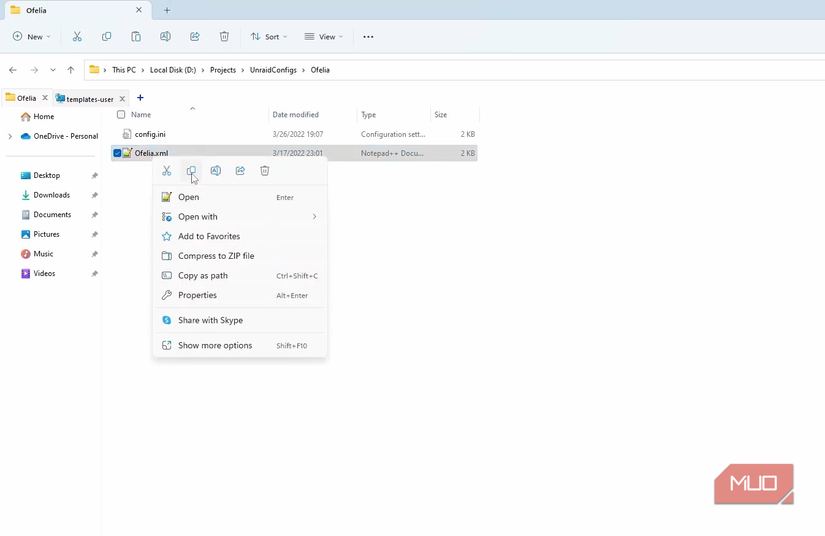
Docker can’t replace Task Scheduler because it doesn’t have a built-in scheduling engine. If you need specific tasks to be automated, you must provide a mechanism for scheduling. Ofelia, my Docker-native scheduler, became what my Docker setup lacked.
Another easily misunderstood feature is restart policies. They are about keeping containers running, not scheduling tasks. A policy like unless-stopped can’t trigger a Docker backup or cleanup job. It only causes Docker to automatically bring containers back online after the host restarts or when the scheduler container crashes. The cron process within the container must still trigger jobs when they need to run.
Packaging all the elements a job needs to run in a single location is a significant advantage. My backup container contained the necessary Python runtime, rclone configuration, environment variables, and supporting utilities. I stopped worrying about whether my host machine installed the right Python version or had the right PATH layout because these dependencies are isolated inside the container.
To troubleshoot, I no longer dig through Event Viewer or trace Task Scheduler history. I use Docker logs to check the container’s output, which shows me if a backup ran, what it copied, and, if something went wrong, where it failed.
It’s the same approach for routine Docker image prune cleanup and automated certificate management. The setup is more manageable with the schedule living alongside the workload.
My automation moved in with my applications
One Compose file now brings the schedule back with it
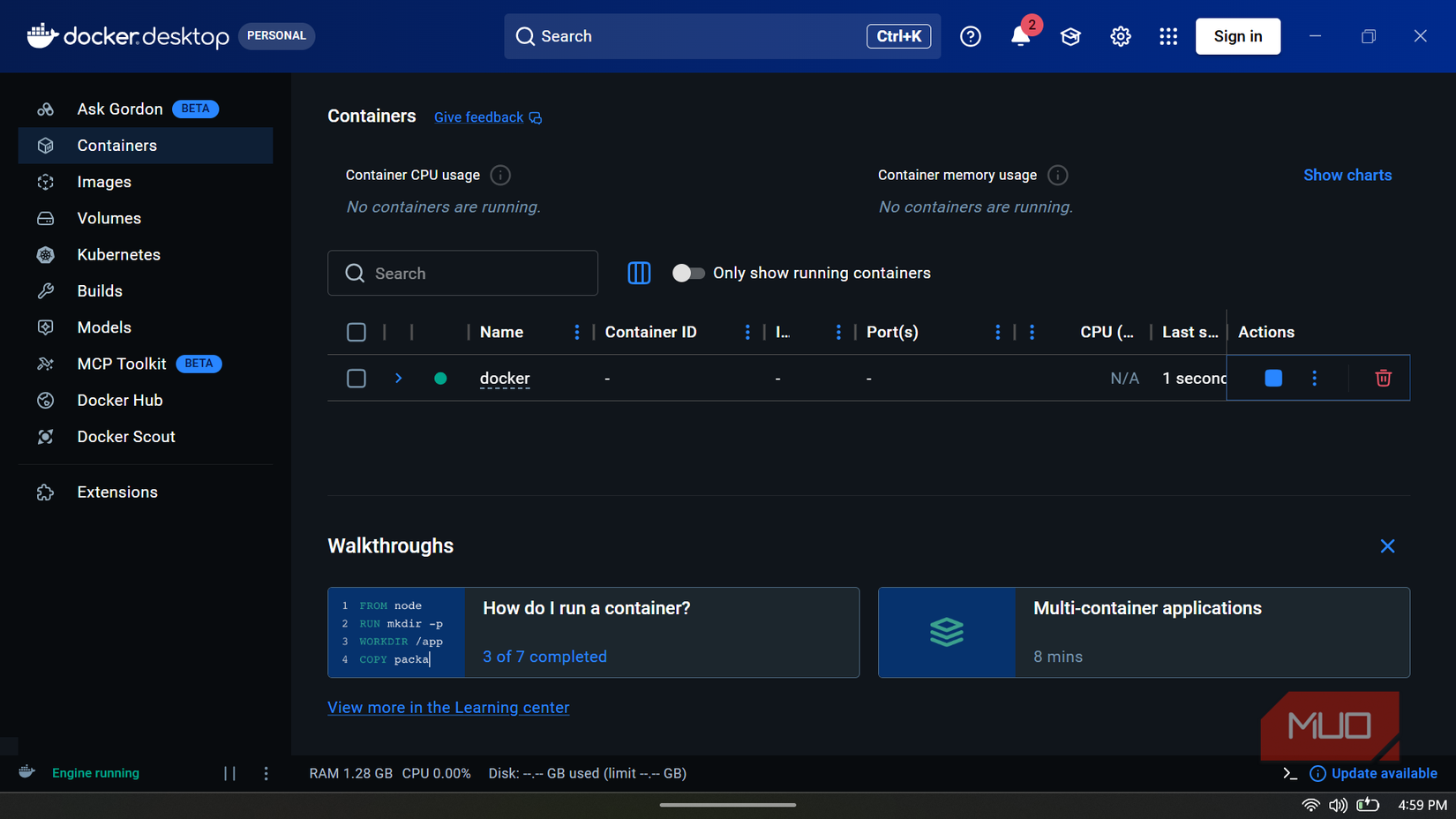
The point wasn’t about replacing one scheduler with another, but about ensuring scheduled jobs remained on the same infrastructure as the services. So applications, their configuration, and automation all reside in the same Docker stack.
Rebuilding went from installing Windows, recreating scheduled tasks, and checking paths and configuration credentials to installing Docker, copying my docker-compose.yml file, and restoring my data. Both the applications and the jobs maintaining them are restored.
I keep my Compose files in a separate Git repository; in addition to backups, this lets me track changes to schedules and environment variables. I also see what has changed in container configuration over time.
If you want to…
Task Scheduler
Cron container
Run Windows desktop apps
Yes
No
Schedule Docker maintenance
Yes
Yes
Move automation to another server
Manual
Simple
Keep jobs with your Compose stack
No
Yes
Version-control scheduled jobs
Limited
Easy
Task Scheduler still earns its spot
Just not for anything already living inside a container
Afam Onyimadu / MUO
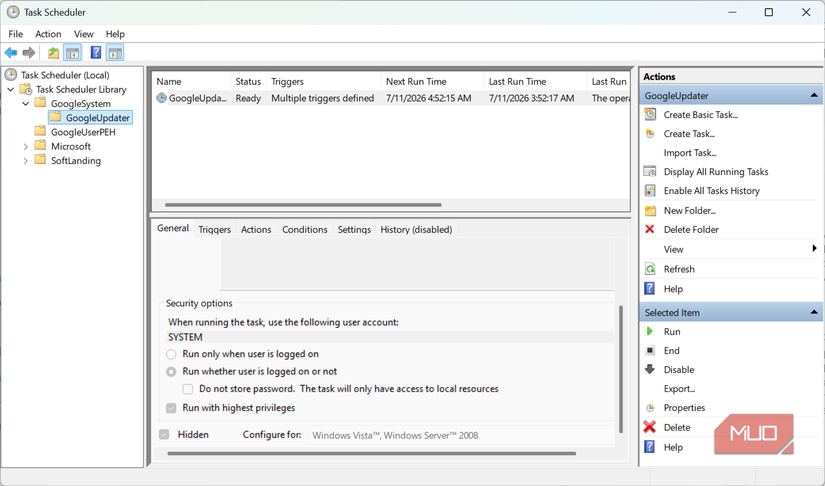
While this change has upgraded my self-hosted setup, Task Scheduler is still one of the tools I go to for Windows-specific work. I also rely on my customized AutoHotkey script to handle other Windows-specific automations. These Windows tools handle launching desktop applications, running PowerShell diagnostics against the host, triggering tasks at user logon, and automating Windows maintenance.
It’s the same idea on Linux, where native cron is my preferred lightweight option for automating recurring jobs. It would be unnecessary complexity to handle the automation of these tasks from containers.
The setup needed a new scheduler. With Vaultwarden, YouTrack, and other self-hosted services living in Docker containers, it didn’t make sense to keep their automation separate.
Build around your applications
The real advantage of a single infrastructure for apps and automation is consistency. Everything from apps and configuration down to supporting automation uses the same deployment model.
It has nothing to do with the size of the homelab. Even if I had just two services, I would have felt the same disconnect running apps and automation on different layers.