
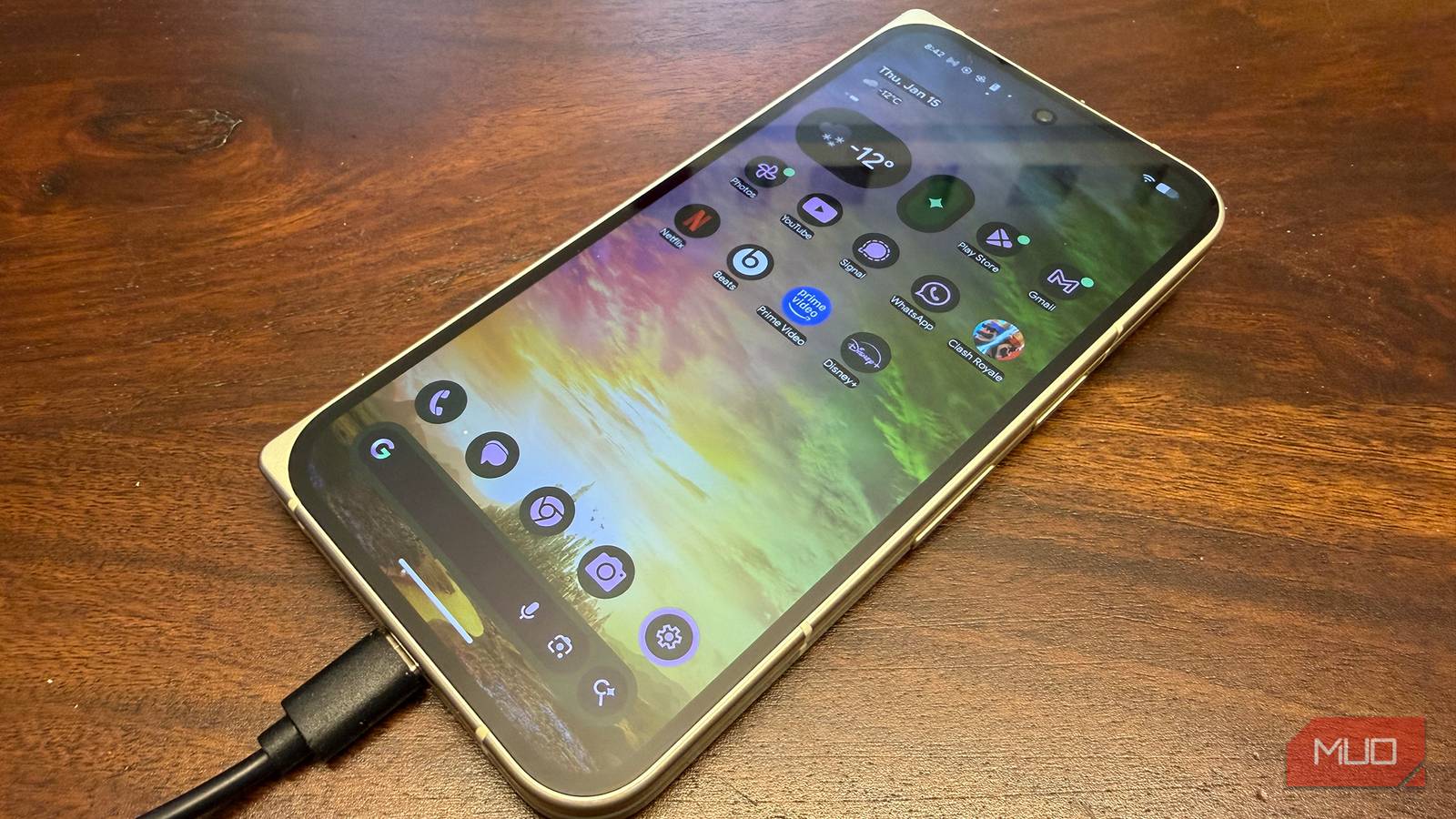
Most modern devices come with some iteration of fast charging. But there are many reasons why your device might not charge as fast as it could. If you’re convinced that there are no issues with your charger, you can double-check a few settings to fix the charging speed in a jiffy.
Related
My Android phone was slowing down my internet until I changed these settings
Stop blaming your ISP, fix your phone’s settings first.
Turn off Adaptive Charging to maximize charging speed
Double-check if fast charging is enabled
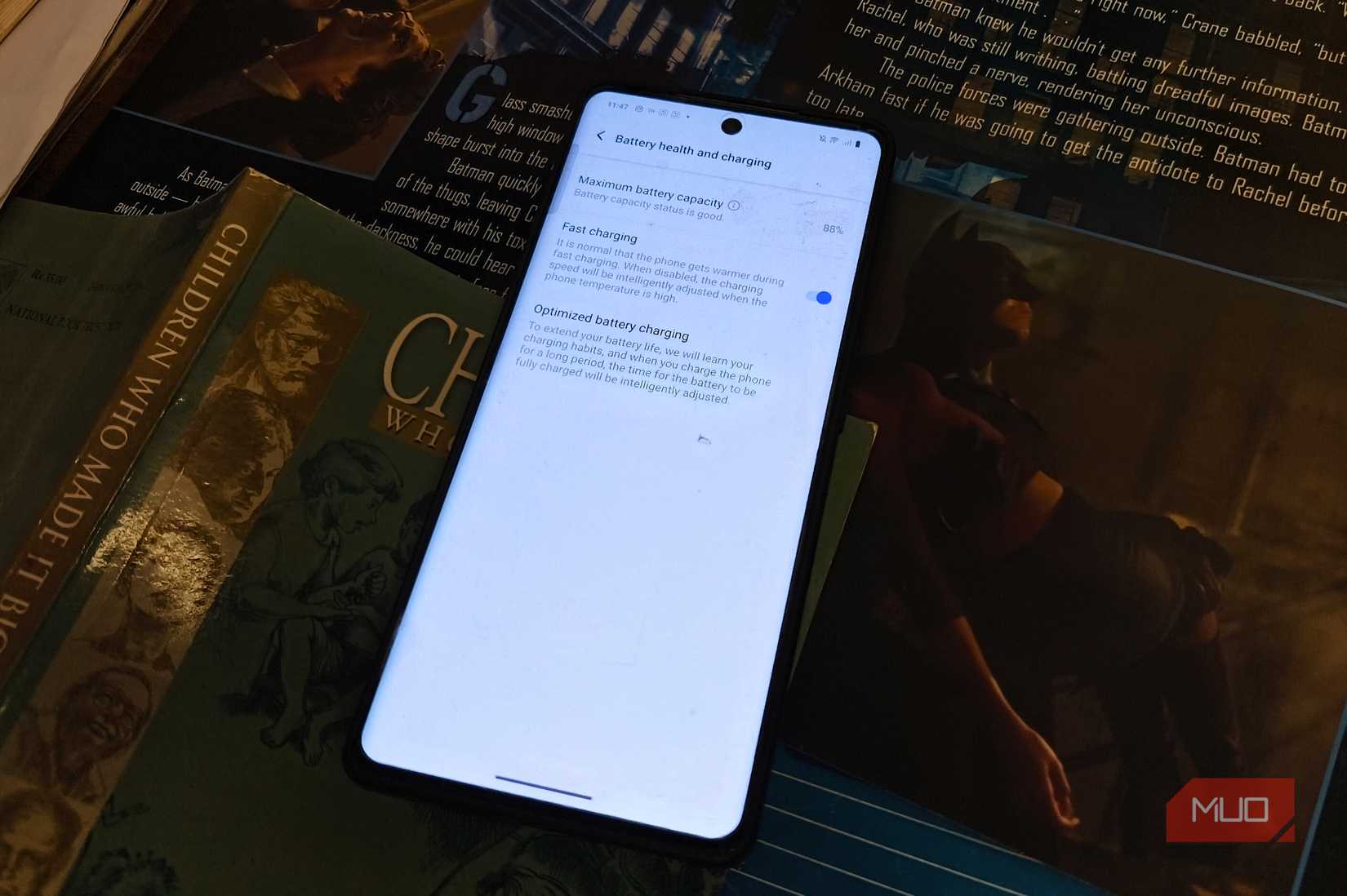
The first thing you should do is make sure Fast Charging is enabled. Most devices allow you to tweak fast charging settings, but the implementation differs. Generally, you should be able to go to the Settings app, search for Fast charging or a similar option, and tweak the settings.
Adaptive Charging is another feature that I always have a look at. It balances charging speed and long-term battery health, so your device may not charge as fast as it can. When enabled, it tracks your usage patterns and stops and resumes charging based on them.
I personally keep Adaptive Charging enabled to preserve my battery’s long-term health. But if I’m in a hurry, I turn it off to push the device’s charging capabilities to its limit.
I would recommend that you enable or disable this feature when required and not treat it as a tool that you set once and never tinker with again.
Open the Settings app.
Tap on the Battery option.
Select Charging optimization.
Turn off Adaptive Charging or Optimized Charging, depending on your device,
The exact name of the feature may differ depending on the device, manufacturer, and UI. On my Pixel 8, I was able to find Adaptive Charging under Settings > Battery > Battery health > Charging optimization. On the Vivo X300 Pro, the feature is called Optimized Charging and is located under Settings > Battery > Battery health and charging > Optimized Charging.
Switch off your device for faster charging
Airplane mode works too
The next best thing you could do is turn off your device. Maybe the charging speed won’t increase drastically on its own. But compared with leaving your device plugged in while notifications keep lighting up the screen, and you’re actively using it, turning it off can give charging a noticeable boost.
This option is particularly helpful when your battery is running extremely low, and you are okay parting with your handset for the next 30 minutes or so. With the device powered down, there would be no resources being consumed, and the device can charge without any distractions.
If you aren’t comfortable switching off your device, Airplane Mode is the next best option. Android devices tend to sync media in the background, such as uploading images and videos to the cloud. Additionally, even when you are not using your phone, it consumes battery while checking for notifications.
Enabling Airplane Mode gets rid of this issue by disconnecting your device from cellular networks and Wi-Fi. I would recommend that you enable this feature when you don’t have any scheduled calls or important meetings.
It is worth nothing that while Airplane Mode disables connectivity by default, you can manually turn on Wi-Fi or Bluetooth back while keeping the feature enabled. So, unless you require it, refrain from enabling them manually.
Neither of these two options magically increases the charging speed of the handset. Instead, they reduce how much power the smartphone consumes while getting charged. That means more of the power coming from the charger can go towards replenishing the battery rather than keeping the phone running.
Background activities can hamper charging speed
Disable Location services and shorten screen timeout
Shimul Sood / MakeUseOf
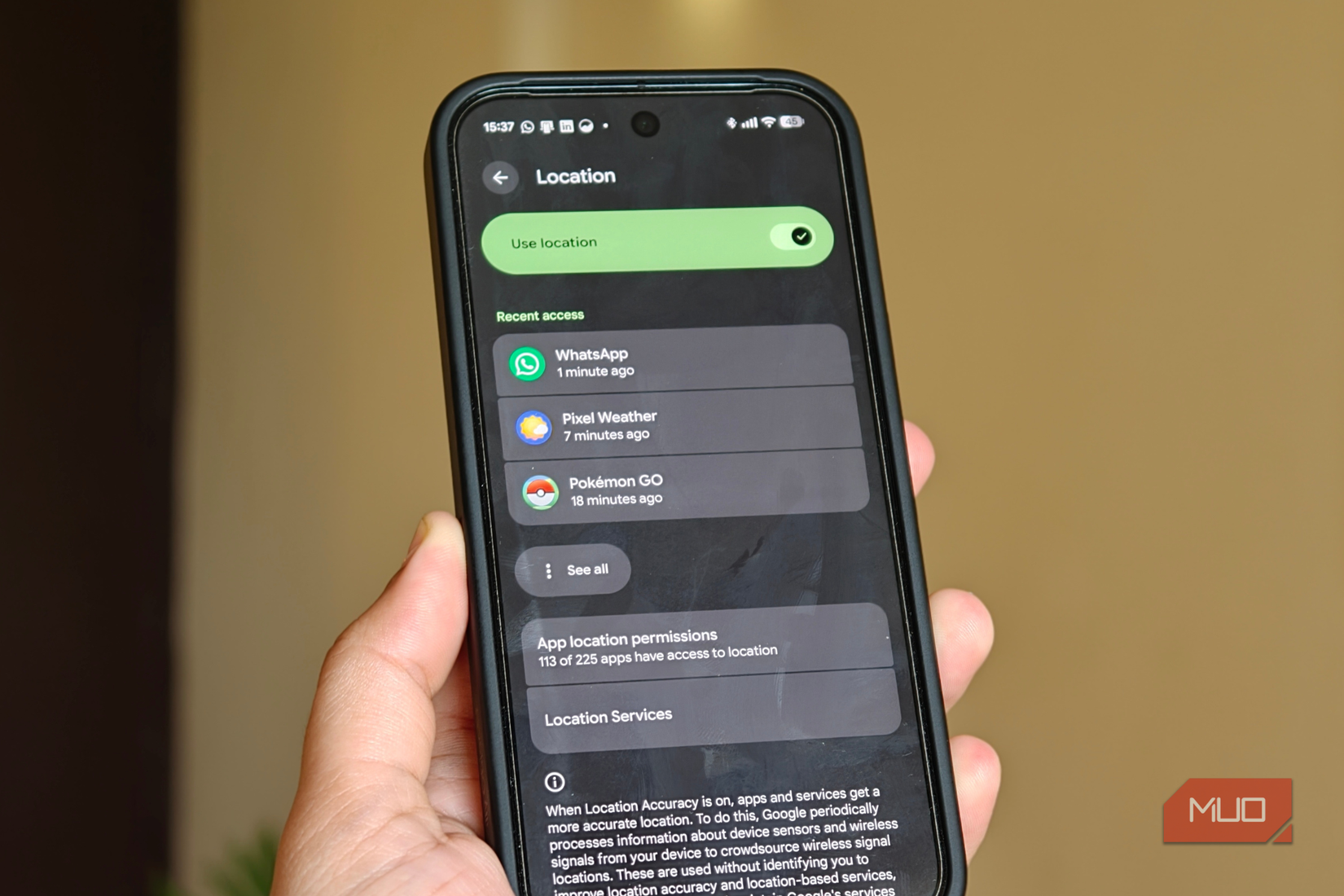
Turning off Location Services and auto-sync can reduce power consumption and help your device charge faster. Android devices may constantly track your location and sync your data in the background, which is especially battery-intensive. You can disable GPS by navigating to Settings > Location> toggling off Use location.
Avoid using your device when it charges, as it can consume power and cause charging lag. If you need to use your phone at any cost, try keeping the screen brightness low and use a timer for the screen to turn off when unused. I also temporarily switch from higher refresh rates to 60Hz and avoid graphics-intensive tasks such as gaming or using the camera app.
Keep your expectations in check
Tweaking a few key settings and revising your usage pattern can at times positively alter the charging speed of your device. But you must be realistic. Don’t expect a device that supports 30W fast charging to get fully charged in 30 mins.
Your device won’t automatically charge faster than its hardware and charger support. But by tweaking settings that restrict charging speeds and by refraining from engaging in heavy tasks while your device is plugged in, you can get your handset to charge as fast as it possibly can.
I personally change the settings as and when required, instead of tweaking it once and using it across all scenarios. The goal is to strike a balance between usability, charging speeds, and preserving your handset’s battery health.