
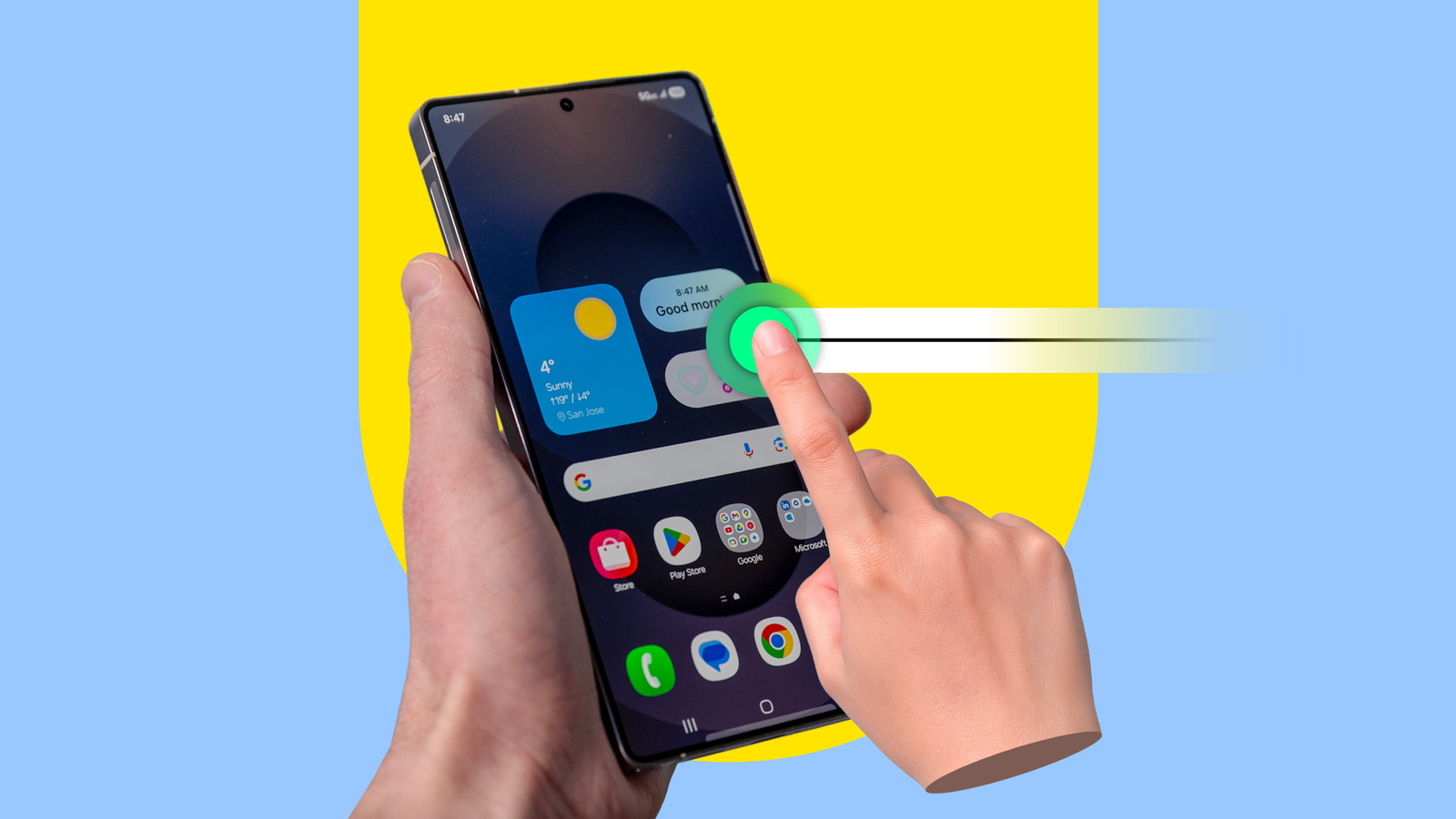
As someone who replaced my PC with a Samsung Galaxy Z Fold 6, I use my phone more than most—and gestures are a vital part of how I make it all work. Here are some of the gestures that make using a Samsung phone feel faster, many of which are so easy to overlook, you might never discover them at all.
Swapping virtual buttons for gesture navigation
Unlike most other Android devices, Samsung Galaxy phones and tablets still come with virtual back, home, and recent apps buttons at the bottom of the screen. These are the first things I disable whenever I set up a new device. I find Android’s gesture-based navigation to be much faster, as it allows me to navigate back by swiping in from either side of the screen and return home by swiping up. No more hunting around to tap a precise location.
This gesture isn’t on by default, so you can enable it by going to Settings > Display > Navigation bar.
Swipe for an edge panel or taskbar
Samsung Galaxy devices come with docks known as edge panels, which you can swipe in from the degree of the screen. They can contain your favorite apps, your recently opened ones, and a few bonus features like AI smart select.
Book-style foldable phones like my Galaxy Z Fold 6 also have an optional taskbar. If it’s set to always be visible, it resembles a Windows taskbar. If set to auto-hide, it functionally becomes a floating edge panel that appears at the bottom instead of the side.
Control your cursor by swiping the keyboard
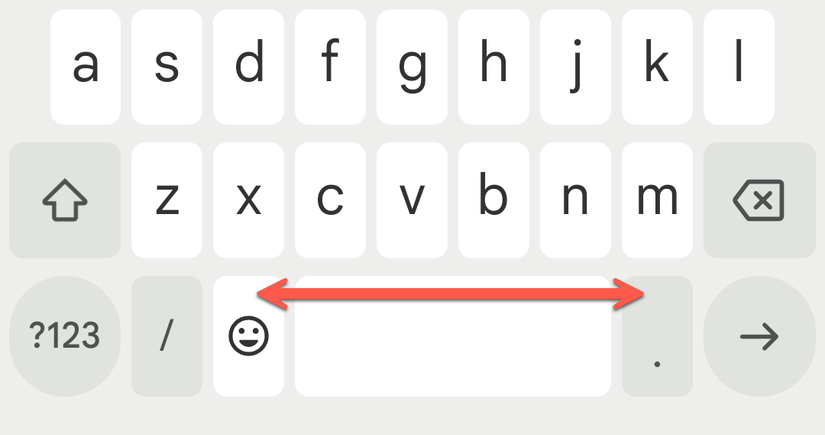
Virtual keyboards lack dedicated arrow keys for navigating the cursor, at least by default. Before you look for ways to add those arrow keys back or consider swapping out your keyboard entirely, you may not need them all! All you have to do is swipe along the space bar to begin moving the cursor around. As long as you begin the gesture from the space bar, you can swipe both up and down and side to side. The full range of movement is yours.
Quickly switch between apps
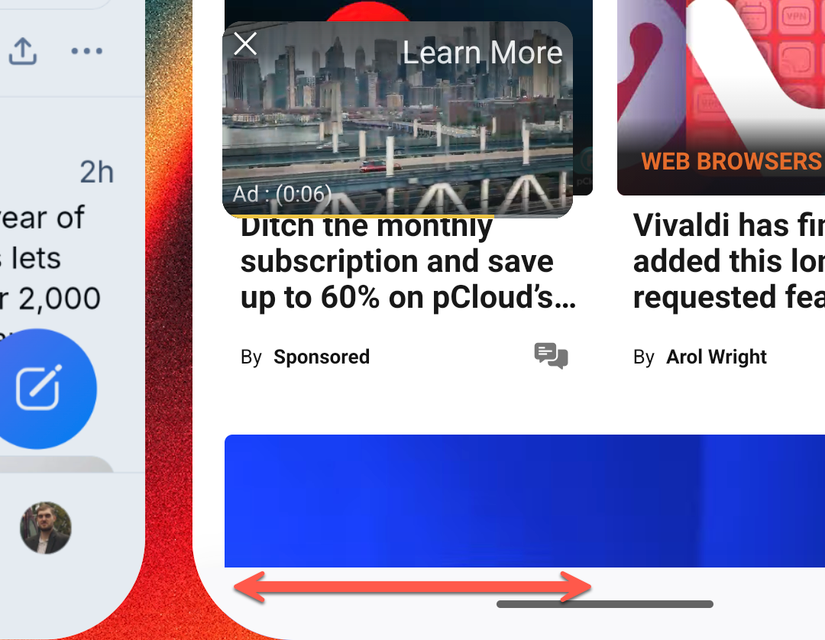
This gesture is only accessible if you’ve swapped out the virtual navigation buttons for gestures instead. If so, you can switch between apps by swiping horizontally along the gesture hint at the bottom edge of the screen. This is particularly helpful when switching back and forth between two apps, like a note-taking app and your web-browser. Though at a certain point, I recommend activating 90:10 split multitasking instead.
Move between browser tabs
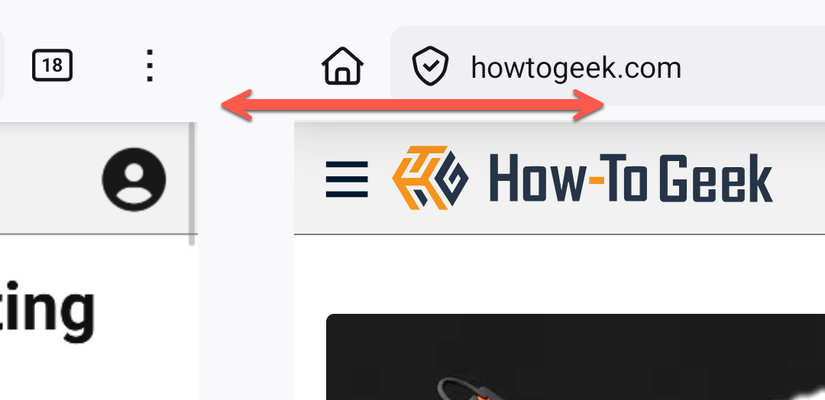
Whether you’re using Google Chrome or have discovered how great a browser Samsung Internet actually is, you don’t have to tap the tabs button on the navigation bar to switch between your open tabs. Instead, you can swipe along the navigation bar to switch between tabs just like how you switch between open apps.
Switch to a floating pop-up window
Samsung phones are some of the best for multitasking, and the ability to turn any app into a floating window is one example of why. All you have to do is swipe diagonally inward from either the top right or left corner to shrink your current app into a floating window. This feature is most useful on either a book-style foldable or a tablet, but you can do it on any Samsung phone. This is but one way you can manage app windows like on a PC.
Swipe with two-fingers to activate a split-screen view
A floating pop-up might hover over information you need to see. In that situation, you may be better off sticking with a split-screen view. While you can activate this feature by dragging an app icon from either a dock or edge panel, there’s a faster option. Simply swipe with two fingers from the edge of the screen. If this gesture doesn’t work, open Settings > Advanced features > Multi window > Swipe for split-screen.
Enabling One Hand Operation+ in Good Lock
It would be difficult to replace my PC with any other foldable, in large part thanks to software like Samsung’s Good Lock. This app contains many modules that empower me to adapt the device to my needs, like One Hand Operation+. Here I can create gestures and perform many tasks with a single hand.
My personal favorite gestures are activating split-screen view with either an extra long swipe from the side or a diagonal swipe down. Which gesture I didn’t use, I assign my recent apps view, so that I no longer have to reach to the bottom of the screen to switch apps. I have a diagonal swipe upward set to take a screenshot, since that’s an everyday task both in my personal and professional life.
There was a time when gestures were an optional add-on and largely considered a gimmick. That time has long passed. Gestures are now a vital part of how our touchscreens work. We use them to navigate phones, tablets, and smartwatches alike. There are even software-specific ones worth committing to memory, like gestures for Google Maps.