
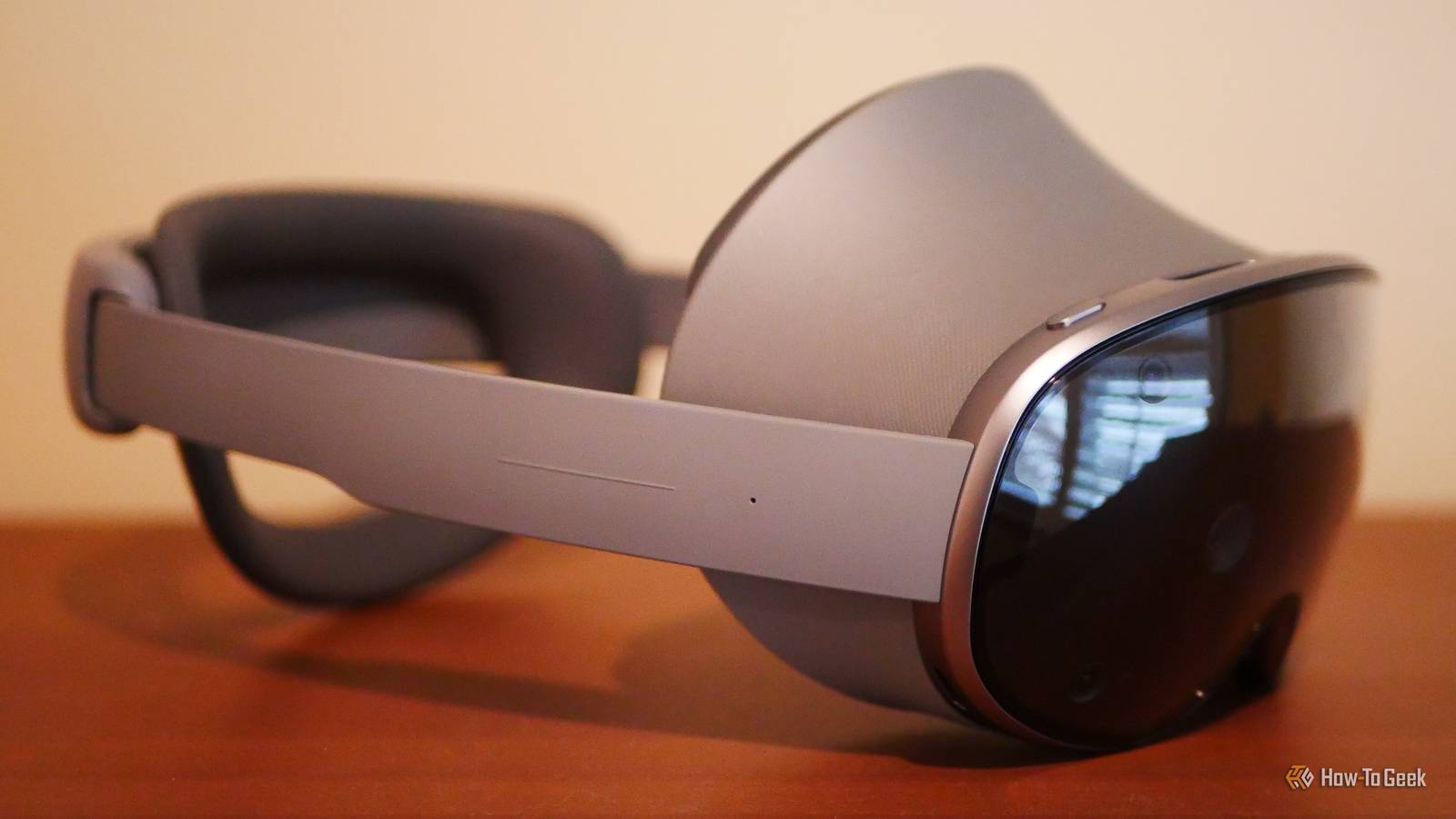
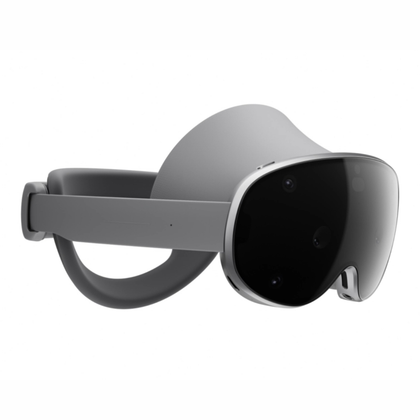
Samsung Galaxy XR, a collaboration between Samsung and Google to take on the likes of the Apple Vision Pro, is the first Android XR headset. It serves as a showcase for an upcoming ecosystem of devices, and it happens to be easy to recommend to anyone interested in trying their hand at spatial computing, assuming they set aside a budget comparable to a high-end PC.

8/10
Brand
Samsung
Resolution (per eye)
3552 x 3840
Display Type
Micro-OLED
Storage
256GB
Samsung Galaxy XR is a mixed reality headset and the first to ship with Android XR. It runs nearly all Android apps in addition to content specifically designed for XR and VR alike. With full Play Store access, the ability to sideload apps, and an unlocked bootloader, the Galaxy XR is the most open headset at the time of its release.
Pros & Cons
Beautiful, high-resolution Micro-OLED pancake lenses
An intuitive Android interface with access to most existing apps in the Play Store
A lightweight design that many, though not all, will find comfortable
$1800 is a steal next to the $3500 Apple Vision Pro, but it’s still a lot of money
Controllers come separately, and they cost nearly as much as an entire Meta Quest 3S
There are first-gen software quirks that still need ironing out in future software updates
See Our Process
How We Test and Review Products at How-To Geek
We go hands-on with every product to ensure it’s worth your time and money.
Price and availability
Galaxy XR is currently available directly from Samsung’s website, where it only comes in silver. The headset costs $1800, but you’ll need to plan more for accessories that you might expect to come included. Physical game controllers, which can also be helpful for system navigation, cost an additional $250. Want the official carrying case to keep your headset safe? That costs $250 as well.
Brand
Samsung
Resolution (per eye)
3552 x 3840
Display Type
Micro-OLED
Storage
256GB
Connectivity
Wi-Fi, Bluetooth
Battery Life
2.5 hours
Tracking Technology
2 passthrough cameras, 6 external cameras, and 4 eye-tracking cameras
Audio
Two speakers
Weight
1.2 lb
Refresh rate
Up to 90Hz
Processor
Snapdragon XR2+ Gen 2
RAM
16GB
Field of view
109 degrees horizontally, 100 degrees vertically
Passthrough
Yes
An attractive and comfortable design, but your mileage may vary
VR headsets have come a long way in the past decade, and while they remain a bulky piece of tech that goes on your head, most no longer tether you to a separate PC, and they increasingly look more like large goggles than helmets. The Galaxy XR naturally draws comparisons with the Apple Vision Pro, but it’s the $1500 Meta Quest Pro, discontinued in late 2024, that this product most resembles both in form and in price. If you aren’t already familiar with both products, I could possibly slip a photo of the Meta Quest Pro into this review without you realizing it isn’t Galaxy XR. I won’t do that, though. Instead, I’ll point you toward our Meta Quest Pro review.
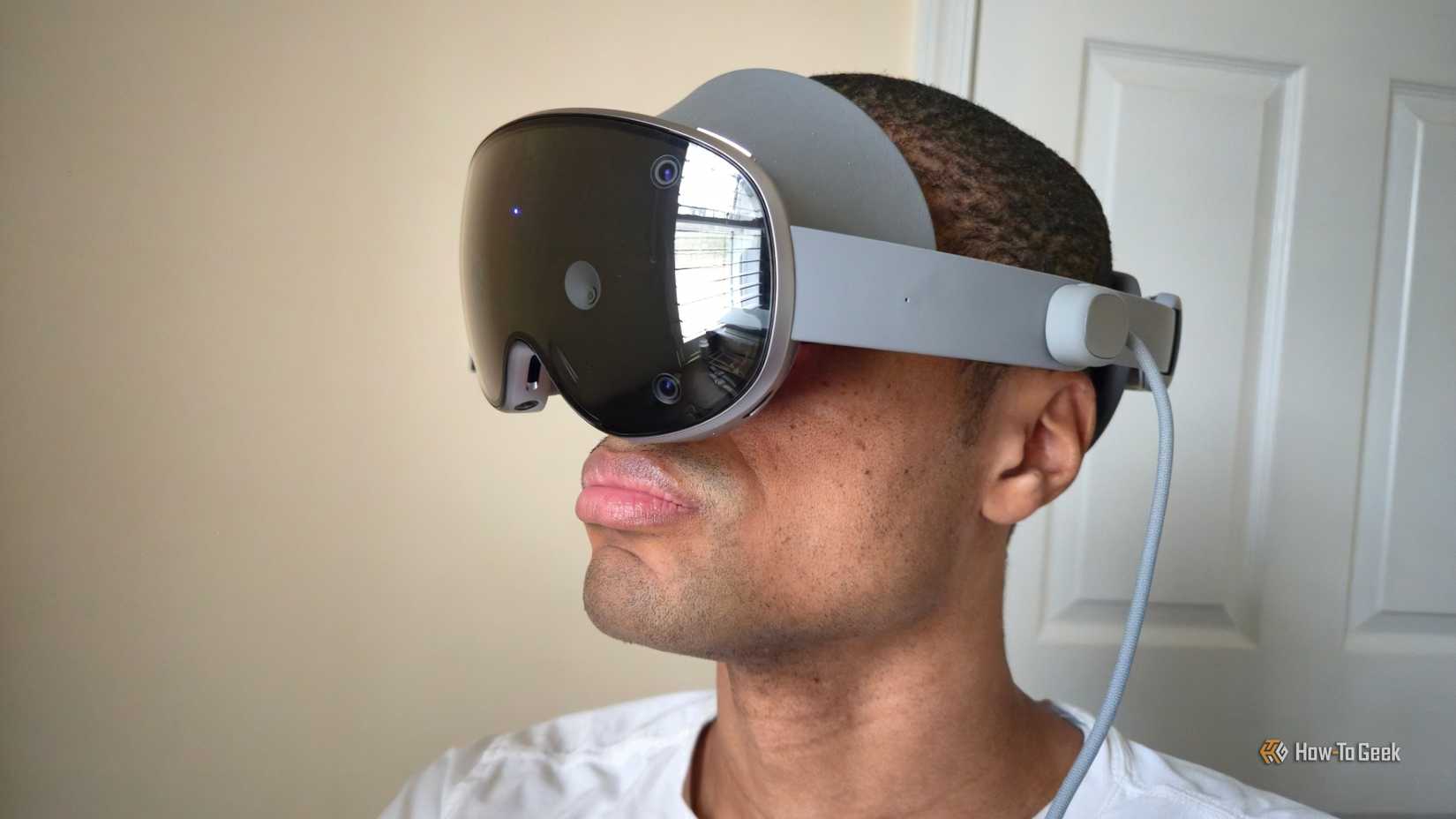
Samsung’s choice to use less premium materials than the Apple Vision Pro not only brings the price down, but it also reduces the weight. That’s a good thing, because the weight is still quite noticeable. Apple’s product distributes weight across the back of your head, forehead, and cheekbones. Galaxy XR only puts pressure on the back of your head and your forehead. Whether you find this is a good or bad choice will depend a lot on the shape of your skull.
I found the headset surprisingly comfortable when I first put it on, but after a half hour, I felt the need to take a break. The pressure gradually weighed down on the top of my forehead, which initially caused a dull headache. It was an unusual feeling for me, having a headache induced by physical pressure rather than hunger or a lack of sleep.
I’m happy to say I have acclimated over the past couple of weeks. I still need to take a break, but I can now go for hour-long stretches before the discomfort becomes bothersome. Even then, a ten-minute break has consistently proven long enough for me to be ready to work again. As someone who writes using the pomodoro method, wearing the Galaxy XR headset doesn’t make me any less productive. When my timer goes off, I remove the headset and take a break until my next timer goes off, telling me it’s time to put the headset back on.
Like many headsets, Galaxy XR does not come with a strap that goes over the top of your head. Instead, there’s a single knob on the back that you tighten to establish a secure fit. The box comes with two forehead rests of varying thickness that you can swap out as comfort dictates. It’s not immediately obvious, but you can also separate the cushion from the plastic of either of these forehead rests, allowing for a closer fit that I find the most comfortable of the built-in options.
Unlike Apple and Meta’s headsets, Galaxy XR’s strap is not removable, limiting the range of third-party accessories. That said, there are already unofficial ways of attaching a strap over the top of your head popping up online. I’ve ordered one, but it has not arrived in time for me to give my impressions here.
Galaxy XR’s visor-like design means it doesn’t fully obscure your view. Out of the box, your periphery is fully visible, so there’s nothing stopping you from looking off to the side or down below the visor. As someone who glances down at my keyboard more than I realize, this is a big help, but that doesn’t mean I prefer to use the headset this way. There are two attachments that allow for a more immersive view by blocking your peripheral vision, which you will want when firing up a full VR experience, like certain games, 360-degree video, and Google Maps. These attachments can tap against the bridge of your nose, which doesn’t help much with weight distribution, but I do find it helps me position and put on the headset at a comfortable angle.
Physical buttons are kept to a minimum
There are a few buttons atop the visor. Tapping the one on the top-right brings up the home screen. Double-tapping launches the camera, which is a potato that you won’t be using to create art. Holding this button down activates your voice assistant, which is Gemini by default. On the left side, there are volume controls.
On the right side of the headset, there is a touch strip that you can tap to re-center the display. Above that, there is a single USB-C port. This is a bigger deal than it might first seem, since it allows you to connect various accessories to the device. In my case, the most immediate use case is being able to plug in a small flash drive for backing up and transferring files.
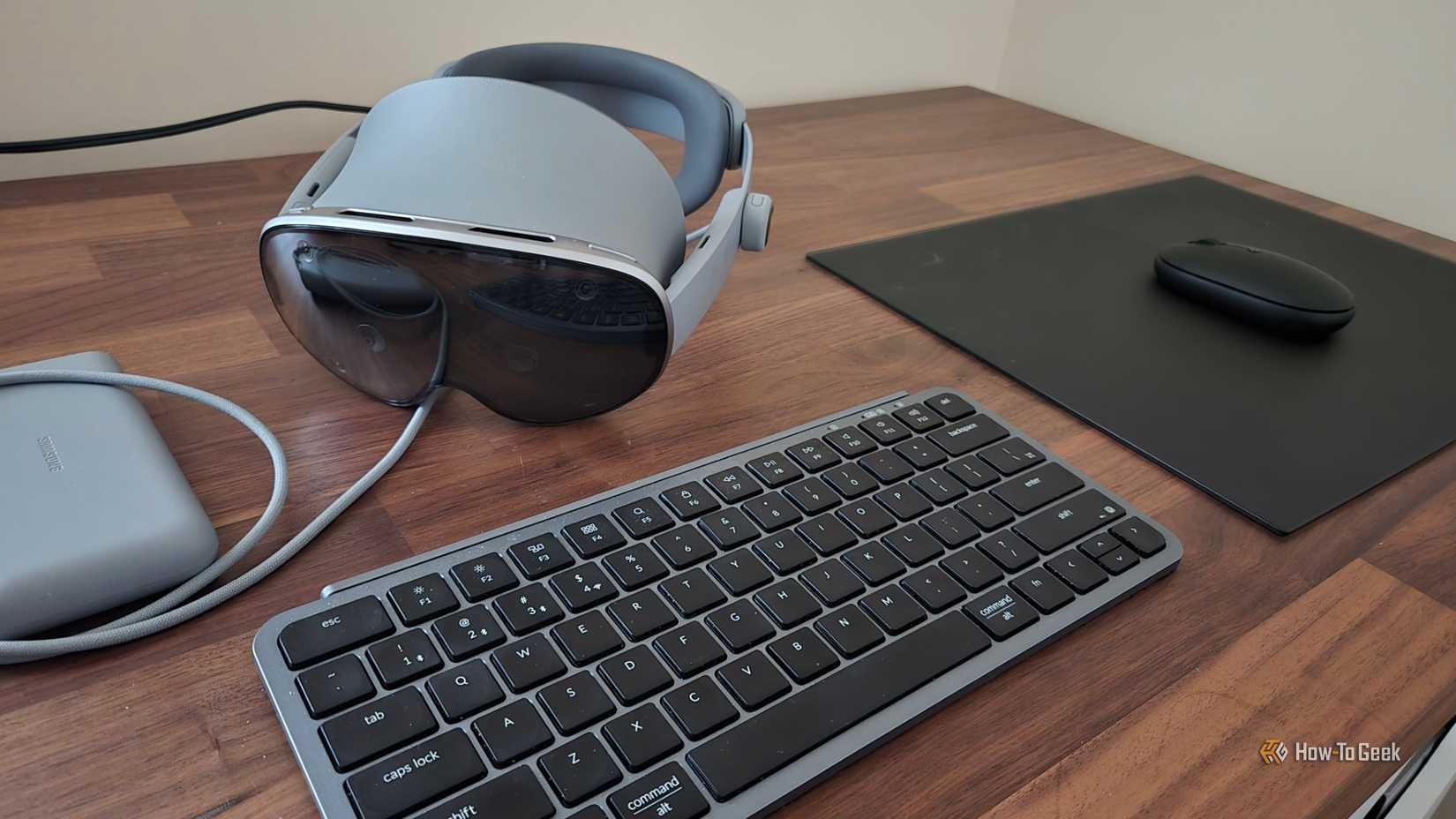
The left side of the headset has a proprietary attachment for the cable leading to the battery pack. This battery pack is around the size of your typical 10,000mAh power bank. It has two USB ports. One is where the other end of the cable goes, and the other is to plug in a charger. If you intend to use the headset at a desk for productivity work, as I do, there’s nothing stopping you from plugging in a cable and using the headset for as long as you wish. But despite the Galaxy XR charging cable being USB-C, you can’t swap out the provided power bank for a larger alternative. The headset simply won’t boot up if you try.
The resolution makes all the difference
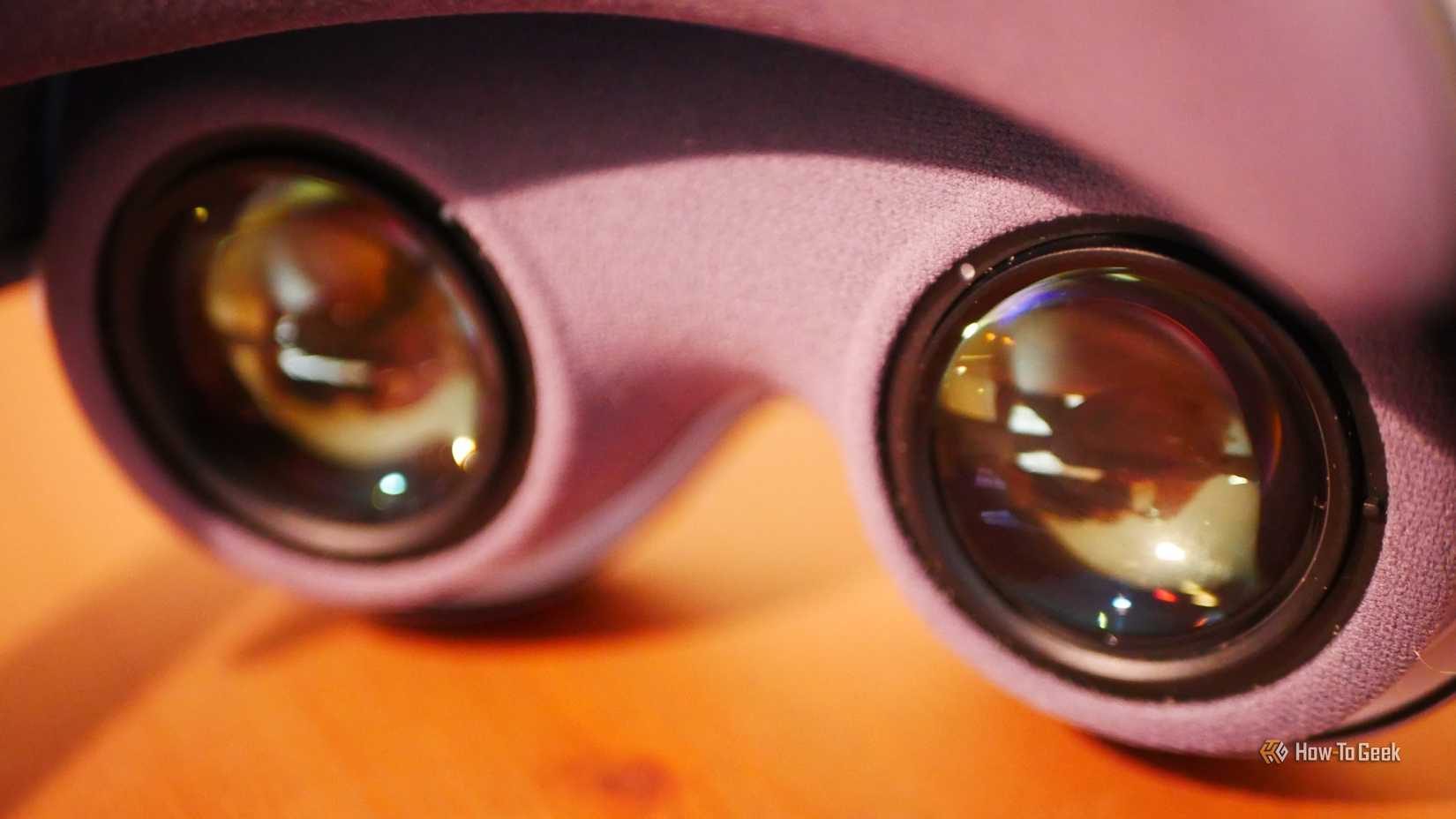
Galaxy XR comes with two micro-OLED lenses with a resolution of 3552 x 3840 pixels per eye. This actually comes out to a higher resolution than the Apple Vision Pro, which offers 3660 x 3200 pixels per eye. Samsung’s Galaxy XR pushes 29 million pixels, while Apple’s headset manages 23 million.
Samsung’s headset maxes out at a 90Hz refresh rate, but it spends most of its time at 72Hz. This is lower than the Vision Pro’s max refresh rate of 100Hz. Galaxy XR does offer a larger field of view, supporting 109 degrees horizontal and 100 degrees vertical compared to 100 degrees and 77 degrees on the Apple Vision Pro. That said, I have never worn Apple’s headset, so I can’t speak firsthand to how the visual quality compares.
Credit: Bertel King / How-To Geek
These high-quality, pancake lenses are the primary benefit of the Galaxy XR over even the most high-end Meta Quest headset, the Meta Quest Pro. Meta’s discontinued headset had MiniLED displays with 1800 x 1920 pixels per eye. The refresh rate was similar, ranging from 72–90Hz. Samsung’s improvements in other areas were more incremental—16GB of RAM over 12GB, Snapdragon XR2+ Gen 2 over the Gen 1, and Wi-Fi 7 over Wi-Fi 6E. The newer Meta Quest 3’s resolution is only slightly higher, at 2064 by 2208 pixels per eye, except that device uses LCD lenses.
I can best compare the Galaxy XR to my experience wearing XREAL glasses, which also have micro-OLED lenses but at a much lower resolution of 1920 x 1080. The resolution makes all the difference. Galaxy XR is much easier on the eyes and looks much less like I’m looking at a screen. This is the difference between a device I can wear for the occasional video and one I can consistently wear for hours a day as a monitor replacement.
I would say this difference in visual quality is the single biggest reason to invest in a Samsung Galaxy XR or Apple Vision Pro over lower-priced options. If you intend to use XR extensively, the higher resolution greatly increases the chances you can stick it out with a degree of comfort. Despite the heavier weight of this Galaxy XR headset compared to my XREAL glasses, I feel less strain when I take it off due to how much less eye strain I experience. With Galaxy XR, eye strain has ceased to be a concern.
Android feels right at home in XR
The Galaxy XR interface feels immediately familiar and is also a testament to how well Android adapts to any form factor. When you turn the device on, you have a floating grid of paginated app icons that you can swipe through horizontally. Above that, you have a bar with buttons to tidy up your windows, view your recent apps, open notifications, or pull up your quick indicators. The first button merely arranges all of your apps side by side so you don’t have to manually drag them around. The rest function the same way as they do on phones.
To navigate Android XR, you lift your hand, face your palm toward you, and pinch your pointer finger and thumb together to bring up the home screen. The action isn’t triggered by your fingertips touching, however, but by your pulling them apart. If you keep your fingers together and move your hand to the left before releasing your pinch, you activate the back gesture. If you move your hand to the right, you bring up a view of recent apps. These gestures replicate the same icon-based navigation that still ships on Samsung Galaxy phones and tablets out of the box (which I immediately disable in favor of gesture-based navigation).
While this may be the first Android XR device, I feel like I’ve watched the experience mature in a rapid time. I first tasted XR via XREAL glasses. Android XR’s app launcher and windows look very familiar to anyone who has purchased an XREAL Beam Pro, which I previously reviewed for MakeUseOf. Fortunately, the difference between Android XR now and that experience is night and day. Gone are the arbitrary limitations on how many apps you can have side by side and what shapes they must be. Here you can open several apps at once (some will still close in the background once you reach a certain number), and you can position them wherever you want. Not only that, but you can resize them however you like. So far, every app I’ve tried has resized without issue. Where I have encountered restrictions, they make sense, like with streaming apps locking themselves to a 16:9 aspect ratio.
YouTube, in particular, happens to be one of the relatively few apps modified for an XR experience. While you watch a video, controls hover in a separate window below, and comments sit off to the side. Google Meet is another. I like being able to see a full grid of faces alongside the chat, floating off to the side.
Samsung Gallery may just be my favorite example, with the new design leading to a drastically better viewing experience. You get a massive, uninterrupted view of your images, with thumbnails for other photos hovering off to the side. You can expand these photos to take up your entire view, even opting to convert flat photos into 360-degree or 3D images. The conversion is impressive and legitimately works, but there are relatively few photos that can make the transition without looking weird.
I don’t find switching between these XR apps and regular apps to be all that jarring, as though the latter were providing me with an inferior experience. Instead, these XR experiences feel more like entering an optional immersive or full-screen view than a radically different way to interact with software. But there are third-party apps that provide experiences that can’t be replicated on other form factors, like Pencil, which teaches you to draw by having you trace digital overlays using a real pencil and paper.
Having full access to Android apps is the reason Galaxy XR has caught my attention, where other headsets have not. I view VR gaming more as a curiosity than something I’m willing to invest hundreds or thousands of dollars in. But the option to take the apps I already know and use them in augmented reality? That’s an experience I see value in. And I’ve already learned from my time with AR glasses that watching video through a facial display is in a class of its own.
Where voice controls just make sense
Galaxy XR has been advertised as an XR headset built with AI integration in mind from the beginning. For those who want to interact with Gemini, that is a key advantage of this headset over Apple’s more expensive alternative. You can activate Gemini with the wake word or a long-press on the visor button, then talk away. Questions like “Can you organize my windows?” will organize your open apps. Much has been made about this integration, and there is no shortage of reviews that speak to how well it works. I prefer Bixby, so I swapped my defaults to Bixby instead.
I was surprised to find that posing the same question to Bixby actually worked. I can ask Bixby to organize my windows. Likewise, I can ask Bixby to open specific apps, saving myself from having to reach my hand up from my keyboard and mouse in order to open a new app. I found Bixby to be more useful than Gemini in many of the tasks I want to do. Bixby can both open and close apps, whereas Gemini cannot close apps. Likewise, Bixby can adjust the volume, whereas Gemini will simply explain to me in natural language how that’s a task it cannot do.
Neither assistant can enable a virtual environment for me when I want to block out the view entering through the cameras. Still, Bixby will at least directly open the relevant settings page, whereas Gemini will dive into an explanation of what I need to do. Asking Bixby about the weather opens a window that shows me the weather forecast for the next few days, along with a brief answer, whereas Gemini will merely tell me the current weather outside. Despite the reputations these two assistants have, whenever I try them out, I consistently find that I would rather have the deeper hardware integration that Bixby has over the conversational, informational focus of Google’s assistants.
One advantage Gemini has is the ability to run constantly in the background, allowing you to speak commands as they come to you without the need for a wake word. Personally, I find this more creepy than helpful, as it means anything you say, or anything anyone around you says, is funneled to Google’s servers. I don’t need that kind of surveillance in my life and am perfectly fine with using a wake word.
To make matters worse, when I asked Gemini to end the conversation the first time, the assistant told me it was ending the conversation, but didn’t actually do the task. The conversation continued to record as though I hadn’t issued a request at all. I instead pulled up the controls and pressed the end button manually. This is indicative of why I personally don’t make use of large language models. I have little patience for tools that don’t function in a predictable, reliable way and even less for one that speaks false information with confidence. Plus, I live in Virginia, which has more data centers than anywhere else in the world, and where what it takes to power these large language models is harder to ignore.
Ultimately, I don’t find the Gemini features to be all that interesting, but they’re here for those who want it, and this is admittedly the coolest way to use them that I’ve seen yet. Bixby, on the other hand, I highly recommend as a way to improve the experience of navigating and using the device.
Augmented reality that works well, but isn’t without hitches
Credit: Bertel King / How-To Geek
There are many moving parts in creating a reliable and dependable virtual world to augment the physical ones, and how satisfied you are with Android XR will depend in part on your expectations. As someone who primarily wants to sit at a desk and arrange windows in the surrounding space, Android XR works well. I can move floating windows around, take off the headset, and put it on an hour later to find them all as I left them.
If, on the other hand, I walk away from my office and open a YouTube video to watch while I’m in the kitchen, I will find the windows are no longer exactly as I placed them when I returned to the office. Android XR makes an attempt to anchor your apps in the real world, but it doesn’t quite nail the execution. For me, this is not that big of a deal. For various reasons, I don’t want to walk around with it on, anyway.
Primarily, the video passthrough very much looks like a low-resolution rendering of the world around you. It’s more than sufficient to keep you aware of the people and environment around you. Still, there’s a faint graininess whenever you focus on one area in particular, nor is the resolution high enough to read text. This most often becomes an issue when attempting to glance at my phone, which is only faintly legible.
Galaxy XR has cameras facing both inward and outward. The inward-facing cameras track your eyes and facial expressions. The outward-facing cameras detect your hands and provide video passthrough. You need to be in a lit environment in order for the latter to work. I do much of my writing in the early morning hours before the sun has risen, so this issue does come up. I keep a single dim lamp on, and Galaxy largely functions fine, but some touches aren’t accurately registered. If I’m attempting to play a VR game where I absolutely want precision, I make sure to turn on the ceiling lights.
A spatial computer that can replace my PC
Credit: Bertel King / How-To Geek
I’m someone who, for the past couple of years, has used an Android smartphone as my primary PC. I’ve heavily used Android desktop modes, but I now do most of my work directly on my foldable phone’s internal screen. I already know I can do all of my computing from an Android device. So with the Galaxy XR, I was curious about how my workflow would feel in augmented reality. I could test this out in a way that people who rely on apps that only run on Windows or macOS cannot.
I’m pleased to say that the experience has been exactly what I wanted. I’ve so far only encountered one app I regularly use that isn’t in the Play Store (Samsung Music, weirdly enough). I’m writing these words in PenCake, which syncs with the cloud from both my phone and Galaxy XR. I have Samsung Clocks keeping track of my pomodoro time to the left and Bandcamp streaming music next to that. I have Samsung Internet floating off to my right when I need to look something up. I just hopped off a work call on Google Meet less than half an hour ago. I can easily open Slack and Asana and stay on top of work communication and assignments.
I can check my email with Proton Mail. Proton Pass and Proton VPN work just as well as they do on my phone. Samsung My Files is essentially a fully featured desktop file manager. Other Samsung apps I rely on, like Calendar, Notes, and Reminder, are all here. I’ve had no problem resizing photos in Photo Studio Pro. In short, I’ve been able to translate my entire workflow wholesale, except for taking decent screenshots.
The biggest issue I’ve encountered has been with video calls and the inability to show my face during one. As a solution, Samsung offers Galaxy Avatar, a 3D character that, like Meta’s avatars, looks more like a video game character than a real person. I took part in one video call as my Galaxy Avatar, but I quickly decided it was better to leave my video off for meetings. There’s also Google Likeness, which more closely resembles Personas on the Apple Vision Pro. I’ve been impressed by the end result, but I haven’t yet had a chance to test it on a call.
Galaxy XR offers a Phone Link app that pairs the headset with a phone, but there’s a catch—it only works with Samsung Galaxy devices. This isn’t a problem for me, since my primary phone is a Galaxy Z Fold 6. Once paired, I am able to send and receive calls through my phone directly on my headset. I can also select which phone app notifications I would like to receive on Galaxy XR, and I can automatically sync photo albums via Samsung Gallery. With Google Messages, Proton Mail, Slack, and most of my other communication apps all installed on Galaxy XR, I have little reason to actually check my phone while wearing it. Hopefully, an app comes out that extends this functionality to non-Galaxy devices, especially as non-Samsung Android XR devices eventually come to market.
There’s a good chance of this, since Galaxy XR is about as open as any Android device can be. Out of the box, you can install APKs from any source without having to first enable any special developer modes. Samsung has also shared the kernel files, opening the possibility for custom ROMs to create alternative operating systems for the hardware. All of this makes Galaxy XR hardware I feel comfortable investing in.
A non-gaming headset that’s surprisingly fun
Like the Apple Vision Pro, Galaxy XR is not marketed as a gaming device. That the headset doesn’t ship with controllers is a sign of this. But that doesn’t mean you can’t use this headset for gaming. While it would hardly be my top choice if I exclusively wanted to use a headset for gaming, it’s perfectly viable as a gaming machine.
This is because, while Android XR does not yet have anywhere near the library that Meta Quest does, the processing power between Galaxy XR and Meta Quest headsets is largely the same, and porting games over from Meta Horizon OS (which is also based on Android) is reportedly quite trivial. It’s too early to know if developers will eventually target Android XR alongside Meta Quest as more devices become available, but I wouldn’t be surprised if many of them do.
As things stand, the library available for Android XR is drastically smaller, but there’s already plenty here to keep someone new to VR gaming entertained for quite some time. I’ve enjoyed two Galaxy XR-exclusive games, Inside Job and Oh My Galaxy!, which were both quite functional without game controllers. To my surprise, playing these games ended up being a social experience. Utilizing Smart View, the headset could mirror my field of view to our Samsung Frame TV, where the kids could watch me play. Plus, there was no lag.
Should you buy a Samsung Galaxy XR headset?
Credit: Bertel King / How-To Geek
If Samsung Galaxy XR should appeal to anyone, it’s me, since most people aren’t nearly as immersed in both the Android and Samsung ecosystems as I am. Is it a worthwhile purchase for anyone else?
If you’re interested in VR headsets and want a high-resolution display, Galaxy XR is, despite its price, one of the most affordable ways to make that happen. Unlike the competition, Galaxy XR also provides you with the Play Store, opening up access to nearly all the major video streaming (Disney+ is noticeably absent) and cloud gaming apps. For someone with physical space constraints, this headset is a viable way to replace a TV and a desktop gaming PC. If you’re someone who is able to work from a Chromebook, there’s likely enough software on offer here to replace a laptop as well. It’s particularly easy for Galaxy XR to take the place of a tablet as your go-to third device. This product is still priced too high to be an affordable way for the VR-curious to dip their toes in, but for anyone who isn’t exclusively interested in gaming, it’s the headset I’d recommend.
8/10
Brand
Samsung
Resolution (per eye)
3552 x 3840
Display Type
Micro-OLED
Storage
256GB
Samsung Galaxy XR is a mixed reality headset and the first to ship with Android XR. It runs nearly all Android apps in addition to content specifically designed for XR and VR alike. With full Play Store access, the ability to sideload apps, and an unlocked bootloader, the Galaxy XR is the most open headset at the time of its release.