
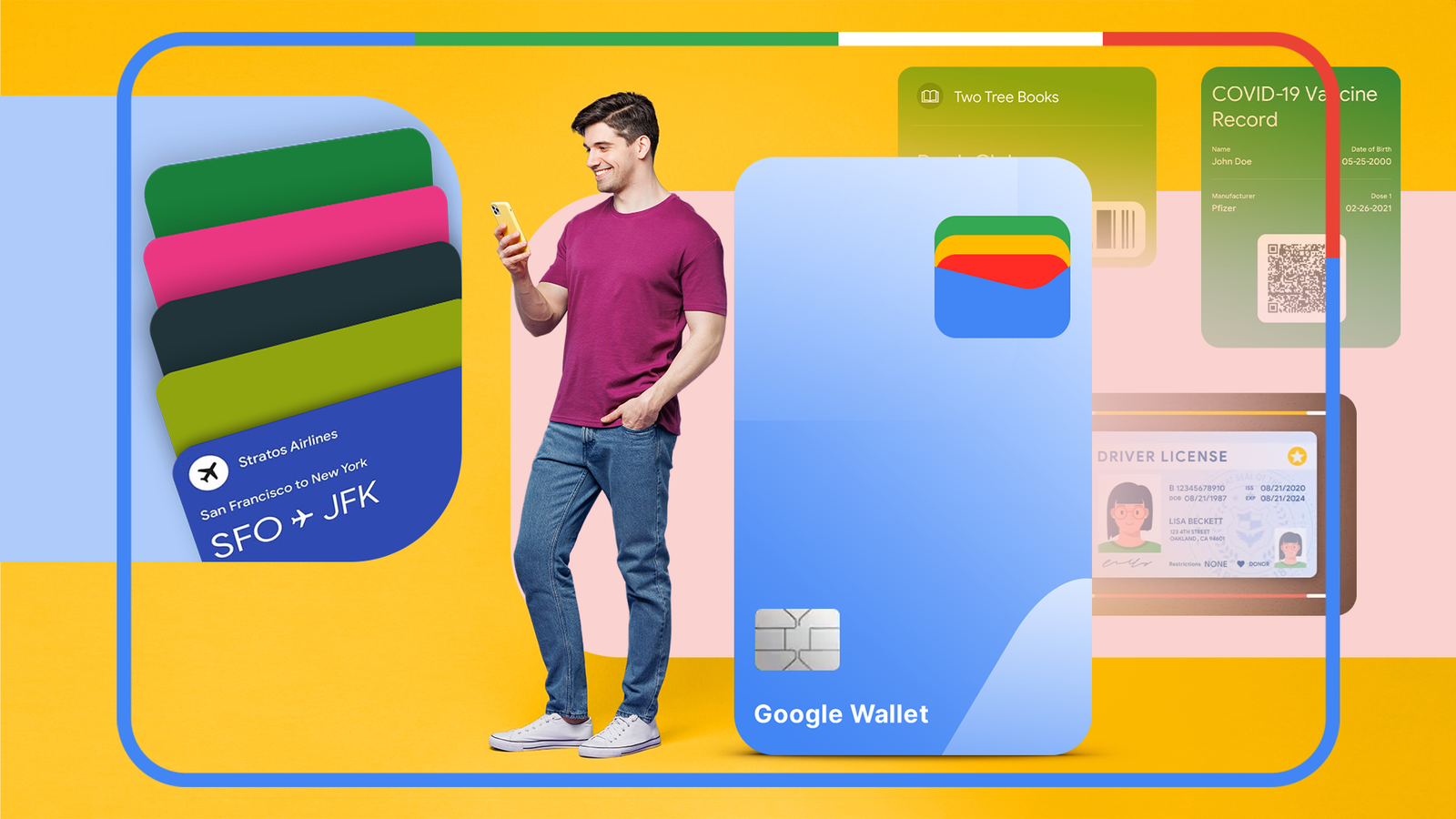
Gift cards are great, but when your physical wallet already has a ton of stuff in it, it can be easy to lose them in the chaos and completely forget about your free money. By adding your gift cards to Google Wallet, you’ll be much more likely to remember them. Doing this is easy.
Not all gift cards can be added to Google Wallet
Before we begin, allow me to explain some caveats about adding gift cards to Google Wallet. For starters, you cannot add every single type of gift card to Google Wallet, and some cards that you might think are gift cards are actually not. For example, you cannot add Google Play cards to Google Wallet. If you are searching for a certain gift card merchant name and cannot find it when adding a gift card, then that merchant is not supported.
Finally, if your gift card has an issuer logo, such as MasterCard or Visa, then it may not be considered a gift card and might need to be added to Google Wallet as a payment method instead. These are some exceptions that might get in your way during the process of adding a gift card (or a loyalty card!), but for now, let’s just assume that none of them are actually going to be a problem for you.
How to add a gift card to Google Wallet
There are two ways to go about this, so just pick whichever one is the most convenient for you. The first option is likely to be the easiest.
Adding to the wallet by finding the gift card merchant
Open your Google Wallet app. From the home screen, tap the “+” symbol in the big blue square that’s in the bottom right corner. From there, tap on “Gift card.” On the next screen, you can either scroll down the list until you find your merchant, or you can use the search bar at the top of the screen to find it more quickly. Once you find your gift card merchant, tap on it. You’ll be taken to a screen where you have to input the card number, PIN, and balance of the card. When you’re done, just tap “Add to Wallet.”
Add a gift card directly from the issuer’s website or app
If you are purchasing a gift card or receiving one as a digital gift, you may have the opportunity to add it to Google Wallet directly from the website or app the gift card is coming from. This may not always be an option, but it’s very convenient when it is. First, you must be signed into your Google account on the device and browser you are using at the time. Then, on select websites or apps, you may see a button that says “Add to Google Wallet” or “Add to GPay.”
The exact process depends on what you are adding, but generally, you will have to select and confirm which card you want to add to Google Wallet, then accept the terms of service for both Google and the issuer of the gift card. Then, you’ll tap “View in Wallet.” If you already have the Google Wallet app installed on your device, the card will be added immediately. If you don’t have the app yet, you’ll be prompted to download it first, and then the card will be added.
That’s all there is to it. Either of these options can add a gift card to Google Wallet.
How to use a gift card in Google Wallet
Once your gift card is actually in Google Wallet, you’ll have to actually use it when you go to a store. This is pretty easy, but keep in mind that the places you’re shopping at must be willing to take your gift cards in digital form (though most of them don’t care, in my experience). Just open your Google Wallet app, click on the gift card you want to use, and let the cashier scan the barcode or QR code. If the gift card doesn’t have a barcode, it’ll probably have some sort of serial number you can provide to the cashier instead.
Removing a gift card from Google Wallet after it’s depleted
Much like a real wallet, you’ll want to clear out Google Wallet of old and useless cards to keep things from getting too busy. After all, there’s no point in keeping a gift card with no balance around, physically or digitally! Clearing out old gift cards in Google Wallet is pretty easy, though there are two ways to do it. You can either remove a card from Google Wallet completely or choose to archive it. Removed cards are well and truly gone, but archived ones are just taken off the home screen and require extra steps to find again.
Granted, I’m not sure what benefit there is to archiving a gift card with no balance, but if you want to, you can. The process for both removing and archiving cards is almost identical. First, just click on the card in question on your app home screen. Then, click the three vertical white dots symbol in the upper-left corner of the screen. Scroll down to the bottom of the next screen, then click either “Archive” or “Remove.” Confirm your choice, and that’s all she wrote.
Chances are, almost all of us ended up getting a gift card of some sort from someone this year. You don’t have to store those gift cards in Google Wallet, but I’d highly recommend it. There are many things you can do with Google Wallet besides add payment or gift cards, which makes the app a well and truly feasible option for replacing a physical wallet. Well, except for cash, of course!