
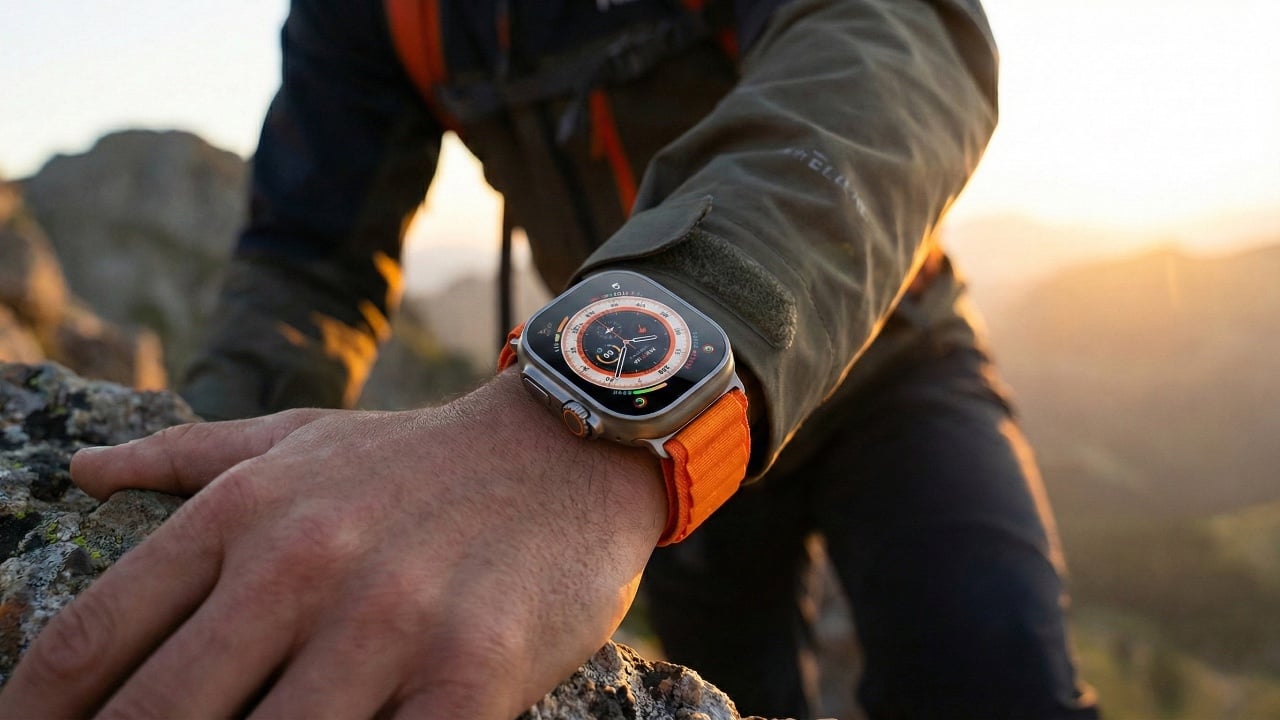
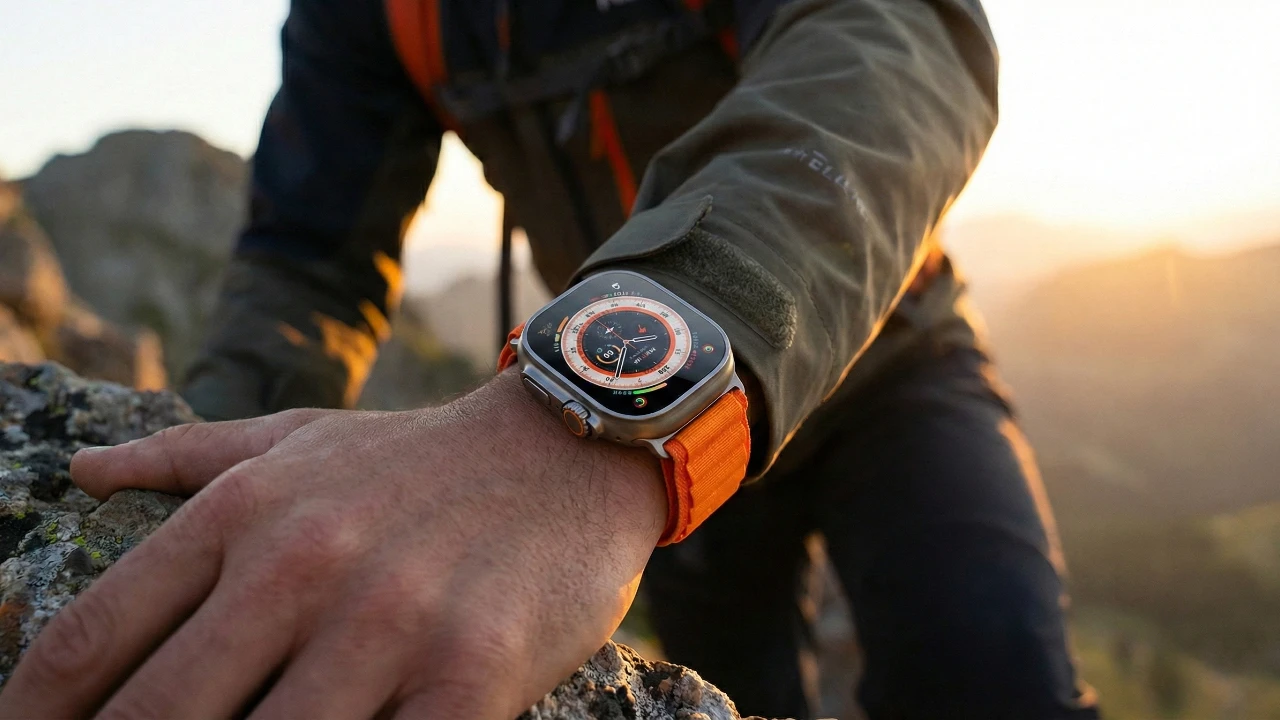
The Apple Watch is more than just a timepiece—it’s a versatile device designed to enhance your health, productivity, and connectivity. Whether you’re a first-time user or upgrading to the latest model, this guide will provide you with the knowledge to set up, navigate, and maximize its features. By understanding its capabilities, you can seamlessly integrate the Apple Watch into your daily routine and unlock its full potential. The video below from Stephen Robles shows us how to get started with the Apple Watch.
Unboxing and Setting Up Your Apple Watch
When you unbox your Apple Watch, you’ll immediately notice its sleek design and customizable bands, which allow for personal expression. To begin using your device:
Pair your Apple Watch with your iPhone using the Apple Watch app, making sure both devices are updated to the latest software version.
Follow the on-screen prompts to configure essential settings, including language, Wi-Fi, and Apple ID.
Set up preferences for features such as activity tracking, notifications, and privacy settings.
Ensure the watch band fits securely yet comfortably on your wrist for accurate tracking and ease of use. With interchangeable bands available, you can adapt the watch to suit your style or activity.
Mastering Navigation and Personalization
The Apple Watch is designed with intuitive controls that make navigation effortless:
Digital Crown: Use it to scroll through menus, zoom in on content, or return to the home screen.
Side Button: Access the Dock to view your most recently used apps.
Touchscreen Gestures: Swipe, tap, and press to interact with notifications, apps, and settings.
Personalization is key to making the Apple Watch your own. Choose from a variety of watch faces, each offering unique designs and complications that display useful information like weather, calendar events, or fitness stats. Customize the Control Center for quick access to essential tools, and organize your apps using the Smart Stack feature for a streamlined experience.
Health and Fitness: A Comprehensive Wellness Tool
The Apple Watch is a powerful health and fitness companion, offering a range of features to help you stay active and informed:
Activity Rings: Monitor your daily movement, exercise, and standing goals to maintain a balanced lifestyle.
Advanced Health Metrics: Track your heart rate, perform ECGs, and measure blood oxygen levels (on supported models).
Sleep Tracking: Analyze your sleep patterns to improve rest and recovery.
Safety Features: Fall detection and emergency SOS provide added security during workouts or daily activities.
Additional Tools: Features like cycle tracking and temperature sensing (on compatible models) offer deeper health insights.
By regularly reviewing your health data, you can identify trends and make informed decisions to improve your overall well-being.
Staying Connected and Managing Notifications
The Apple Watch keeps you connected, allowing you to manage communications and notifications directly from your wrist:
Customize notifications to prioritize alerts from essential apps while minimizing distractions.
Respond to messages using dictation, quick replies, or the on-screen keyboard.
Use the walkie-talkie feature for instant communication with other Apple Watch users.
Answer calls and send texts without needing to reach for your phone.
These features ensure you stay informed and connected, whether you’re at work, exercising, or on the go.
Entertainment and Productivity at Your Fingertips
The Apple Watch offers a variety of apps and media options to keep you entertained and productive:
Access built-in apps like Music, Podcasts, Maps, and Reminders to stay organized and entertained.
Download third-party apps from the App Store to expand your watch’s functionality.
Control smart home devices or use your watch as a remote for Apple TV.
Enjoy seamless access to music, podcasts, and navigation tools during workouts or commutes.
These features make the Apple Watch a versatile tool for both leisure and productivity.
Exploring Advanced Features
The Apple Watch is equipped with advanced capabilities that enhance its functionality:
Apple Pay: Make secure, contactless payments directly from your wrist.
Siri: Use voice commands to set reminders, send messages, or control smart home devices.
Camera Remote: Take photos or videos using your iPhone’s camera, controlled from your watch.
Gestures: Perform quick actions with intuitive gestures like double-tap or wrist flick.
These features add convenience and efficiency to your daily tasks, making the Apple Watch an indispensable tool.
Customizing Settings for a Tailored Experience
Tailor your Apple Watch to suit your lifestyle and preferences:
Adjust display settings, including brightness and always-on mode, for optimal visibility.
Enable focus modes to minimize distractions during work, exercise, or relaxation.
Manage app-specific notifications to streamline your experience.
Activate low-power mode and follow best practices to extend battery life.
Customizing these settings ensures your Apple Watch works seamlessly with your daily routine.
Enhancing Functionality with Third-Party Apps and Shortcuts
Expand your Apple Watch’s capabilities with third-party apps and automation tools:
Download apps like AnyList, Pocket Casts, or Watchsmith to add specialized features.
Create shortcuts to automate tasks, such as logging health data or controlling smart home scenes.
These tools allow you to save time and enhance the versatility of your Apple Watch.
Maximizing Daily Use
To make the most of your Apple Watch, consider these tips:
Wear it snugly but comfortably for accurate health and fitness tracking.
Charge it regularly and use low-power mode during extended periods of use.
Use mindfulness tools like alarms, reminders, and breathing exercises to stay focused and balanced.
Review your health and activity data over time to identify trends and set achievable goals.
By incorporating these practices, you can fully use the Apple Watch’s capabilities to enhance your daily life.
Advance your skills in Apple Watch setup by reading more of our detailed content.
Source: Stephen Robles
Filed Under: Apple, Gadgets News, Guides
Latest Geeky Gadgets Deals
Disclosure: Some of our articles include affiliate links. If you buy something through one of these links, Geeky Gadgets may earn an affiliate commission. Learn about our Disclosure Policy.