
Dealing with lag on your phone is incredibly annoying. When you’re trying to get something important done, or you’re stuck somewhere with no patience to spare, a laggy phone is the last issue you want to deal with.
This was exactly my situation recently. For me, apps would stutter, simple actions would be delayed, and nothing really explained why. I didn’t use any heavy apps either.
Turns out, the issue wasn’t the internet or the phone’s performance at all. It was a background setting quietly doing its job. After changing just one option on my Android phone, the lag completely stopped. If you’ve been facing random stutters without a clear reason, this is something you should know about. It might just save you from a lot of unnecessary frustration.
What is the setting, and what does it actually do?
The hidden trade-off behind fewer Wi-Fi scans
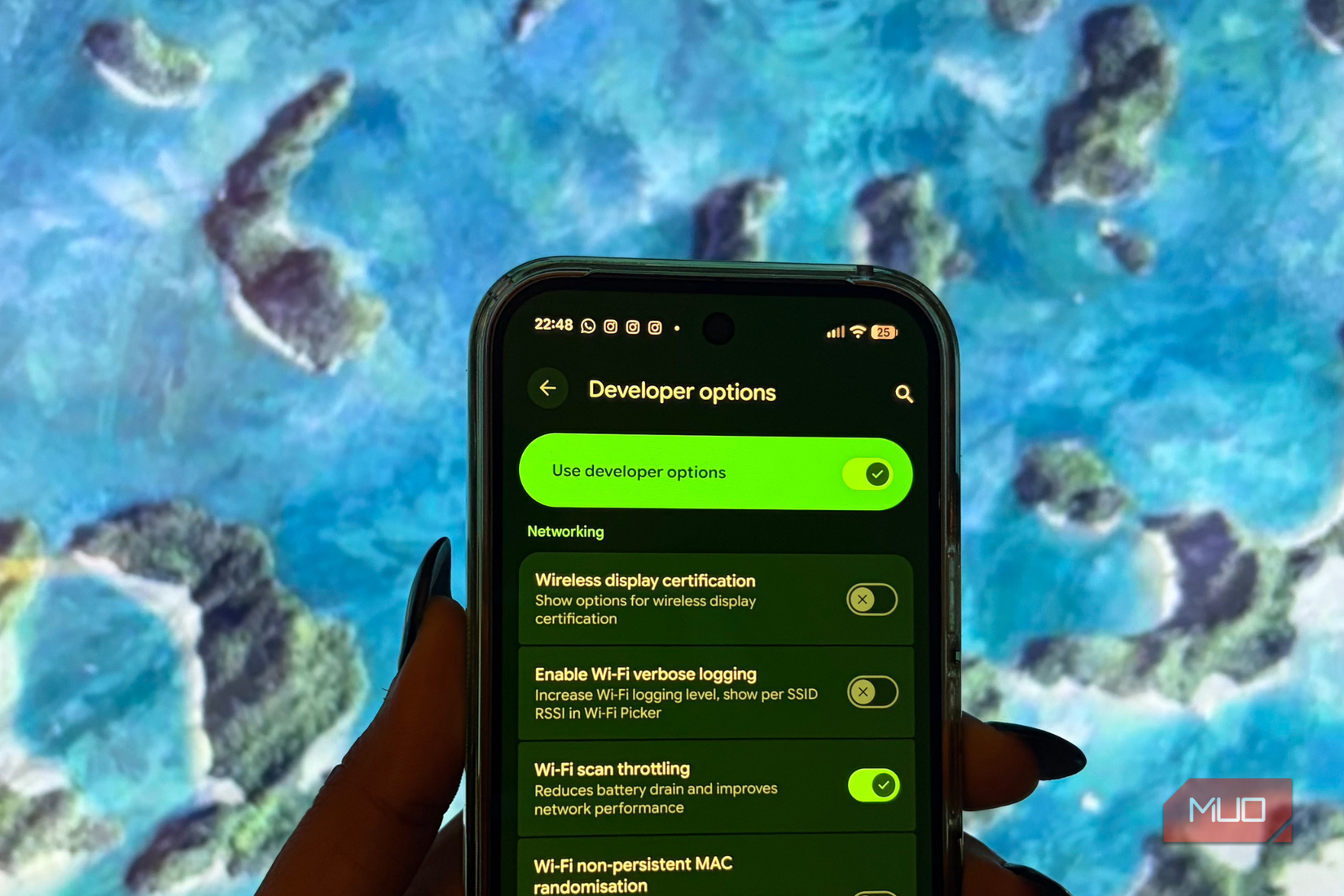
Credit: Shimul Sood / MakeUseOf
Wi-Fi scanning is an Android feature that scans for nearby Wi-Fi networks in the background, which has several purposes. It’s used as a way to approximate your location (aside from GPS), allows you to quickly connect to known networks, and lets apps scan Wi-Fi networks when needed.
In turn, Wi-Fi scan throttling is a function that limits how often your phone performs these scans. When throttling is turned on, your phone checks for nearby networks less frequently. In everyday usage, this can mean your phone takes longer to figure out where you are or struggles to quickly connect to available networks.
You might notice this when moving between locations, like walking through a mall or entering a café with free Wi-Fi. In those cases, your phone may lag in updating your location or connecting to the network.
As you’ve likely noticed, not all apps behave the same. Some barely need Wi-Fi scans, while others constantly search for the nearest network even when you’re not actively using them. This activity may be invisible, but it happens in the background. With Wi-Fi scan throttling enabled, these scans are limited, which can slow down apps that rely on frequent Wi-Fi updates.
As a result, Wi-Fi scan throttling can make your phone feel slower and less responsive in daily use. While it reduces background activity, it also limits features you rely on and can impact overall performance. In many cases, this trade-off affects usability more than it helps battery life.
Tapping your way into Developer Options
Since accessing this setting requires Developer Options, you should first understand the security implications of accessing the Developer Options menu. Once that’s clear, here’s how you can access the relevant menu:
Open the Settings app on your Android phone.
Scroll down and tap About phone.
Find the Build Number and tap it seven times. As you do so, you’ll see a prompt showing how many taps are left.
Enter your device PIN or password when asked.
A message will appear at the bottom saying You’re now a developer!
That’s all it takes! You’ve successfully enabled Developer Options on your Android phone.
How to turn off Wi-Fi scan throttling
One toggle closer to a faster phone
Now that you’re inside Developer Options, it’s time to get to the option that makes the difference. To disable Wi-Fi scan throttling on your Android device, follow these steps:
Open the Settings app on your Android device again.
Scroll down and tap System.
Head to the new Developer Options menu.
Scroll down to the Networking section.
Toggle off Wi-Fi scan throttling.
You’re all set—Wi-Fi scan throttling is now disabled on your device.
I’m currently using a Google Pixel 10 Pro, so these steps reflect how the setting appears on my phone. The exact path may vary slightly depending on your device or Android version. If you can’t find the option, use the search bar in Settings to look for Wi-Fi scan throttling and turn it off directly.
After turning off this setting, I felt an immediate improvement in my phone’s overall responsiveness. The interface felt smoother, and I no longer experienced random lags or stutters, even during charging or when the phone was slightly warm. Activities I do every day on my device feel much smoother now.
Related
I never set up a new phone without changing this setting
One tweak can seriously improve how your Android feels
While the results can vary depending on your device, you’ll hopefully notice similar gains. If performance feels unchanged, it’s worth checking a few other Android settings that might be slowing your phone down.
This little toggle definitely saved my sanity
I was losing all my patience until I discovered this setting, and it completely changed the way my Android phone works. The response was instant. But don’t forget that Wi-Fi scan throttling is there for a reason. Yes, it helps improve battery life, but it does come at a cost. If your smartphone can’t handle everyday tasks without lagging, what’s the point of saving a little battery?
I’m willing to trade a little battery life for a smoother, stress-free experience. And if you’re still concerned about power, there are other hidden scanning settings you can tweak to keep your battery in check without sacrificing performance. Sanity overruling stutters is a trade I’m happy to make.