
Image by Author
# Introduction
People often ask about my tech stack, specifically what I use to build web applications, train machine learning models, and manage data science workflows. In short, I rely on a balanced mix of AI-powered and non-AI tools that enable me to work efficiently without compromising quality. These tools support everything from planning and project management to development, testing, and deployment.
The best part? They are easy to adopt. Most come with quick-start guides, sensible defaults, and seamless integrations with existing workflows, allowing you to incorporate them into your tech stack with minimal effort.
In this article, I will highlight seven essential tools that can enhance your workflow to a professional level. These tools will help you become a better teammate, a sharper coder, and a more effective developer from the initial idea through to production.
# 1. Git & GitHub: Version Control Made Simple
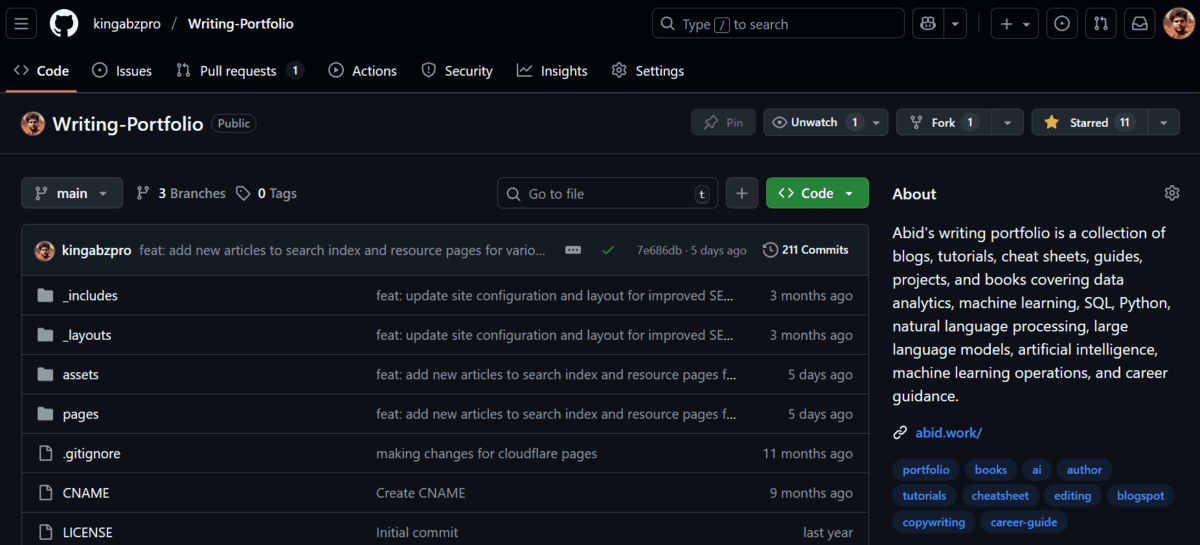
Git is essential for almost all developers and tech professionals. It helps you track your code changes, debug, and visualize the progress of a project. You can even use it for versioning your models, datasets, and experiments. GitHub is the most popular platform that allows you to host your projects and provides a lot of tools and management features to help you turn your ideas into production-ready projects all in one place.
Why it is great:
Branching & merging: Safely explore ideas on branches, then merge when ready
History & recovery: Use git log, git diff, git stash, and reflog to undo and restore
Pull requests & reviews: Discuss changes, run checks, and keep a clean main branch
GitHub Actions: Automate tests, builds, and deployments with simple YAML
Issues & Projects: Track tasks, bugs, and roadmaps alongside your code
Releases & packages: Tag versions, publish artifacts, and manage changelogs
Security & compliance: Dependabot, code scanning, branch protections, and required reviews
I use Git almost every day. Even when I am vibe coding, it’s a crucial part of my workflow. When I accidentally push unwanted changes or make edits to a previous commit, I use Git to fix it. Trust me, I often push a lot of junk code and later realize I could have made simpler edits.
# 2. Cursor: The AI-Powered Code Editor
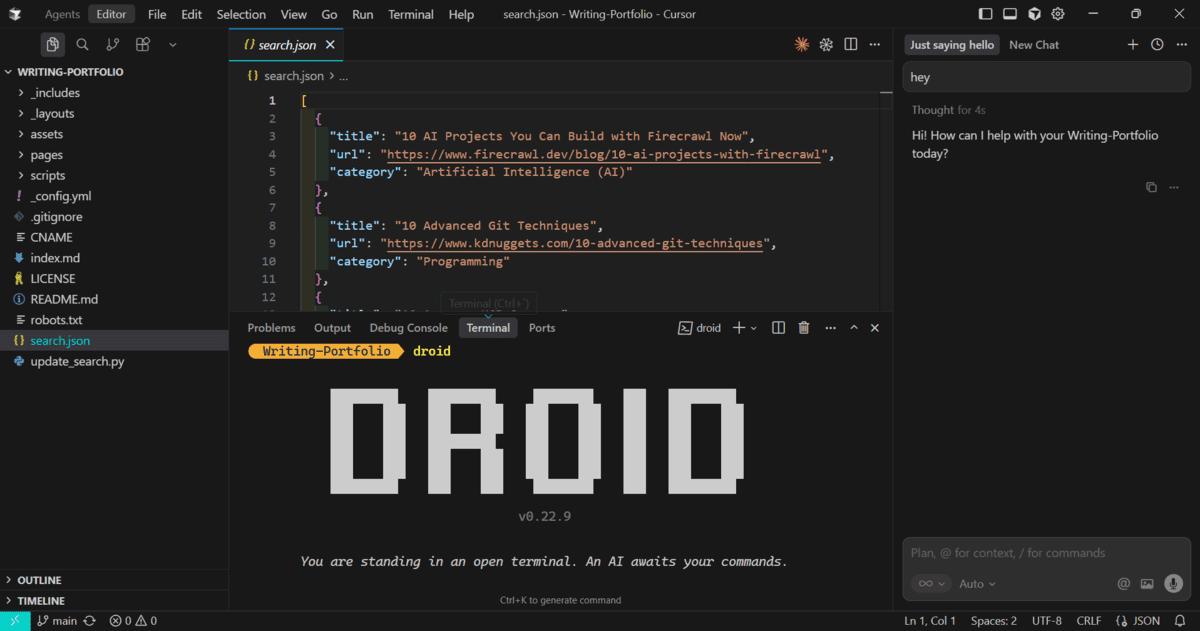
Cursor is a modern editor built around AI. It resembles VS Code but adds a layer of intelligence that helps you write, fix, and refactor code faster. I believe it is a crucial tool for all your coding problems. Now it comes with multi-agent support, meaning you can ask it to run multiple agents simultaneously to solve problems together. I use it daily for coding, editing, autocompletion, and testing and pushing new changes to the projects.
Why it is great:
Inline AI edits: Ask for changes right in a file; get precise, diff-style patches
Repo-level context: Reason across multiple files, symbols, and project architecture
Multi-agent support: Decompose problems and let coordinated agents handle sub-tasks
Chat + terminal awareness: Reference logs, test output, and commands for targeted fixes
Refactors that stick: Safe renames, interface changes, test generation, and migration help
Deep Git integration: Stage hunks, craft commit messages, and open PRs without leaving the editor
VS Code ecosystem: Keep your themes, keybindings, and most extensions
A lot of AI CLI tools provide integration with Cursor, allowing me to use tools like Droid, ask them to build things for me, and watch the changes in the Cursor IDE. It gives me control and helps me build things faster.
# 3. Claude Code: Understands Your Entire Project
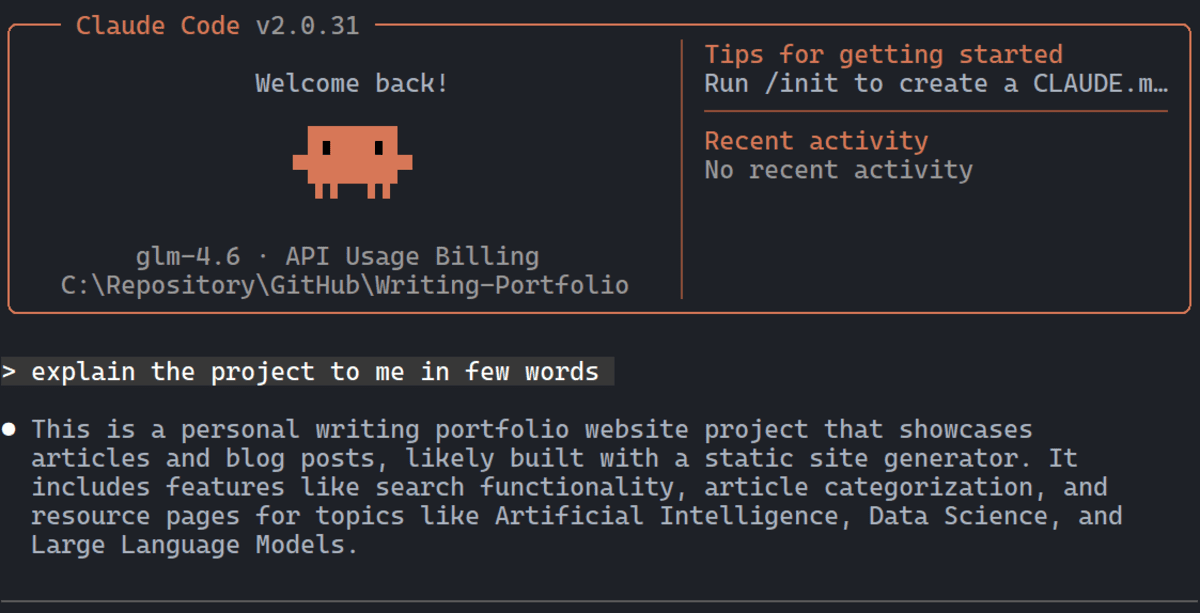
Claude Code is designed for developers who work with large codebases. It can read your entire repository and reason across multiple files at once. I really love Claude Code, and I don’t even pay for the API or the Claude plan. I use it with the GLM coding plan, which costs $3 per month, and it works better for me than any Claude Sonnet models.
Why it is great:
Whole-repo reasoning: Understands symbols, cross-file dependencies, and architecture decisions
Project-wide edits: Proposes targeted diffs/patches instead of dumping walls of code
Strong scaffolding: Spins up services, CLIs, and boilerplate with sensible structure and docs
Testing & debugging: Generates unit/integration tests, traces failures, and suggests fixes
Tool use: Executes commands, reads/writes files, runs linters, and inspects logs through connected servers
Docs & reviews: Summarizes modules, drafts READMEs, and performs thoughtful code reviews
The Claude Code is excellent for troubleshooting your problems or building new applications. I have used it to create a payment platform from the ground up, and it’s impressive in its capabilities. To get the most out of the Claude Code, I highly recommend using the MCP server, Claude skills, and Claude planning markdown. Ask it to plan first, then execute.
# 4. Postman: Test Your APIs with Ease
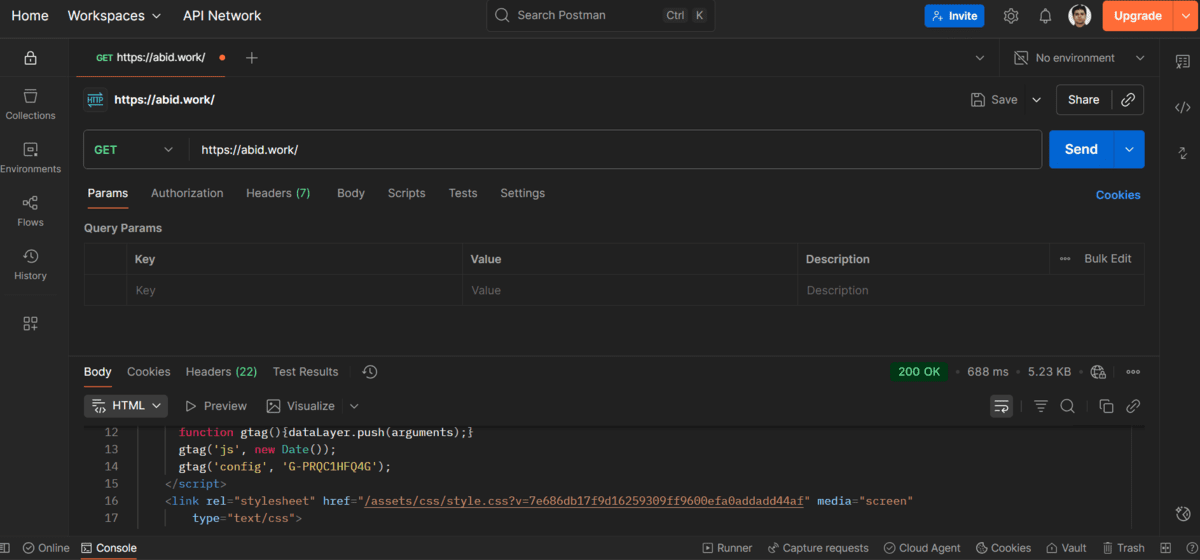
Postman is the go-to toolkit for API development. It makes it simple to hit endpoints, inspect and visualize responses, and debug fast. Even if you are building a machine-learning app, you still need to validate your inference and admin endpoints. Postman gives you a clear, visual view of how your API is performing.
Why it is great:
Collections & environments: Organize requests, switch configs (dev/stage/prod) with variables
Built-in tests: Write quick JavaScript assertions for status codes, payloads, and latency
Monitors & automation: Schedule runs and get alerts when something breaks
Mock servers: Prototype endpoints before the backend is ready
Collaboration: Share collections and documentation with your team in a click
There are plenty of alternatives, and you can even script your own testers, but Postman stands out for its ease of use, rich feature set, and strong collaboration tools.
# 5. Excalidraw: Visualize Your Ideas
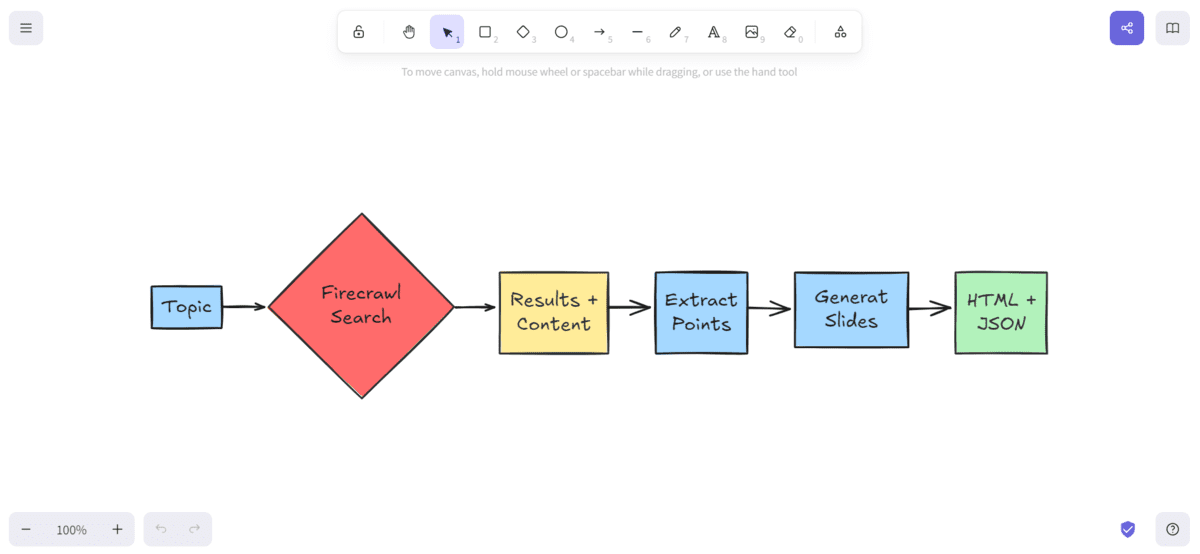
When words fall short, sketch it. Excalidraw makes it effortless to map system designs, workflows, and architecture, perfect for project planning, blogs, presentations, or just thinking through a messy problem as it grows.
Why it is great:
Fast, hand-drawn feel: Communicate concepts without getting stuck on pixel-perfect details
Shapes, connectors, and labels: Ideal for flowcharts, ERDs, sequence diagrams, and app maps
Component libraries: Reuse UI stencils, cloud icons, and your own saved blocks
Real-time collaboration: Brainstorm together, leave comments, and iterate live
Easy export & embed: Drop diagrams into decks, docs, or wikis (PNG/SVG/links)
# 6. Linear: Keep Your Projects on Track
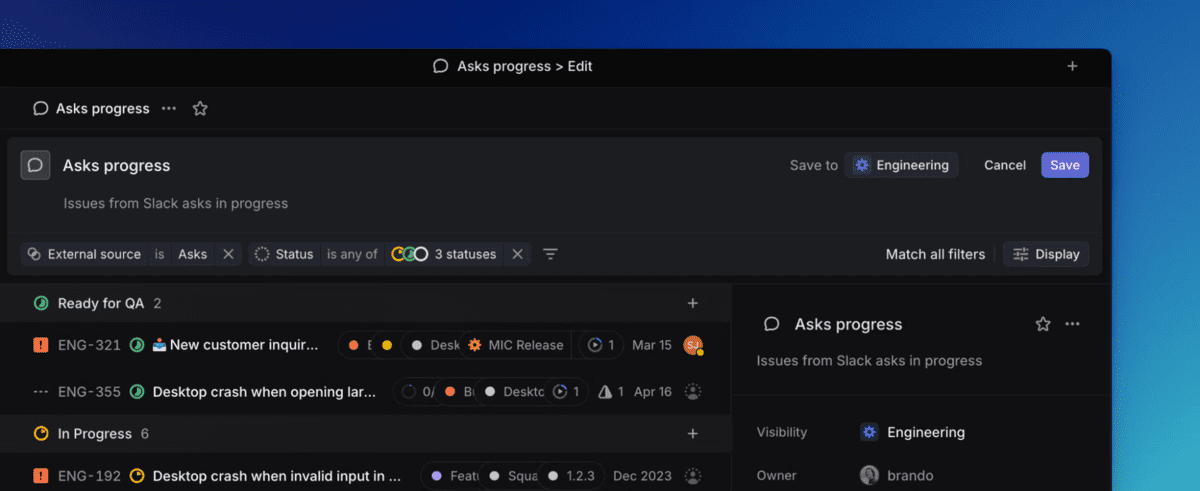
Linear brings speed and clarity to issue tracking. It’s fast, minimal, and built for engineering and product teams, great for planning content or shipping software without the clutter. I use Linear primarily for my job, and I love it. You can assign tasks, provide initial plans, and move items through different statuses. As you progress, you can see the history of changes and conversations, which provides a structured approach to content creation and project development.
Why it is great:
Lightning-fast UX & shortcuts: Blaze through triage, updates, and searches.
Issues, projects, and cycles: Structure work from backlog → sprint → done with clear status flow.
Custom workflows & labels: Tailor states, priorities, SLAs, and automations to your team.
Deep integrations: Sync with GitHub/Bitbucket, link PRs, get Slack updates, attach designs, and connect Notion docs.
Real-time collaboration: Comments, mentions, and activity timelines keep context in one place.
Roadmaps & insights: Track progress, velocity, and scope changes at a glance.
# 7. Docker Desktop: Run Anywhere, Every Time
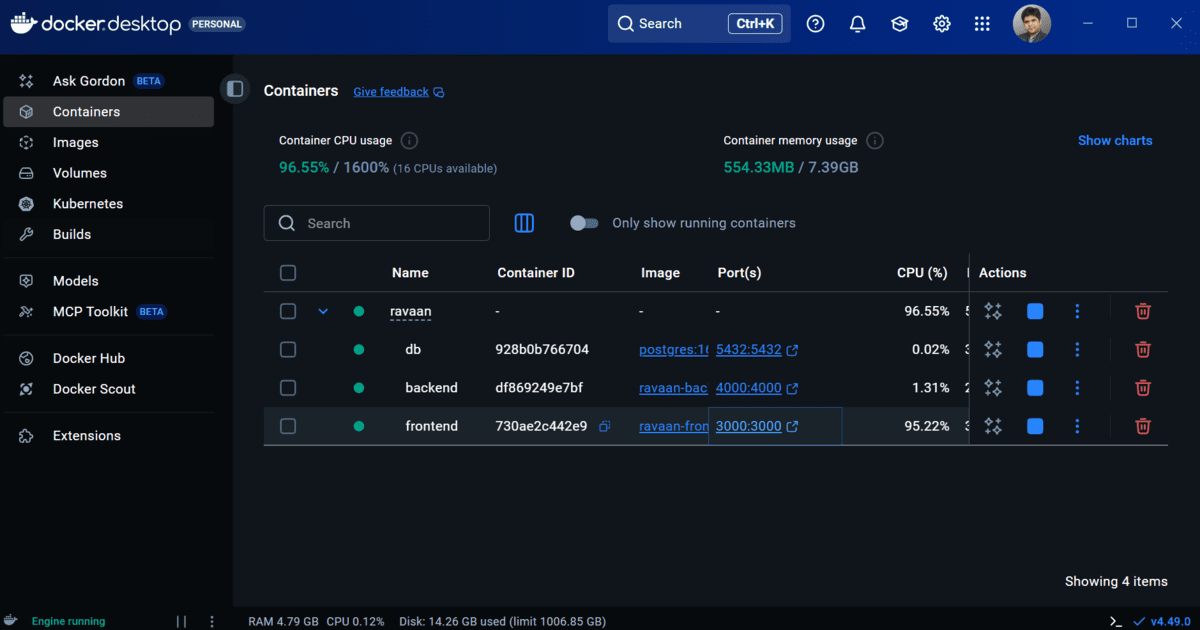
Docker makes your environment consistent. Package your app and all its dependencies so it runs the same on every machine, no “works on my laptop” surprises. I use Docker Desktop for almost every project: local testing, quick deployments, and safe sandboxes for MLOps, data science, web development, and trying new AI models without touching my actual files.
Why it is great:
Reproducible environments: Ship code + dependencies together as images for predictable runs
Isolation & safety: Containers sandbox processes and file access so experiments don’t leak into your system
Compose for multi-service apps: Spin up APIs, DBs, caches, and queues with a single docker compose up
Fast iteration: Layered builds, BuildKit, and caching speed up dev loops
GPU & ML support: Run CUDA/ROCm-enabled containers for training/inference locally
Multi-arch & portability: Build for x86/ARM and deploy the same image to any cloud or on-prem
Dev containers: Standardize toolchains for your team in VS Code or JetBrains with one config
# Final Thoughts
If you are starting out or transitioning into a developer role, becoming proficient with these tools will help you become faster and more effective. You will be able to ship features more quickly, collaborate better, and advance your career with confidence.
All the tools I mentioned are part of my daily toolkit: Git, Docker, Claude Code, Cursor, Excalidraw, and Linear. I use them for content creation as well as for building machine learning and AI applications.
I hope this article has provided you with a clear starting point and helps you choose the right tools for your coding journey.
Abid Ali Awan (@1abidaliawan) is a certified data scientist professional who loves building machine learning models. Currently, he is focusing on content creation and writing technical blogs on machine learning and data science technologies. Abid holds a Master’s degree in technology management and a bachelor’s degree in telecommunication engineering. His vision is to build an AI product using a graph neural network for students struggling with mental illness.