
I used to avoid looking at my phone while I was in a moving car, because reading would give me motion sickness.
That changed when I learned about the Vehicle Motion Cues feature on my iPhone — when it’s enabled, animated dots appear on my screen and follow the movements of the car, which tricks my brain into forgetting to make me nauseous.
One great thing about this feature is that I don’t have to go hunting for it in my iOS settings when I need it. I don’t even have to look at my screen, because I’ve set it up as my iPhone’s Accessibility Shortcut.
iOS Accessibility Shortcuts let you quickly turn on useful features like Vehicle Motion Cues, AssistiveTouch, Live Captions and more. Set it up once, and you’ll have another physical shortcut for your iPhone like the Action Button or Back Tap.
How to set up an iPhone Accessibility Shortcut
You have a pretty wide range of options for your Accessibility Shortcut. Go to Settings > Accessibility > Accessibility Shortcut to make a selection:
AssistiveTouch
Background Sounds
Classic Invert
Color Filters
Control Nearby Devices
Dim Flashing Lights
Eye Tracking
Full Keyboard Access
Hover Text
Hover Typing
Increase Contrast
Left/Right Balance
Live Captions
Live Recognition
Live Speech
Magnifier
Music Haptics
Name Recognition
Reduce Motion
Reduce Transparency
Reduce White Point
Smart Invert
Speak Screen
Switch Control
Vehicle Motion Cues
Voice Control
VoiceOver
Zoom
Once you’ve chosen your Accessibility Shortcut, you can activate it by triple-clicking the side button (or the home button, if you’re using an older iPhone).
Some of these features can be permanently enabled on your device (for instance, I prefer more minimal animations, so I always have Reduce Motion turned on). But other features, like Vehicle Motion Cues or Color Filters, are only useful in limited scenarios, so the quick toggle is extremely handy.
You can also choose multiple options from the Accessibility Shortcuts list. When you triple-click the side or home button, you’ll see those selections appear in a pop-up menu.
Triple-clicking the side or home button will show you a pop-up menu that looks like this (if you have more than one Accessibility Shortcut).
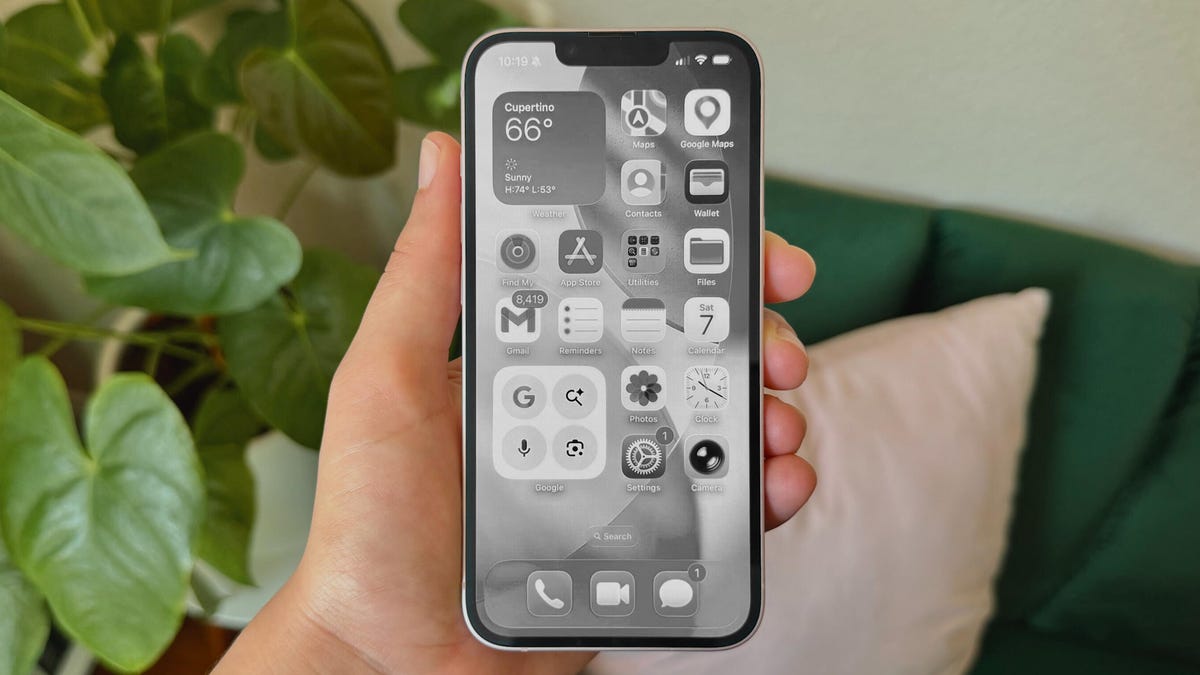
Jason Chun/CNETHow to make your iPhone grayscale
Another good use case for Accessibility Shortcuts is making your entire screen black and white. This is perfect for turning your phone into a temporary e-reader if you have a long train commute and want to focus on finishing a book.
Or, if you’re trying to spend less time looking at your phone, a grayscale screen can make it harder to mindlessly scroll through social media apps like TikTok and Instagram.
Grayscale is one of several options for Color Filters. To set the grayscale filter, go to Settings > Accessibility > Display & Text Size > Color Filters. Hit the toggle for Color Filters and select Grayscale.
Then, select Color Filters as your Accessibility Shortcut, and you can switch between a color display and grayscale with a simple triple-click.
Our phones are amazing devices, but sometimes we struggle to make them work properly for us. Having the right Accessibility Shortcut can make it a little easier to use your phone when you need it — and harder to use when you’re doomscrolling.