

Modern smartphones are extremely powerful, but they also contain features that operate silently in the background.
While some of them are genuinely useful, others end up adding unnecessary clutter, reducing battery life, or slowing things down over time.
Recently, my phone started feeling a little sluggish. Apps took longer to open, and my battery seemed to drain faster than it should.
Instead of immediately blaming the hardware or considering an upgrade, I decided to check my phone settings and started turning off a few features I didn’t really need.
The result was surprising. My phone felt noticeably smoother and easier to use again.
Here are some of the settings I changed that made the biggest difference.
Related
6 Android tweaks I made to cut clutter from my phone
A quick cleanup helped me use my phone more mindfully
Turn off your phone’s RAM expansion
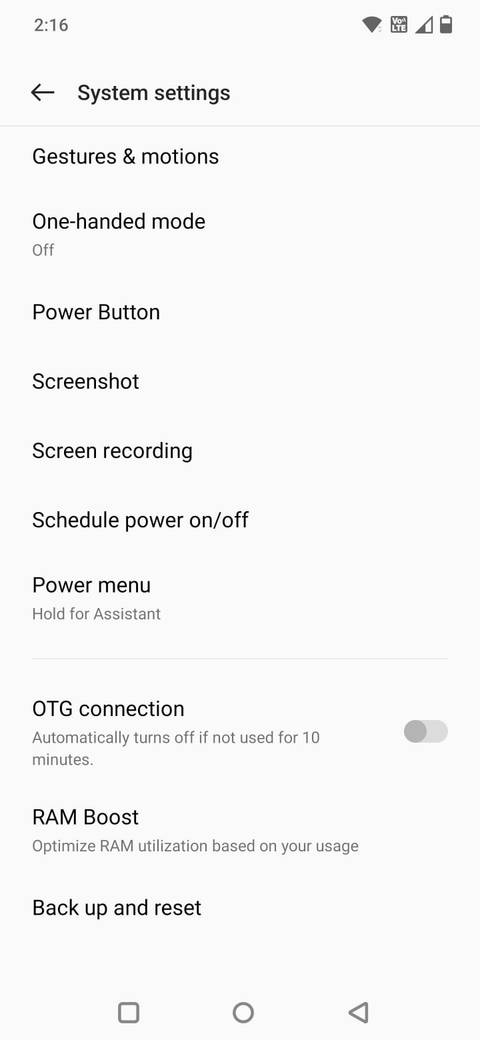
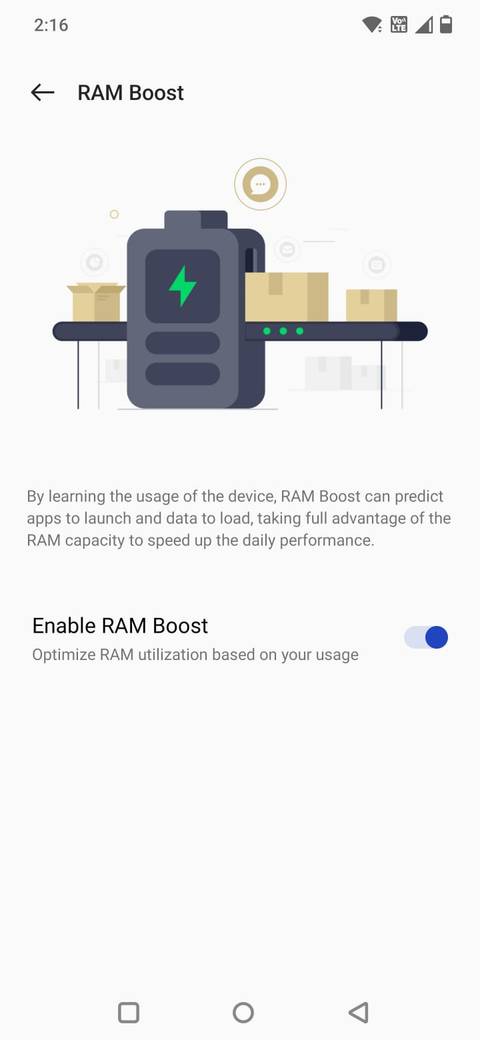
Many phones include a feature called RAM expansion, sometimes labeled as RAM Plus or RAM Boost. The idea is simple: Your phone borrows some of its storage space and uses it as additional memory to help keep more apps open.
However, in practice, it often does very little on phones that already have plenty of RAM. Worse, storage is significantly slower than real memory, which means using it as virtual RAM can actually introduce delays.
You can toggle off RAM expansion by going to Settings and searching for RAM Boost or RAM Plus. The name and location may vary slightly depending on your device.
Switching it off made multitasking feel more responsive. Apps resumed more quickly, and I noticed fewer moments where the system seemed to pause while switching tasks.
Reduce system animations on the device
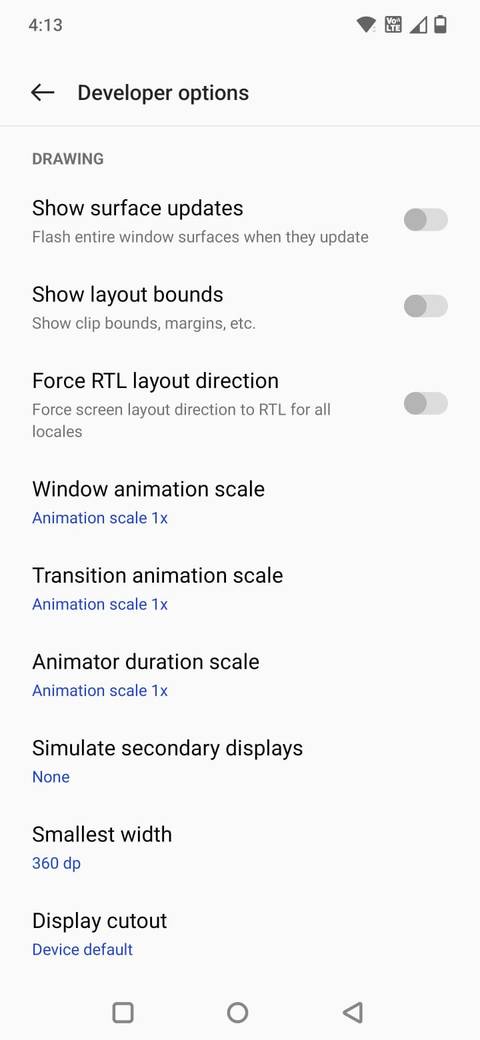
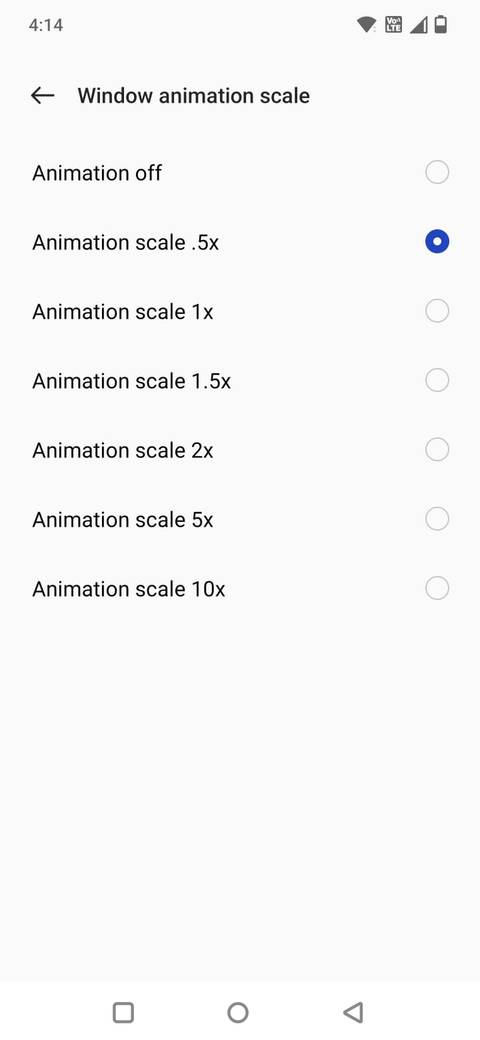
System animations are one of those things you don’t really notice until you change them. They control how quickly apps open, how transitions look, and how your phone moves between screens.
By default, your phone slows down these animations slightly to make it feel smooth. But that also makes the phone feel a bit less responsive.
I reduced them by enabling Developer Options (you can do this by tapping the build number multiple times in Settings > About phone), then going into Developer Options and lowering the scale for Window animation scale, Transition animation scale, and Animator duration scale.
I didn’t turn them off completely; setting them to 0.5x was enough.
The difference was immediate. Apps opened quicker, switching between screens felt snappier, and the phone just felt more responsive overall.
Switch off unused connectivity features
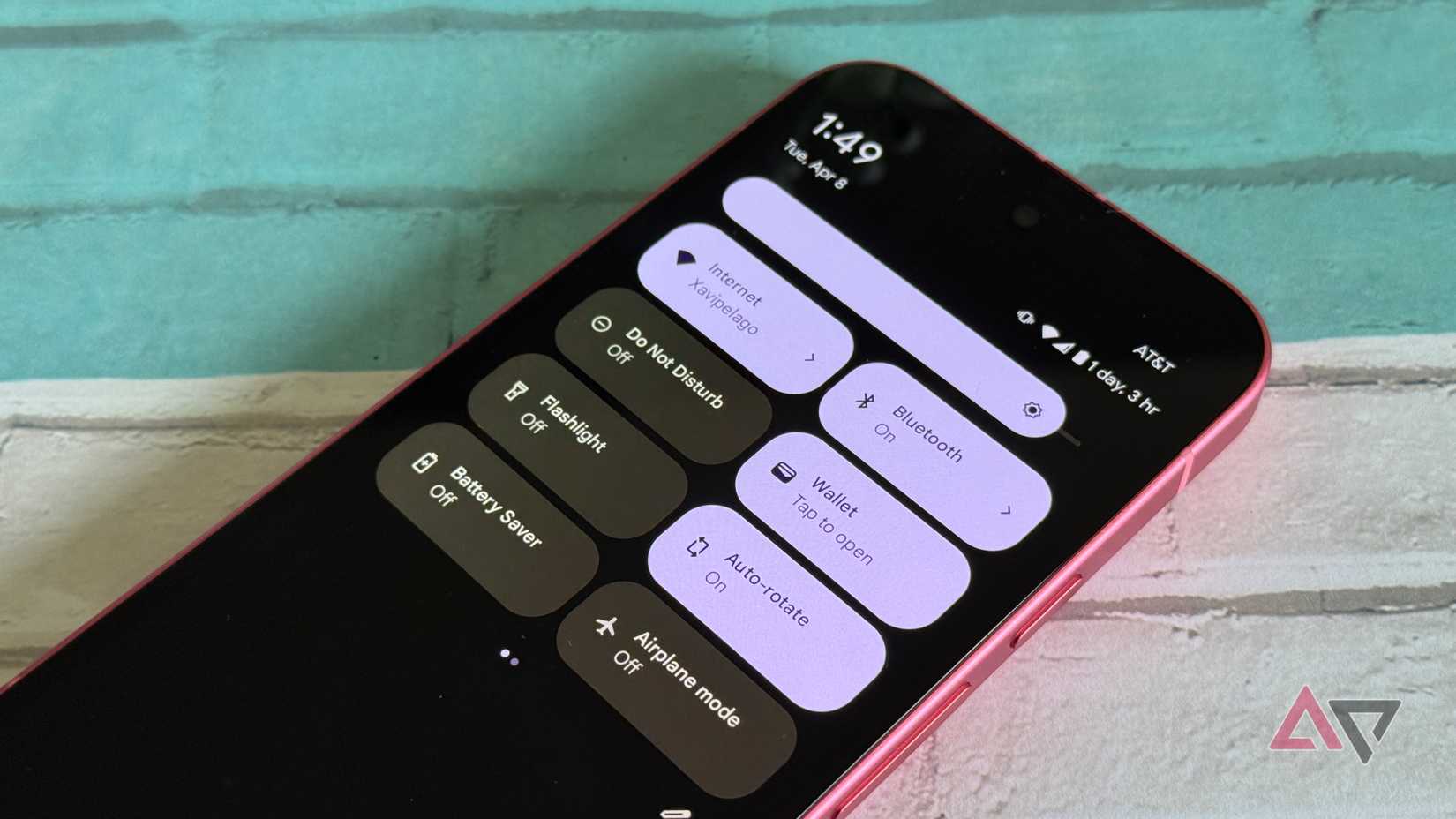
Android phones continuously scan for nearby devices, networks, and accessories to facilitate faster connections.
Features such as Bluetooth scanning, nearby device discovery, and location-based services can be helpful in certain situations. However, many users keep these features activated even when they seldom use them.
I went through my connectivity settings and turned off a few options I didn’t need regularly. You can find most of these under Settings > Connections. Alternatively, you can use the Quick Settings panel. Swipe down from the top of the screen and tap the relevant icons to toggle the setting on or off.
For example, if you don’t frequently connect to new Bluetooth accessories or smart home devices, constant scanning may not be necessary. Turning off some of these background searches reduced small but persistent system activity.
Disable unwanted notification categories
Credit: Lucas Gouveia / Android Police | New Africa / Shutterstock
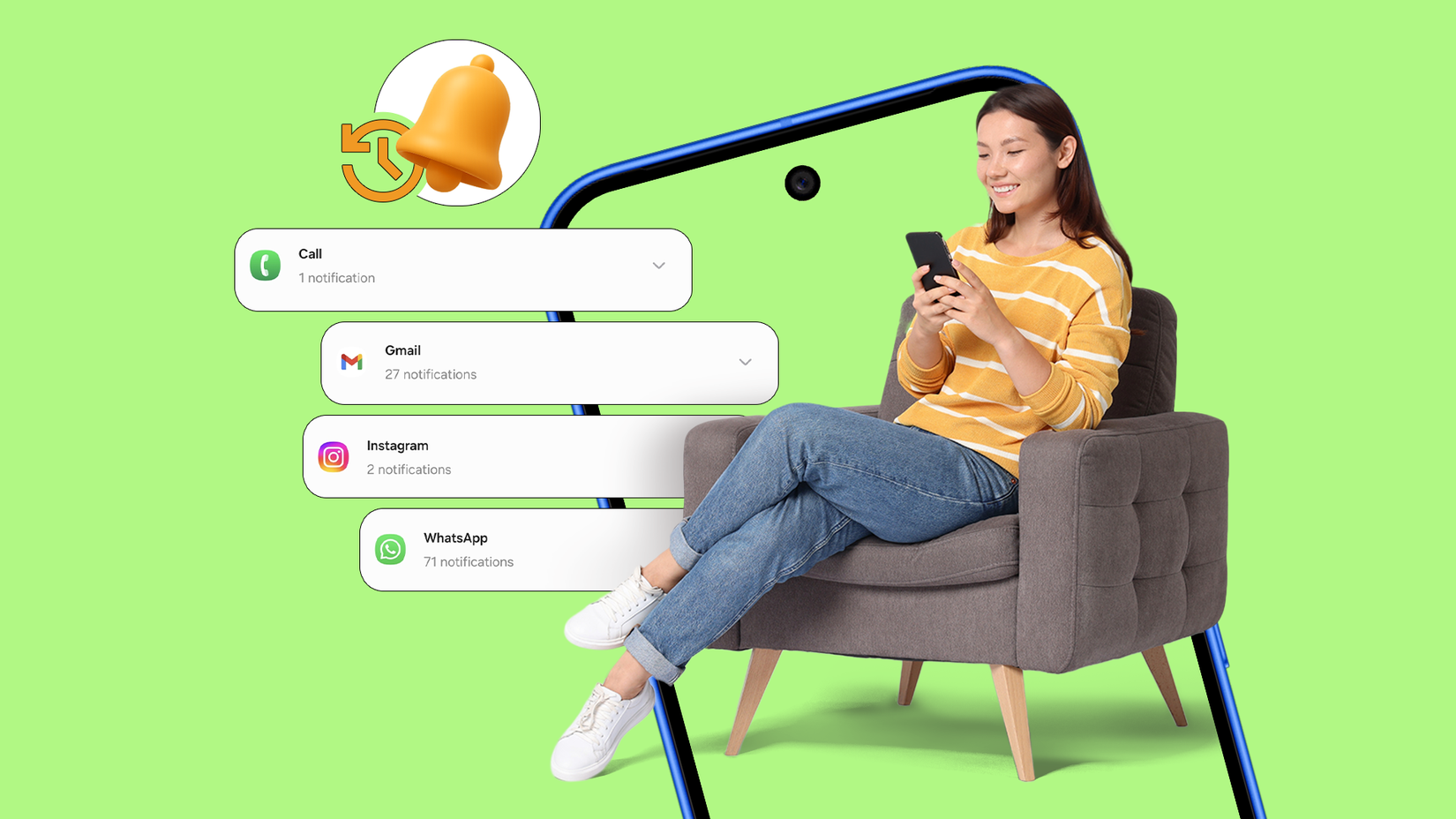
Not all notifications from an app are equally important, but by default, most apps treat them that way.
Instead of turning off notifications entirely, I started checking notification categories for each app.
On Android, you can do this by long-pressing any notification you receive, tapping Settings, and then viewing all categories for that app. Alternatively, you can go to Settings > Apps > [App name] > Notifications, where you’ll see a list of categories like promotions, reminders, updates, or alerts.
I kept essential alerts for messaging apps, but turned off suggestions or promotional notifications. My phone felt quieter, less distracting, and much easier to manage throughout the day.
Stop unnecessary background activity
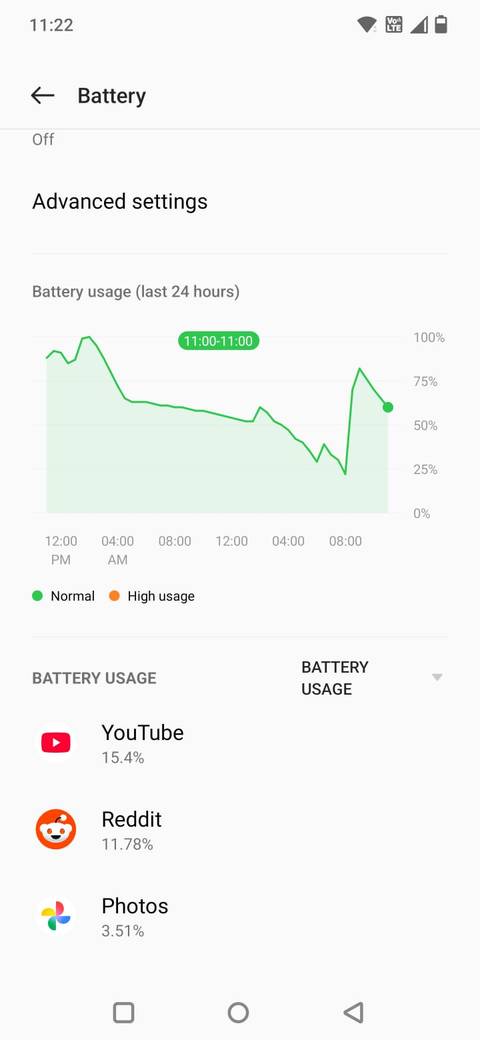
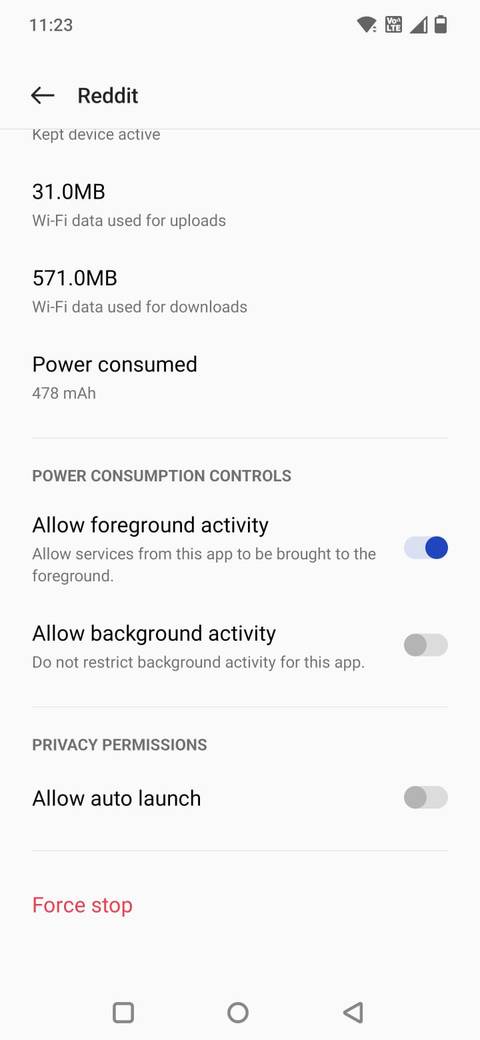
Many apps quietly run in the background long after you’ve stopped using them. Android does a decent job of managing this automatically, but some apps are more persistent than others.
I started checking which apps were allowed to run freely and restricted those that didn’t need constant access.
On Android, you can do this by going to Settings > Apps > [App name] > Battery and switching the app to a restricted or optimized mode. On some phones, there’s also a Background activity toggle you can turn off.
This simple change reduced random background activity and helped stabilize my battery life. It also made my phone feel more responsive because fewer apps were competing for system resources.
I cleaned up unused apps on my phone

Credit: Lucas Gouveia/Android Police | WeerajitJames/Shutterstock
Over time, most of us accumulate apps we barely use. Even when they’re not open, these apps can still request updates, send notifications, and run occasional background processes.
I spent a few minutes uninstalling apps I hadn’t touched in months. The result was a cleaner app drawer, fewer notifications, and slightly more storage.
Related
I didn’t realize how much my Wi-Fi was slowing down my phone until I did this
Fast fixes for faster Wi-Fi
Small changes can make a noticeable difference
It’s easy to assume that a phone starts feeling slow because it’s getting old, but that isn’t always the case.
Often, it’s just the result of features accumulating in the background, apps running more frequently than they should, or settings that no longer match how you actually use your device.
Taking a few minutes to review your settings can help you tailor the experience to your habits rather than accepting the default setup.
If your phone has started to feel slow or cluttered, you might be surprised how much better it can feel after a few small adjustments.