
Before a recent road trip, I realized I didn’t want to spend time adjusting things while driving.
My Android Auto screen was cluttered, notifications kept popping up at the wrong time, and I found myself tapping around the display while driving.
The bigger problem was that I didn’t want to be searching for locations or playlists while I was already dealing with traffic and the general fatigue of a long drive.
Even small distractions start to feel amplified when you’re on the road for hours.
So instead of figuring things out on the go, I set up Android Auto properly before the drive.
I didn’t expect how much smoother the entire experience would feel, and how that setup would carry over into my everyday drives.
Related
Why Android Auto is still a love-hate relationship for me
I can’t quit it, and that’s what makes it so frustrating
Navigation became a one-step process
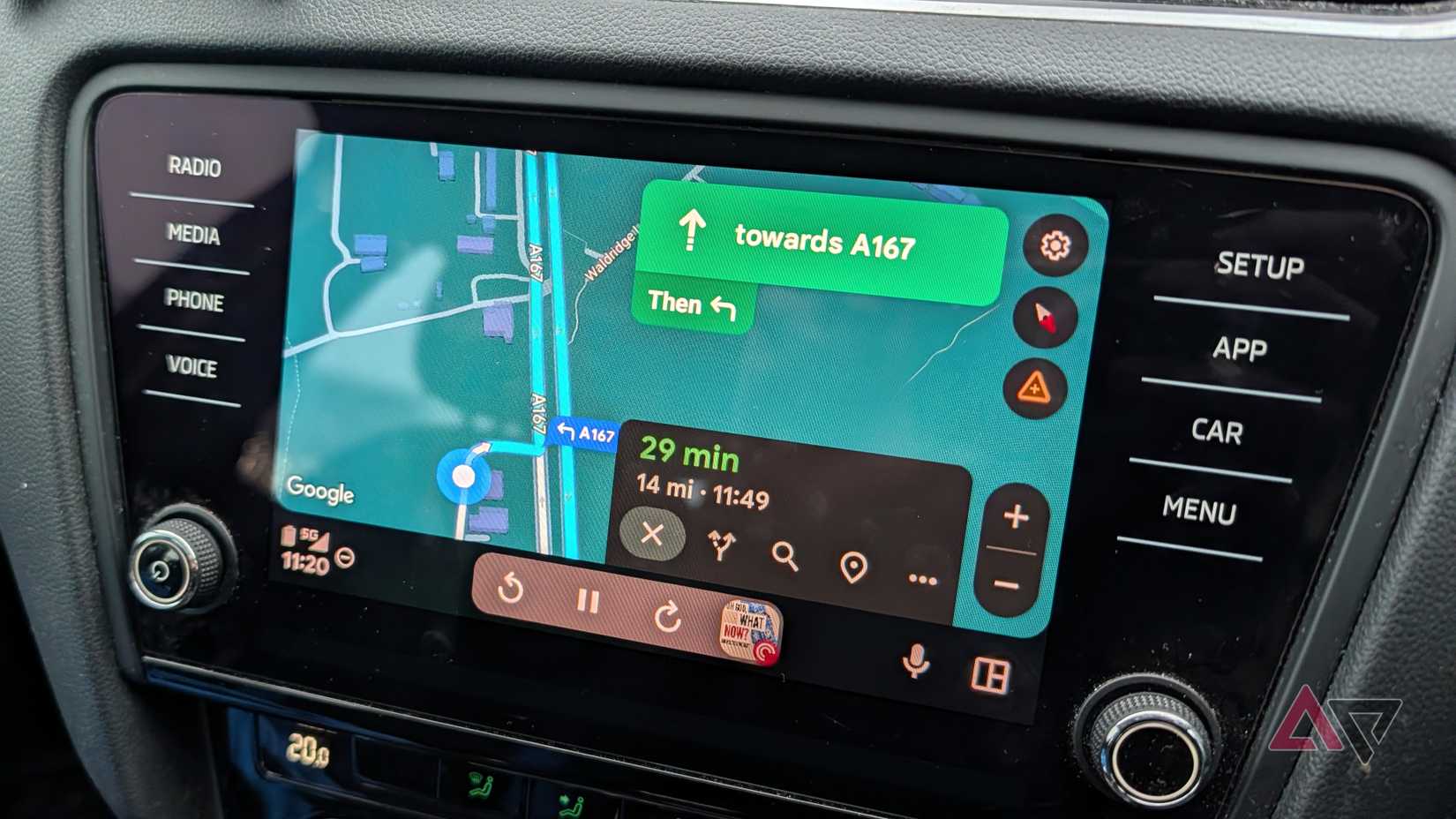
The first thing I changed was how I handle navigation.
Previously, I’d open Google Maps, enter the destination, adjust the route, and sometimes double-check settings before starting.
While it wasn’t complicated, it added unnecessary steps when I wanted to get moving.
I trimmed that down to a single action. Most of the time, I either tap a saved place, such as Home or Work, or use voice to start navigation.
Keeping frequently visited locations saved means I’m not typing addresses over and over, and voice commands handle everything else when I’m already in the car.
Another habit that helped was searching for my destinations ahead of time.
If I look them up in Maps before starting my day, they show up in the recent searches list when I connect to Android Auto, so I can tap and go instead of searching again in the car.
Reduce notifications to what actually matters
Credit: Lucas Gouveia / Android Police
Notifications were one of the biggest sources of distraction in Android Auto.
Messages and random pings would show up while I was driving, pulling my attention even when they weren’t important.
I realized most of them didn’t need to be there in the first place, so I turned off message notifications entirely. Now, only calls come through while I’m driving, and everything else stays silent so that I’m not distracted by constant pings.
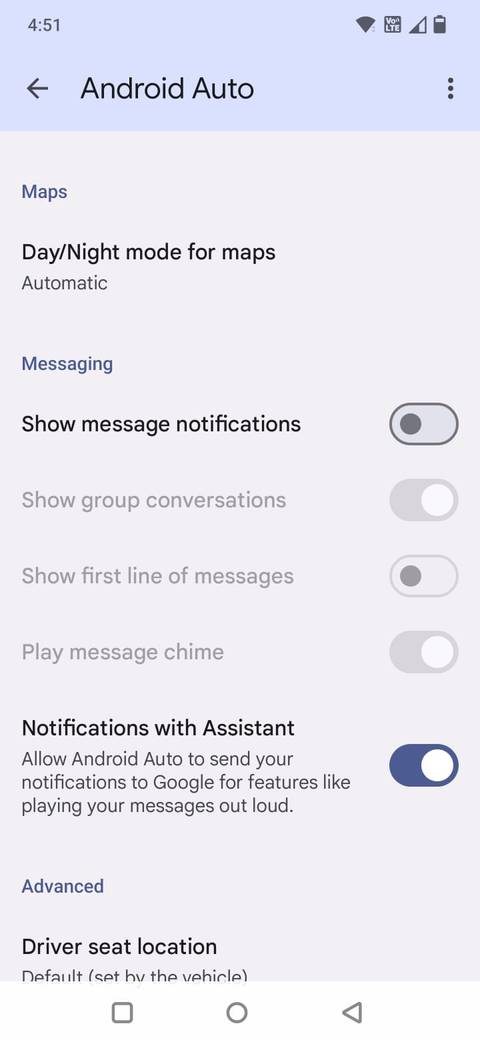
To do that, I turned off message alerts directly in Android Auto settings by turning off Show message notifications. It prevents incoming messages from popping up on the car display.
You can also turn off Notifications with Assistant to avoid voice interruptions while driving.
Let Google Assistant handle repetitive tasks
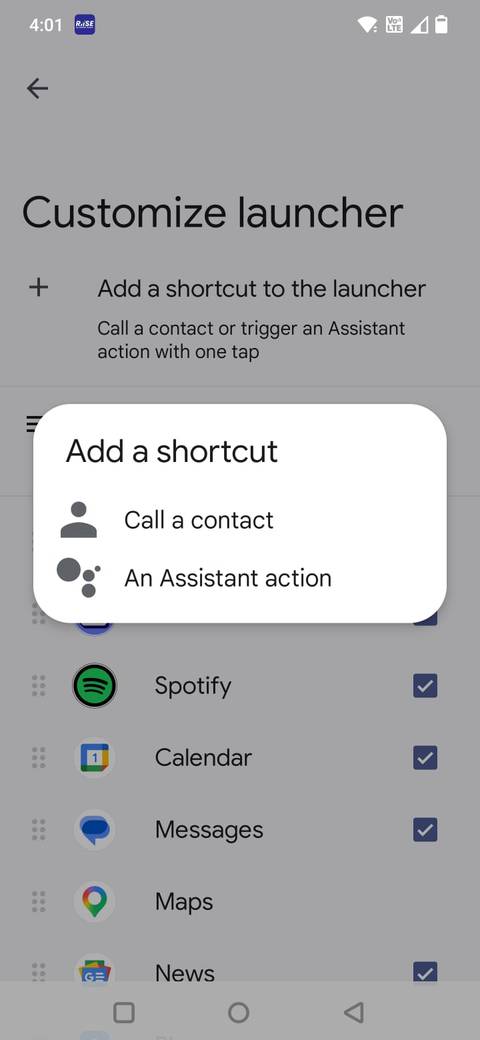
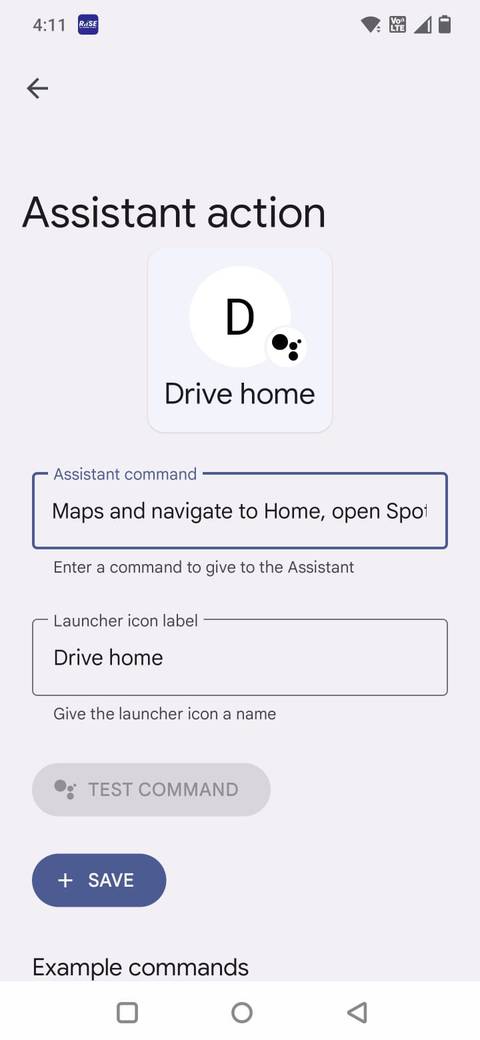
When I realized you can create shortcuts to Google Assistant commands from your phone, it changed how I use Android Auto.
Those shortcuts show up on the car’s screen, so instead of digging through menus or using voice every time, I can tap once to trigger them.
To do this, open the Android Auto settings on your phone and select Customize launcher. You’ll find an option labeled Add a shortcut to the launcher.
By choosing Assistant action, you can create a custom command and add a label that appears as an icon on your car’s screen.
The important part is to keep the command simple and something Google Assistant already understands. Before adding it, test the exact phrase to make sure it works reliably.
After it’s added, the shortcut appears on your Android Auto home screen the next time you connect your phone. It works like a one-tap command, so you don’t have to say it out loud every time.
Simplify what shows up on the screen
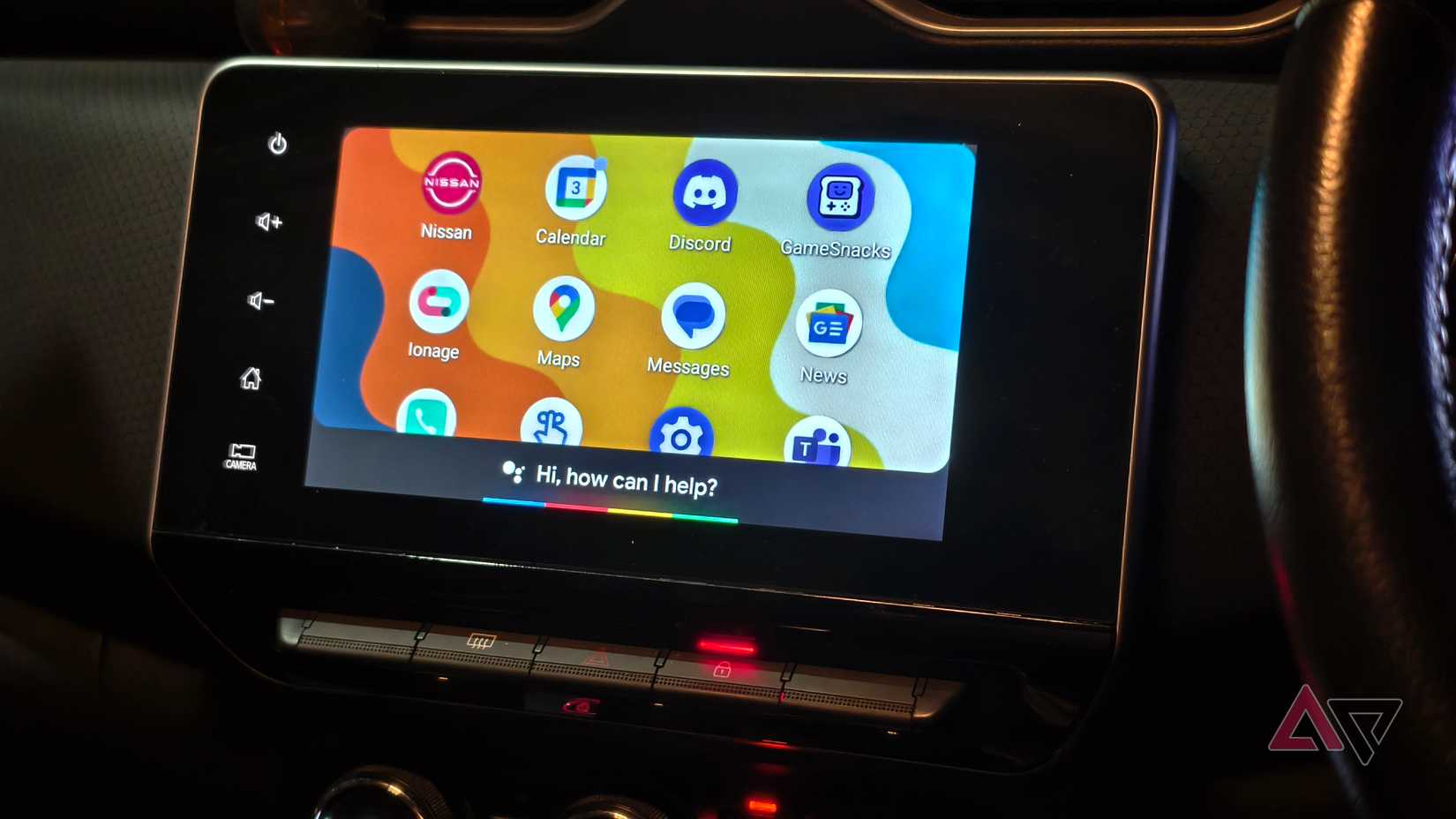
My Android Auto screen used to feel cluttered. There were too many apps, shortcuts, and options competing for attention, even though I only used a handful of them while driving.
So I cut it down to the essentials. I went to Android Auto Settings > Customize launcher and removed apps I never use on the road. I kept only the ones I needed.
With fewer icons on the screen, it’s easier to find what I need at a glance, and I’m not distracted by things I’m not going to use anyway.
This small change makes the whole interface feel calmer and much easier to use on long drives.
Download everything in advance
Credit: Lucas Gouveia / Android Police | alexgo.photography / Shutterstock
One thing that made a big difference was not relying on a data connection during the drive.
Streaming works fine most of the time, but on long trips, patchy signals and dead zones are almost guaranteed.
So I started downloading everything ahead of time.
I keep playlists saved offline on apps like Spotify and YouTube Music. For podcasts and audiobooks, I download a few episodes or chapters so that I’m not stuck buffering during the drive.
I also download offline maps in Google Maps for the areas I’ll be traveling through. That way, navigation continues to work even if the connection drops, and I don’t have to worry about rerouting issues in low-signal areas.
I switched to dark mode in Android Auto
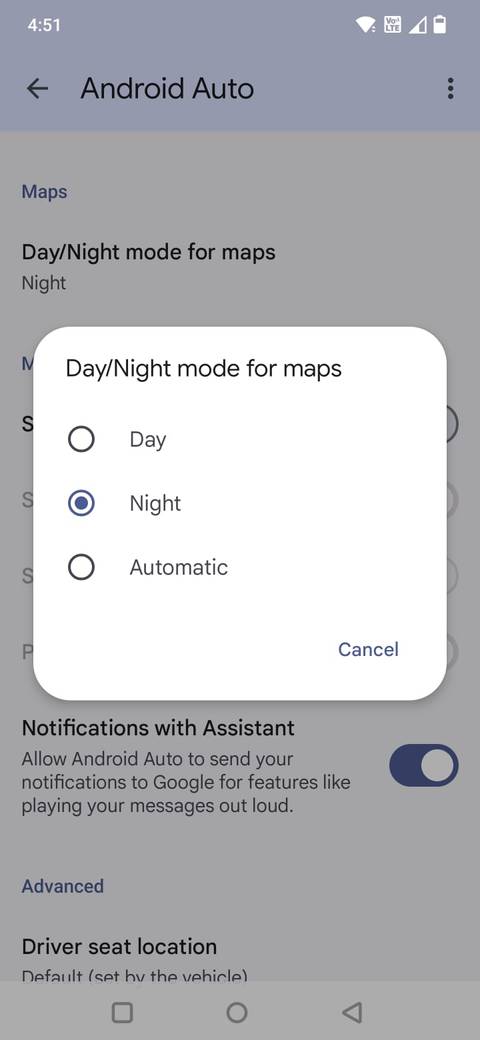
I enabled dark mode for Android Auto and didn’t change the display settings again.
On a long drive, especially if it extends into the evening, constant brightness adjustments get annoying.
With dark mode, the screen is easier on the eyes and less distracting. It blends better with the car’s interior and doesn’t draw as much attention away from the road.
To set it up, go to Android Auto settings on your phone, scroll down to the Maps section, tap Day/Night mode for maps, and select Night.
Setting it to stay in dark mode instead of automatically switching makes the overall driving experience feel less fatiguing.

Related
8 Android Auto settings you didn’t know you needed to change
Get more control over Android Auto with these setting changes
An Android Auto setup that stays out of the way
A few small changes made Android Auto feel much more seamless. Navigation is quicker to start, notifications do not constantly pull my attention, and most of what I need is either one tap or a simple voice command.
The biggest difference is that I interact with the screen less. Since I have everything set up, I do not search for apps or adjust settings while driving.
My commute feels smoother because everything works the way I expect every time I plug in.