
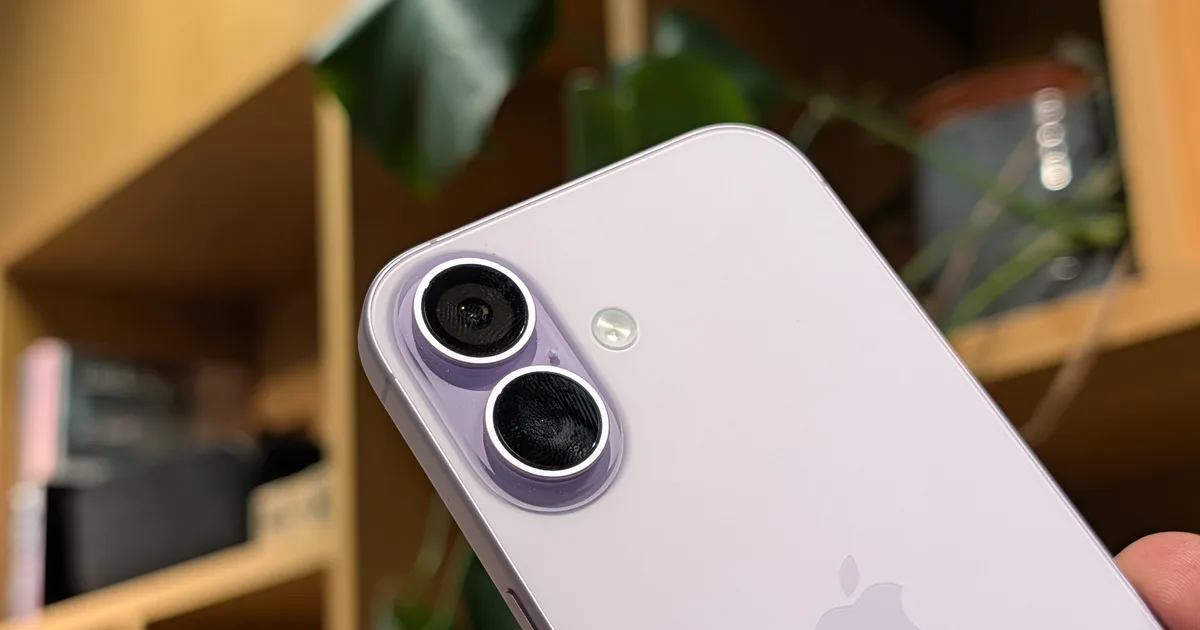
Getting a new iPhone is exciting, especially with Apple’s latest lineup expanding to include the iPhone 18 Pro, iPhone 18 Pro Max, and the all-new foldable iPhone Duo. Whether you’re considering one of Apple’s latest devices or have just upgraded to a new iPhone, there’s more to explore than its headline features. A few changes to your settings can make everyday tasks easier, help protect your personal information, and ensure you’re getting the most out of your device. Here are nine tips and tricks worth trying first.
1. Transfer everything to your new iPhone
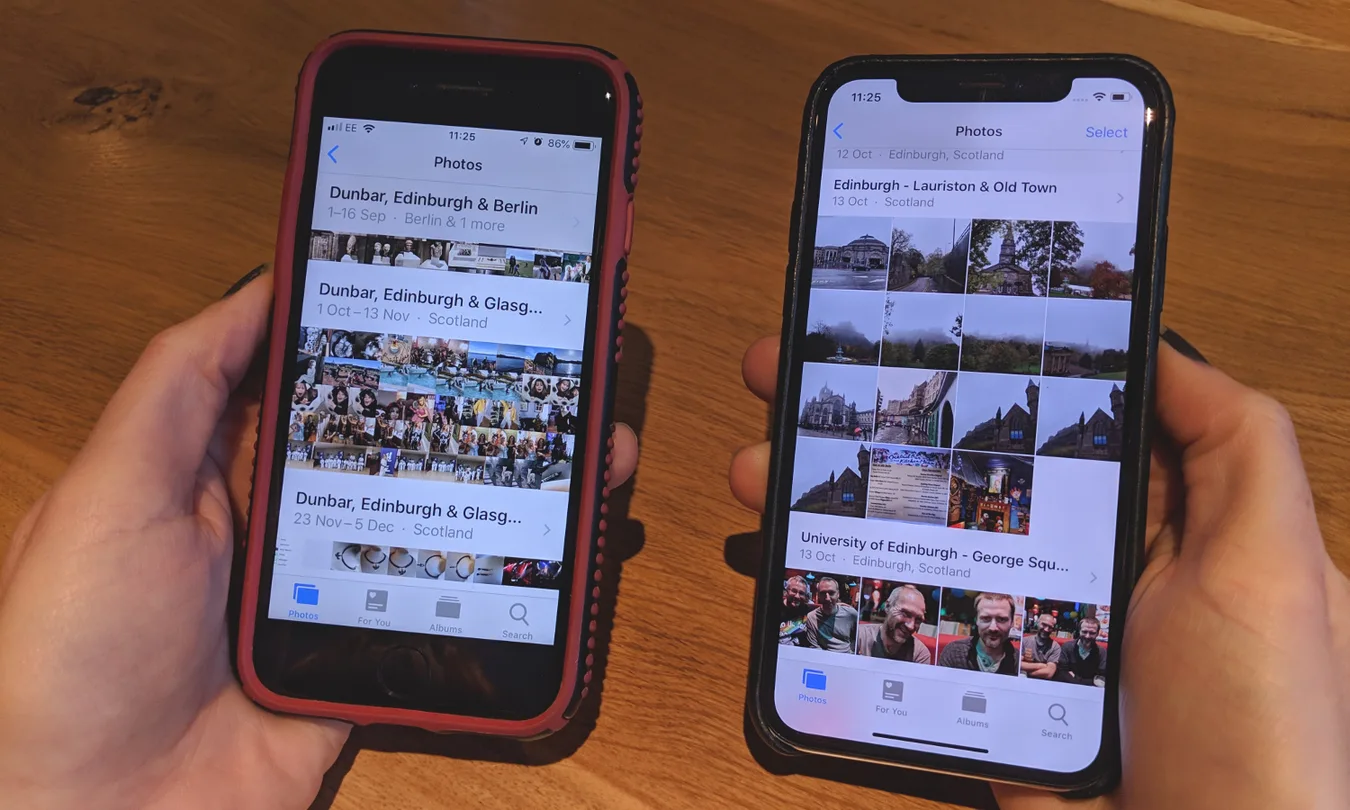
Setting up a new iPhone is much easier when you can bring your contacts, photos, messages, apps, and other important data with you. Apple’s Quick Start feature lets you transfer information directly from your old iPhone, while the Move to iOS app helps you make the switch from an Android phone.
Use Quick Start to transfer data from an old iPhone
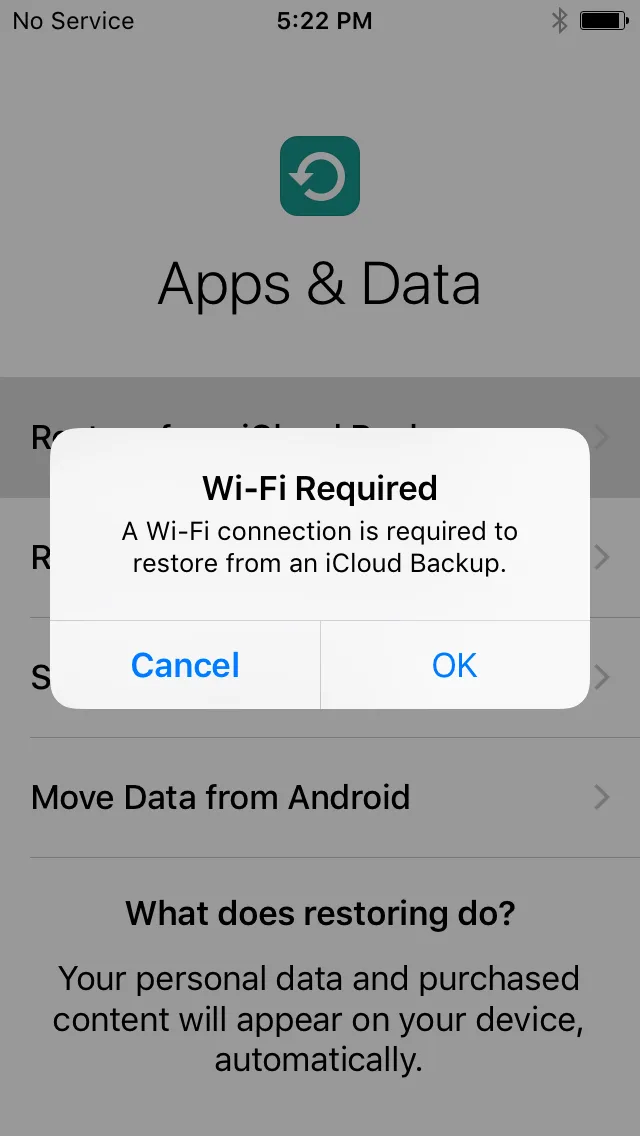
Before you begin, connect both iPhones to Wi-Fi, turn on Bluetooth, and plug them into power. Make sure your old iPhone is running a compatible version of iOS and that you have your Apple Account credentials handy.
Turn on your new iPhone and place it next to your old one. A Quick Start prompt should appear on the old device. Follow the on-screen instructions to authenticate the connection, set up Face ID, and choose how you want to transfer your data. You can transfer directly from the old iPhone or download your apps and data from iCloud, depending on the options available.
Keep both devices close to each other and connected to power until the transfer finishes. The time required depends on how much data you’re moving and your network connection. Before erasing or trading in your old phone, check that your photos, messages, contacts, and other important information are available on the new one. One of my friends was trying this recently and had to restart the process twice due to poor internet speed and it took about 2 hours for her to transfer from her age old iPhone 13 to iPhone 17 Pro.
For more detailed instructions, see our guide on how to transfer data from an old iPhone to a new one.
Switch from Android with Move to iOS
DT
While most people believe that moving from Android will be difficult but actually it is equally simple but requires a slightly different process. Download Apple’s Move to iOS app on your Android phone before you begin, then start setting up your new iPhone. During setup, select the option to transfer data from Android and follow the instructions to connect the two devices.
Depending on the devices and software versions involved, you can transfer contacts, message history, photos, videos, calendars, and other supported content. Keep both phones connected to power and avoid using the Android device for other tasks until the transfer is complete. If you’ve already finished setting up your iPhone, you may need to erase it and start again to use the standard Move to iOS setup process. Back up any new data first, since erasing the iPhone removes its existing content.
2. Secure your iPhone before you start using it
Apple
Your iPhone holds personal photos, messages, passwords, and payment details, so securing it should be one of the first things you do after setup. A few settings can help protect your data if your phone gets lost or stolen.
Set up Face ID and Find My
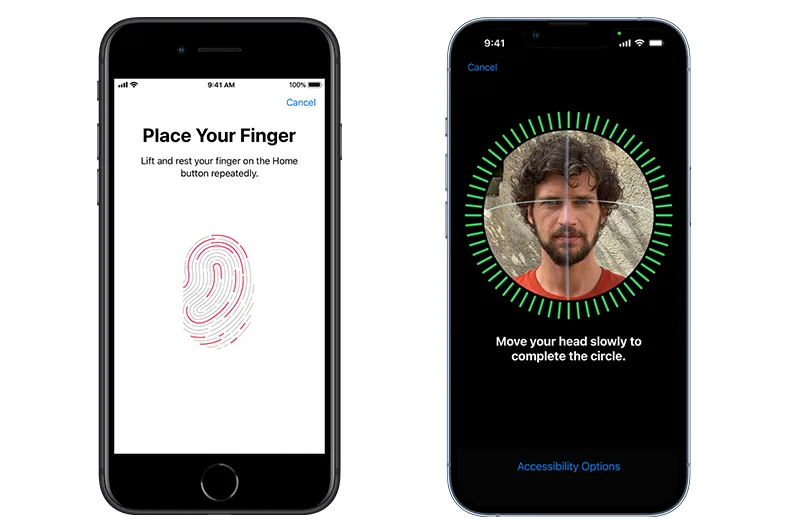
Face ID lets you unlock your iPhone and authenticate purchases without repeatedly entering your passcode. To set it up, go to Settings > Face ID & Passcode and follow the instructions.
Next, open Settings > your name > Find My > Find My iPhone. Turn on Find My iPhone, Find My network, and Send Last Location to improve your chances of locating the device if it goes missing.
Enable Stolen Device Protection
Stolen Device Protection adds security when someone knows your passcode. It requires biometric authentication for certain sensitive actions and can impose a security delay for critical changes when you’re away from familiar locations.
To enable it, go to Settings > Face ID & Passcode > Stolen Device Protection. While you’re there, make sure you’re using a strong passcode and have two-factor authentication enabled for your Apple Account.
3. Adjust your battery and charging settings
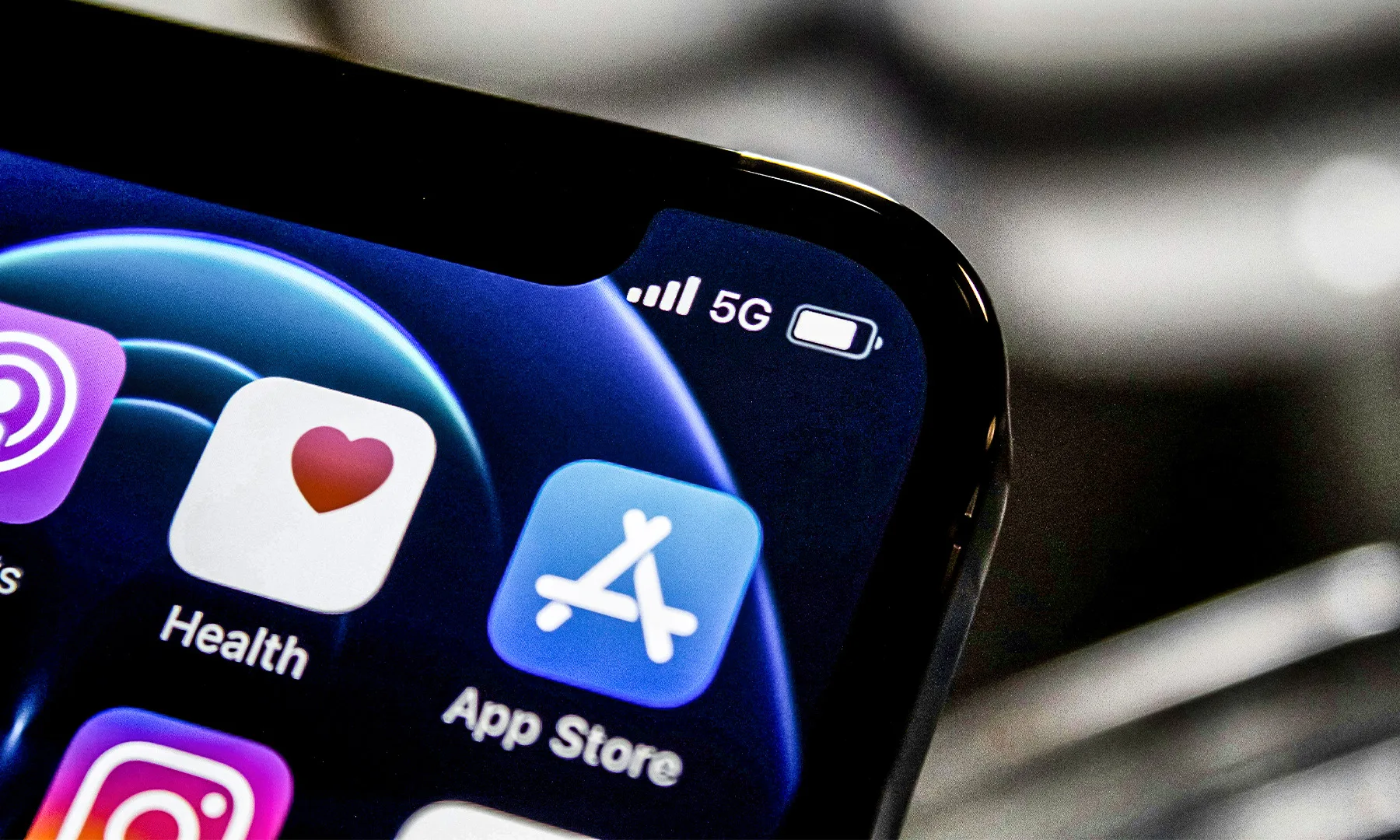
Your new iPhone has a few settings that can help you manage battery life and reduce unnecessary wear over time. It’s worth checking them before you settle into your usual charging routine.
Check your charging options
Go to Settings > Battery > Charging to check the available charging options. On supported models, you can set a charging limit to stop the battery from charging beyond a chosen percentage. If you prefer to charge overnight, Optimized Battery Charging can help reduce the time your iPhone spends fully charged.
Find out what’s draining your battery
Open Settings > Battery to see which apps use the most power and how your battery level changes throughout the day. If an app consumes more battery than expected, check its background activity and location permissions before restricting features you actually need.
You can also enable Low Power Mode when you need your iPhone to last longer between charges. It reduces background activity and certain visual effects to conserve power.
4. Get more out of your iPhone camera
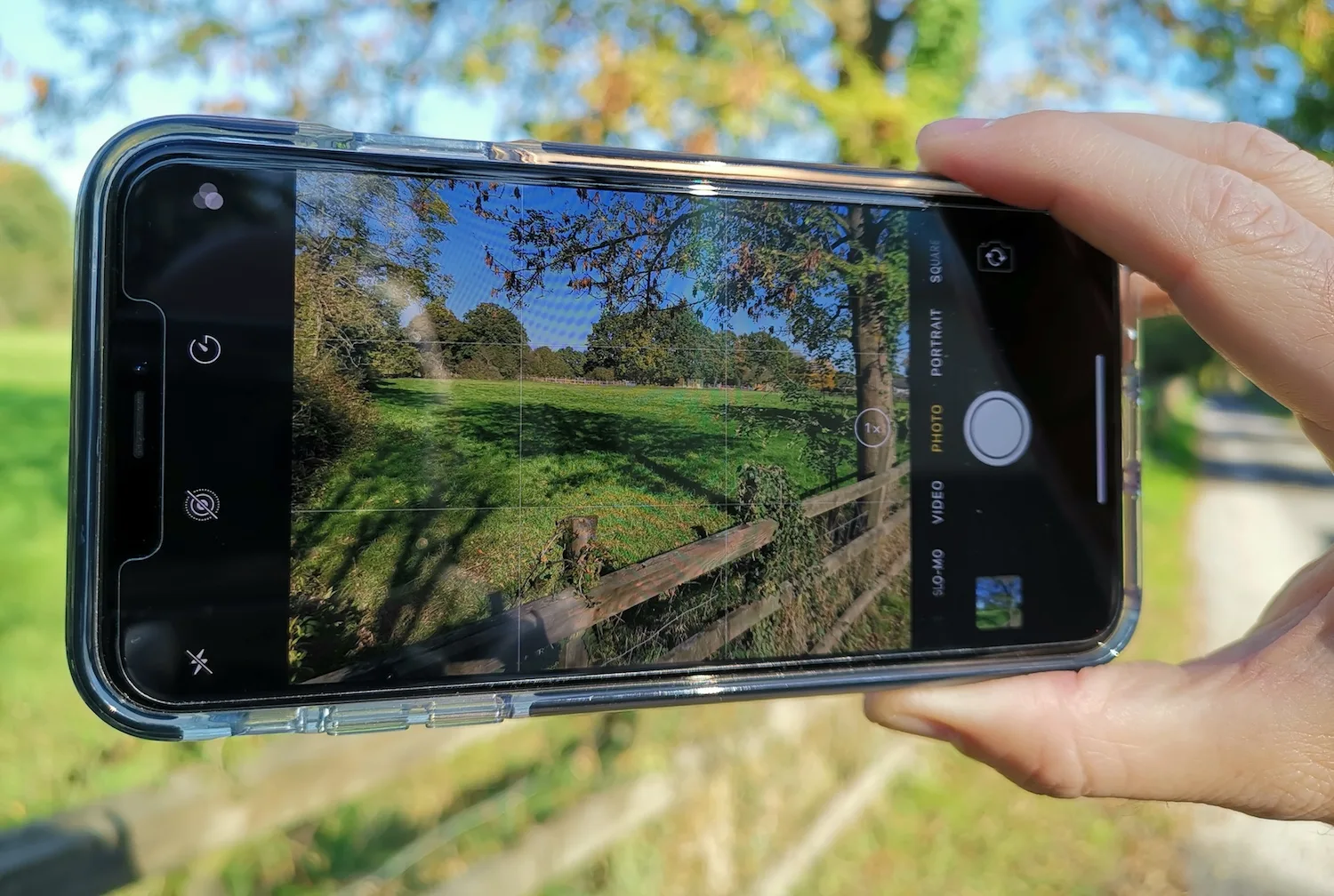
Taking photos and shooting videos are a big part of the iPhone experience, whether you’re capturing everyday moments, documenting a trip, or recording clips for social media. A few camera settings can help you get more consistent results and spend less time fixing shots later. Here’s a few things that we recommend if you have purchased a new iPhone.
Adjust your camera settings
Go to Settings > Camera and turn on Grid and Level to help align subjects and keep horizons straight. You can also open Preserve Settings to choose which camera preferences your iPhone remembers between sessions, including Camera Mode and Exposure Adjustment where supported.
If you regularly record videos, open Settings > Camera > Record Video to choose your resolution and frame rate. Higher-quality settings can produce sharper footage, but they also take up more storage.
Try Camera Control and other useful features
If your iPhone has a Camera Control button, you can use it to open the Camera app and, on supported models, adjust settings such as zoom, exposure, and depth. The available controls depend on the model and software version. Explore its options to see which adjustments you can access without navigating the screen.
You can also try Portrait mode for photos with a blurred background and Live Photos to capture movement around a shot. Live Photos can be especially useful when someone moves just as you take a picture, since you can review the captured frames and choose a different key photo later.
5. Review your iPhone privacy settings
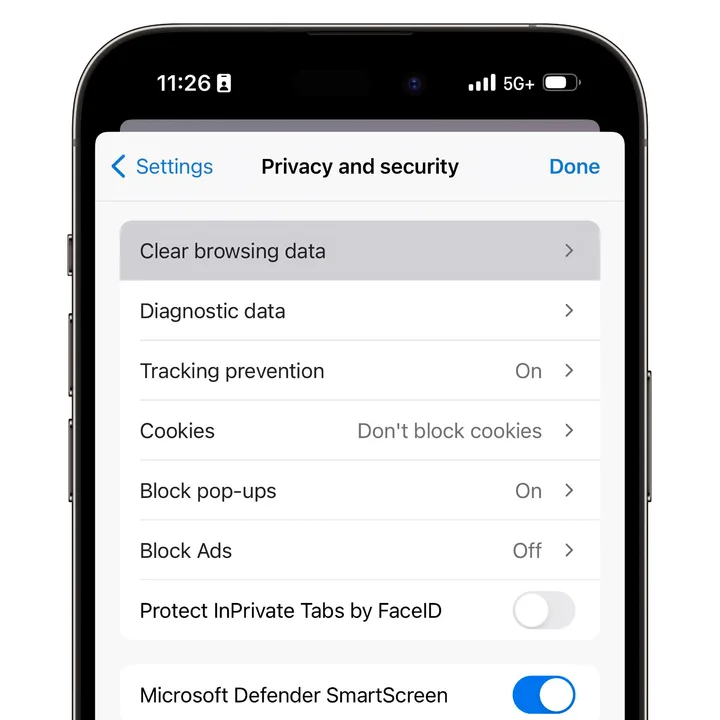
Your iPhone lets you control which apps can access your location, photos, microphone, and other personal information. It is recommended to review these permissions as it helps you limit access without losing features you actually use.
Check app permissions
Go to Settings > Privacy & Security to review permissions for Location Services, Camera, Microphone, and Photos. Change access for apps that don’t need it, and consider selecting While Using the App for location access instead of Always where appropriate.
Control what appears on your Lock Screen
Notifications can reveal message previews and other personal information when your iPhone is locked. Go to Settings > Notifications > Show Previews and choose When Unlocked or Never if you want to keep those details private.
6. Explore the useful features in iOS 26
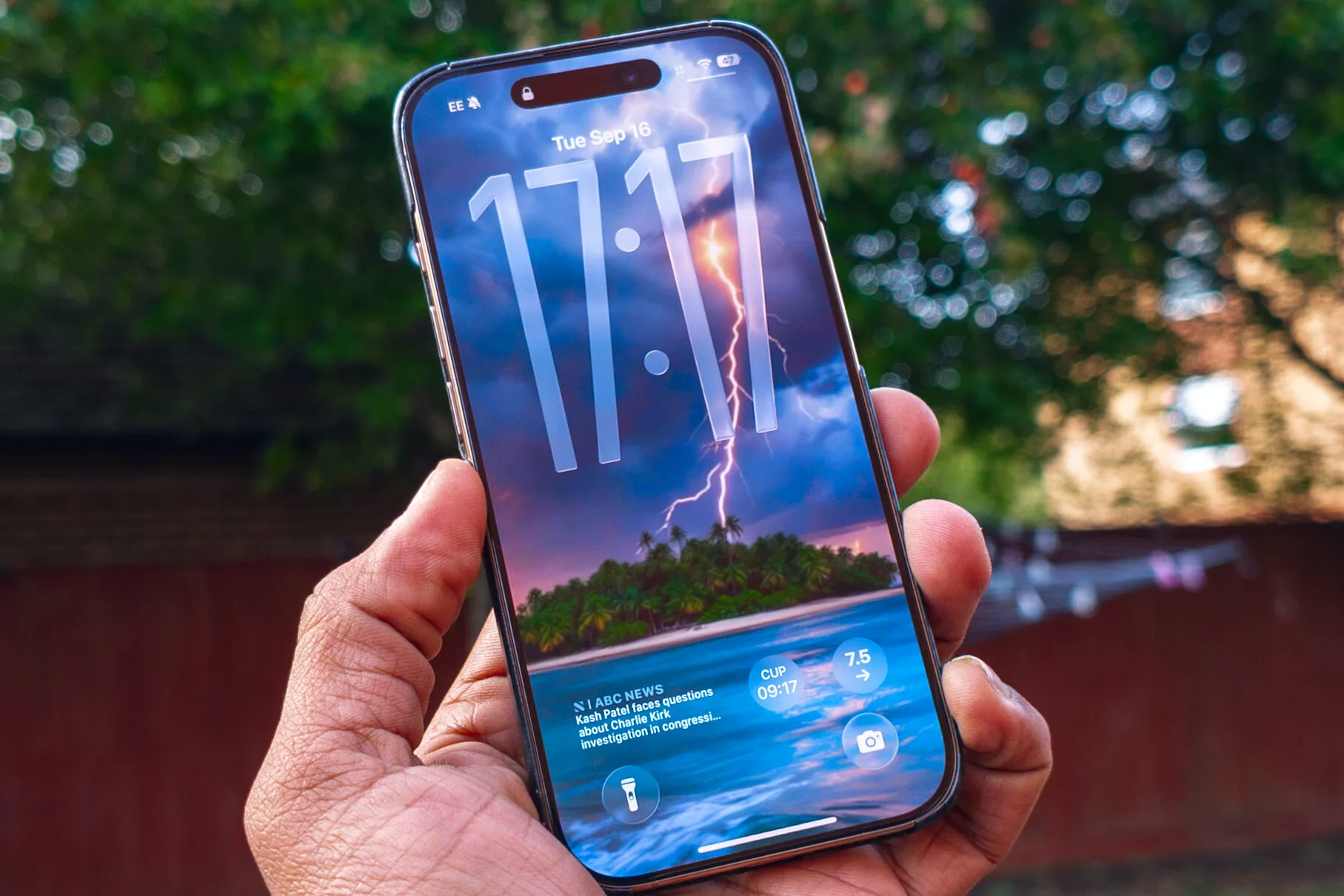
Your iPhone’s software can make a real difference to how you use it every day. If your device supports Apple Intelligence, explore features such as Writing Tools, notification summaries, and Clean Up in Photos, which can help you rewrite text, manage notifications, and remove unwanted objects from images. Availability varies by iPhone model, language, and region, so check which features your device supports. For more ways to get started, read our guide to 4 things to do first on iOS 26.
7. Make the most of your iPhone storage
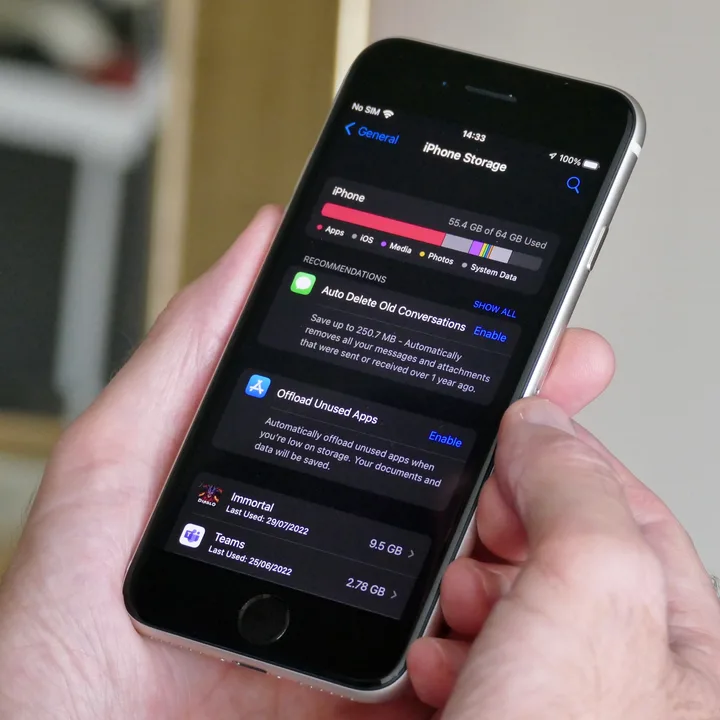
Photos, videos, downloaded files, and apps can quickly fill up your iPhone’s storage. To see what’s taking up space, go to Settings > General > iPhone Storage. You’ll find a breakdown of storage usage and recommendations for freeing up room.
If you use iCloud Photos, enable Optimize iPhone Storage under Settings > your name > iCloud > Photos to keep smaller versions on your device while storing full-resolution originals in iCloud. You can also enable Offload Unused Apps in iPhone Storage to remove apps you rarely use without deleting their documents and data. Remember that iCloud storage is separate from your iPhone’s built-in storage, so upgrading your iCloud plan won’t automatically free up local space.
8. Customize your iPhone with shortcuts and controls
You can make everyday actions quicker by customizing your iPhone’s controls and shortcuts. Go to Settings > Accessibility > Touch > Back Tap to assign an action, such as taking a screenshot or opening a feature, to a double or triple tap on the back of your phone. You can also customize Control Center to keep frequently used controls, such as the flashlight, screen recording, and Low Power Mode, within easy reach. The available options vary by iPhone model and iOS version.
9. Make everyday tasks easier with Wallet and MagSafe
Your iPhone can do more than handle calls, messages, and apps. Apple Wallet keeps supported payment cards and passes accessible on your phone, while MagSafe makes it easier to use compatible chargers and accessories.
Apple
Set up Apple Wallet
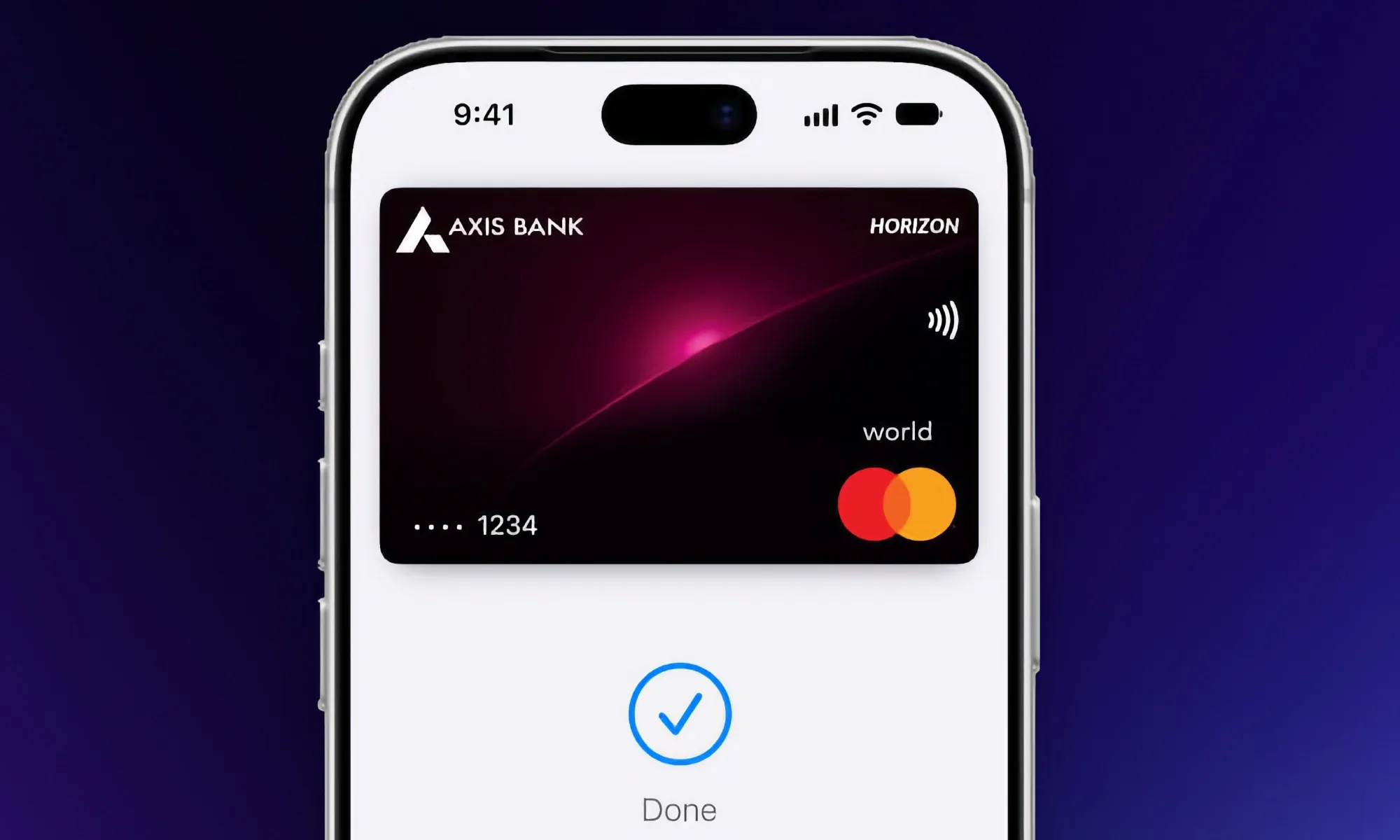
Open the Wallet app and tap the add button to add a supported debit or credit card, transit pass, or ticket. Follow the on-screen instructions to complete the setup, keeping in mind that payment cards and other Wallet features vary by country and participating provider. Once configured, you can use Apple Pay at supported contactless terminals without carrying your physical card.
Get more out of MagSafe
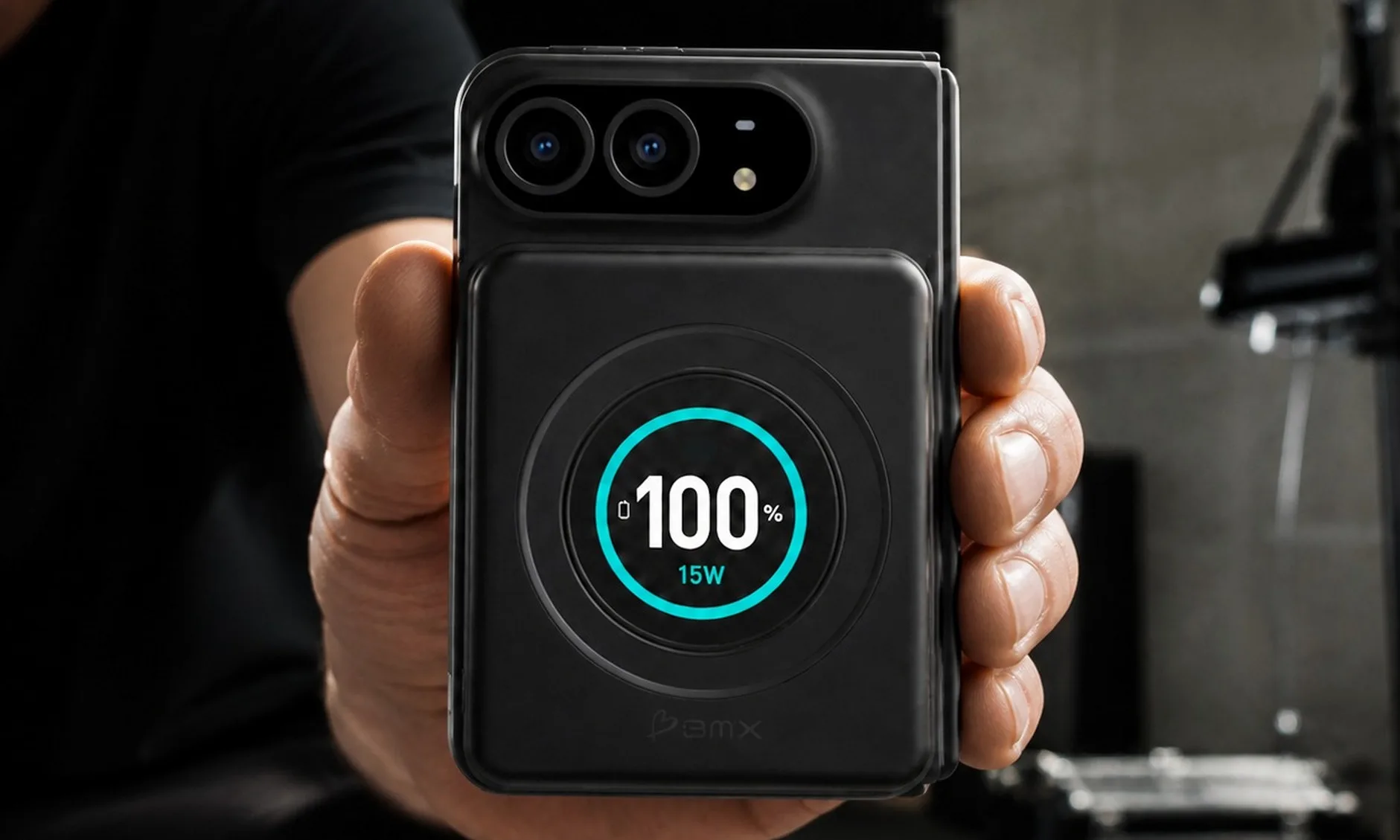
If your iPhone supports MagSafe, compatible chargers attach magnetically to help you position your phone for wireless charging. You can also use accessories such as magnetic wallets, stands, and car mounts. Before buying one, check its compatibility with your iPhone model and case, as charging speeds and accessory support can differ.
Frequently asked questions
What should I do first with my new iPhone?
Start by securing your device with Face ID, Find My, and Stolen Device Protection. Then review your privacy settings, charging options, and camera preferences to make your iPhone easier to use.
What are the best iPhone settings to change?
Enable Find My and Stolen Device Protection, review app permissions, turn on Grid in the Camera settings, and customize Control Center with your most-used shortcuts. You can also adjust notification previews to keep personal information off your Lock Screen.
How can I make my new iPhone battery last longer?
Check Settings > Battery to identify apps using excessive power. Use Low Power Mode when needed, reduce unnecessary background activity, and enable Optimized Battery Charging or a suitable charge limit if your model supports it.
What are the best features to try on a new iPhone?
Explore Portrait mode and Live Photos in the Camera app, use Back Tap to trigger quick actions, and customize Control Center for easier access to your favorite tools. If your iPhone supports Apple Intelligence, try its writing and photo editing features. There’s plenty more to discover in the latest version of iOS, and Digital Trends continues to cover new features, updates, and tips to help you get more out of your iPhone.
How do I get the most out of my new iPhone?
Keep iOS updated, explore useful settings instead of relying on defaults, and review storage and battery usage periodically. Check which features your model supports so you can make the most of its camera, security tools, and accessories.