
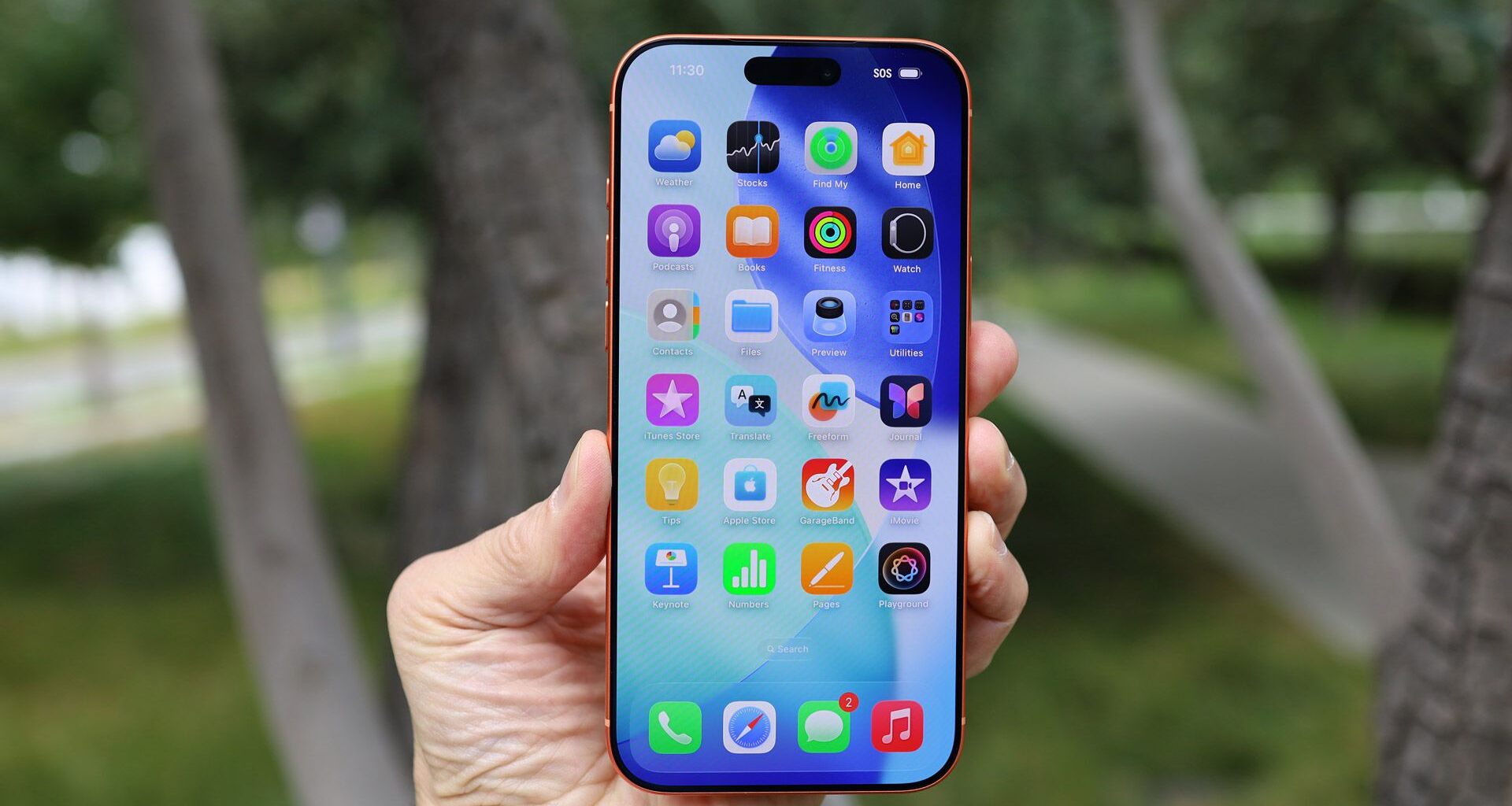
If you’ve recently downloaded iOS 26 then you might have noticed your phone’s battery isn’t lasting as long as it was previously. Some temporary issues are normal, as your phone will be working harder in the background for a while to do things like index files. But if your battery issues are longer lasting – or you just want an immediate fix – there are a few things you can do.
Your first step should be to update all your apps and reboot your phone, as sometimes that’s enough to fix things. It’s also worth checking the battery section of your phone’s settings screen for any misbehaving apps, and uninstalling or reinstalling any that seem to be using more battery than they should.
If none of that has helped, then there are more drastic steps you could take like enabling Low Power mode or switching off 5G. However, that isn’t really something you should have to do by default, so below we’ve listed five alternatives that for most iPhone owners should have less of an impact on their experience, while still delivering battery life improvements.
Best picks for you
1. Make use of Adaptive Power mode
(Image credit: Apple)
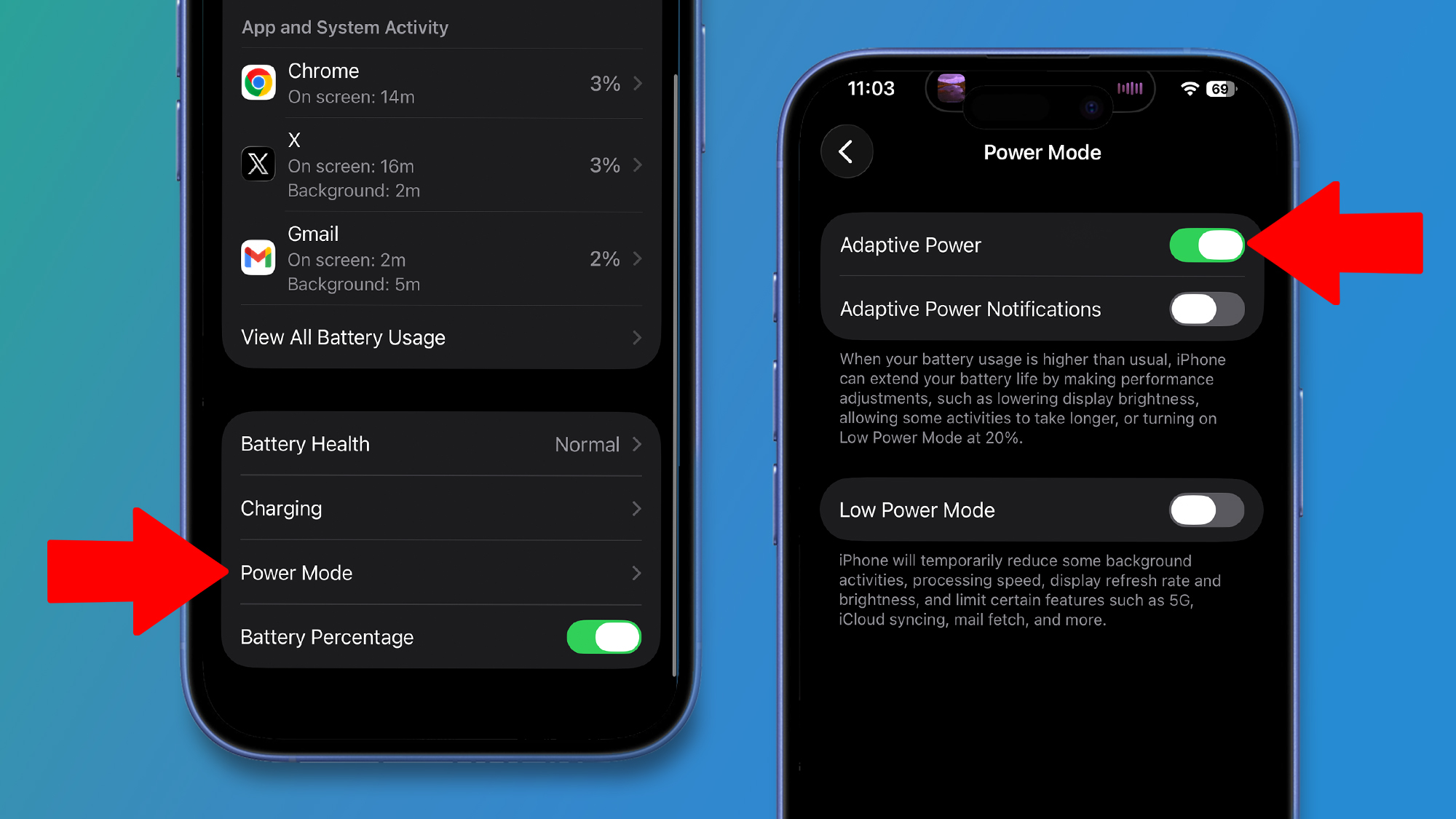
Low Power mode will deliver massive battery improvements but will also heavily impact the experience of using your iPhone – so instead, you might want to enable Adaptive Power mode.
This is a new feature that was added with iOS 26, and it only works on iPhone 15 Pro models and later, but it’s well worth enabling if your phone supports it – in fact, if you have an iPhone 17 series phone or an iPhone Air then it will be on by default.
With Adaptive Power mode, your iPhone will intelligently judge when you might need your battery to go further, and then do things like lowering the screen brightness temporarily to help with that.
It’s a useful mode that you should consider leaving on all the time, even when your phone isn’t having battery issues, since it should only kick in when needed anyway.
To turn Adaptive Power mode on, head to Settings > Battery > Power Mode, and turn on the Adaptive Power toggle.
2. Turn that always-on display off
(Image credit: Apple)
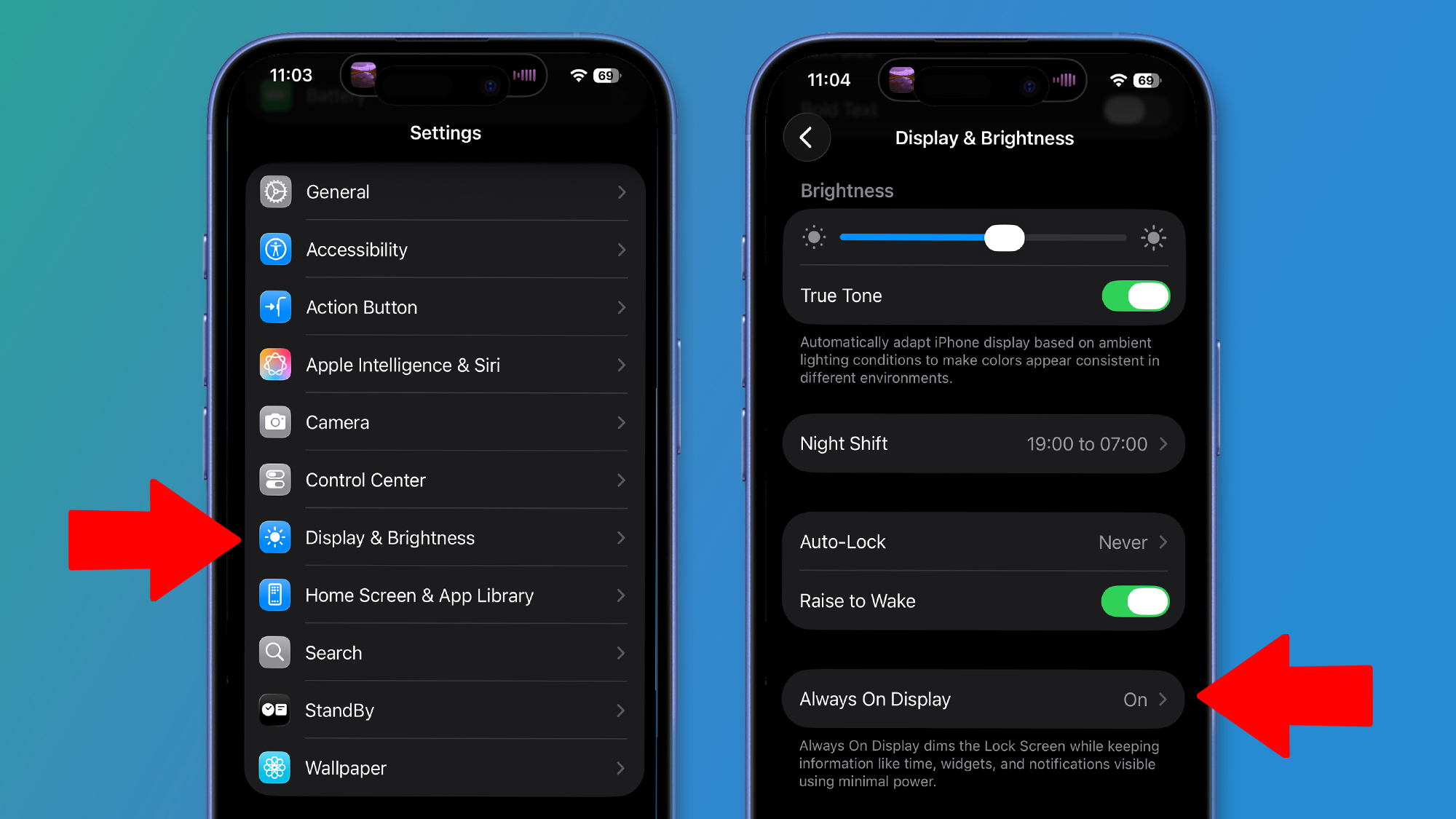
The iPhone’s always-on display can be useful, but it’s also a drain on the battery, so if you can live without it then it’s worth considering switching it off.
To disable this, head to Settings > Display & Brightness > Always On Display, and toggle it off.
Don’t miss these
You might miss it at first, but if you already have an Apple Watch then that’s a convenient way to view the time and notifications anyway, so having your phone’s screen always on doesn’t necessarily add much extra value – and can also strain its battery.
3. Put Siri to sleep
(Image credit: Apple)
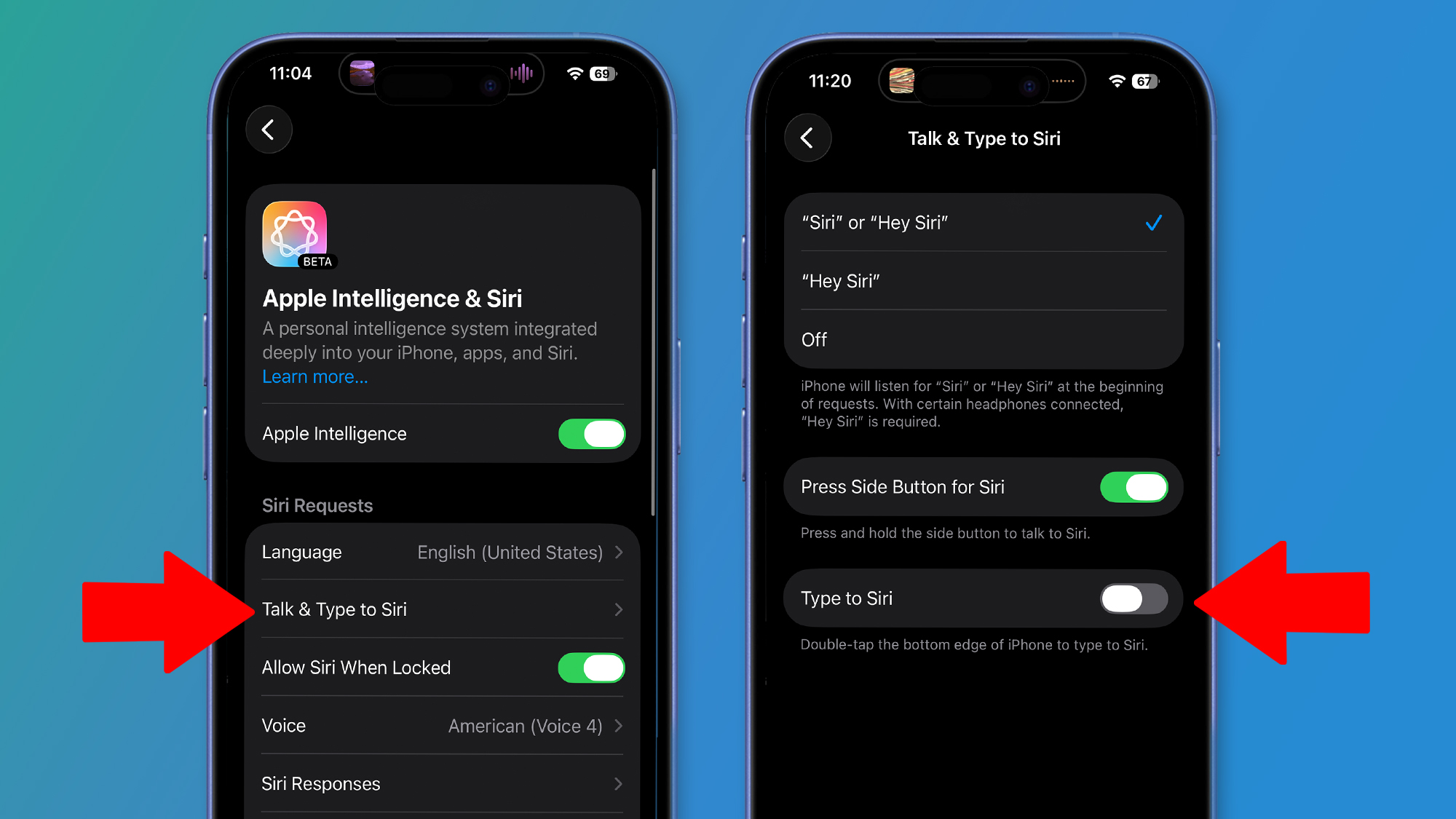
If you actually find you often use Siri simply by saying ‘Siri’ or ‘Hey, Siri’ to your phone, then you might not want to take this step, but if that’s a feature you rarely use anyway, then you should consider disabling it.
After all, having ‘Hey, Siri’ enabled means your phone always has to be listening for that wake phrase – and that act of listening uses battery.
To disable this, head to Settings > Apple Intelligence & Siri > Talk & Type to Siri, and select the ‘Off’ option. With this disabled, you can still use the side button to launch Siri, which most of the time isn’t much less convenient. Although until Siri gets its long-promised AI overhaul, you might not be using it much beyond timers anyway.
4. Switch to dark mode
(Image credit: Apple)
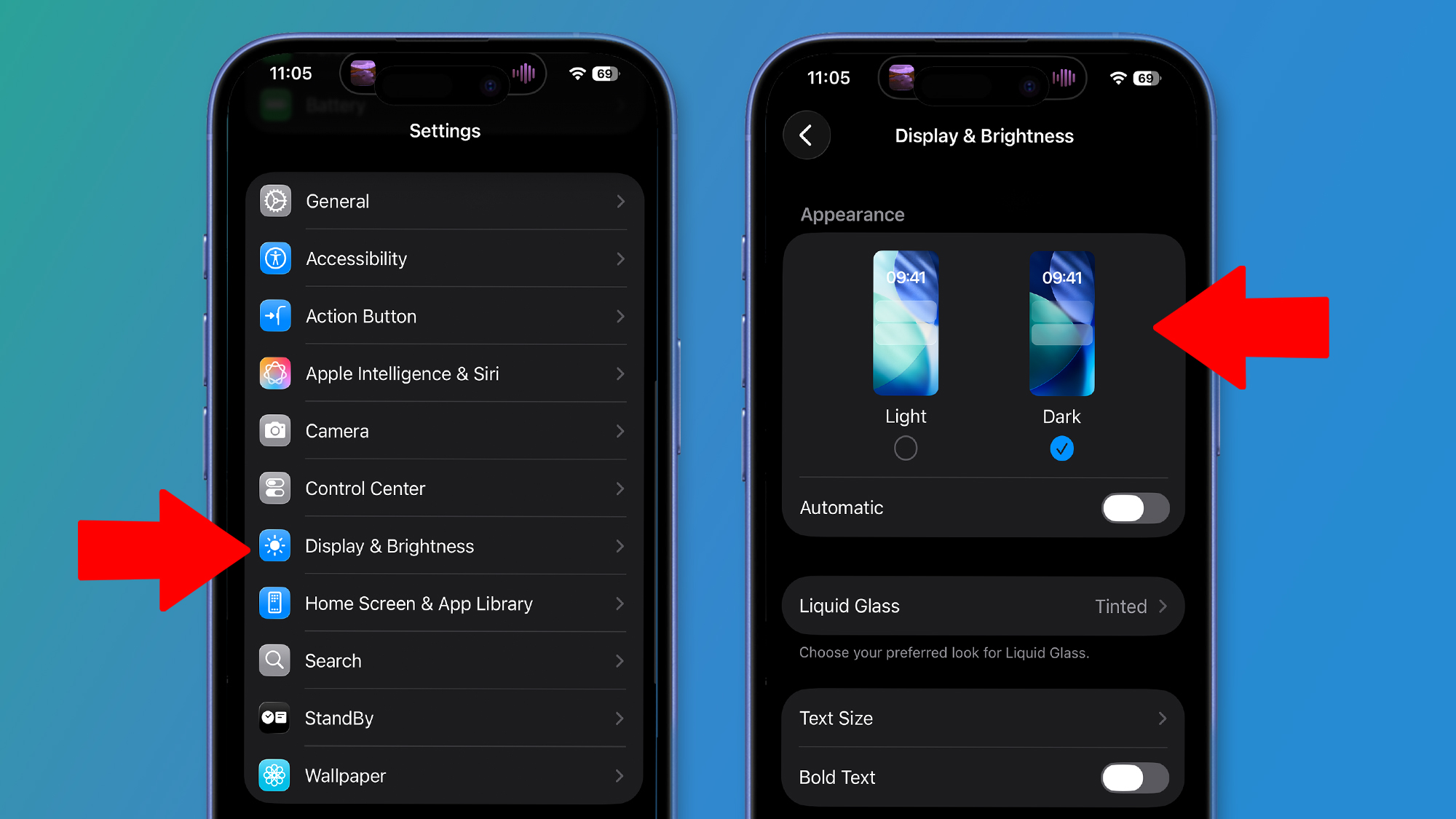
One less obvious thing you can do to improve your iPhone’s battery life is switch to dark mode. Why? Because OLED screens light up individual pixels as needed, so for black areas, your phone simply doesn’t light up the pixels.
That’s why OLED displays have better contrast than LCD ones, but it also means they use less power when there’s a lot of black on the screen.
The effect of this will probably be minimal, but it’s better than nothing, so to enable dark mode, head to Settings > Display & Brightness, and tap ‘Dark’ under the ‘Appearance’ heading.
This of course only works if your iPhone has an OLED screen, but the iPhone SE (2022) is the only recent model that doesn’t.
5. Enable Optimized Battery Charging
(Image credit: Apple)
Changing your approach to charging probably won’t have an immediate impact on your iPhone’s battery life, but in the long term it could make the battery last longer before it wears out, and Apple has provided a simple way to achieve that.
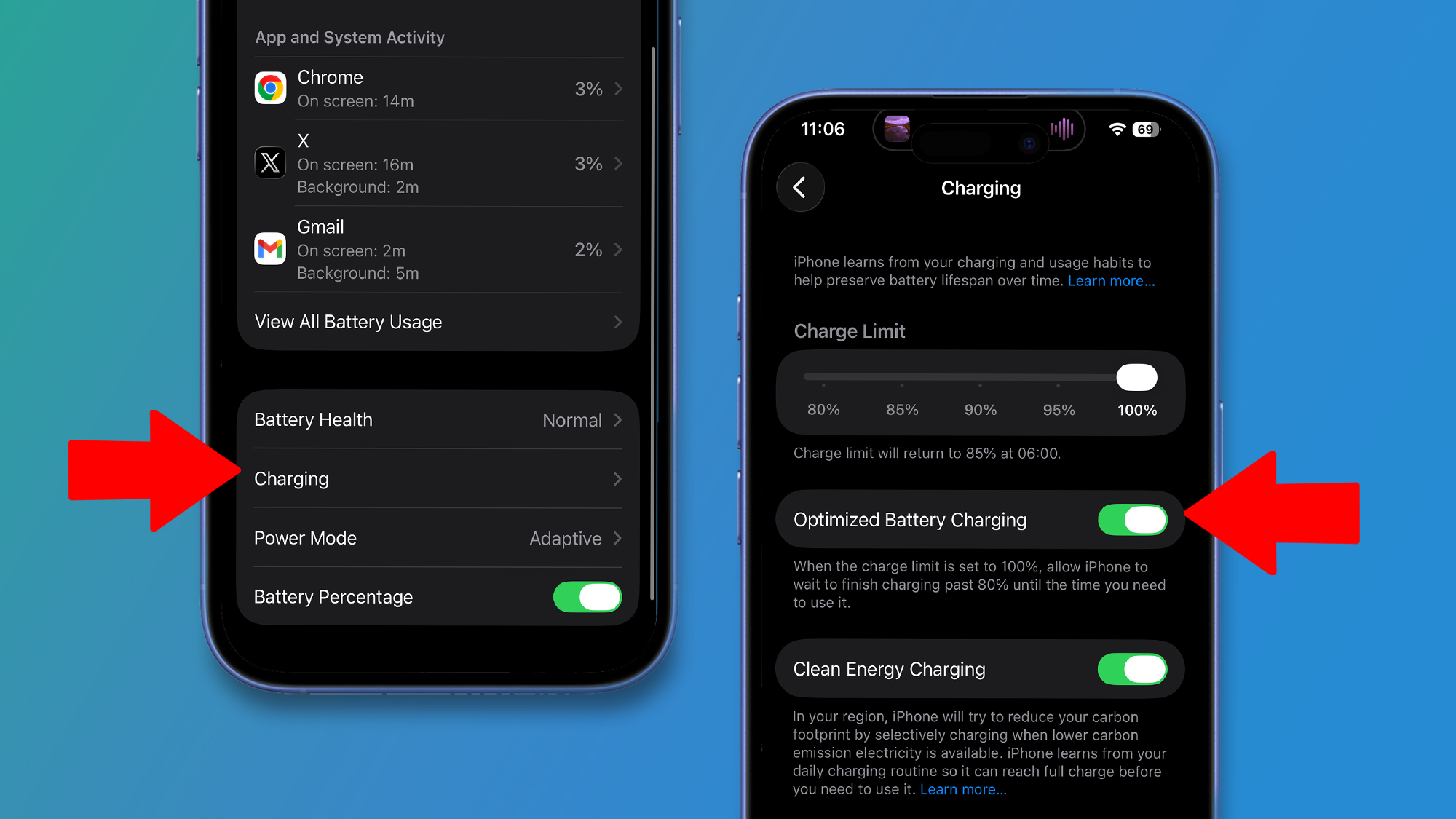
With Optimized Battery Charging, your phone will charge up to 80%, but won’t do the final 20% until close to when it expects you’ll need to use it. So for example, if you tend to charge your phone overnight, it will immediately charge to 80%, and then stay at that level until nearly when you generally unplug it, before finishing the charge.
This way, it will reduce the amount of time that your iPhone spends fully charged, which in turn reduces the wear and tear on the battery, so it can hold more of its original capacity for longer.
To enable Optimized Battery Charging, head to Settings > Battery > Charging, and turn on the Optimized Battery Charging toggle.
Today’s best iPhone deals
Follow TechRadar on Google News and add us as a preferred source to get our expert news, reviews, and opinion in your feeds. Make sure to click the Follow button!
And of course you can also follow TechRadar on TikTok for news, reviews, unboxings in video form, and get regular updates from us on WhatsApp too.