
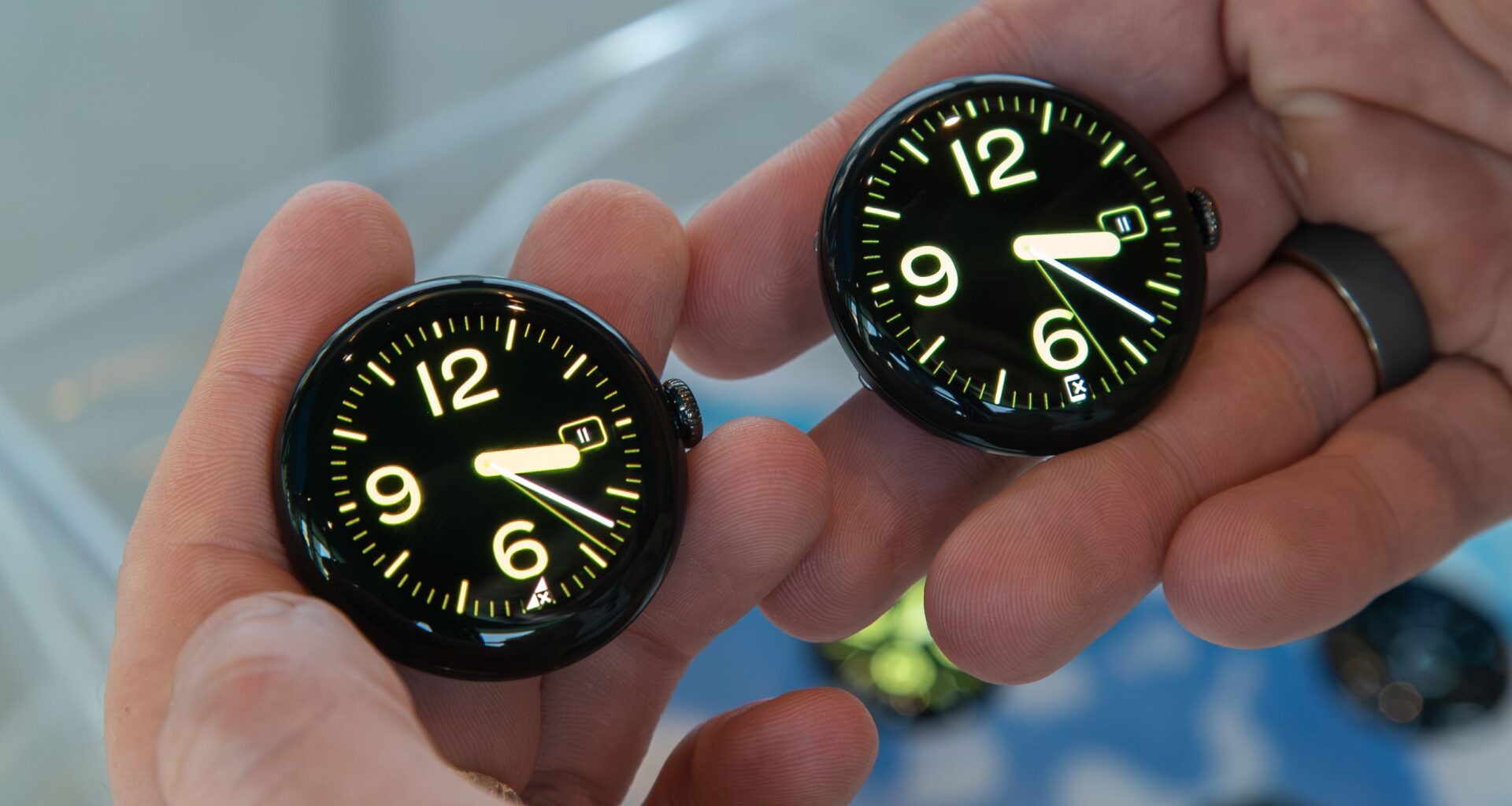
What you need to knowGoogle is making it easier to see timers and stopwatches on the Pixel Watch’s always-on display.Media controls and more Clock functions will be available on the Pixel Watch’s AOD following a Google Clock app update.Google appears to be finally adopting the “Force Global AOD Experience” developer option added in Wear OS 5.1.
Google is upgrading the always-on display (AOD) function available on the Pixel Watch, adding support for more features in an update. The Google Pixel Watch’s AOD is handled by the Google Clock app, which recently became a Pixel-exclusive on Wear OS. After receiving the update, Pixel Watch models can display timers, stopwatches, and media controls on their always-on displays.
The update is rolling out as part of Google Clock version 6.11, and it’s not widely available yet (via Android Authority). A few users on the Google Pixel Watch subreddit reported gaining access to the feature after updating the Google Clock app to version 6.11. Others are seeing version 6.10 of the Google Clock app as the newest available version for their Pixel Watch, suggesting this is a limited rollout for now.
Timer now works with AOD! from r/PixelWatch
Previously, the Pixel Watch’s standard behavior for the always-on display involved darkening open apps and showing a generic digital clock in front of them. When closed or timed out, the Pixel Watch’s AOD would return to its saved watch face. Any app that lacks AOD support could use the “Force Global AOD Experience” developer option, which dims the display but keeps your last screen visible or active, as of Wear OS 5.1.
You may like
Unfortunately, not many developers chose to enable the “Force Global AOD Experience” option — including Google. That is, until this Google Clock app update, which allows stopwatches and timers to continue when the AOD is active. Additionally, it adds AOD support for media controls, including play/pause and next/previous, all with Material 3 Expressive flair.
There are a few limitations of the Clock app’s new AOD capabilities. Some frequently-updating graphics and fields are omitted when the AOD is active. Namely, you won’t see the countdown ring for timers or the number of seconds remaining. While stopwatches keep the second counter, it also loses the ring.
You can try to force the Google Clock update on your Pixel Watch by opening the Google Play Store on your smartwatch and scrolling all the way to the bottom. There, you’ll find a Manage apps button. After tapping it, you can check for a Google Clock update. If available, follow the on-screen prompts to install it.