The Apple Watch ships with sensible defaults, but those defaults are designed to showcase features, not to minimize friction. A few targeted changes can significantly reduce distractions, speed up common actions, and make the watch feel more intentional instead of noisy.
None of the adjustments below require third-party apps. They focus on settings Apple already provides but does not surface particularly well.
1. Cut notification noise aggressively
By default, the Apple Watch mirrors nearly every iPhone notification. That behavior turns the watch into a constant interruption engine.
Open the Watch app on iPhone, go to Notifications, and disable mirroring for most apps. Keep only messaging, calls, and a small number of time-sensitive services. Marketing alerts and social updates rarely justify wrist taps.
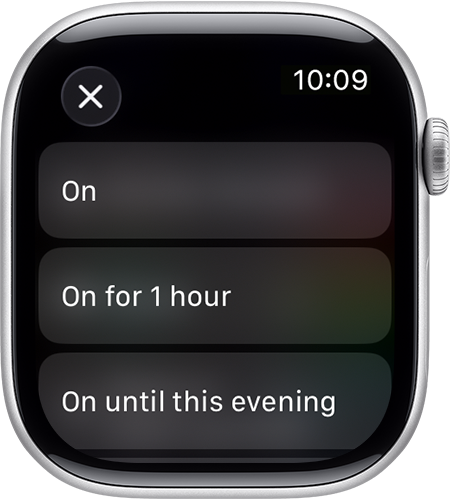
After that, enable Silent Mode from Control Center on the watch. Haptics remain active, but audio alerts stop entirely, which dramatically improves day-to-day usability.
2. Use wrist gestures instead of touch
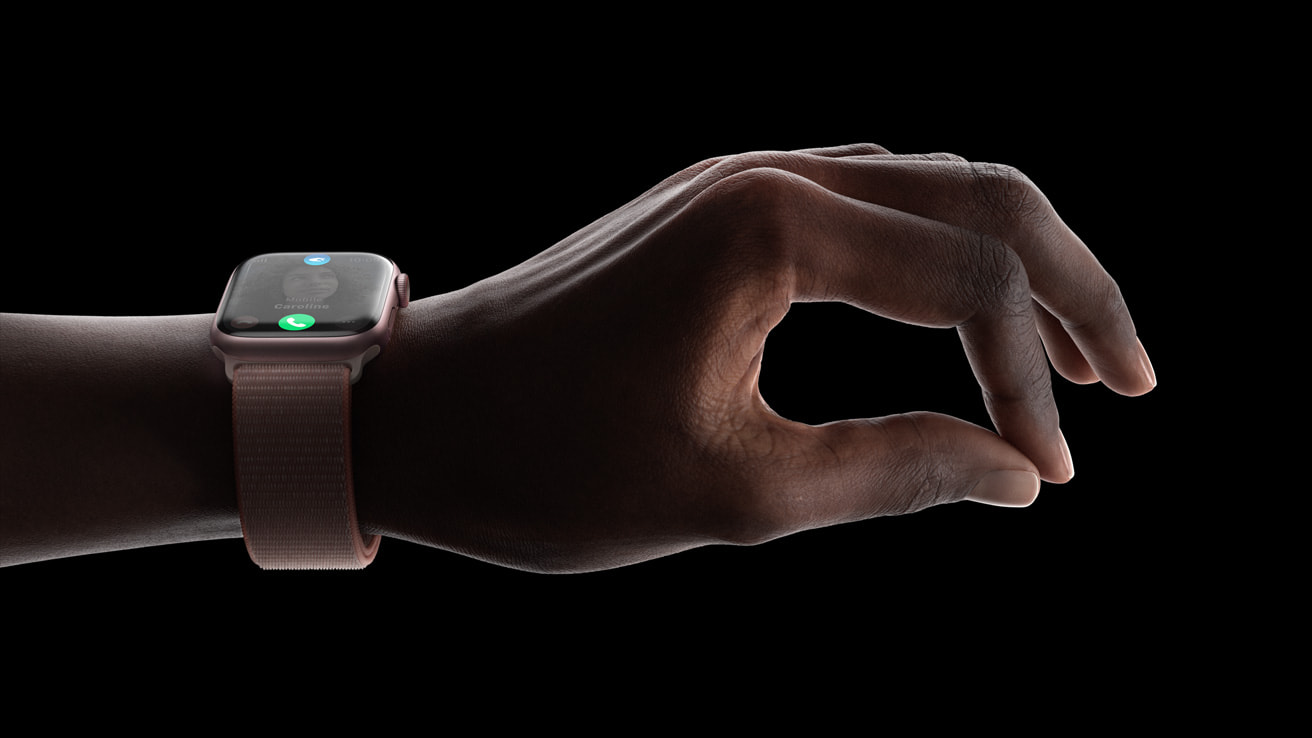
Recent Apple Watch models support gesture controls that work without touching the display. Double Tap (index finger and thumb) triggers the primary on-screen action, such as answering a call or stopping a timer. Wrist Flick navigates back.
Once enabled, these gestures reduce screen interaction during workouts, cooking, or commuting. They are faster than tapping and work reliably once muscle memory develops.
3. Unlock your Mac automatically
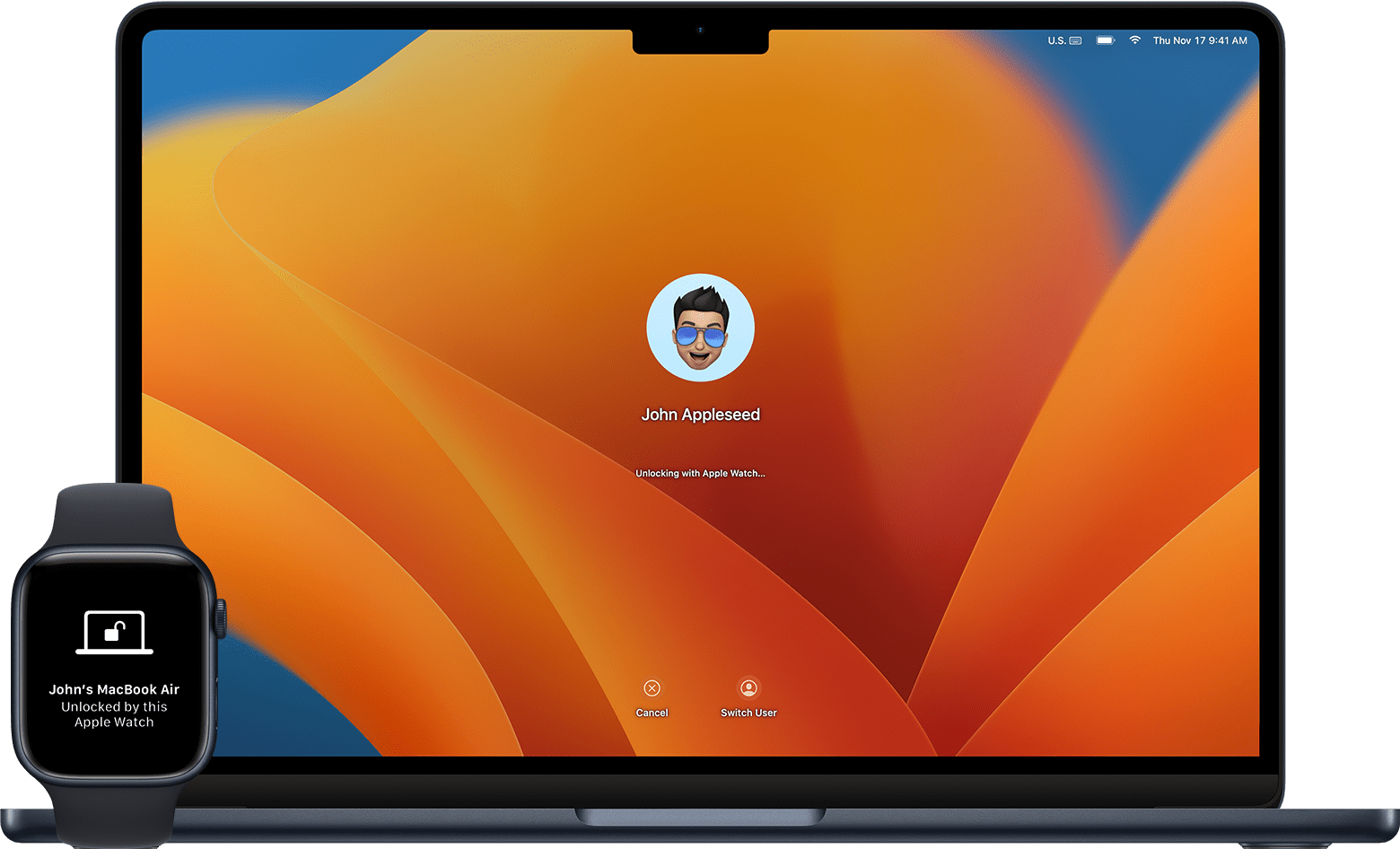
The Apple Watch can authenticate macOS sessions without passwords. When enabled, wearing the watch is enough to unlock a nearby Mac.
On macOS, open System Settings > Touch ID & Password, then enable Apple Watch unlocking. Authentication happens locally and does not require the same Wi-Fi network.
This feature works consistently and removes one of the most repetitive friction points in daily desktop use.
4. Rely on widgets instead of cluttered faces
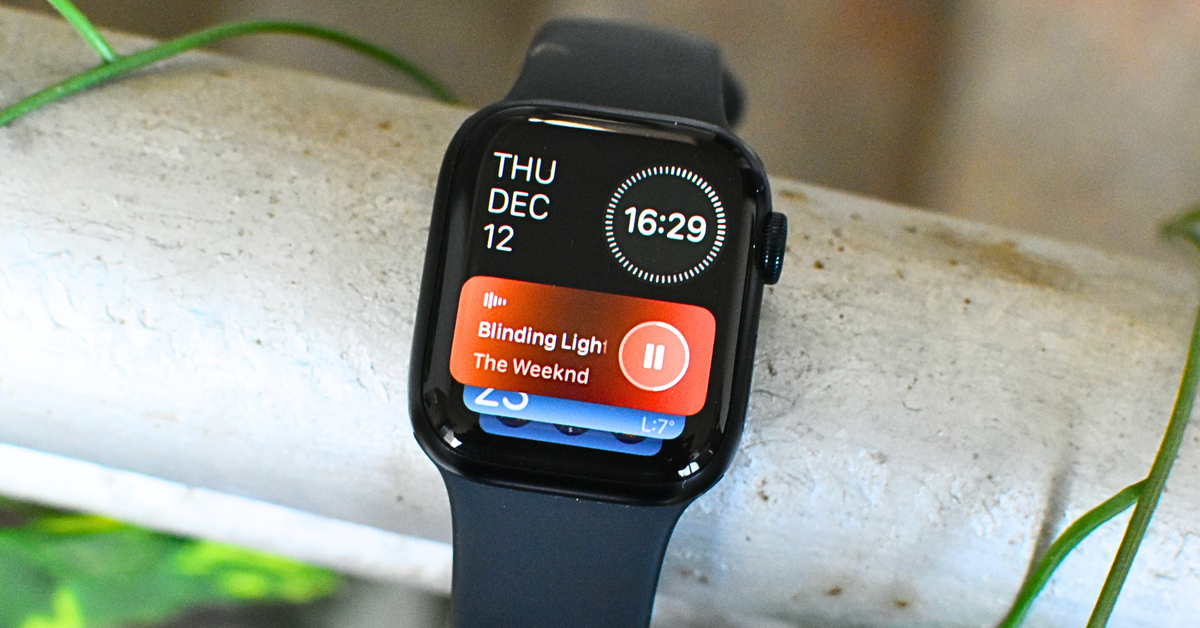
Complication-heavy watch faces look efficient but age poorly in practice. Widgets provide the same access without permanently occupying the screen.
Swipe up (or rotate the Digital Crown) to open the widget stack. Add commonly used items like Battery, Timers, Weather, and Workouts. Pin the few you check daily and let the system suggest the rest contextually.
This approach keeps the watch face clean while preserving quick access.
5. Rotate between multiple watch faces
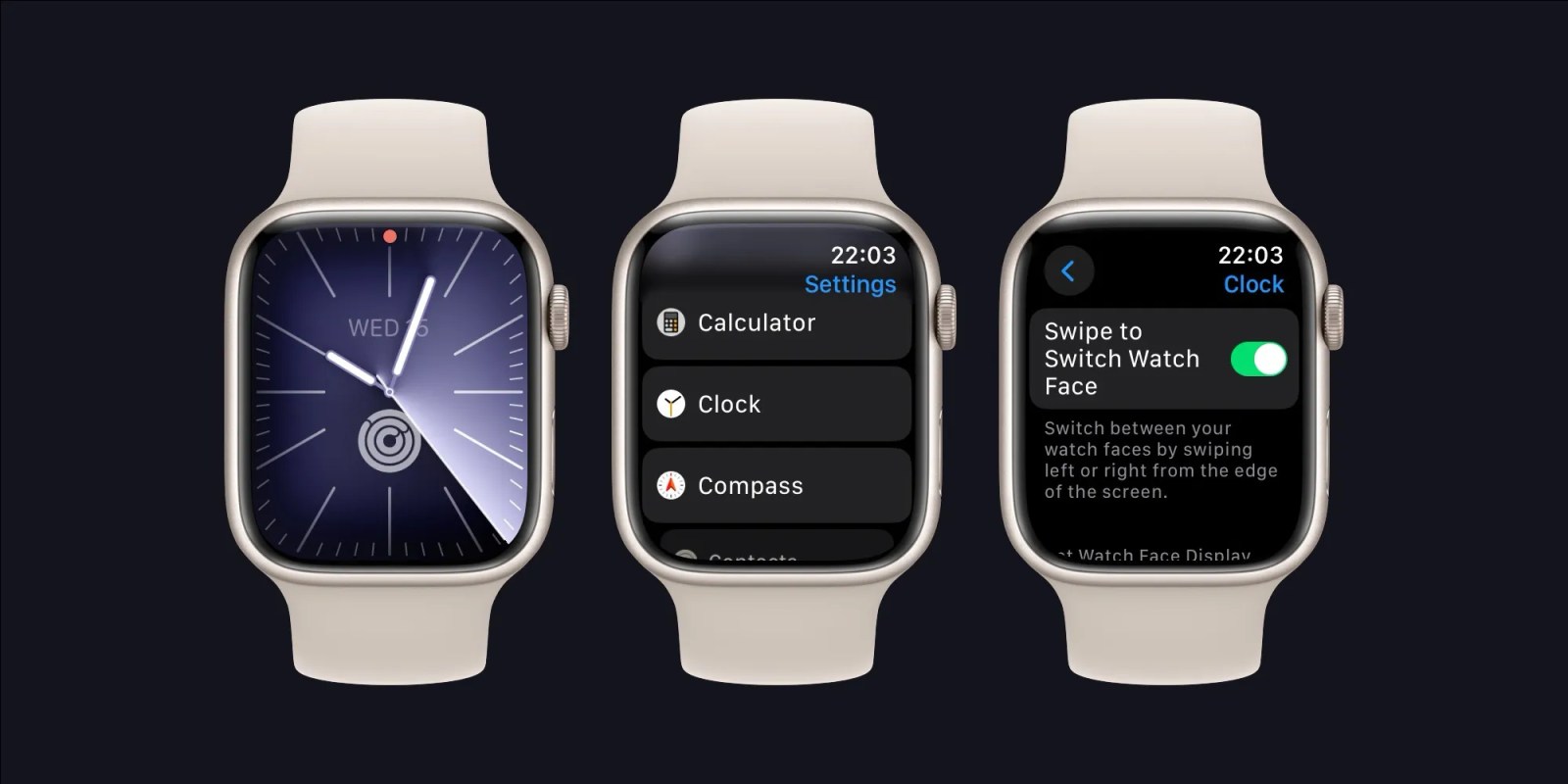
Once widgets handle most interactions, watch faces become about context instead of density. Creating two or three faces-general use, fitness, and minimal-works better than trying to make one face do everything.
Swipe left or right on the face to switch instantly. Face creation and customization are still easiest in the Watch app on iPhone, especially for Photos-based faces.
6. Adjust Activity Rings when needed
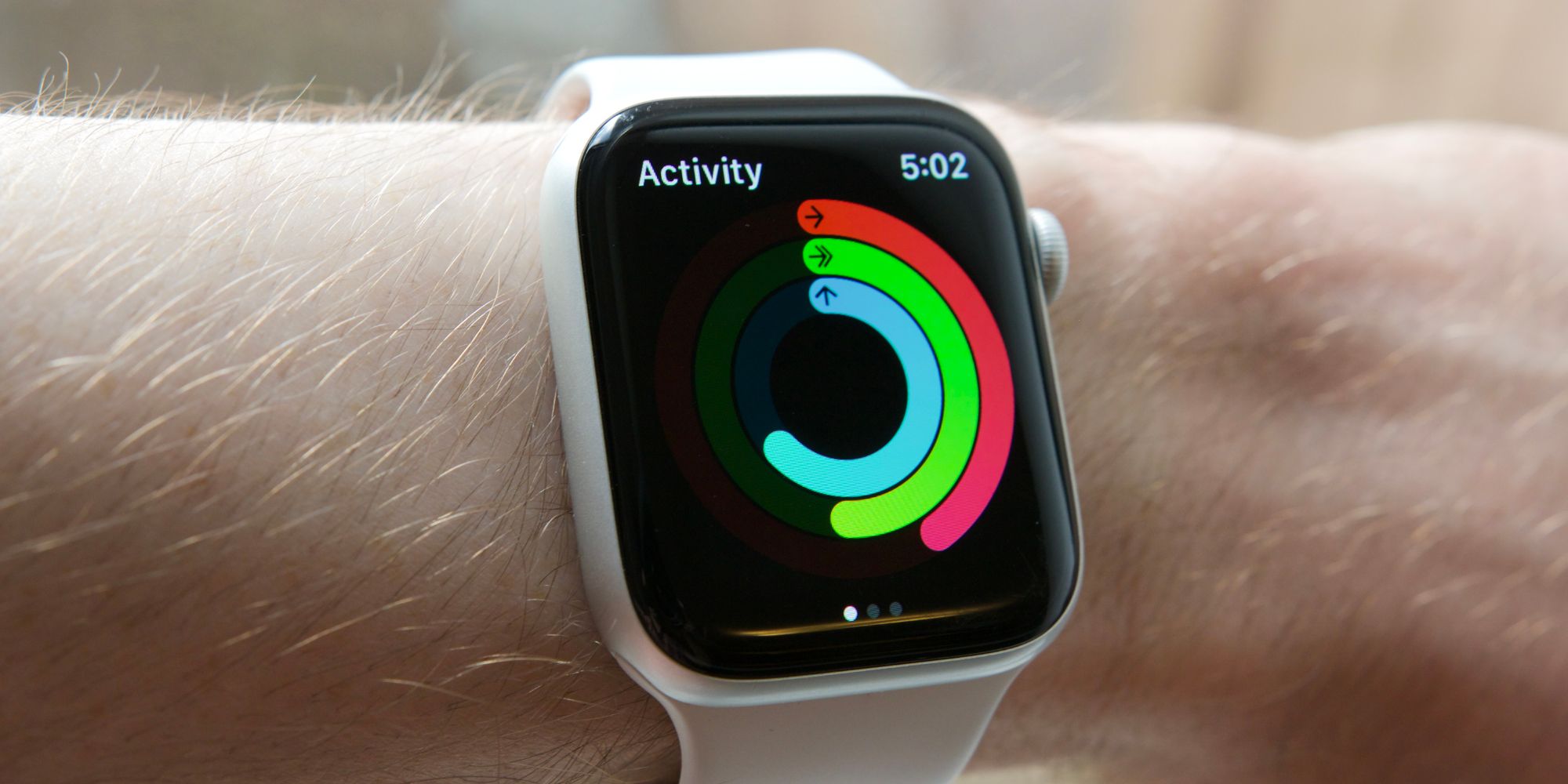
Activity Rings no longer require rigid adherence. watchOS now allows pausing or modifying goals without breaking streaks.
Open the Fitness app on iPhone, select Activity Rings, then scroll down to Change Goals or Pause Rings. This is useful during illness, recovery, or travel, and prevents the rings from dictating behavior rather than reflecting it.
7. Control Apple TV from your wrist
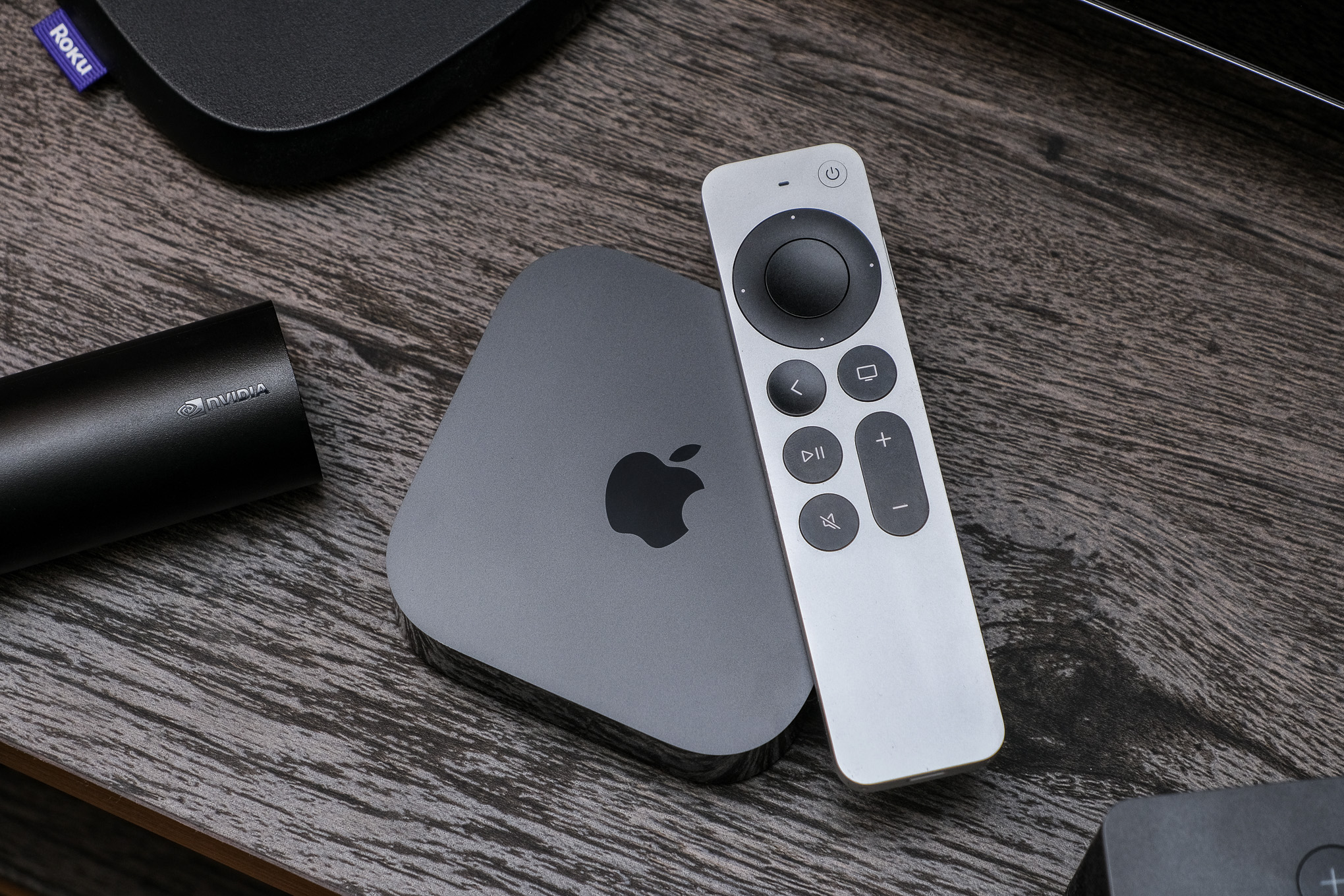
The Apple Watch includes a full Apple TV remote. It is easier to find than the physical remote and works immediately once paired.
Open the Remote app on the watch, select your Apple TV, and control playback using taps and swipes. It supports navigation, volume, and Siri input.
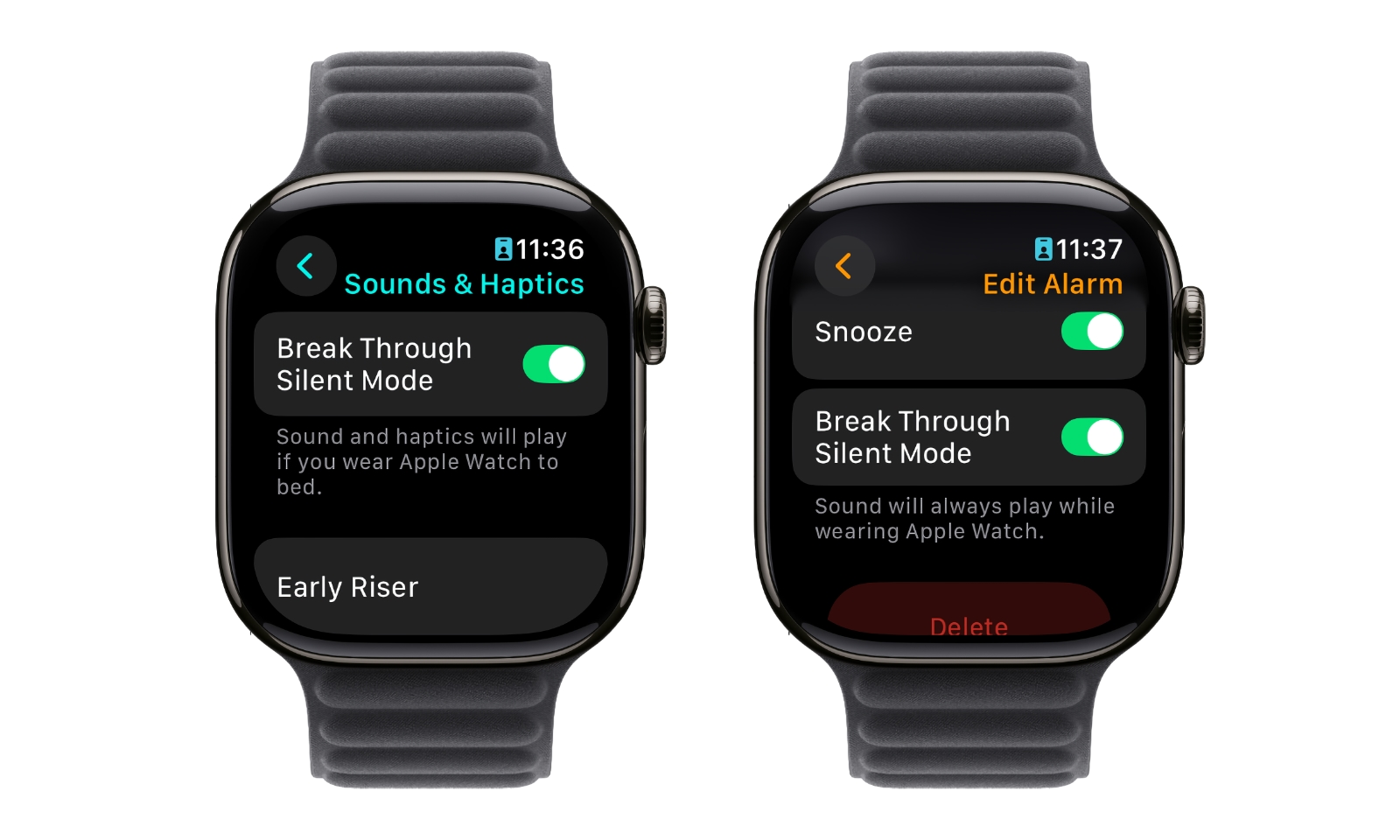
8. Let alarms bypass Silent Mode
Silent Mode usually silences alarms as well, which is not always desirable. Apple allows individual alarms to override this behavior.
Edit an alarm in the Alarms app and enable Break Through Silent Mode. The alarm will sound even when the watch is muted, while all other alerts remain silent.
9. Tie Focus modes to watch faces
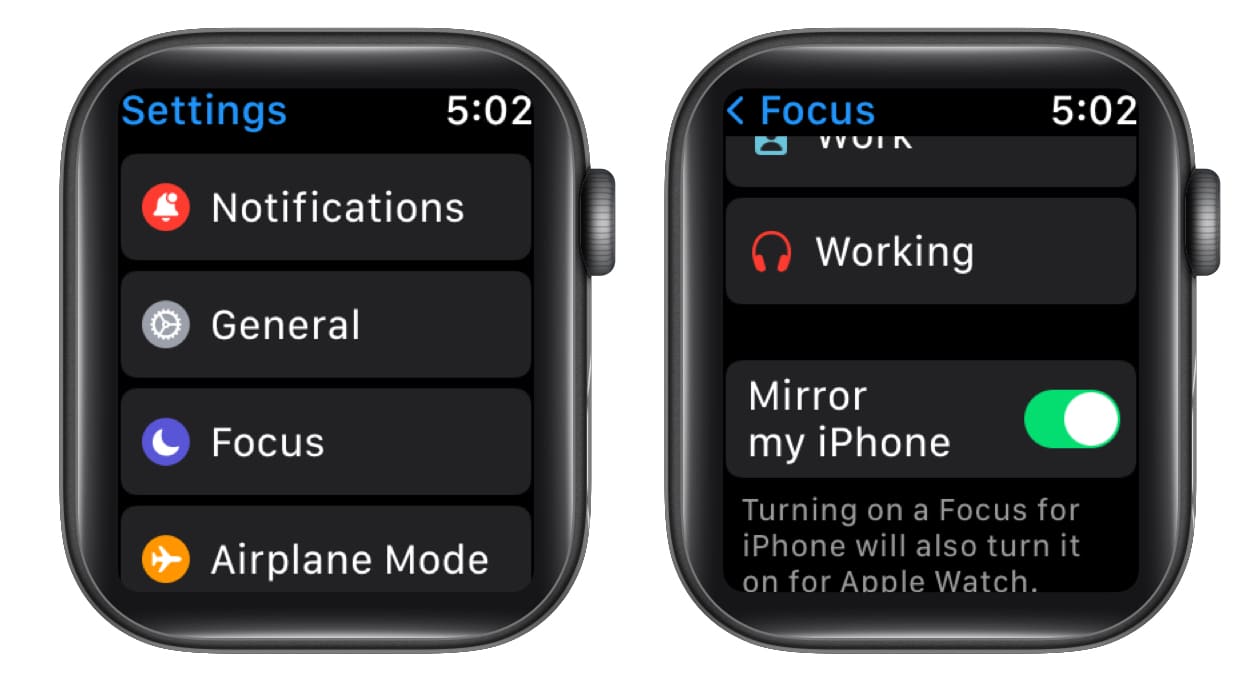
Focus modes can automatically switch watch faces. This is useful for separating work, personal time, and workouts visually.
Configure this in Settings > Focus on iPhone. Assign a specific watch face to each Focus. When the Focus activates, the watch face changes with it, providing instant context.
10. Track sleep consistently
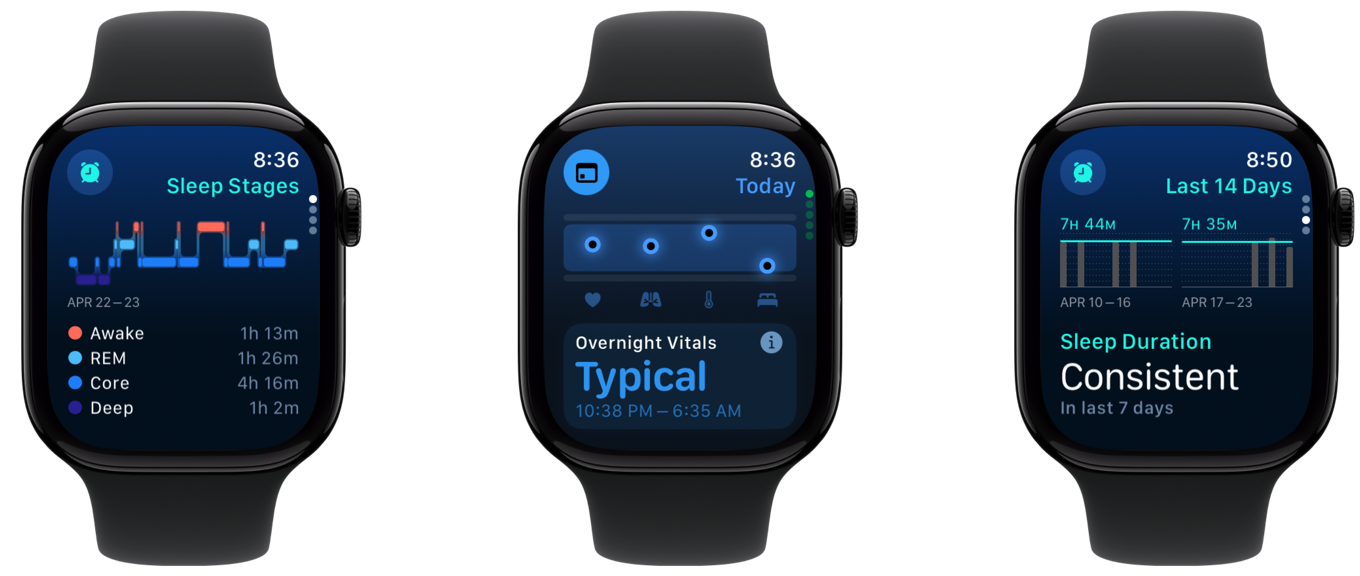
Apple Watch sleep tracking works best when paired with Sleep Focus. When active, the watch dims automatically and suppresses notifications.
Recent watchOS versions add a sleep score and deeper metrics without requiring manual input. Charging during evening downtime instead of overnight keeps the watch ready for sleep tracking.
These adjustments do not change what the Apple Watch is capable of, but they significantly change how it feels to use. Most are one-time decisions that remove friction permanently.
Which of these tweaks have you already applied, and which ones were still buried in settings for you?
Summary
Article Name
10 Practical Apple Watch Tweaks That Improve Daily Use
Description
The Apple Watch includes a number of useful features that are either disabled by default or buried deep in settings. A few small adjustments can reduce distractions, speed up everyday actions, and make the watch feel more intentional to use.
Author
Arthur K
Publisher
Ghacks Technology News
Logo