
Imagine you could use an operating system that’s as easy as ChromeOS, while also being as powerful as Linux.
What would you do with that?
The easier question might be, “What could you not do?”
With Linux’s popularity continually on the rise, distributions created specifically for reliability, performance, and sustainability are key to the success of the open-source operating system, and Bluefin Linux exemplifies this.
If you’re new to Linux, you can use Bluefin as is. If you’re a developer, you can enable Developer Mode, which turns your PC into a powerhouse workstation with container-focused workflows. With developer mode, you get the addition of VS Code, Homebrew, Kubernetes support, Podman Desktop, JetBrains‘ IDE, and much more.
Bluefin could easily be called the distribution that is all things to all people.
According to the Bluefin PR, “By introducing cloud-native patterns to the desktop, we hope to ignite interest in desktop computing while catering to the next generation of open source contributors. Bluefin is designed to be the tool you depend on to do what you do best. The current Linux desktop didn’t get us there, but we believe that what was made can be unmade. Let’s make it better.”
Think of Bluefin as a Linux distribution that can entice new users while also appeasing seasoned users and developers.
What is Bluefin?
Bluefin is based on Fedora Silverblue, which is part of the “Universal Blue” project. Bluefin is a container-focused, immutable Linux distribution designed to bring cloud-native technology to the desktop.
The important bit of that description is “immutable.”
What is “immutable”?
An immutable Linux distribution mounts the core of the OS read-only. By doing this, the operating system enjoys greater security because the core system cannot be altered.
As far as what cannot be altered, the list looks like this:
/usr
/bin
/sbin
/lib
/lib64
/boot
/etc
The writable directories include:
You can read more about immutable Linux in Why enterprise businesses should adopt immutable Linux for the desktop.
Essentially, immutable Linux is the future of operating systems because it is exponentially more secure.
Let’s get back to Bluefin.
The desktop
Bluefin uses a customized version of GNOME that includes Dash To Dock and several other GNOME Shell extensions to make the desktop environment even easier for new Linux users.
Bluefin also leans heavily into Flatpak apps and even includes the Bazaar app store (which was created specifically for the universal package manager).
Not only has Bluefin tweaked GNOME to make it more user-friendly, but it’s also quite beautiful. Just take a look at the Workspace Overview (Figure 1), and you get an idea of just how handsome this distribution is.
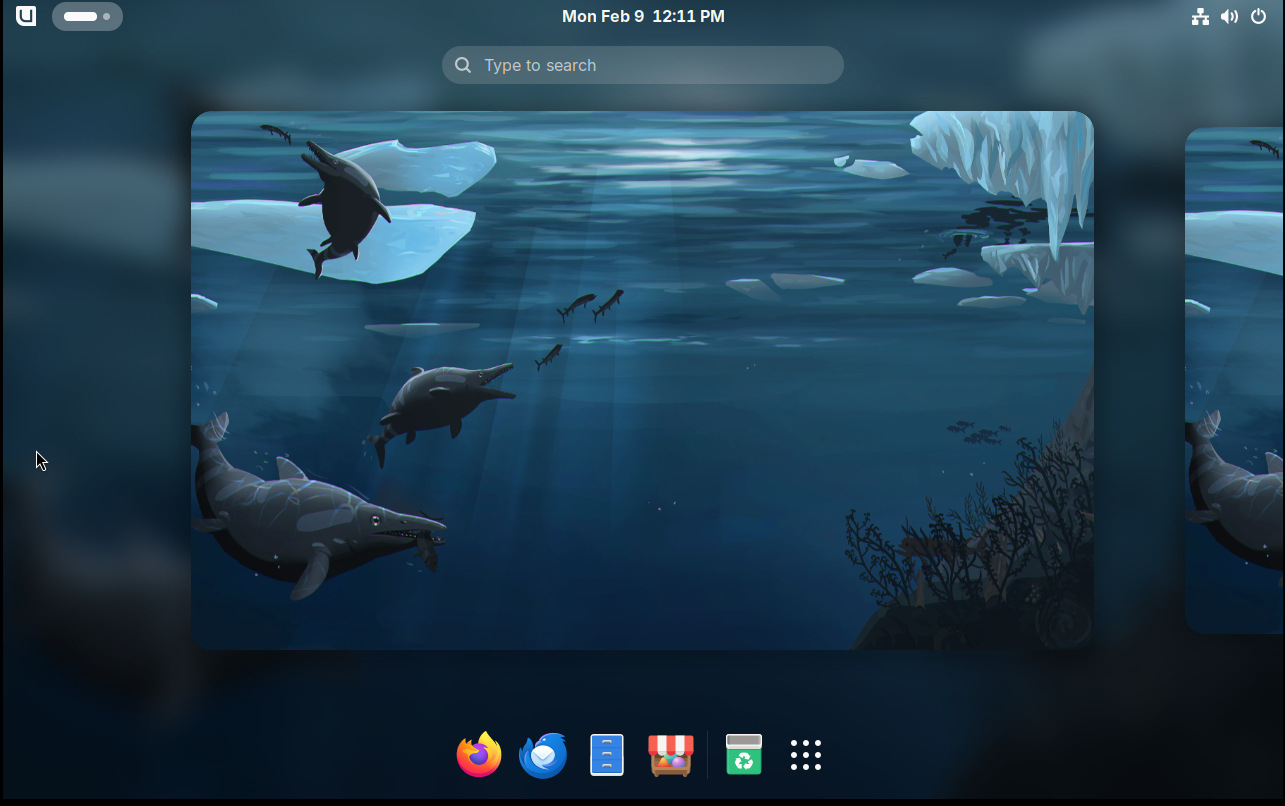
Figure 1: The Bluefin take on the GNOME Workspace Overview.
Developer mode
By default, Bluefin Linux works in standard user mode. You will notice that during installation, you’re not given the option to choose between user or developer mode.
Don’t fret because switching isn’t at all hard.
To switch from user to developer mode, open a terminal window and issue the command:
After that, restart the system with:
It’s also important that, if you’re not using an LTS release of Bluefin, you also run the following command:
If you’re curious, developer mode does the following things:
Enables preconfigured environments for tools such as Docker and containerd.
Integrates with Homebrew.
Remains immutable while also providing robust containerized development environments thanks to tools like devcontainers and Distrobox. By doing this, Bluefin separates the development tools from the host operating system.
The process takes a few minutes to rebase the system (Figure 2), but when it’s done, you’re ready to take your work to the next level.
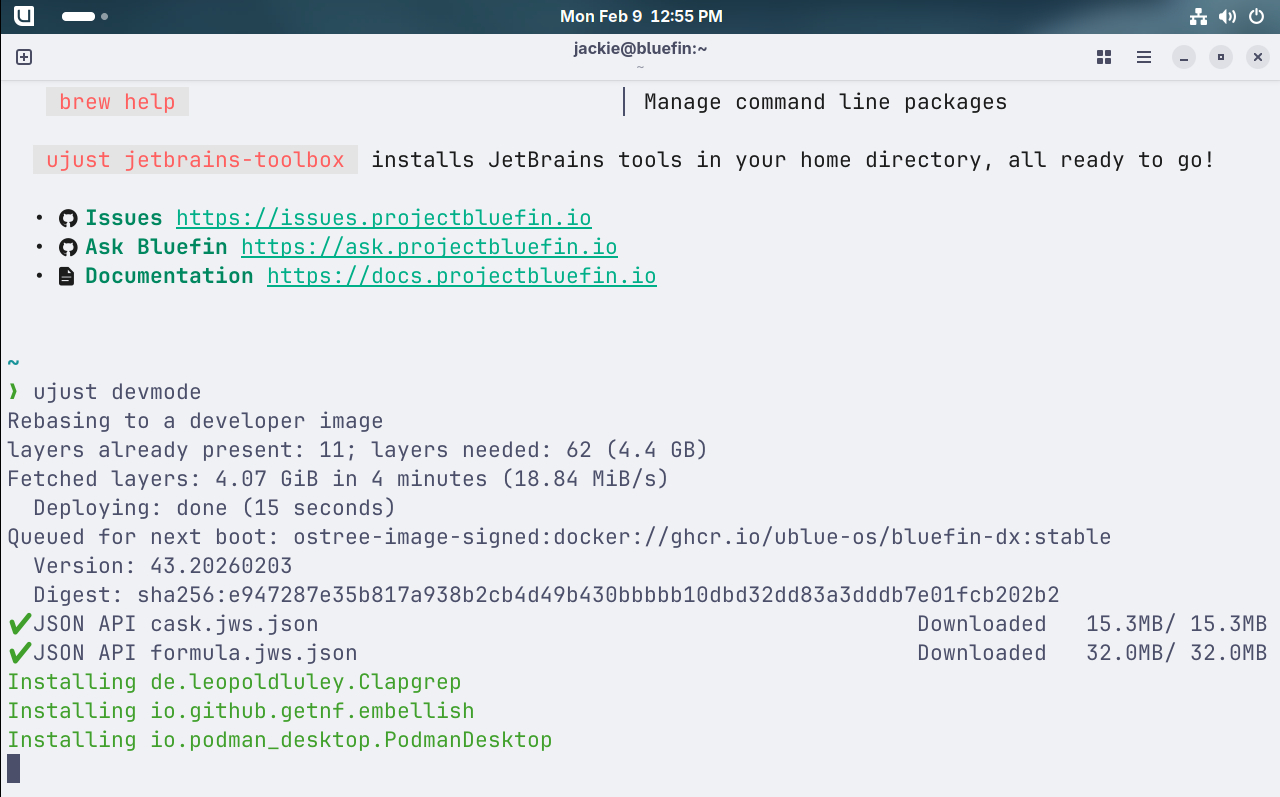
Figure 2: Rebasing Bluefin to developer mode.
What about usability?
I tested Bluefin in both user and dev modes and was impressed. This Linux distribution is well-designed and makes using the open-source OS quite a treat. Although I didn’t dive too deeply into dev mode, I checked out Podman Desktop and found it remarkably easy. During the onboarding, you can even instruct it to automatically add Kubernetes support (Figure 3).
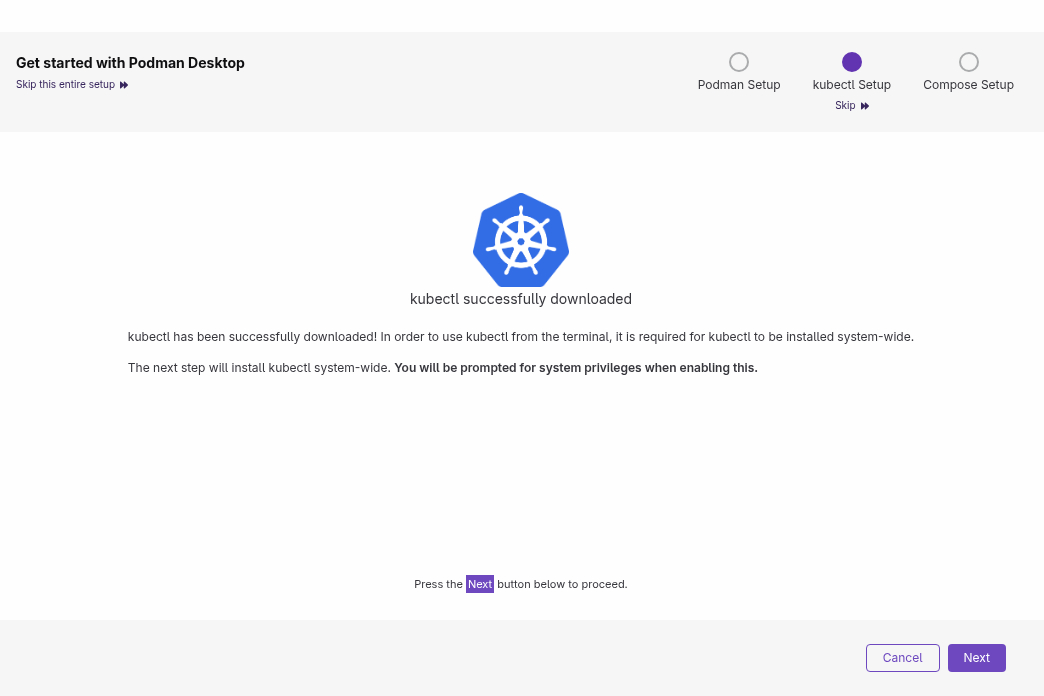
Figure 3: Adding kubectl to Bluefin Linux is easy in developer mode.
Podman Desktop includes features like:
Dashboard
Container management
Pod management
Images
Volumes
Networks
Kubernetes
Extensions
One thing I did not find installed in dev mode was VS Code. However, the Dev Toolbox (Figure 4) provides various converters (such as JSON > YAML, Timestamp Formats, number bases, CRON Parser, and reverse CRON), encoders, formatters & minifiers, generators, and text tools.
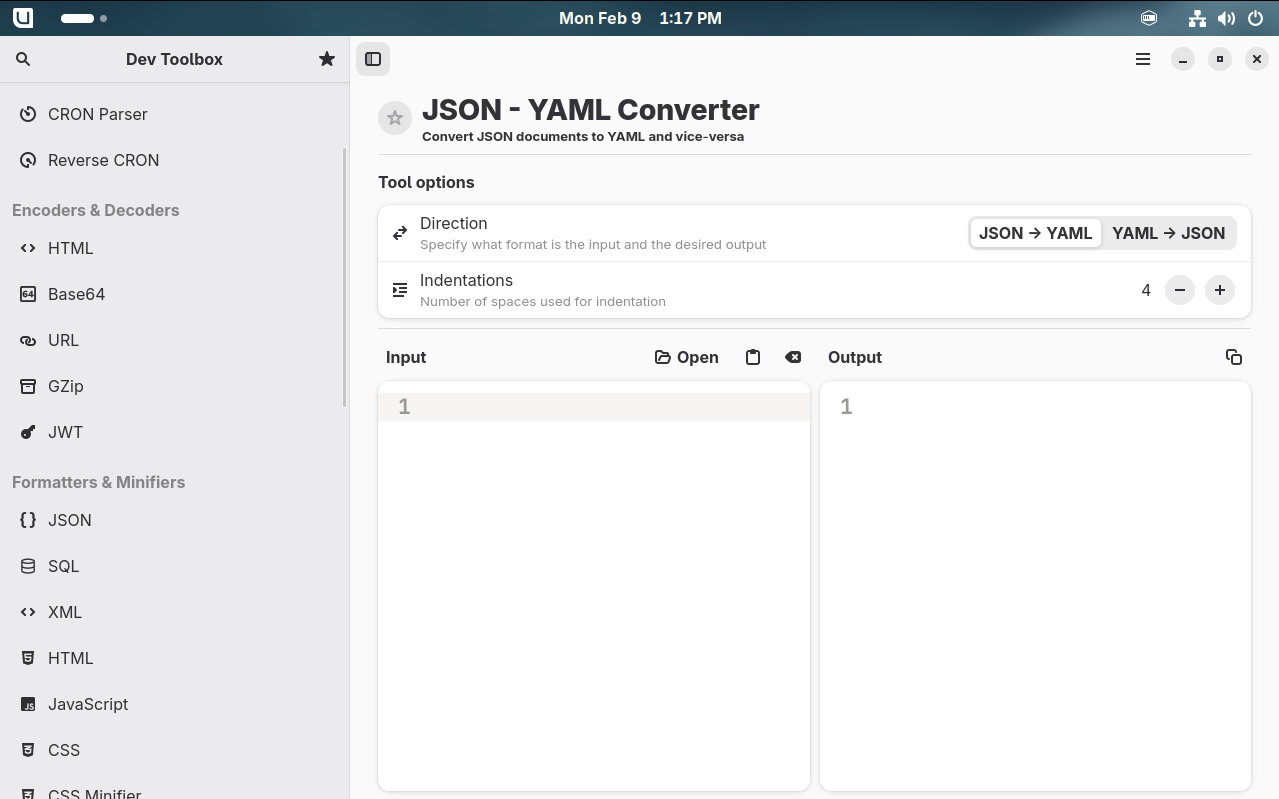
Figure 4: The Dev Toolbox is very handy to have around.
Conclusion
For me, the best thing about Bluefin is its flexibility. With just a couple of commands, you can rebase the system from a standard user to a dev user. At the same time, you get the enhanced security of immutability, along with a customized GNOME desktop that is easy enough for anyone to use.
If your interests have been piqued, you should download an ISO for Bluefin and either spin it up as a virtual machine or install it on bare metal; either way, I’m sure you’ll be impressed.
YOUTUBE.COM/THENEWSTACK
Tech moves fast, don’t miss an episode. Subscribe to our YouTube
channel to stream all our podcasts, interviews, demos, and more.
SUBSCRIBE
Group
Created with Sketch.

Jack Wallen is what happens when a Gen Xer mind-melds with present-day snark. Jack is a seeker of truth and a writer of words with a quantum mechanical pencil and a disjointed beat of sound and soul. Although he resides…
Read more from Jack Wallen