
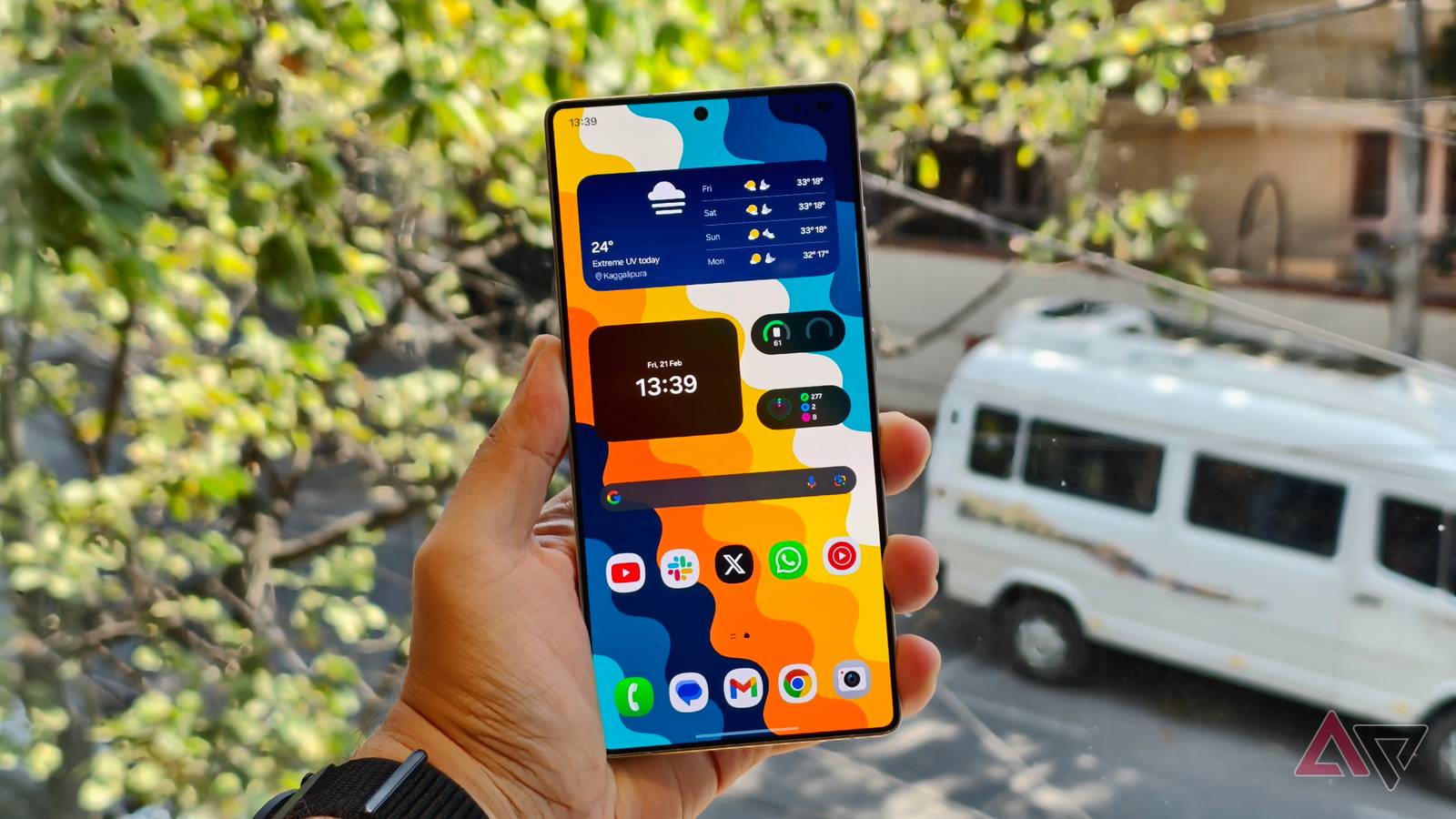
Your Samsung phone is arguably the most powerful computer you own, yet most of us spend our day manually babysitting its settings like it’s 2010.
We toggle Bluetooth when we get in the car, manually enable DND at the office, and constantly tweak brightness for different apps.
I finally got tired of performing these digital chores and decided to see exactly how much of my life I could put on autopilot.
Thanks to a few tweaks and these native features, I have transformed my Galaxy from a high-maintenance distraction into a self-managing assistant that anticipates my next move before I even wake up.
Related
6 settings I change on every phone to instantly upgrade my Android experience
I change these settings before installing any apps
Use Theatre mode
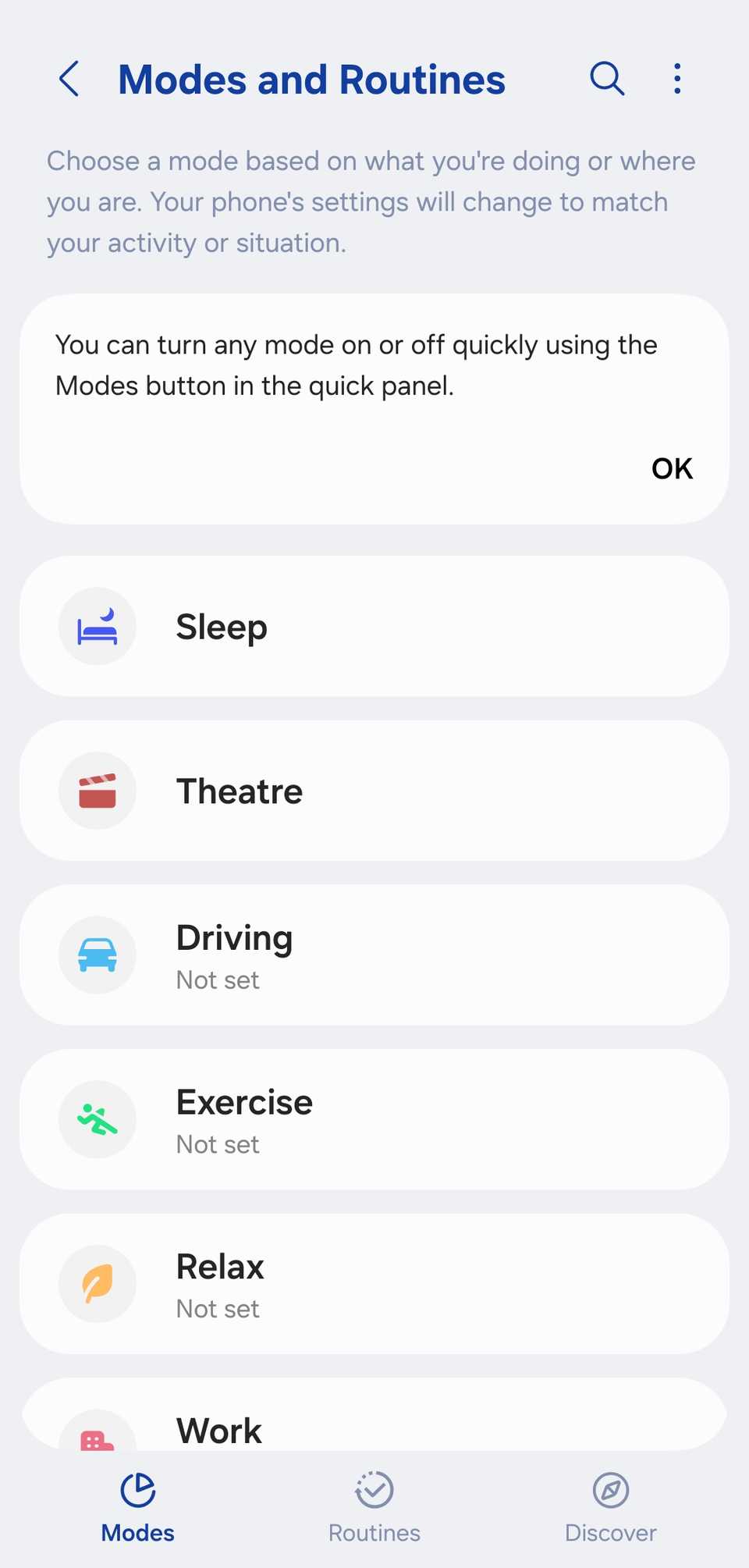
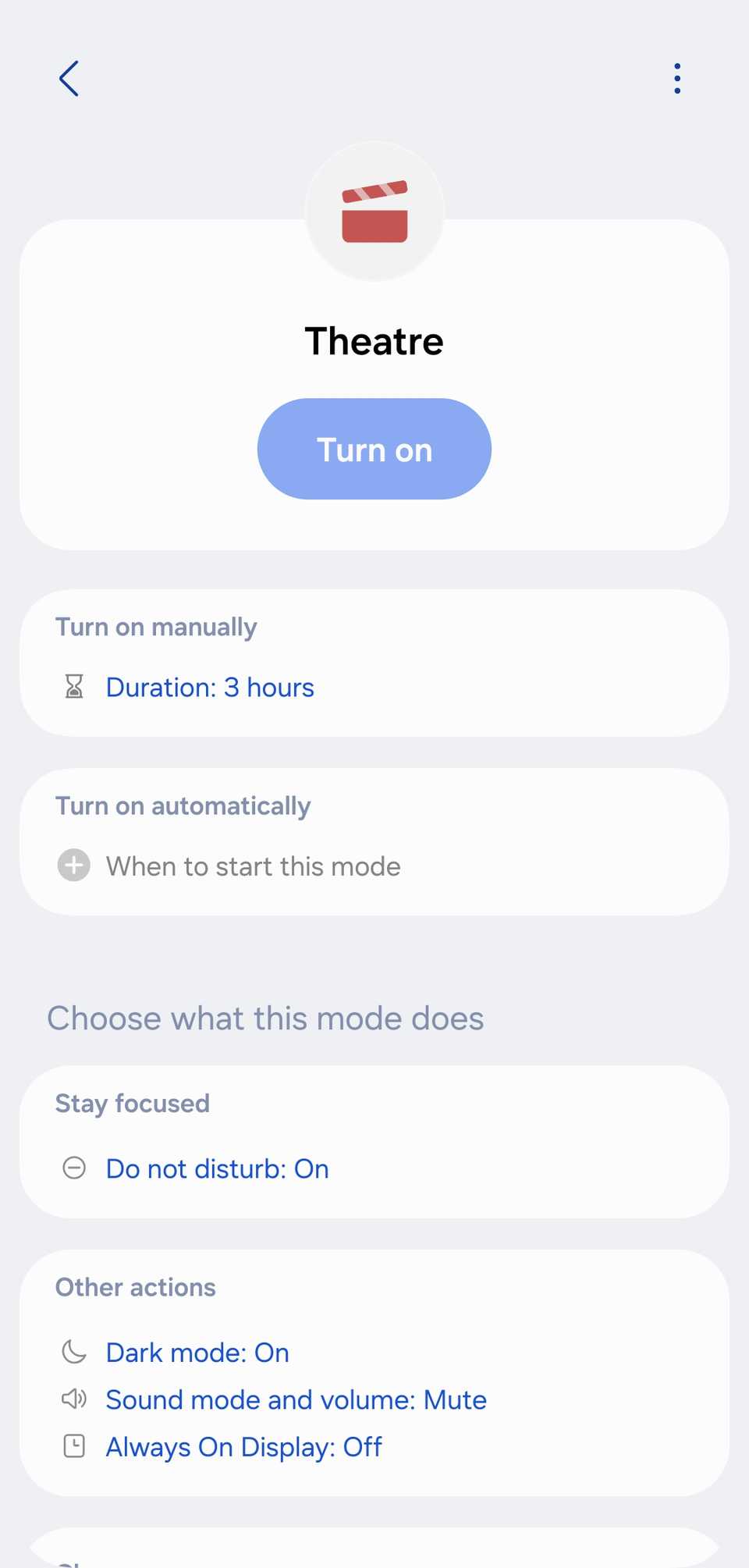
Setting up a custom ‘Theatre Mode’ is one of the best ways to prove that your phone can be polite without you having to remember a dozen different toggles. I use this every time I sit down for a movie or a show.
Samsung offers several built-in modes, including Theatre. However, if you are using it for the first time, you need to go through several instructions to set it up.
In my case, I have set it to automate multiple settings on my Samsung phone. When I enable Theatre mode, it disables Always on Display, puts my phone in DND for three hours, blocks notifications and calls from all (except for my parents), and enables dark mode.
The beauty of this is the peace of mind. By the time the credit rolls, my phone has already woken up and returned to its normal state without me having to fumble with settings.
I have added the Theatre routine as a widget right on the home screen for easy access.
Enable auto-rotate in selected apps
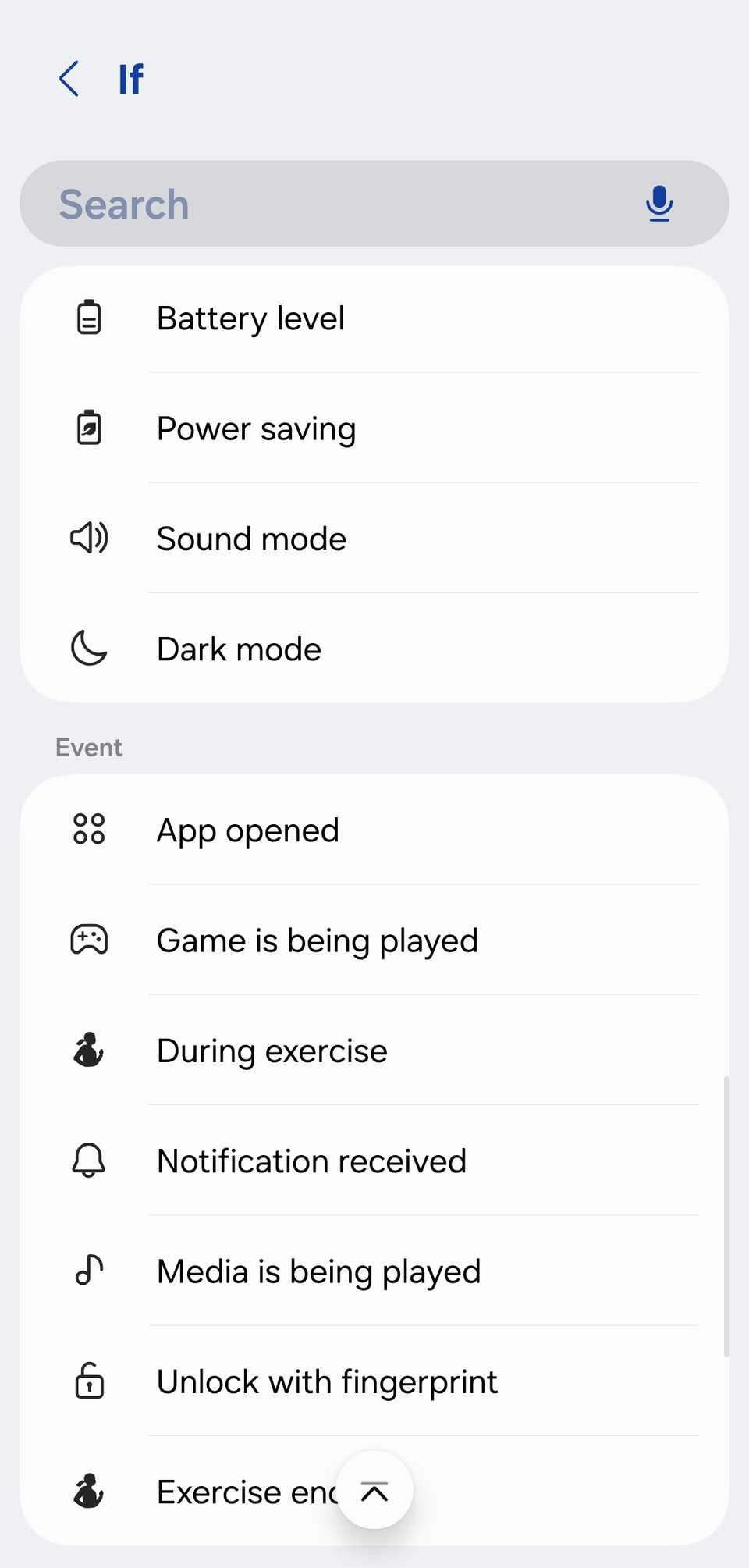
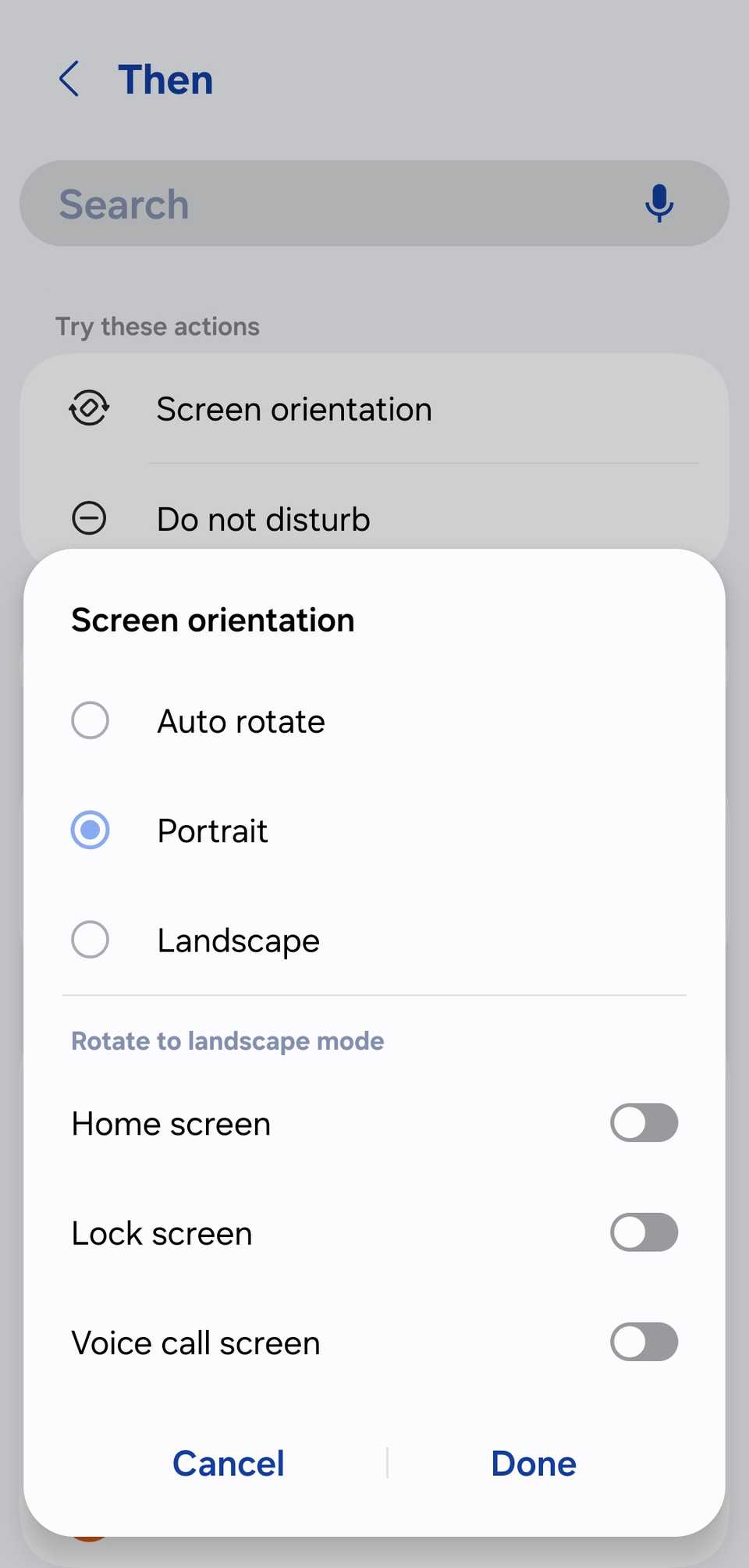
This is the routine that finally ended my daily volume and auto-rotate wars. Unlike Theatre Mode, I don’t want to press a button for this. I want it to be fully automatic based on the apps I open.
I set the condition to App opened. I then select my usual suspects, like YouTube, Netflix, Instagram, and Gallery.
In the Then settings, I set up conditions like fixing media volume at 30% (which is my safe zone), screen orientation to auto-rotate, and brightness to 40%. After all, I want consistent lighting for movies without the sensor hunting for light levels in a dark room.
As soon as I swipe out of YouTube or close my Gallery, it instantly locks the screen back to portrait, resets the volume to my default, and enables adaptive brightness.
The ‘Deep Sleep’ protocol
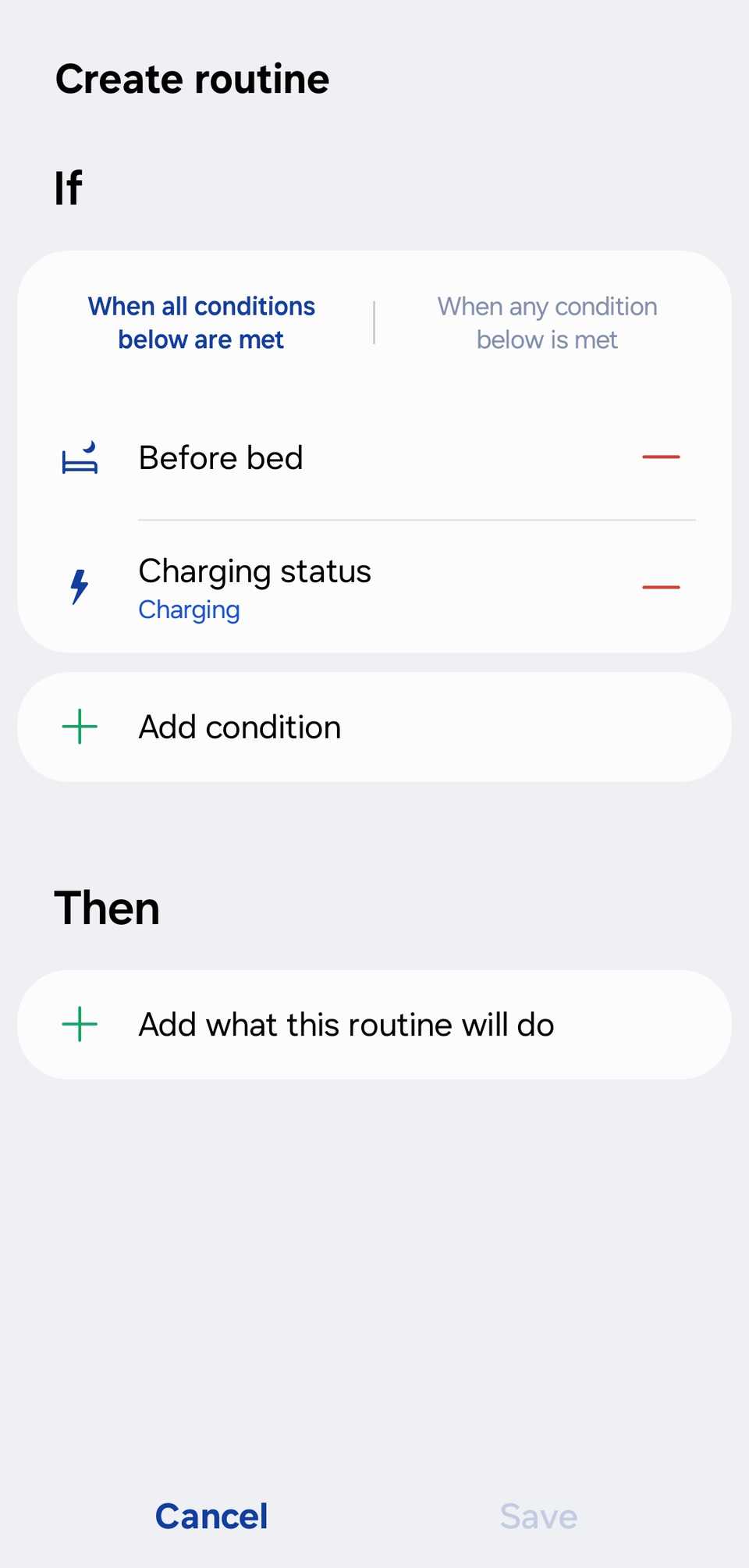
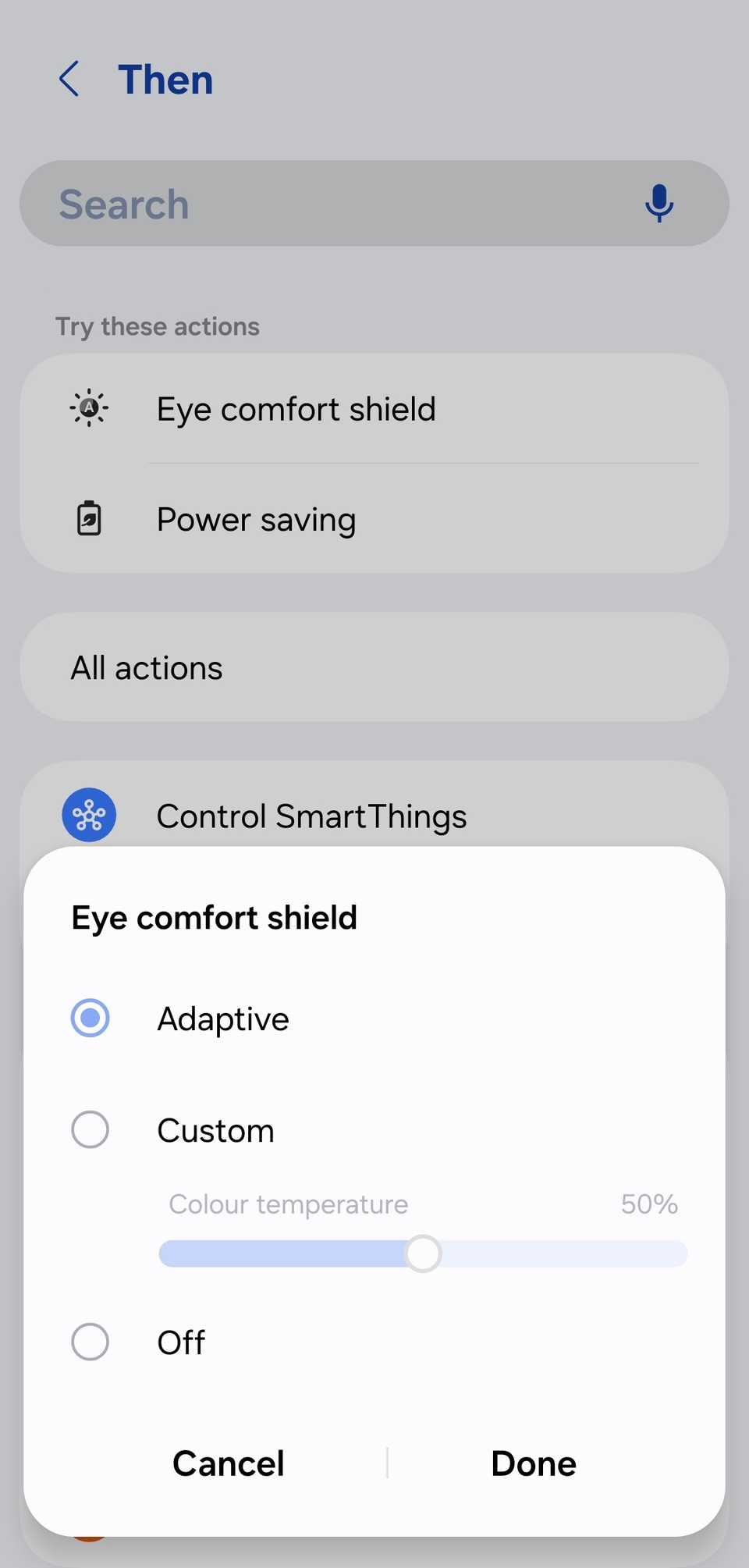
I have set a deep sleep routine that is set to trigger based on time (1 AM to 9 AM), but you can also tie it to when you start charging your phone at night.
During that routine, I have enabled eye comfort shield, toggled DND, and disabled AOD.
However, my secret weapon is Grayscale mode. I set the routine to turn the entire screen to black and white. It’s amazing how much less tempting Instagram or YouTube is when everything looks like a 1940s newspaper.
It’s a ‘set it and forget it’ way to enforce a digital boundary. I no longer have to rely on willpower to put the phone down.
Track screen time while driving
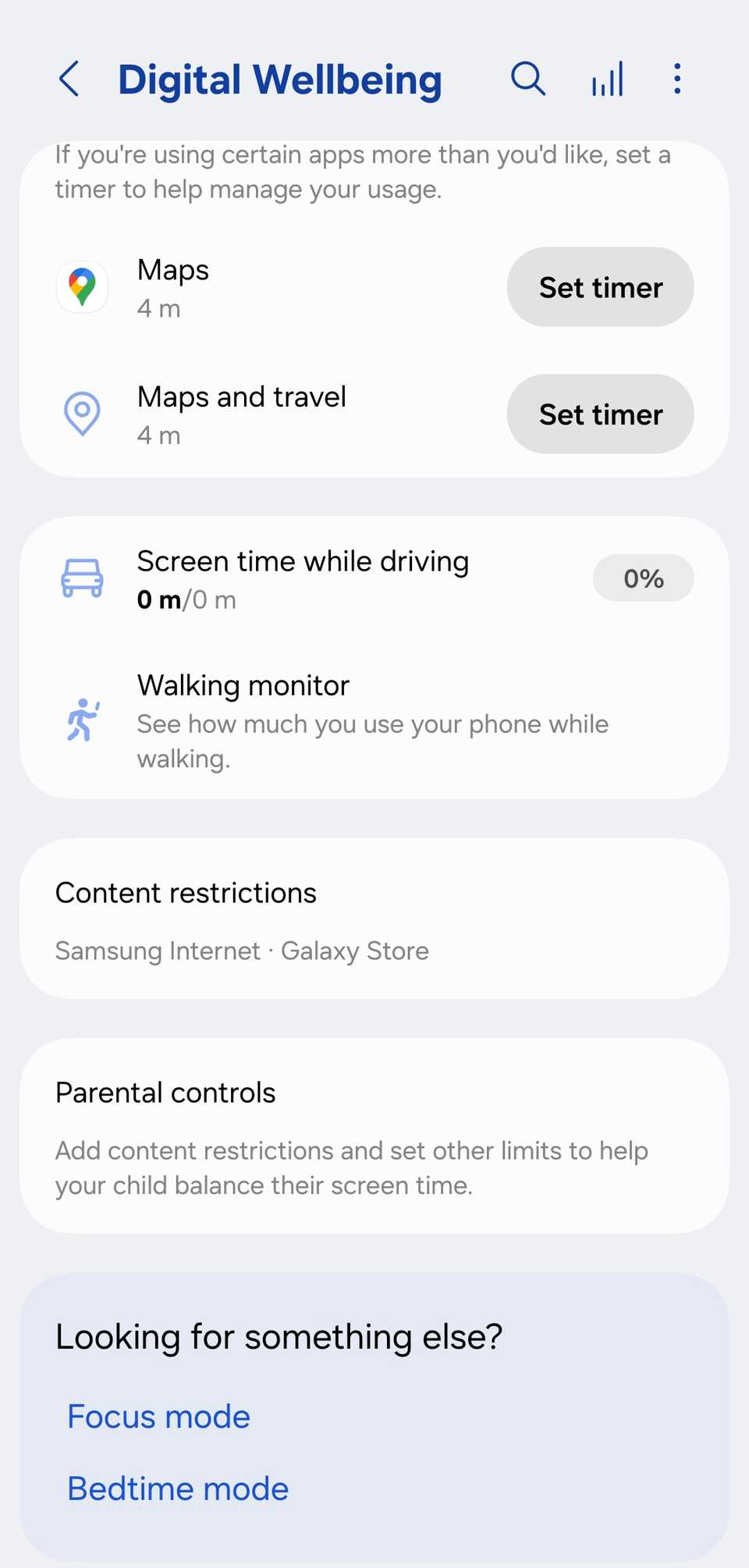
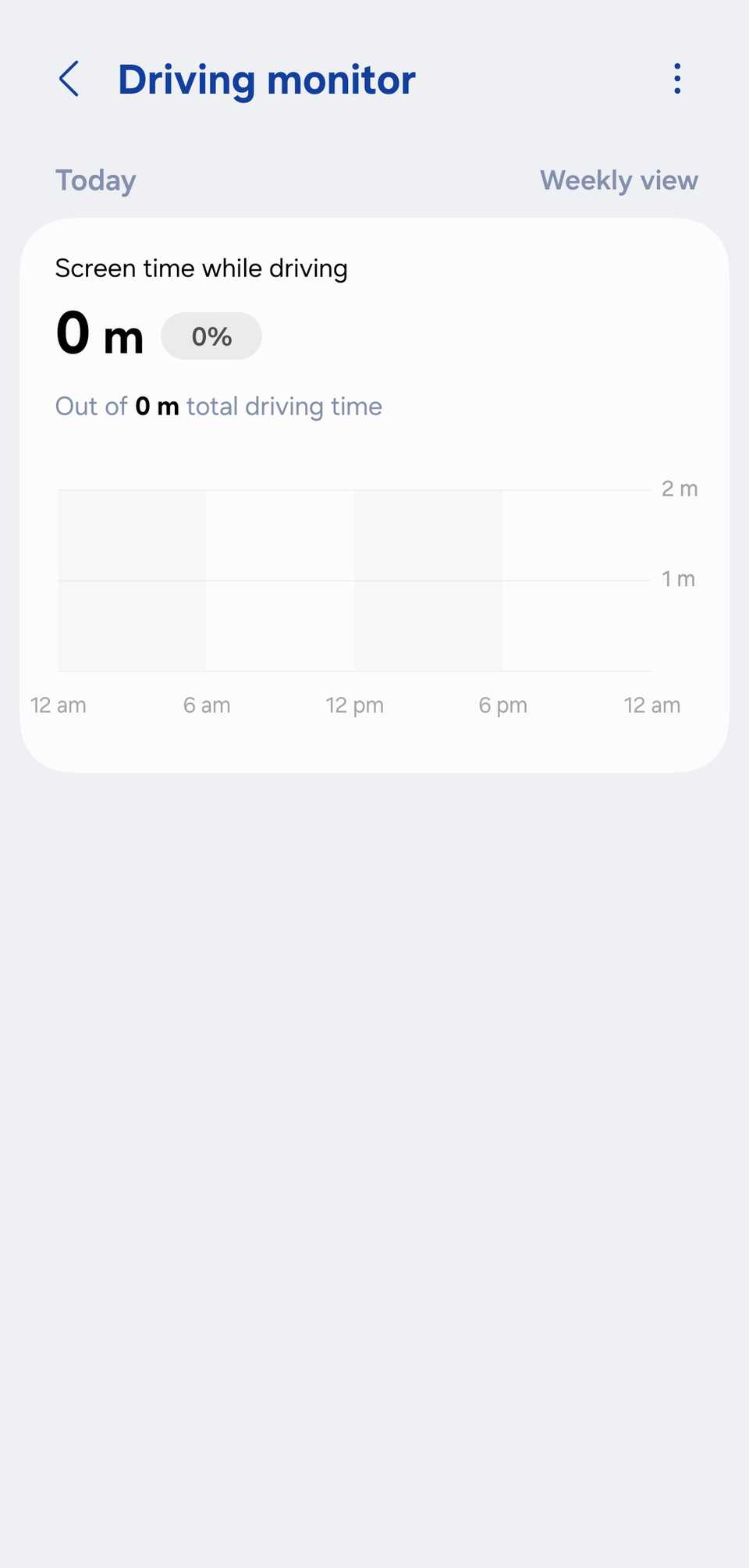
We often pick up a phone while driving to check a notification, email, or change a song. But those seconds add up to a massive safety risk.
I decided to stop relying on my own willpower and let Samsung’s Digital Wellbeing suite take the wheel.
Inside the Digital Wellbeing menu, there is a specific section for Driving Monitor. It tracks my screen time while driving. I can glance over it every week and make sure to keep that number under five minutes.
Related
7 tasks you can automate on Android
7 repetitive tasks you can automate on Android
Setting a data limit in Mobile Hotspot
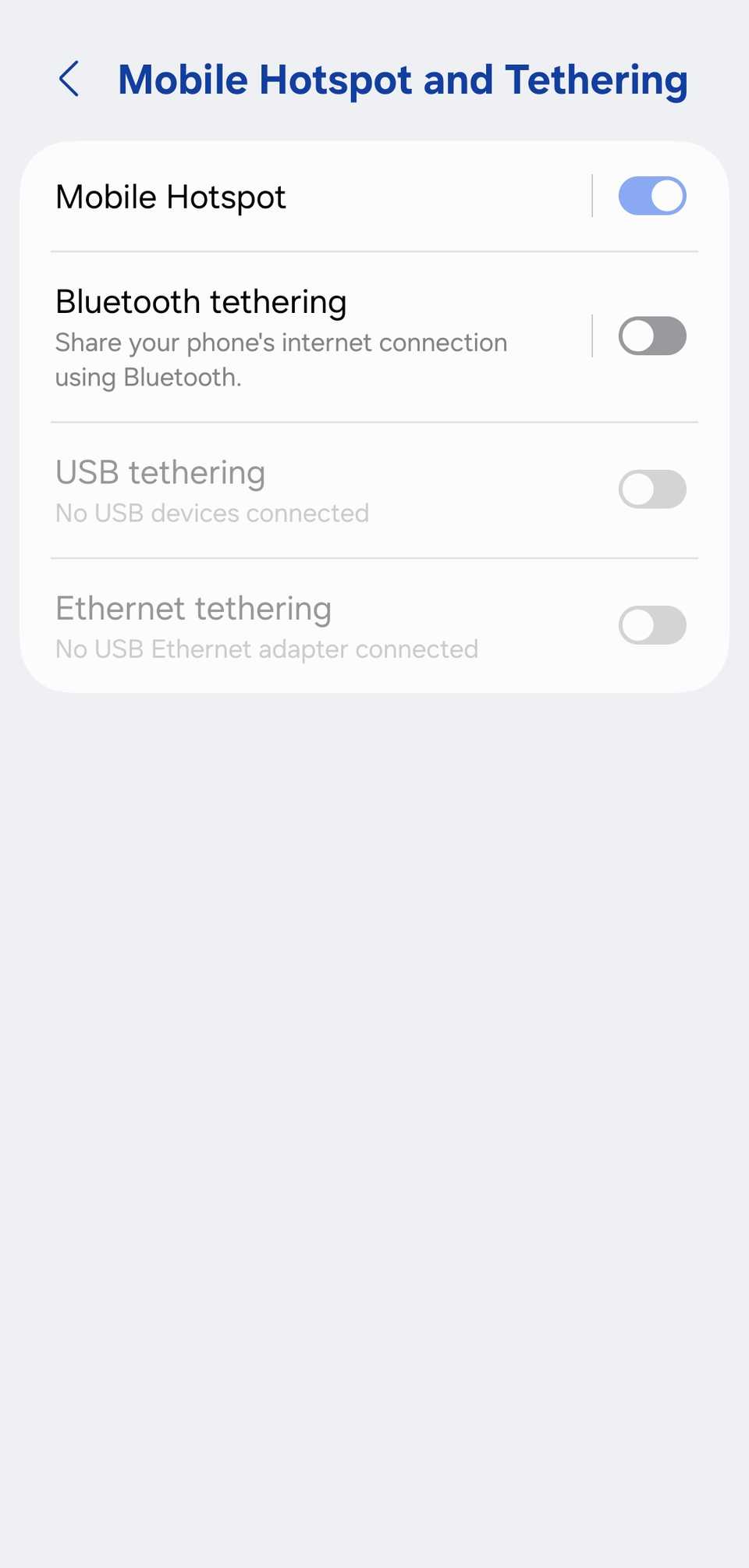
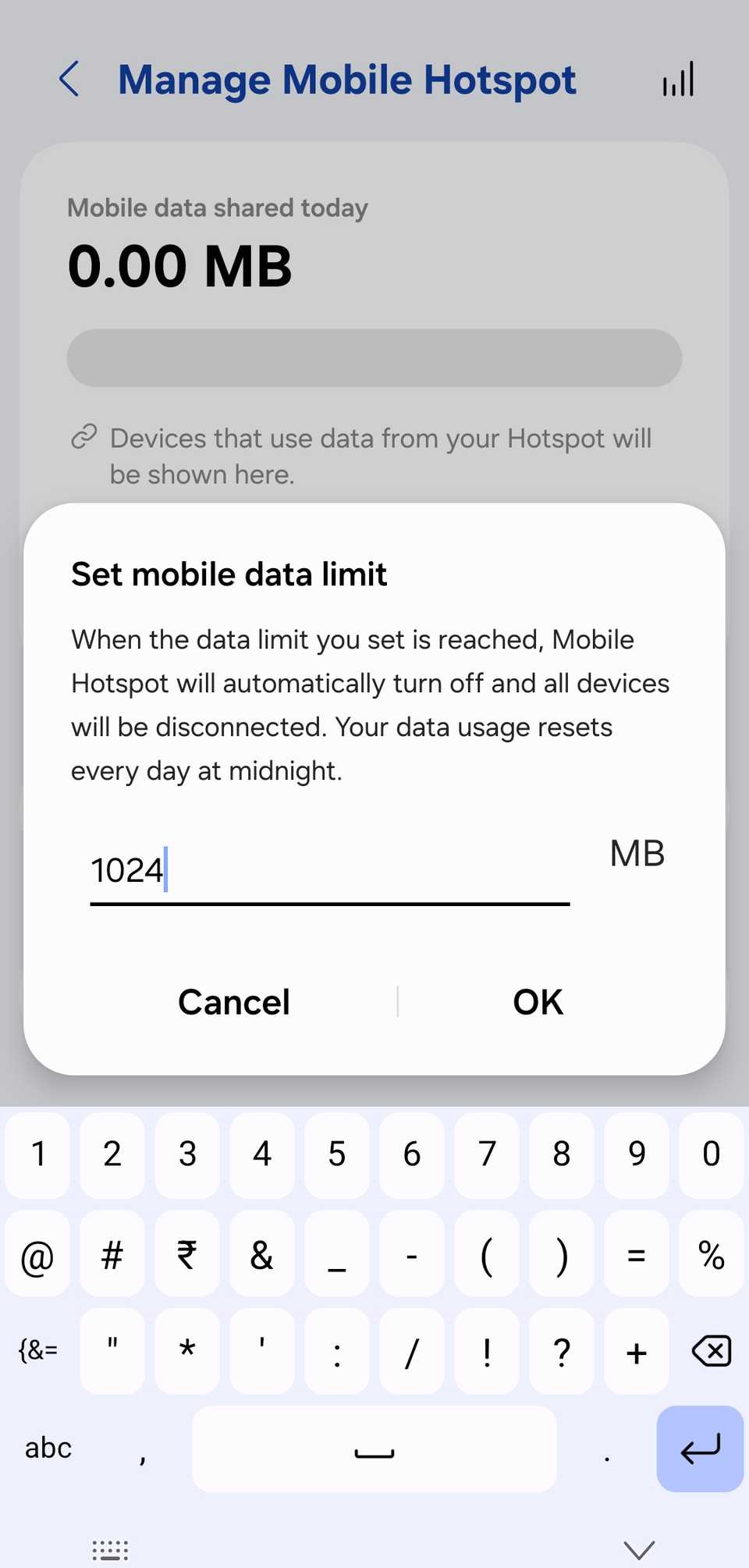
If there is one boring task that has saved me from a massive headache (and an even bigger phone bill), it’s automating my mobile hotspot.
I’m currently on a plan that gives me about 1.5GB of high-speed data a day, and if you have ever shared your connection with a laptop or a friend’s data-hungry phone, you know that 1GB can vanish in the blink of an eye.
I got tired of constantly checking my settings to see if I was nearing the limit. That’s why I headed straight to the Settings > Connections > Mobile Hotspot and Tethering menu and opened Mobile Hotspot.
I can set a data limit here and make sure it turns off the mobile hotspot the moment that limit is reached.
By stopping at 1GB, I ensure I still have 500MB left for my own GPS, YouTube Music, or urgent messages for the rest of the day.
Stop wasting time
You shouldn’t try to automate 50 things at once. I recommend starting with the one thing that annoys you daily and gradually expanding to other routines, modes, and One UI settings.
After all, my Samsung setup didn’t happen overnight, but after I started letting One UI handle the heavy lifting, I realized how much brain power I was wasting on chores my phone was perfectly capable of doing itself.
After you go through these tricks, make sure to check Good Lock to take your productivity to the next level.