
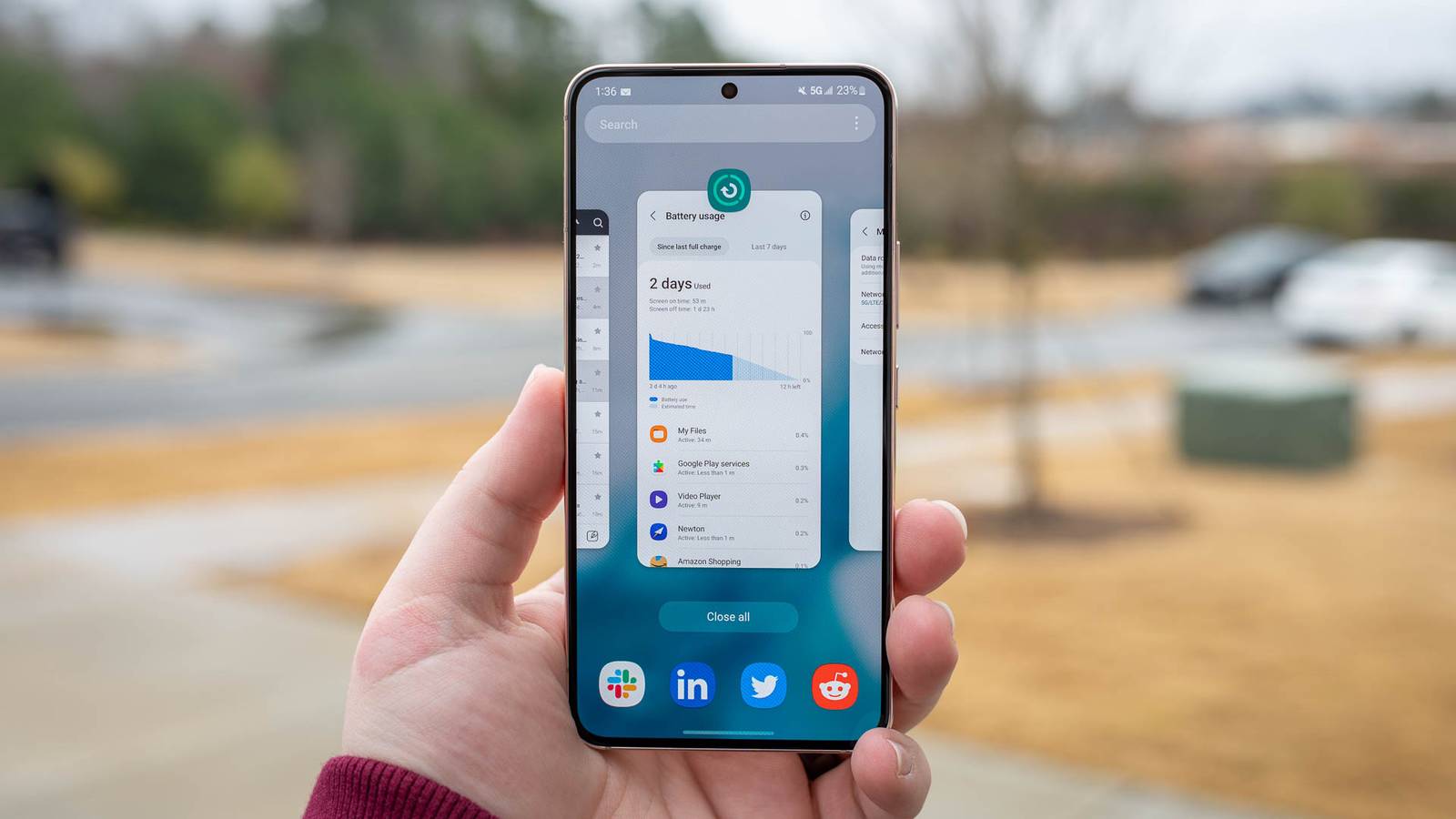
Thanks to steady hardware improvements and Samsung’s generous software support, even for its budget Galaxy models, your Galaxy phone might still have plenty of life left in it. If you’re not planning to upgrade anytime soon, a handful of simple tweaks can make your old Galaxy feel fresh again.
Install Good Lock
Credit: Goran Damnjanovic / How-To Geek
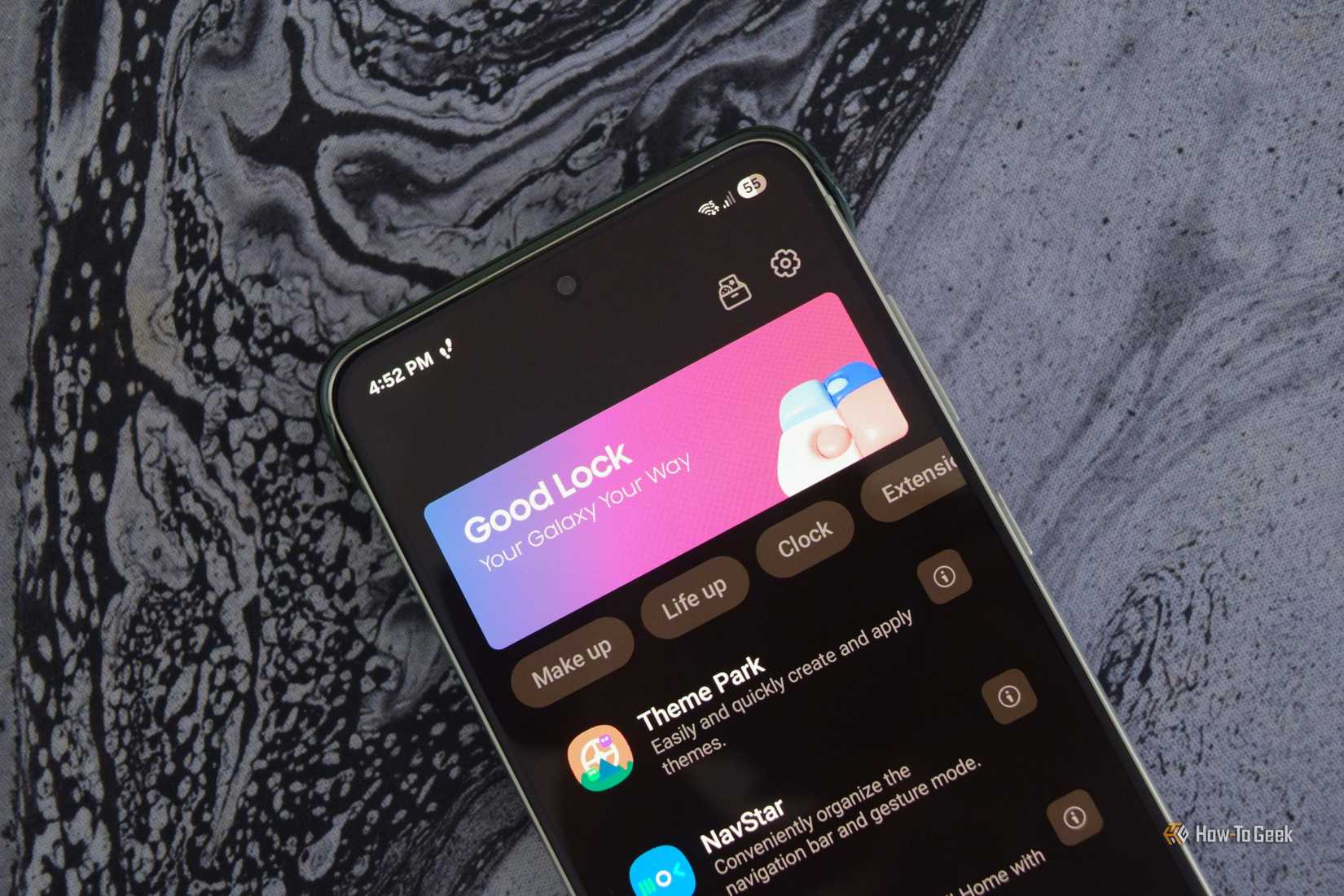
If you own a Samsung Galaxy phone and haven’t played around with Good Lock, you’re missing the best app Samsung has on offer. With Good Lock, you can customize your phone to your heart’s content, tweak settings not found in the regular settings menu, use extra features only available in the Good Lock app, and so much more.
Good Lock comes with a bunch of plugins, each allowing you to customize a different part of One UI. You can create your own themes with Theme Park, Home Up is like having a custom launcher with a ton of customization options, Sound Assistant lets you customize the volume panel, control playback with the volume keys, and adjust the volume step increments (my personal favorite), while QuickStar offers extensive Quick Panel customization.
There are more than a dozen other plugins that can drastically transform how your Samsung Galaxy phone looks and feels. After playing around with Good Lock, it’ll feel like you’ve just bought a brand-new phone with a completely different version of One UI.
Refresh the home screen with a new launcher
Credit: Kishan Vyas / How-To Geek
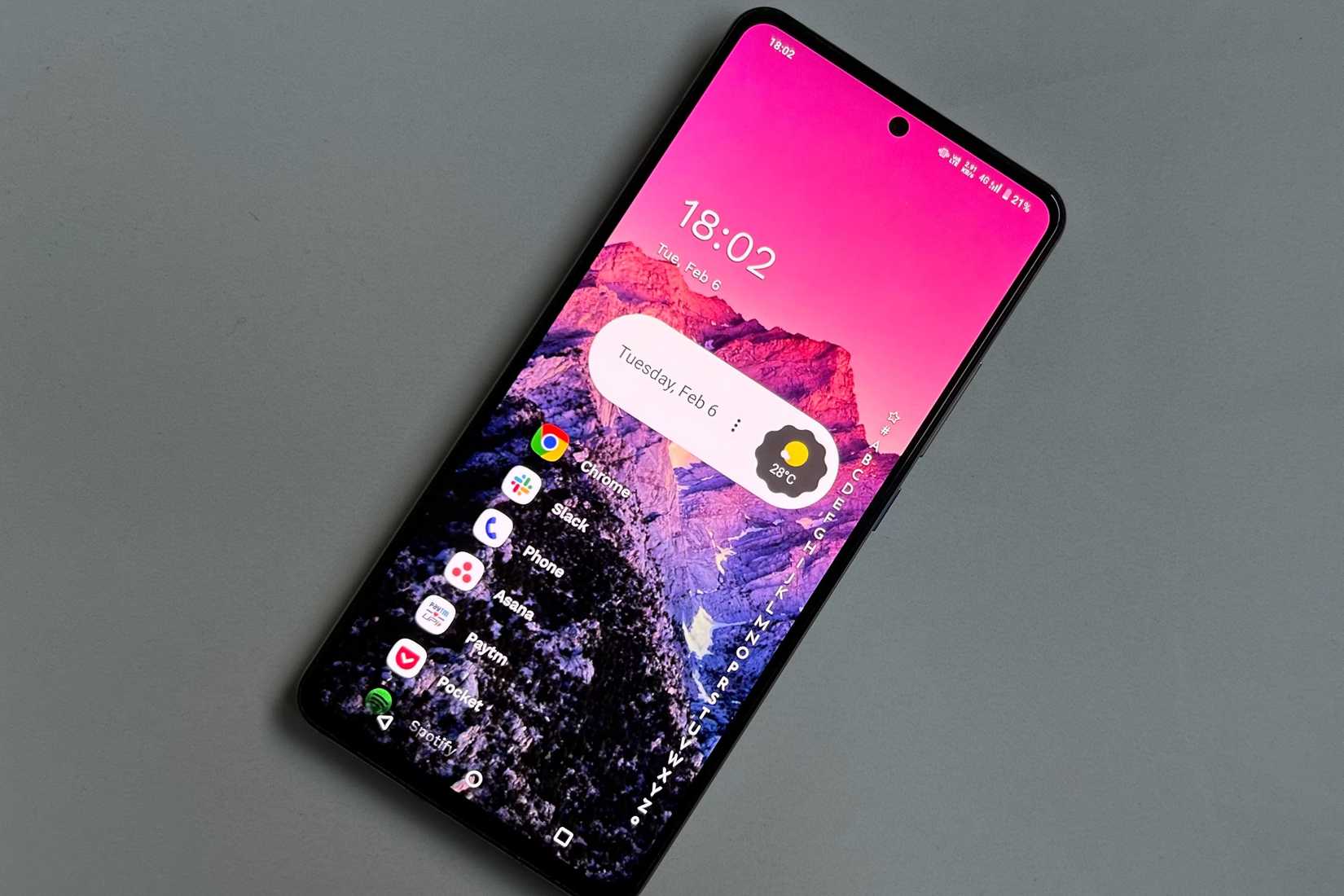
Now, Good Lock is an incredibly powerful customization app that functions like a fairly robust custom One UI launcher, but if you want to take a break from OneUI, just install a third-party custom launcher.
Personally, I really like the Niagara Launcher because it’s so different from any other launcher I’ve tried on Android. It’s optimized for one-handed navigation, looks fantastic, uses few resources, and is a perfect option if you want a break off from One UI. Just let it simmer for a while because it takes some time to get used to it and discover everything that’s on offer.
Another launcher I’ve tried that offers a well-designed and unique user experience that’s very different from One UI is the AIO launcher.
Check out the Galaxy Themes app
Credit: Samsung / RBG Design
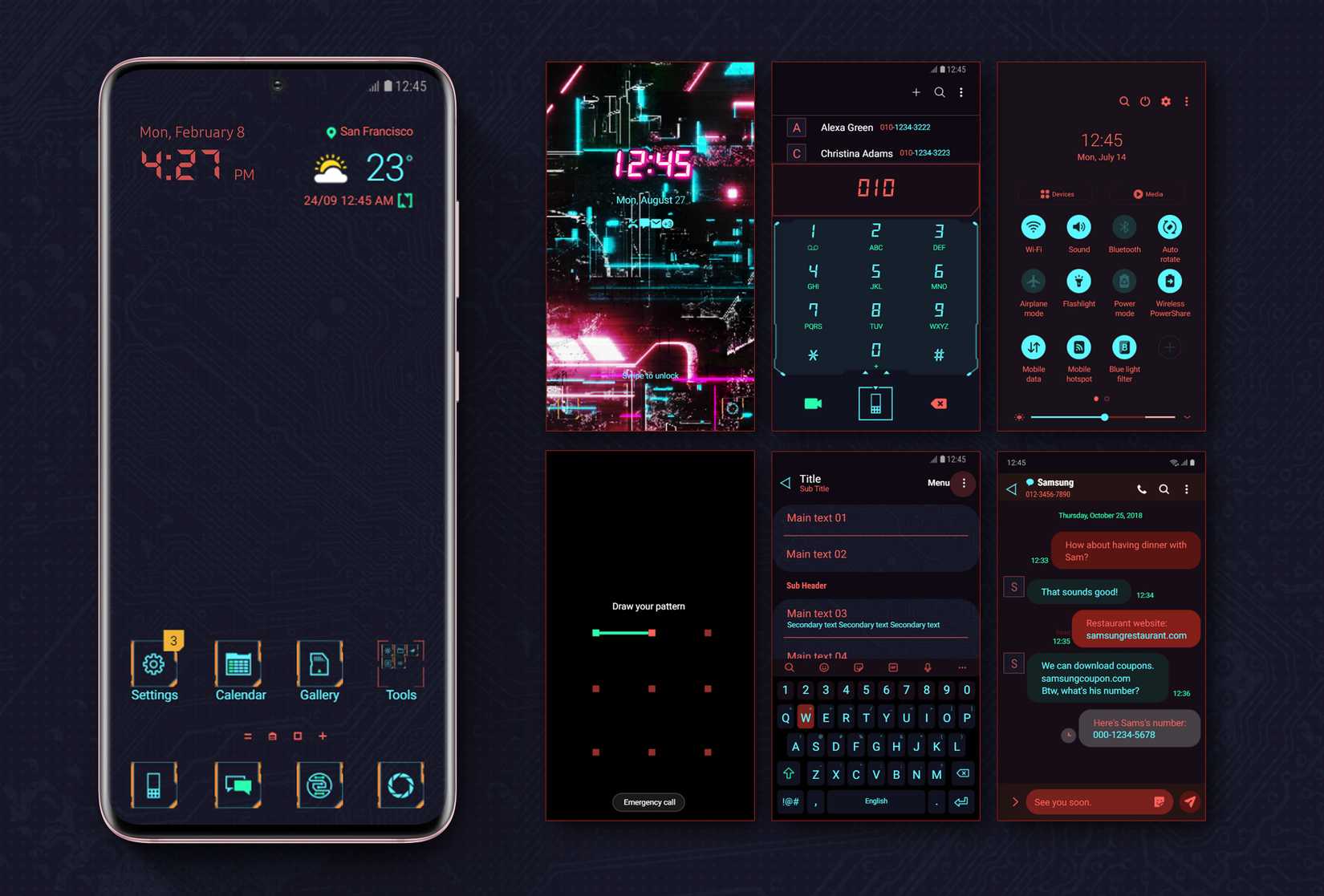
You can find Galaxy Themes in the “Themes” section of the settings menu on your Galaxy phone. While not as game-changing as Good Lock or third-party launchers, it can help if you’ve gotten weary of the same old home screen and icons.
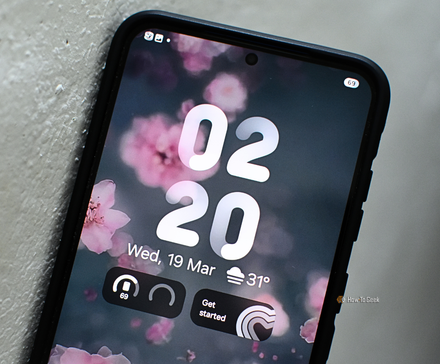
You can install theme packs that include custom icons, wallpapers, and color palettes, as well as custom icon packs. The app also offers a ton of custom AOD (always-on display) backgrounds, both static and animated.
Related
How to Customize the Always-on Display on a Samsung Galaxy Phone
A customized lock screen is a customized always-on display!
Speed up animations
Credit: Justin Duino/Lucas Gouveia/How-To Geek
Aside from applying a fresh coat of paint, you can also make your phone snappier and more responsive by adjusting various settings, deleting app caches, and more.
The tweak with the most drastic effect on perceived responsiveness is speeding up system animations. I’ve been enabling it immediately after I get a new phone for almost a decade now. To access system animation scale options, go to Settings > About Phone > Software Information, then repeatedly tap “Build Number” to unlock the developer options menu.
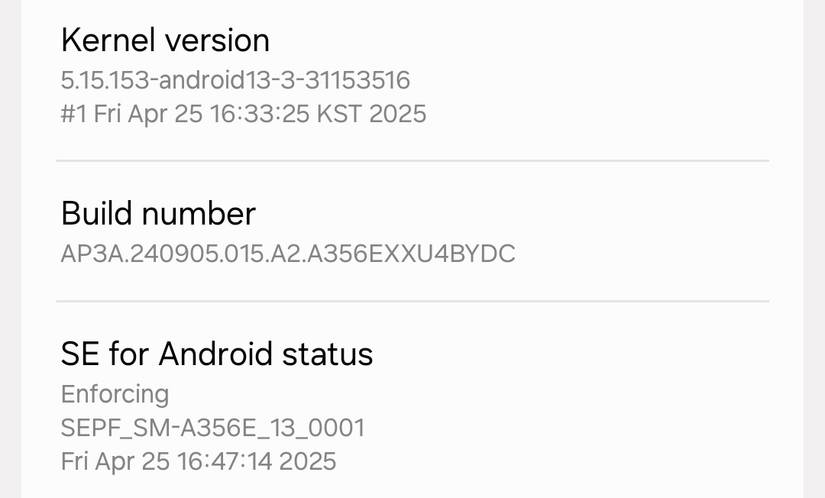
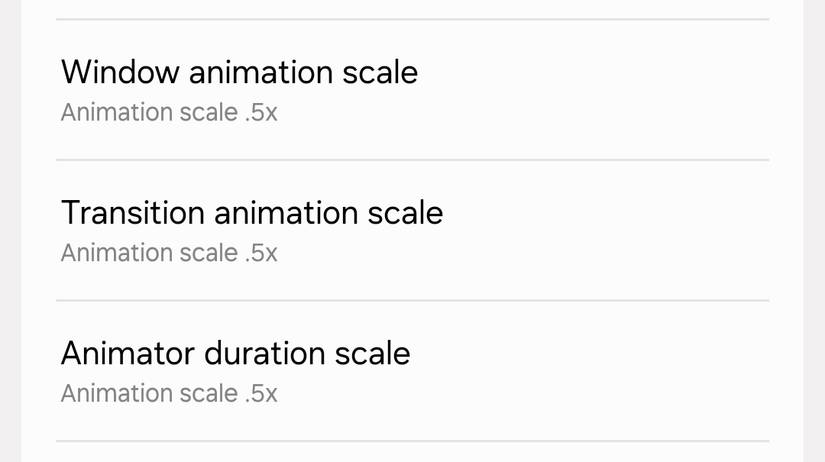
Now open the developer menu (it is located at the bottom of the settings menu) and scroll down until you reach the “Drawing” submenu. Once there, enable the .5x animation scale (the default is 1x) for “Window animation scale,” “Transition animation scale,” and “Animator duration scale.” Now your phone will feel drastically snappier when navigating the UI.
Another option you can adjust to make the phone feel more responsive is the touch and hold delay, which sets the time required to recognize a continuous touch as a touch and hold. To do so, open Settings > Accessibility > Interaction and dexterity. I set this to 0.5 seconds, but you can go as low as 0.3 seconds.
Delete and disable apps and services you’re not using
Credit: Lucas Gouveia/How-To Geek
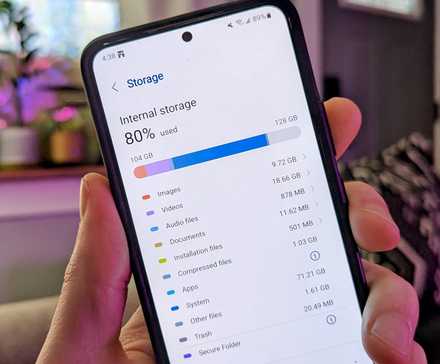
If you’ve got a bunch of apps you’re not using, deleting them can help your phone feel faster, since having its storage filled to the brim can negatively affect performance. Your phone’s storage is made of flash memory, and flash memory gets slower as it fills up.
Optimally, you should have around 10% to 15% of your internal storage free, and the best way to free up some storage is to delete the apps you aren’t using. You can also free up storage by uninstalling updates for apps you cannot delete and then disabling them to prevent them from running in the background and using a portion of your phone’s RAM.
To uninstall updates, open the app you want to remove updates from, tap the three-dot menu at the top, and then select “Uninstall updates.” Then you can disable the app.
I also recommend disabling precise location and restricting background usage for certain apps, which can drain your battery and slow down your phone if left unattended. You can follow our guide to disable precise location. To restrict app background usage, open Settings > Apps, select the app you want to restrict, tap “Battery,” and either select “Optimized” or “Restricted.”
Clear the system and individual app caches
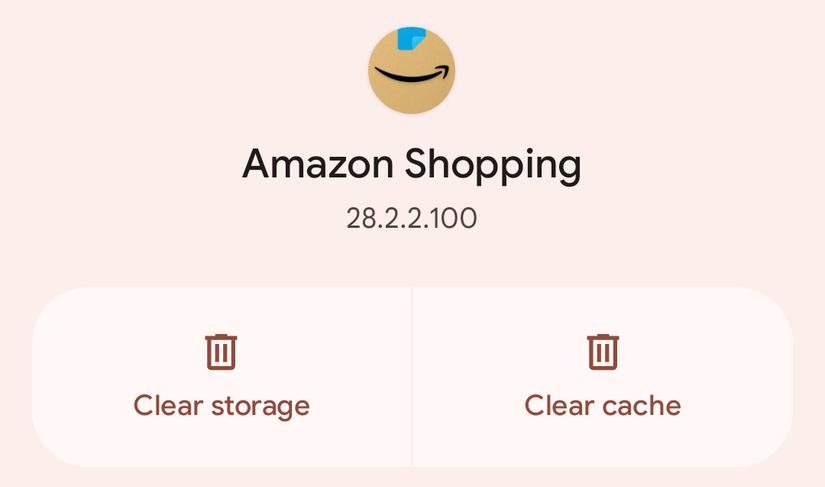
Individual app caches take up only a few hundred megabytes, but add them up, and you can free up gigabytes of space, which in turn can make your phone feel faster. To delete an individual app cache, open the app, tap “Storage,” and tap the “Clear cache” button.
Note that some apps, such as Spotify and other streaming services, have large caches that appear as the app’s data in the system Apps menu. Deleting this data will not only delete the app’s cache but also your accounts, settings, the whole nine yards, which isn’t ideal. You should instead try to find out how to delete the cache from inside the app and do it that way.
For Spotify, open the Spotify app, tap your profile picture, open “Settings and privacy,” then tap the “Data-saving and offline” menu. You can then delete the cache without it affecting other data. You can also delete downloaded music if you want to free up even more storage. The screenshots below show how to delete Spotify cache on an iPhone, but the steps are the same on the Android version of the app.
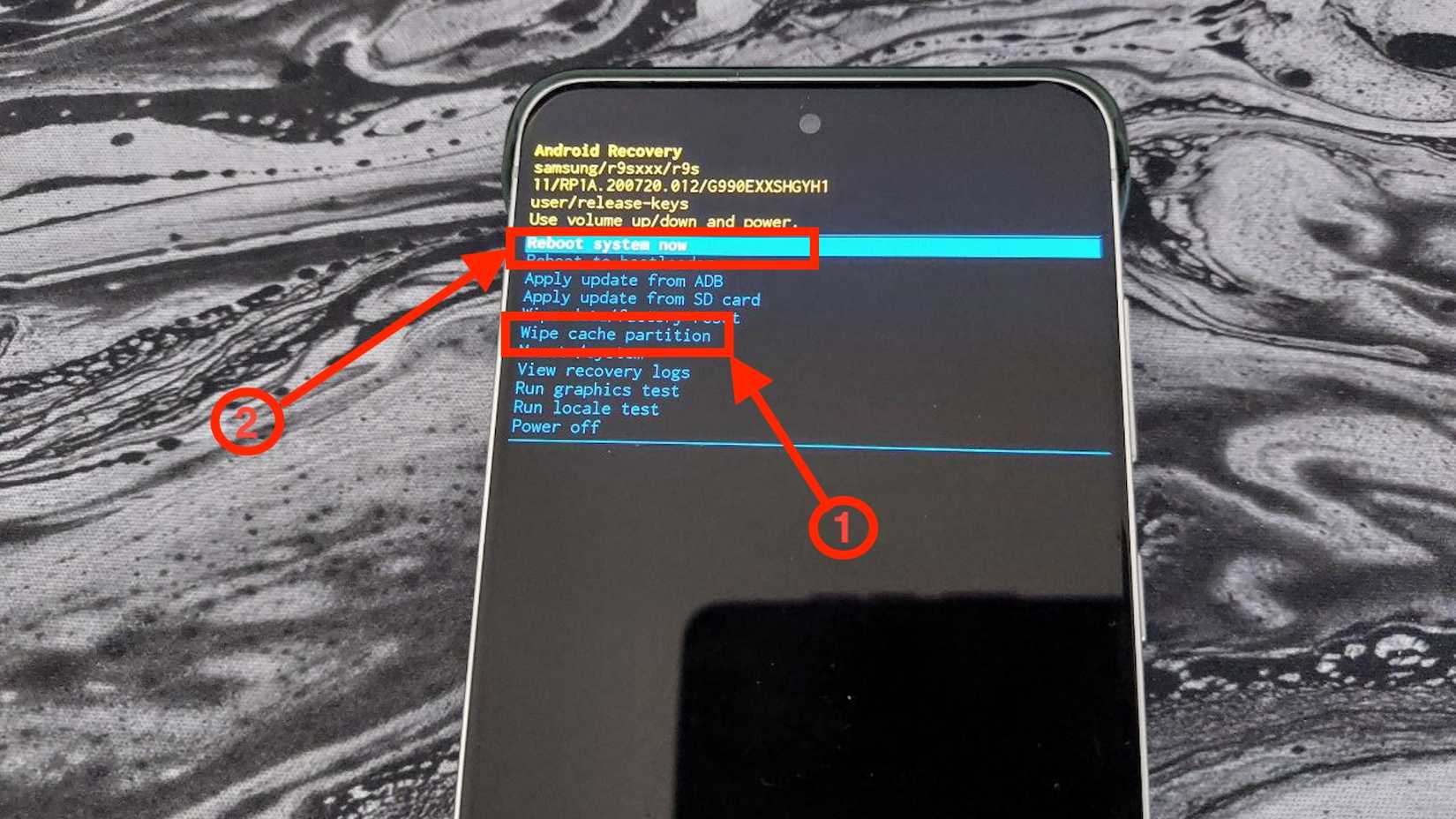
Lastly, you can clear the system cache partition. This can greatly help with performance if you’ve used the phone for years but have never purged it, since it can fill up with residual update files that can slow down your phone and trigger various issues and bugs.
The last time I did it, I freed up almost 2GB of storage, but I didn’t get any performance improvement because I delete the system cache a few times a year. But if you’ve never done it, there’s a good chance your phone will feel faster.
Credit: Goran Damnjanovic / How-To Geek
To delete the system cache, shut down your phone, connect it to a computer (some Galaxy phone models don’t require this step), and hold the volume up and power buttons to summon the Android recovery menu. Use the volume keys to navigate, and the power button to clear the system cache partition, then reboot your phone.
Thanks to these tweaks, your Galaxy phone won’t just feel more responsive; it will also look and feel like a brand-new phone, at least software-wise. Sure beats actually buying a new handset.
Related
The stuff taking up Android storage nobody tells you about
Most Android storage isn’t lost to apps or photos.