
Android Auto is one of the best car infotainment systems out there.
While manufacturers are working on a competent alternative, right now, Android Auto beats Apple CarPlay and self-made car operating systems into a cocked hat. But that doesn’t mean it’s perfect.
I’ve been using Android Auto a lot recently, and I’ve discovered some areas that can be improved with some quick upgrades.
Here are some of the ways I’ve really upgraded my Android Auto experience.
Related
My ultimate Android Auto setup for a distraction-free drive
The minimalist’s guide to Android Auto
Turning on developer mode
Credit: Lucas Gouveia / Android Police | arda savasciogullari / Shutterstock
The foundation of any improvements to Android Auto always starts in one place: removing Google’s restrictions.
The Developer Mode menu isn’t really a secret, but Google would definitely prefer you didn’t mess with it. Why? Because it hands you a lot of control that Google would rather you didn’t have.
To reveal the Developer Settings app, open your phone, head to Android Auto’s app settings, scroll down to Version and permission info, and tap it ten times in a row. That’s all you do.
What do you do here? Whatever you like. We’ve posted full guides on what to do here before, but good options to look out for are the ones that change Android Auto’s resolution to better suit your screen, and disabling the Save video and Save audio features to reduce your mobile data use.
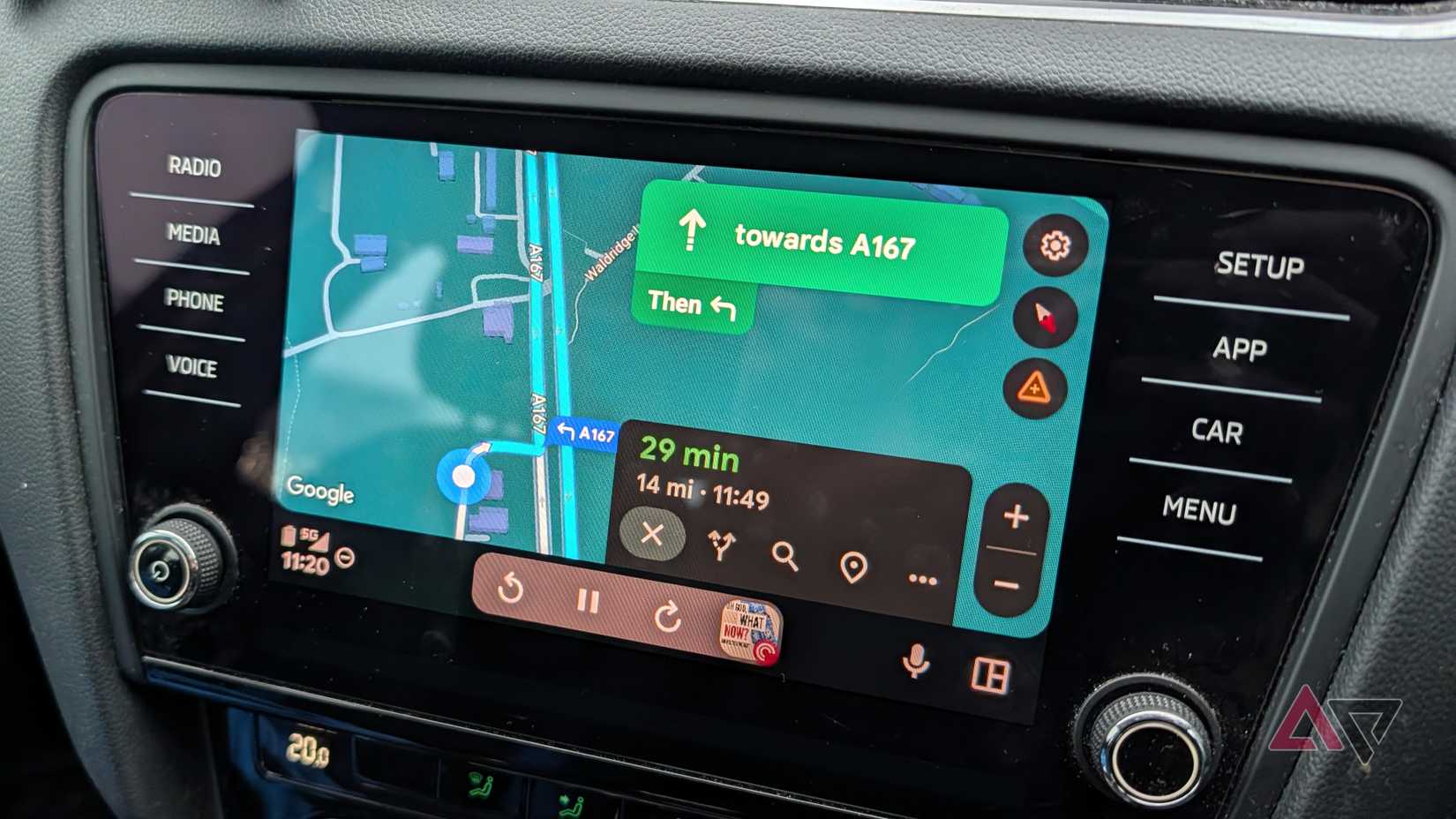
One of the most impactful changes to my Android Auto experience has been the introduction of taskbar widgets.
Essentially the same as the widgets on your phone, Android Auto’s taskbar widgets live at the bottom of your screen where you’d normally see a few apps.
While media is playing, and you’re on another full-screen app, a taskbar widget will show you your currently playing podcast, audiobook, or music.
You’ll have controls for that app, and a basic icon to show what’s playing, and not much else. But really, that’s all you need, especially if you want your map app to take up the rest of your screen.
While the Coolwalk interface is great for showing multiple apps side-by-side, for driving around complex roads, you often want to see as much of a map as possible. Taskbar widgets let you see all that without losing your media controls.
To switch it on, go to your Settings app, then tap Connected devices > Connection preferences > Android Auto. Then toggle Taskbar widgets. It’ll activate any time it needs to, and it’s far more useful than you might expect.
Make the most of your apps
Credit: Lucas Gouveia / Android Police | arda savasciogullari / Shutterstock
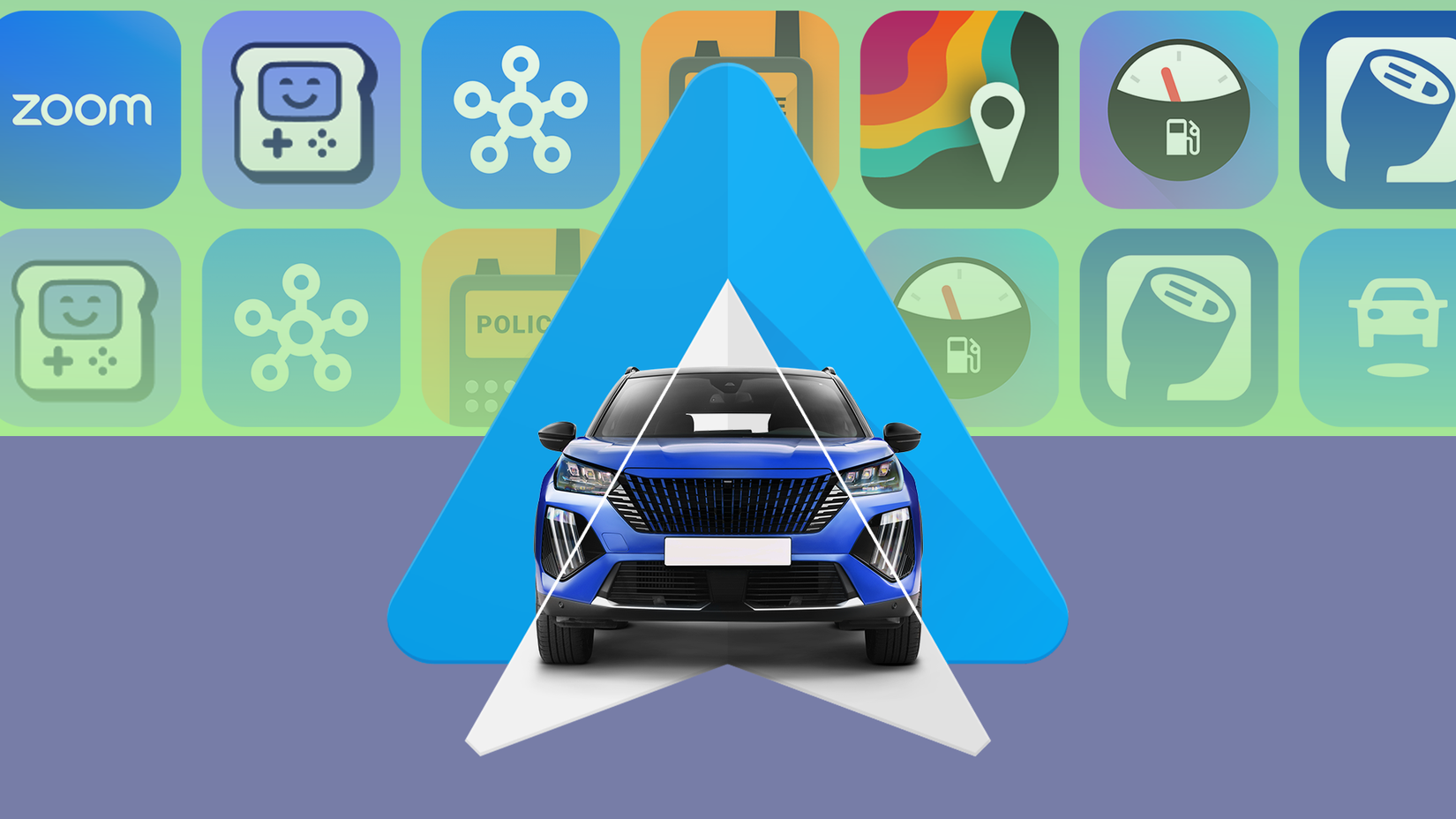
One of Android Auto’s best features is the Google Play Store. You have access to hundreds of Android Auto-compatible apps, and choosing the ones you want is crucial for improving your experience.
Starting with the apps you use the most is a good first step. If you have a specific podcast app, there’s often an Android Auto version, and the same can be said for music apps like Spotify, YouTube Music, all the usual suspects.
Also keep in mind that it’s possible to play games on Android Auto, though only while the car is parked. This can help you to while away the time waiting for someone, or any other reason you might be sitting in a car for a long time.
Changing from wired to wireless
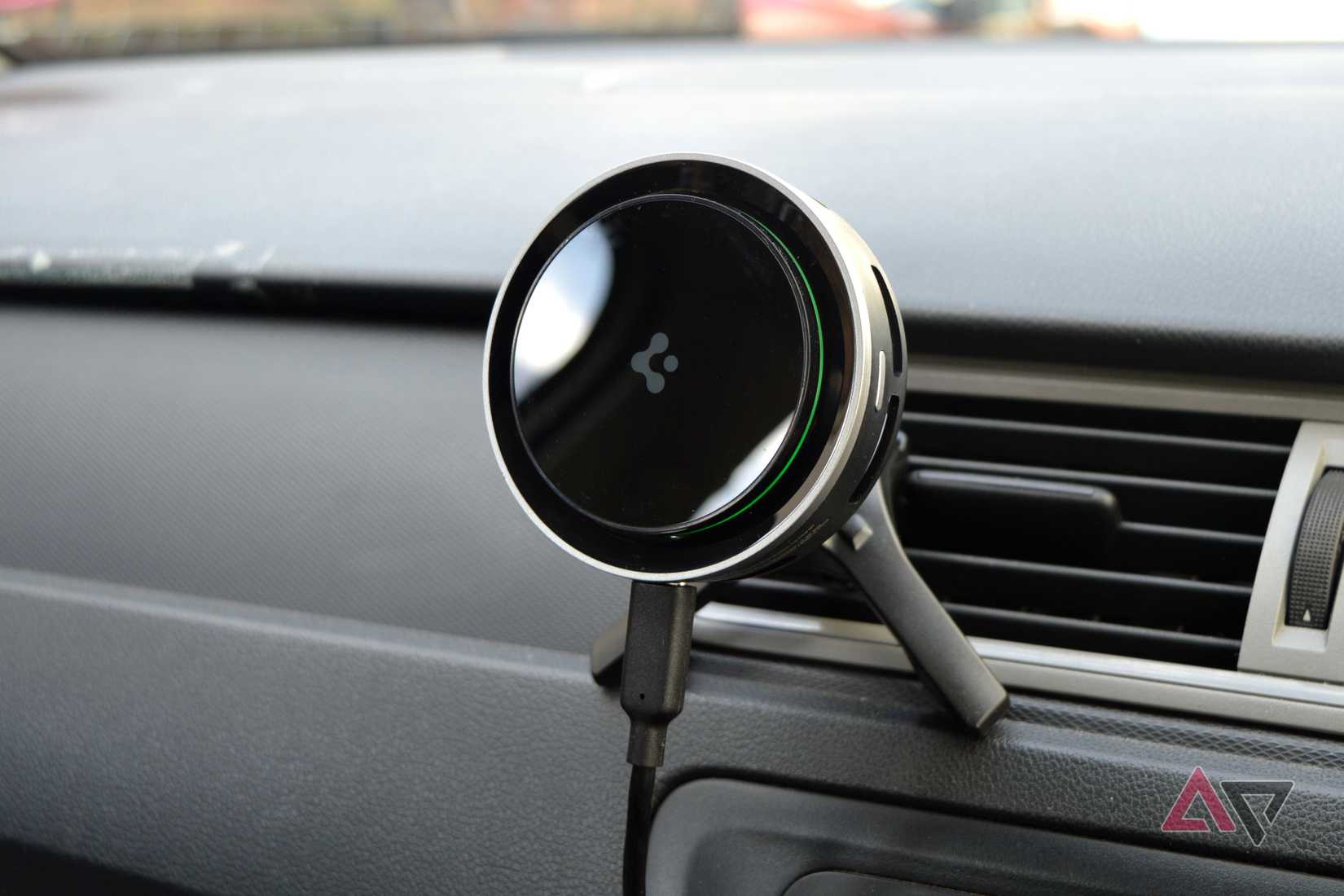
This isn’t everyone’s cup of tea, for sure. But speaking personally, I love wireless Android Auto.
Some people say it’s unreliable, and it makes your phone use a lot of battery and run hot when it’s working. And those criticisms may be true — but it’s not hard to work around that. I bought a Spigen Cryomax car charger and I’ve had no problems with it.
But wired Android Auto? That was awful.
Turning a corner too hard would cause the cable to fall out and drop the connection. Potholes would cause the cable to come flying out. Sometimes gravity, harsh mistress that she is, would decide she’d had enough of my rubbish and would pull it out herself. Cables are rubbish.
Granted, I had to buy an adapter to get it to work, but that was no problem. If your wired Android Auto connection is a bit unreliable, like mine, I urge you to follow my example.
Get your Routine down
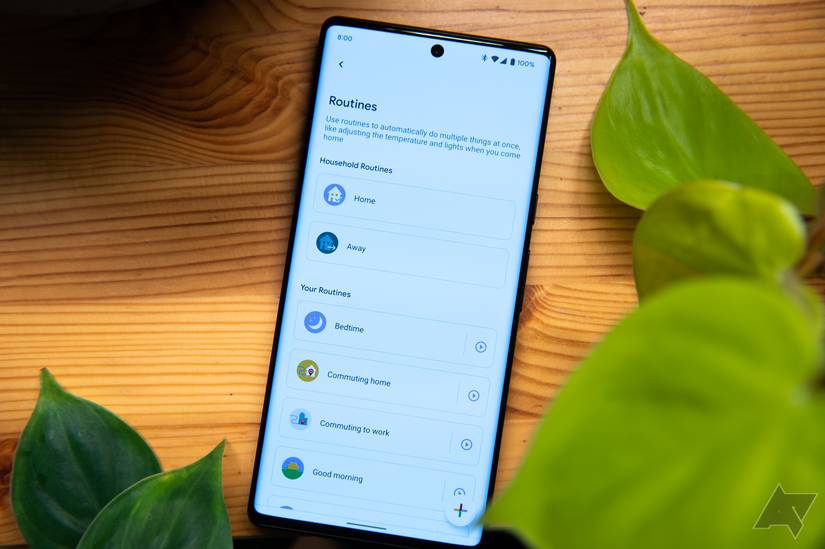
We all have our routine drives. The commute, the drive to pick the kids up, the weekend shopping trip — wouldn’t it be nice to automate some parts of those?
Imagine getting in the car after picking up the kids, and the car automatically switching to a kid-friendly playlist, and sending your partner a message to let them know you’re on the way. You can do that with Google Routines.
Your imagination really is the limit here, and you can create Routines to set up all your usual commute comforts, like your morning podcast or playlist, or just to set up your navigation and check traffic.
If your house has enough automation, you can create a Routine to dim the lights and play your entrance music when you arrive, like you’re a WWE wrestler.
You can find out how to do this in our Google Routines guide, but it’s quite straightforward.
This is another of those elements that really does feel like a massive upgrade.
Organize your launcher
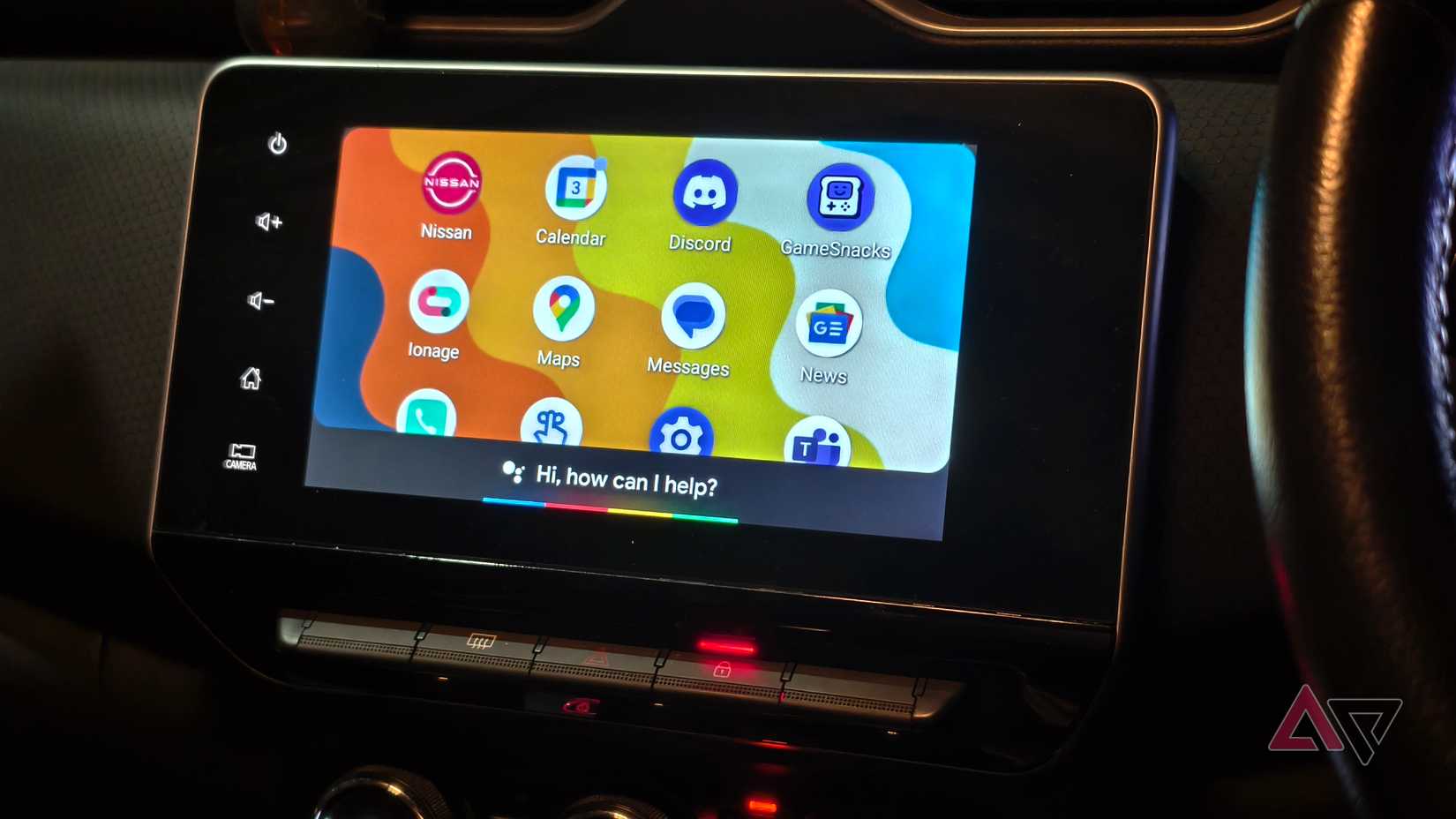
It’s great when apps you love have an Android Auto version, but those aren’t always apps you’ll want to use in the car.
Thankfully, you can chop out those unused apps, so they don’t clutter up your Android Auto interface.
Go to your Android Auto settings by searching for “Android Auto” in your Settings app. Then go down to Customize launcher, and untick any apps you don’t want in there. This is a fairly minor change, but it’s an impactful one.
While you shouldn’t be swapping apps while driving, any time looking for apps will be significantly reduced if you’re not scrolling through apps you don’t care about.
Download, download, download
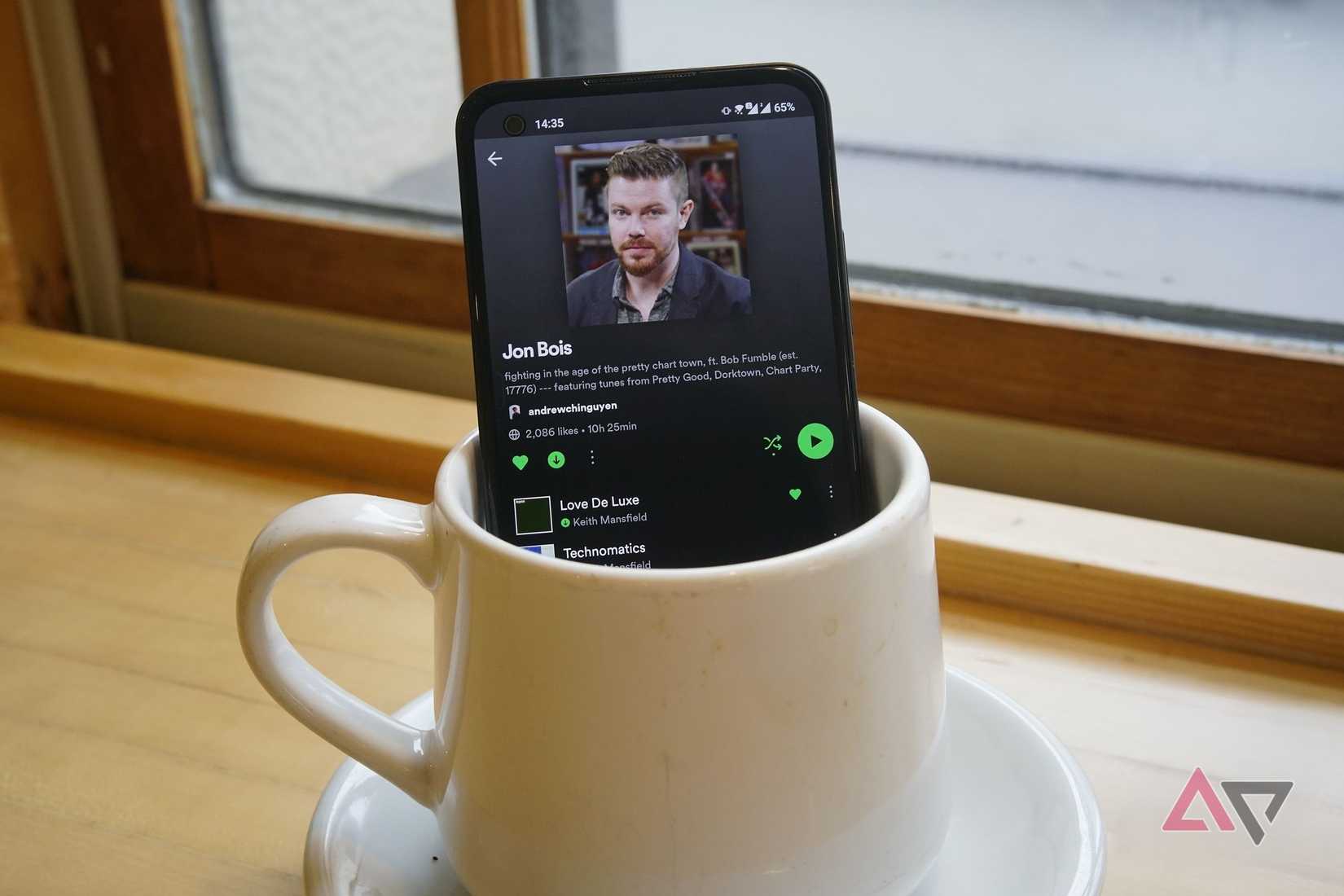
This is another small change you can make that won’t take long, but will significantly improve your driving if you often find yourself in places without reliable cell data.
Most music apps will allow you to download your playlists to listen to later, and if you have a go-to driving playlist, you need to make sure it’s downloaded onto your device.
The same goes for your maps. Planning a long drive? Download the map for your route, so even if you lose connectivity, you won’t lose your directions.