
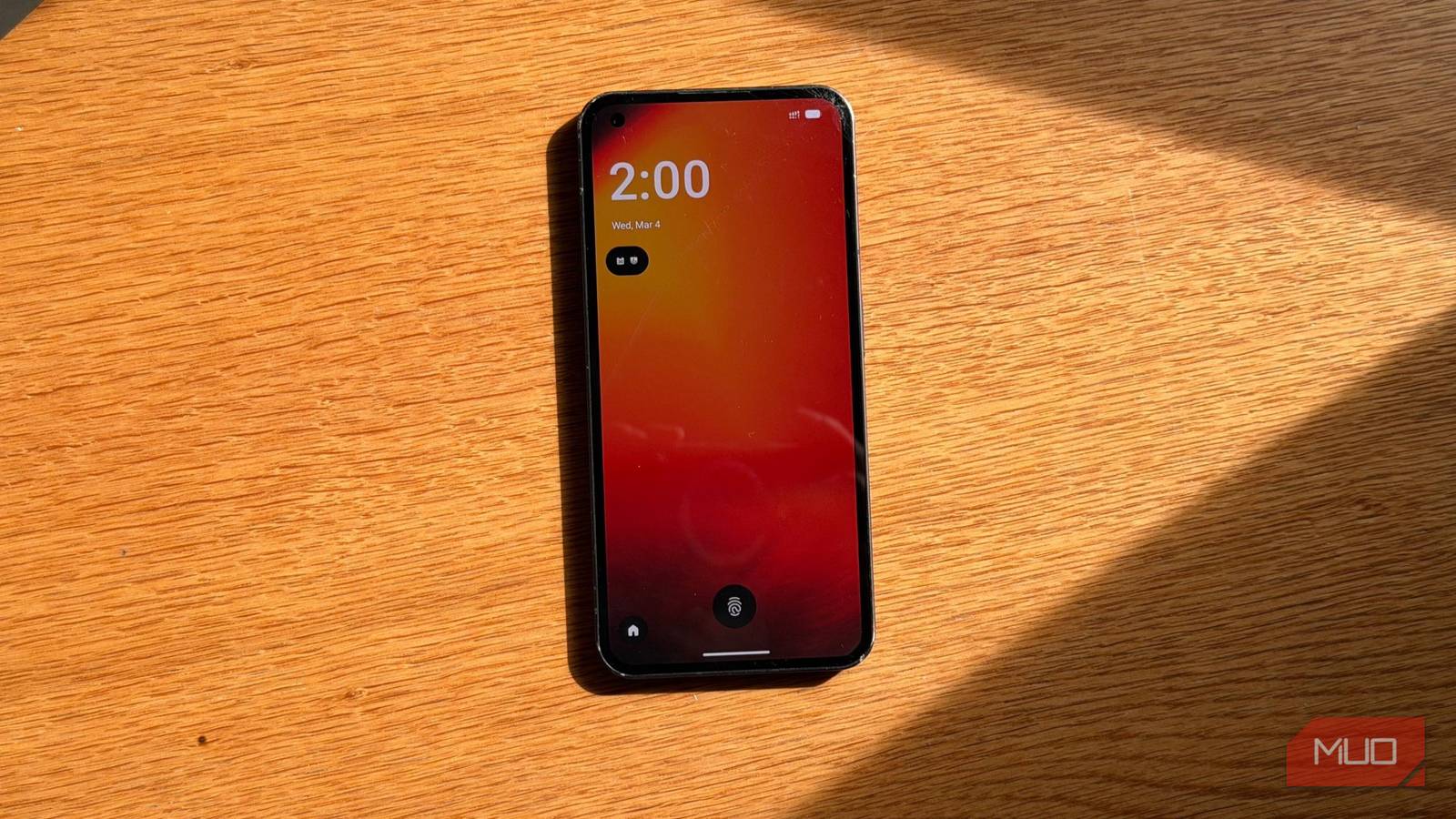
I have owned my Nothing Phone (1) for years. I still remember the excitement when it was first teased; I watched every hands-on video on YouTube. I knew right then that I had to upgrade from my aging OnePlus 6. I bought the Nothing Phone the moment it hit the market, and I absolutely loved it. Many years have passed since that launch day, and while it isn’t my primary device anymore, it still serves me well as a reliable secondary phone.
The problem started when official updates for the Phone (1) officially hit a ceiling at Android 15. With the Android 17 beta already starting to make headlines, Android 15 is slowly but surely drifting into outdated territory. But, I knew I didn’t have to settle for the manufacturer’s timeline. I could manually upgrade to Android 16, and perhaps even 17 later on.
I had been eyeing LineageOS for a while. It’s sleek, open-source, and — most importantly — offers a lifeline to hundreds of devices that original manufacturers have long since abandoned. When I saw that they officially supported the Nothing Phone (1), I decided to take the plunge.
LineageOS is easy to install
And it gives you a choice
The installation process was surprisingly straightforward. The documentation provided by the LineageOS team is incredibly clear, but as with any form of flashing, there is always that lingering shadow of doubt. It’s like installing OpenWRT on a router; it’s a simple enough task, but if you have a special talent for failing to follow instructions, you can still manage to brick your device.
If you’re the type of person who skims through manuals, proceed at your own risk. The setup isn’t a magic one-click install. There are several steps you have to navigate, but if you pay attention, it doesn’t take much time at all.
LineageOS also ships without Google apps or Google services. That is, of course, part of the appeal for a lot of people. But that wasn’t what I was after. I wasn’t trying to de-Google my life. I just wanted Android 16 on my phone. So I installed the Google apps package too, which sets everything up for you. That part was easy enough.
The LineageOS experience
Android with no skins
Once I was in, my first impression was good. The UI is very close to base Android, and it’s clean. I liked the Android 16 additions, and I liked the amount of control the quick settings panel gives you. It all felt snappy, fast, and light.
Amir Bohlooli / MUO
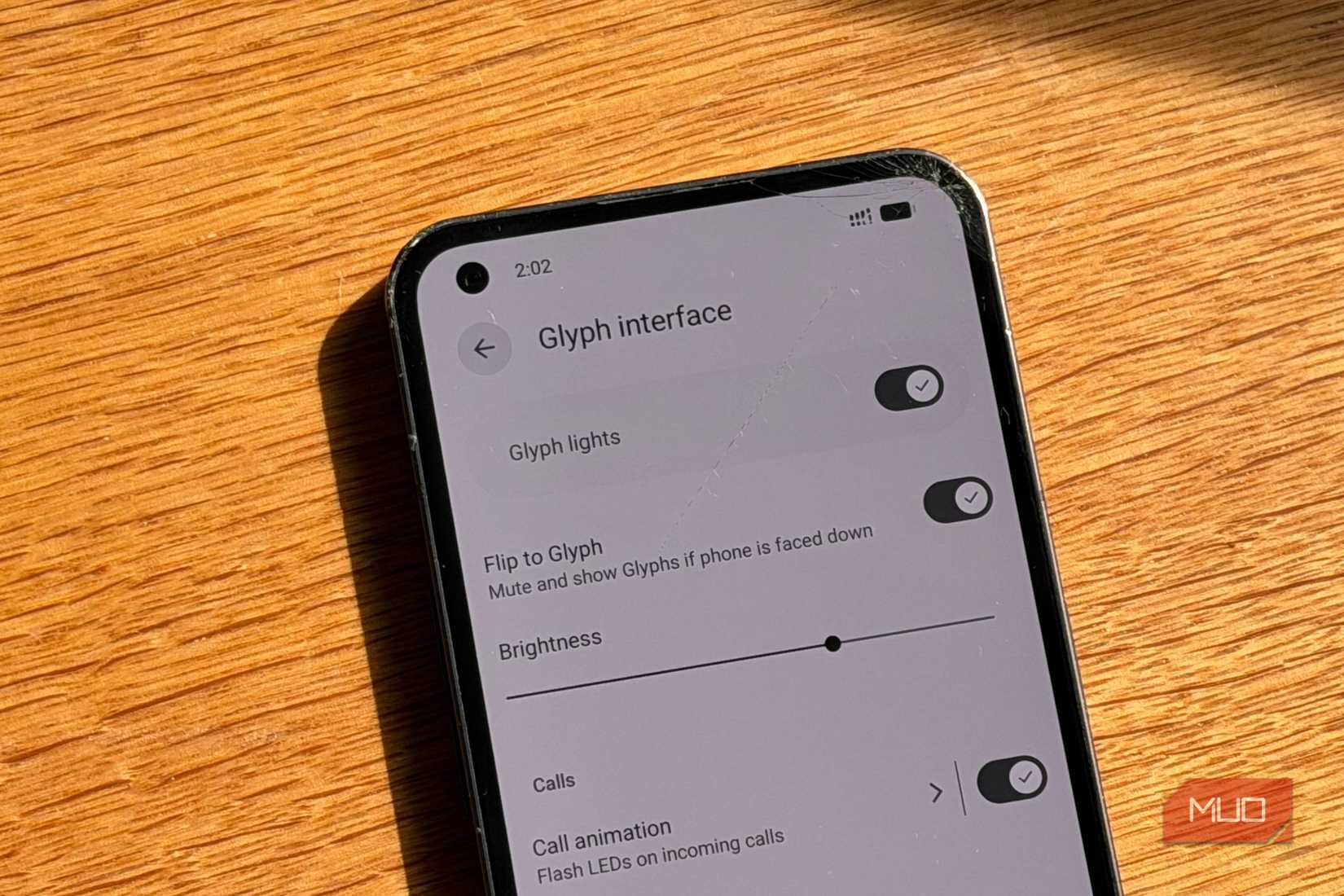
I had some typical worries that you get when you’re installing a new Linux distro (E.g. is my fingerprint sensor still working? What about the Glyph interface?). To my surprise and relief, everything worked. The Glyph interface had its own settings page, just like it did on NothingOS. The fingerprint scanner worked too, though I will say it felt a little slower than before. Still, everything important was there, and looking back, I probably shouldn’t have expected anything less — I had installed the build tailored specifically for the Nothing Phone (1).
LineageOS is undeniably snappy. It feels fast, unburdened by the weight of manufacturer skins. By default, it comes with FOSS (Free and Open Source Software) versions of essential apps: Contacts, Messages, Dialer, and Gallery. They are perfectly functional, but if you prefer the Google versions, they are just a quick download away. There’s no need to run a debloat script on LineageOS — it’s as clean as it gets.
LineageOS is undeniably snappy. It feels fast, unburdened by the weight of manufacturer skins.
Android 16 features need more than just software
The first “oops”
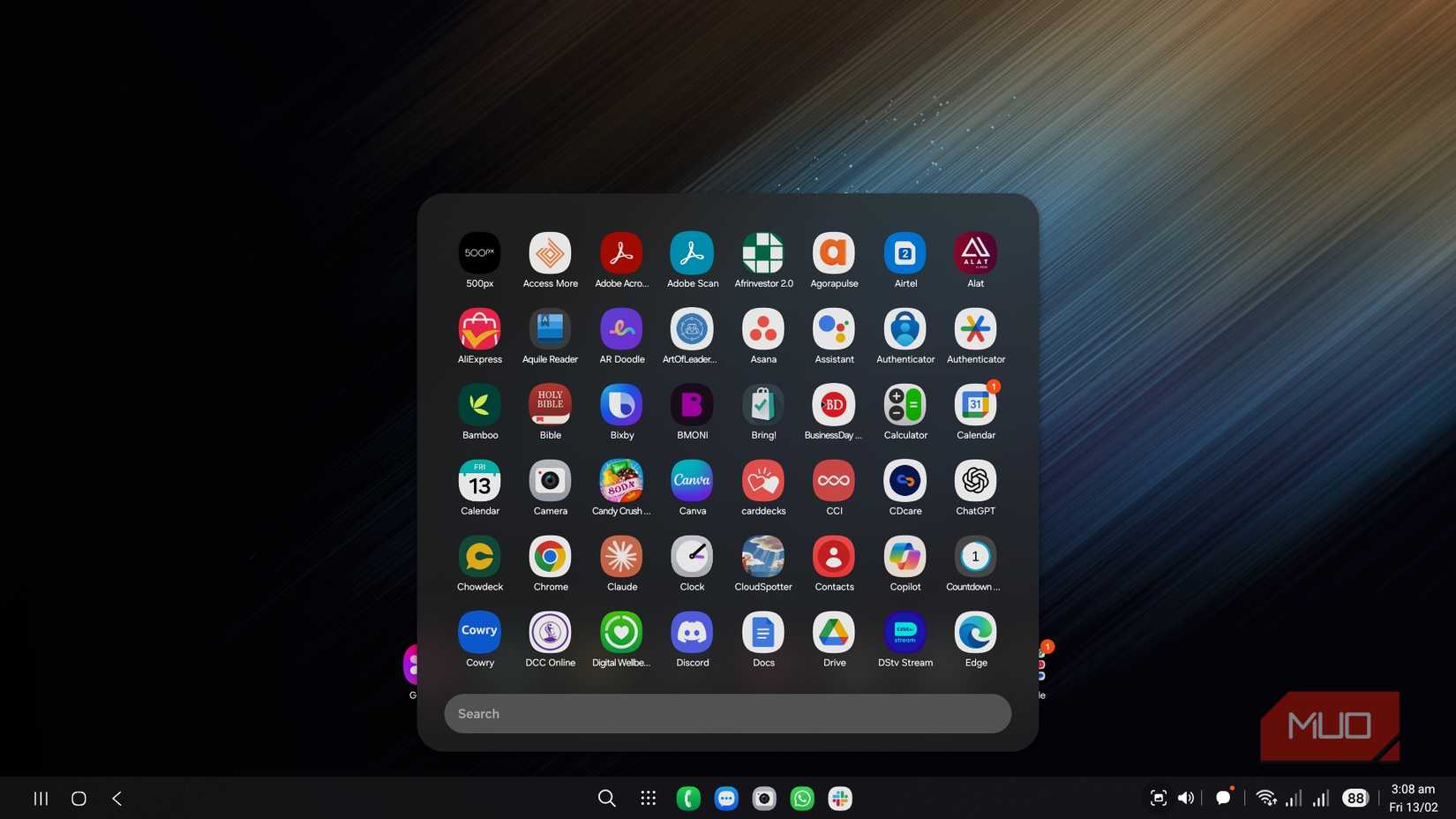
I was riding high on the fact that I was running Android 16. All the new Android 16 things the manufacturer refused to ship were there. Everything I expected was present except for the one thing I actually wanted most: Android desktop mode.
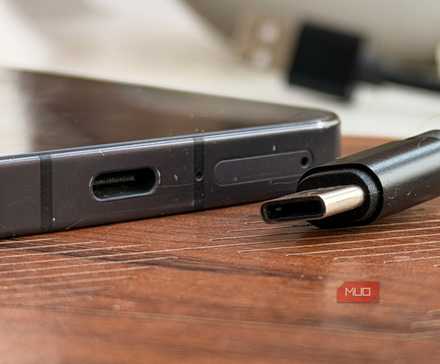
That was one of the main reasons I force-upgraded in the first place. Android’s new desktop mode looks genuinely excellent, and for the first time it seems like it could function as a proper portable workstation setup. But then I ran into an unfortunate and very physical limitation: the USB-C port on the Nothing Phone (1) is USB 2, and it does not support DisplayPort Alt Mode, which is what you need to send video out over USB-C.
Related
How USB-C reversibility actually works
Reversible doesn’t mean identical.
That meant desktop mode was dead on arrival for me. No amount of software wizardry is going to upgrade an old USB port into something it isn’t. That was a major disappointment, but at least I hadn’t really lost anything I used to have. I didn’t have desktop mode before, and I still didn’t have it now. Fine. Unfortunate, but fine.
Stock Android has an identity crisis
This was the second “oops”
Amir Bohlooli / MUOCredit: Amir Bohlooli / MUO
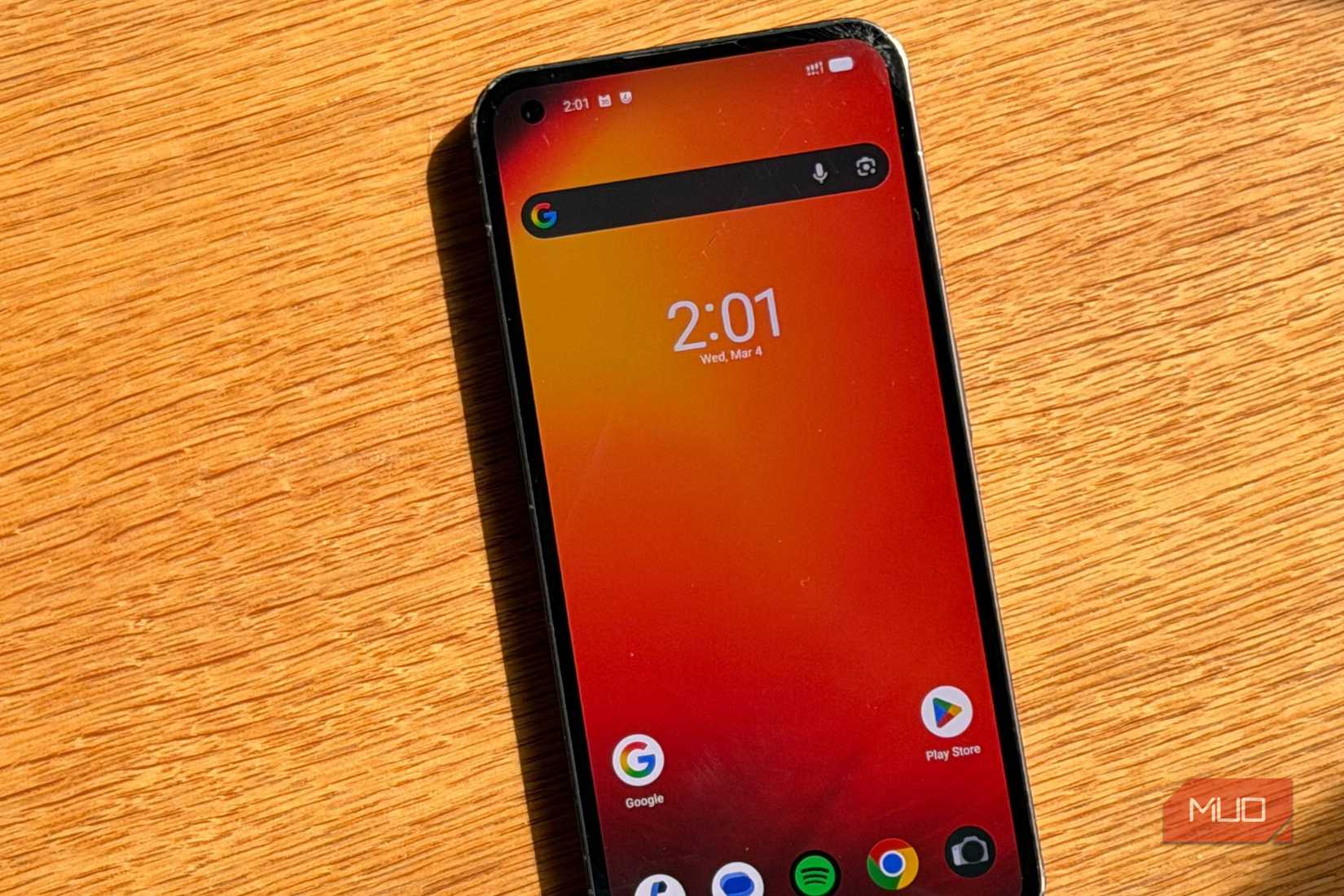
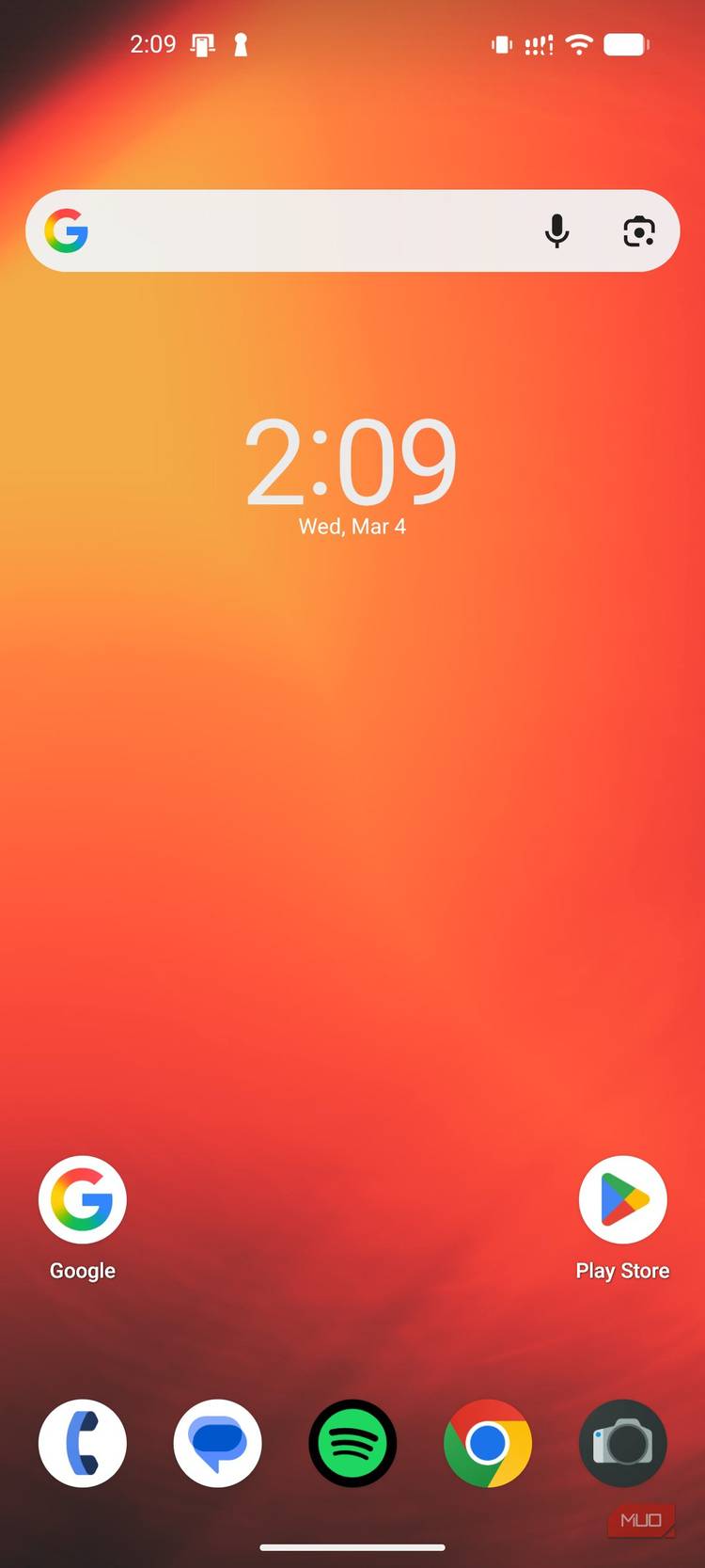
Once I accepted defeat and started using the phone normally again, the regret kicked in. My phone had now become just another Android phone.
A lot of this is personal preference, obviously. But to be honest, I don’t really like the stock Android look all that much. I can appreciate it for what it is, but what makes me like it less is that it looks like every other Android phone. And there are a lot of those.
Amir Bohlooli / MUO
Screenshot by Bertel King; no attribution required
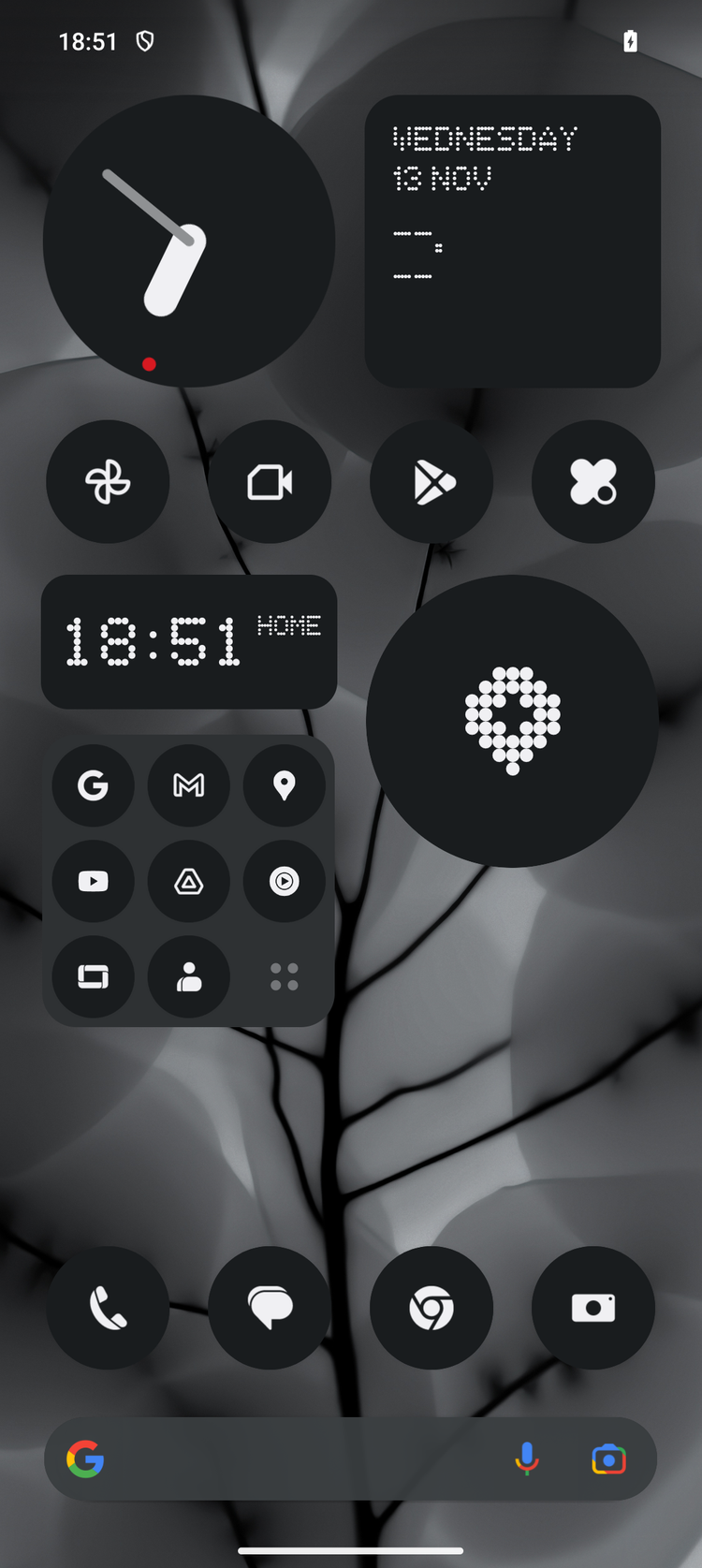
LineageOS vs. NothingOS — both are Android, but one has a lot more personality.
With the original manufacturer skin, I had NothingOS. It was still Android, yes, and in many ways still very close to stock Android, but it had actual character. It had those little splashes of personality that made the device feel like its own thing. The icon packs, the fonts in settings and apps, the Nothing-exclusive widgets, the overall identity of it all. Once I switched to LineageOS, all of that was gone.
The camera made everything worse
Good hardware is not enough without the original software
Amir Bohlooli / MUOCredit: Amir Bohlooli / MUO
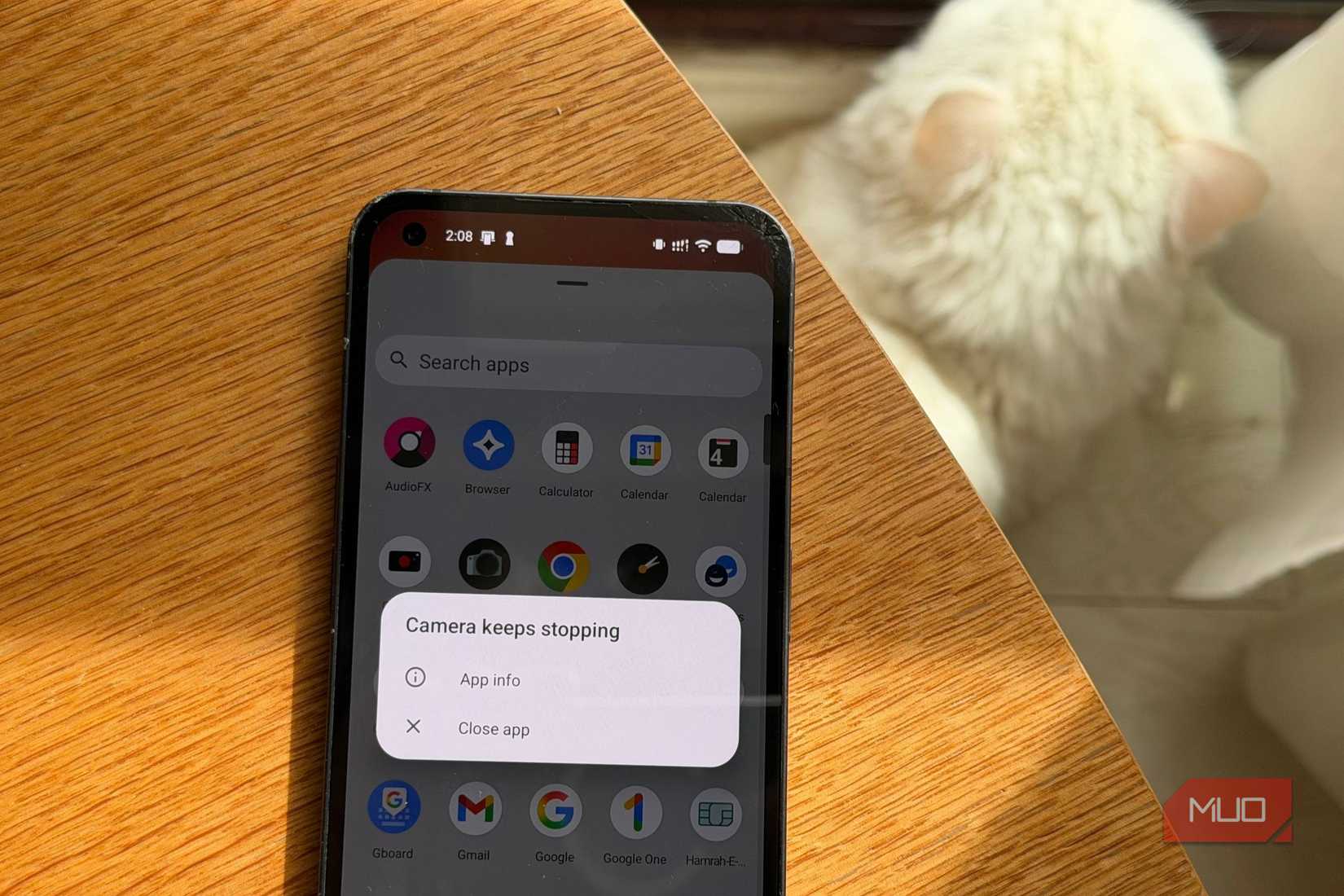
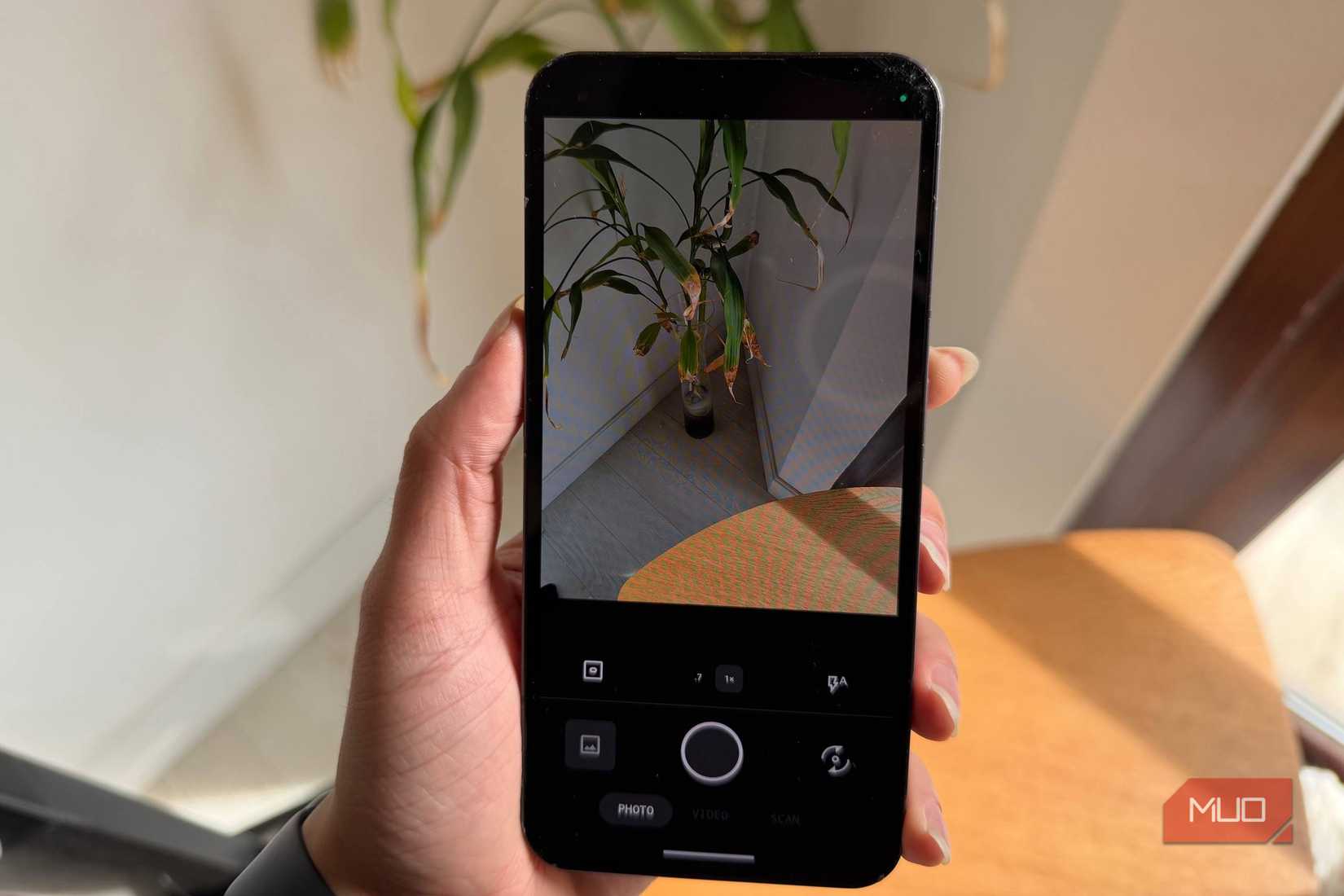
The straw that broke this camel’s back came not long after. The Nothing Phone (1), despite being an older budget phone, actually has a very nice camera. I use it a lot for taking photos for work. But when I opened the camera app to take a shot, I realized I was now using the default FOSS camera app instead of Nothing’s own camera app.
Amir Bohlooli / MUOCredit: Amir Bohlooli / MUO
And yes, the FOSS camera app works. But it is FOSS in the most brutally literal sense. It is bare, stripped down, and almost aggressively minimal. You get a shutter button and three modes: photo, video, and scan. Gone was portrait mode. Gone was the 2x zoom I was used to. And, most importantly, gone was the image processing.
This phone used to take great photos not just because of the sensor, but because of the software tuning provided by Nothing. Without those proprietary secret sauce algorithms, the photos looked flat and lifeless.
I thought I could outsmart the problem by downloading the APK for the Nothing camera app, sideloading it, and setting it as the default. I did exactly that. It installed, technically. But when I tried to open it, it simply refused to work. I tried multiple fixes, and none of them helped.
LineageOS is good, but it wasn’t good for me
Because I couldn’t use the Desktop Mode anyway, and because the camera and UI felt like such a step backward, I officially regretted the move. I kept LineageOS installed just long enough to gather my thoughts for this write-up, but as soon as I’m done, I’m restoring the original NothingOS.
Related
My old Android was laggy until I toggled this setting
I thought I needed a new phone—this tweak saved it.