
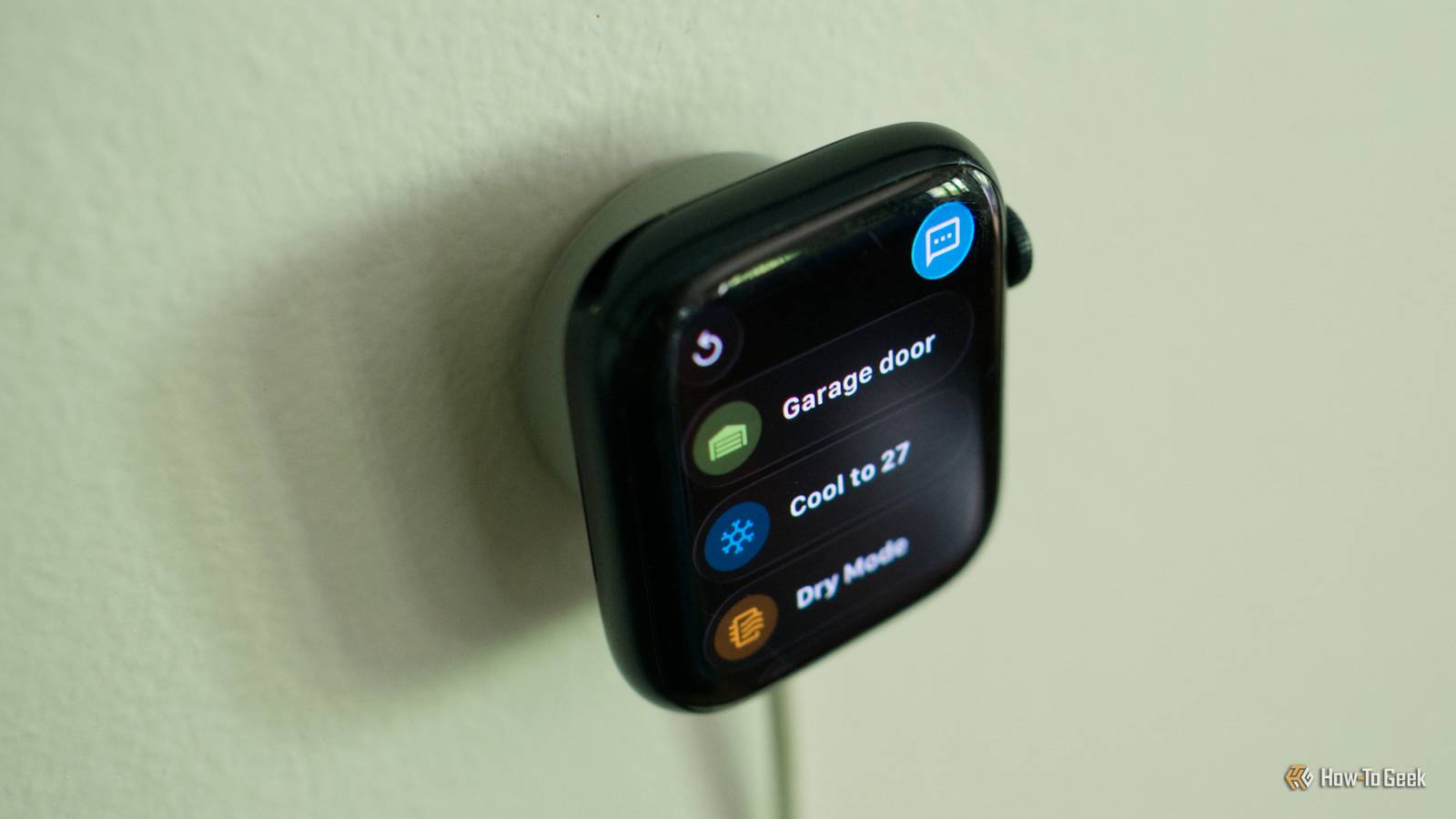
I’m planning an Apple Watch upgrade this year, which means that I’ll soon have a spare wearable in the house. One potential use case I’ve been mulling over is a minimalist smart home dashboard, and I think I might have cracked it.
Why use a smartwatch for this?
A small wearable probably isn’t a common first choice for a smart home dashboard. Most people go for tablets that offer much larger displays, that can display lots of information at once while offering controls for connected devices and scenes, plus camera feeds and notifications.
I already said no to a tablet on my wall recently when I had a ducted HVAC system installed. I opted for a connected system that I can control via my smartphone and Home Assistant, with no external display. I didn’t want a big tablet on my wall, especially since I couldn’t choose it myself.
That said, it would be nice if guests had access to a few simple smart home controls like cooling or the garage door without dedicating a huge amount of space to it. As luck would have it, my 45mm Apple Watch Series 8 is smaller than a smart thermostat and will otherwise live out its days in a drawer.
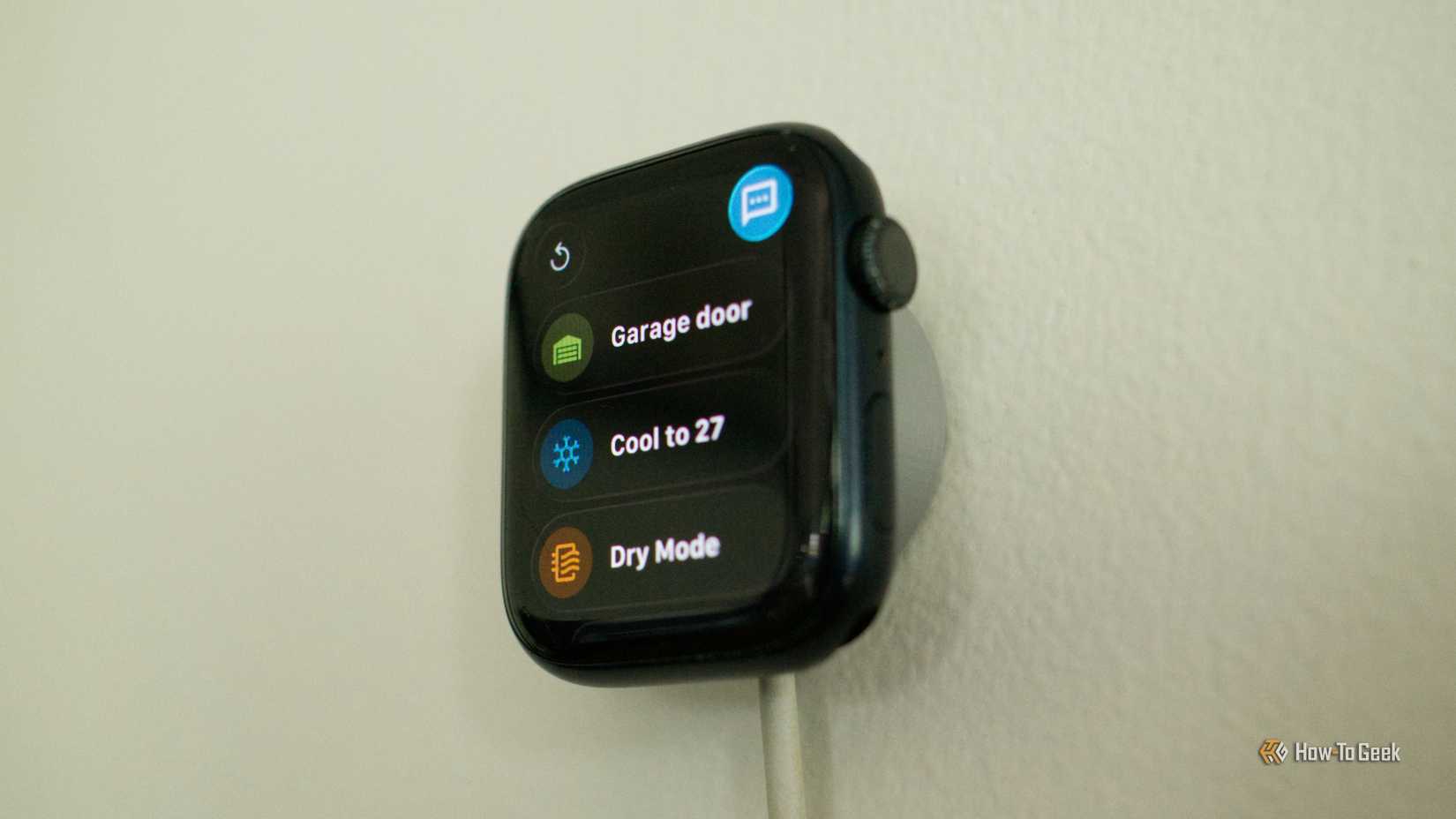
Credit: Tim Brookes / How-To Geek
The magnetic Apple Watch charger is strong enough to hold the watch in place, so mounting shouldn’t be an issue. The strap slides right off, at which point Apple’s wearable resembles something of an iPod nano. In this position, the Digital Crown is still usable, and there’s nothing necessarily stopping you from grabbing the Watch and moving around if you need to.
But there are a few hurdles to overcome. Much of this is down to Apple’s non-negotiable behavior when the Watch is charging, with the biggest drawback being that the display will sleep until you interact with it. Then again, this might not be such a bad thing if minimalism is the goal.
Your Watch needs to be linked to an iPhone, using which it will mirror all sorts of information. The best you can do in terms of privacy is turn off notifications, but if you’re worried about random people reading your text messages or making phone calls, then this might not be the dashboard for you.
Lastly, that iPhone will need to be nearby since the Watch app acts as an extension of the iPhone app. The range is pretty good, but it’s worth noting.
These are my experiences with the Apple Watch; other watches like WearOS models, including Google’s Pixel range, appear to have far fewer limitations. It might even be worth picking up a spare if this idea appeals to you.
Home Assistant’s companion app and scripts made it happen
I’ve always felt like Home Assistant’s Apple Watch implementation could use some work. Unlike the iPhone app, which provides access to all features and functions, the Apple Watch companion is far more limited. Though you can add accessories to Control Center, the app itself can only launch scripts and scenes.
Furthermore, watch face Complications are, for lack of a better word, complicated. You can do some really complex stuff, but you’ll need to use YAML in order to do it. You can’t just drop a sensor reading onto your Watch face or create a shortcut to a specific device.
Home Assistant scripts are suitably powerful, you can use them to do just about anything with a tap. It also allows me to limit what smart home functions are accessible, so that guests can’t change the thermostat temperature to something truly unforgivable.
As fortune would have it, I already have a bunch of scripts that I use with Apple Home (as buttons) to quickly control the HVAC system. I’ve got one that opens all zones and cools the house to 27ºC, another that opens zones and turns on dry air, and another that turns the HVAC system off completely. I also wrote a script to toggle the garage door open and closed.
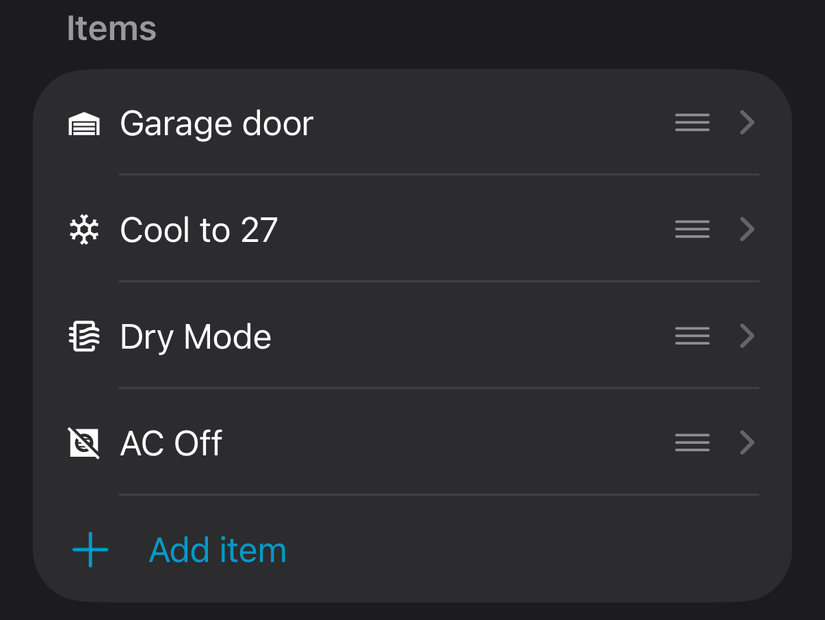
With these ready to go, I opened the Home Assistant app on my iPhone, navigated to Settings > Companion app, and scrolled down to the Apple Watch section to configure things. I added my scripts and gave them icons and colors that made sense to me, then saved my changes.
Configuring watchOS and 3D printing a mount
I don’t want to have to unlock my dashboard all of the time, so the first thing I turned off was Wrist Detection under Settings > Passcode. This worked fine when the watch wasn’t charging, but it would still lock constantly when connected to power. Eventually, I turned off the passcode altogether.
The next thing I did was set up a watch face that would be somewhat useful. I picked a simple modular face and added a “placeholder” Home Assistant complication in the most prominent spot. Tapping it opens the Home Assistant app and my list of scripts. I also added a widget that shows the temperature in the living room, since that’s where my dashboard is currently located (this works using HomeKit Bridge and Apple Home).
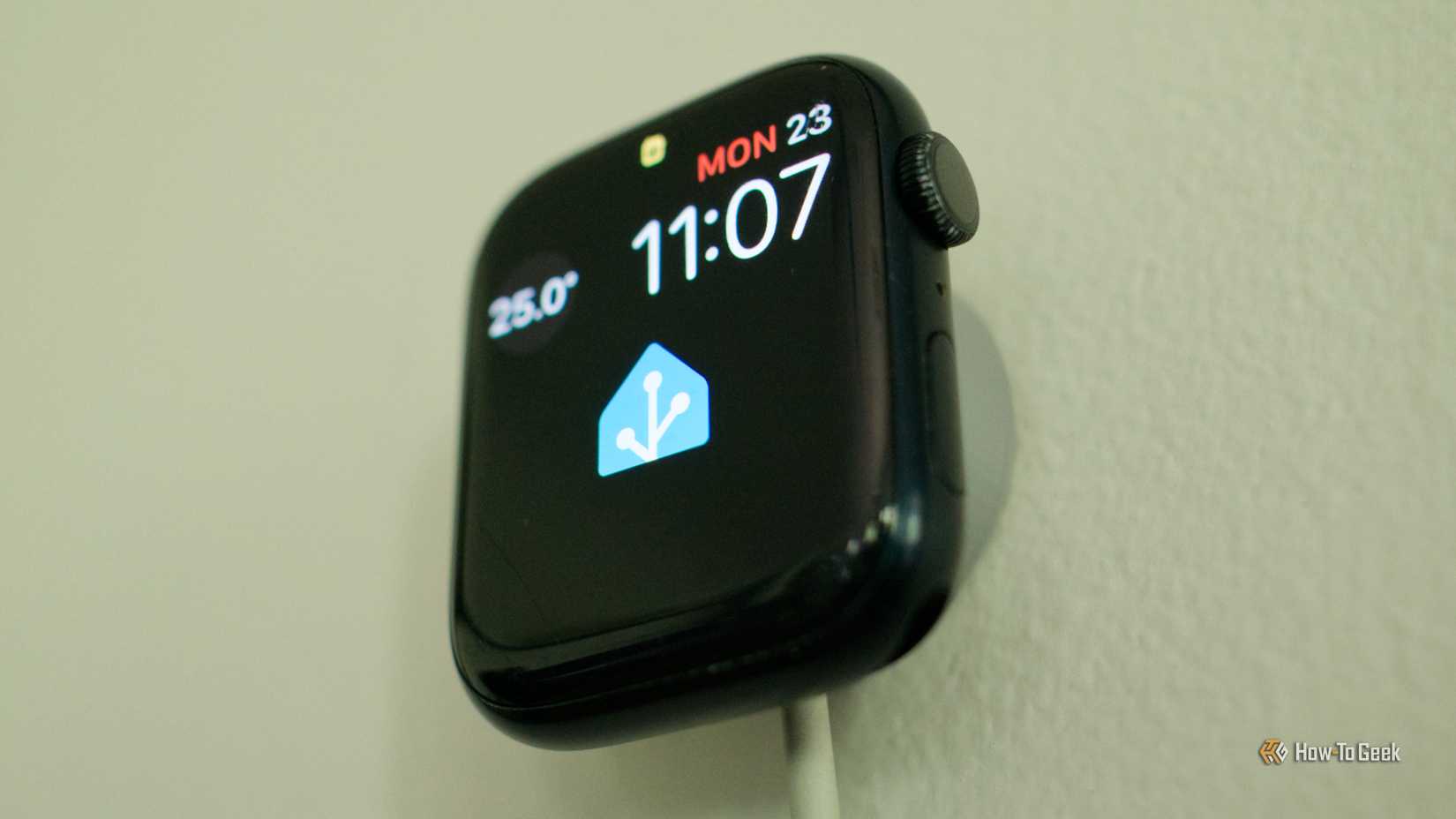
Finally, I 3D printed a few mounts. My gut feeling said a wall mount is best, but this requires some sort of cable management. To give me options, I printed one upright stand and a wall mount stand. It’s undeniable that using the dashboard at head-height like a wall switch or thermostat makes more sense, but you can’t beat how clean a desk mount looks when the cable hides neatly behind a piece of furniture.
And with that, my minimal dashboard is complete. I can add more functions by writing more scripts, and I’m thinking of adding functions to toggle all lights soon.
I always tend to gift my old smart watch to a family member, and I’m still in two minds about whether a dashboard such as this has enough raw utility to me to deny someone a Watch upgrade. That said, if you’re looking for a way to repurpose a device you’re not currently using, you can do far worse than a minimal smartwatch Home Assistant control panel.
Want a different Home Assistant dashboard? You probably already own all the hardware necessary to build one.