
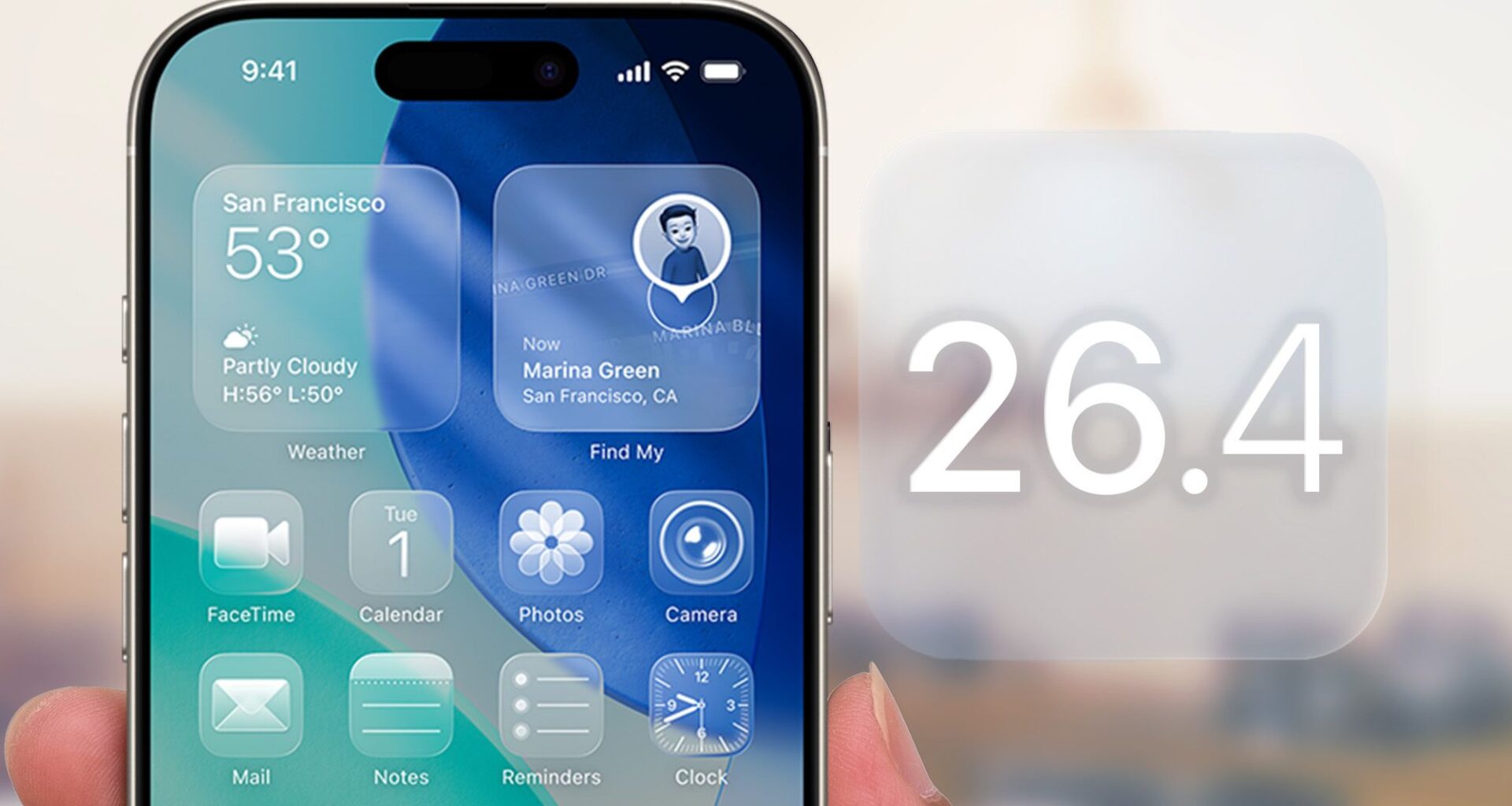
The iPhone keyboard has been a mess for months. Typing quickly produced constant typos and mis-inputs that made texting feel broken. You’d type one thing and your iPhone would register something completely different, inserting wrong letters or missing keystrokes entirely.
iOS 26.4 finally fixes the underlying bug that caused these typing problems. The software update stops the keyboard from registering incorrect inputs when you type quickly. But there’s a second problem the update doesn’t automatically solve: your iPhone has been learning your typing patterns the entire time the bug existed, which means it saved all those typos as if they were intentional.
Article continues below
You may like
1. Open Settings and go to General
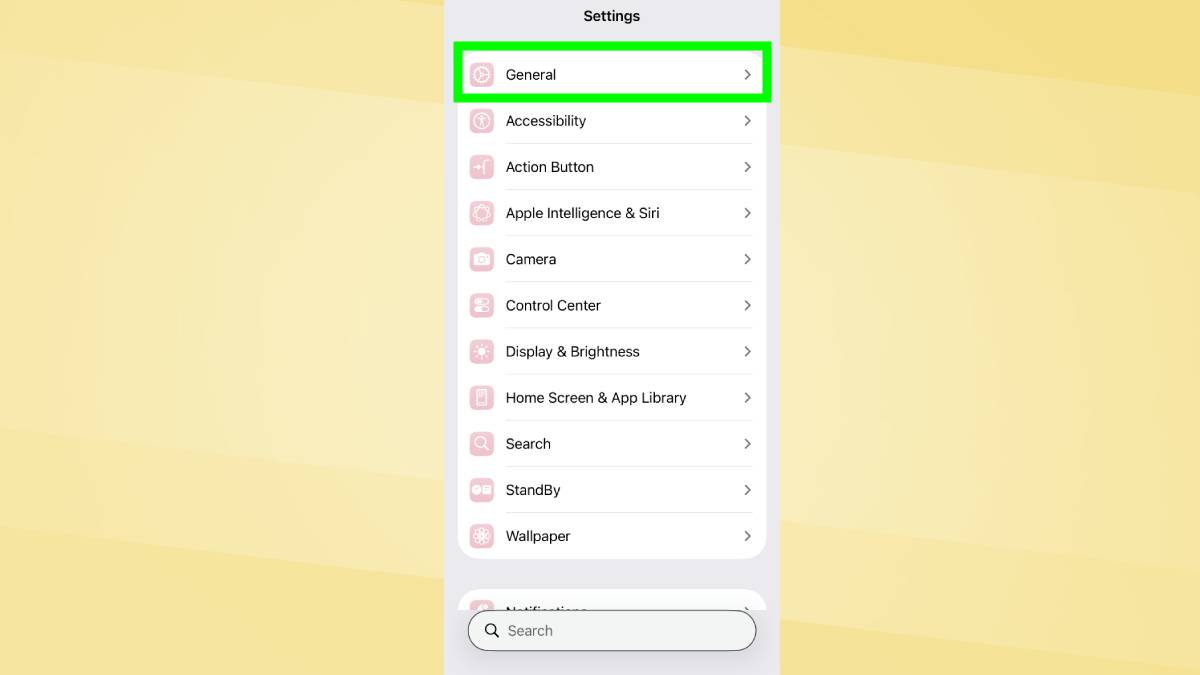
Open the Settings app on your iPhone and tap General. This is where system-level settings and reset options are located.
2. Select Transfer or Reset iPhone
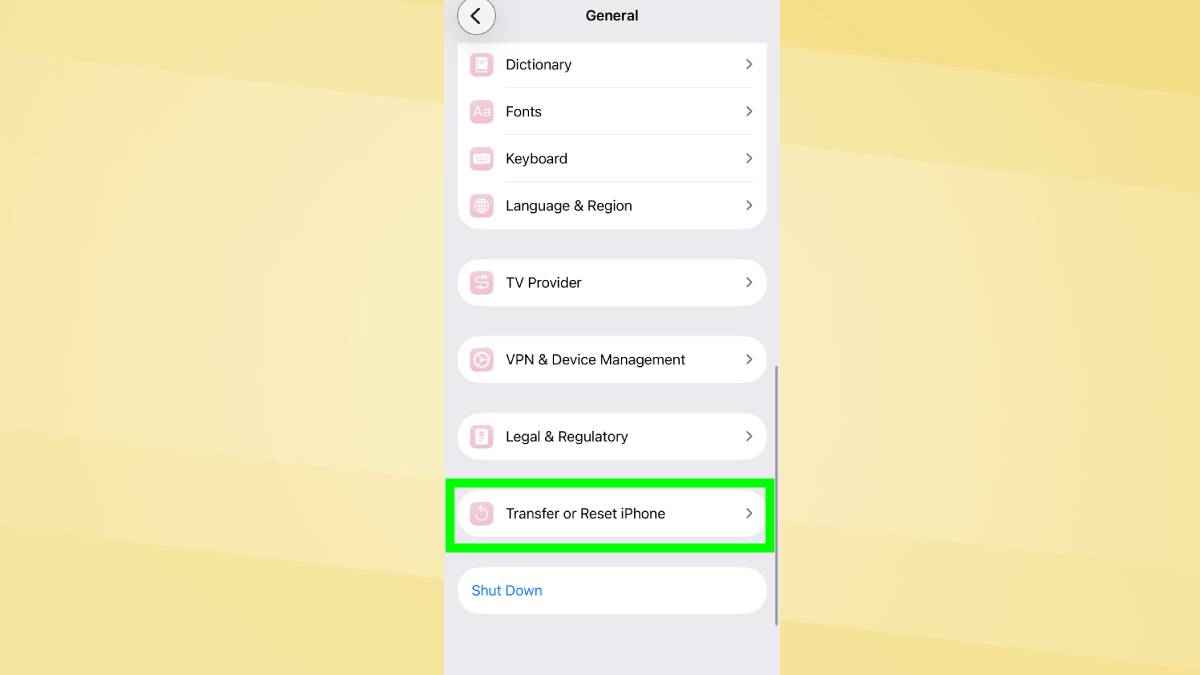
Scroll down in the General menu until you see Transfer or Reset iPhone. Then tap it to access reset options for your device.
At the bottom of the Transfer or Reset iPhone screen, tap Reset. This opens a menu with different reset options that don’t erase your entire device.
3. Choose Reset Keyboard Dictionary
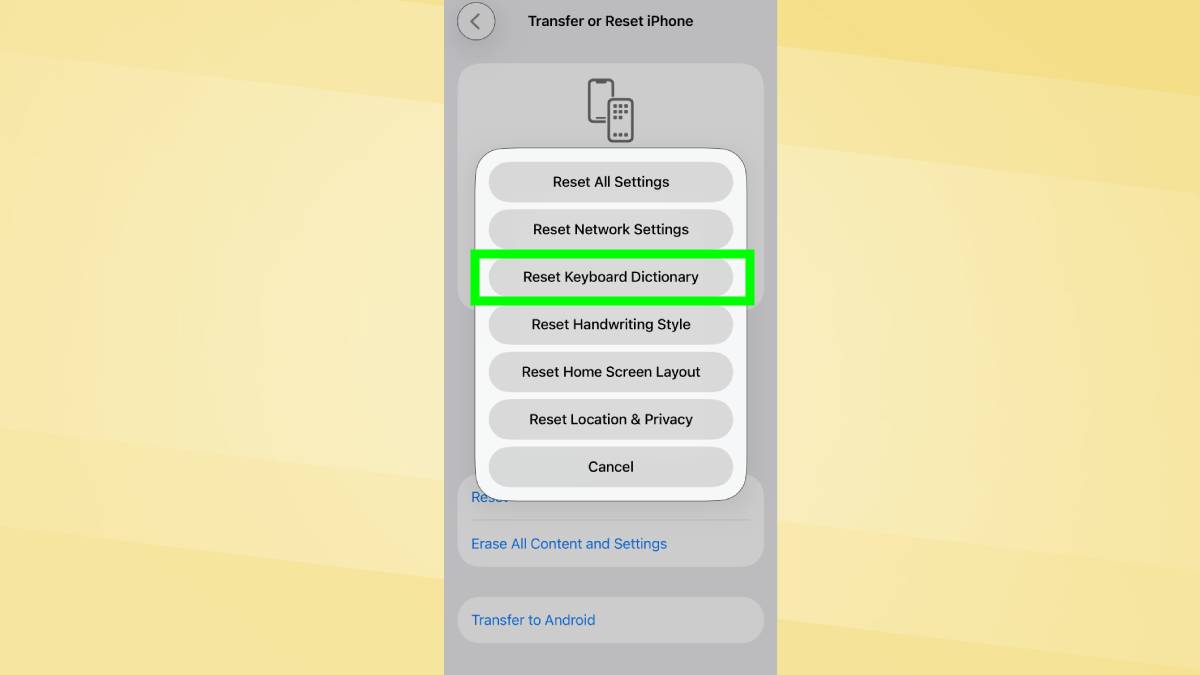
From the reset options, select Reset Keyboard Dictionary. This specifically targets only your keyboard’s learned data without affecting any other settings or personal information.
Your iPhone will ask you to enter your passcode to confirm the reset. Enter it, and the keyboard dictionary resets immediately.
All learned words, typing patterns, and autocorrect suggestions are erased, and your keyboard starts fresh.
What happens after resetting
Autocorrect will feel less personalized initially because your keyboard hasn’t learned your typing habits yet. It won’t recognize nicknames, abbreviations, or custom terms you use regularly until you type them a few times.
This temporary inconvenience is minor compared to the benefit of removing months of corrupted typing data. Within a few days of normal typing, your keyboard relearns your actual patterns, this time without the bug interfering.
Predictive text suggestions will also feel generic at first. Your keyboard usually suggests words based on phrases you type frequently, but that data was cleared. As you type normally over the next week, predictions become more accurate and personalized again.
If you use multiple languages or keyboards, resetting the dictionary affects all of them. You’ll need to re-teach custom words in every language you type.
Check out more hidden iPhone tips below! 🤳
(Image credit: Future)
Follow Tom’s Guide on Google News and add us as a preferred source to get our up-to-date news, analysis, and reviews in your feeds. Make sure to click the Follow button!
More from Tom’s Guide