
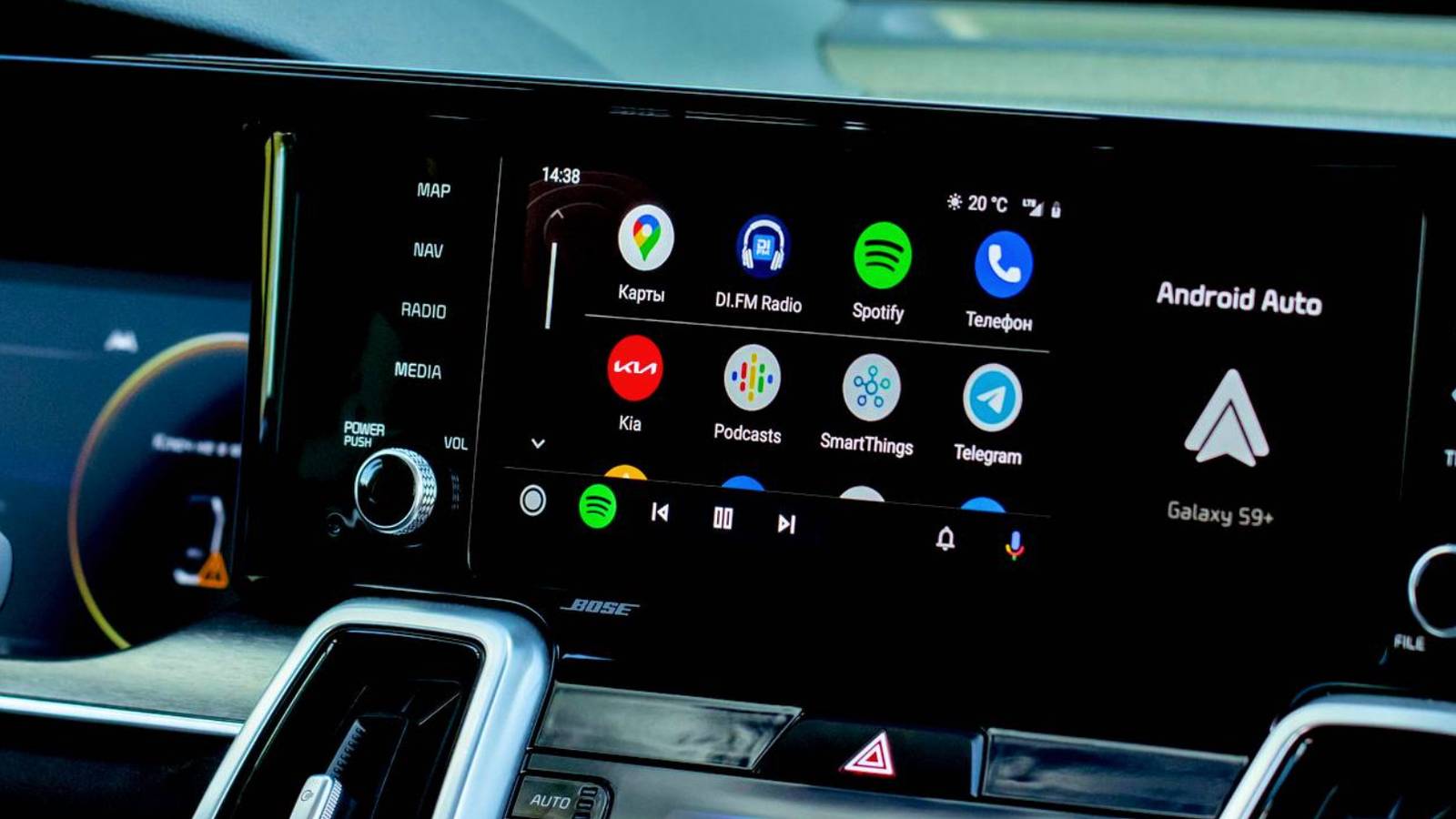
You might think Android Auto is just an app that runs on your car’s screen. It’s actually an interface projected from your phone onto the dashboard. My app used to lag a lot before I realized that the cause was more on my phone than on the vehicle I was using or just a wireless signal. Once I started focusing on my phone instead of messing with the settings on my car, the interface became so much faster.
Related
These 3 Android Auto features made my car feel like mine
Curiosity and Android Auto are a dangerous combination for me.
Your cables need to do more than charge
Don’t budget on your car cables
Most people think any USB-C cable works for their car, but this is more than connecting your Android to your car’s audio system. I thought the same thing and used a cheap charging cable until I learned how Android Auto handles high-bandwidth data. Instead of sending basic coordinates to your dashboard screen, your phone generates a continuous video stream while running heavy applications like maps and music players at the same time.
This is a heavy workload that needs a lot of continuous data transfer. Standard charging cables usually come with two wires for power and two very thin strands for data. These cheap cables can’t keep a heavy video stream going without losing data packets, which leads to audio skipping and bad map lag. Not all USB-C cables are the same; you’ll need a data-capable cable rated for high speeds. Get a certified USB 3.1 Gen 2 cable that can do 10 gigabits per second.
If you use a slow or damaged cord, the signal gets worse and weaker. Your devices then constantly ask for that lost information again, which makes your speed much slower and causes a lot of latency during your drive. It took over a minute every time I started my car for Android Auto to work with the cheap charging cable I used.
You have to remember that your car is actually a very bad environment for electronic signals. The vehicle engine, the alternator, and the ignition system generate a lot of electrical interference. Basically, cheap cables don’t have the right shielding to protect your data signal from that noise. Since the copper strands are too thin, electromagnetic interference from the car corrupts the data signal traveling between your phone and the head unit.
This forces the connection to drop and reconnect quickly, especially when you accelerate hard or hit a bump. Using a cable longer than three feet makes things worse, so keep it short and don’t settle for the budget cable.
Don’t give your phone a lot to manage
Close apps and turn off battery-saver mode
Credit: Jorge Aguilar / MakeUseOf
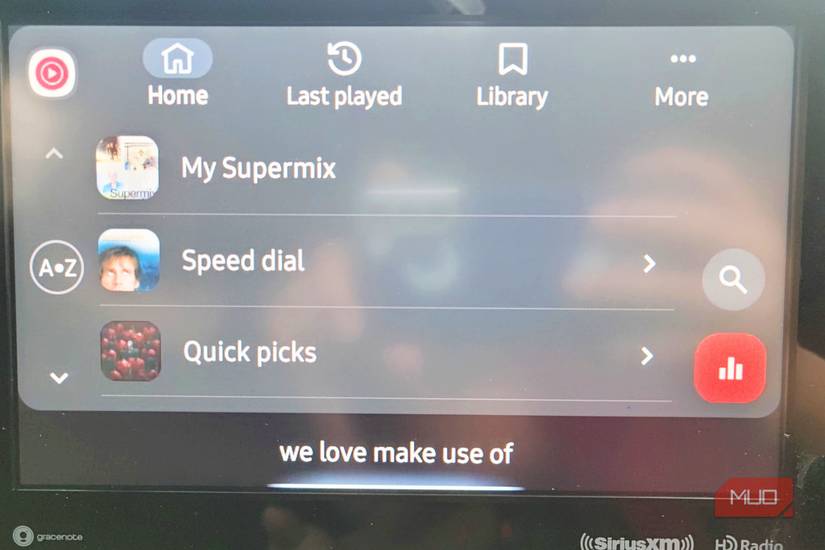
Since the phone handles all the complex processing, you’ll have to deal with the same performance issues you get when multitasking on a desktop computer. You might think your connection or cable is to blame when the map freezes or the audio skips, but it’s usually a resource bottleneck happening quietly in the background.
Don’t use your battery save mode; it will make things much worse. Android power management typically tries to restrict background activity to extend your battery life. The system will sometimes forcefully close services it thinks are non-essential, which can include the processes keeping your car projection alive.
You’ll end up with random disconnects or extreme lag that makes the interface unusable. Applications like Spotify and Google Maps use a lot of resources and constantly compete for available RAM. You’re basically running high-resolution navigation alongside high-bitrate audio streaming while maintaining a cellular connection. That puts a massive load on your phone’s memory.
You might think that modern flagship phones have plenty of raw power and shouldn’t struggle with these basic driving tasks. It’s true that top-tier devices come with advanced processors and large memory configurations capable of handling heavy gaming or 4K video editing.
Still, you have to think about how Android Auto’s projection protocol likely doesn’t always get system priority over other background sync tasks. The Android framework constantly manages memory reclamation and process scheduling, and it doesn’t inherently know that your driving interface needs absolute priority over a background email sync or a cloud photo backup.
The system treats the projection video stream as just another task competing for resources. So you should also close other applications on your phone that you are not using, like Facebook or messages. Leaving these apps to compete for resources makes your phone run poorly and can distract you while you’re driving.
Clean out all the clutter you have in the background
Clear your cache and update your phone
Credit: Jorge Aguilar / MakeUseOf
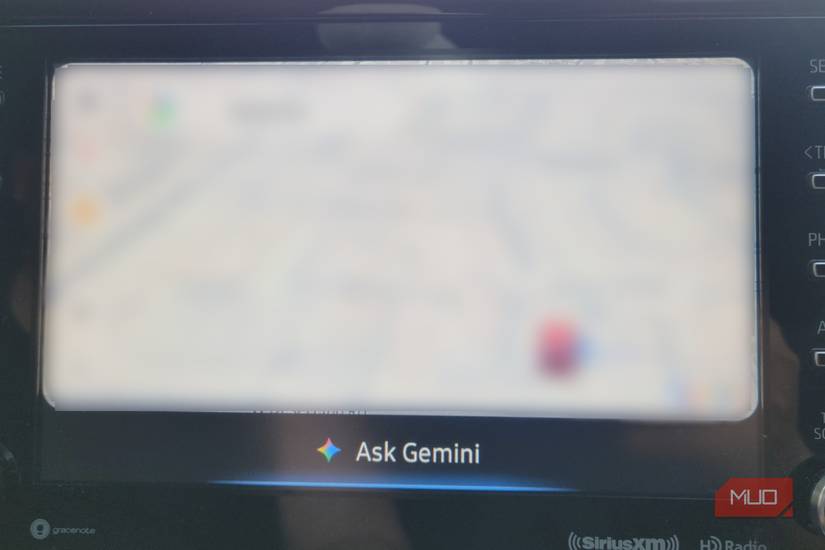
The main problem is that software settings and cache bloat make the handshake between the phone and the car software slow. Your phone builds up a large collection of temporary files for things like navigation routes and app preferences. When these files get corrupted, you get a slow interface and dropped connections.
Clearing the cache of both the Android Auto app and Google Play Services is a good idea when the UI starts lagging. Giving both of these apps a fresh start removes the bad data blocking the connection and leads to a much faster response time. I recommend doing a quick restart of your phone after clearing these files, preferably before you’re in the car. Your phone should be restarted at least once a week, so this is a good time to get it done.
Make sure to install updates the moment you get them. Leaving updates on standby makes your phone slower, and there may be improvements in that update just for Android Auto. You want your phone to be as safe and as fast as possible, and delaying updates goes against that mindset.
You can also change the Android Auto developer settings to fix connection issues. You can get here by tapping the build number in your settings seven times. Once inside, you can limit the background processes running on your device. Only do this if you’re comfortable with advanced settings, because changing the wrong thing can cause software issues.
Android Auto needs constant data transfer to work correctly. When background apps eat up your phone’s memory, the operating system kills important tasks. Setting a strict limit on background apps gives Android Auto the memory it needs to run without freezing. You can also force a lower video resolution if your car’s display has trouble processing high pixel counts. Another useful tip is to turn off window animation scales entirely to make the interface feel much faster right away.
You don’t have to deal with lag
The lag you’re getting with Android Auto has more to do with a misunderstanding of how it works than a phone issue. Now that you know it’s more of a projection than an app that works in your car, you’ll know to work on it as if it were your phone. Close anything you don’t need, turn off the battery saver, and make sure to use a cable that is meant for data transfer, not just charging.
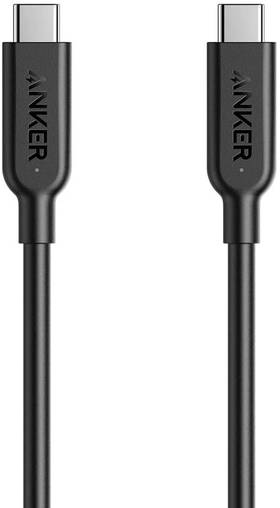
Brand
Anker
Cable Type
Type-C
Length
0.9m
Data Transfer Rate
156MB/s