
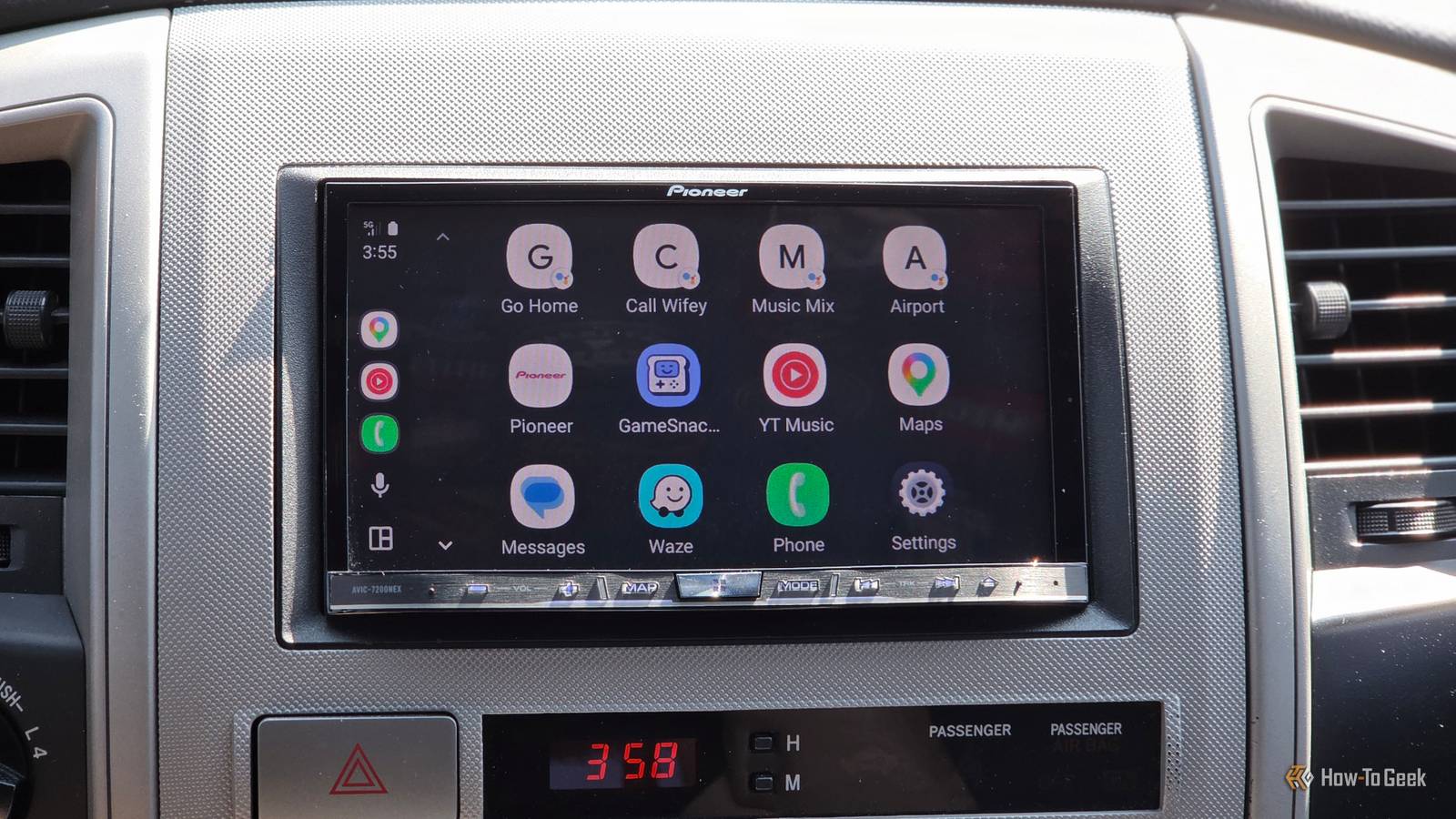
I have a genuine love-hate relationship with Android Auto. My car doesn’t have its own built-in navigation or streaming software, so I have to use it, but it’s so unreliable and buggy that I actually dread plugging in that USB cable when it’s time to drive somewhere.
I know I’m not the only one who has problems with Android Auto, and I know it’s not my car, because it works perfectly with Apple CarPlay. So blame it on the wild west of the open Android platform, I guess. Either way, in my quest to get Android Auto to just offer the bare minimum of reliability, I’ve found a few tweaks and changes that seem to help reduce that failure rate to just one in every ten trips. Yay.
Use the correct USB cable
Get the basics right
Credit: Tim Brookes / How-To Geek
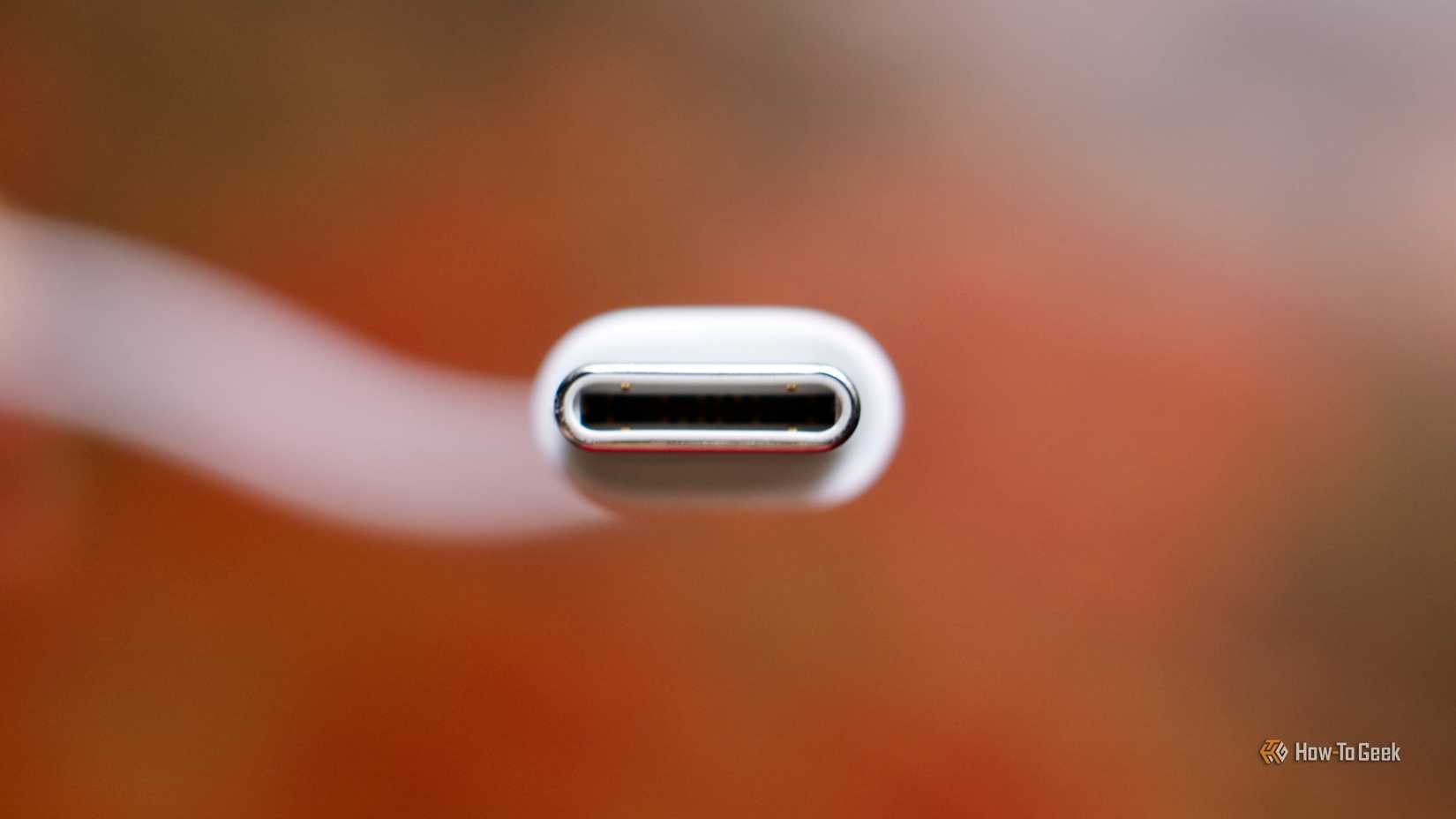
Usually, USB cables aren’t something we have to give much thought to when connecting a phone to a car. If it gets power and data, the small details probably shouldn’t matter, but when it comes to Android Auto it can be annoyingly fickle.
I have spent way too much money buying different cables in a maddening quest to find a USB-A to USB-C cable that will play nice with Android Auto. Obviously, if you buy a charging-only cable with no actual data lines it won’t work, but a cable that works with everything else for data sometimes just doesn’t work with Android Auto. I have no idea why but I have an expensive pile of cables that luckily do work for other things.
The only reasonable advice here is to buy a cable that’s actually certified by the USB IF and rated for at least 480Mbps of data throughput. Buy the shortest cable you can get away with, and buy from a reputable brand, just to make sure that the certificate is real.
Display
7 inches
Apple CarPlay
Yes
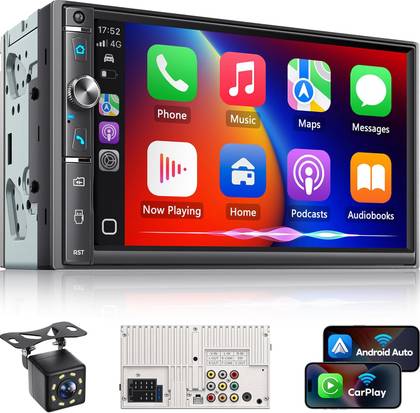
This budget double DIN head unit packs in wireless Android Auto and Apple CarPlay, along with a 7-inch touchscreen and solid connectivity options. It also includes extras like a backup camera, subwoofer output, and steering wheel control support, making it a surprisingly full-featured option for the price.
Turn off battery optimization for Android Auto
Sometimes it’s too optimal
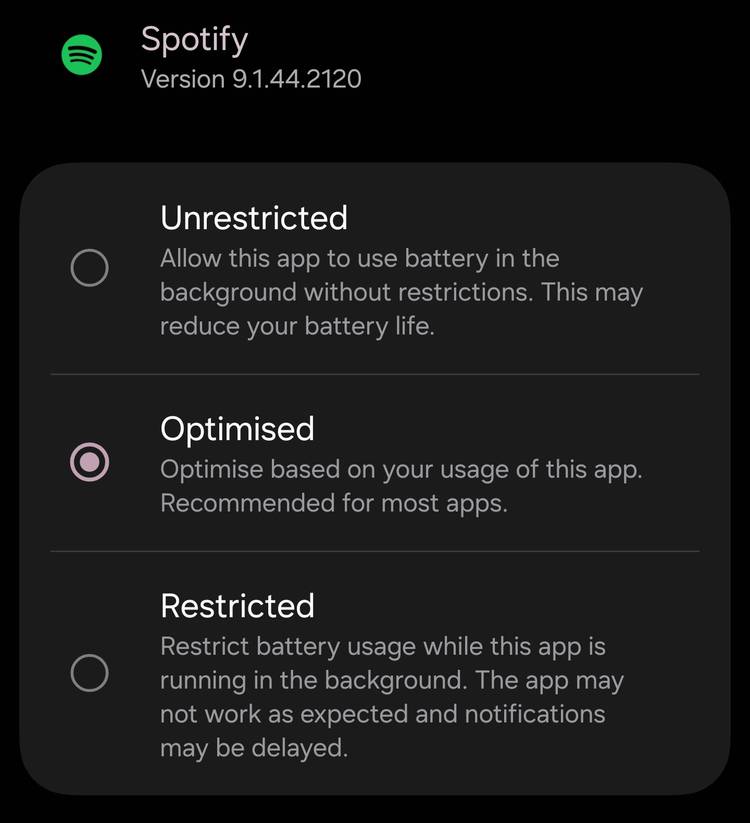
Some Android phones seem a little too aggressive when it comes to managing background activity, shutting down processes in a bid to maximize battery life. That’s probably OK most of the time, but Android Auto relies on background processes to work properly.
If you find that, for example, Spotify just randomly stops playing, Waze or Google Maps freezes, or Android Auto reliably disconnects after a few minutes, you might want to tweak those settings. All you have to do is go to Settings > Apps > Battery and select the app you’re having an issue with. Then choose a less aggressive setting for power management.
No data, no point
Even if an app is allowed to keep using battery power and stay awake in the background, those apps still need data access too or they won’t work correctly.
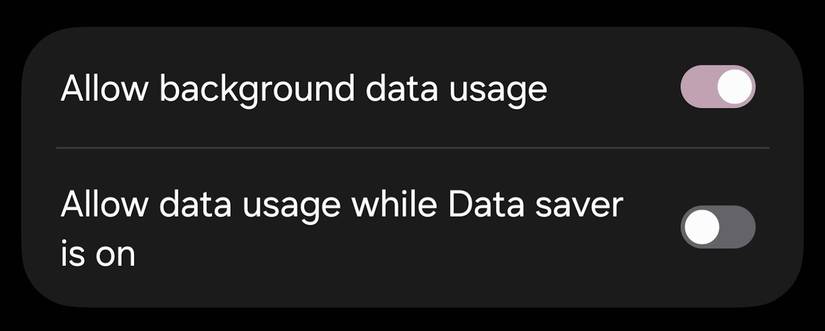
So, the next thing to check is whether the apps that are misbehaving have access to data while the phone is locked and those apps are running in the background. Go to Settings > Apps > Mobile Data. Then ensure the toggle to allow for background data use is in the “on” position.
Disable adaptive battery and sleeping apps
Wake up!
On modern Android phones, you might have a feature to put apps into “deep sleep.” This happens to apps that you don’t use frequently, so if you don’t use apps like Google Maps that often, they might fall victim to this or other adaptive battery modes that throttle apps in the background that have been de-prioritized.
Unfortunately, I can’t give you exact steps on how to remove apps in deep sleep on your specific model of phone, since it will vary by Android version, brand and model. The video below is an example of how managing deep sleep apps on Samsung phones work, and your phone probably has a similar process, but you’ll have to consult its specific documentation.
Disable “optimized charging” if Android Auto disconnects near full battery
The lesser of two evils
Credit: Google
This one is counterintuitive, but based on what I’ve seen people report on forums, there might be something to it. If you see a pattern where Android Auto disconnects only between 80-100% charge, or after you’ve hit full charge, it might be related to an optimized charging feature.
Some phones have a feature that delays full charging based on your usage patterns. It stops charging, and that might lead to disconnections. At least in theory. So look up if your phone has this feature and disable it to see if it solves your Android Auto disconnection issues. If your phone also supports bypass charging, where power can come from outside without passing through the battery, it’s worth trying that too. Keep in mind that this last one is just a speculative connection, but there’s no harm in trying it out if your problems match the pattern.
Android Auto has a long way to go
Android Auto has a much harder job than Apple CarPlay, which only has to work on a small subset of phones. We all understand that the price of freedom is a little less stability, but to me, it feels like Android Auto has more problems than it should. Hopefully, one of the tweaks above helps you get more hits than misses the next time you hop in your car.