
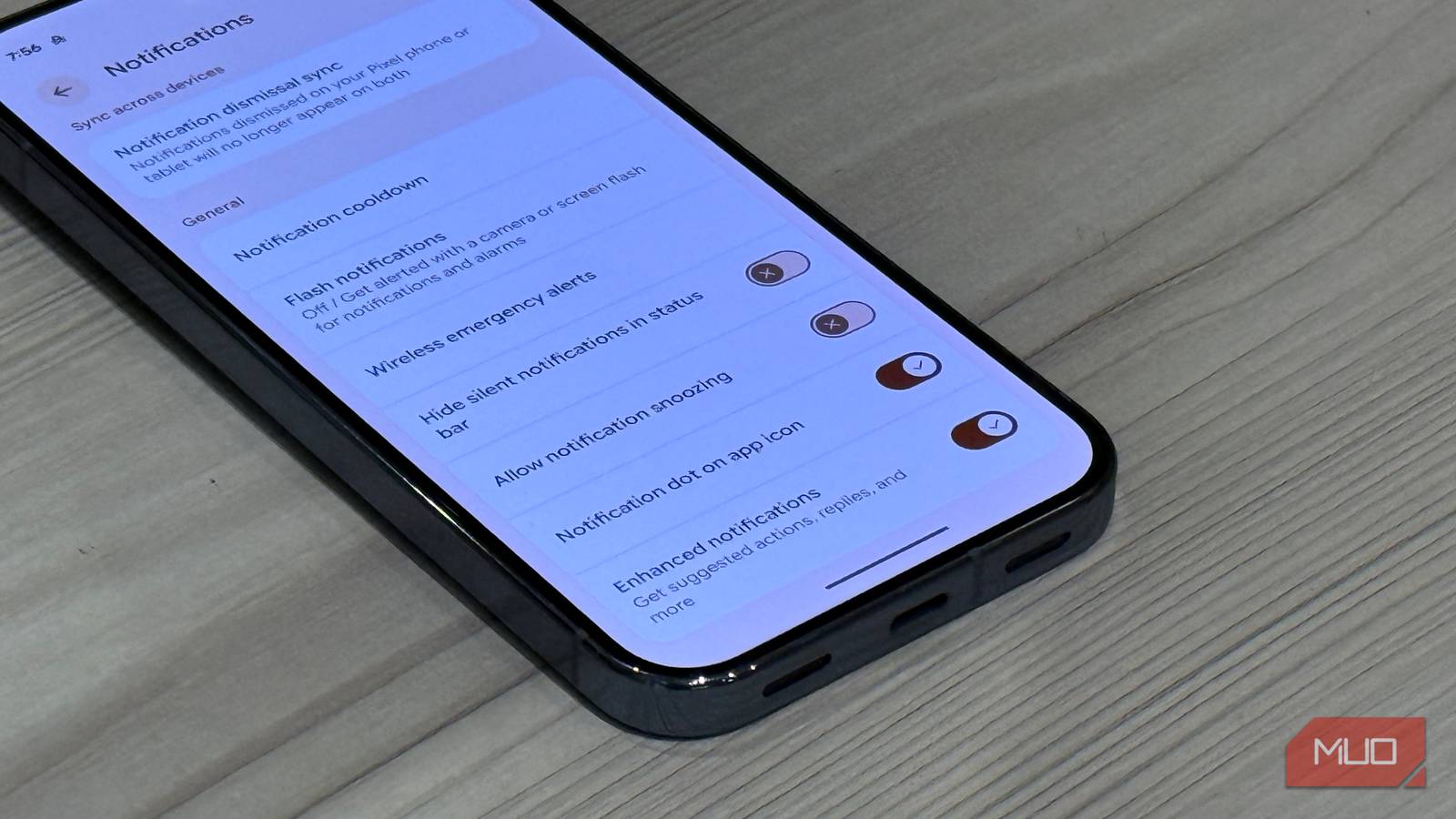
For as much as I love using a Pixel, lately Google has been adding so many features that add convenience but at the expense of battery life and performance (and I’m not even talking about AI). Always On Display and Now Playing are useful, but they’re also two background features that can quietly eat into your battery life. The tradeoff isn’t always worth it, especially when you can still check the time, view notifications, and identify songs without keeping them enabled all day.
I’ll tell you how I have my Pixel set up to maximum battery life despite Google’s defaults (and also, your Pixel has a hidden emergency feature you should know about) and show you how you can maximize battery with a couple easy changes.
Turn off AOD
Save battery (and do this instead)
Credit: Brandon Miniman / MakeUseOf
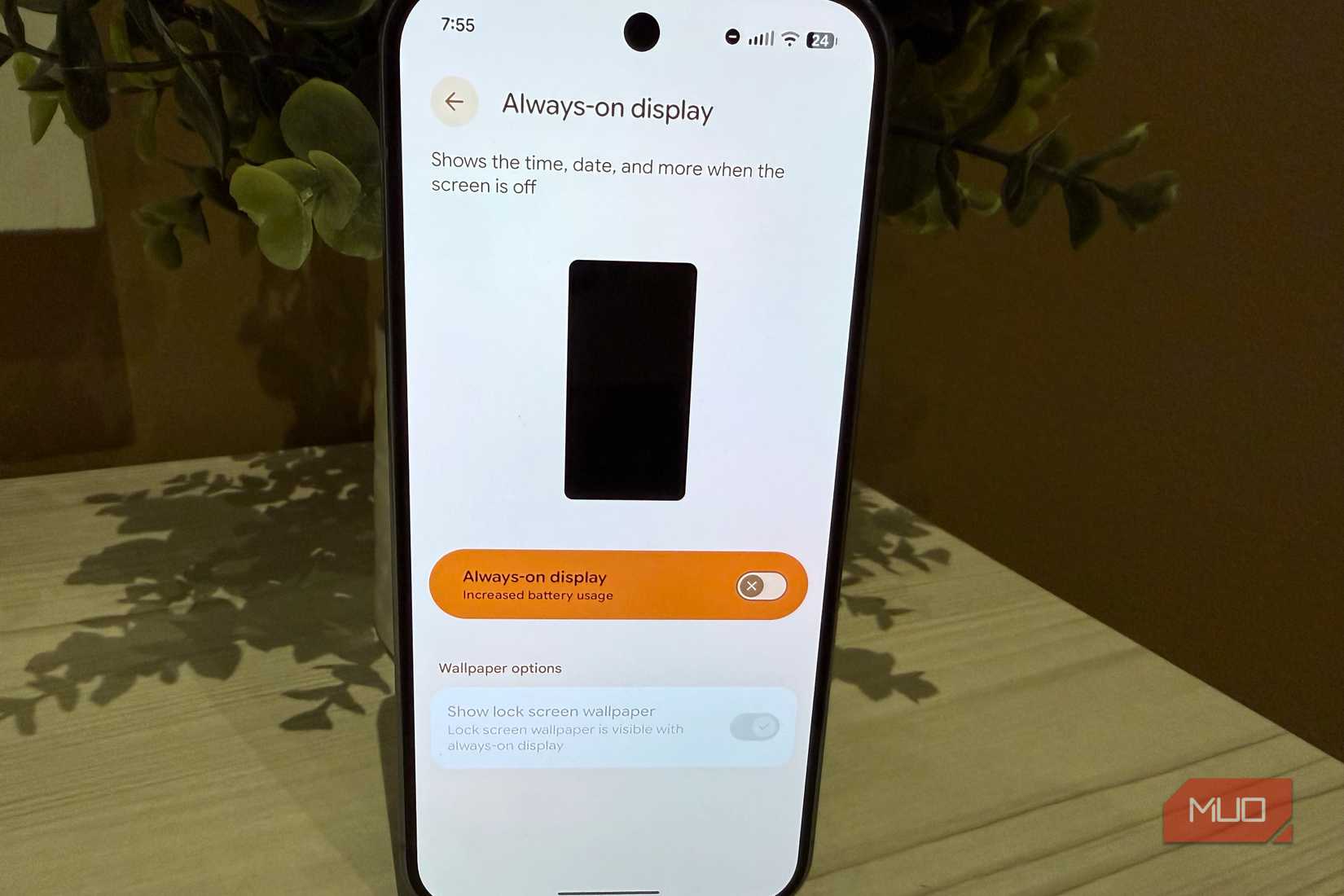
I’ve previously written how AOD is totally unnecessary and is a real drain on your battery (shocking—keeping your screen on all the time uses a lot of battery!). You should turn off AOD if you care about battery life on your Pixel.
But you might be saying, “I like being able to see the time and my notifications easily.” Well, you can still do that, if you have tap-check-your-phone turned on such that a quick tap of your display will momentarily show your lockscreen so you can glance at the time and your notifications within a few seconds—you don’t need that information to be persistent.
First, to turn off AOD, just go to Settings > Display & touch > Always on display > Turn off.
Then, to turn on tap-to-check-your-phone, which is a much better way to briefly get to your time and notifications and only requires a single tap to turn on your display (other Android phones require a double-tap for this action), go to Settings > Display & touch > Lock screen > Tap to check phone > On.
But you might be saying, “I like being able to see the time and my notifications easily.” Well, you can still do that, if you have tap-to-check-phone turned on
Disable Now Playing
There’s another way to do the same thing (without the hit to battery)
Credit: Brandon Miniman / MakeUseOf
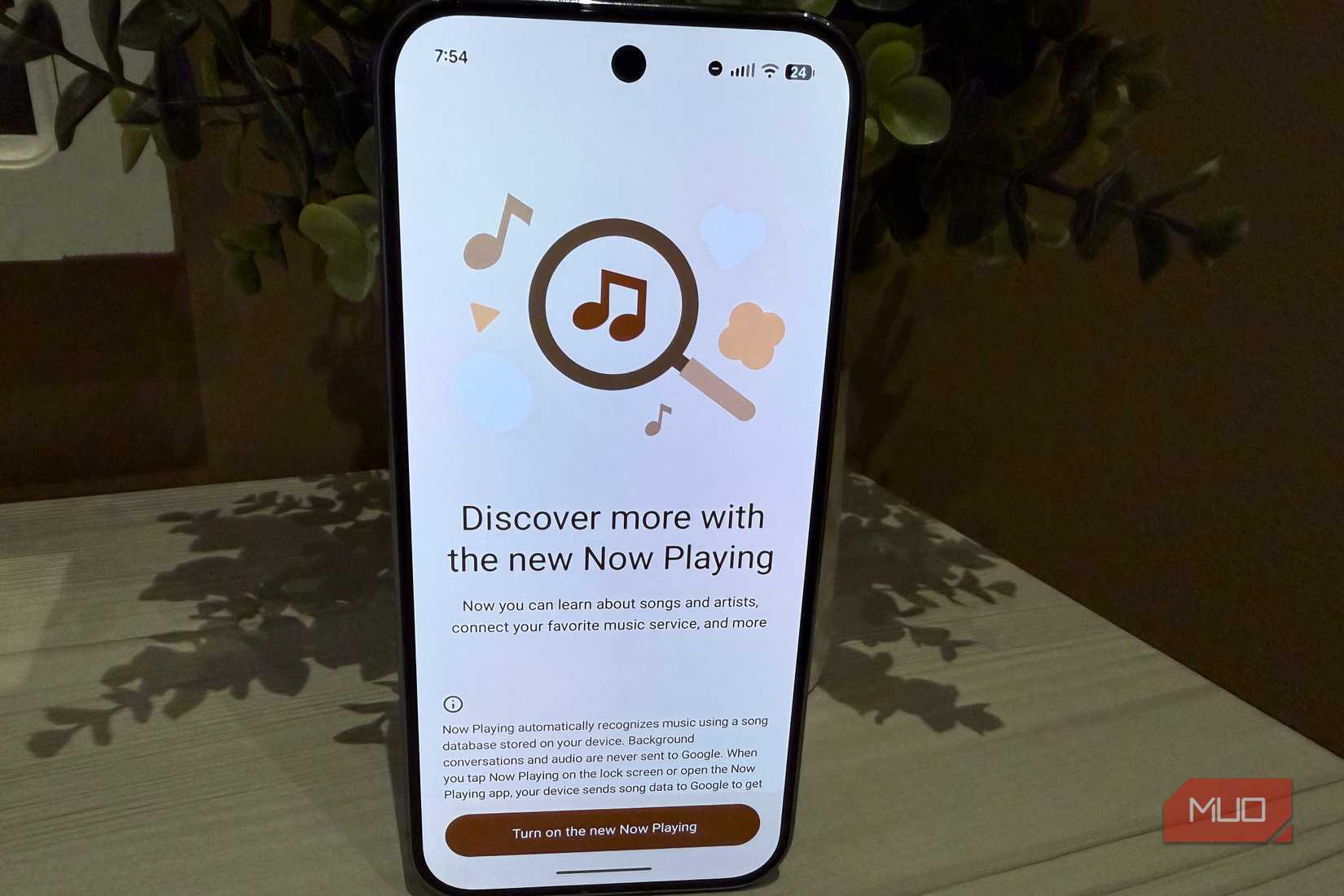
If you want, your Pixel can constantly “listen to” the ambient sounds wherever you are, and if it detects a song playing, it’ll tell you the name and artist of the song right on your lock screen. This is a waste of battery and is totally unnecessary, plus there’s an easier and more battery-efficient way to do the same thing, which I’ll describe below.
But first, to disable this wasteful feature, go to Settings > Lock Screen > Now Playing > Turn Off.
If you ever want to identify a song playing in a more battery efficient way, simply bring up your voice assistant by tapping and holding the power button on your Pixel, and simply ask “what song is playing right now?” Your phone will bring up a search results page to reveal the artist and song, plus give you a quick way to access the song from various music services.
Turn on the 3×3 camera grid
Take photos like a pro
Credit: Brandon Miniman / MakeUseOf
The Pixel camera is still one of the best phone cameras you can have in your pocket, but Google leaves one important setting off that has an important function to help you take better pictures and I always turn it on when I get a Pixel. This has nothing to do with battery, but it will absolutely help you take better photos.
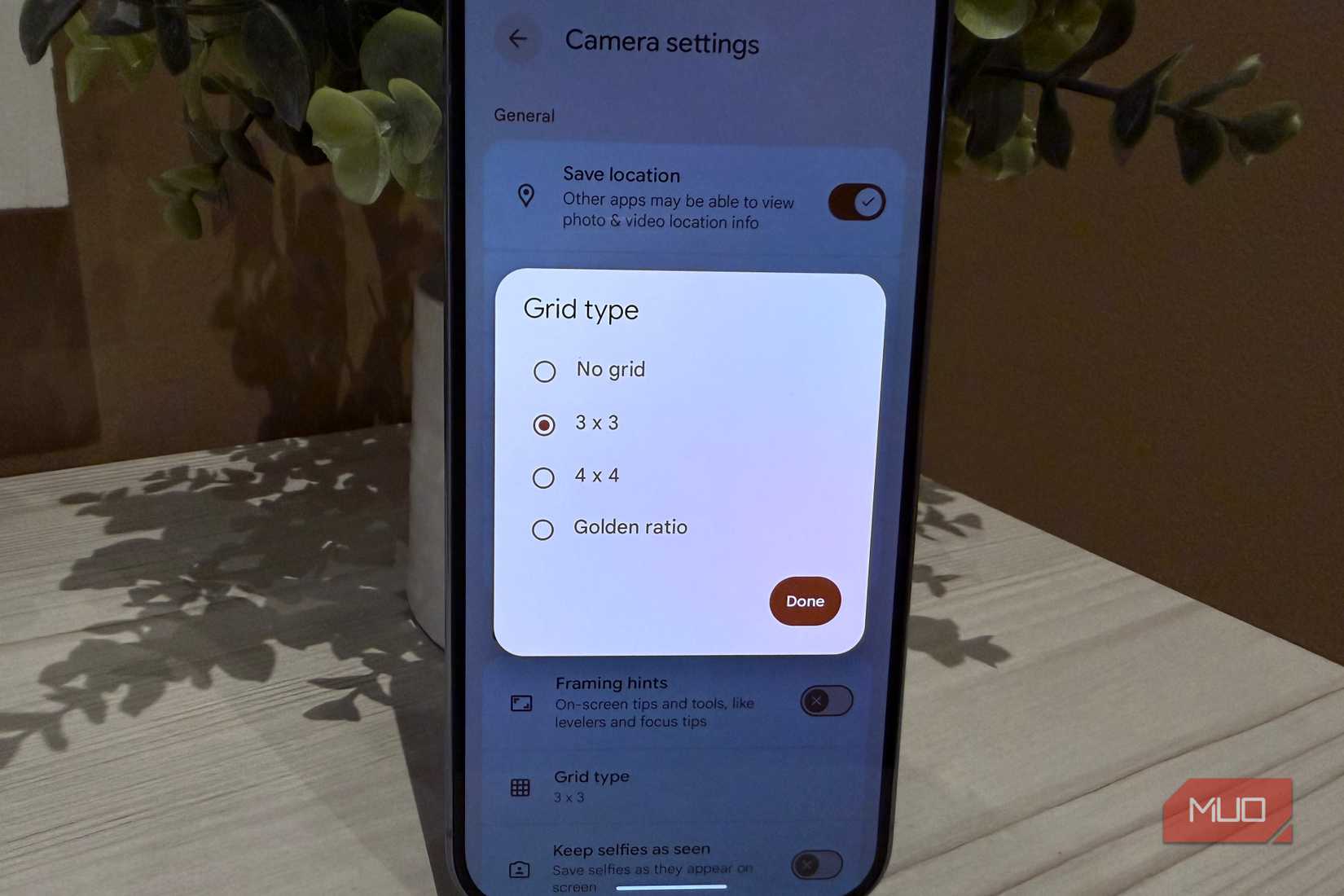
I’m talking about the camera grid, specifically the 3×3 grid, which not only helps you take more interesting photos (if you know about the rule of thirds), but more importantly helps you take photos that have level framing (meaning, they aren’t skewed).
To turn on the 3×3 grid on your Pixel, just open the camera app > tap the gear icon in the bottom left > tap the three dots on the right > Grid type > 3 x 3. This will enable a grid on all of your shots going forward that will help you line up your shot better and take better photos.
A few other things I change on Pixel
Here are some other things I always tweak that can help with battery
Credit: Brandon Miniman / MakeUseOf
In the spirit of maximizing battery life and keeping my Pixel as minimal as possible, there are a few other changes I always make to my Pixel. Here they are.
First, turn off Wi-Fi and Bluetooth scanning, which run even when Wi-Fi and Bluetooth is off in order to improve location accuracy. It’s a battery hit that you don’t need, because the built-in GPS capability of the Pixel is plenty precise. To kill this, go to Settings > Location > Location services > Wi-Fi scanning / Bluetooth scanning > Off.
Second, your Pixel will use something called Adaptive Connectivity to try to save battery life by switching down to 4G, but this switching is totally unnecessary in places that have a strong 5G connection and the hand-off from 5G to 4G can cause connectivity issues. To turn this off, go to Settings > Network & internet > Adaptive Connectivity > Off.
Lastly, turn off the setting that automatically adds new app icons to your Pixel’s home screen. It won’t affect battery life, but it will keep your Pixel home screen cleaner. When you do want quick access to a newly installed app, you can add the shortcut yourself instead of letting Android decide for you. To stop auto-add, tap and hold on the home screen > Home Settings > uncheck Add apps to home screen.
How much will these changes improve battery life? That’s tough to say, but I’ve run my Pixel with and without these changes, and I estimate turning off these features will leave you with 5-10% more battery at the end of each day which is significant.

Brand
SoC
Tensor G5