
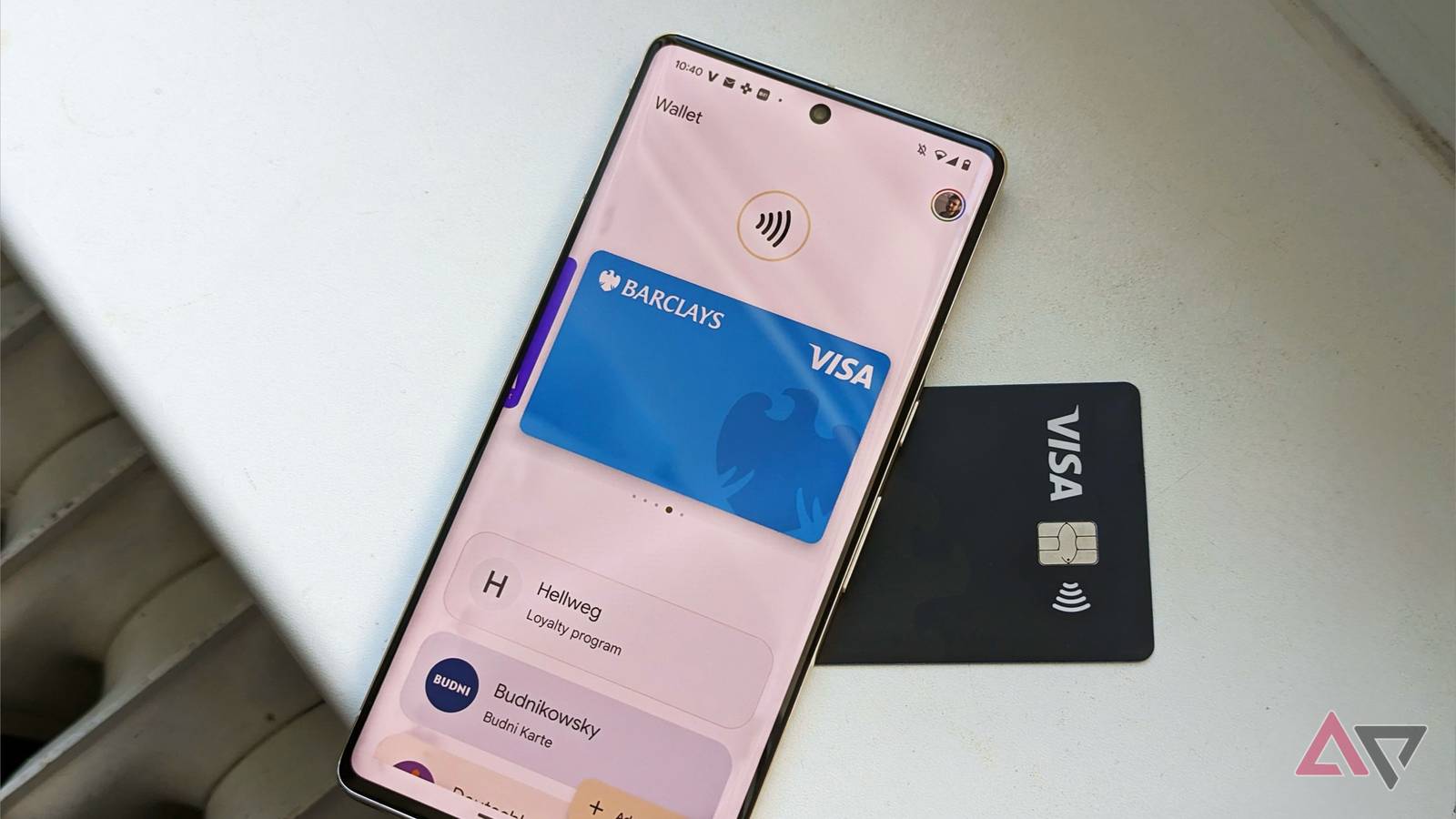
While other options exist, Google Wallet is one of the best mobile payment apps around. It lets you save your payment cards, loyalty cards, transit passes, and it can scan your email for event tickets.
It’s very much meant as a one-stop shop for all your payment needs.
But I still found myself reaching for my actual wallet every time I reached the checkout. Why? Because I hadn’t set my Google Wallet up properly.
I’d have to pull my phone out, unlock it, open my app drawer, scroll down, find the app … bah! It takes too long.
So I spent some time setting up my Google Wallet properly, and it didn’t take too long at all.
Here are the six tweaks I made that sped up my Google Wallet checkout routine.
Related
I thought Google Wallet was just for payments, but now it’s essential for my trips
I didn’t expect Google Wallet to become my favorite travel companion
Adding all my loyalty cards
One of the biggest reasons I would get my wallet out is to use one of my loyalty cards — and if I already have my wallet out, I’m just going to use my physical card instead of Google Wallet.
So one of my first actions was to store my loyalty cardsin my Google Wallet. It’s so easy to do this.
Open the Google Wallet app.
Tap the + button.
Choose Loyalty card.
Select the store your loyalty card is from, or search for it using the search bar.
Scan the barcode using your camera, or select Enter manually.
Verify the number is correct, and then choose Add to wallet.
If you’ve added a bunch to your Wallet, make sure your most-used loyalty cards appear on the Wallet main page.
Tap View more.
Scroll down to the Passes section, and tap View more passes.
Tap the Star icon on any of the passes you want on your Google Wallet home page.
There doesn’t seem to be a limit to how many you can add, so don’t hold back. I added frequently used supermarkets as well as some of my favorite stores.
Open Google Wallet much faster
Another pain point for Google Wallet is how long it can take to find and launch the app.
It takes longer than just getting your wallet out, and all the while, people will be shooting annoyed glances at your back. I know it’s a big part of why I’d always reach for my wallet instead.
So, I made sure Google Wallet was much faster and easier to launch. Best of all, it’s really easy to do so.
I started by checking out my double-tap settings for my power button.
Open the Settings app.
Go to System > Gestures > Double-press power button.
Toggle on Use double-press, and make sure Wallet is selected.
Now, to open my Wallet, all I do is press the power button twice in quick succession.
Put Wallet on your Lock Screen
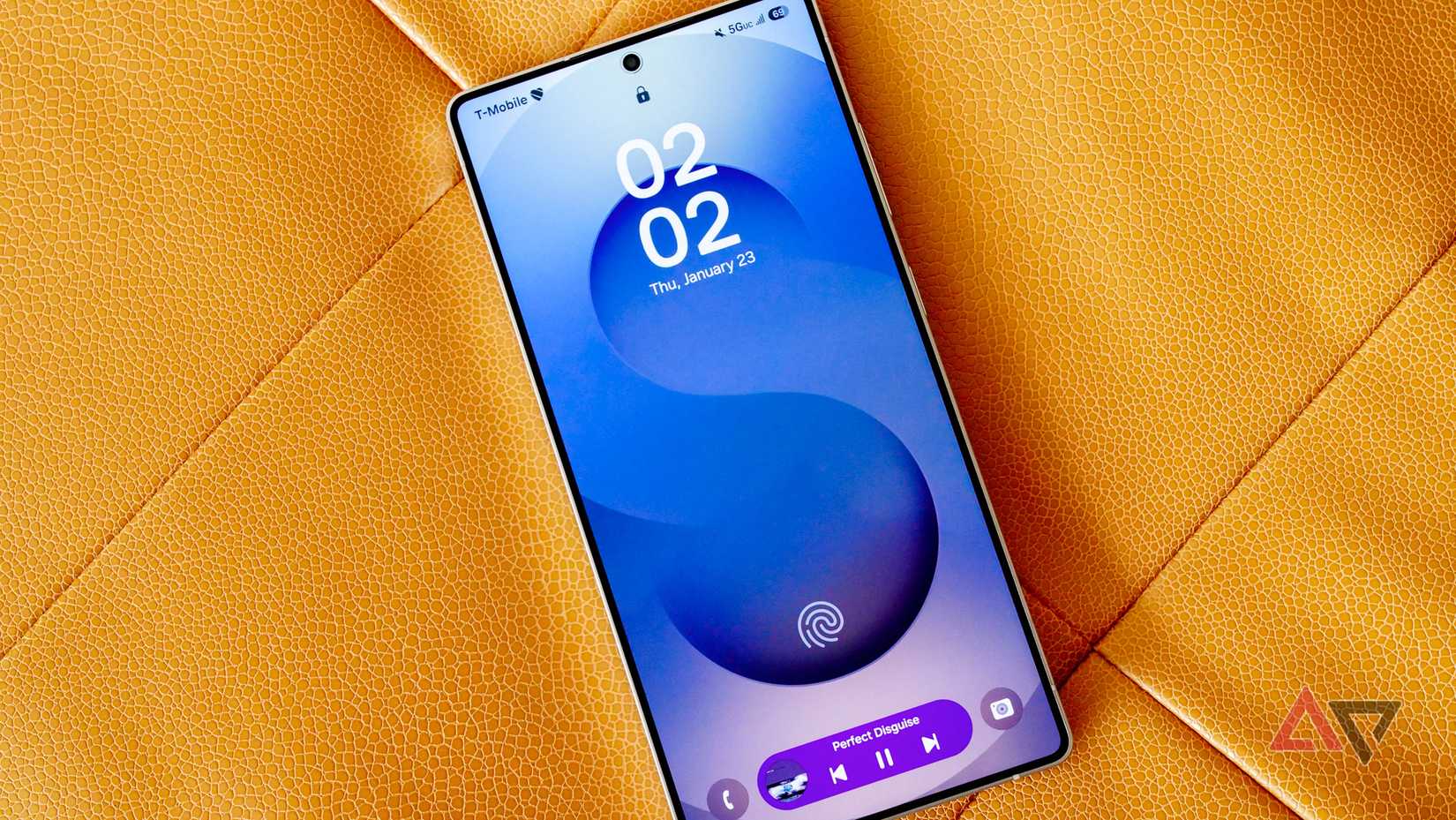
You can also add it to your lock screen, so you can open your phone straight into Wallet. This way, you just have to tap the icon and unlock the phone, and you’re ready to go.
Open your lock screen and long-press on any part of it.
Select Customize lock screen.
Choose Shortcuts.
Select Wallet for either the right-hand or left-hand shortcut.
Stick it in Quick Settings
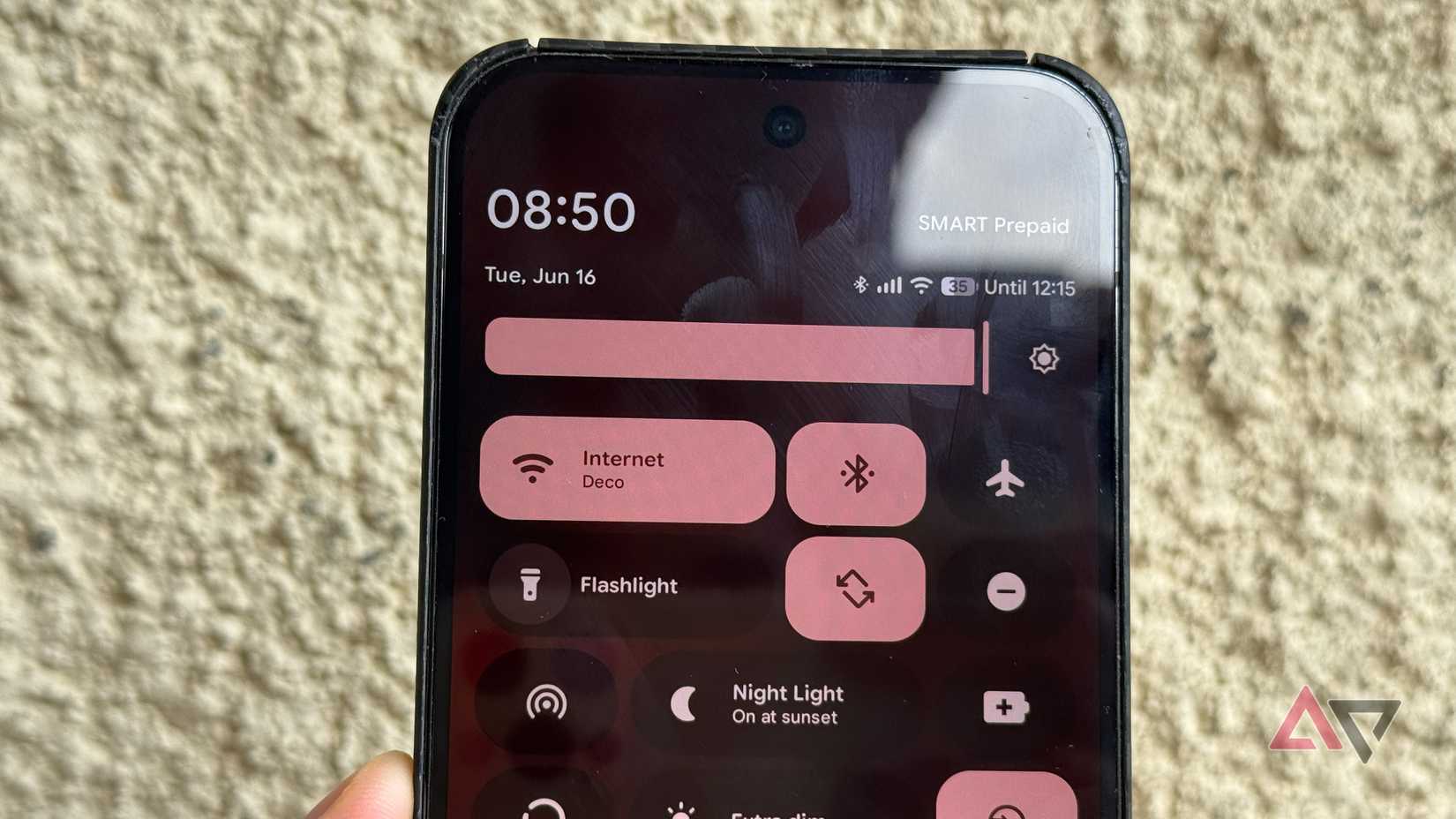
If you don’t want to use those for whatever reason, then you can also chuck Google Wallet into your Quick Settings.
This one is my personal go-to, as I prefer to keep a double-tap for my camera, and the lock screen options are too easy to accidentally open.
Open Quick Settings by pulling down on your phone screen twice.
Select the pencil icon to edit your Quick Settings.
Scroll down until you find the Utilities section, and tap the plus icon to add Wallet to your Quick Settings.
Scroll back up and find the Wallet icon. You can tap-and-hold it to drag it wherever you want it in the list.
Go back to confirm the new placement.
The top eight is the best place for it, as this will ensure it’s visible when you drag down the Quick Settings.
Use NFC while your phone is locked
You likely have to unlock your phone before you can pay using your Wallet, and that’s a useful security feature that stops your phone from accidentally paying when it’s not meant to, or being preyed on by thieves.
It’s a bit of a risk, but being able to place your phone onto a payment device without even unlocking it is fast and helpful.
Open Settings.
Go to Connected devices > Connection preferences > NFC.
Change Require device unlock for NFC to the off position.
Get it set up on your smartwatch
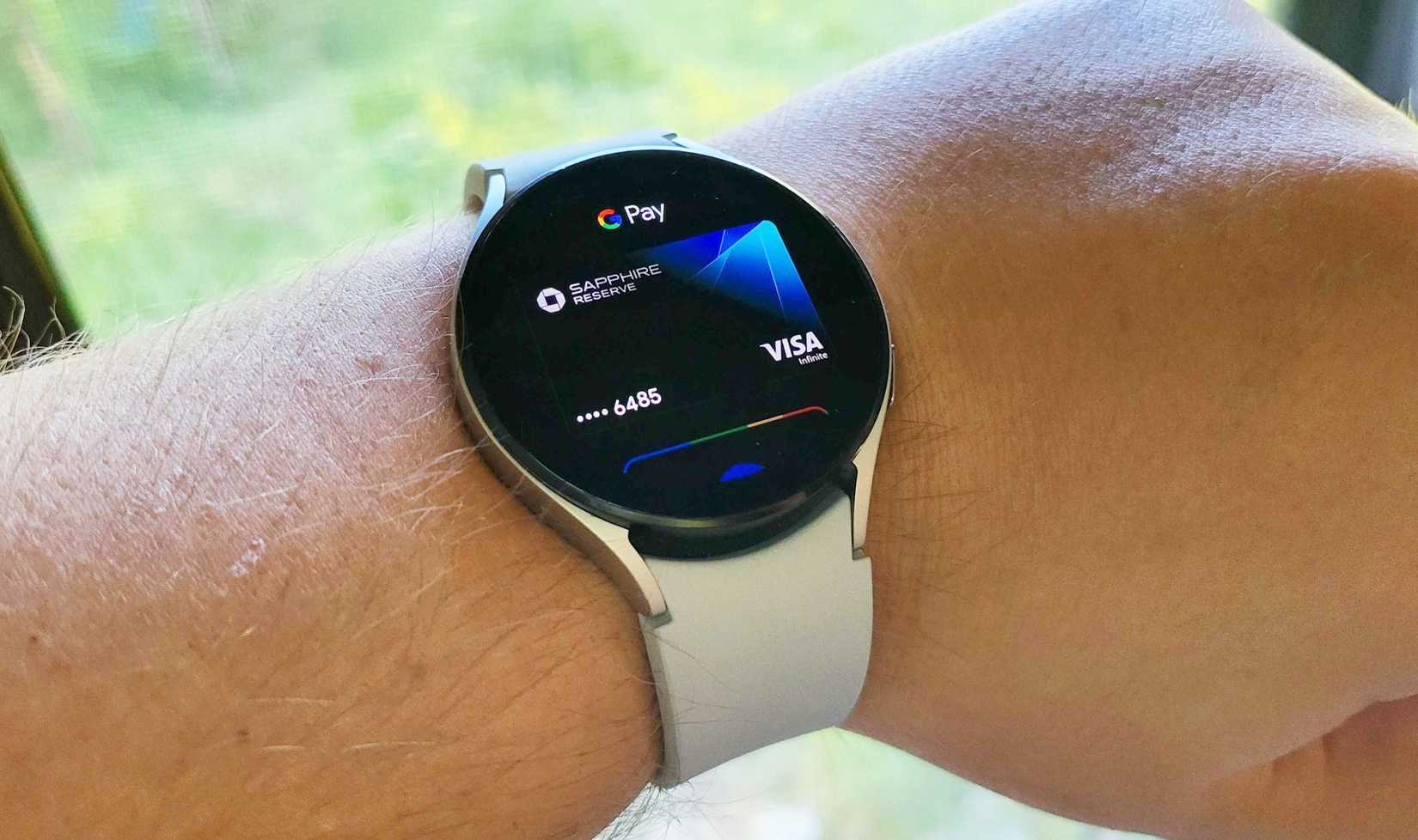
Paying using your watch was one of the big reasons to get a smartwatch for a while, and while that marketing angle has faded in favor of a general health and wellness drive, using Google Wallet on your smartwatch is still a great way to use it.
There’s no big secret here. All you do is access the Play Store, find Google Wallet, and install it. Then boot up the app, and the setup process will get everything ready for you to use it.