
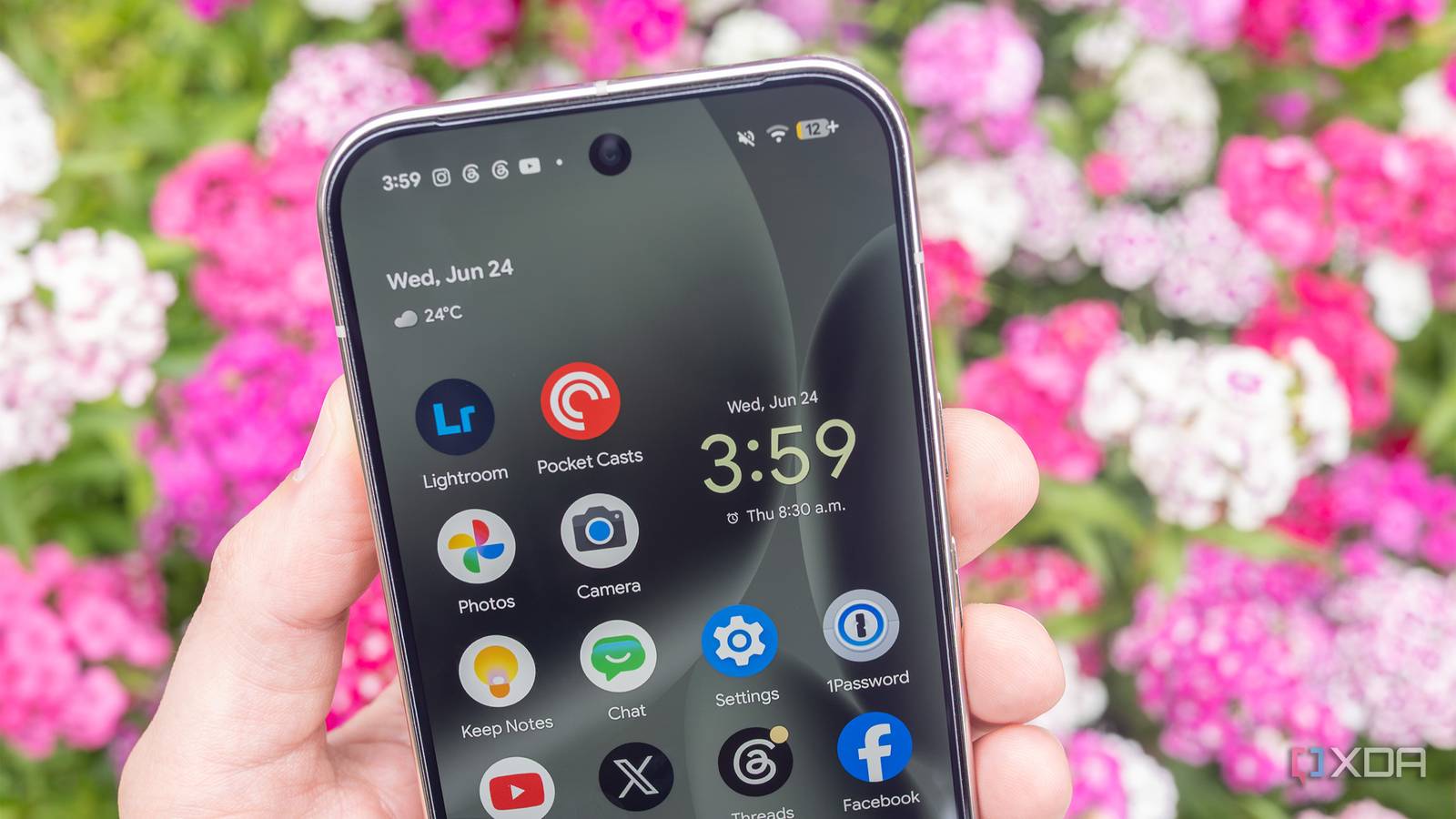
I’m a creature of habit in almost every aspect of my life, and that extends to how I use my Pixel devices. For years, I’ve stuck with the same home screen layout on nearly every Pixel I’ve ever used, including app icon locations, folders, and widgets. So, of course, I did the exact same thing with the Pixel 10 Pro when I first got my hands on it several months ago, especially widgets.
In a lot of ways, widgets feel like a low-key power-user feature that many people ignore, and if they don’t, they just stick with the default widgets their phone manufacturer sets, whether that’s Google, Samsung, or a smaller Android phone maker like Nothing. With that in mind, there are several very basic widgets (and one more niche option) that provide useful information at a glance.
To add widgets to your Pixel device, long-press on the screen and select Widgets. Next, search for the widget you want and select its layout. It will then appear on your home screen.
The easier I can jot things down, the better
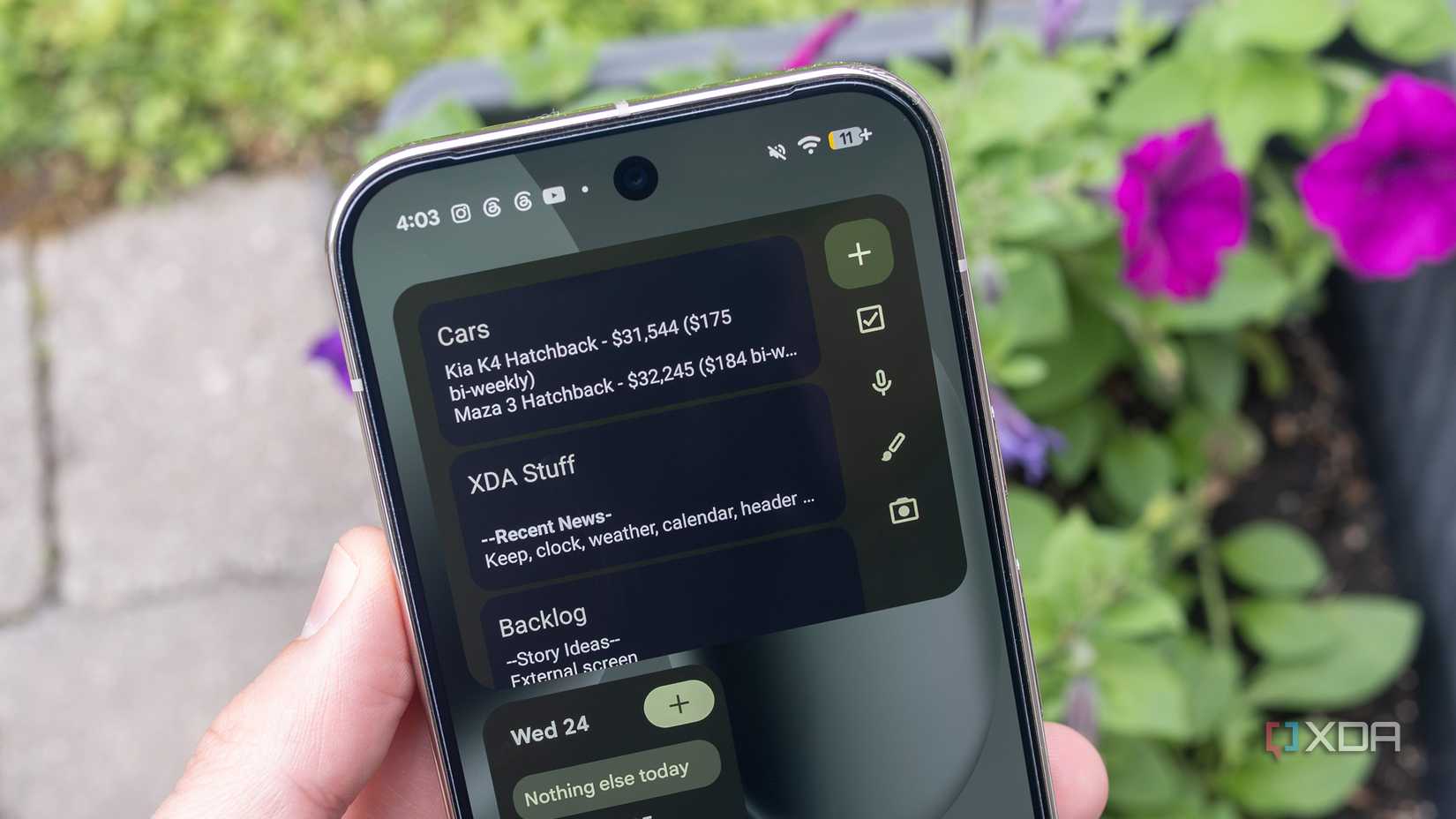
My entire life is in Google Keep, and over the course of a regular day, I likely open the app at least 50 times to take notes for work-related tasks, save specific links for later, or write down groceries I need to pick up. I’ve used the note-taking platform for years and have always appreciated that it works across a wide variety of devices, including Android, iOS, and desktop.
The key to Google Keep actually being useful is getting in and out of the app as quickly as possible. This is where the note-taking platform’s Android widget comes in. I use the largest widget option, which shows individual note pages for quick access, and I always keep the notes I use most at the top for convenience.
It’s a basic choice, but it’s still super useful
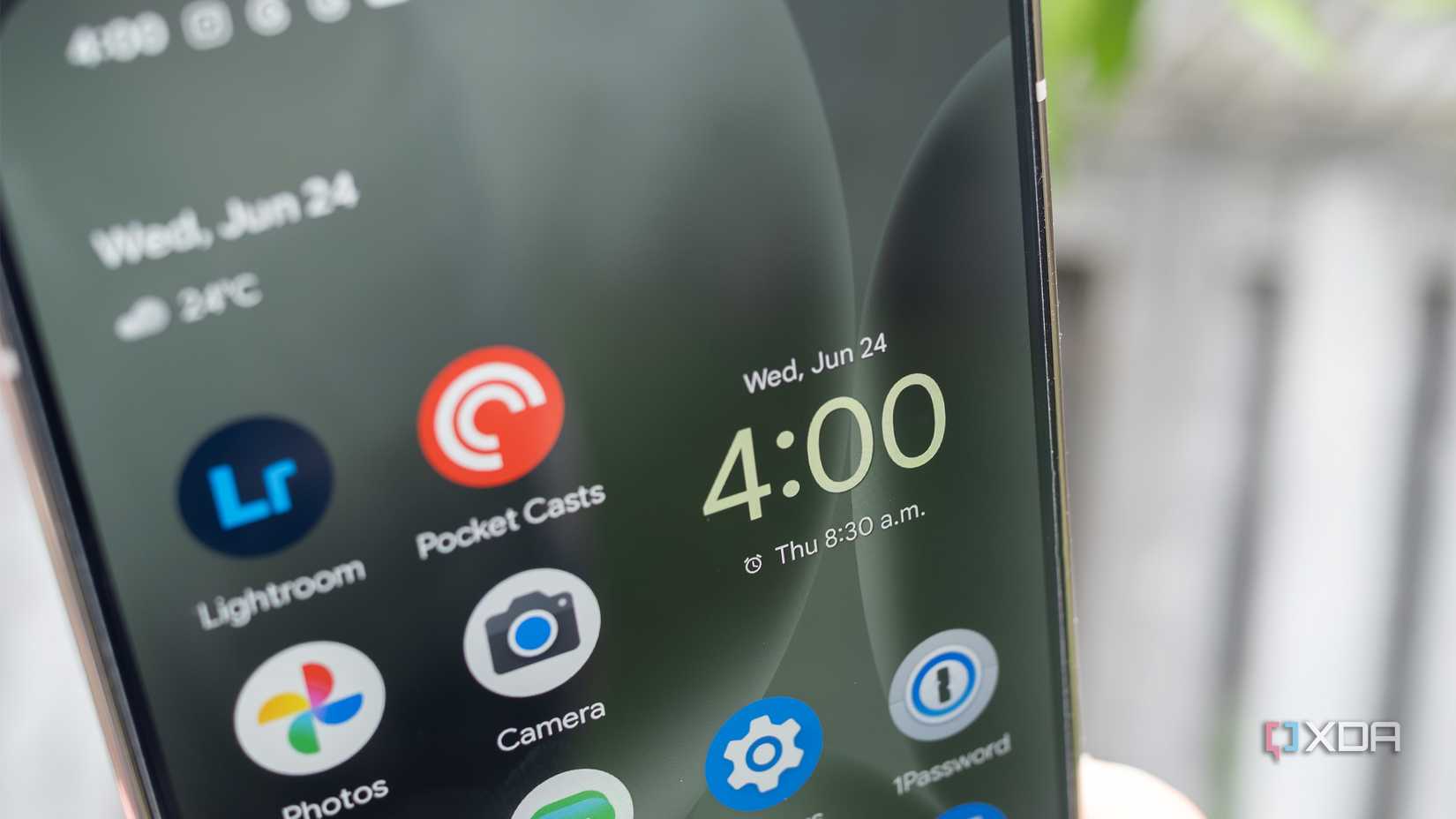
Before you scroll down to the comment section to tell me it’s silly to include such a basic widget in this list, hear me out. I set alarms for lots of things, whether it’s to get up in the morning, a reminder to go to bed, or something as simple as how long something is cooking. Like Keep’s notes, the quicker I access the Pixel’s Google Clock app, the better.
Setting the Google Clock widget in the top-right corner of my Pixel 10 Pro’s home screen lets me check that my alarm is set at a glance, without opening the app. That way, I can go to bed knowing my alarm is set properly without being tempted to check my notifications one last time before I go to sleep.
Related
This often-overlooked Pixel sensor is way more useful than I expected
Google has included a temperature sensor in every Pro Pixel device since the Pixel 8 Pro.
Keeping at-a-glance tabs on the weather is super helpful
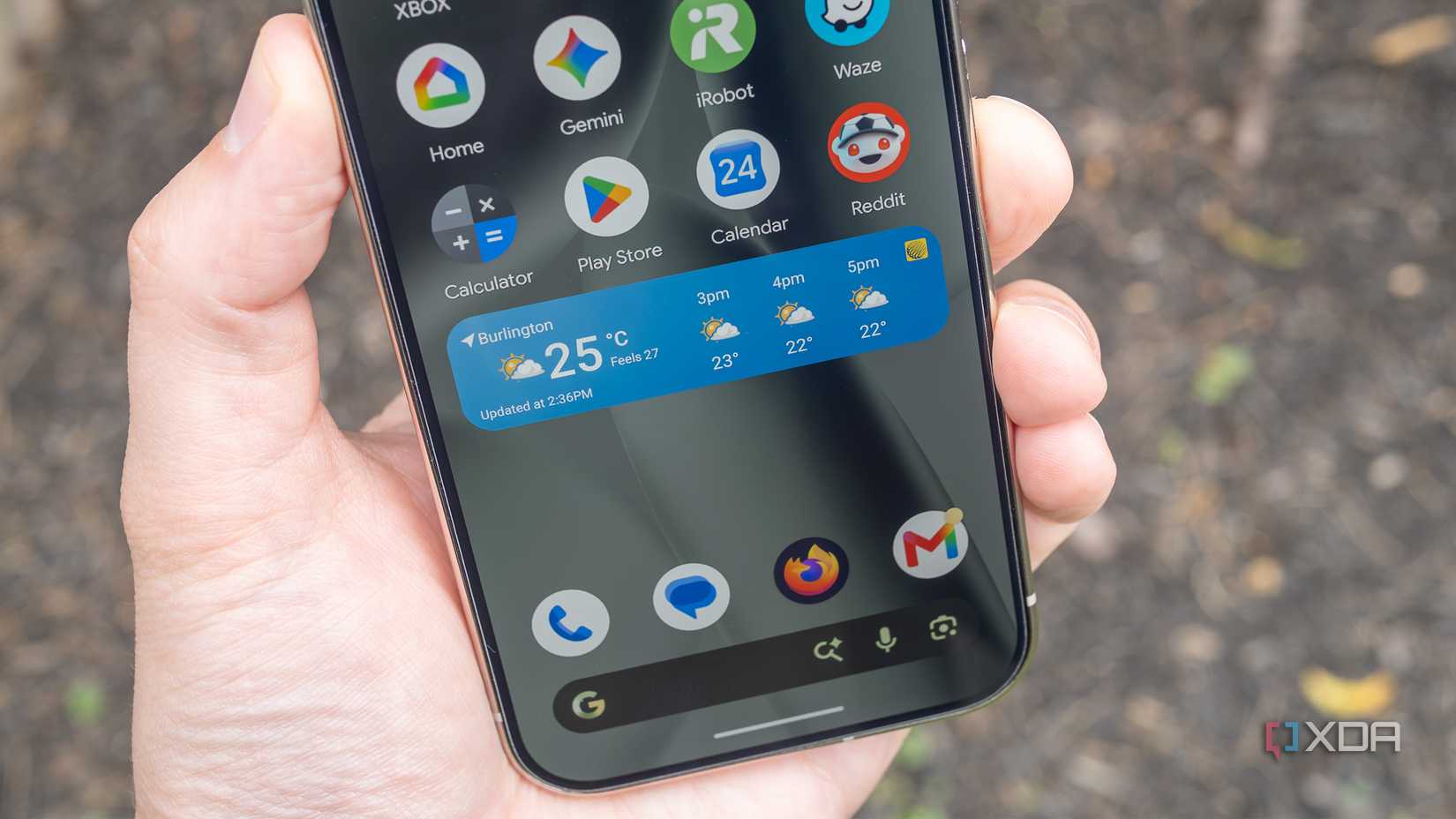
There are countless weather apps out there, but since I first got my hands on my first Android device in 2010, the HTC Desire HD, I’ve always relied on The Weather Network. So, naturally, when it comes to at-a-glance weather information, The Weather Network’s widget is my go-to option on my Pixel 10 Pro.
I opted for the widget version that spans four app icons on my phone’s home screen, showing the temperature, how it actually feels, and the weather for the next few hours. This lets me easily figure out whether I need to wear shorts or pants that day (if it’s summer, of course), as well as what clothes to dress my one-year-old son in.
Since he loves to play outside, whether it’s rolling around on a blanket, playing with his water table, or eating grass, this widget also helps my partner and me plan our day, especially on the weekend. For example, if it’s going to rain in the next few hours, it’s not worth it for us to get him all decked out in sunscreen — we might as well wait a few hours until the storm passes.
I prefer the smaller widget that lets you easily scroll through your meetings
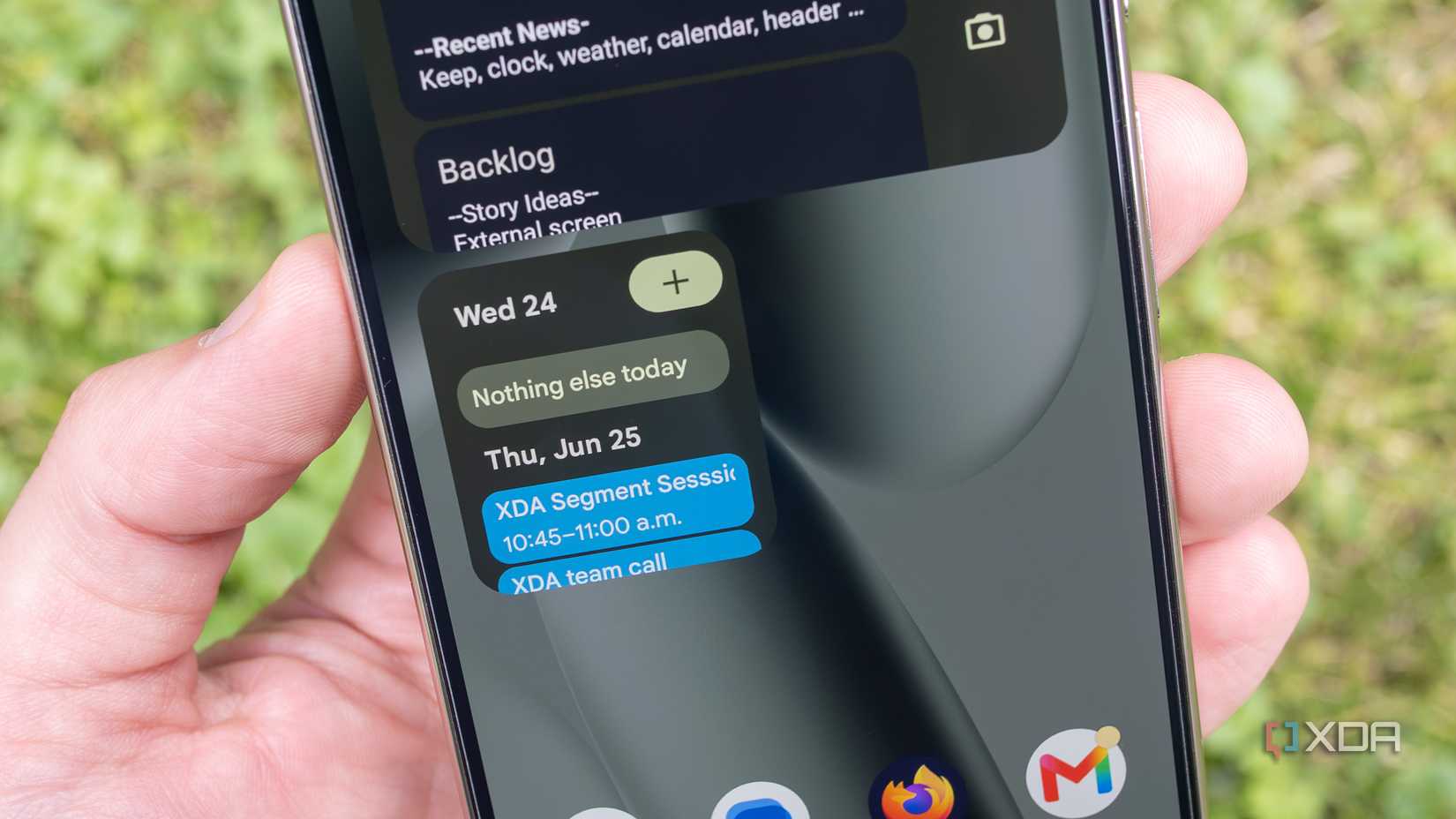
I admittedly don’t use the Google Calendar widget very often, but I have come to rely on it more frequently over the past year. I work from home, and my partner is currently home on maternity leave with our son, so sometimes, scheduling can get a little hectic. For example, if I have a meeting in the morning, she does her best not to come into my basement office and to keep my very cowabunga son in a more chilled out state (which is no easy task).
With this in mind, my partner often asks what meetings I have that morning while we’re eating breakfast. In some cases, I know immediately, but in other situations, I’m just not totally sure. This is where the Google Calendar widget comes in. With a quick swipe of my finger, I can scroll through everything I have scheduled that day and get a clearer picture of what the next several hours will look like.
I can also just open the Google Calendar app, but like Google Keep, much of my life is organized in various Google Calendars, which can sometimes be overwhelming. Scrolling through a widget that quickly gives me a simplified version of that day’s meetings keeps me from falling into a doom-scrolling session on my phone.
Related
The Pixel’s desktop mode feels like a real operating system, and it’s already better than I expected
I don’t know when I’d actually use the Pixel’s desktop mode, but it’s surprisingly polished despite its lackluster third-party app support.