
Battery life is the most important feature of any device. After all, your highly sought-after specs and features are useless if you can’t turn on your device.
There are several ways Android helps you prolong the life of your device when you really need to. From Battery Saver mode to Airplane mode, you have plenty of options to get the most out of your smartphone battery.
Those modes were not working for me, so I did some digging to find out which features and settings drained the battery of my Google Pixel 10 Pro, even when it was in Airplane Mode.
Related
I found a hidden Google Maps feature that made my Pixel’s always-on display useful
A hidden Maps trick worth turning on
Usage & diagnostics toggle
The hidden setting draining your battery
When my battery gets low and I know I’m not going to get my hands on a charger in the near future, I start my routine.
Battery Saver mode turned on, exit out of all my apps, and turn off Wi-Fi and Bluetooth scanning. As a last-ditch effort, I turn on Airplane mode to extend the life of my phone.
Recently, though, that has not been enough, so I started looking at the behind-the-scenes settings that might be draining my battery, even when my routine is in full force.
That is when I discovered the Usage & diagnostics toggle buried in the Security & privacy section of the Android settings menu.
Apparently, this tracking feature helps “improve your Pixel device experience” by sending information from your device directly to Google.
That’s all it does.
Turning it off has no impact on your smartphone experience. It just makes it harder for Google to “optimize device performance and system stability” based on your specific Pixel.
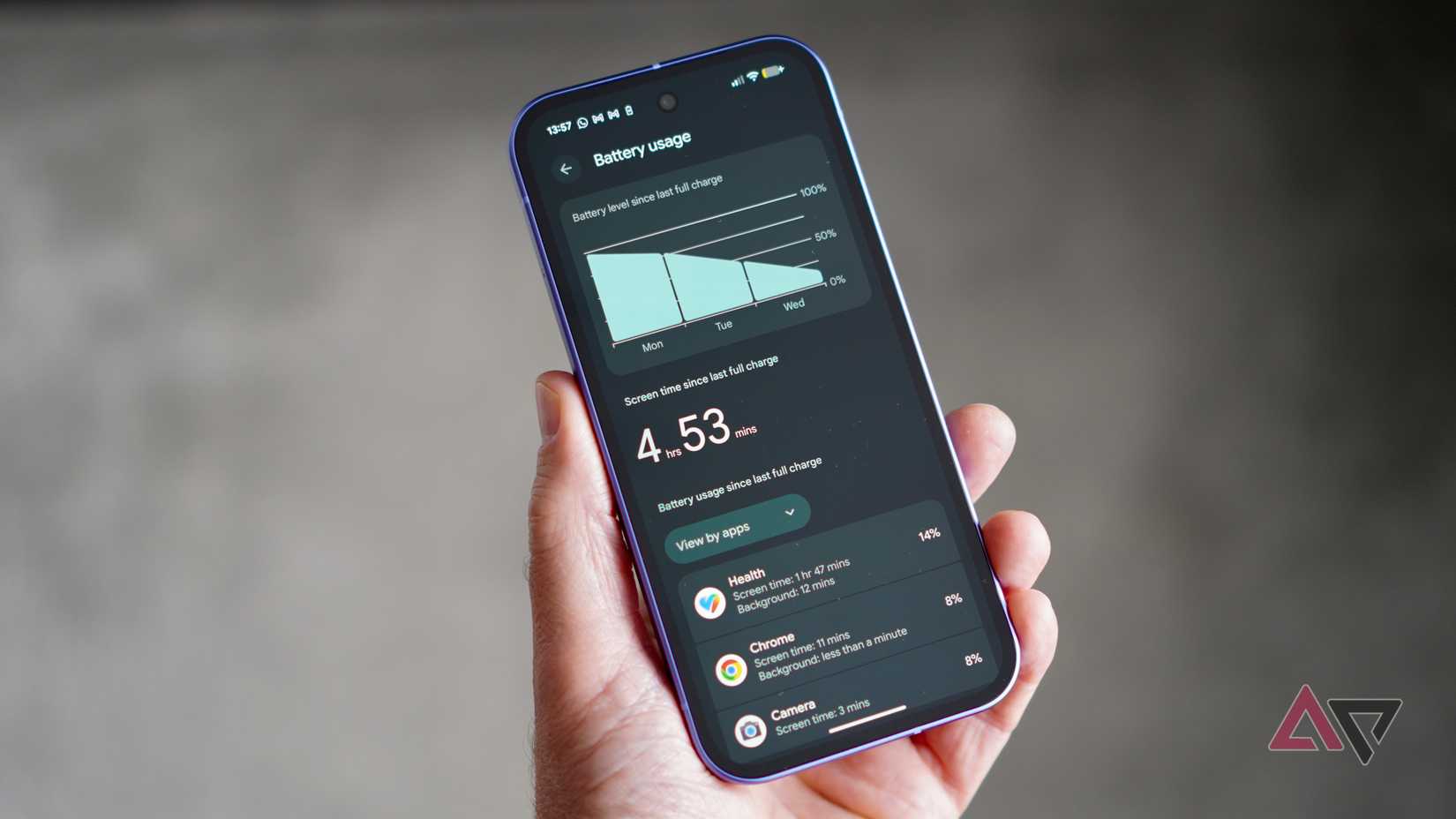
Even worse, this setting ignores Airplane mode, continuing to track your information without a connection and then sending it as soon as you reconnect.
Still, the battery impact was not massive on its own. But when in Airplane mode, I noticed that my battery life remained more stagnant than when this setting was enabled.
How to disable Usage & diagnostics tracking
It’s a lot more hidden than it should be
Google wants you to provide it with this tracking information, which is why turning it off is deep within the settings menu.
I found a simple walkthrough that will help you turn this setting off for good, and preserve your battery life in the future.
For starters, go to the Settings menu on Android. Then, scroll down to the Security & privacy menu.
After you’re in there, scroll to the bottom to find More security & privacy. Scroll to the bottom of the Privacy section, and turn off the Usage & diagnostics option. Your battery life will thank you.
Other battery-draining settings to turn off
Make Airplane Mode more powerful to extend battery life
Disabling the Usage & diagnostics toggle can improve your battery life, especially in Airplane Mode, but if you’re a heavy smartphone user, you might need more than one prong to attack this problem.
Several settings on your Pixel 10 can curb your battery drainage. If you can part with their minor conveniences, you could prolong the life of your device.
Wi-Fi & Bluetooth scanning: These features constantly scan for networks to connect to. Turning them off can save your battery life in and out of Airplane Mode.
Smooth Display: If you can’t tell the difference, disable the 120Hz refresh rate on your phone to preserve battery life when you’re scrolling.
Screen timeout: Change the screen timeout times. That way, your smartphone display doesn’t drain the battery when you aren’t looking at it.
So many settings to choose from
It’s your phone, customize it!
If you do not like how your phone is working, pump the brakes before you buy a new one.
In 2026, the reality is that phones are customizable through various features and settings. You could be a simple toggle away from your new favorite device.
Whether it’s battery drainage, haptic feedback, or focus modes, there are more than enough settings on Android to give you the power to change how you interact with your device.
Spend the time investigating your settings menu to find which ones work for you. You’ll enjoy a better mobile experience for the rest of your natural-born life.