
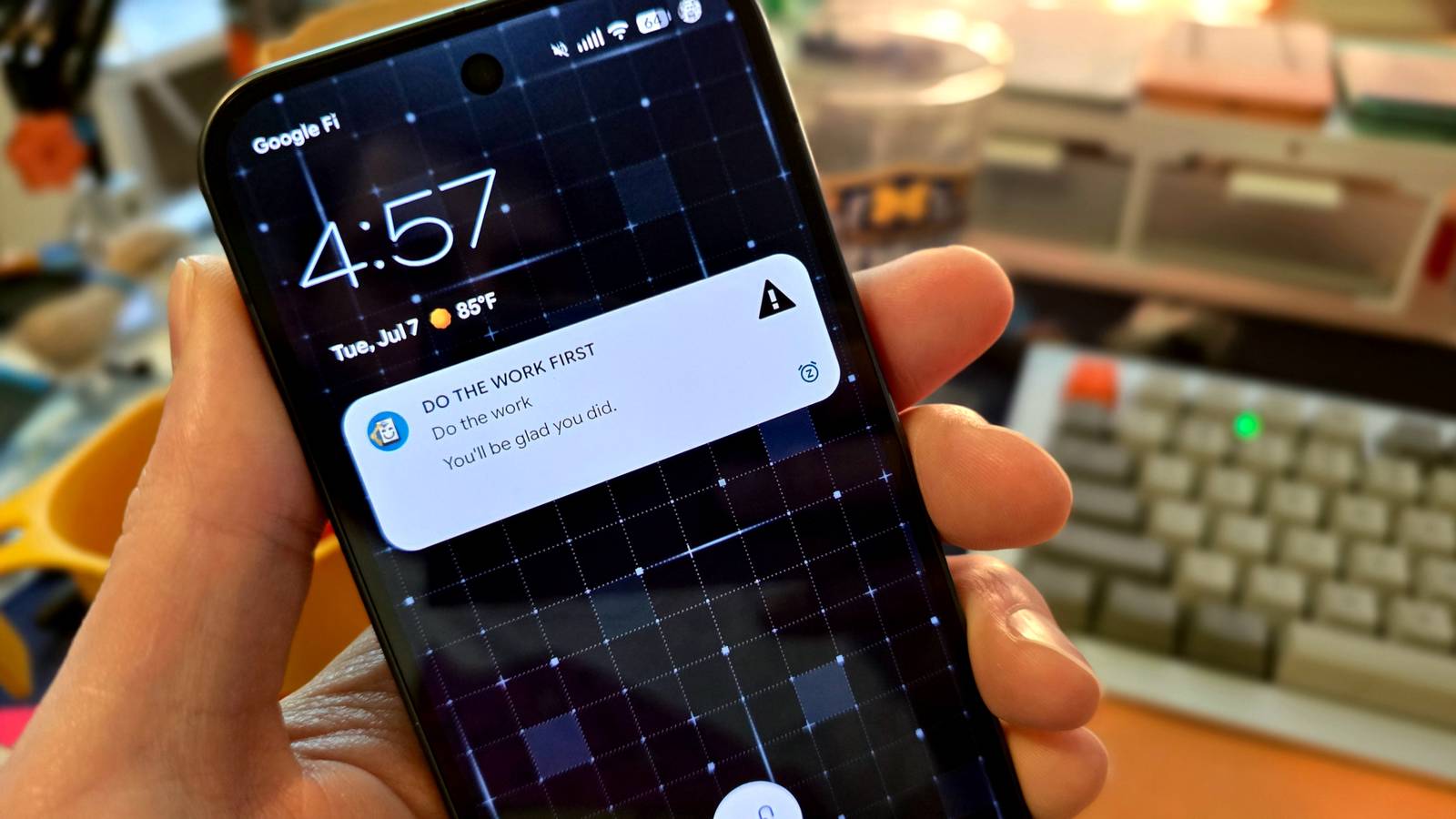
Reminders. Screen time limits. Grayscale mode. You’ve heard about these common techniques to use your phone less often. The problem is they’re easy to ignore. Sometimes, a bit more force is needed. So, I made my phone a bully.
Distractions are everywhere, but sometimes, the best tool against them is the Distraction Machine itself. My phone screen is one of the things I see most on a daily basis, so it only made sense to put that prime real estate to good use.
Harness the allure of the glowing rectangle
You’re going to look at it
Credit: Justin Duino / How-To Geek
When it comes to increasing productivity and reducing distractions, the goal for many people is to use their phone less. However, I’m actually pretty happy with how much I’m using my phone these days. I recently wrote about setting up a new phone from scratch instead of a backup, and that’s really helped keep my phone minimal.
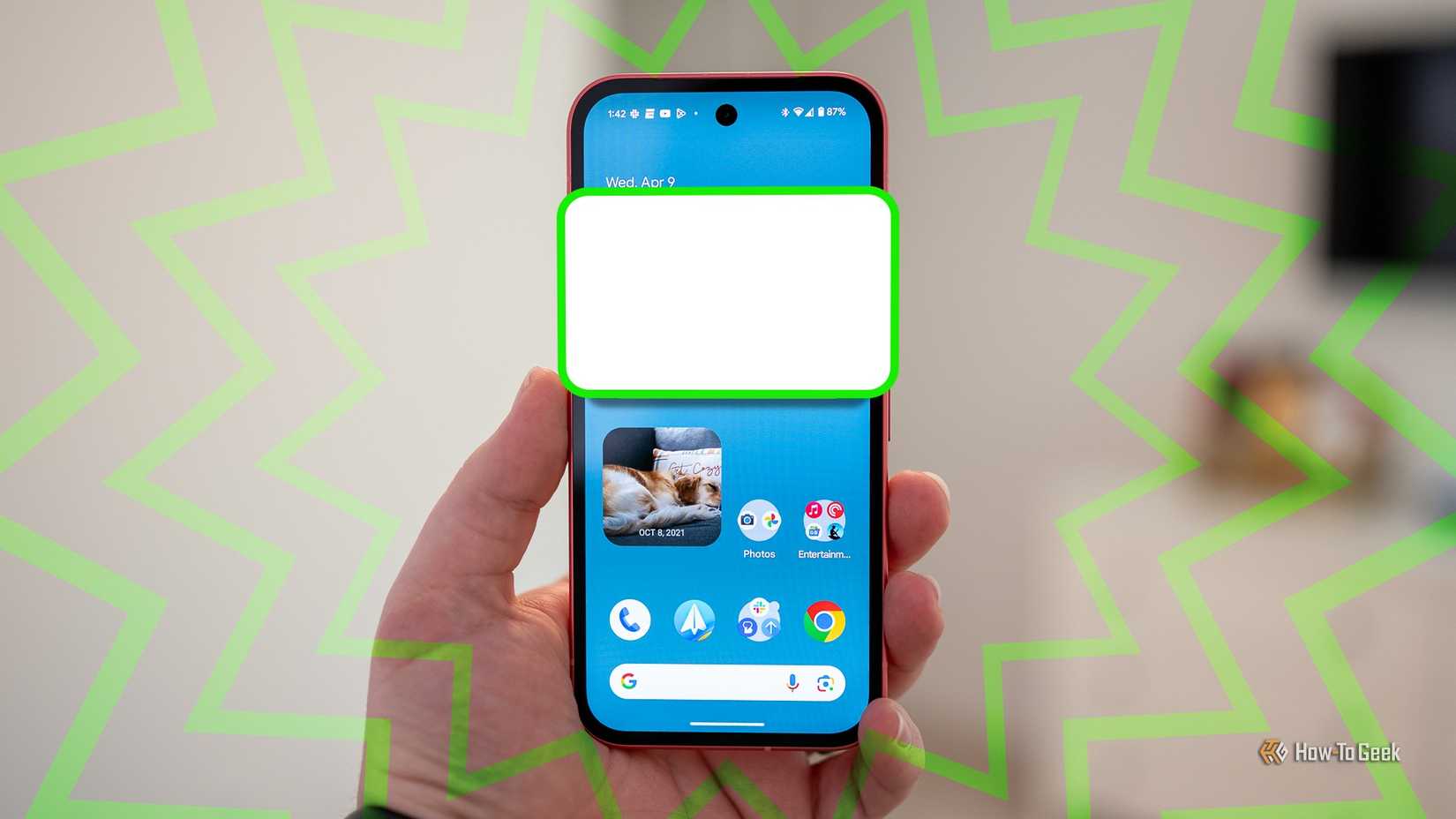
Of course, if you are trying to curb your screen time, there’s no denying that you will find a way to look at your phone—even just for the time or weather. That’s why I’ve made an effort to put important stuff at the forefront, like a big to-do list widget front and center on my home screen. Rather than trying to block the screen, I wanted to harness it.
With that in mind, I thought about what pulls me into my phone the most. Time and again, it’s notifications. That’s where my eyes go when I turn on the screen, so that’s where my productivity reminders should be.
Related
Samsung and Google are breaking Android’s greatest strength
Trying to ruin the nearly perfect notification system.
I needed my phone to grab my attention
And continue to do it all day
With all of this in mind, I had an idea. What if I could create a special notification that would appear at the start of the work day, have top priority in my notification tray, and immediately return if dismissed during the work day? Essentially, I wanted my phone to nag me all day to stay on task.
I decided to use a very handy app called “Automate” to do this. In the past, I would have chosen Macrodroid, but it’s much more limited for free use these days. I still think Macrodroid is worth it if you love automations. However, for a one-off or just occasional use, Automate is a nice alternative.
Related
4 free alternatives to popular paid Android apps
Free Android apps that do everything the paid ones do.
Now, Automate works a bit differently than most automation apps. It uses visual “flows” instead of the traditional “if this, then that” layout. Admittedly, Macrodroid is easier to use, but I’m getting the hang of Automate. Here’s what my flow looks like:
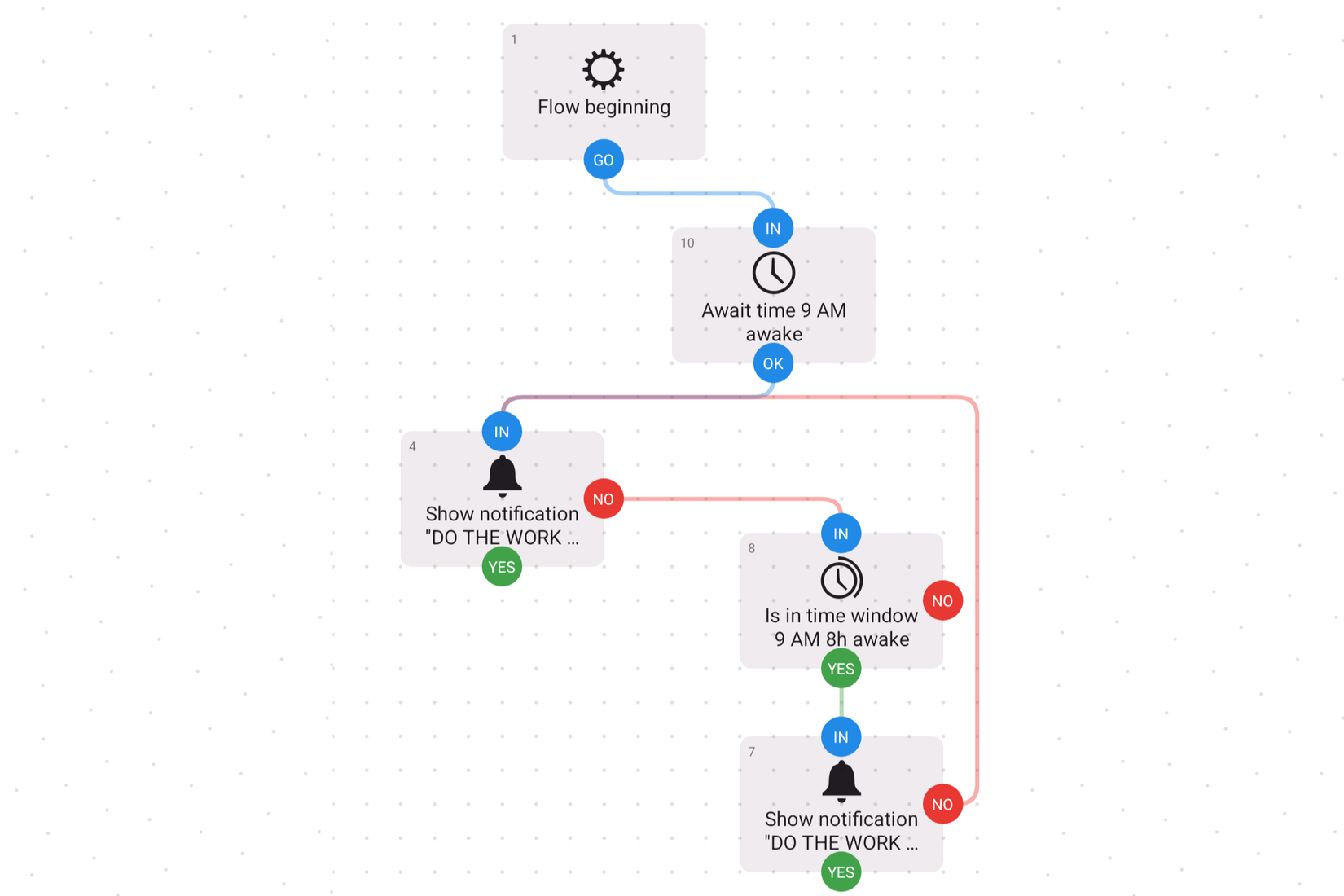
The result of this flow is a notification that appears at 9:00 AM on Monday-Friday, and if this notification is dismissed within the eight hours after 9:00 AM (taking it to 5:00 PM) it immediately appears again. To achieve this, I used three types of “blocks”:
Time await – Choose an exact time of day and days of the week.
Time window – Choose an exact time of day and an ensuing duration of time.
Notification show – Generates a custom notification.
The last block is the most important, and it’s where you can really customize the experience. You can make the notification say anything you want. It could be a gentle reminder to stay on task, a motivational quote, or a strong demand. Personally, I struggle with putting things off until the end of the day, so I made mine say “DO THE WORK FIRST.”
I have a few suggestions if you want to make the notification as hard to ignore as possible. First, make sure “Visibility” is set to “Public”—this will ensure it appears on the lock screen. Second, in the “Ongoing” section, select “Yes, promoted” to make it a Live Update Notification. These notifications always have top priority, and on some devices, they have an enhanced visual appearance.
Now, the last thing to do is scroll back to the top of the “Notification show” block and select “When dismissed” from the “Proceed” drop-down. This is what will make the notification reappear when swiped away. After you’re done with this block, long-press it on the flow screen, copy it, and then long-press a blank space to paste it.
With all the blocks on the screen, it’s just a matter of connecting them. Draw a line from “Flow beginning” to the “IN” side of the “Notification show” block. Then, draw a line from the “NO” side of that block to the “IN” side of the “Time window” block. Lastly, draw a line from “YES” on the “Time window” to “IN” on the copied “Notification show” block, and loop that block’s “NO” back to “IN” on the original “Notification show” block.
The absolute last thing to do is go back to the screen before the flow and tap “Start.” Now, it’s running and will be activated when the time is right.
See the bullying in action
Here’s how the notification looks on my phone. As you can see, it immediately comes back when I dismiss it before 5:00 PM, but after that, it stays away. The notification will reappear at 9:00 AM on the next weekday, and the cycle repeats itself. The only way I can truly make the notification disappear on a workday is to turn off the automation completely.
I understand that this is a niche use case for an automation, but it works for me. You may also find it useful if you find yourself checking your phone throughout the day. Of course, it can be used for more than just productivity reminders. Your imagination is the only limit.