
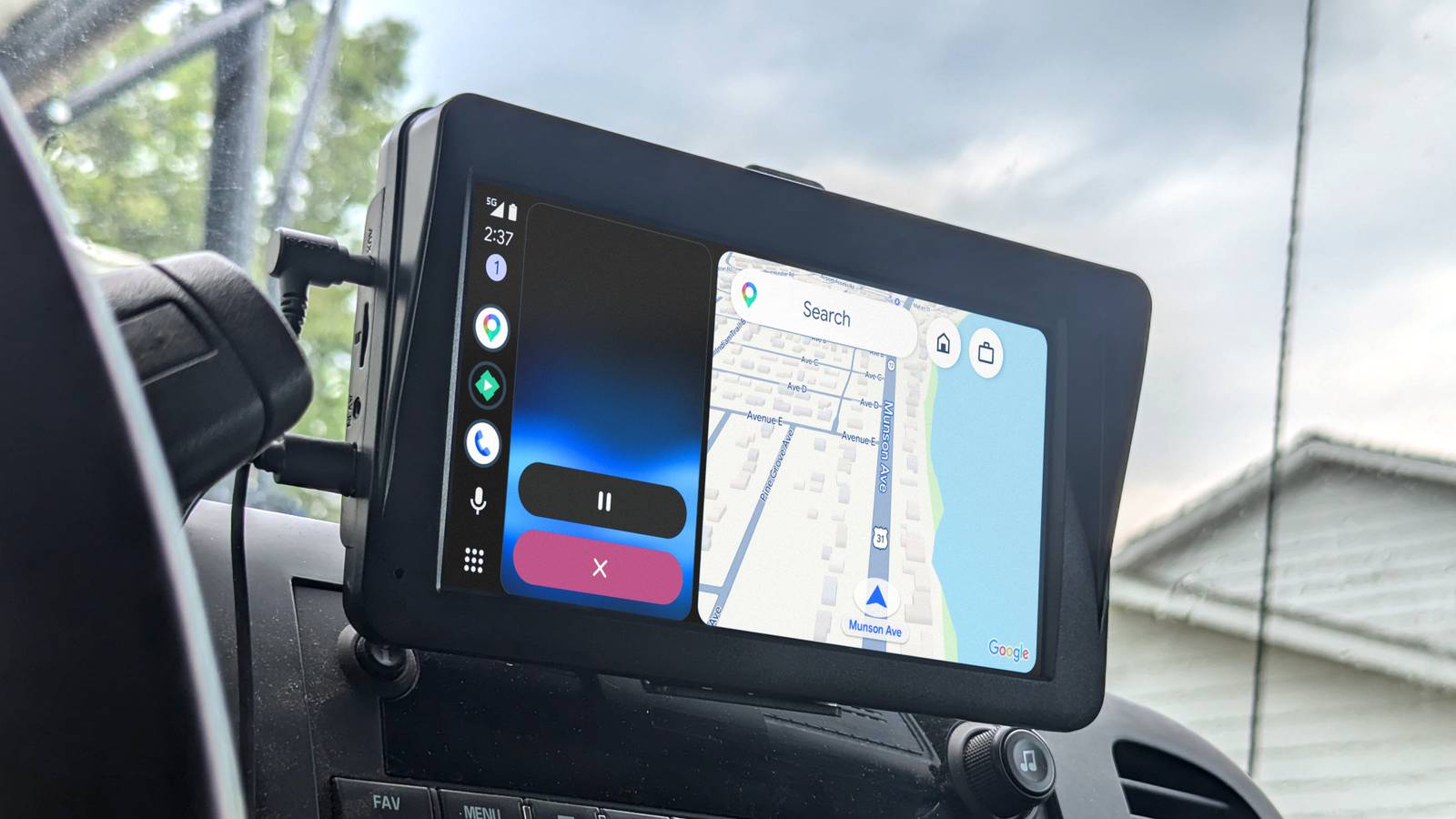
Android Auto is one of the best features on our phones, especially while driving. Reaching a destination safely while keeping your eyes on the road and your hands on the wheel is a big deal. However, there’s nothing more frustrating than a laggy Android Auto experience, with a map that stutters, audio cutting out, or missed navigation instructions.
Luckily, a few easy changes and settings can vastly improve Android Auto, speed things up, and reduce lag. Android Auto is more than just an app you see on the infotainment display. It’s actually an entire interface projected from your phone, so how it’s configured and how that data gets sent is important. Here’s the easiest way to fix lag in Android Auto.
Stop using wireless Android Auto
And get a quality USB cable
Wireless Android Auto is extremely convenient, but there’s a decent chance that it’s a big part of your frustrations. By going wireless, you’ll often experience lag or other issues from interference, connection drops, heat, or complete disconnections.
Trust me, I’ve tried four different wireless adapters, and only one is worth using. Even then, it’s not perfect, not to mention that it causes additional heat, which is only amplified during the hot summer months. As a result, Android Auto suffers.
Related
Here’s an Android Auto adapter that’s actually worth buying
Wireless Android Auto made easy.
The solution? Go back to using a wire, and, more importantly, a high-quality USB cable. Don’t just use whatever cheap USB-A to USB-C (or USB-C to USB-C) cable you find in your drawer or at the gas station. You’ll want to use a quality USB cable from a trusted manufacturer, like Anker, and preferably one that’s USB 3 or higher.
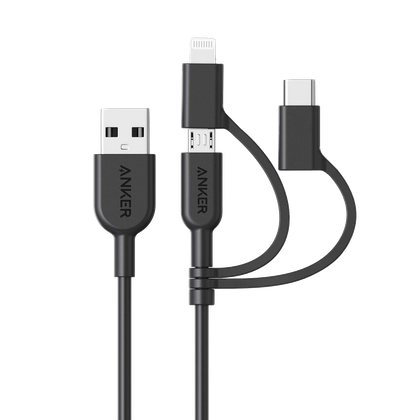
And while most USB 2.0 cables support fast enough data transfer, they’re certainly not all made equal. I’m using an Anker Powerline II 3-in-1 cable that’s braided, shielded, and only 3ft long. You don’t want a cable that’s too long or that’s too cheap.
Charger Type
USB
Cable Length
3 ft
Don’t want to stop at USB-C? The Anker Powerline II is a 3-in-1 cable featuring micro-USB, USB-C, and a Lightning connector, while the other end is USB-A. Super handy when you have a myriad of devices with different connectors.
Disable performance and battery optimizations
Keep Android Auto running at top speed
This next step is one I’d recommend only if you’re using Android Auto with a wired connection. See, our modern phones are extremely powerful, but the software is also designed to balance power/performance to ensure the best possible battery life. What ends up happening is that Android aggressively manages power usage and will often throttle, limit, or even close apps that use too much.
Make sure your phone isn’t using any battery-saving modes while you’re driving, then follow the steps below (and the images above) to switch Android Auto from “Optimized” for performance to “Unrestricted,” keeping everything fast and smooth.
Go to Settings > Apps > Android Auto, and tap on Battery or find the App battery usage option. From there, switch it to Unrestricted, and then find and Allow background usage.
Apps like Android Auto are power-hungry, especially when used wirelessly, and there’s a good chance the default settings are slowing things down and hurting your driving experience.
Clear the cache on Android Auto
Give it a clean slate for your next trip
Credit: Cory Gunther / How-To Geek
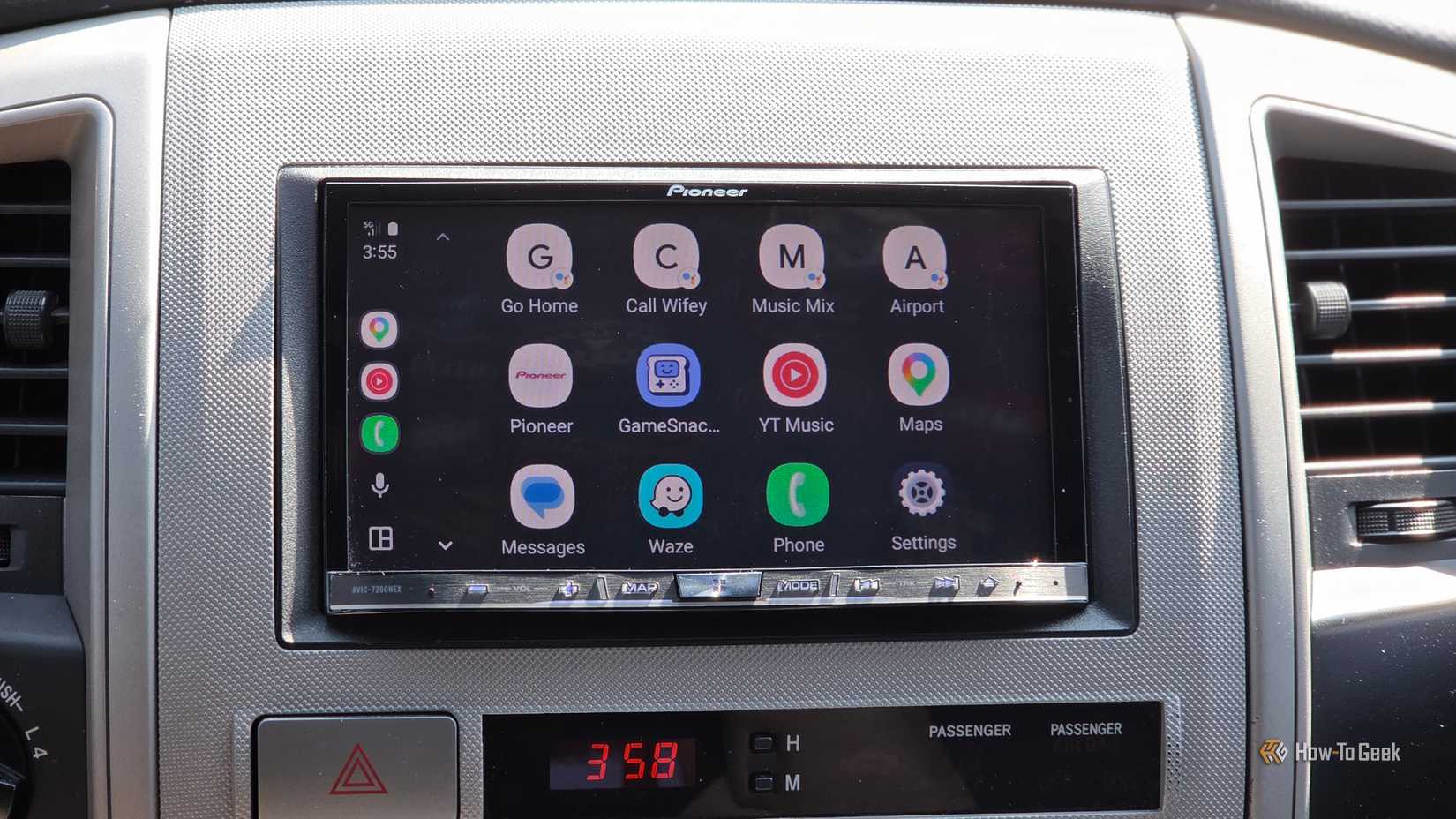
While we’re already in Settings > Apps > Android Auto, tap Storage, then clear the cache. This removes residual files, leftovers, and other things, and is one of the easiest ways to fix problems with just about every app.
Just make sure you don’t hit “clear data,” as that’ll erase everything, including custom settings and connected devices. You don’t want to do that. Instead, tap the Clear Cache button to give the application a clean slate.
Related
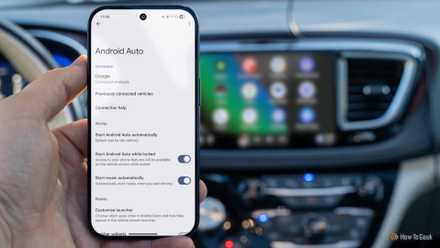
I stopped wasting time in my driveway after setting up these 4 Android Auto automations
Get in and go
A few more tips to make Android Auto better
Since Android Auto is essentially a projection of your phone, several other phone-related things will improve your experience. For example, speed up all animation settings in the hidden developer menu, and Android Auto, along with your entire phone, will be snappier. Make sure you don’t have a ton of large apps open and running in the background, like games. Sure, Android handles background apps for you, but on a long drive, it’s better to start fresh.
I also mount my phone to a dock positioned in front of an AC vent, which helps keep things cool and running better during the summer. I turn off any battery saver modes. Then, in Settings> Apps > Mobile Data. Ensure the toggle for background data usage for Android Auto is set to “on”.
And finally, make sure your phone, apps, and AA are all up to date and running the latest software available. Google updates Android Auto frequently, including an all-new look coming later this year.