
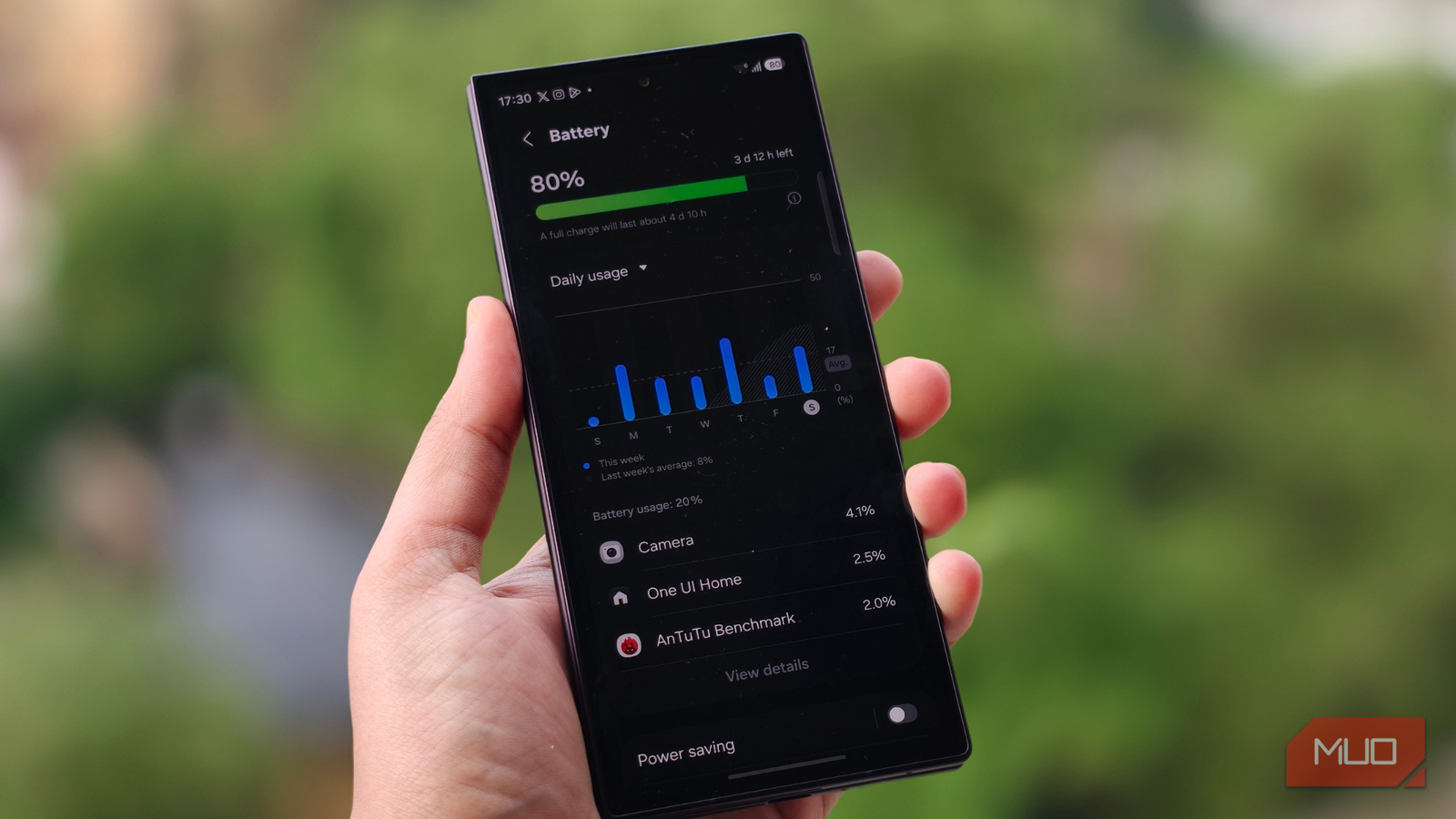
One of the most overlooked culprits behind a smartphone’s battery drain is the network. Specifically, because your phone is almost always running Wi-Fi in the background, even when the setting is disabled.
On paper, this sounds absurd: why would my phone keep scanning for Wi-Fi in the background even when Wi-Fi is turned off? This behavior isn’t a bug; it’s a feature called Wi-Fi scanning. Essentially, it’s a background activity that does little, but it’s enabled by default and can drain your battery.
Related
I checked my Samsung’s battery settings and found 7 apps draining it in the background
The biggest battery hogs weren’t what I expected.
Why your phone keeps scanning for Wi-Fi networks
A location feature running behind the scenes
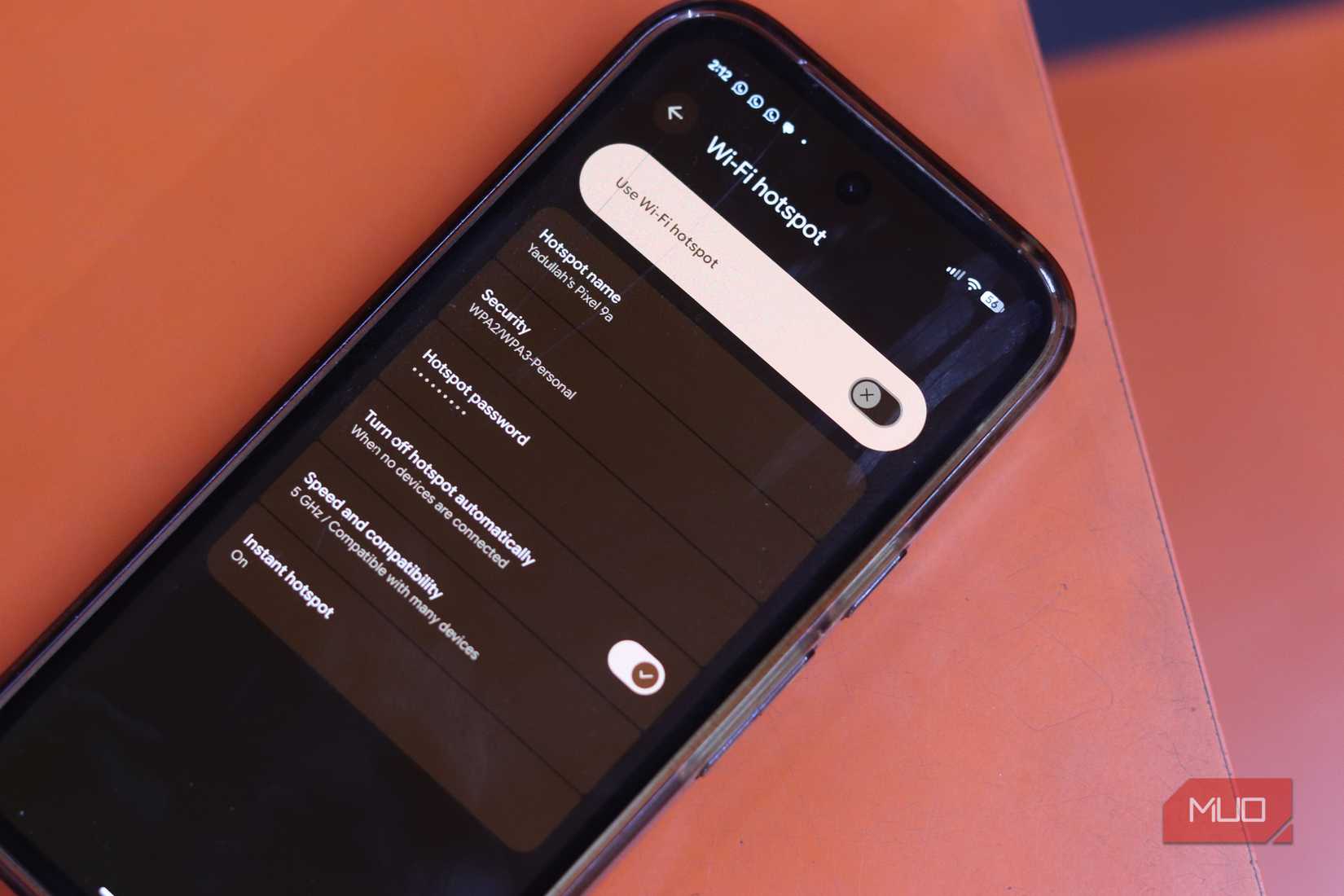
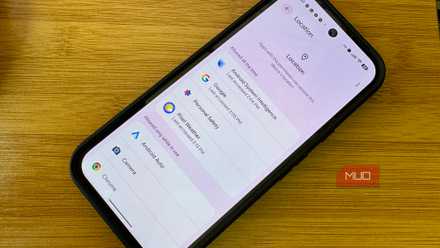
Image taken by Yadullah Abidi | No attribution required.
Wi-Fi scanning, or always-on scanning (naming conventions differ across devices), intermittently scans for Wi-Fi networks in the background. These networks don’t necessarily have to be the ones the phone remembers; they can also be unknown Wi-Fi connections.
Wi-Fi scanning improves location accuracy by scanning BSSID data from other networks and using it as location landmarks. The phone then relays this information to the location service and queries an online database to help pinpoint location.
Wi-Fi scanning works across all location-based apps like Google Maps, Weather, and more. Every time the phone checks for nearby networks, it wakes up the Wi-Fi radio, and your CPU processes the information.
Even though modern smartphones come with large battery capacities, their workload has increased, and background activities like Wi-Fi scanning add overhead to the phone’s battery. On a long day when you’re on mobile data only and Wi-Fi is disabled, 5G and Wi-Fi scanning in the background together can have a huge impact on battery life.
Turning off Wi-Fi scanning takes one settings toggle
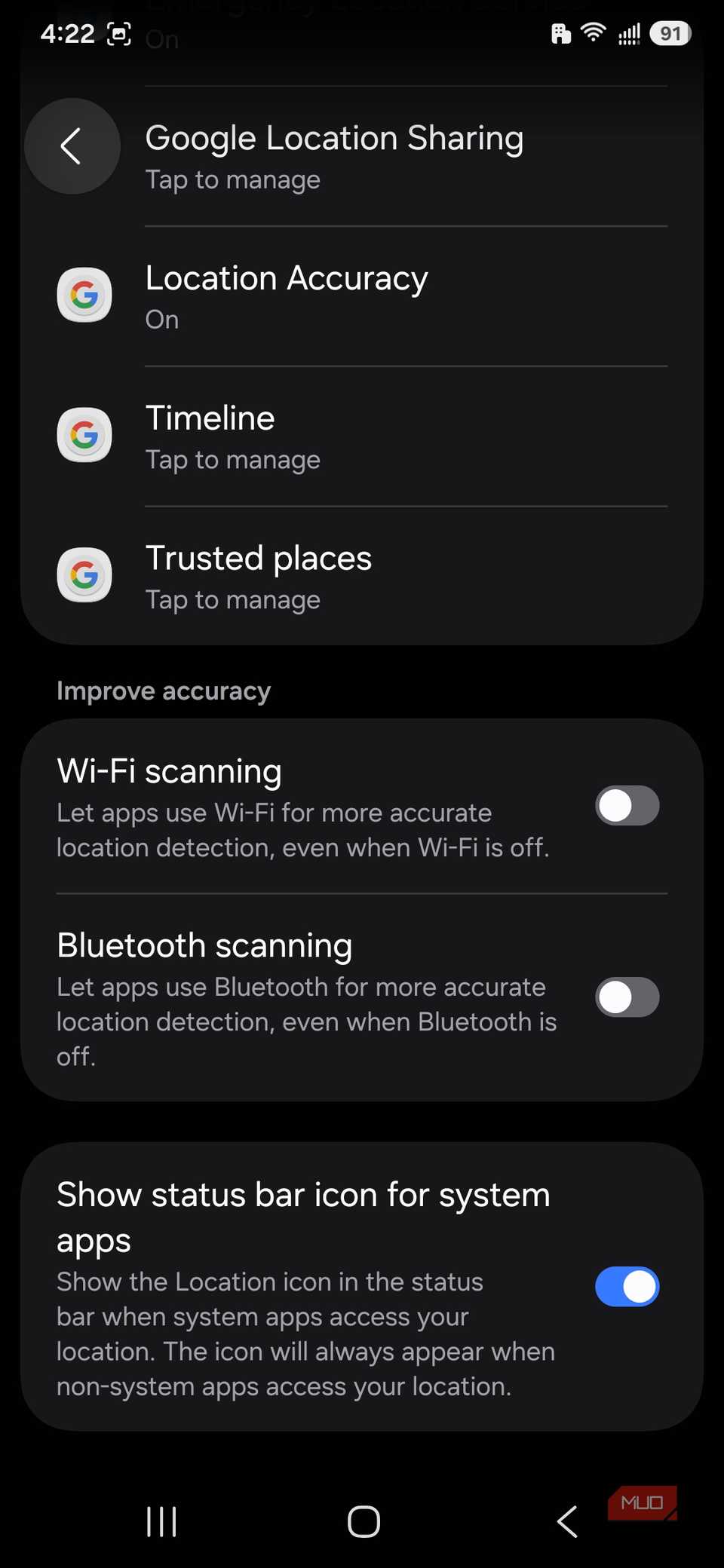
Disabling Wi-Fi scanning can significantly extend battery life, and it’s a straightforward process in Settings. Here’s the rundown for Samsung Galaxy phones.
Head to Settings.
Go to Location.
Find Location Services.
Disable Wi-Fi scanning.
The walkthrough varies by brand, and the feature may be called Wi-Fi scanning or Always-on scanning on different phones.
Battery usage varies, but after turning off this feature, you can test your mobile phone for a few days and check it in Settings -> Battery -> Battery Usage to see how much of a difference you notice. Although the battery section won’t explicitly show Wi-Fi usage, that falls under overall system usage. Still, you can estimate the difference with and without the feature enabled.
Phones with smaller battery capacities tend to benefit more from turning off Wi-Fi scanning, and I was able to add about an hour of battery life to my Samsung Galaxy S23.
However, disabling Wi-Fi scanning will take a bit longer to pinpoint the phone’s location when using the Weather app, booking a ride, or searching for a location on Google Maps.
Bluetooth scanning eats into your battery life the same way
The convenience you’d be trading away
 Shaheer Khan/MUO
Bluetooth scanning works like Wi-Fi scanning: it scans for nearby Bluetooth devices even when the feature is disabled. Bluetooth scanning also helps with location accuracy in places where GPS signals might be weak. Certain brand features, like Samsung’s SmartThings Find, rely on Bluetooth scanning to locate lost devices.
However, Bluetooth scanning can affect both battery life and privacy, as exposing the phone’s information to nearby devices can make your location easier to infer. You can find Bluetooth scanning in the same tab as Wi-Fi scanning, under Location services.
Related
I switched my location mode to “Device only” and stopped wasting battery on GPS polling
Stop letting location services bleed your battery.
What you lose, and what you don’t
Battery life is a huge concern for me on days when I’m out and constantly on my phone; it never lasts a full 24 hours. Disabling Wi-Fi scanning won’t have a huge impact on location services, since you’ll be on mobile data anyway, and that alone helps with location accuracy.
Without an internet connection, it rarely does anything in the first place. However, disabling Bluetooth scanning can affect features such as digital keys, contact sharing, and SmartThings Find. If you’re fine with missing those features, disable them.
My general rule of thumb is to disable these services if you rely heavily on mobile data and are mostly outdoors, since neither feature does much in those situations.
Aside from disabling these features, I lower my phone’s refresh rate, sometimes downgrade to 4G, and turn off Always on Display to ensure my battery lasts longer. Instead of my phone dying by lunchtime, I can extend its battery until nighttime, when I get home and can actually charge my Android.