
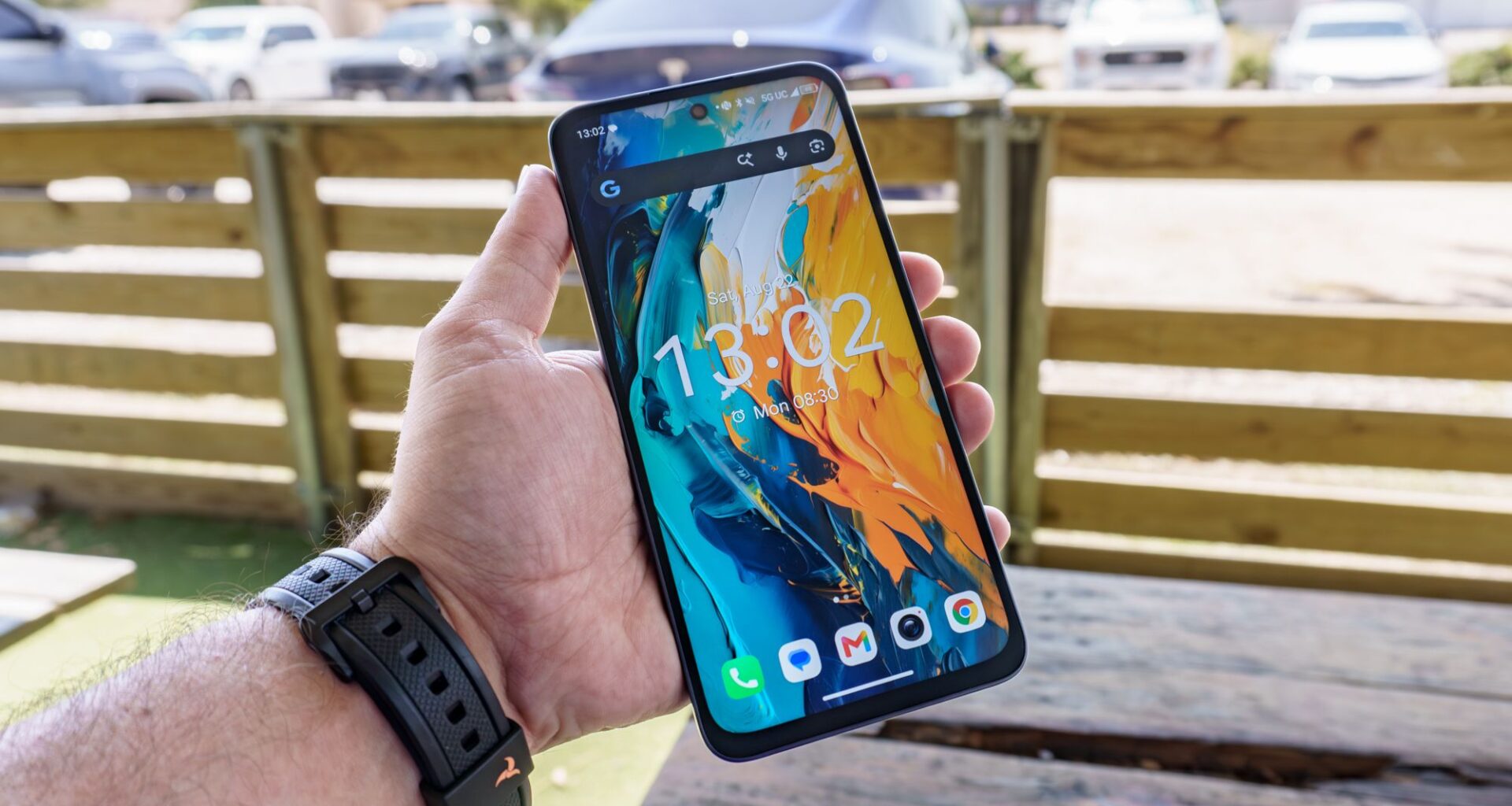
Calling it quits on my current smartphone and upgrading to a new one isn’t the kind of decision I make on a whim. Instead, it often amounts to months of research and then waiting for a sale before I finally pull the trigger. However, that wasn’t the case at all with the TCL NXTPAPER 70 Pro.
Now, while I know the ins and outs of the best phones, I’m not the type of person to drop a large sum of money on a flagship device. Part of the reason for this is that I prefer to buy my phones outright instead of going through my mobile carrier. This is why I usually go with a mid-range phone over a more premium one.
In the past, I’ve been tempted by the best cheap phones, but one shortcoming or another always held me back. With the NXTPAPER 70 Pro, even though it does skimp out on some of my favorite, more premium features like wireless charging and a USB 3.0 port capable of video out, I was more than willing to leave my Nothing Phone (2) behind for it.
Ever since I first saw TCL’s NXTPAPER tech in person at a mall in Taiwan, I’ve been enamored by the matte, glare-free displays the company uses for it. After trying out the larger NXTPAPER 11 Plus and NXTPAPER 14 tablets, I figured it was time to try using this unique display tech as my daily driver — and I’m glad I did.
Here’s what it’s been like using the NXTPAPER 70 Pro for a month and why it will be especially hard going back to a phone with a glossy screen, even if it is more powerful.
You may like
(Image credit: Tom’s Guide)
Now I’ll admit, this wasn’t my first experience with one of TCL’s NXTPAPER phones. Alongside those two tablets, the company also sent over its 60 XE. However, while that phone did the job, it wasn’t nearly as polished as the 70 Pro.
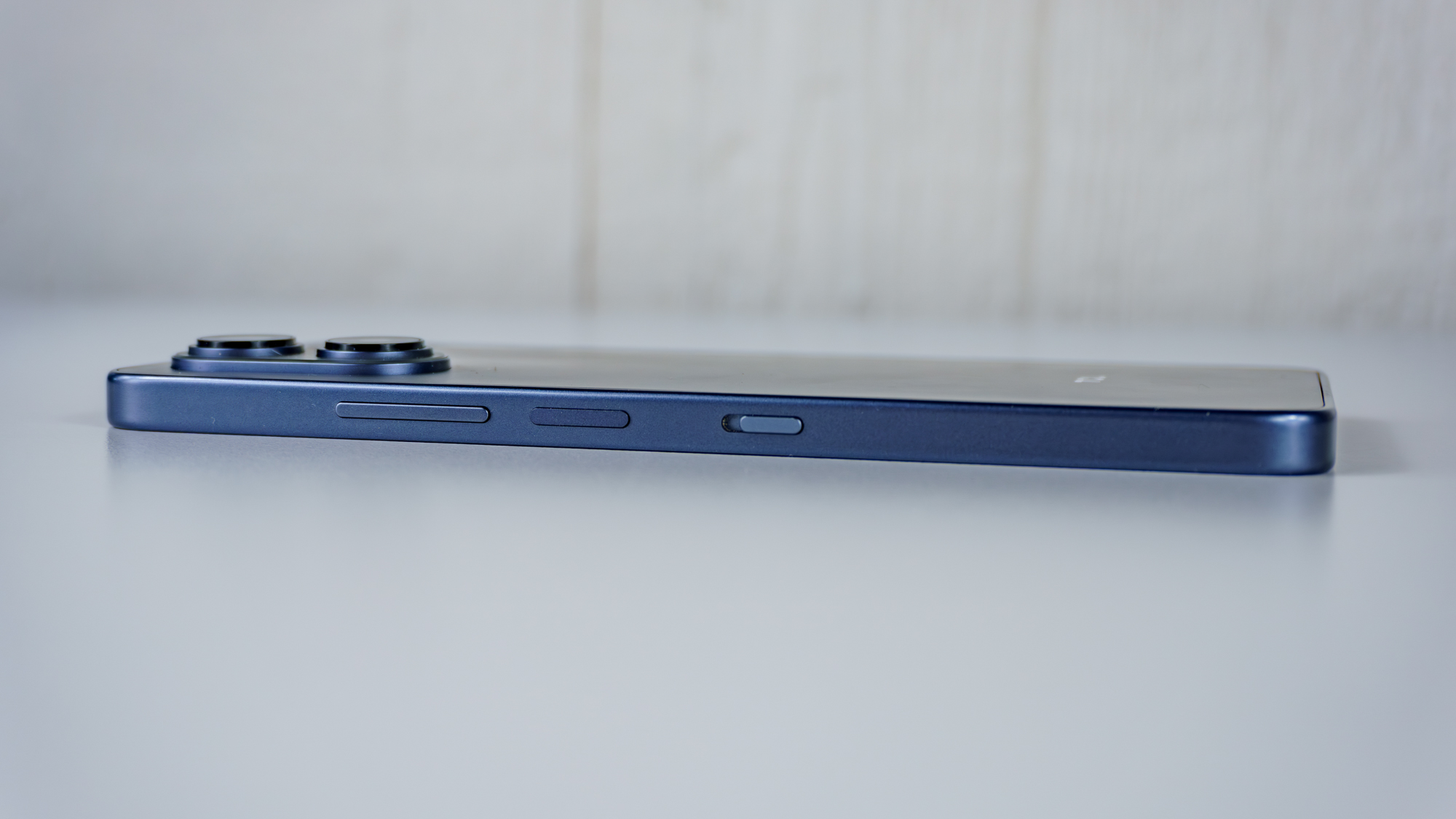
Available in blue or gold, the 70 Pro feels much more premium in hand thanks to its subtle curves and slimmer, dual-camera array. On the right side, there’s a volume rocker, a power button with an integrated fingerprint scanner, and a dedicated NXTPAPER Key that works more like a toggle switch. While under-display fingerprint sensors are the norm these days, I absolutely love having one right on the device’s power button — the second I pick it up, I’ve already securely logged in.
(Image credit: Tom’s Guide)
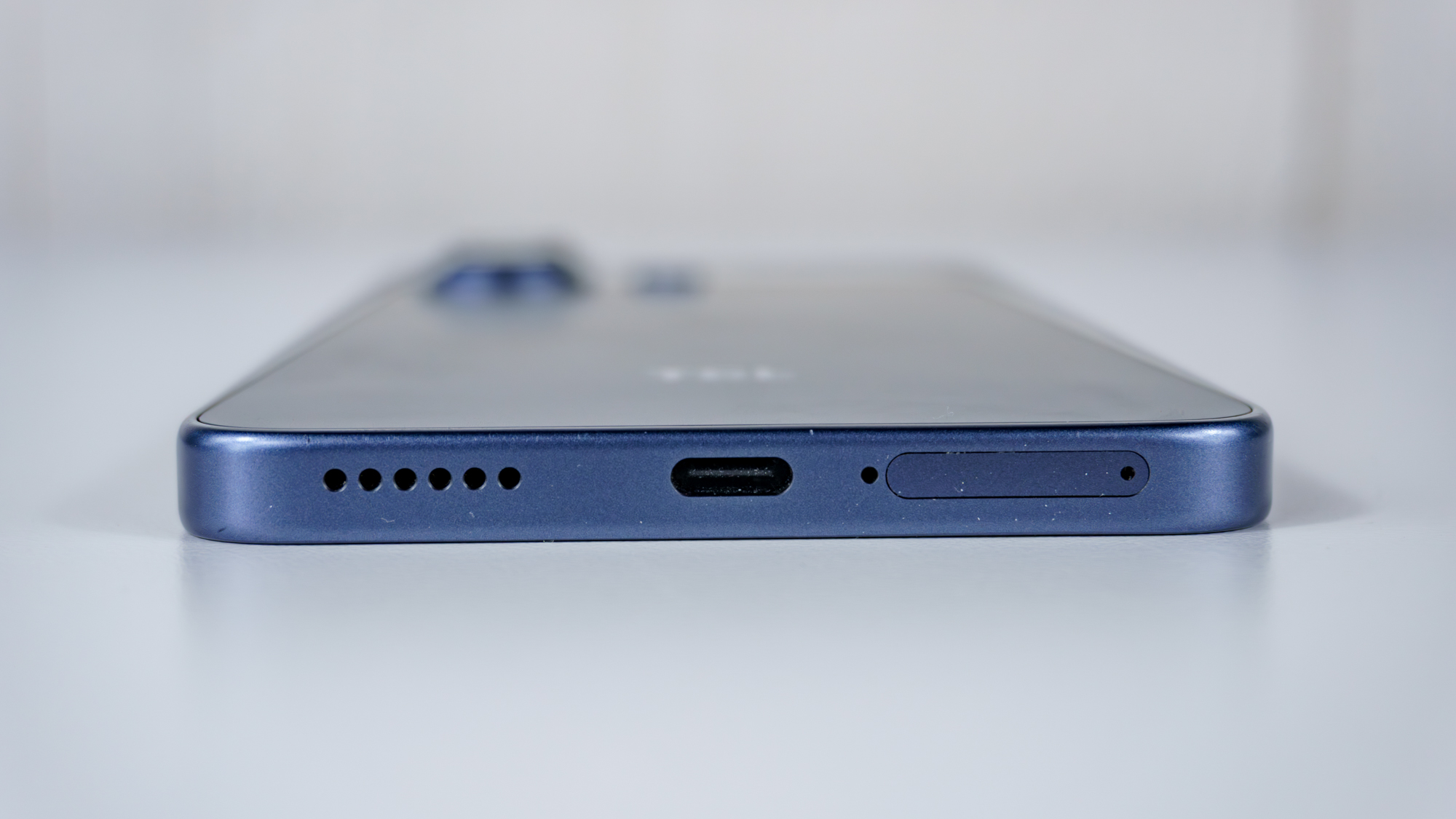
On the bottom of the device, there’s a speaker grille on the left, a USB-C port of the slower USB 2.0 variety in the center with a microphone next to it, and a SIM card slot on the right. What’s nice about the SIM card slot is that it supports either dual SIM cards or, if you’re only using one, you can add a microSD card to expand the device’s storage capacity. Speaking of storage, the 70 Pro is available with 128GB, 256GB, or 512GB of storage. If you have the 128GB model like I do, it’s nice knowing you can easily add more storage later on.
(Image credit: Tom’s Guide)
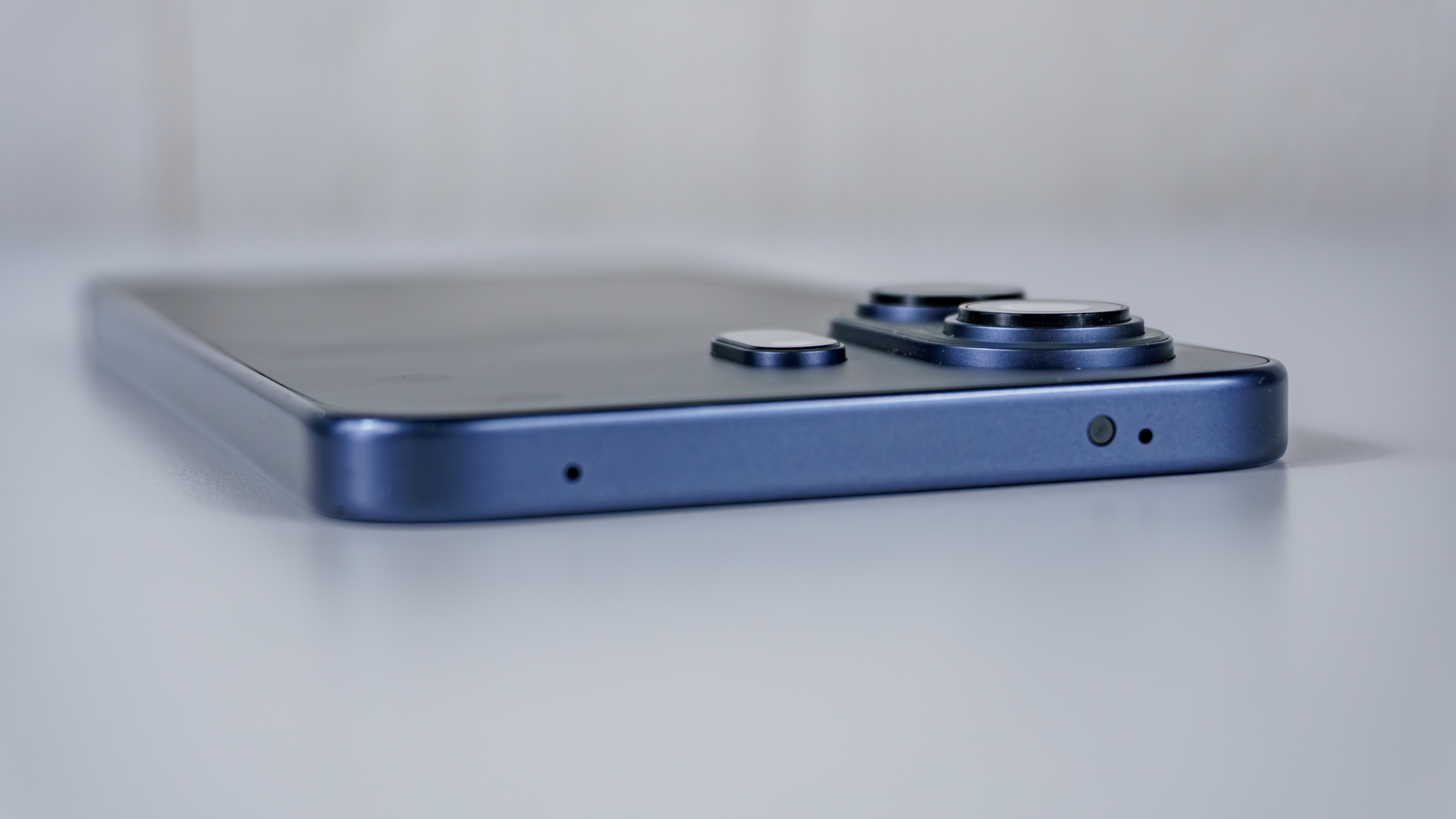
Even though the 70 Pro is definitely a budget phone, it has one feature that you won’t find practically anywhere else anymore: an IR sensor. Although they were quite popular in the mid-2010s, Samsung decided to drop them and the rest of the industry followed suit. Personally, I was glad to see one on the 70 Pro, but I never thought I’d actually use it. Little did I know, it ended up being my second favorite feature after the screen — which, of course, is the star of the show.
(Image credit: Tom’s Guide)
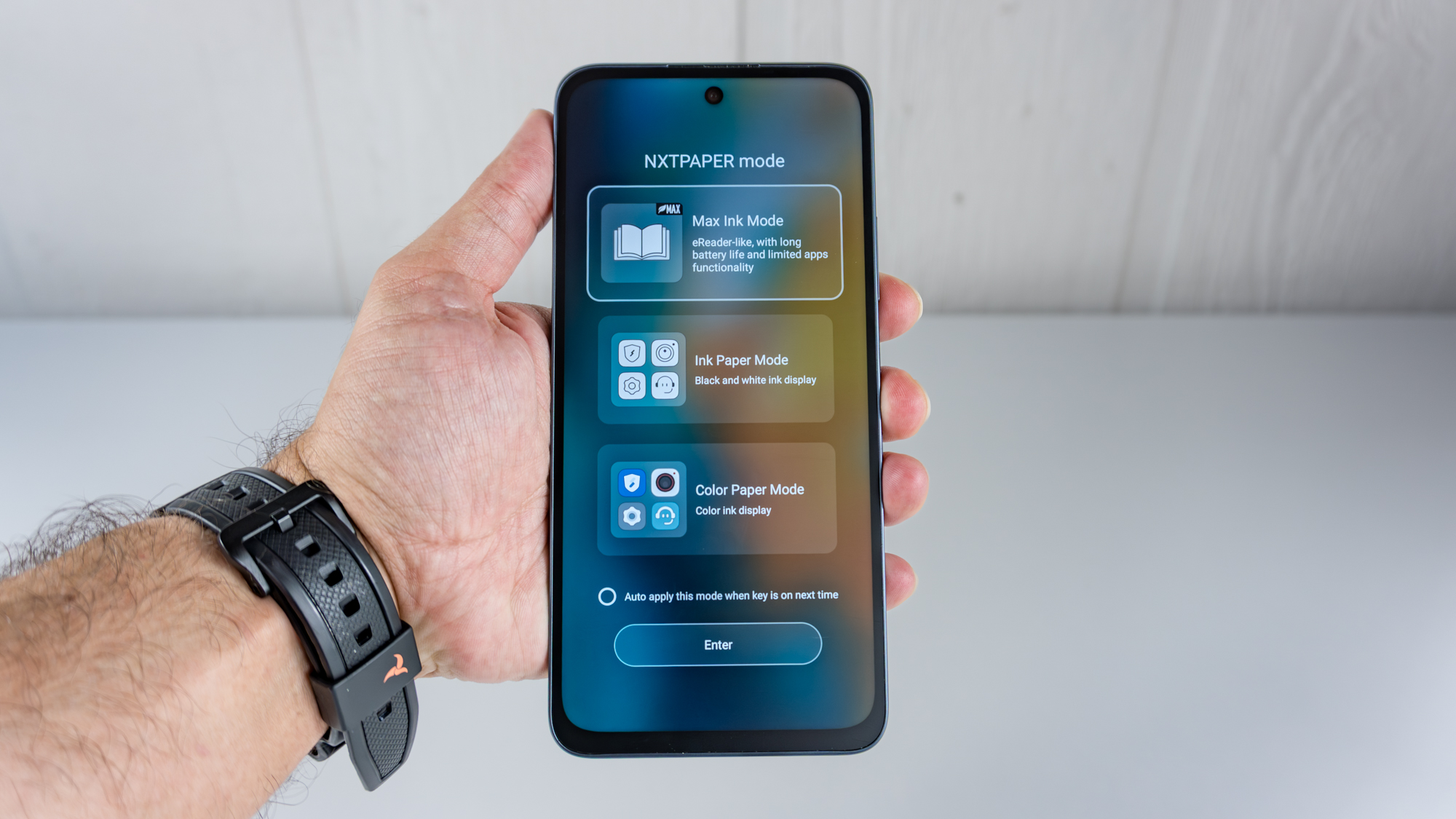
Just like on TCL’s NXTPAPER tablets I tested, with a toggle of the NXTPAPER Key on the lower right side, you can instantly transform its display. There are three modes to pick from: Color Paper Mode, Ink Paper Mode, and Max Ink Mode. Color Paper and Ink Paper give you the same functionality you normally have — albeit with either a slightly desaturated or black-and-white screen — while Max Ink Mode gives you an almost full e-reader-like experience while limiting you to just a handful of essential apps.
What to read next
Even if you don’t decide to use one of these specialized display modes, the 70 Pro looks and feels unlike any other phone. While the iPhone 17 and Galaxy S26 have glossy and much more reflective screens, this one has a matte, glare-free panel that feels much smoother while scrolling. Another big benefit with the 70 Pro is outdoor use. Even on a bright, sunny summer day, I could clearly make out its screen. In fact, it looked almost vivid in those conditions compared to other phones.
(Image credit: Tom’s Guide)
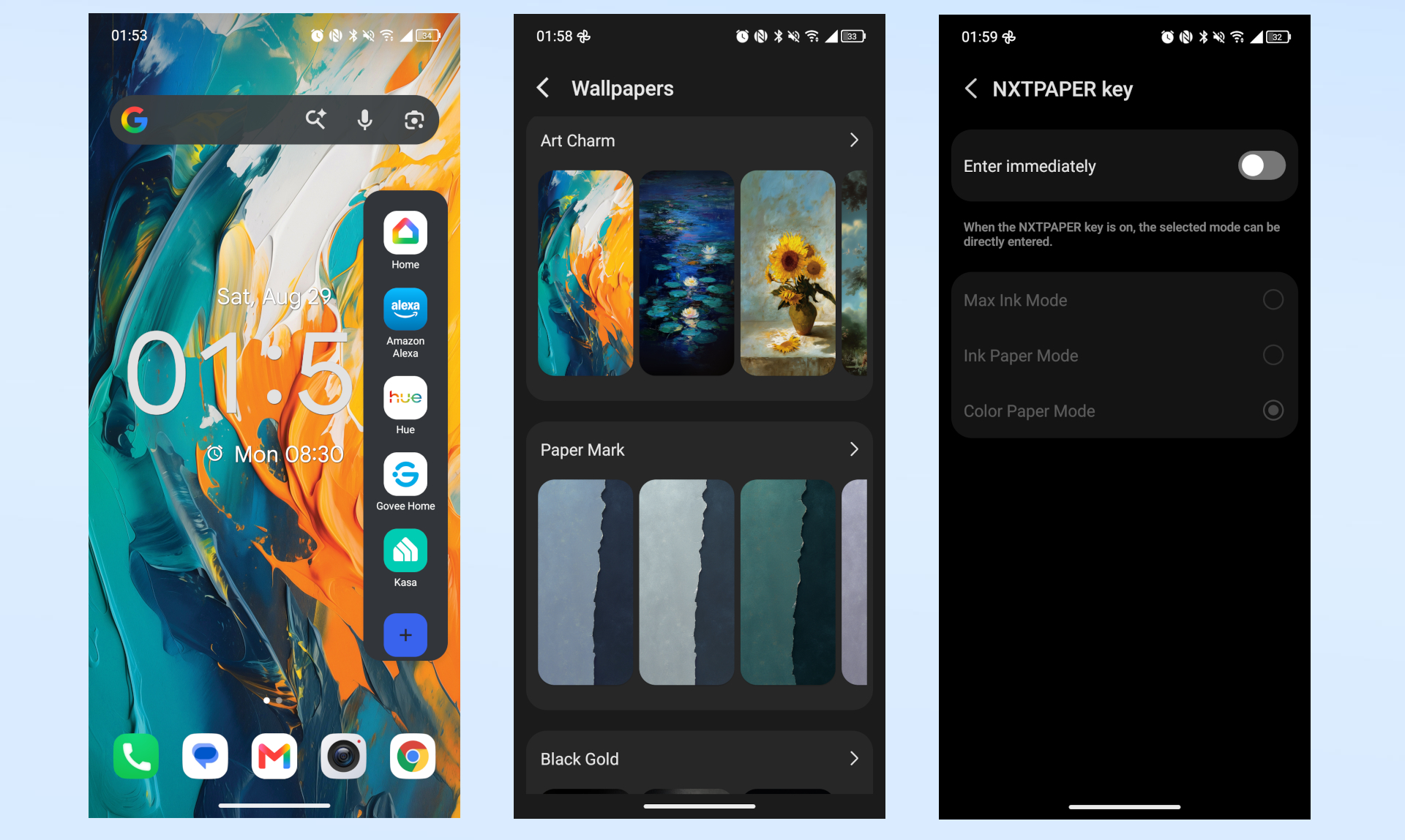
TCL gives you an almost stock Android experience with a few small tweaks and some useful first-party apps. One small change I found particularly useful was the sidebar. If you swipe in from either side and hold, this brings up the sidebar, which you can customize to your liking. I decided to put all my smart home apps there to make it easier to quickly turn off the lights or pull up a live feed from one of my security cameras.
On the 70 Pro, there are also a number of pre-loaded wallpapers that really take advantage of its unique display too. Likewise, within the settings, instead of having to cycle through all the different NXTPAPER modes, you can set the toggle to immediately switch to your favorite one.
(Image credit: Tom’s Guide)
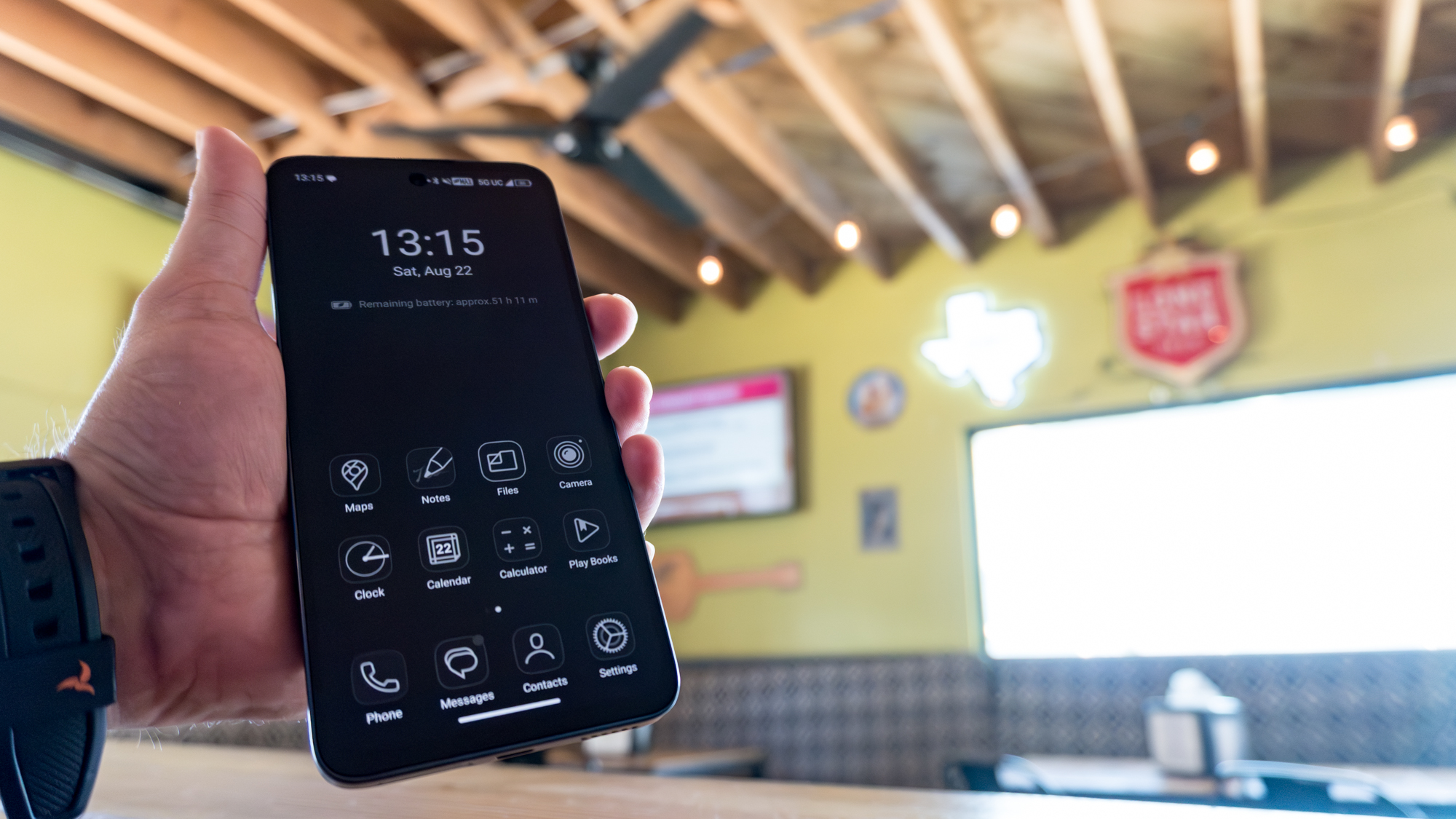
Speaking of which, I found Max Ink Mode to really come in handy when I was out and about. Not only did it extend the device’s battery life significantly — all the way up to 51 hours in the photo above — but by limiting which apps you can use, this also helped me avoid getting distracted by my phone. Phone calls and messages still come through, but you won’t find yourself endlessly scrolling on social media when there’s a lull in the conversation or while you’re waiting for a drink at the bar.
I really thought I would miss wireless charging a lot more than I did. However, as it turns out, just giving the device a quick charge every now and then kept my battery topped off. Even at the end of a long, phone-heavy day, I usually still had about 30% battery life left by the time I reached for my charger.
(Image credit: Tom’s Guide)
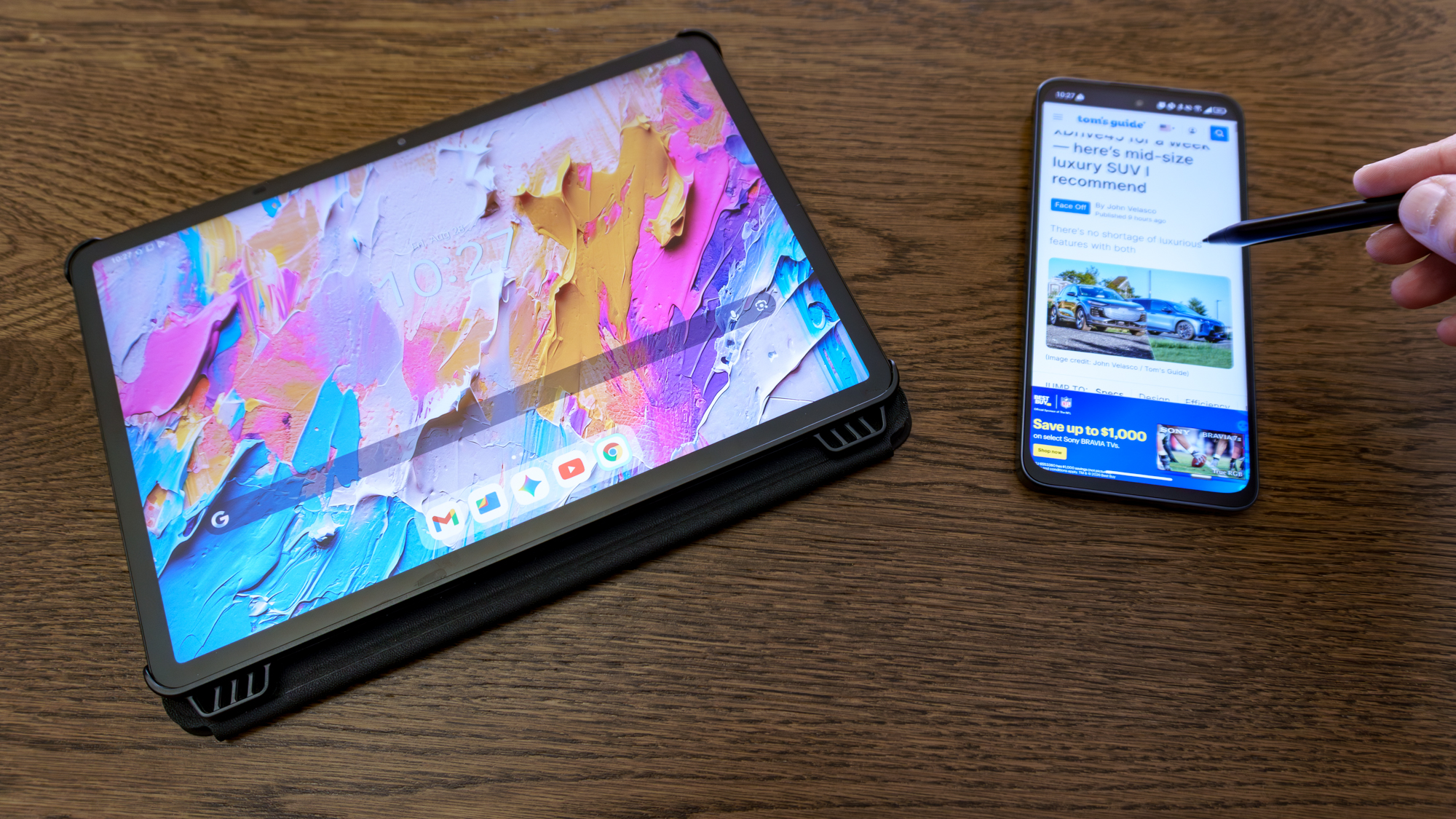
Now, I believe TCL sells the 70 Pro in a bundle with a case and a stylus in Europe. In the U.S., though, I just got the phone itself in the box. I was slightly disappointed at first, since scrolling with a stylus feels fantastic on TCL’s NXTPAPER tablets. As I wasn’t sure whether or not TCL’s styluses were device-specific, I decided to try the one that comes with the NXTPAPER 11 Plus on the 70 Pro. Much to my surprise, it worked perfectly — and while I didn’t have to pair anything via Bluetooth, I did have to toggle on “Stylus” in the phone’s settings menu.
A remote for (almost) all your devices
(Image credit: Tom’s Guide)
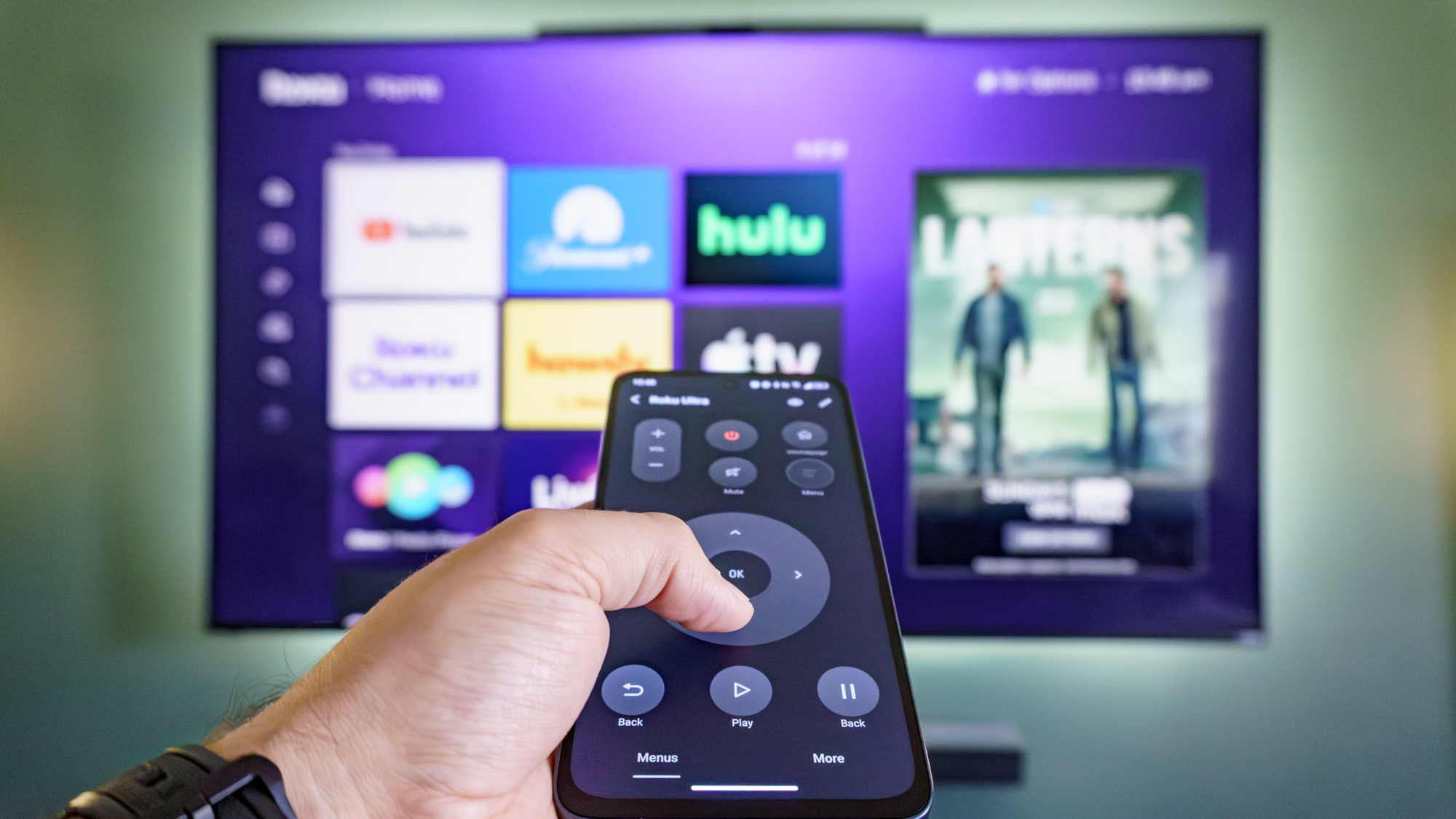
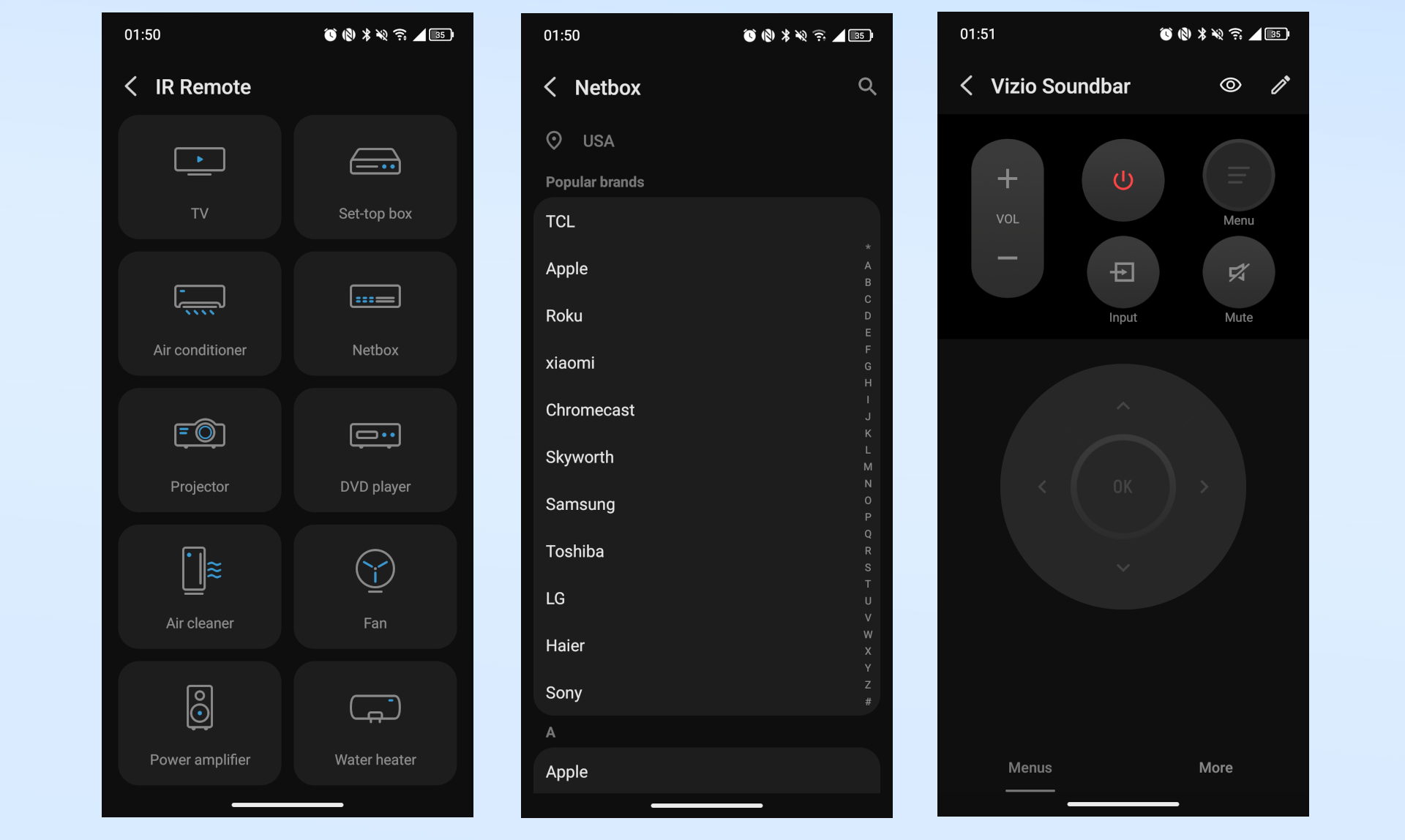
I finally decided to give the IR sensor a proper try towards the end of my month with the 70 Pro, and I’m so glad I did. You see, at first, I wasn’t able to add any of my devices simply because I didn’t look hard enough within the menus of TCL’s IR Remote app. For instance, I initially searched for my Roku Ultra under “Set-top box” without any luck, only to later find it tucked under “Netbox” after digging through the app’s menus a bit more.
With the app open and your devices added, you just point the 70 Pro’s IR sensor at the device you want to control, tap on one of the on-screen buttons, and it does the rest. I can fully navigate and control my Roku Ultra as well as my Vizio soundbar. Unfortunately, I wasn’t able to add my Vizio TV because I couldn’t find the right remote layout within the app. Likewise, I really wanted to control my Vornado tower fan, but that wasn’t one of the listed brands.
(Image credit: Tom’s Guide)
If your devices are supported, adding them is quite easy. After tapping on “Add a new device,” you select the category and you’re presented with a list of brands. There are quite a lot of options in each category, but fortunately, the most popular ones are listed right at the top. From there, you point the 70 Pro at the target device and try a few different power or play buttons to see if your hardware matches TCL’s database.
Even though I couldn’t map every single device in my home, having a universal remote right on my phone is genuinely useful. It’s a lifesaver for those times when you misplace your physical remote or when your kid decides to walk off with it — something that has happened to me on a few occasions recently.
Now, I wouldn’t buy the 70 Pro for the IR sensor alone. Instead, I see it as icing on the cake, given that the glare-free and smooth matte display — along with the integrated fingerprint scanner — remains my favorite thing about this phone overall.
(Image credit: Tom’s Guide)
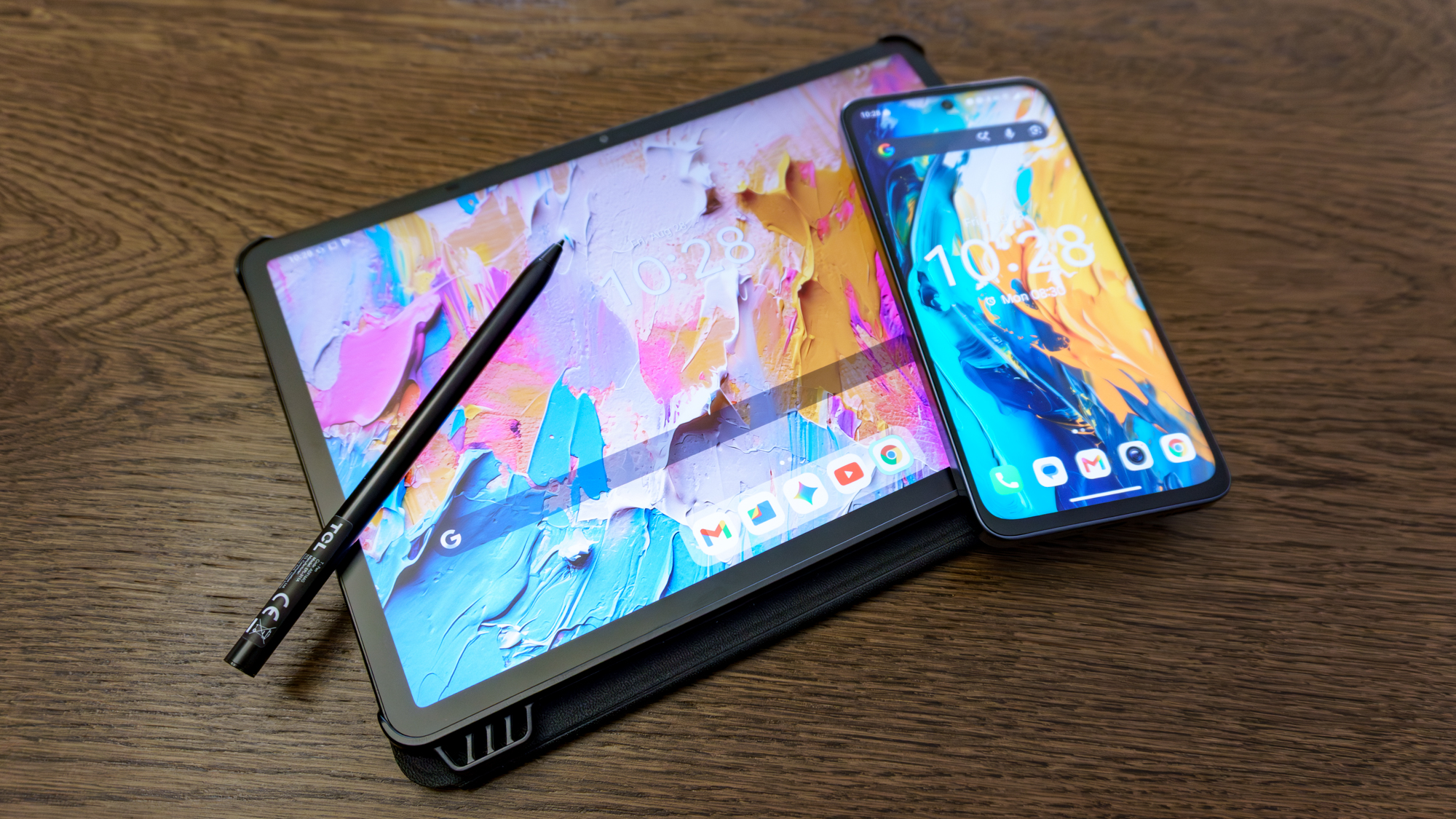
Now that I’ve been using the NXTPAPER 70 Pro for over a month, I’m reluctant to switch back to my more powerful Nothing Phone (2) — which is starting to look a bit long in the tooth itself. While I am considering picking up one of the best camera phones for those times when I need to shoot pics for work but don’t want to bring my DSLR along, I feel almost spoiled by the 70 Pro’s display.
Sure, e-reader-like capabilities and reduced eye strain are its big selling points on paper. However, for me, I just love having a device I can actually see regardless of how bright the overhead sun is. At the same time, the feel of its matte display underneath my fingertips has completely won me over. A lot of people associate glossy screens with a premium feel, but I’ve been on a real matte kick recently after using TCL’s NXTPAPER tablets and reviewing Apple’s new Studio Display XDR with its nano-texture glass option.
Although the 70 Pro is a massive improvement over the 60 XE I tried out first, I’m hoping TCL takes things a step further next time around. Instead of just budget devices, I’d gladly pay more for a true flagship-style NXTPAPER phone — complete with a triple-camera array, fast USB 3.0 connectivity, and wireless charging. That way, I’d only need to carry one device with me wherever I go.
Overall, though, if you don’t want to drop a ton of cash on a flagship and are looking for something that looks and feels genuinely different, the NXTPAPER 70 Pro is certainly worth checking out — especially if, like me, you take a lot of photos of your phone screens for work.
Follow Tom’s Guide on Google News and add us as a preferred source to get our up-to-date news, analysis, and reviews in your feeds.