
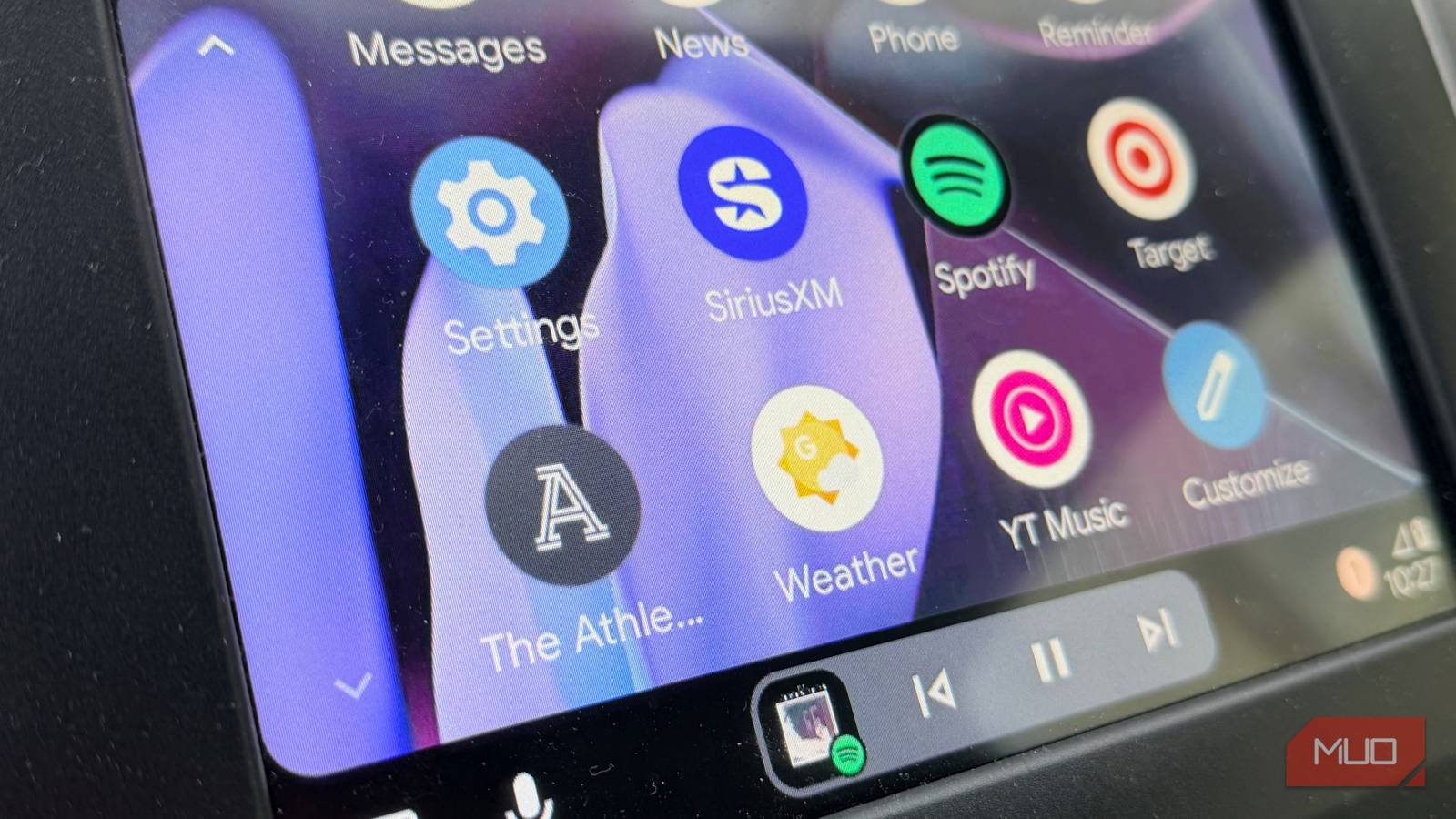
I had everything planned: full tank, snacks packed, playlist ready. But Android Auto, which recently received a UI update, spent the first five hours making my road trip much more annoying than it needed to be. Notifications chimed constantly, the navigation kept defaulting to the wrong app, and the screen was blinding in the midday sun.
Android Auto, which I use wired, is fine for short commutes, but on a long haul, minor annoyances turn into real irritations. Fortunately, these five settings fix the biggest problems before you even leave your driveway.
An important note: Google tweaks these menus often, so if your screen doesn’t look exactly like the screenshots below, don’t panic. These steps are based on the latest stable versions of Android and Gemini.
Related
8 Android Features I Wish I Knew Sooner
I’ve been missing out, maybe you have, too.
Stop annoying group chat notifications
How to silence non-essential alerts without missing important messages
Android Auto is designed to keep you connected, but on a six-hour haul, hearing a chime for every “Thanks!” in a group chat is a recipe for driver fatigue. By default, Android Auto mirrors almost every alert from your phone. It’s helpful to prune these back to essentials.
Grab your phone (unplugged from the car) and follow these steps:
Open Settings on your Android device.
Search for Android Auto and select it.
Under the Messaging section, untoggle Show message notifications, Show group conversations, and Notifications with Assistant, if applicable.
Set your preferred default navigation app
Why Android Auto keeps switching back to Google Maps (and how to stop it)
There is nothing more frustrating than starting a 300-mile trip in Waze, only for a voice command like “Find a gas station” to force-launch Google Maps. Android Auto often treats Google Maps as the master app unless you explicitly tell the OS otherwise.
To ensure your preferred navigation app stays active, set it at the system level on your phone:
Open Settings on your Android device.
Search for Android Auto and select it.
Select Customize launcher.
Under Launcher sorting, bring Waze (or another preferred non-Google Maps app) to the top of the list.
You cannot remove Google Maps from the launcher. However, you can uncheck other third-party mapping apps from this list if you so choose. As long as Waze, in this example, is higher on the list than Google Maps, you should be fine.
Fix auto-brightness and “Night Mode” glitches
How to keep your Android Auto screen readable in any lighting condition
Android Auto’s “Auto” mode relies on your car’s light sensor. On a long drive, every tunnel or wide overpass can trigger “Night Mode,” thereby dimming your map at exactly the time you need to see your next turn. You can change this constant shifting by setting a fixed theme.
Open Settings on your Android device.
Search for Android Auto and select it.
Under Day/Night mode for maps, change the setting from Automatic to Day.
In some vehicles, the screen is directly tied to your physical instrument cluster. If this is the case, you’ll need to make a minor change. Locate the physical dimmer wheel on your dashboard (it’s usually to the left of the steering wheel) and ensure it isn’t turned all the way down, which can force a permanent “Night” state, regardless of the sun.
On the same Android Auto screen under Settings, you should also toggle “Taskbar widgets,” which will allow you to show quick controls for apps. On a long road trip, being able to see your Spotify controls, for example, and your map at the exact same time without switching apps is a massive “quality of life” upgrade.
Turn your voice assistant for a highway drive
How to retrain Google Gemini Voice Match for better accuracy at highway speeds
At 70 mph, tire hum and wind noise can turn a simple request into a frustrating look of “I’m sorry, I didn’t catch that.” Refreshing your Voice Match profile while in the car significantly improves accuracy. If you’ve already made the switch from Google Assistant to Gemini, this process is key to ensuring the new AI can actually hear you over the road noise.
Open the Google app on your phone.
Select Profile Picture -> Settings -> Gemini -> Talk to Gemini hands-free.
Toggle on “Hey Google” if you have already done so.
Choose Manage Voice Match.
Select Turn Off to disable the current voice match settings for Google Gemini.
Choose Turn On to initiate the setup options again.
Follow the on-screen instructions, which will include speaking several phrases, so Google Gemini can relearn your voice.
The “secret” developer settings
How to unlock Android Auto Developer Mode and force a higher display resolution
Finally, there’s a hidden menu in Android Auto that lets you force a higher video resolution or change how the phone handles the connection.
To get started:
Open Settings on your Android device.
Search for Android Auto and select it.
Find Version at the bottom of the page and choose it 10 times to unlock Developer Mode.
Select OK to allow the development settings.
Tap the three-dot menu at the top right.
You’ll now see a new option called “Developer settings” in the pull-down menu.
Sometimes Android Auto looks blurry because the car and phone are “negotiating” a low resolution. My advice is to choose the “Allow up to 1920×1080 or 1080×1920” setting instead of the default, “Allow car and phone to negotiate.”
This is a small, but likely useful, setting change to make your next drive more enjoyable with Android Auto.
Key changes to make your trip better
A five-minute tune-up in your driveway beats five hours of yelling at your dashboard. Once these settings are locked in, you can finally get back to what matters: the music and the road ahead. And perhaps one of the great Android Auto games!