
Even though Android still impresses me 15 years later, that doesn’t mean there isn’t room to make it better. In fact, every time I set up a new Android phone, there’s a bit of a checklist I run through to instantly improve battery life and make the UI feel faster. The best part about these changes is that they are all tweaks you can make without additional software (even though Android has many great, must-have free apps); you just have to know which settings to look for and how to change them. With these changes, I was able to get an easy 10% boost in battery life, and you can too.
First, turn off optimized battery charging
Let your phone top up all the way to 100%
Credit: Brandon Miniman / MakeUseOf
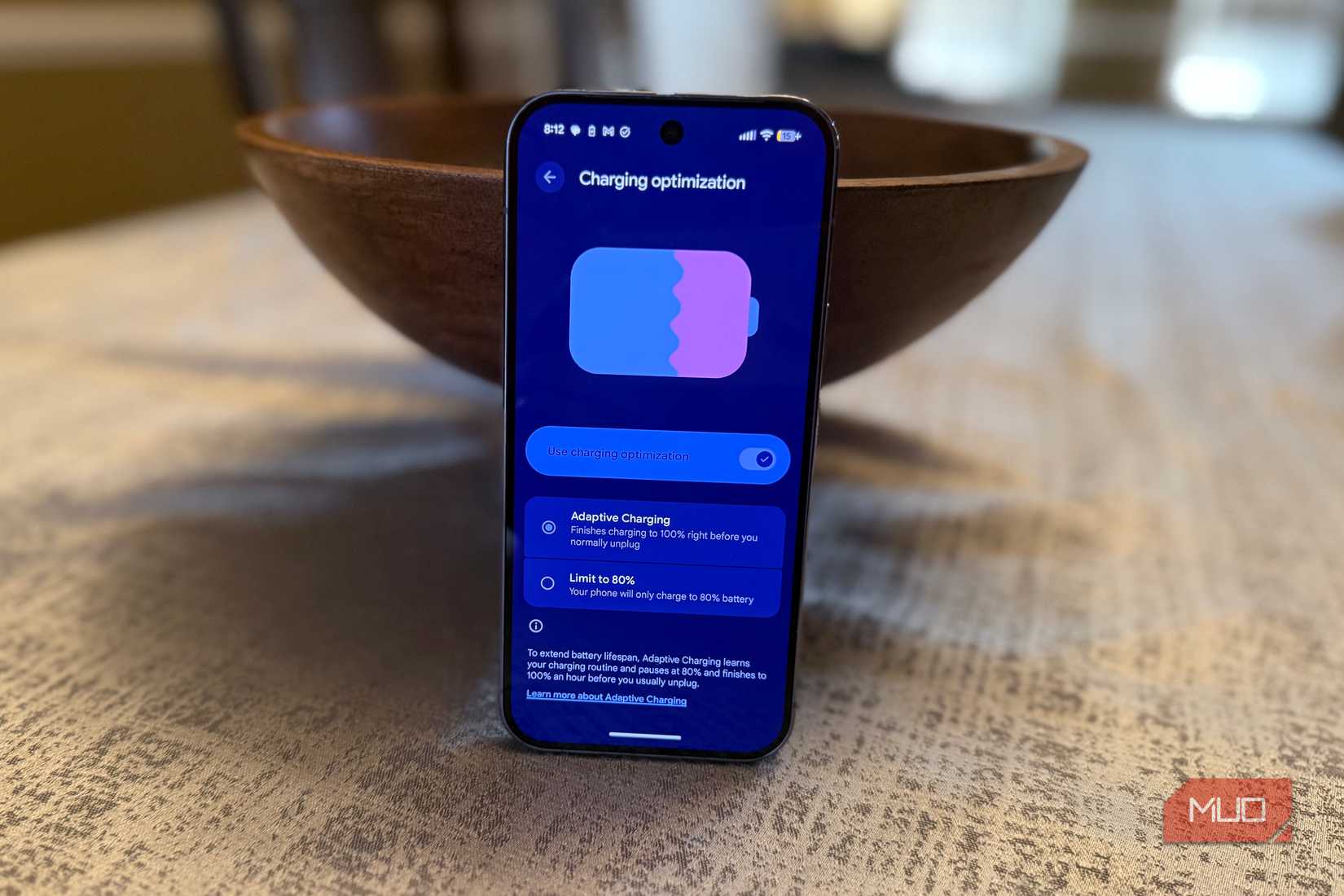
Many recent phones include an option to limit charging to 80% by default in certain modes, using features like Samsung’s Battery protection or Google’s Charging optimization. This is because charging all the way to 100% frequently might reduce the lifespan of your battery slightly if you plan to keep your phone for more than two years. This charging limit goes by several names (on Samsung it lives under ‘Battery protection,’ and on modern Pixels it’s in the ‘Charging optimization’ menu).
These features learn your charging habits and aim to reach 100% right before you usually unplug, but they’re not ideal for impromptu top‑ups, and in strict 80%‑limit modes, you may be capped at 80% until you turn the limit off. Once you find the charging optimization feature, shut it off and allow your phone to charge fully each time.
Allow your phone to charge fully each time.
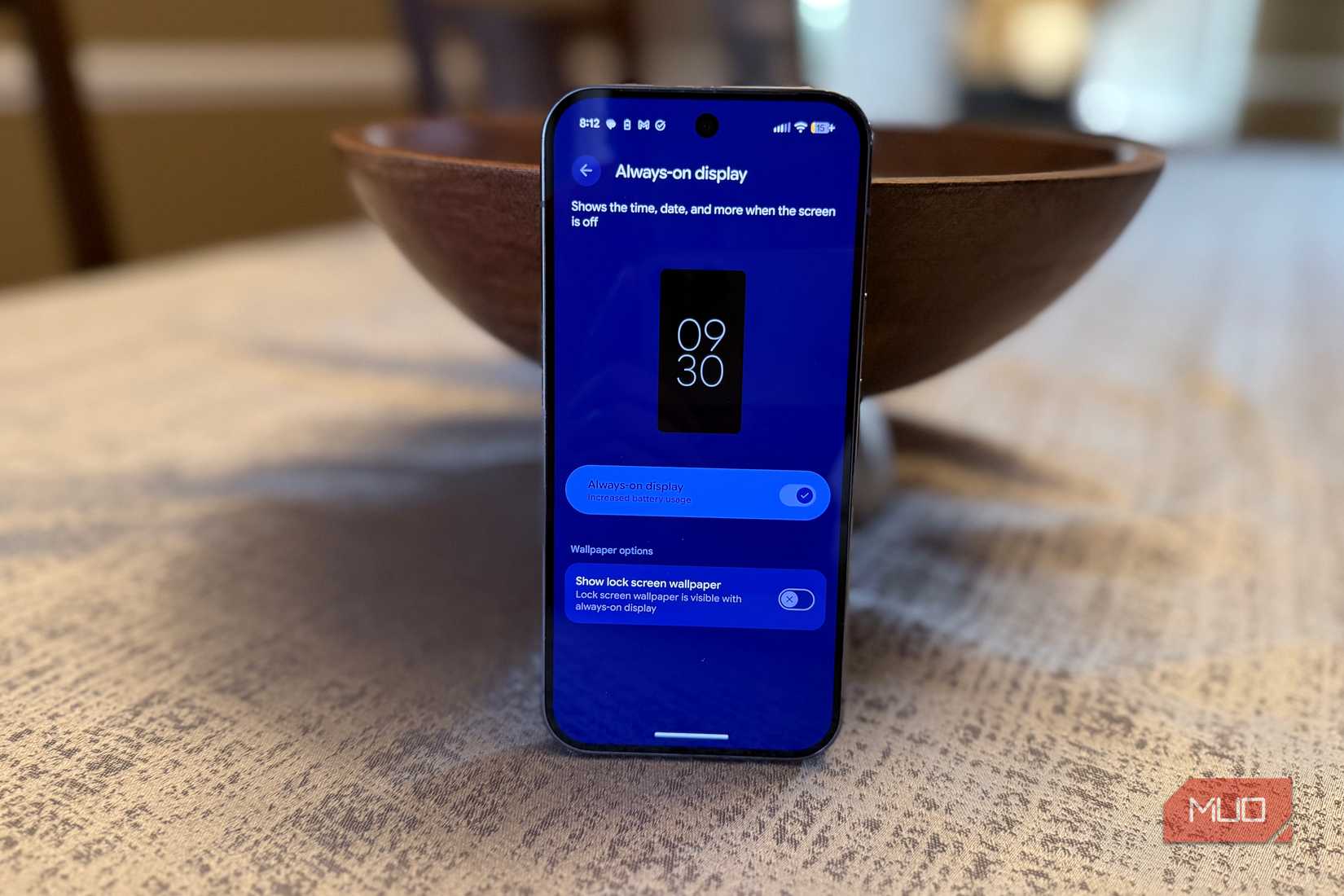
Please disable Always On Display
The hit to battery is significant, and you don’t need it on
Credit: Brandon Miniman / MakeUseOf
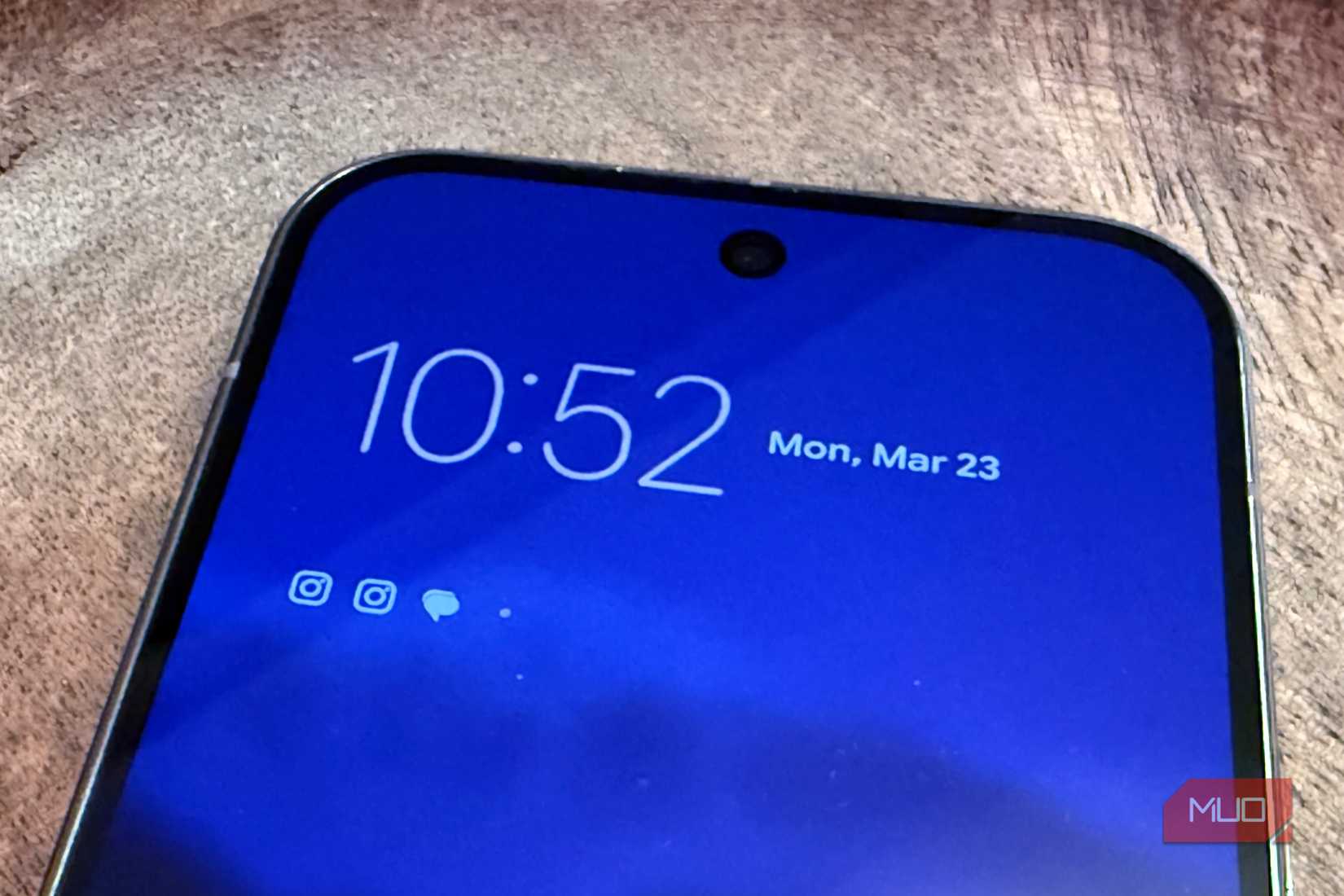
Always On Display (AOD) is on by default on most new Android phones, but there’s no need for your screen to constantly show you the time or your notification count, unless you don’t mind sacrificing a noticeable chunk of battery life each day — on some phones, AOD can cut standby time by a large margin compared to having it off. Alternatively, if you want to know the time, you can just double-tap the screen of your phone to briefly show the lock screen without the battery always being on. Different manufacturers put their AOD in different places, but generally, you can go to Settings -> Display to find AOD settings.
If not, just search your settings for “AOD,” and you’ll get right to it. When you find it, shut it off and instantly improve your battery life. Speaking of battery life, the next thing you should do is turn off optimized battery charging, which is robbing you of the full capacity of your battery every time you charge.
Related
My old Android was laggy until I toggled this setting
I thought I needed a new phone—this tweak saved it.
Next, optimize display settings
Increase density, quicken animations, and reduce screen resolution
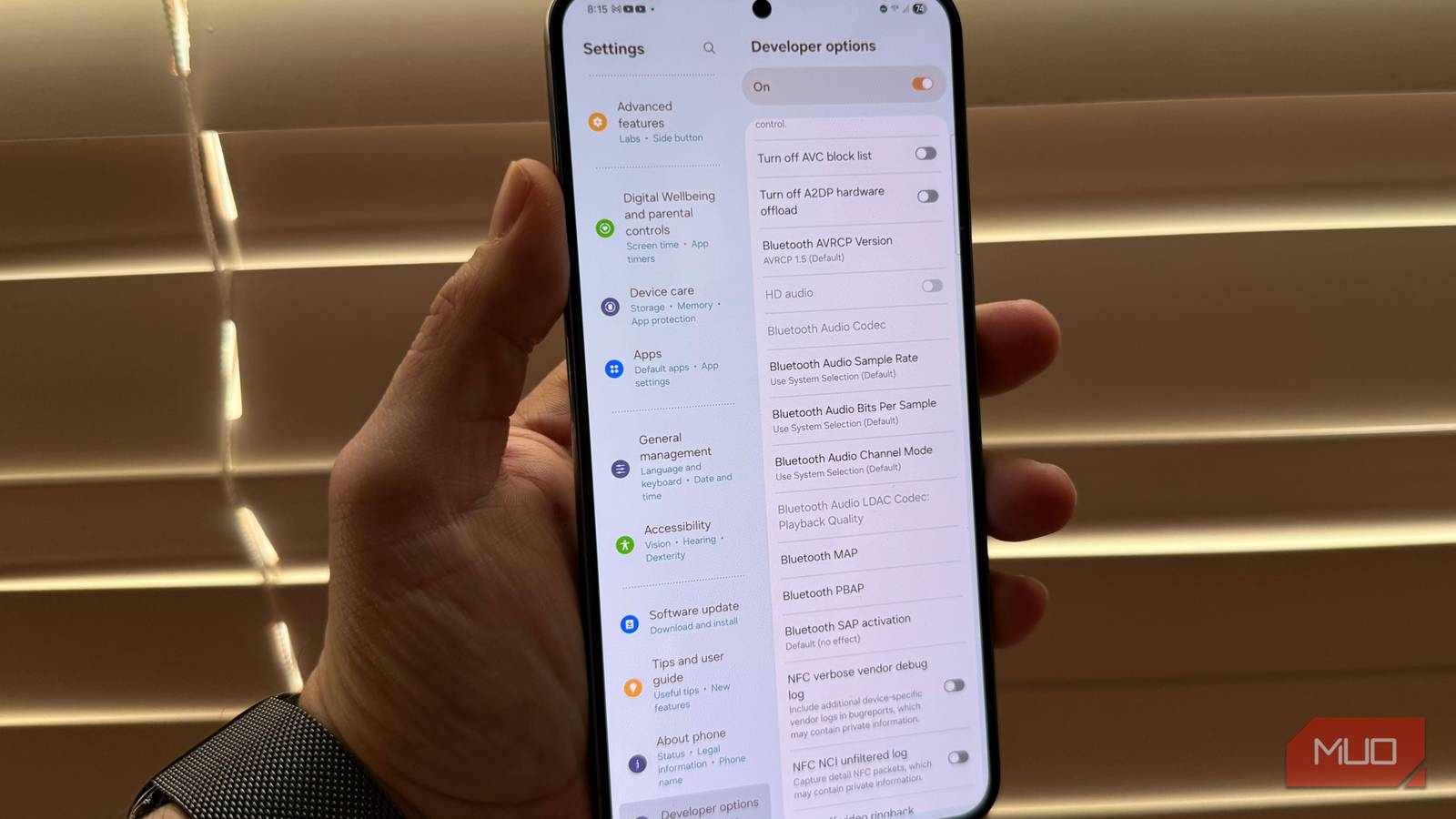
There are three settings you should change in order to fit more data on the screen at once (by increasing display density), shorten animations to make the phone feel significantly faster (by decreasing animation durations), and drop the screen resolution to 1080 (you don’t need to run the phone at maximum resolution). And here’s how to do all three:
First, turn on developer options by going to Settings -> About -> tap build number 7 times.
Increase display density to fit more on the screen at once, which means less scrolling in many apps. Developer options -> Smallest Width. The default ‘Smallest width’ value is typically in the 360–440 dp range, depending on the phone; many devices sit somewhere around the high‑300s by default. Experiment with values of 450, 500, or 600 to find the sweet spot for you.
Shorten screen animations to make every animation significantly faster. Developer options -> Window animation scale, animation duration scale, animator duration scale -> set to 0.50 to shorten all animations by 50% versus the default. Changing these values will make a huge difference in the speed of the interface of your phone instantly
Reduce screen resolution to improve performance and shave a bit off battery use; on most high‑density panels, many people barely notice the difference in sharpness at typical viewing distances. Since different OEMs place this setting in different places, your best bet is to search for settings for “resolution” — change the value to whatever the 1080-equivalent is, like on my Pixel 10 Pro, I changed from Max Resolution 1280×2856 to High resolution 1080×2410.
Changing these values will make a huge difference in the speed of the interface of your phone instantly.
The biggest difference in battery life here is the screen resolution. Dropping the resolution can deliver some marginal battery life gains as the GPU isn’t working as hard; the changes to animation help to keep it feeling snappy in response.

Brand
SoC
Tensor G5
Google’s flagship smartphone, the Google Pixel 10 features the Tensor G5 processor, an outstanding triple-camera system, and seven years of software updates. This is a phone you can rely on for years to come.
These tweaks will extend your battery life
And make your phone feel faster
Credit: Brandon Miniman / MakeUseOf
I know that some of these changes are a bit contrarian, especially when it comes to turning off battery optimization and disabling AOD, but if you’re like me and plan to upgrade your phone every year anyhow, it just doesn’t make sense to baby your battery at the expense of getting the maximum amount of power out of every charge by limiting the charge to 80%.
As for AOD, it’s a silent killer of battery life that is just totally unnecessary (though we’ve written about how you can deeply customize AOD with the Muviz app), especially since you can quickly see your screen by just double-tapping the display from a screen-off state.