
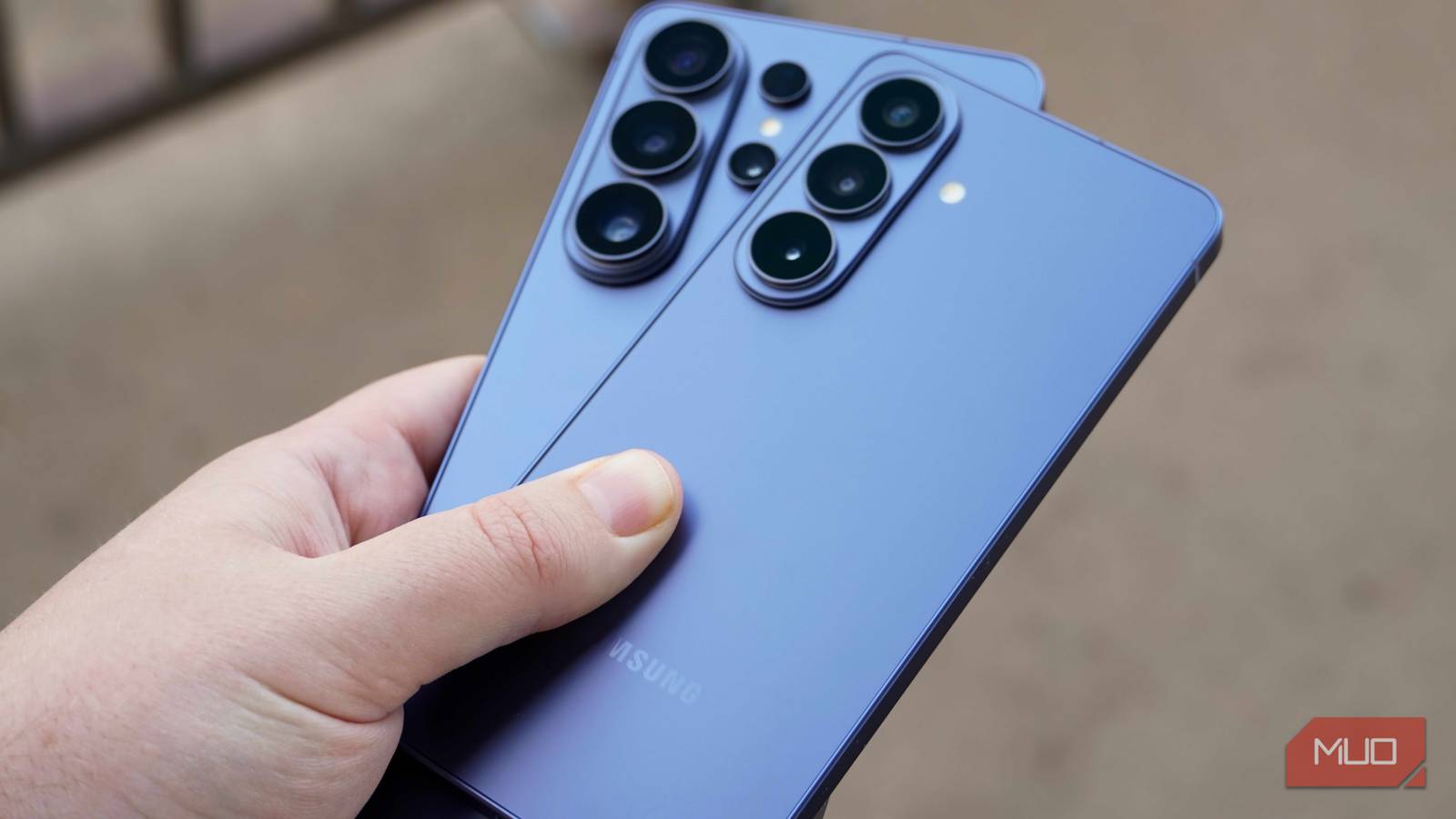
Samsung’s cameras are solid, no question there. And with all the built-in editing tools and AI features, the photos usually look polished straight away. But I still felt like something was missing on the Galaxy S26; the results didn’t always match what I had in mind. So I dug into the settings and made a few changes. Doing this made the photos look much better, and much closer to what I actually wanted to capture. Safe to say, I’m no longer second-guessing my camera after every shot, and you shouldn’t either.
Related
You’re Probably Not Using These Samsung Features for Better Photos
There’s more to your Samsung camera than filters.
It’s all hidden in plain sight inside the camera app
A secret setting for jaw-dropping shots
Credit: Shimul Sood / MakeUseOf
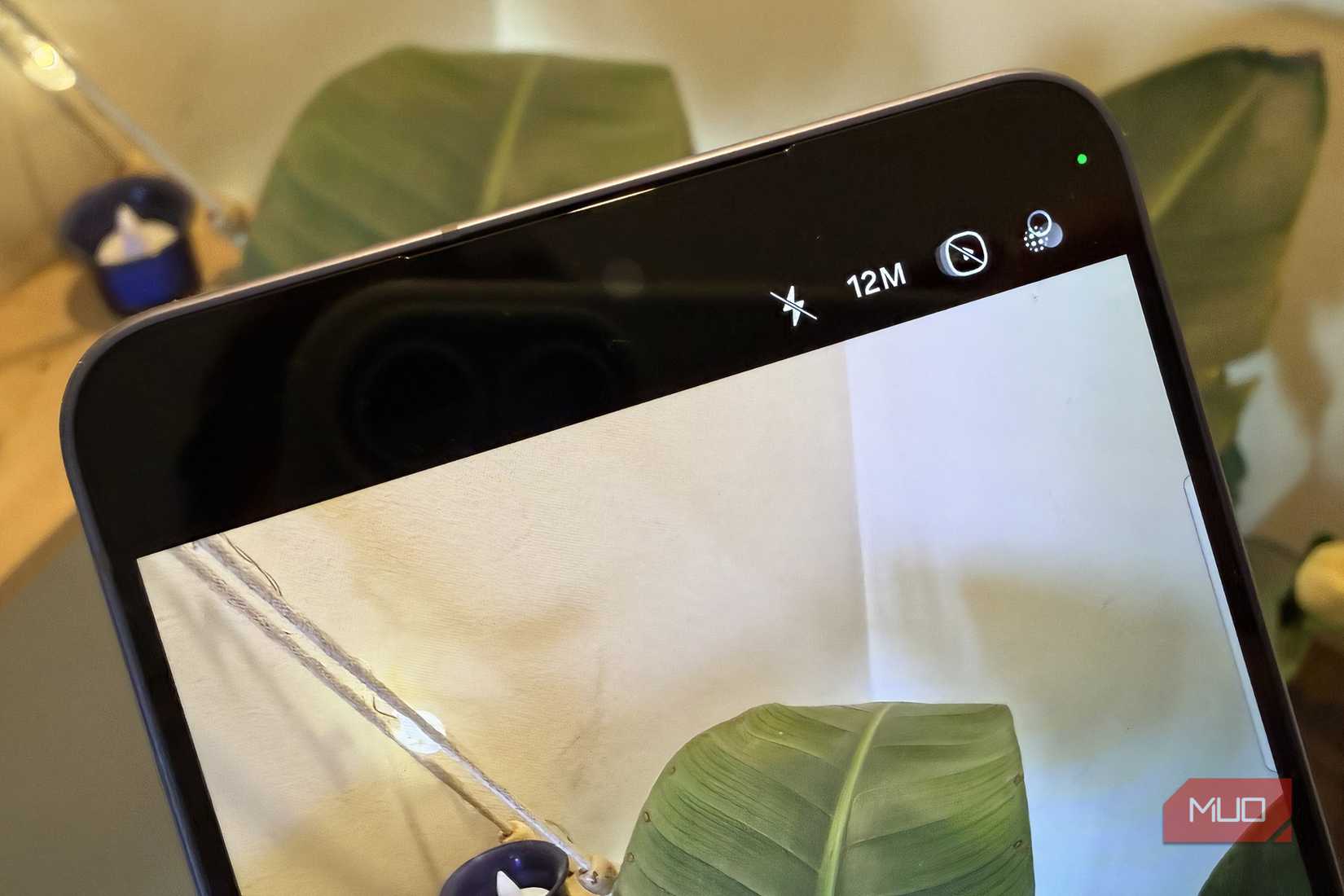
A lot of people don’t realize this, but you can actually control how detailed your photos look before you even tap the shutter. You can switch the camera to a higher megapixel setting. By default, your phone usually captures images at a binned resolution such as 12MP or 24MP, which is great for everyday use and low-light performance. But when you switch to a higher resolution count, like 50MP, the camera tends to capture far more detail in every shot.
I noticed the difference firsthand on a recent trip. I was shooting at a beach with mountains in the background in bright sunlight. With the higher megapixel setting turned on, the photos held onto much finer and accurate details, from the ripples in the water to the contour of the hills. Even when I zoomed in later, the images didn’t fall apart. This setting really shines when you’re shooting landscapes or anything in good lighting where detail matters. The trade-off, however, is that these high-resolution photos take up significantly more storage. So, if you plan to use it often, make sure you have enough storage space.
To switch it on, just open the camera app and look in the top-right corner. You’ll see a 12M label. Tap it, and it’ll change to 50M. In the right situations, this setting can bring out the best in your Samsung camera.
Steer things your way
Make your camera bend to your vision
Credit: Shimul Sood / MakeUseOf
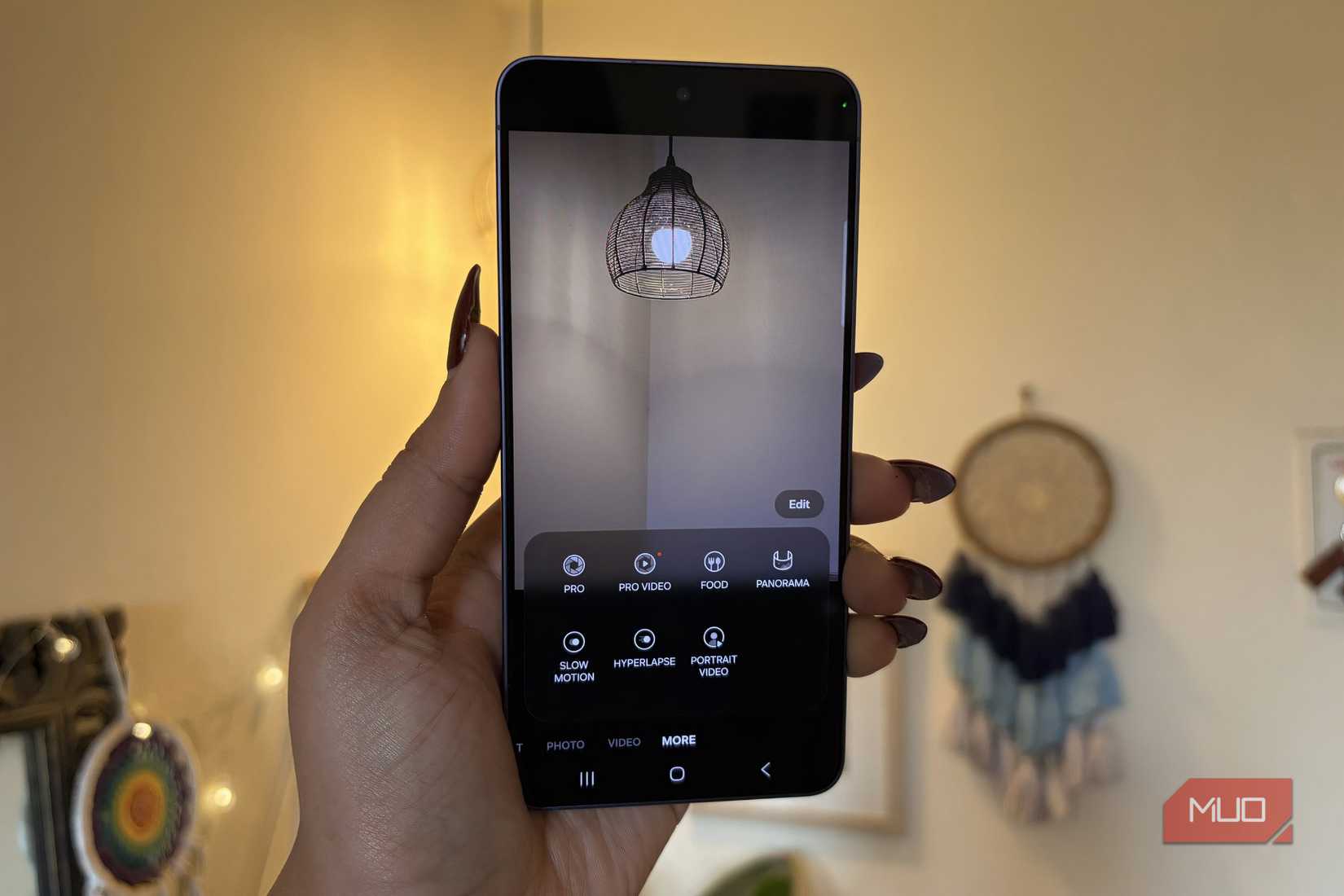
If you want full control over how your photos turn out, you don’t have to let Samsung decide for you. With the Galaxy’s Pro mode, you can take the reins and manually adjust key camera settings like ISO, shutter speed, white balance, and focus. This means you can control how sensitive the sensor is to light, decide exactly where the camera focuses, and even modify the color temperature to make your shots warmer or cooler, depending on your vision.
But it doesn’t stop there. If you really want to master your images, you can shoot in RAW format. That gives you the ultimate flexibility in post-processing, letting you adjust and adjust every detail without losing quality. To turn on Pro mode, open the camera app on your Samsung phone, tap More at the bottom, and select Pro. From there, you’re free to fine-tune every setting and create photos exactly the way you want.
Fine-tune your photos for perfection
Choose your photo superpower
Credit: Shimul Sood / MakeUseOf
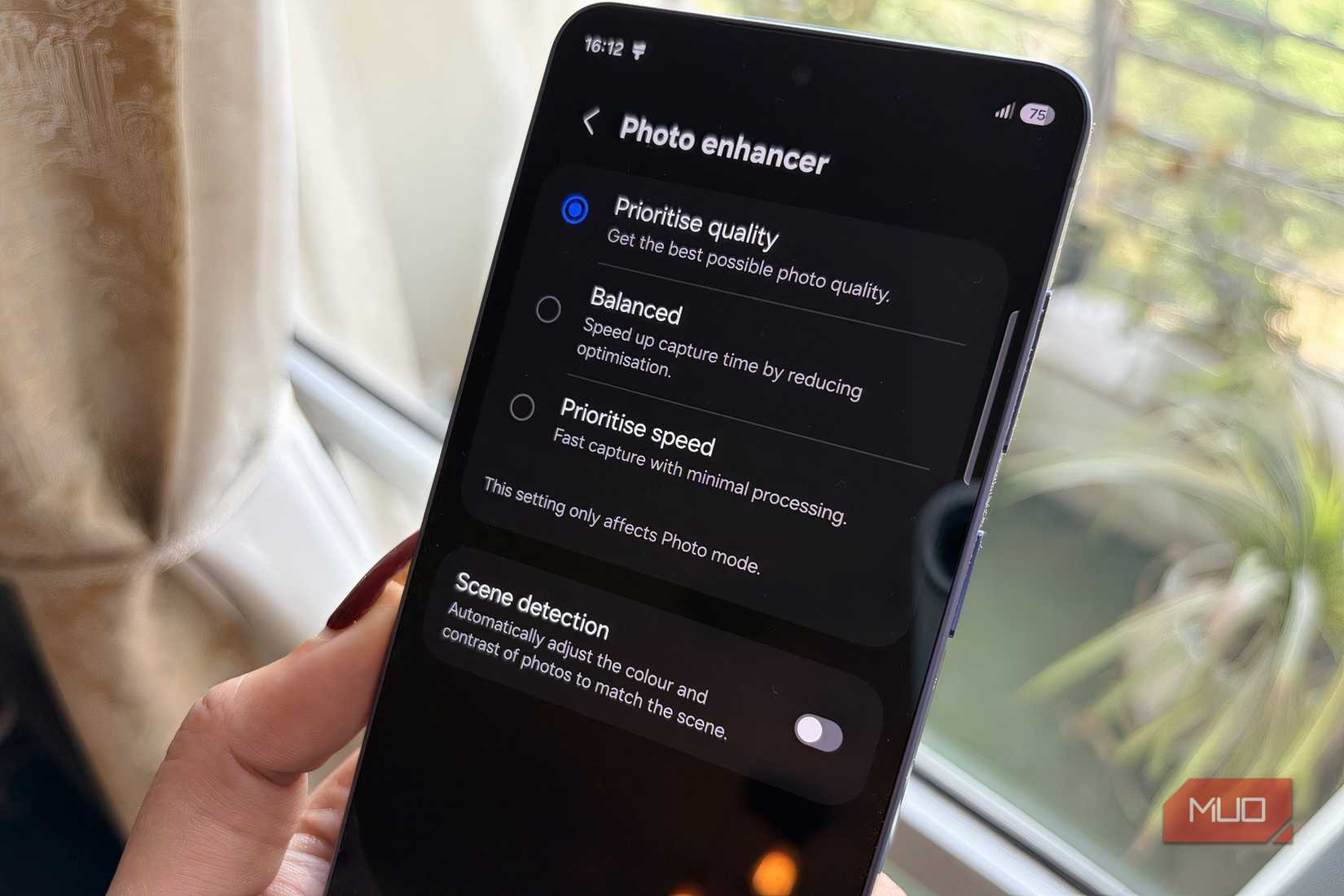
Choose the photo mode on your Samsung that fits your needs. Many people don’t realize it, but Samsung lets you personalize your photos by deciding what matters most, whether it’s quality, balance, or speed. You have three options:
Prioritize Quality captures the best possible details and sharpness for every shot.
Balanced speeds up capture slightly by reducing optimizations.
Prioritize Speed focuses on quick shots with minimal processing.
Personally, I stick with Prioritize Quality, because I want every photo to look as crisp and detailed as possible.
If you want to go even further, you can turn on Scene Detection. This feature automatically adjusts colors and contrast to match the scene, giving your photos that feel more natural and vibrant without lifting a finger. Here’s how you can set it up:
Open the Camera app on your Samsung phone.
Tap the four-dot icon at the bottom of the screen.
Tap the Settings gear icon.
Go to Photo Enhancer under the Intelligent Features tab.
Select the option that fits your shooting style, and you’re ready to capture the best shots.
All of Samsung’s camera settings can improve your photos, but some are especially useful for getting consistently great results. I recommend turning on the composition guide, tracking autofocus, floating shutter button, and grid lines. These features make it easier to frame your shots, keep moving subjects in focus, and take photos with better accuracy, almost like having a helping hand while you shoot.
That said, no setting can completely replace timing and practice. Even with all the right tools enabled, a photo won’t turn out well if you miss the moment or rush the shoot. These settings are there to guide you, but the real magic still happens from how you use the camera.
Related
9 Samsung Camera Features You’re Not Using (But Should Be!)
Your Samsung camera can do more.
Your camera has tricks, go find them
Your Samsung camera is capable of so much more than just snapping pictures. I love the default results, but I wanted to push it further and get the absolute best from my shots. The camera app is packed with settings that let you tweak every detail for optimal results, and the best part is, you can do it all directly from the app.
On my Samsung Galaxy S26, I actually had to dig a little to find some of these hidden options, but once I did, the difference was remarkable. I got sharper photos, richer colors, and more control over every shot. If you constantly explore and experiment with these settings, your Samsung phone can deliver photos that consistently impress.