
abdallah abdelal/Shutterstock
While your smartphone is probably the gadget that you use the most, there are several little hidden features that you might have overlooked. Whether it is Android’s privacy feature that lets you disable all the sensors or unique uses of the Action Button on iPhones, there’s always something new to learn on your phone.
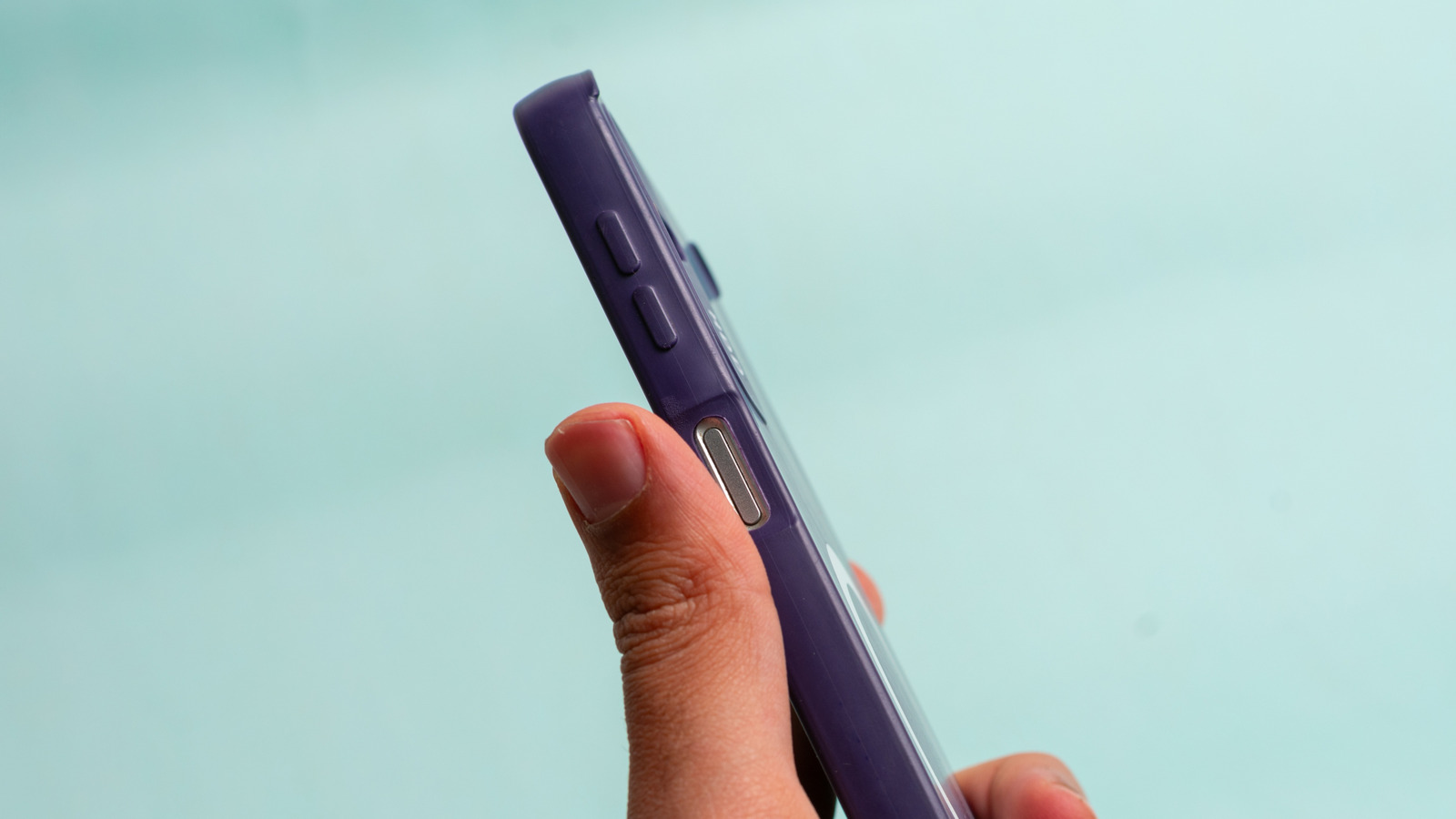
The same is the case with your phone’s volume button. These seemingly basic buttons can do more than just adjust the volume of your phone’s media output. For example, you can use your phone’s volume buttons to force reset your device or take photos – though, more recent iPhones have a dedicated Camera Control button. On Androids, you can even add shortcuts to the volume buttons to perform additional tasks.
Customizing the volume buttons can play a crucial role in making your devices more private and functional without requiring a giant learning curve. As a matter of fact, most of these features have been around for ages, and now it’s time to dive deep into some of them.
Take photos and videos
José Adorno/BGR
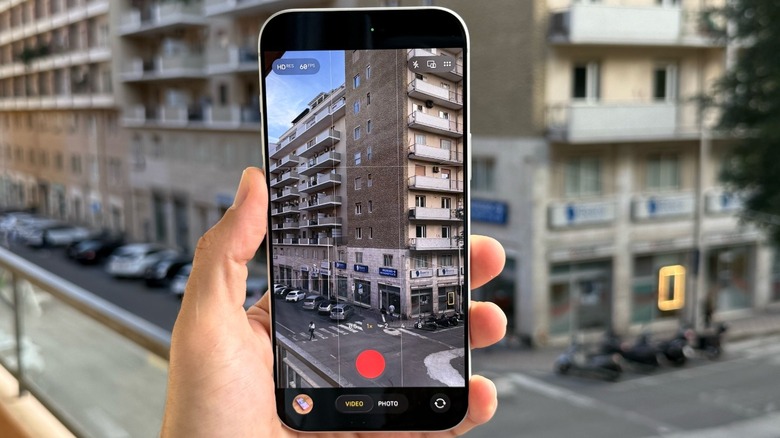
Besides using your phone’s volume buttons to adjust volume, one of the best tricks for them is to take photos. Whether you have an Android phone or an iPhone, once you have the camera open, you can tap each of the volume buttons to take a photo. This can be especially useful when taking a selfie, or when you can only use one hand to click a photo.
If you long press one of the volume buttons inside the Camera app, you can start to record a video. It’s a cool trick that can definitely help you in many different situations. That said, it’s important to note that on some Android models, tapping the volume buttons with the Camera app open might not do anything, so, in this case, you should open the Camera app, go to Settings, find “Press Volume Buttons To” and choose the action you want. After you do that, you can use your volume buttons to take photos or record videos.
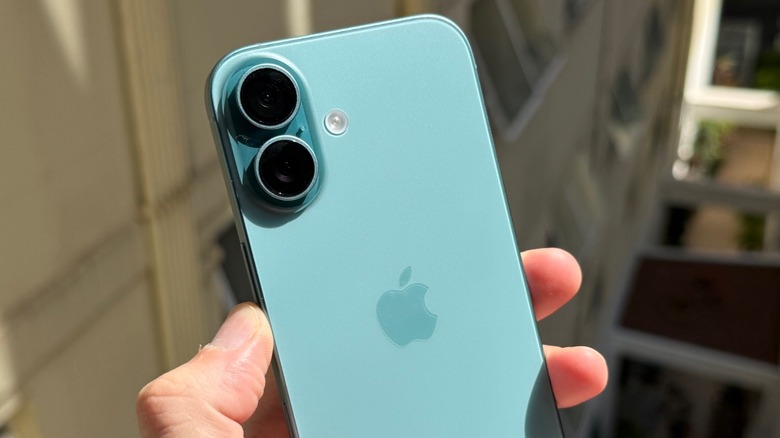
For iPhone users on iPhone 16, 17, or Air, you can also make use of the Camera Control button. It comes with several layers of interactions that not only give you fast access to the camera, but also lets you cycle through several settings, entirely with your finger’s touch.
Force restarting your phone
José Adorno/BGR
If your smartphone is unresponsive, the volume buttons play an important role in force resetting it so you can make it function again. This can happen for many reasons or no reason at all, like if you’re running a beta version, if the system found an error, or if an app stopped working as expected. While the process on the iPhone is straightforward, Android users need to check with their phone’s manufacturer, as the process can be brand-dependent.
If you have an iPhone 8 or newer, you need to quickly press and release volume up, press and release volume down, then press and hold the side button until the Apple logo appears. Once you do that, you can make an unresponsive iPhone come back to life. With Android, the process can be similar. For example, with Samsung devices you should press and hold the power and volume down buttons simultaneously for seven seconds until the device powers off and the Android logo appears.
Once you do that, it’s likely that your phone will become responsive again, and most importantly you won’t lose any data when performing this restart. In case this doesn’t fix the issue, faulty software could be the cause. It’s best to take your phone to a professional to further address the issue.
Turn off Face ID
José Adorno/BGR
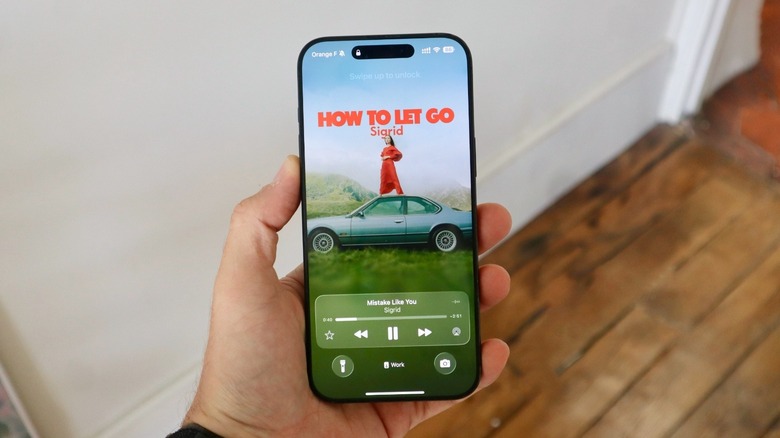
Imagine you’re in a situation where you need to lock your phone in a way in which Face ID or Touch ID stops working. While you can always do that through your iPhone’s settings, there’s a trick that’s much more discreet, quick, and efficient. Turning off Face ID, which even prevents quick access to the Wallet cards, is a lot simpler. Without even looking at your phone, you can simply press volume up and the side button together. After a couple of seconds, your iPhone will start to shake, as this is how you can automatically call an emergency. Once you feel the first shake, just press the Side Button again and your iPhone is completely locked on the Lock Screen.
With that, you’ll need to enter your passcode to reactivate the Face ID authentication, meaning that everything else is locked on your iPhone. This is a quick, yet very effective way to protect your device’s data. Besides that, it’s highly recommended that you have a few extra security features enabled on your iPhone, like preventing access from the Control Center, notifications, or even data transfer through the USB-C port when the iPhone is locked. All of these settings can be tweaked from the iPhone Settings app under Face ID & Passcode.
Add more shortcuts to the volume buttons
Mashha/Shutterstock
This final tip is exclusive to Android users, as the operating system is more flexible with customizations. There are apps like Button Mapper where you can add additional actions to the buttons available on your phone. For example, double or long presses on the volume button, even with the screen off, could let you launch the flashlight, your favorite apps, or even start screen recording.
You can make your Android experience a lot more unique using the various mapping options. The app also offers a premium version for those who want to go further, like to simulate keycodes, swap volume keys on orientation change, or even customize the haptic feedback.
With this app, you can even change the long press or double tap duration needed to trigger actions, delay initial button press for better double taps, and even disable the Button Mapper in specific apps. The app is available for free on the Google Play Store and certainly adds a lot more to your volume buttons than you thought was possible.