
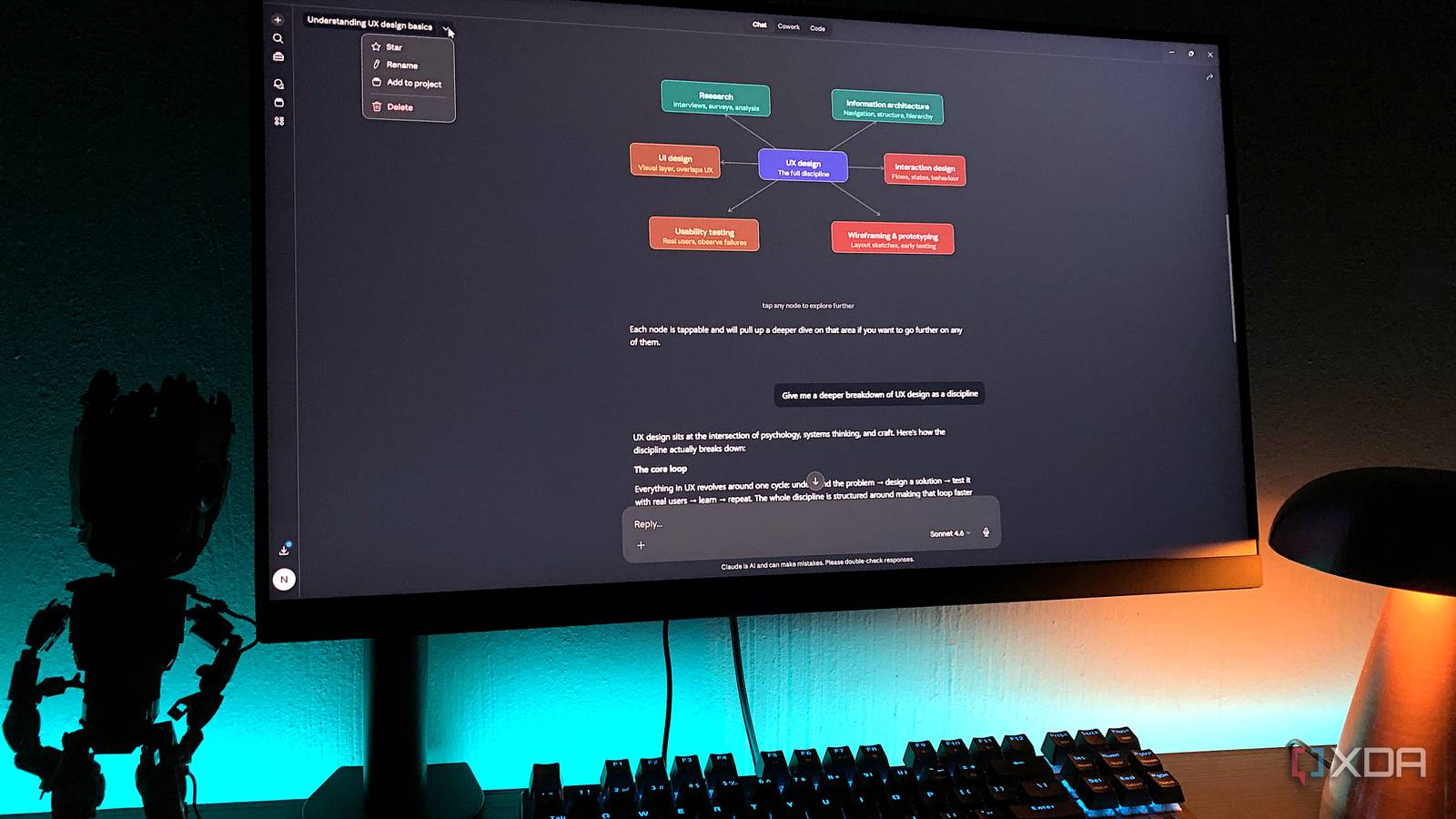
When I first got to grips with using AI to boost my productivity, I found it kind of annoying. Every time I started a new chat, I’d have to start from scratch, telling the AI everything I was working on and what I wanted to achieve. This included telling the AI the same stuff they just taught me a moment ago, so they’re up to speed. Continuing the old chats with all the context included would eventually begin to unravel after a few more prompts, and using the instructions feature was a pain if you wanted to use the model for anything else.
However, as a relatively new user to Claude, I’ve fallen in love with its Projects feature. Not only does it solve some of my biggest problems with using an LLM for productivity, but it does so with minimal effort on my part. And honestly, if you’re not using them, I recommend you start.
Claude Projects are like little containers for everything you’re working on
It makes things a lot easier to organise
If you’ve never heard of Claude Projects before, you can give them a try for free, but they get really useful when you subscribe. For the sake of this article, I’ll be showing off and discussing the version of Claude Projects you get when you subscribe to Pro.
When you set up a new Project, you give it a name and a description. It’s worth noting that Claude cannot read either of these fields, so don’t enter anything into this that you want Claude to read for its context. Once you’ve created a Project, you can then create a new chat within it. All the chats you make in a Project are listed within it, which makes it really easy to revisit a specific session; however, they’ll also appear in the master list on the left sidebar for easy access.
Related
Claude Code’s creator keeps sharing tips, and they all made my experience better
Who better to learn from than the person who built it?
Each Claude Project has an independent instructions section
You don’t need to keep juggling Claude’s instructions based on what you’re doing
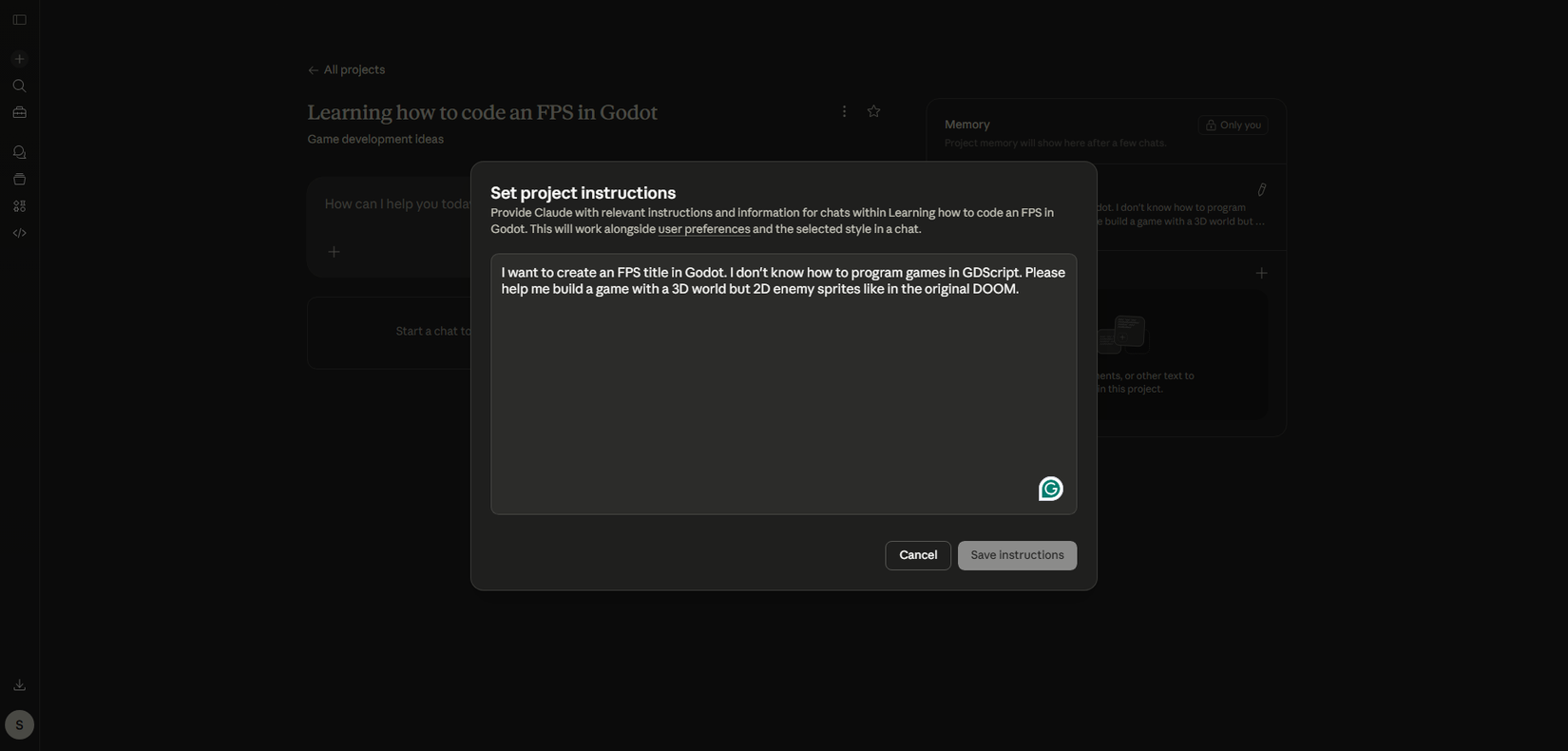
The first really cool thing about a Project is that it has its own separate instructions section. When you use Claude in a Project, your global instructions don’t affect it, nor do the Project’s instructions affect your normal chats. This means you can go all-out and tell Claude exactly what you want to achieve with the project, what you’re working on, and how it can help.
Now, whenever you make a new chat in the Project, Claude will fetch your instructions and use them as context. That way, you don’t need to keep re-telling it what you want to achieve; it will always know the moment you start a Projects session.
Related
I connected these tools with Claude and my productivity doubled in no time
My journey form overworked to automated.
Each Claude Project has its own memory, too
Claude will remember your highs and your lows
Claude’s memory, by itself, is very powerful. In the base service, Claude uses the memory feature to remember things about you, such as your preferences, what you want to achieve, and what you’ve learned. However, much like the instructions, Claude Projects have their own memory file, too.
This is where I find Claude Projects truly shines. If the instructions give Claude a foundation to build off, the memories feature are the bricks that bring everything together. Everything you learn, every success, every setback, gets stored within Claude’s memory. Then, when you start a new chat, Claude will have the context and your current progress loaded and ready to go.
The best part is, you can manually tell Claude to store things in the Project memory. So, if you strike on something useful, or something goes well and you want Claude to remember to adopt the same strategy in future sessions, just tell it to remember it. It’ll log all of your findings into its memory file and carry them over to future sessions.
I find that this allows Claude to evolve to better suit your needs. The more you talk with it, give it feedback, and tell it what you want to do next, the better it will get at doing what you want it to do. It’s a nice positive feedback loop that makes it feel like I’m making real forward progress with my project, instead of relying on scattered, unlinked sessions.

Related
I set up Claude Code the way its creator does, and the difference is night and day
Who better to learn from than the person who made it?
Give Claude Projects a try
Claude Projects fixed all the issues I had when trying to get work done with an LLM. All my related chats are stored in one place, I can tell Claude what I want to achieve without affecting my general chats, and the AI will remember things as I go, including what worked well. As such, if you’re not toying with Claude Projects, I really do recommend you start.