
It’s no secret that Google is cracking down against “sideloading” Android apps—which is to say, installing apps from outside the Play Store. Google Play Protect has thrown up the “harmful app blocked” warning for a long time now, but it was simple enough to ignore the warning and install the app anyway. However, in the past few months, Play Protect has blocked app installations completely. This is what you can do to get past Play Protect blocks.
Check if you can bypass the warning
Sometimes it just takes a single tap
Before you proceed with these two methods, look for the “Install Anyway” button on the Play Protect pop-up. Sometimes, it’s just a warning, and you can tap “More Details”, then “Install Anyway” to install the app anyway. If these buttons are missing, it means Play Protect has “hard blocked” the app installation, and it won’t let you install it as long as it is running.
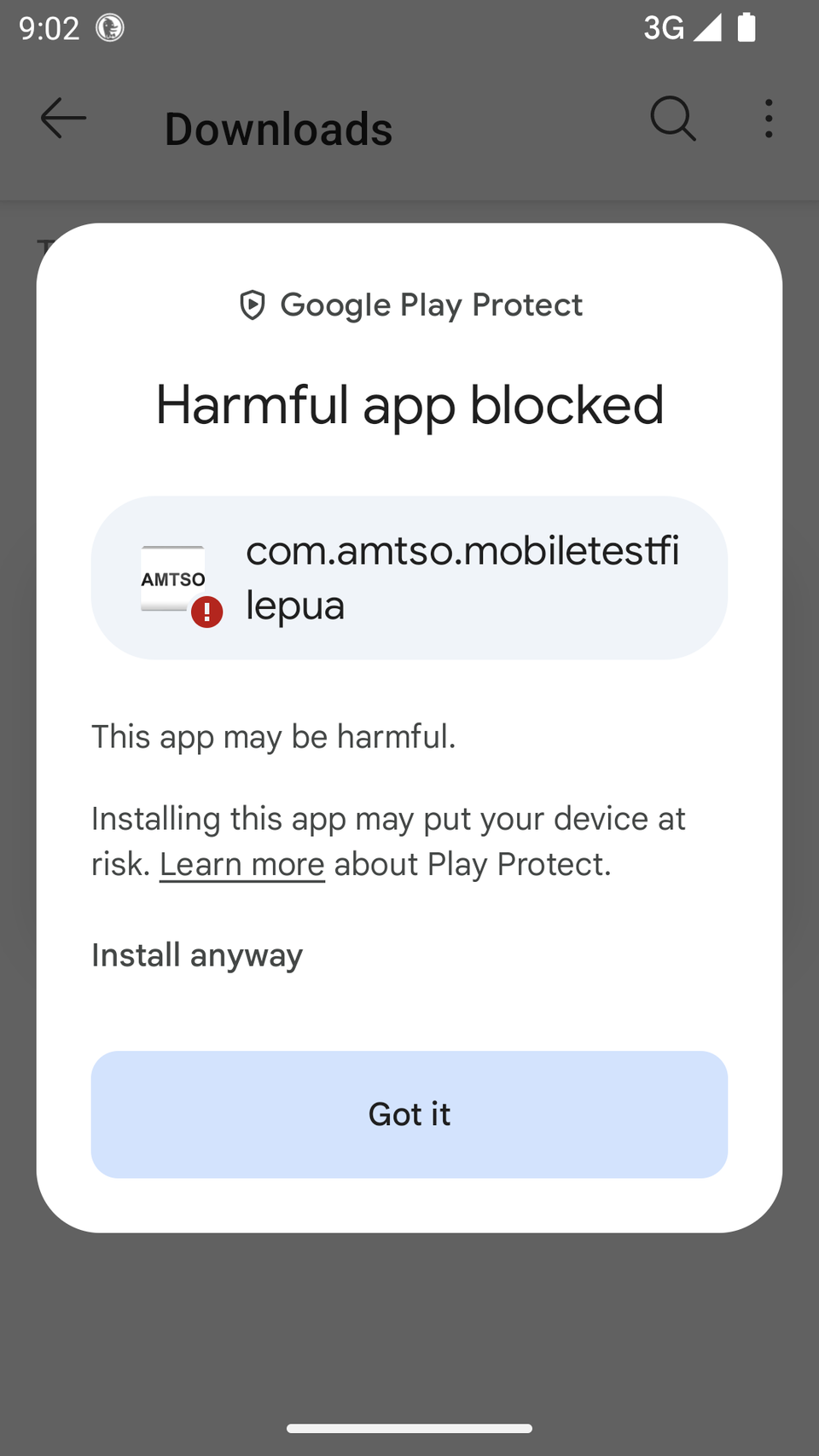
Malicious apps on Android can do a lot of damage, so be careful bypassing Play Protect restrictions. When installing apps that Play Protect is flagging, make sure you trust the source and run the APK through a malware scanner just to be safe. Sometimes, it flags apps for good reason. I only recommend proceeding if you know for a fact that it’s a false positive.
Pause or turn off Google Play Protect
Proceed with caution here
The first method is to disable Google Play Protect temporarily. This is the simpler of the two solutions, and it only takes a couple of minutes.
Open Google Play Store, and then tap your profile icon and scroll down to “Play Protect.” Then tap the gear icon at the top to open Play Protect Settings. Tap the “Turn off app scanning” toggle. It’ll prompt you to pause app scanning instead of turning it off. Now, you can pause the scanner and install your app. It should work just fine. However, when the scanner comes back online, there’s a chance it scans that app and automatically removes it without your permission.
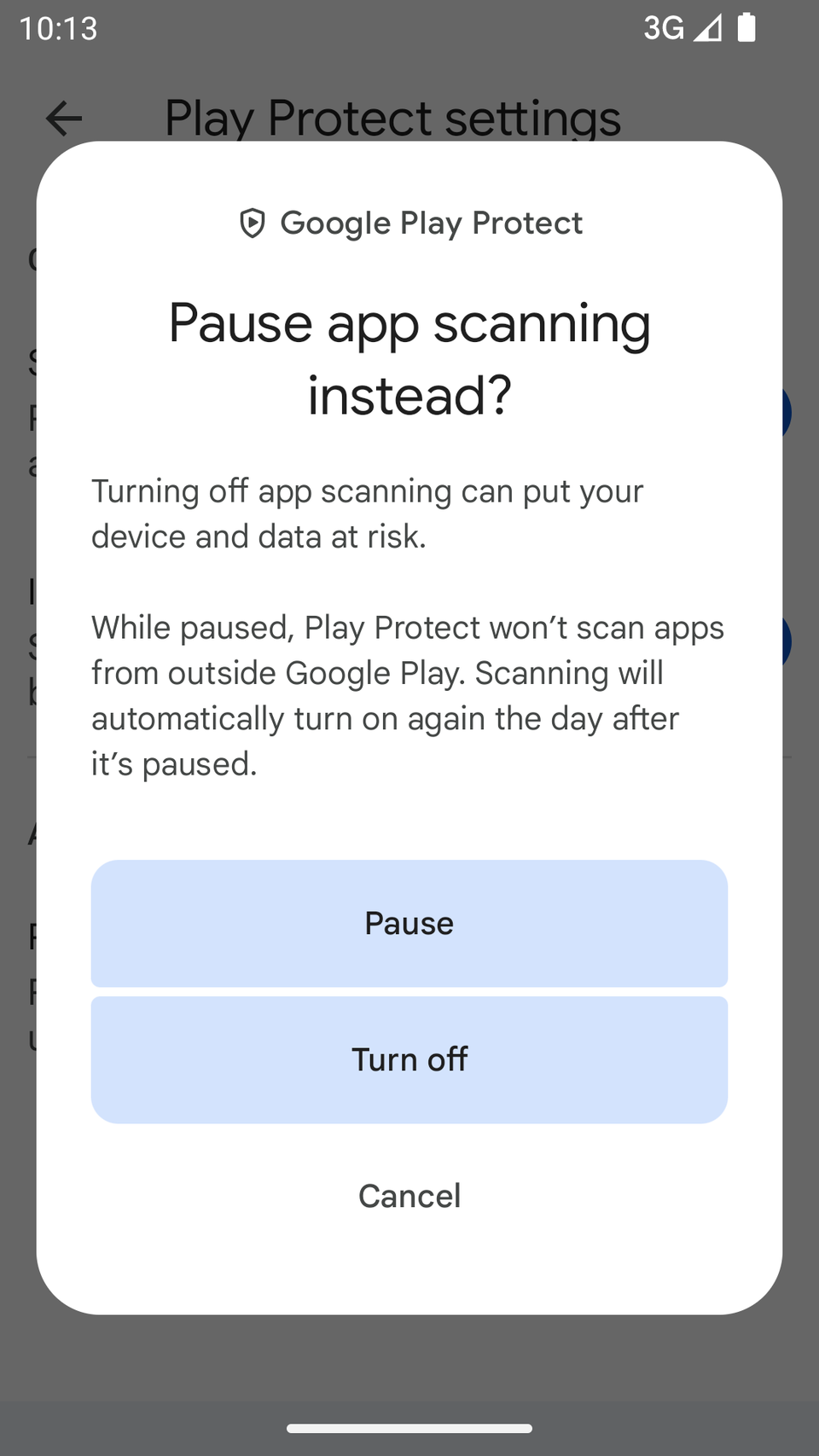
You can either try your luck by pausing Play Protect and installing the app while it’s paused. It may or may not remove it later. Or, you can turn it off entirely and never have to deal with these annoying pop-ups again. If you choose to disable it entirely, you will become solely responsible for verifying your sources and keeping your phone safe. There’s a third option too, which I discuss below.
Use a different app installer
Install apps without triggering Play Protect in the first place
The second method is a little bit more technical. It uses something called InstallerX. It’s a special app that uses a different method for installing apps. It has nothing to do with the standard Android package installer interface that Play Protect hooks into, so you can install any app without tripping it.
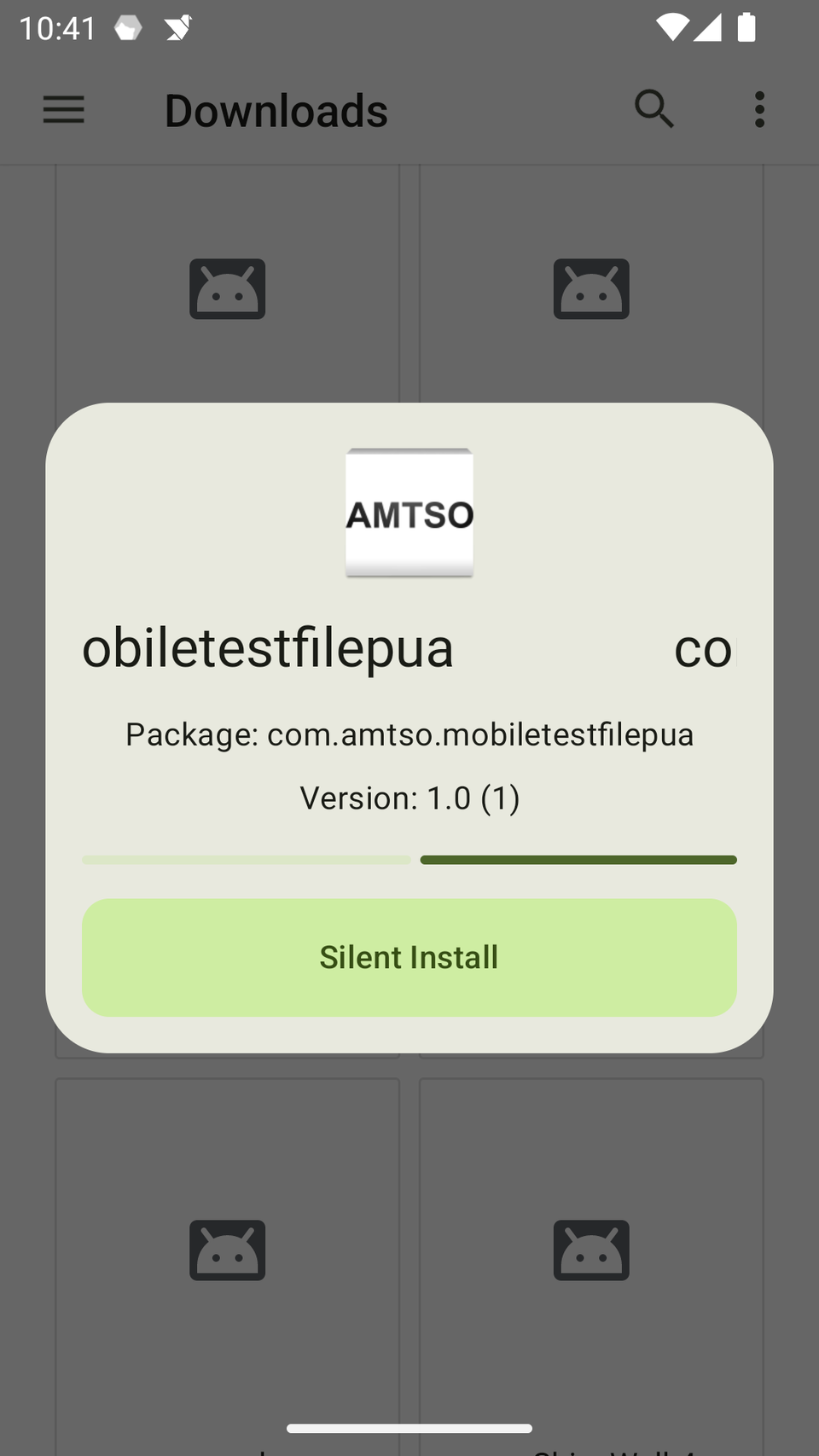
Since it’s doing the job of a system-level app, it requires elevated privileges, which you cannot grant without root access. However, there is a workaround for that, too. There’s an app called Shizuku, which can grant those elevated privileges to apps using ADB. You just have to run the Shizuku service once, grant the necessary permissions to Installer X, and you’ll have a better app installer than the default your phone ships with.
Set up Shizuku to grant elevated permissions to the new installer
Start by installing Shizuku from Play Store. Then go into settings and enable developer options.
Now in the Shizuku app, tap the “Pairing” button and then the Developer Options shortcut. Here, switch on Wireless Debugging. Then tap “Wireless Debugging” (the text, not the toggle) and tap “Pair device with pairing code.” It’ll generate a random 6-digit code for you. Swipe down from the notification shade to find a push notification from Shizuku. Tap “Enter” on the notification and punch in the 6-digit code it generated.
Back on the Shizuku main screen, tap “Run” to start the Shizuku server.
Install the installer
Download InstallerX Revived from its official GitHub repository. It’s a free and open-source app, meaning anyone can audit its code and contribute to it. Scroll down to the releases tab and download the APK file.
Open InstallerX Revived. Under its settings, make sure “Shizuku” is selected as the Authorizer. Then open Shizuku one last time and tap “Authorized apps” and make sure InstallerX Revived is selected.
Now try installing your app again. This time, you’ll be asked to select which app you want to use to install the APK. Select InstallerX Revived and give it any storage permissions it requests. Then hit “Install.” It’ll install any app without involving Play Protect. It also feels noticeably faster.
InstallerX also has some other neat features. It can, for example, install APK bundles and split APK files easily. It can downgrade apps without deleting your data or resetting the app. You can set it to automatically update apps downloaded outside of the Google Play Store.
Future-proof sideloading features
The Google Play Protect policy is only going to get more aggressive as Google implements more measures against side-loading apps. If you can spare a little bit of time to set up InstallerX, I cannot recommend it enough. It’ll sidestep any restrictions Google introduces in the official package installer.