
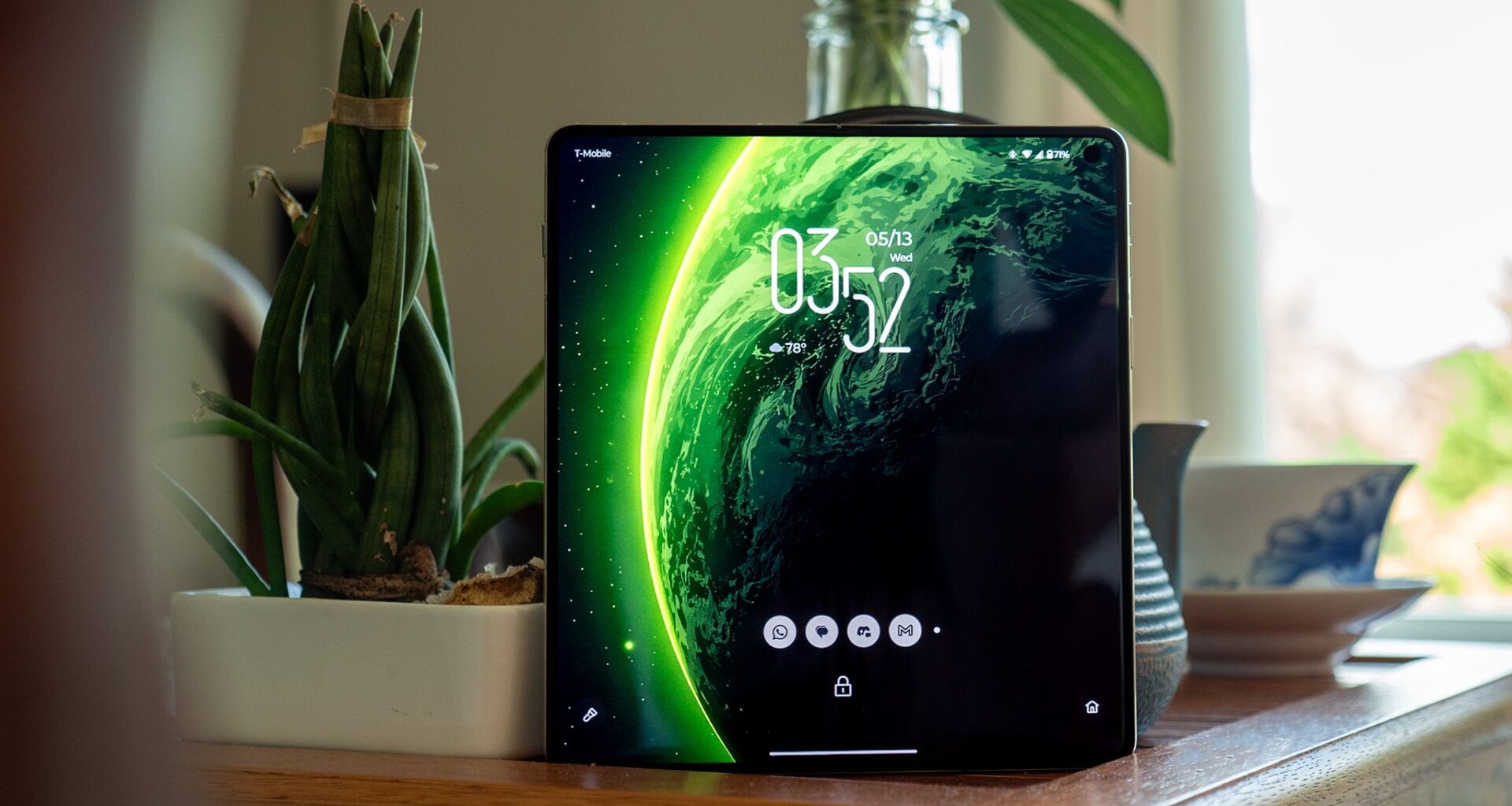
The Motorola Razr Fold is the most premium phone Motorola has ever built, and along with that premium nature comes a new kind of AMOLED display the company is branding as “Extreme AMOLED.” You can find this branding on the phone’s external and internal displays, and both attempt to push the limits of modern OLED technology for the best mobile experience.
But peak OLED display “quality” often means companies prioritize spec sheets and a wow-factor instead of prioritizing the eye health of their users. Google and Samsung foldables infamously fall prey to this tactic, but Motorola isn’t willing to let the long-term eye health of its users fall to the wayside, despite pushing excellent specs on its first book-style foldable.
Latest Videos From
You may like
Today’s best Motorola Razr Fold deals

 The OG in flicker prevention
(Image credit: Nicholas Sutrich / Android Central)
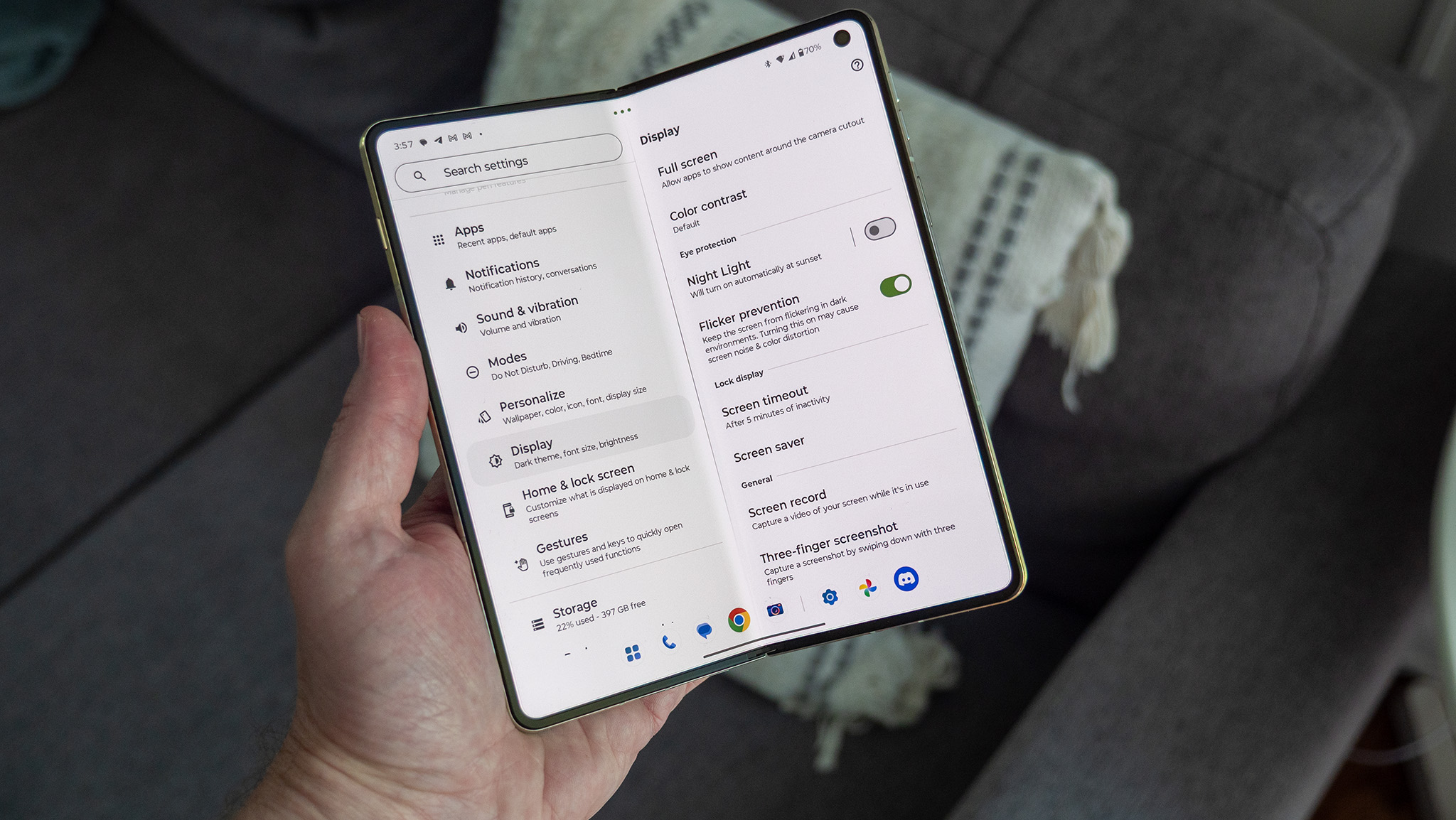
Back in 2023, when I learned I was sensitive to PWM dimming, Motorola was the first brand of phone I could use without pain. I quickly learned that this is because the company not only uses DC dimming at medium to high brightness, but also uses a faster PWM rate at low brightness. To make things better, Motorola allows you to completely disable PWM dimming, while Google and Samsung offer no such option.
I’ve gone through every single display setting on the Razr Fold, taken measurements with the three different light meters I’ve got, and assembled the data to ensure you get the most comfortable experience out of the box by changing just a few settings. Let’s start by disabling PWM dimming.
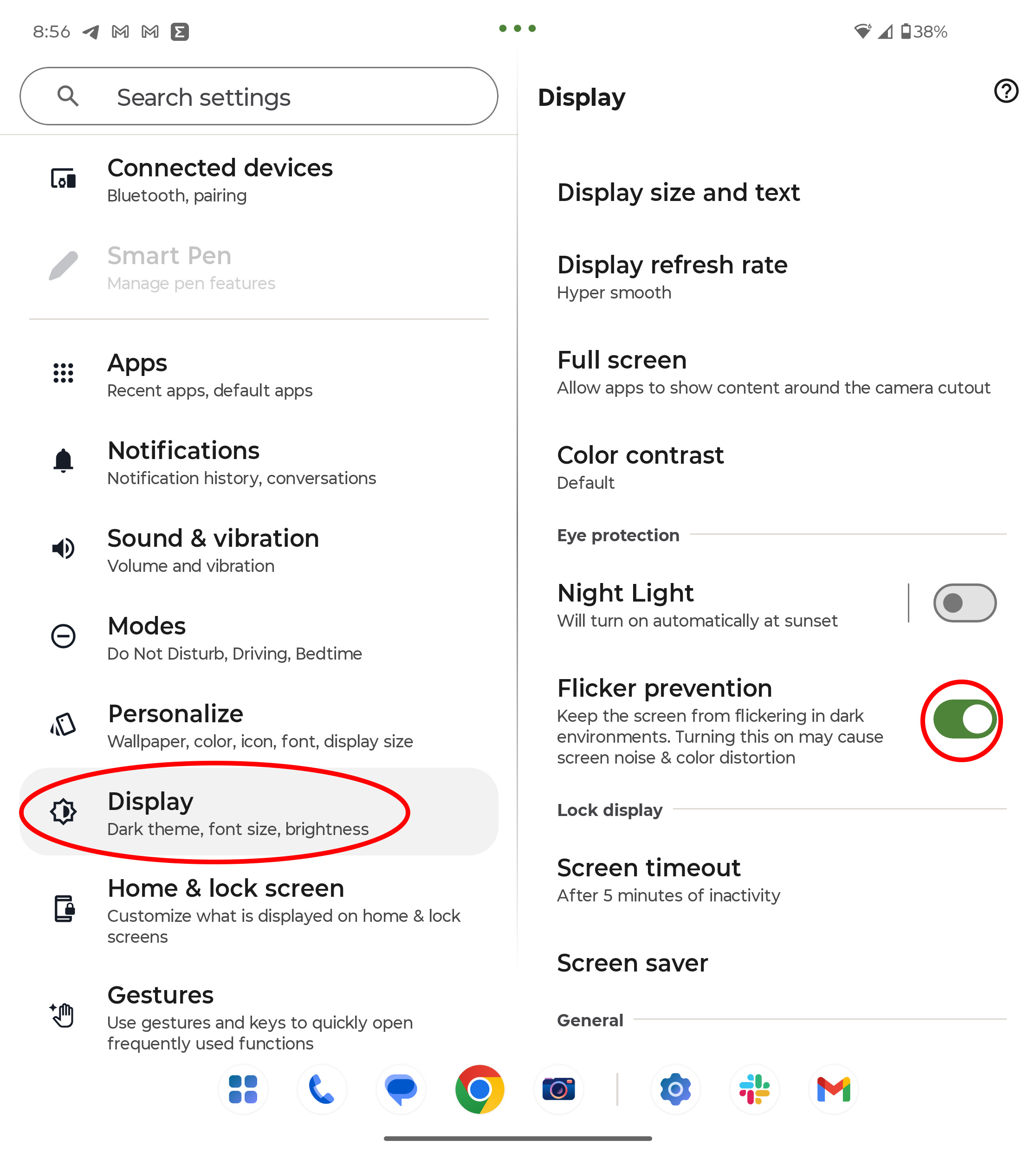
1. Open system settings, either by tapping Settings in the app drawer on your home screen or by swiping downward twice on the status bar, then tapping the gear icon.
2. Scroll down to and tap Display.
3. Scroll down to the Eye protection section and turn on Flicker Prevention.
(Image credit: Android Central)
PWM dimming kicks in below 30% brightness on the Razr Fold, but the Flicker Prevention setting disables PWM dimming completely. Motorola notes that you may experience less accurate colors and might see some graininess at low brightness with this setting enabled, and while I certainly don’t notice this on my review unit, I think that’s worth having a more comfortable display, even if it does happen.
Refresh rate
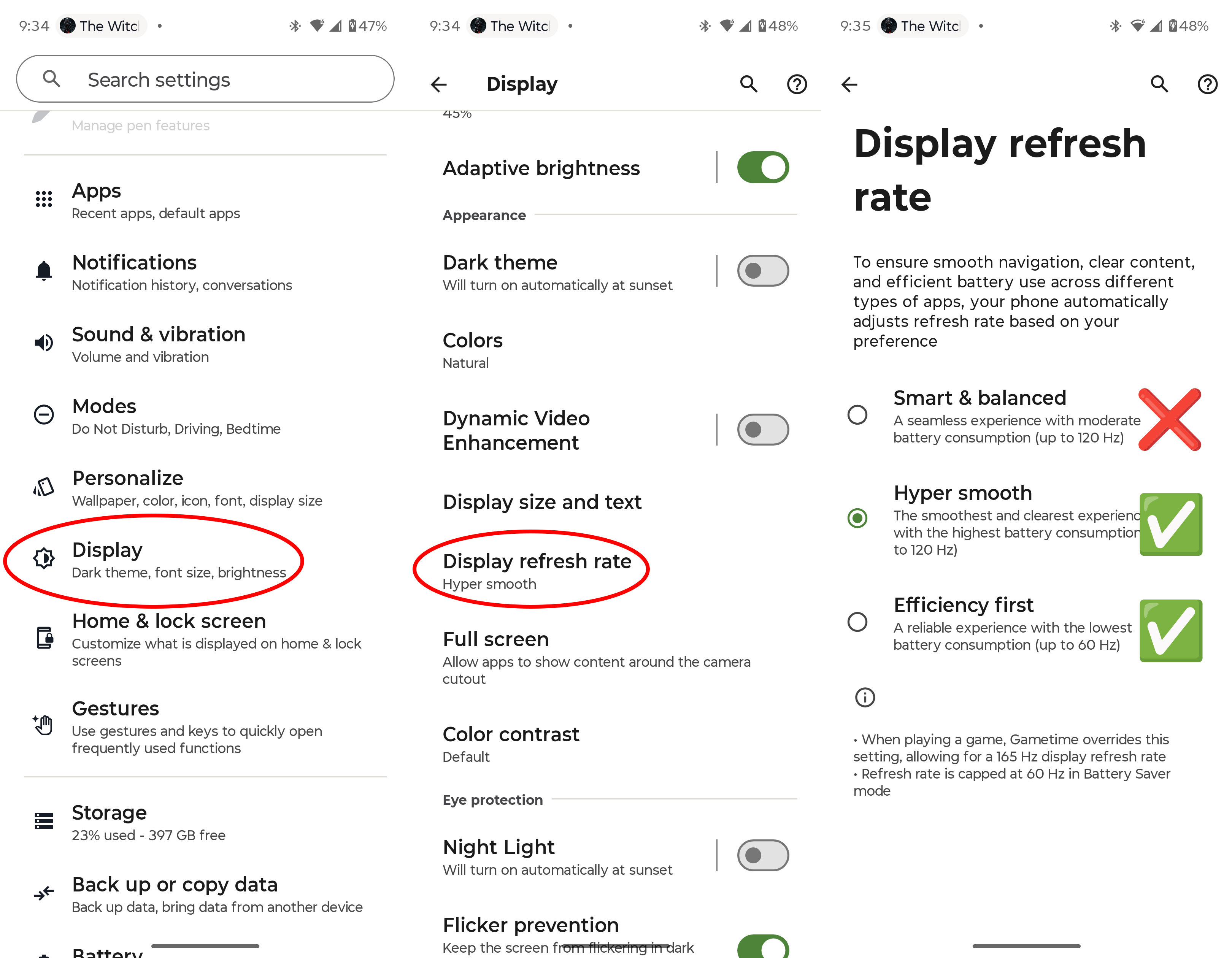
Next, I’ve found that eliminating the 90Hz refresh rate option is more comfortable. You can do this in the refresh rate section of display settings:
What to read next
1. Open system settings, either by tapping Settings in the app drawer on your home screen or by swiping downward twice on the status bar, then tapping the gear icon.
2. Scroll down to and tap Display.
3. Tap Display refresh rate.
4. Choose between one of the two options, depending on your priorities:
Prioritize performance: Choose Hyper smooth, which will prioritize 120Hz any time you touch the screen. By default, some apps will use 90Hz instead of 120Hz, which I find less comfortable.
Prioritize battery life: Choose Efficiency first, which will cap the refresh rate at 60Hz. This feels less smooth at first, but it’s something you get used to in no time flat. Half the refresh rate doesn’t mean double the battery life, but you will see improvements by choosing this option.
(Image credit: Android Central)Display colors
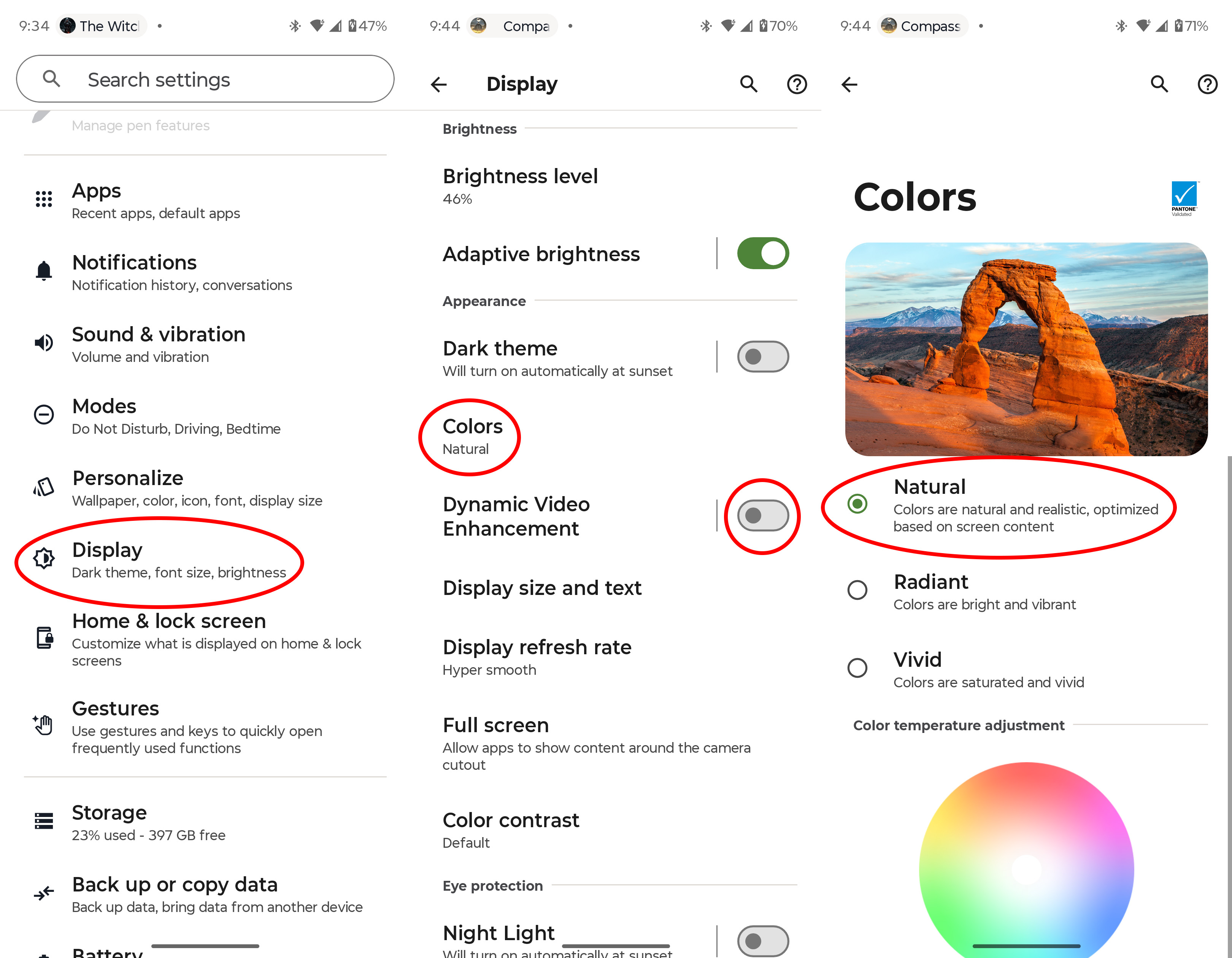
Next, you’ll want to visit the color section of display settings and opt for the more natural color palette. By default, the Razr Fold’s display is incredibly vibrant, which looks nice at first, but can ultimately cause eye strain if you use it too often.
Additionally, Motorola offers an option called Dynamic Video Enhancement that enhances videos with more vibrant colors. The problem is that these techniques almost always use temporal dithering to achieve the final effect, which can cause debilitating headaches and eye pain in some people, so you’ll want to keep it off for maximum comfort.
1. Open system settings, either by tapping Settings in the app drawer on your home screen or by swiping downward twice on the status bar, then tapping the gear icon.
2. Scroll down to and tap Display.
3. Select Colors from the list.
4. Choose Natural from the list.
5. Navigate back to Display settings.
6. Make sure Dynamic Video Enhancement is off.
(Image credit: Android Central)Night light
Lastly, you’ll want to optimize your screen usage for darker light environments. While the standard Night Light function is a great starting place, I’ve also got a few more tips for settings that make low light reading on your phone even more comfortable.
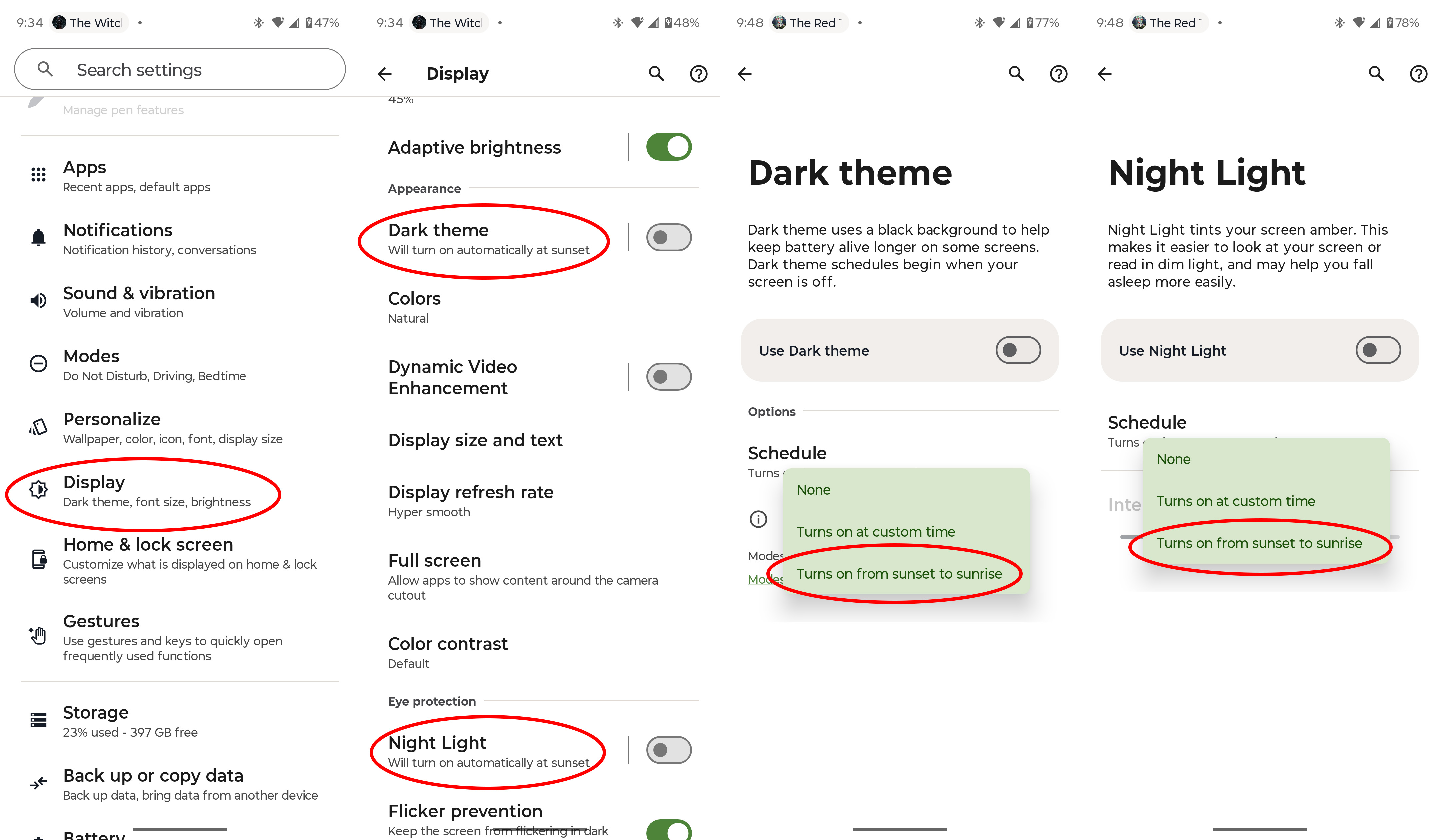
1. Open system settings, either by tapping Settings in the app drawer on your home screen or by swiping downward twice on the status bar, then tapping the gear icon.
2. Scroll down to and tap Display.
3. Tap the words Dark theme, not the toggle next to it.
4. Tap Schedule, then select Turns on from sunset to sunrise.
5. Navigate back to display settings.
6. Scroll down to and tap the words Night Light, not the toggle next to it.
7. Tap Schedule, then select Turns on from sunset to sunrise.
(Image credit: Android Central)
With those settings enabled, your phone will emit less blue light in the evening via the Night Light setting, and will also switch to dark mode after sunset. This second setting will reduce the amount of light coming from your phone since Motorola uses DC dimming on the Razr Fold’s display, making it more comfortable in low light.
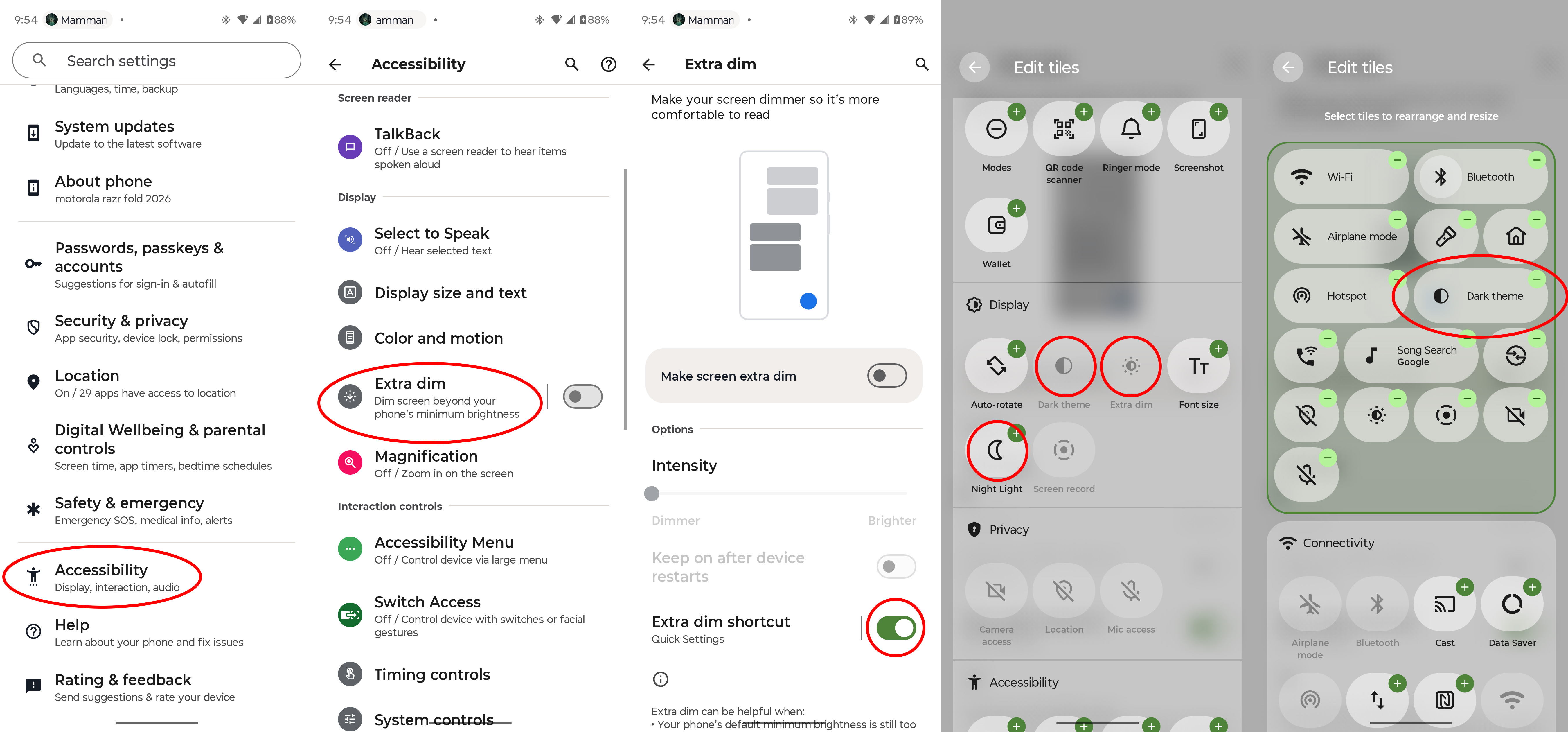
But there are times when low brightness simply isn’t low enough, and that’s where Extra Dim comes in. Extra Dim was introduced as an accessibility setting a few years ago, but Android 16 upgraded the setting with an intensity slider so you can properly customize the experience.
1. Open system settings, either by tapping Settings in the app drawer on your home screen or by swiping downward twice on the status bar, then tapping the gear icon.
2. Scroll down to and tap Accessibility.
3. Scroll down to and tap the words Extra dim, not the toggle next to them.
4. Turn on Extra Dim, then adjust the dimming intensity until your phone feels more comfortable to use in dim light.
5. Tap the toggle next to Extra dim shortcut to add Extra dim to your quick settings panel.
6. Swipe down twice on your status bar (the area with the clock at the top of your screen), then select the pencil icon to edit the quick toggles.
7. Scroll down to the display section, then tap the plus buttons on Dark theme, Extra Dim, and Night Light.
8. Scroll back to the top and rearrange your quick settings buttons how you wish.
(Image credit: Android Central)
Now, when you want to look at your phone in a dark room or anywhere else that is too dark to comfortably read the display, you can open up your Quick Toggles section and tap any of the three settings we just added. Long-pressing on the Extra Dim button will bring you to Extra Dim accessibility settings, where you can adjust the intensity of Extra Dim at any time.
Extreme AMOLED by the numbers
(Image credit: Derrek Lee / Android Central)
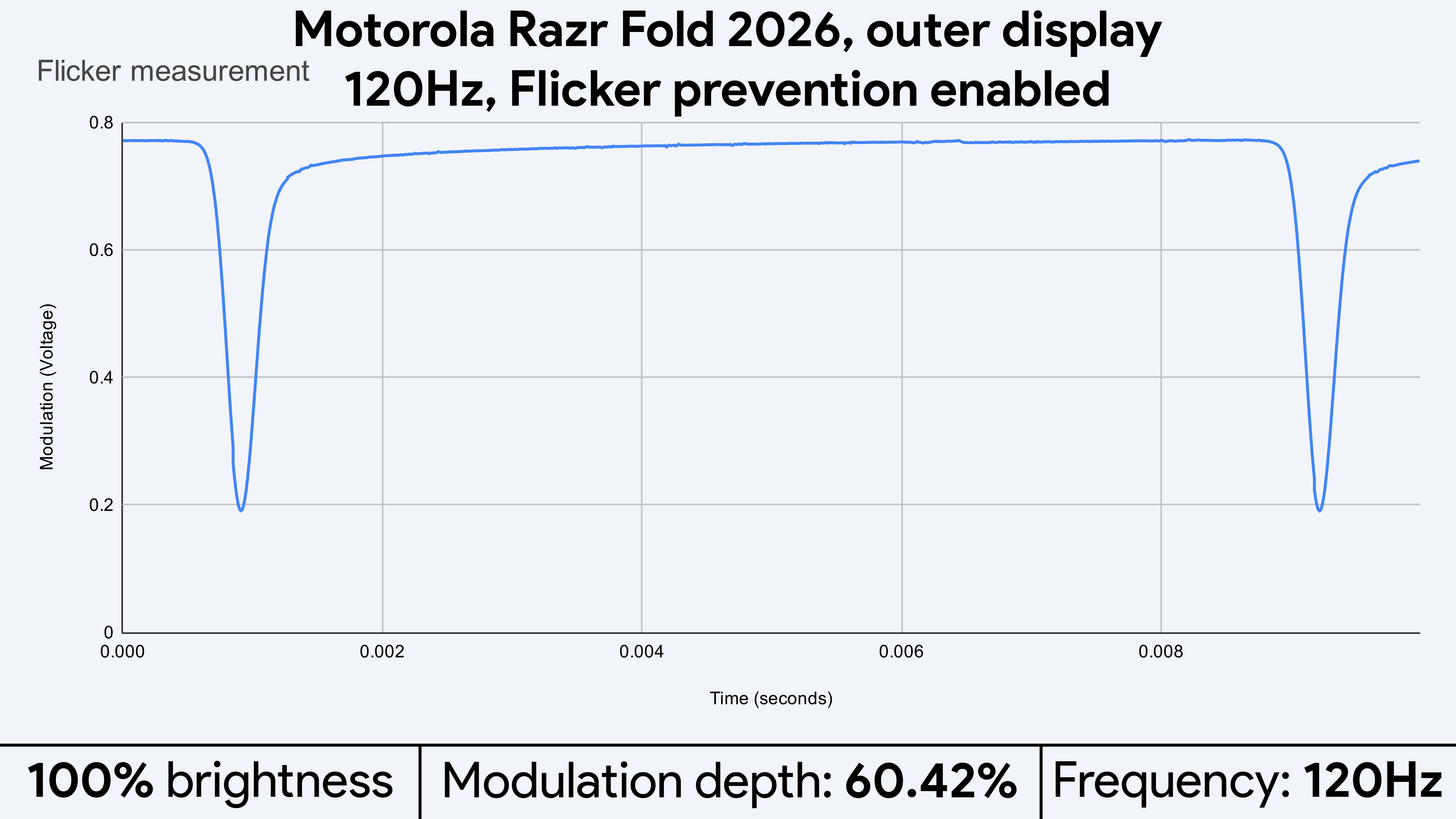
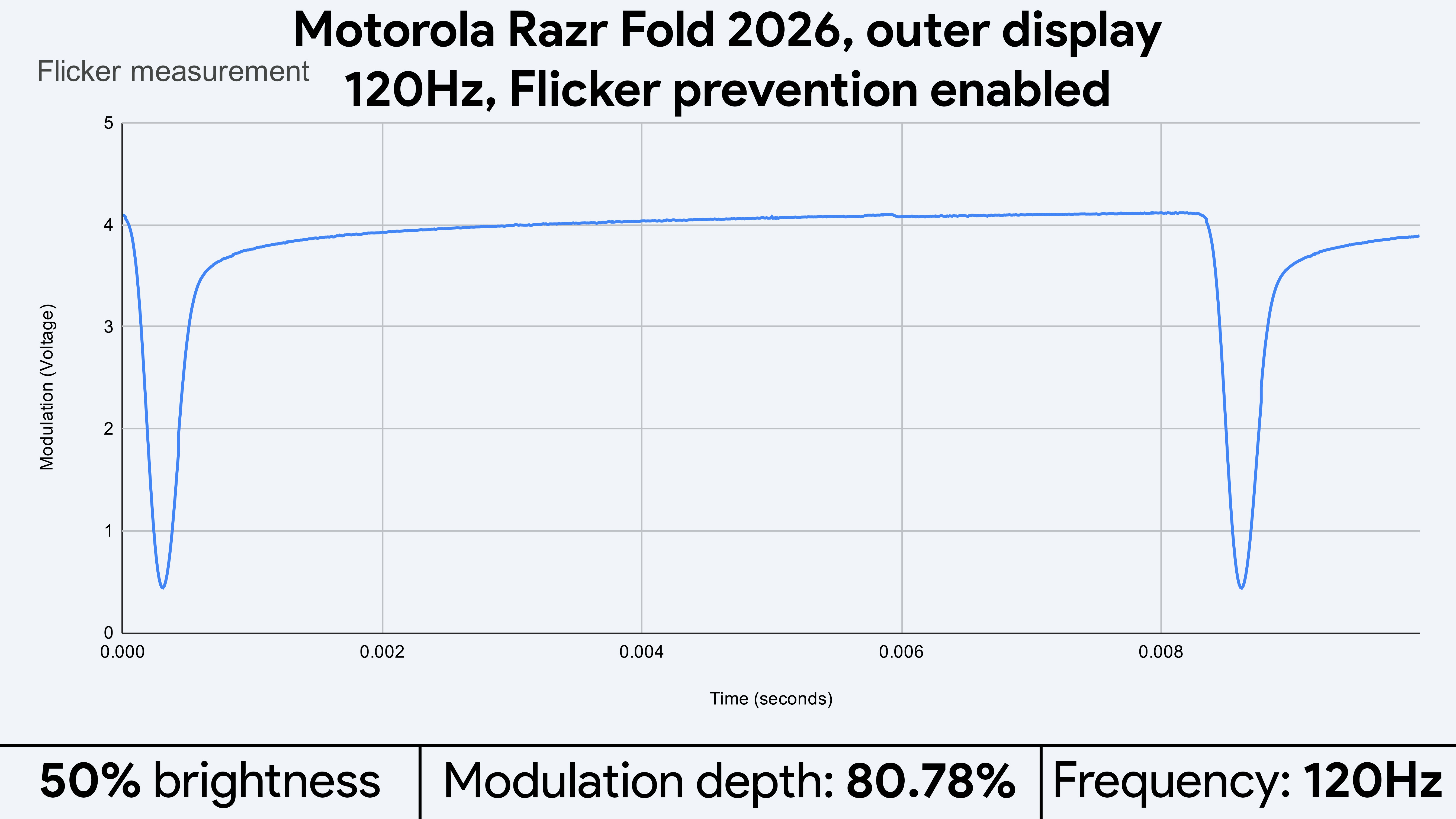
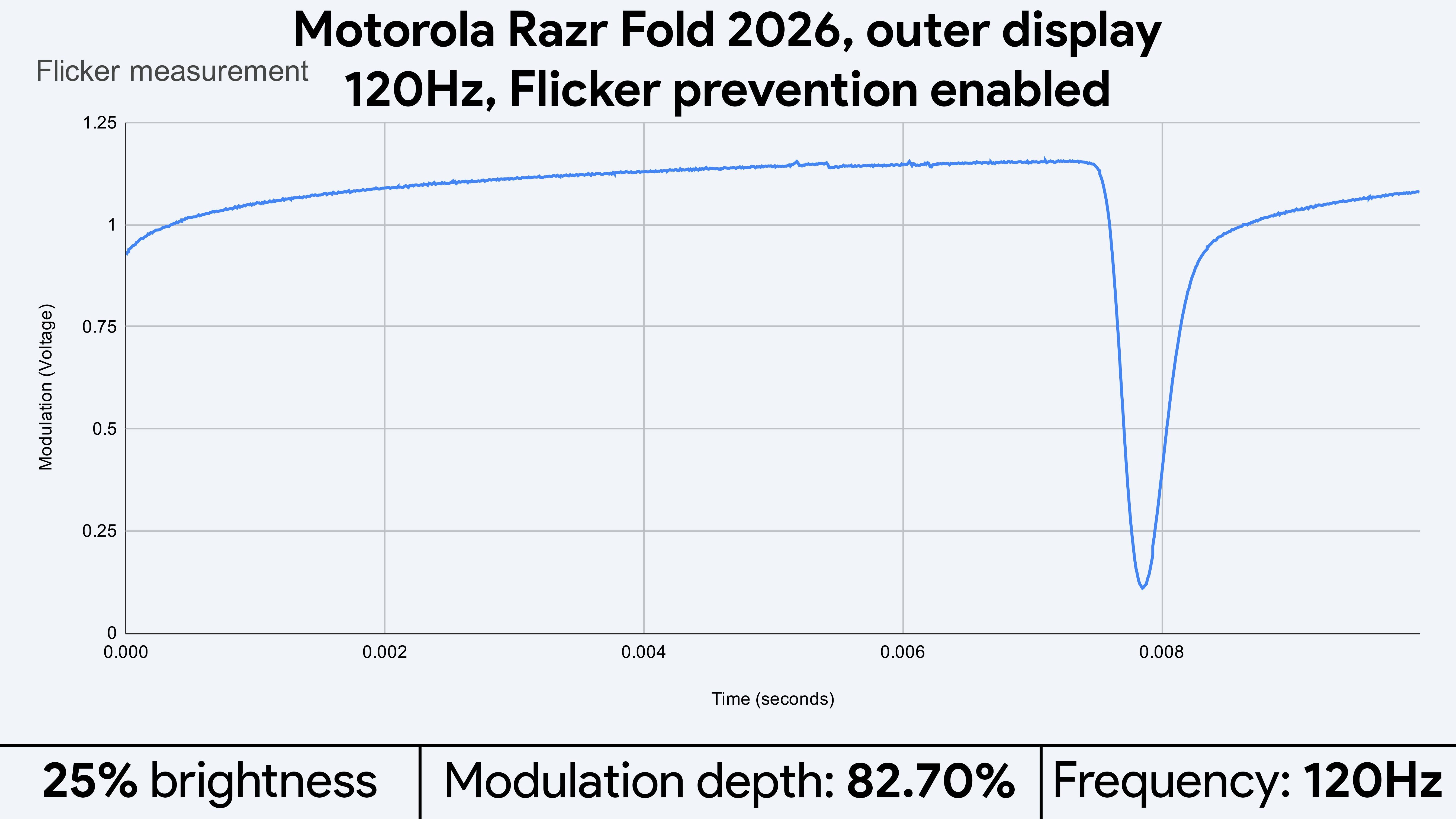
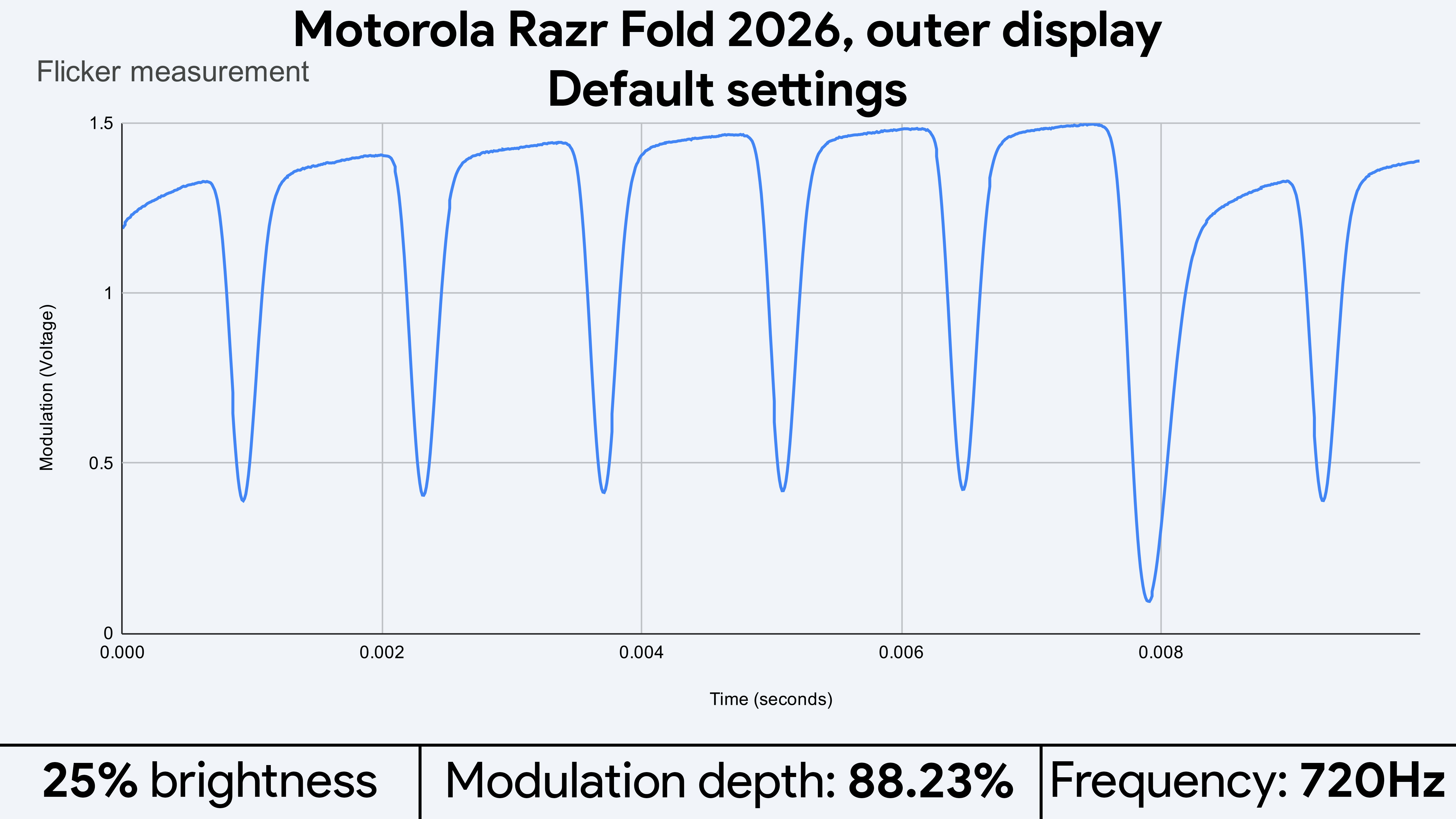
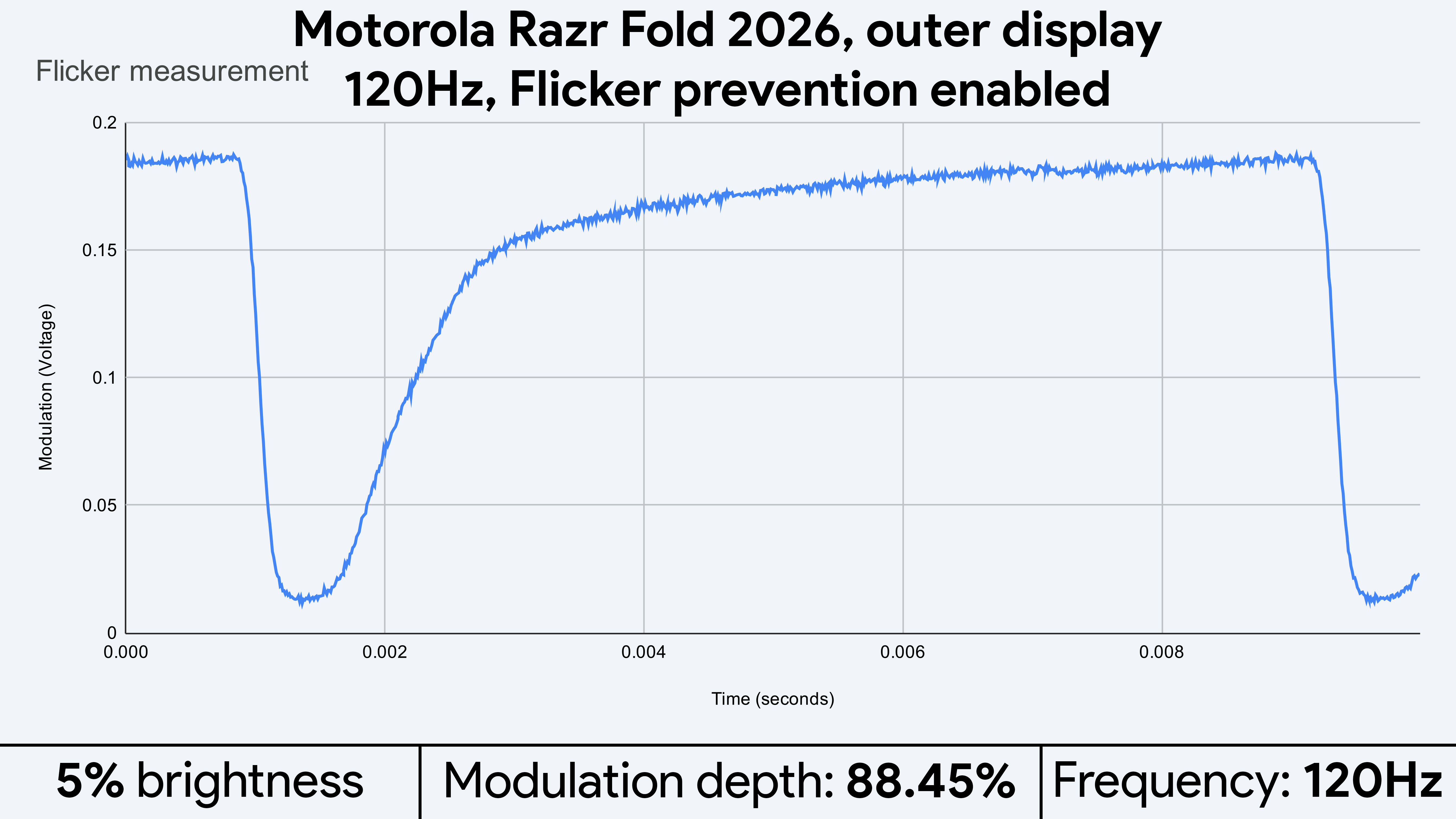
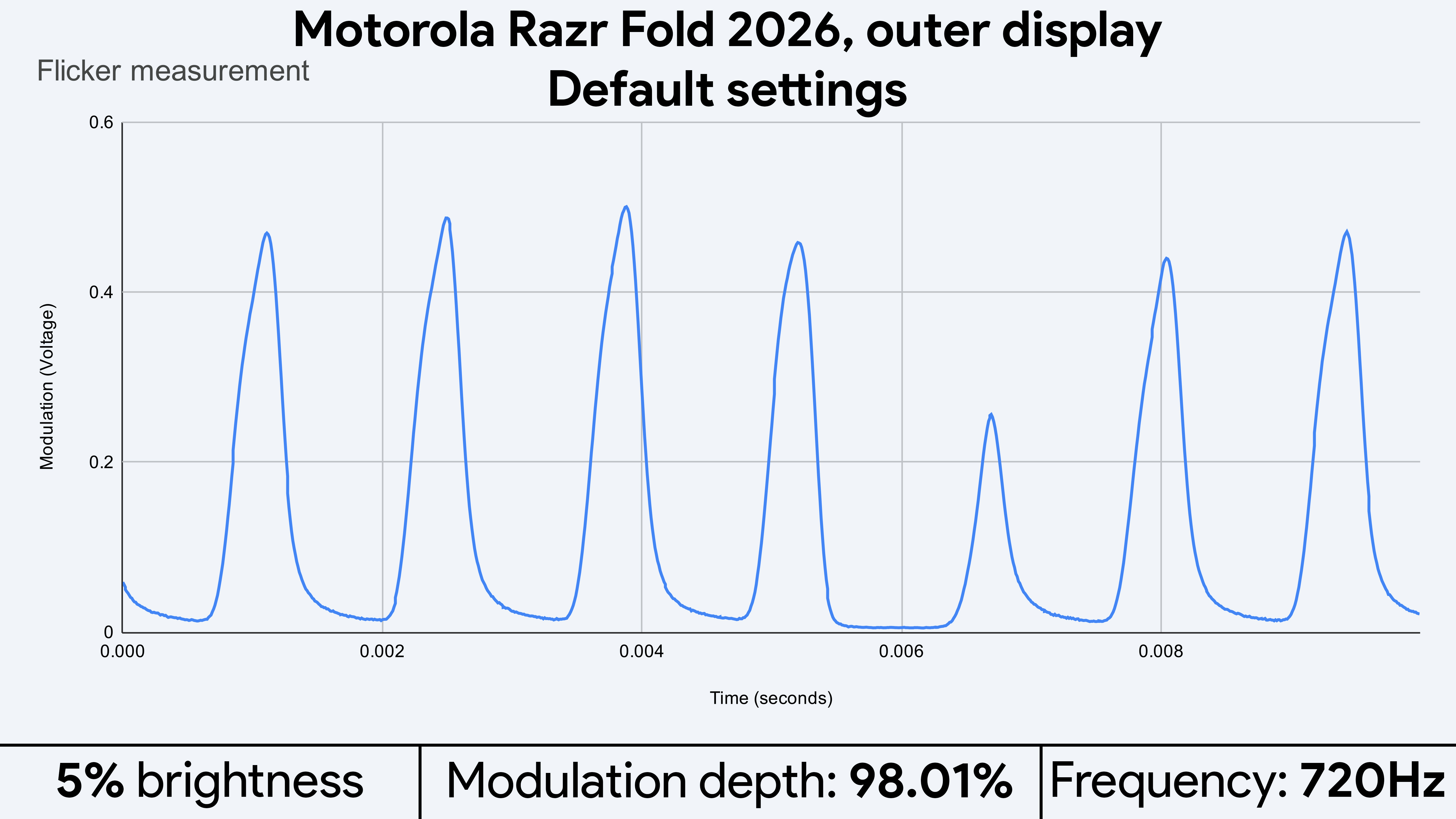
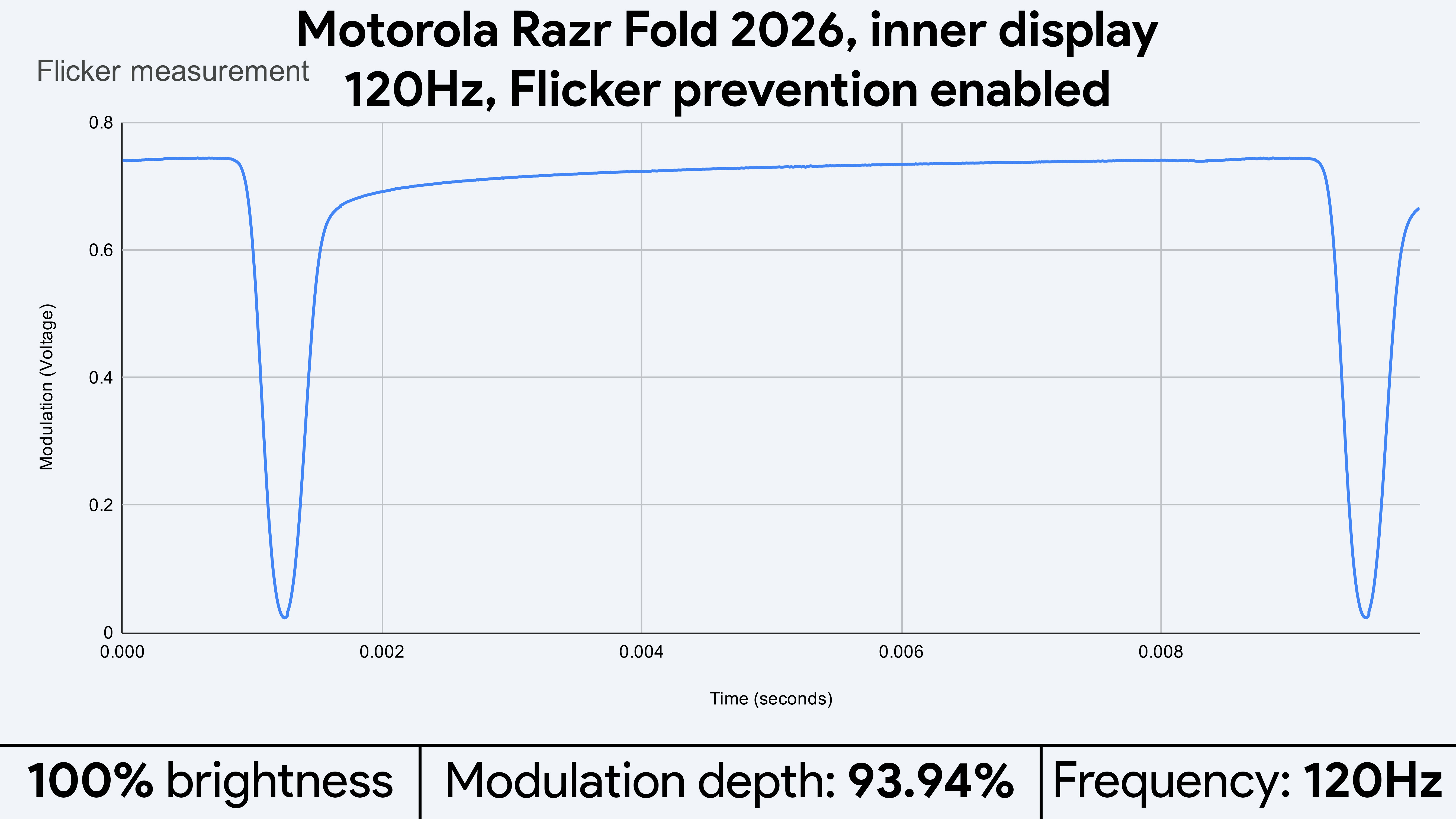
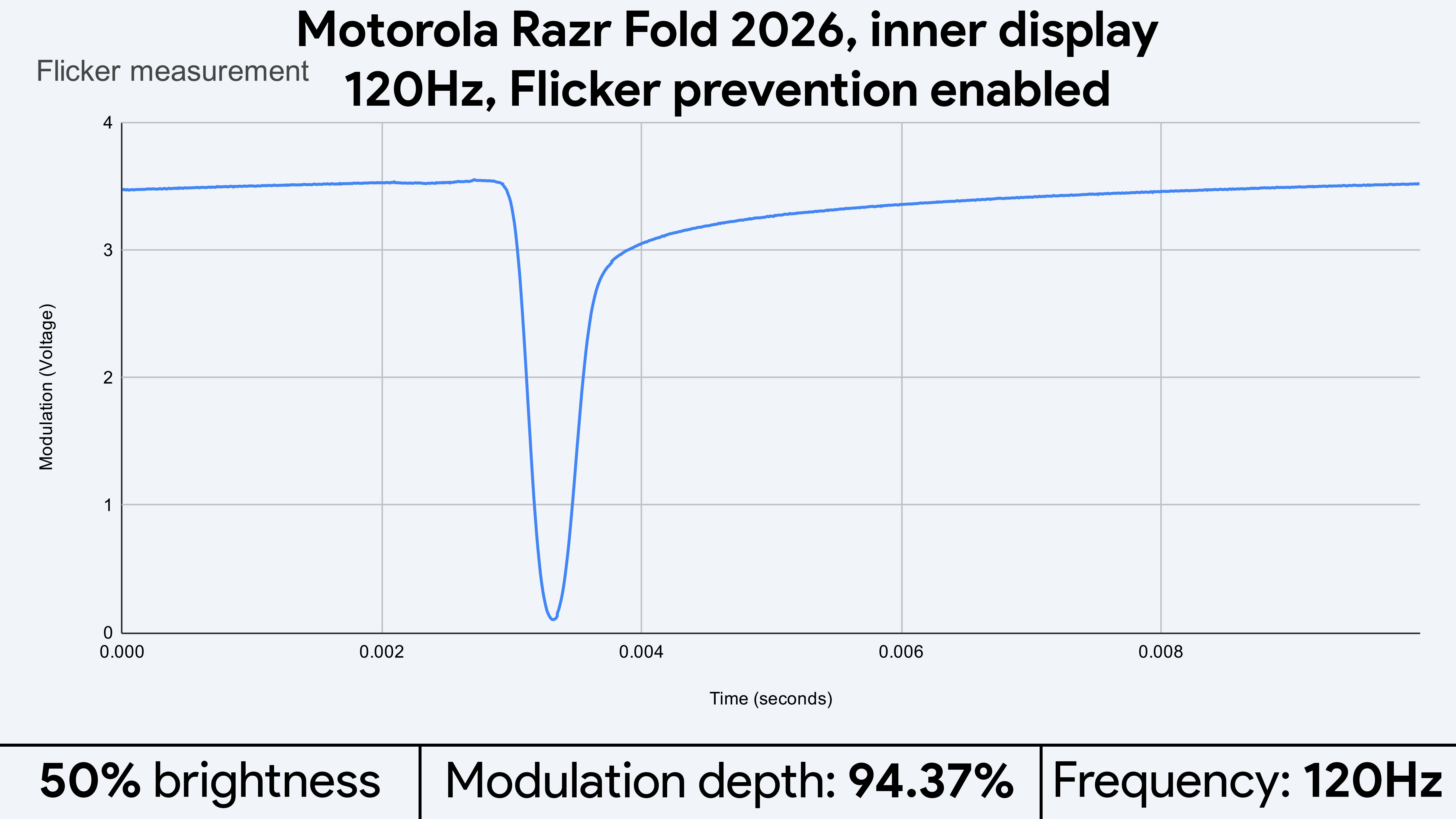
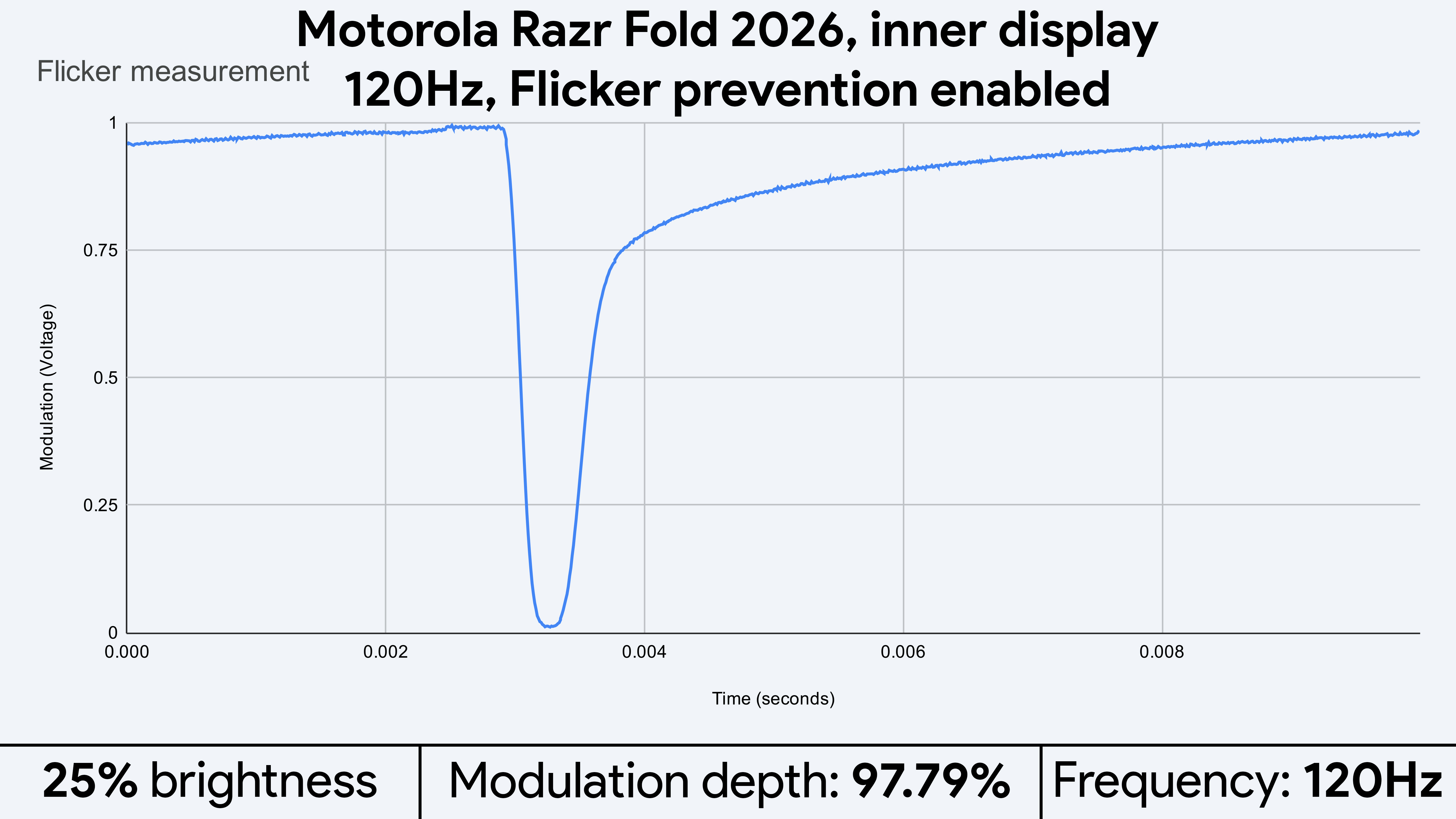
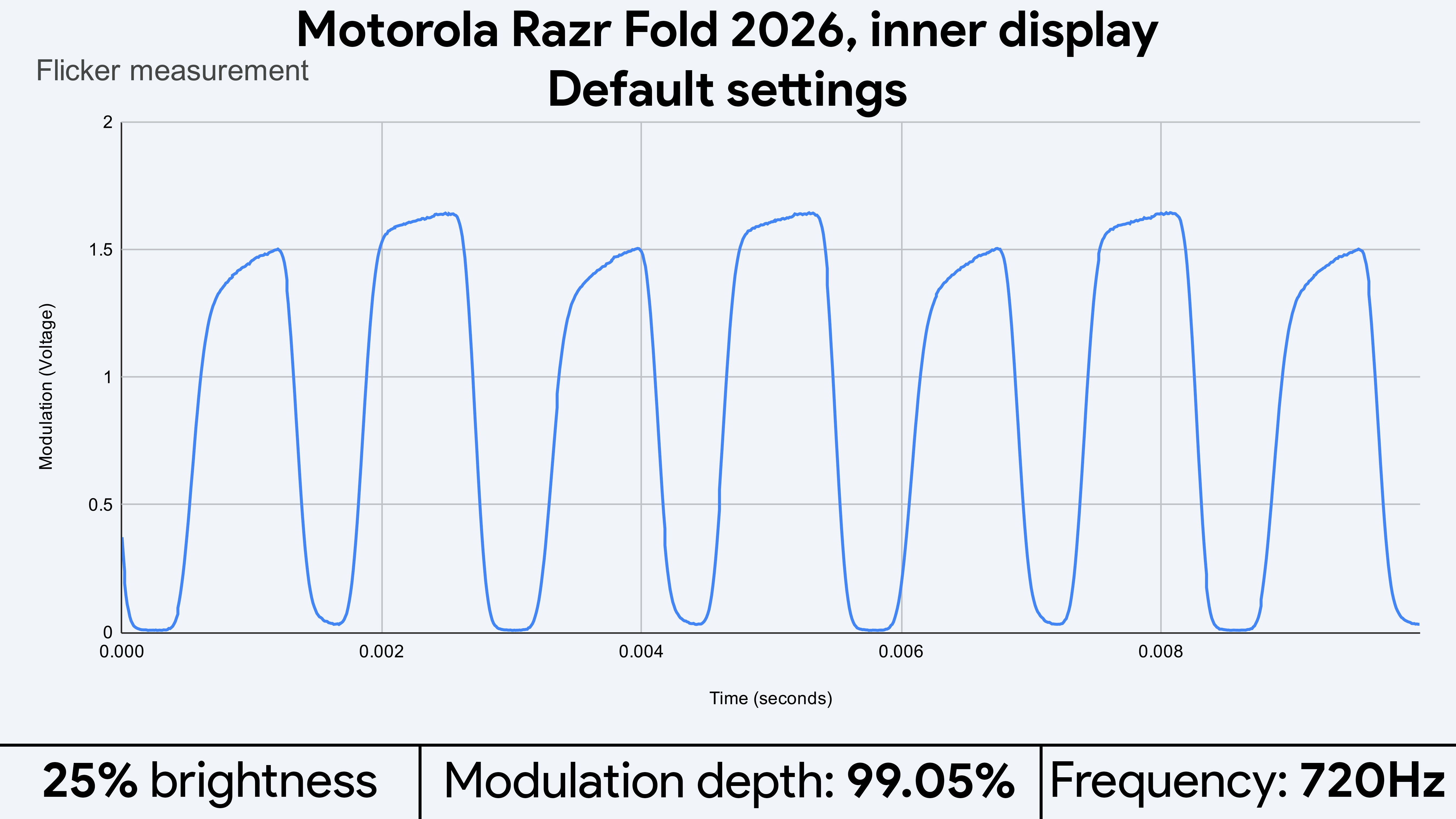
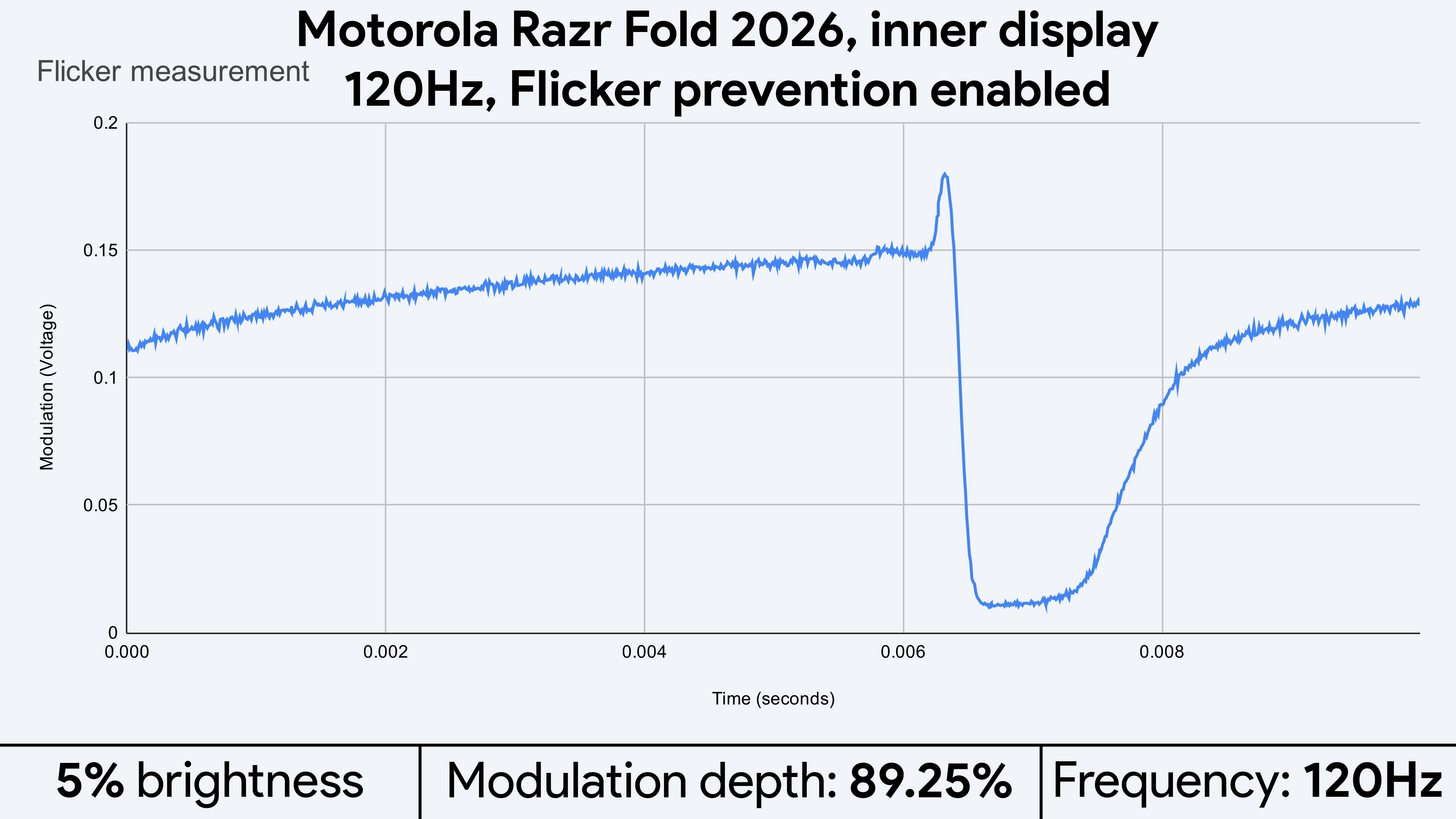
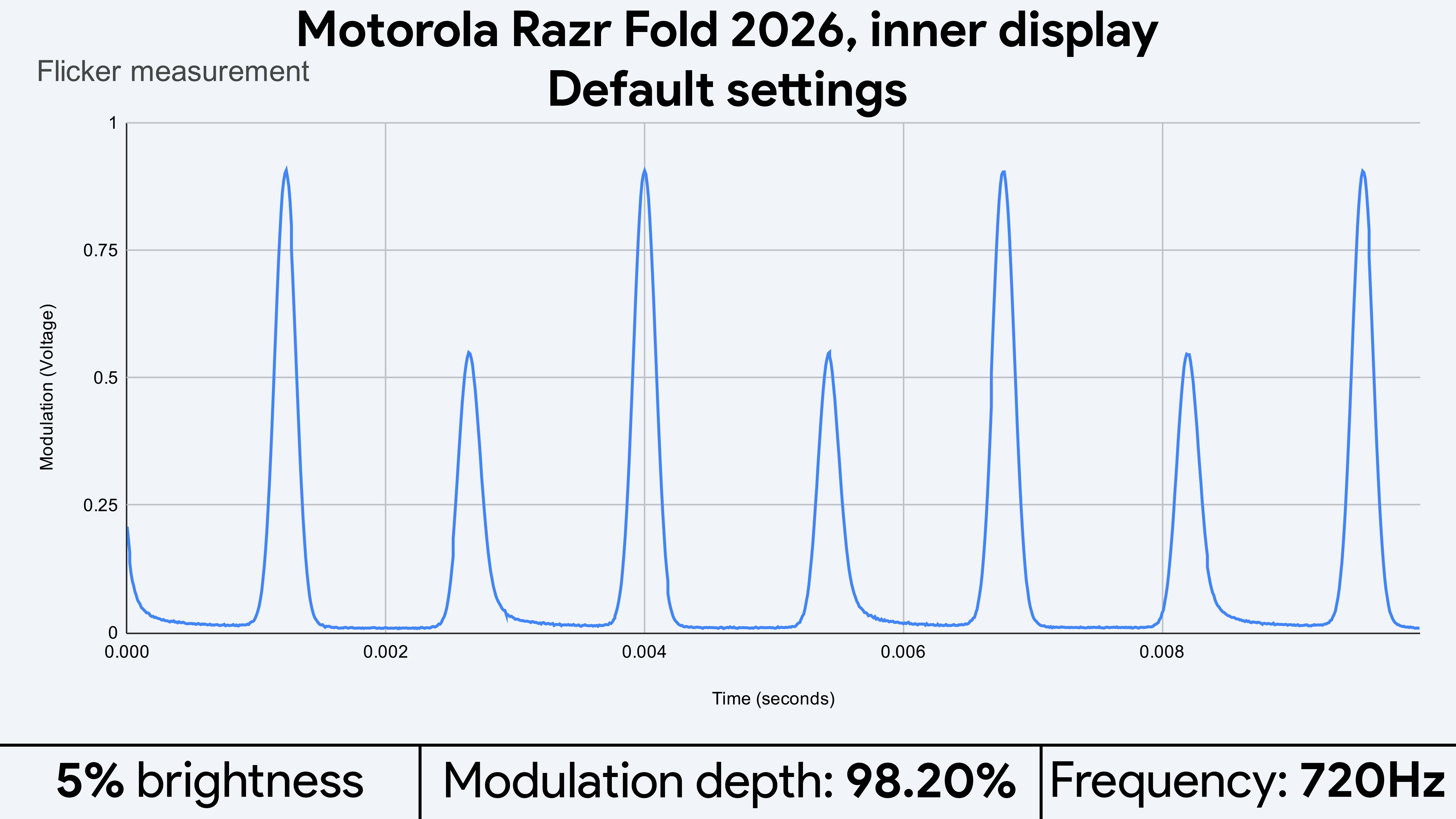
By default, the Razr Fold 2026 uses DC dimming at medium to high brightness, then switches to 720Hz PWM dimming at 30% brightness and below. Samsung and Google use 240Hz or 480Hz, depending on the phone model, which means near-instant pain for me. Things get even more comfortable for me on the Razr Fold 2026 when using the flicker-prevention feature, as the dimming rate matches the display’s 120Hz refresh rate.
Studies have shown that PWM dimming causes the most pain for flicker-sensitive users between 240Hz and 1200Hz, while the most comfortable rates are either at exactly 120Hz or above 3,000Hz. Since Motorola doesn’t offer extremely high PWM rates like Honor’s Magic V6, the best option is to enable the flicker-prevention feature (found under display settings) to lock the dimming rate at 120Hz.
Image 1 of 12
 (Image credit: Nicholas Sutrich)
 (Image credit: Nicholas Sutrich)
 (Image credit: Nicholas Sutrich)
 (Image credit: Nicholas Sutrich)
 (Image credit: Nicholas Sutrich)
 (Image credit: Nicholas Sutrich)
 (Image credit: Nicholas Sutrich)
 (Image credit: Nicholas Sutrich)
 (Image credit: Nicholas Sutrich)
 (Image credit: Nicholas Sutrich)
 (Image credit: Nicholas Sutrich)
 (Image credit: Nicholas Sutrich)
On OLEDs, this setting can introduce some noise or grain at very low light levels, but I don’t see any obvious visual problems or noise patterns on these displays. No matter which dimming setting you use, though, modulation on this display is quite high. At 70-80% modulation, it’s still lower than Samsung or Google’s 99% modulation rates, making it more comfortable than those phones, but it pales in comparison to phones like the Honor Magic V5, which sees modulation down to 28%.
While Motorola doesn’t offer as many eye care features as vendors like Honor, its phones offer substantially better eye care options than Google Pixel or Samsung Galaxy phones. If you’re in North America and don’t have official access to brands like Honor, Vivo, Oppo, and others, Motorola is the brand to pick for OLED-powered phones with good eye care solutions.
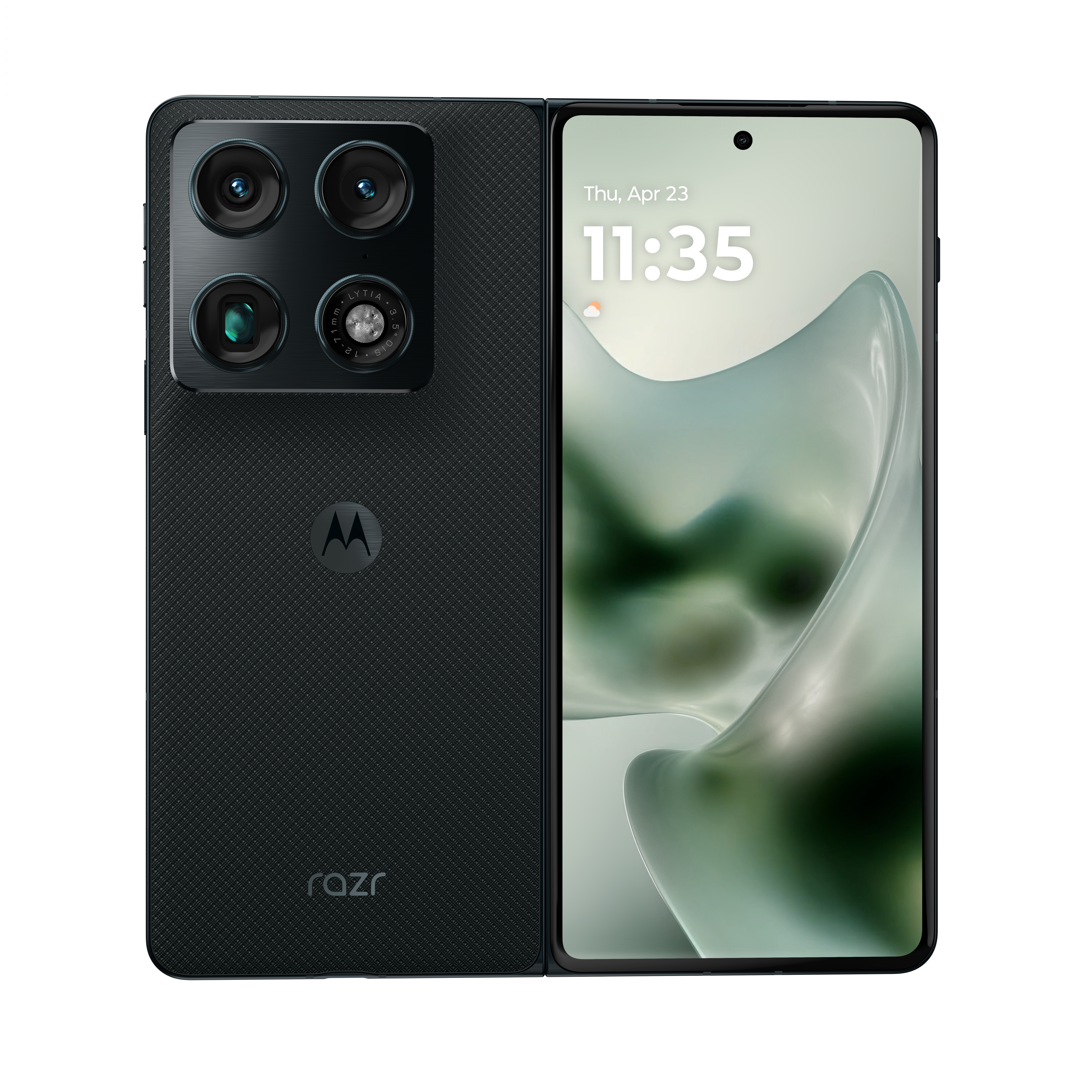
The Motorola Razr Fold’s displays are simply gorgeous, with incredible brightness levels, realistic 10-bit colors thanks to true 10-bit panels, and eye care solutions that ensure your eyes will be comfortable day and night.